
FAQ - Does Qargo have a WhatsApp integration for drivers?
Table of contents
Q: Does Qargo integrate with WhatsApp, and is it possible to communicate with drivers through it?
A: Yes! Qargo now integrates with WhatsApp! With the integration, a WhatsApp business account can be linked to Qargo. This makes it possible to manage conversations from within Qargo.
Using WhatsApp in Qargo
Once the integration is active, the WhatsApp bubble shows in all the places where drivers can currently be assigned.
-
Driver page header
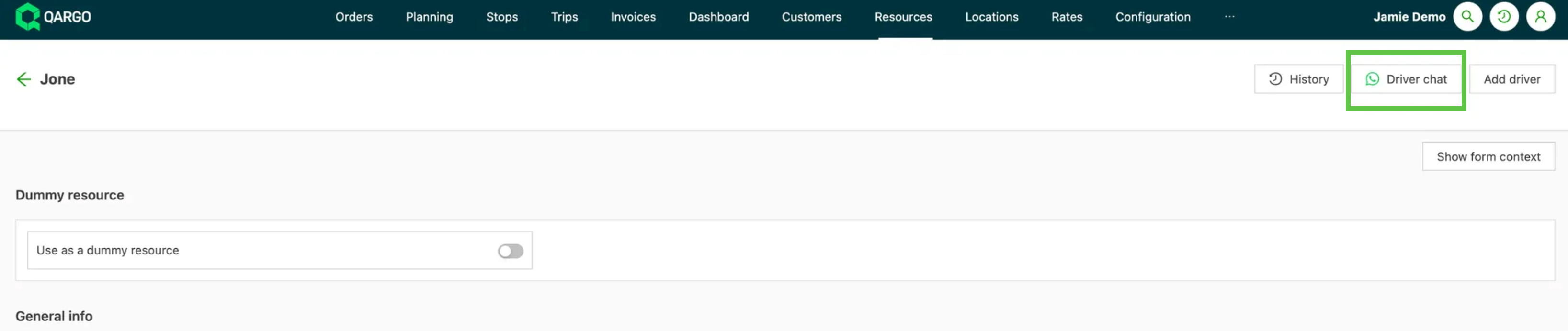
-
Load detail header
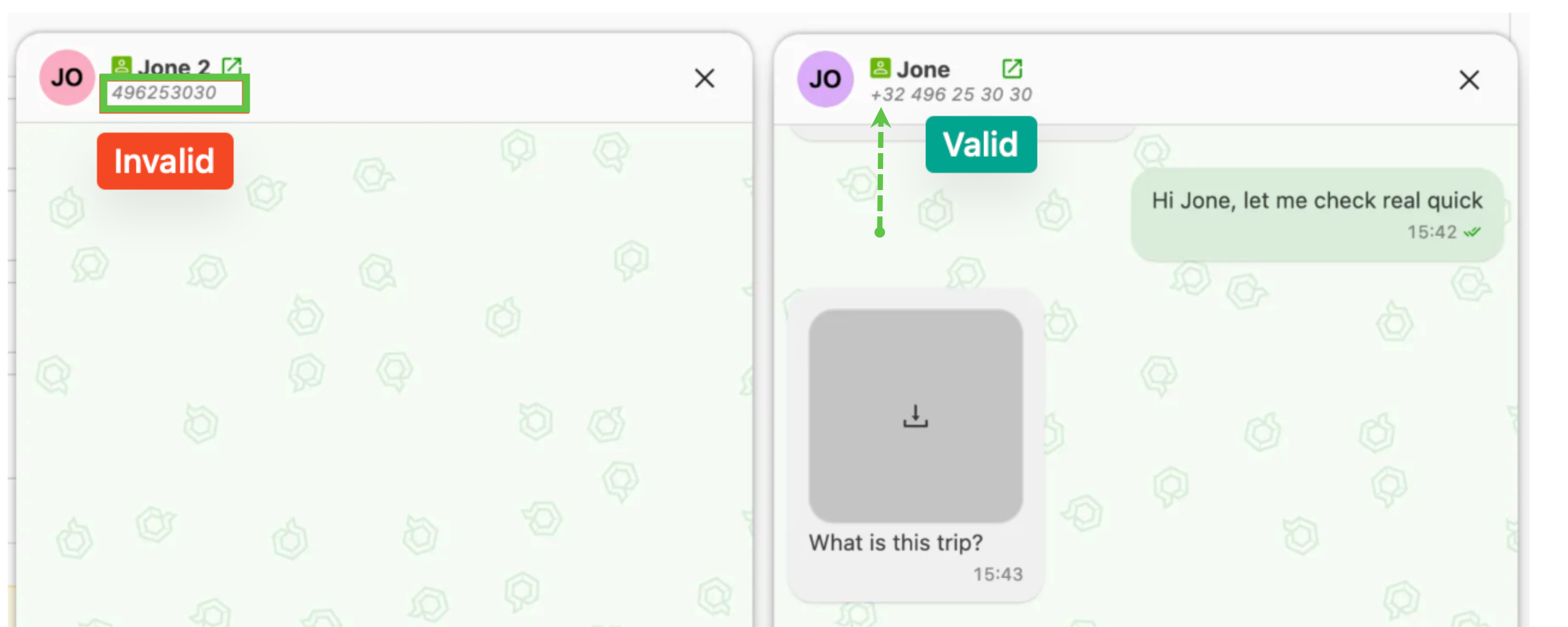
If there are multiple resources with a phone number, a selection screen appears first instead.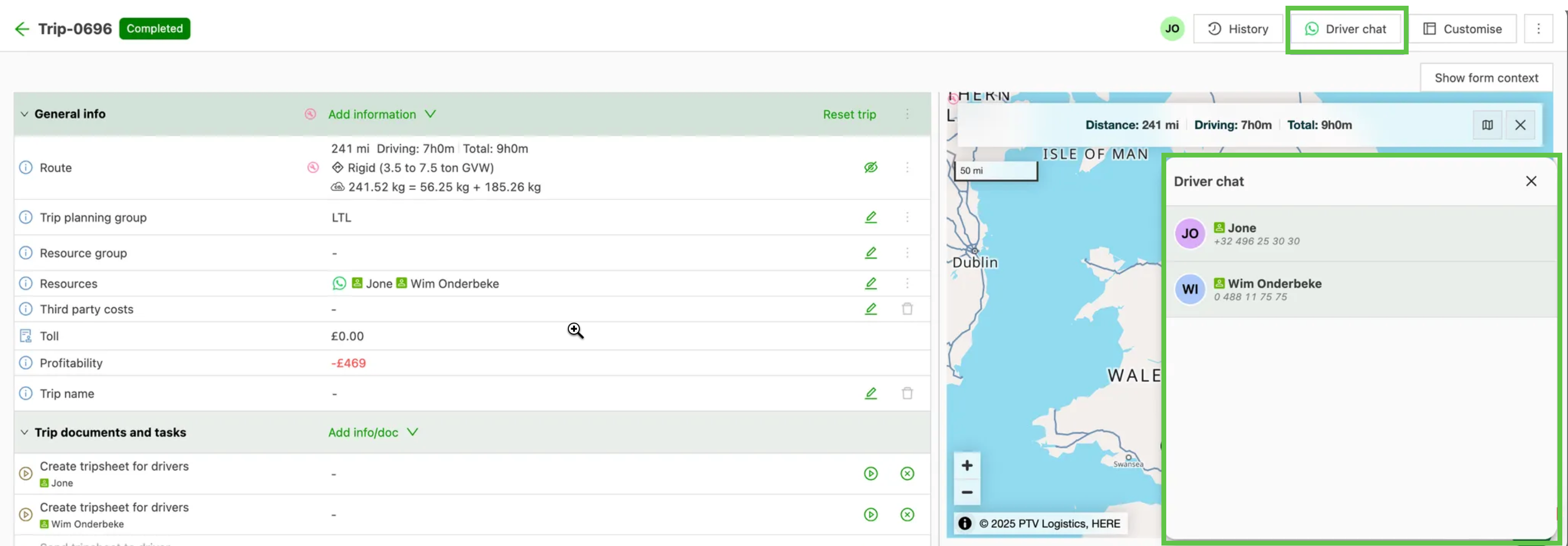
-
Resource cards
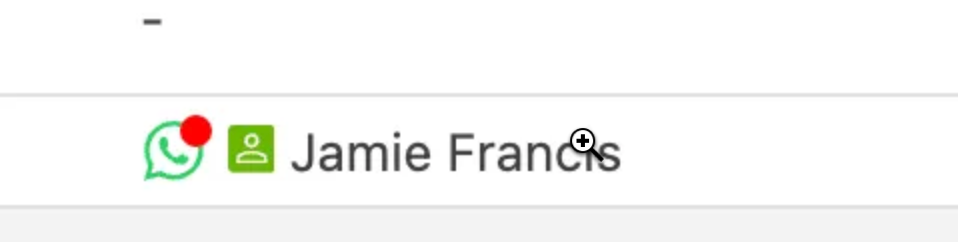
Wherever the resource card appears, a WhatsApp icon next to the resource opens the chat quickly. Pages include:- Order list
- Planning screens
- Assign resources modal
Start a conversation
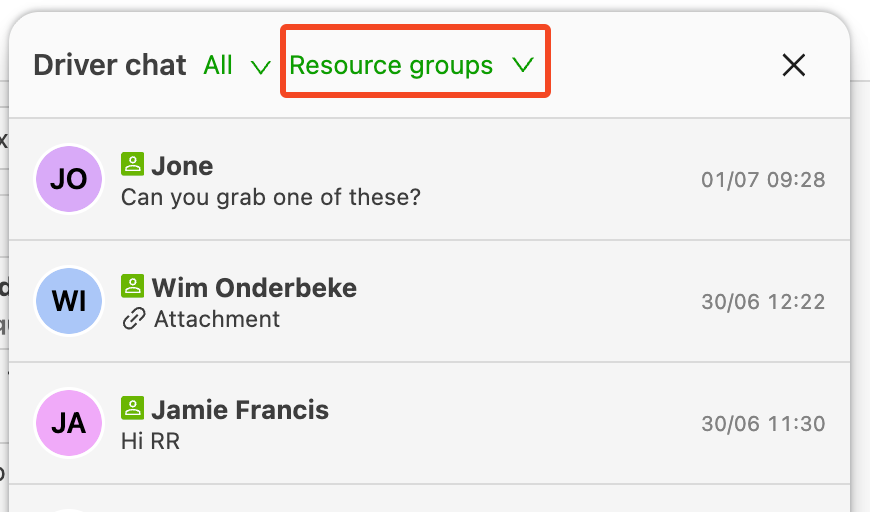
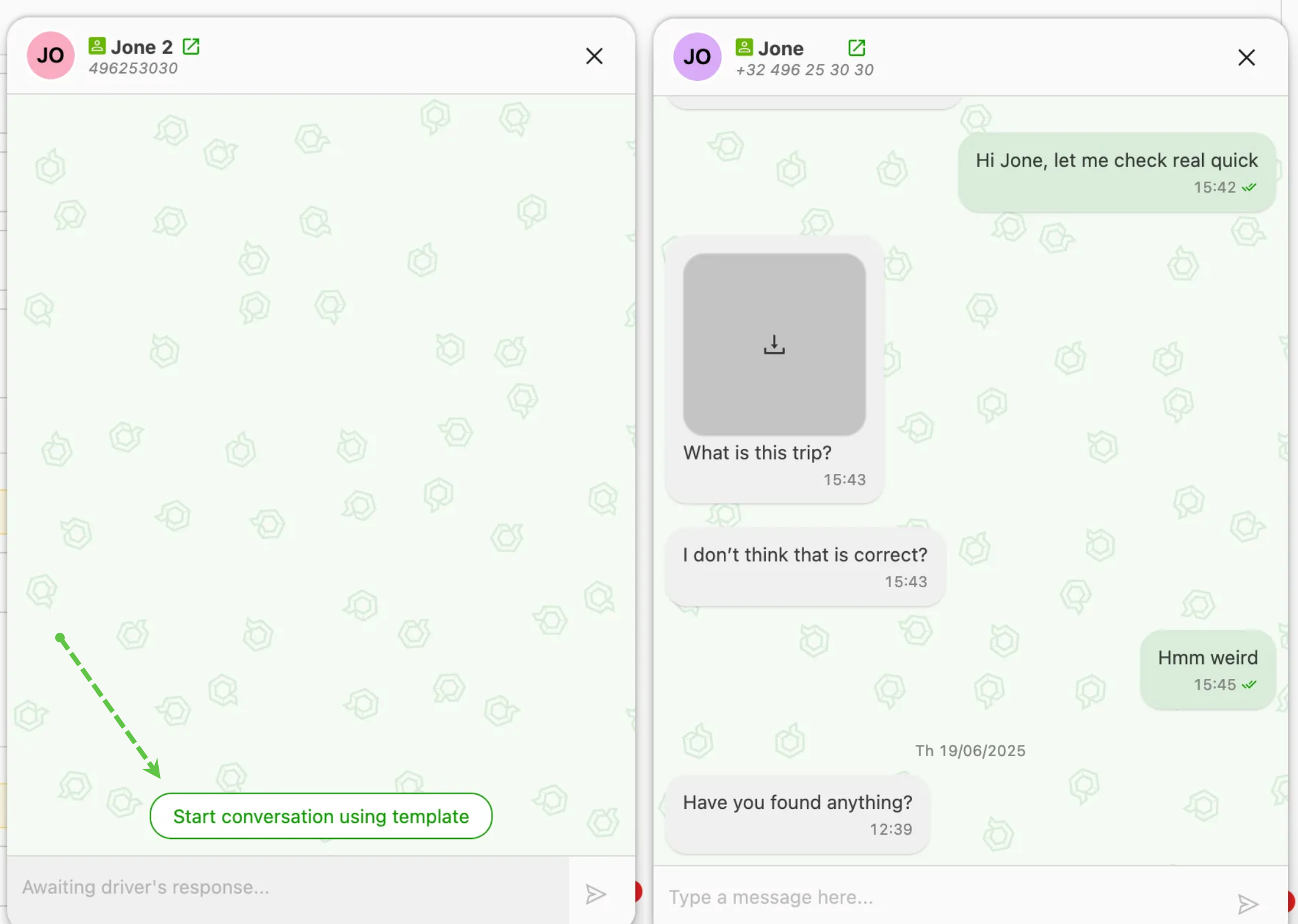
The driver chat interface opens similar to the Intercom chat. In this chat window, messages can be sent to the driver.
- The driver can open a message and start a conversation (no charges apply)
- The Qargo user can open a conversation by sending a message template (charges apply; see below)
- This is done by clicking the corresponding button.
- Once the driver accepts the message, the conversation opens and any message can be sent.
- All message history is retained in the app.
- Use the ‘Resource groups’ option to filter on a subset of drivers
Important:
WhatsApp only allows business accounts to send a message to the driver if the conversation is open. A conversation is considered open when the driver has sent a message in the last 24 hours. However, the business account can send a *registered template message to the driver, which the driver can accept to open a conversation that way.
(*Sending template messages incurs a 2-cent WhatsApp charge, paid directly to Meta.)
Sending attachments
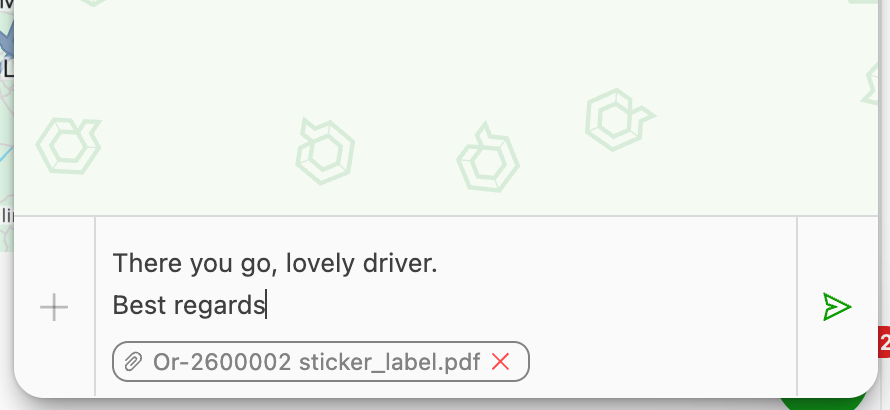
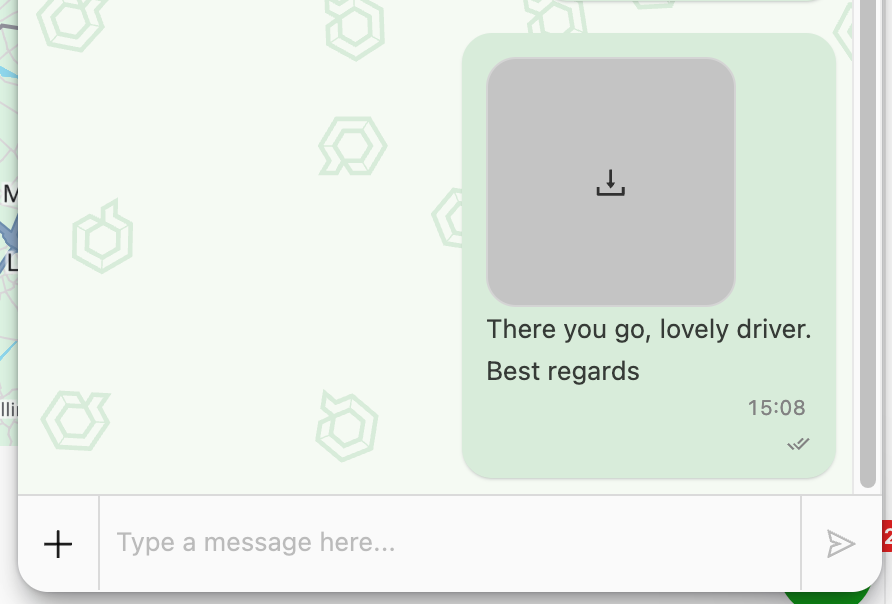
Both planners and drivers can send attachments in the chat.
Drivers can send images and PDF files directly from their phone.
Planners can send attachments in two ways:
-
Upload from device — attach an image (JPG, PNG) or PDF directly from the computer.
-
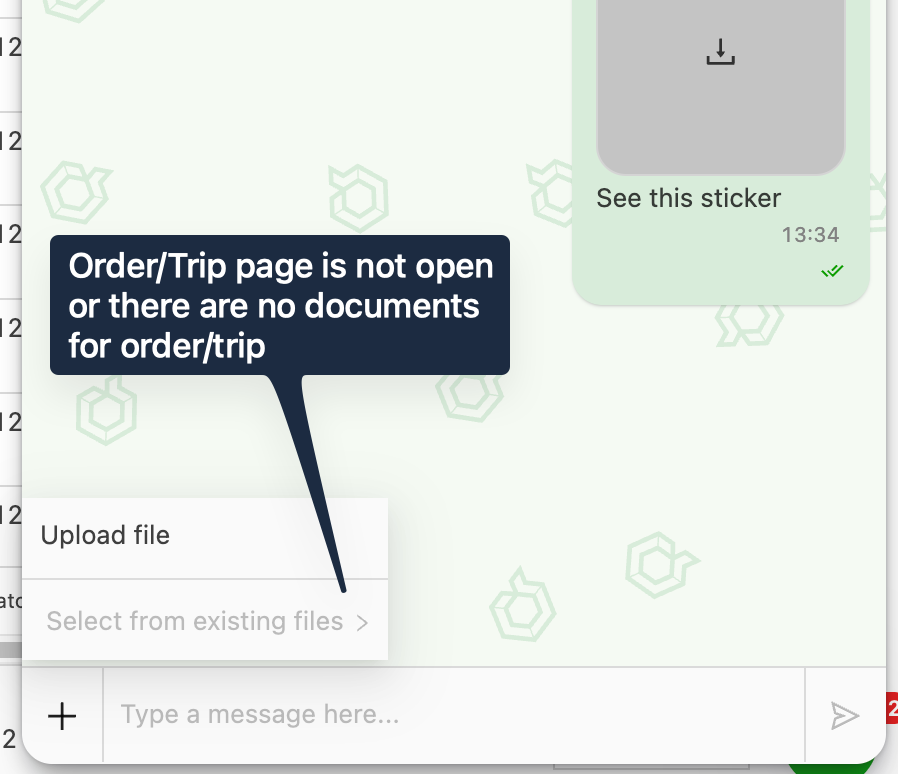
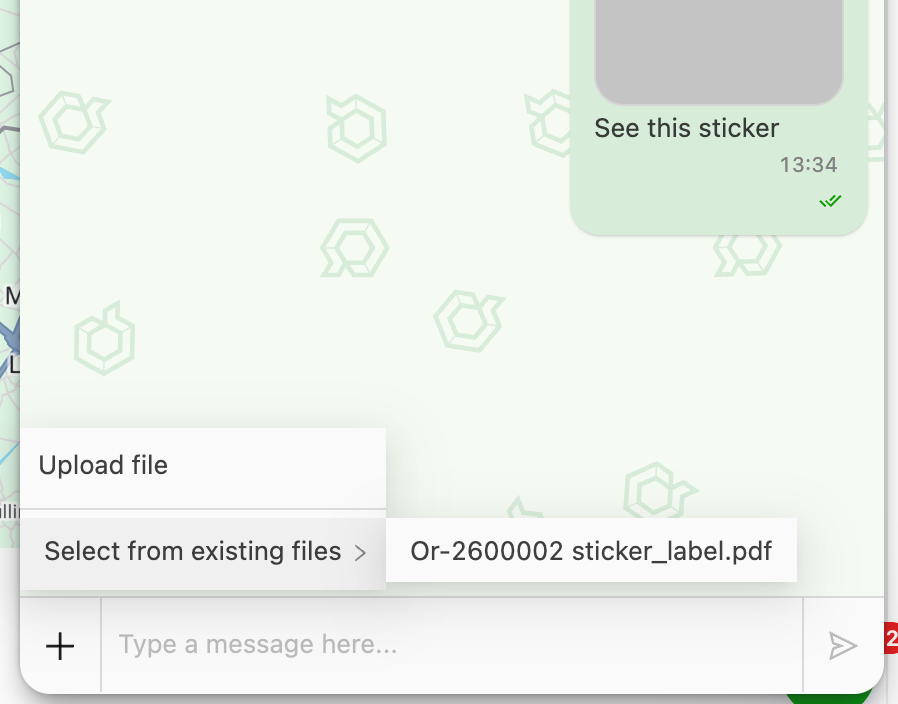
Attach existing document — select a document already stored in Qargo.
- To use this option, the relevant order or load detail page must be open in the browser.
Without detail page open
Detail page open, document can be attached
Send message with the attachment
Message the driver receives
Limitations
- Maximum file size is 100 MB. One file can be sent per message.
- Group chats are not supported.