
Integrations – WhatsApp configuration
WhatsApp integration with Qargo: this guide covers the requirements and steps to set up the integration.
Table of contents
Configure the WhatsApp integration
This guide explains how to set up a WhatsApp Business Account through the embedded signup flow in the Qargo TMS platform. This process allows a transport company to:
- Create and manage its own WhatsApp Business Account (WABA)
- Send messages to drivers and manage communication at scale
- Keep full ownership and control of its WhatsApp business assets
Time required: Approximately 15–30 minutes
Read each section carefully to ensure a successful setup.
Prerequisites
Before starting the embedded signup process, make sure the following are in place:
1. Meta Business Account
- A Facebook/Meta account with admin access
- Access to Meta Business Manager (https://business.facebook.com)
- If there is no Meta Business Manager account yet, create one at: https://business.facebook.com/overview
2. Valid phone number
-
A dedicated business phone number for WhatsApp
-
Must be able to receive SMS or voice calls for verification
-
Can be a landline number (e.g., starting with 09 for Belgium)
-
Cannot be currently registered with the WhatsApp Business app or personal WhatsApp
-
If using an existing WhatsApp number, the WhatsApp account must be deleted first

If no phone number is available that is not linked to an existing WhatsApp account, the recommendation is to get an eSIM (if the phone supports it). The eSIM must have a phone number attached to it; data-only eSIMs won’t work. Another option is to get a second physical SIM.
3. Business information ready
- Legal business name
- Business address
- Business website URL
- Business email address
- Business category (e.g., “Transportation/Logistics”)
4. Business verification documents (for full access)
- Business registration documents
- Tax identification numbers
- Utility bills or bank statements (for address verification)
5. Technical requirements
- Modern web browser (Chrome, Firefox, Safari, or Edge)
- Stable internet connection
- Pop-up blockers disabled for the signup process :::
Pre-onboarding checklist
Complete these tasks before starting the embedded signup:
-
[ ] Prepare the phone number
- If using an existing WhatsApp number, delete the account from the WhatsApp app
- Make sure the number can receive SMS or voice calls
-
[ ] Disable two-factor authentication
- If the number was previously used with WhatsApp, make sure 2FA is disabled
- This can be done in WhatsApp through Settings > Account > Two-step verification
-
[ ] Verify Meta Business Manager access
- Log in to https://business.facebook.com
- Make sure the account has admin access to the correct Business Manager
- Note: Verified Business Managers can have more than 2 phone numbers
-
[ ] Prepare business information
- Have all business details readily available
- Make sure the website is active and accessible
- Prepare a business description (for profile setup)
-
[ ] Clear browser cache
- Clear cookies and cache for Facebook/Meta domains
- Disable ad blockers temporarily
Step-by-step embedded signup process
Step 1: Initiate the embedded signup
-
Log in to Qargo with an admin account
-
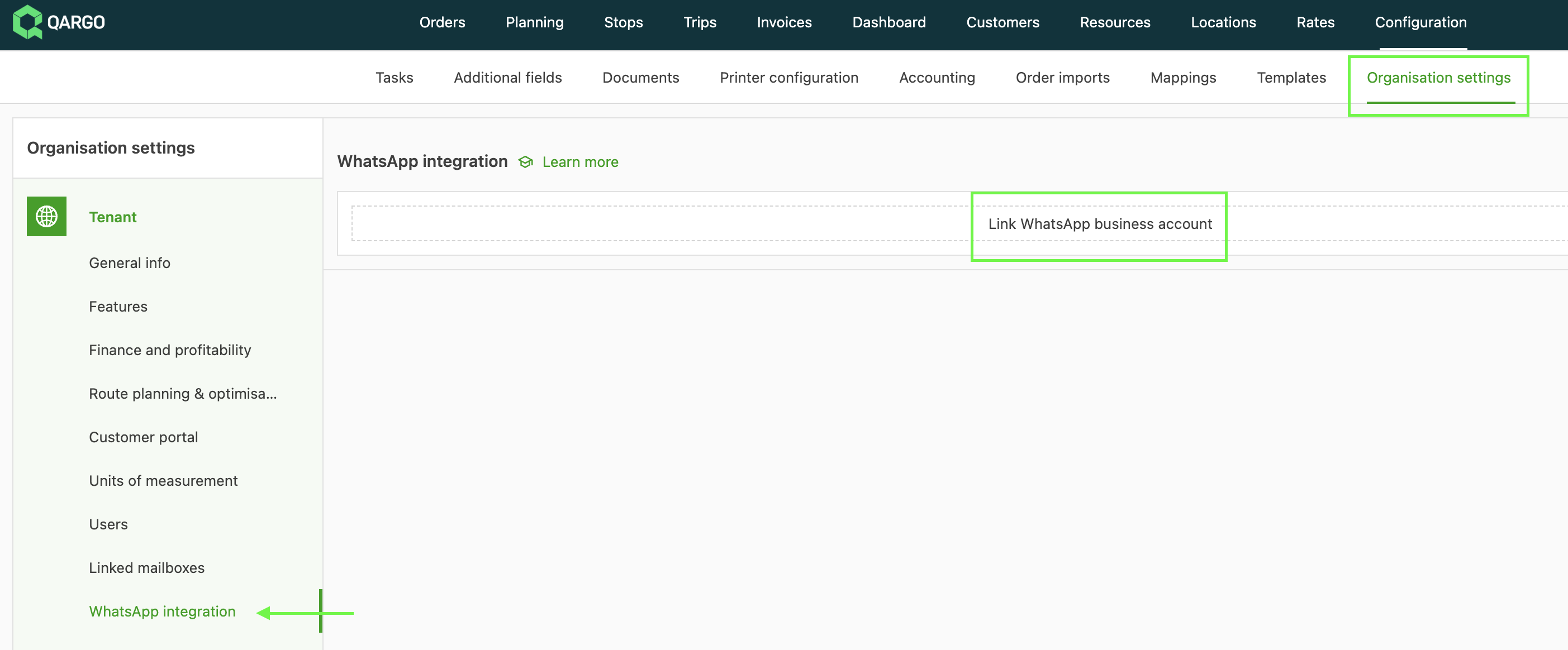
Navigate to Configuration > Organization settings > WhatsApp integration
-
Click “Link WhatsApp Business Account”
-
A “Login with Facebook” button appears: click it to begin
Step 2: Authenticate with Meta
-
Log in to Facebook/Meta
-
Enter the Facebook credentials
- Two-factor authentication might be required
-
Use the account that has admin access to the Meta Business Manager
-
-
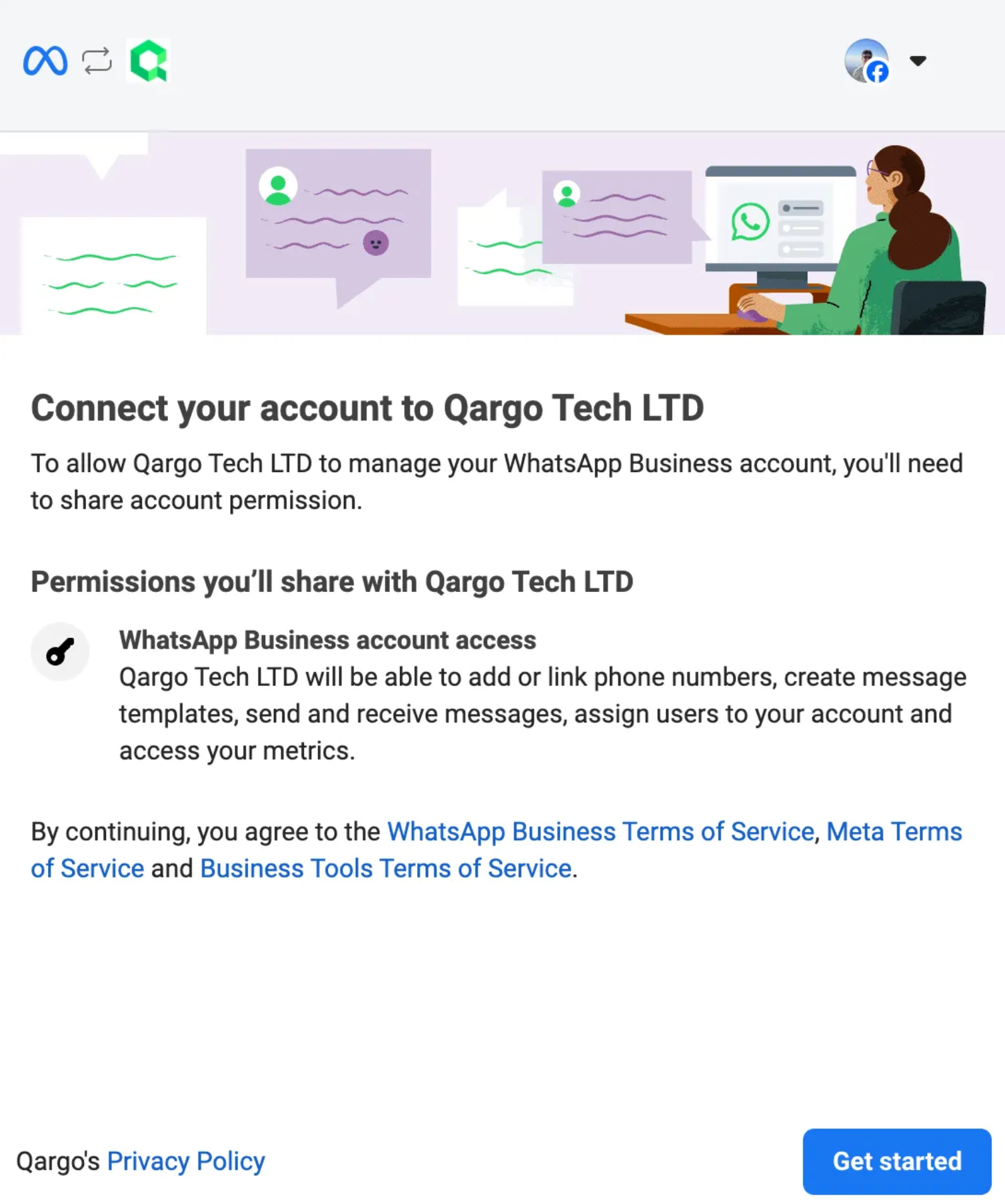
Grant permissions
-
Click “Get Started” to connect the account
-
Review the requested permissions
-
Click “Continue” to proceed
-
Step 3: Select or create a business portfolio
-
Choose a business portfolio
- Select the existing Meta Business Portfolio from the dropdown
- Or create a new one for a first-time setup
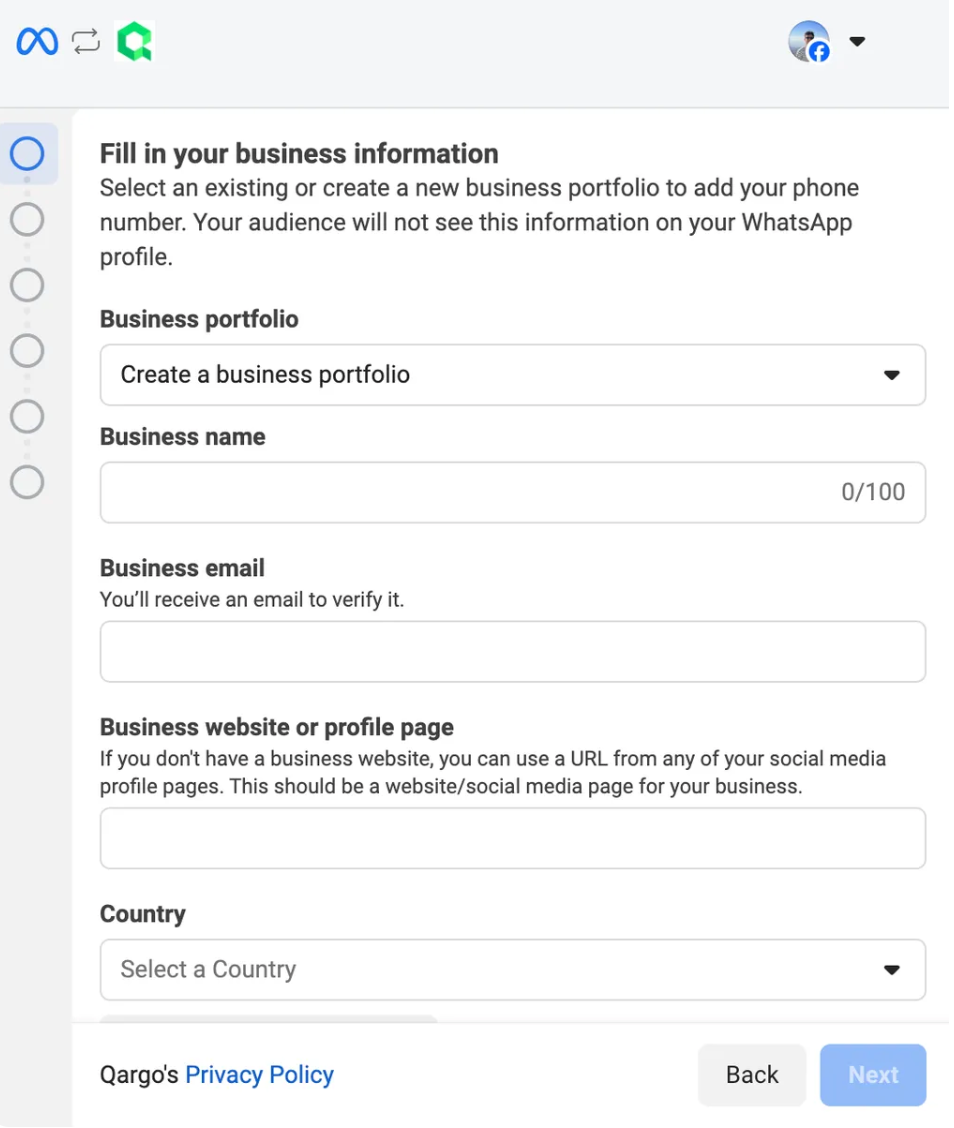
Critical: Choose the Business Manager carefully, as it cannot be changed after the number is registered.
Step 4: Set up the WhatsApp Business Account
There are two options:
Option A: Create a new WABA (first-time users)
-
Select “Create a new WhatsApp Business Account”
-
Enter the following information:
- WhatsApp Business Account Name: The company name
- WhatsApp Business Display Name: The name visible to customers
- Category: Select “Transportation” or the most relevant category
-
Click ‘Next’
Option B: Use an existing WABA (returning users)
- Select the existing WABA from the dropdown
- Create a new WhatsApp Business Profile for the new number
- Click ‘Next’
Step 5: Add and verify the phone number
-
Enter the phone number
- Use international format with the country code (e.g., +1234567890)
- Do not include spaces or special characters
-
Choose a verification method
- SMS (recommended): A 6-digit code is sent by text message
- Voice call: A phone call provides the verification code
-
Enter the verification code
- Enter the 6-digit code received
- Click “Verify” to confirm
Troubleshooting: If the code does not arrive within 5 minutes, try the alternative verification method.
Step 6: Configure the business profile
-
Business information
- Upload a business logo (recommended: 640x640px, PNG or JPG)
- Add a business description (up to 512 characters)
- Select business hours (optional)
- Add the business website URL
-
Contact information
- Confirm the business email
- Add additional contact methods if needed
-
Review and confirm
- Review all entered information
- Click “Finish” to complete setup
Step 7: Complete the integration setup
After Meta verification, the user is redirected back to the TMS platform:
-
Confirm the phone number
- Check that the phone number is displayed correctly
-
Create a PIN
- Set a 6-digit PIN for future administrative actions
Re-authenticating requires the same PIN chosen here, so it is important to remember it.
To change the two-step verification PIN on a WhatsApp Business account, open WhatsApp Manager, navigate to Account tools > Phone numbers, and then select the specific phone number. From there, go to the Two-step verification settings and choose the Change PIN option :::
Post-onboarding setup
1. Add a valid payment method
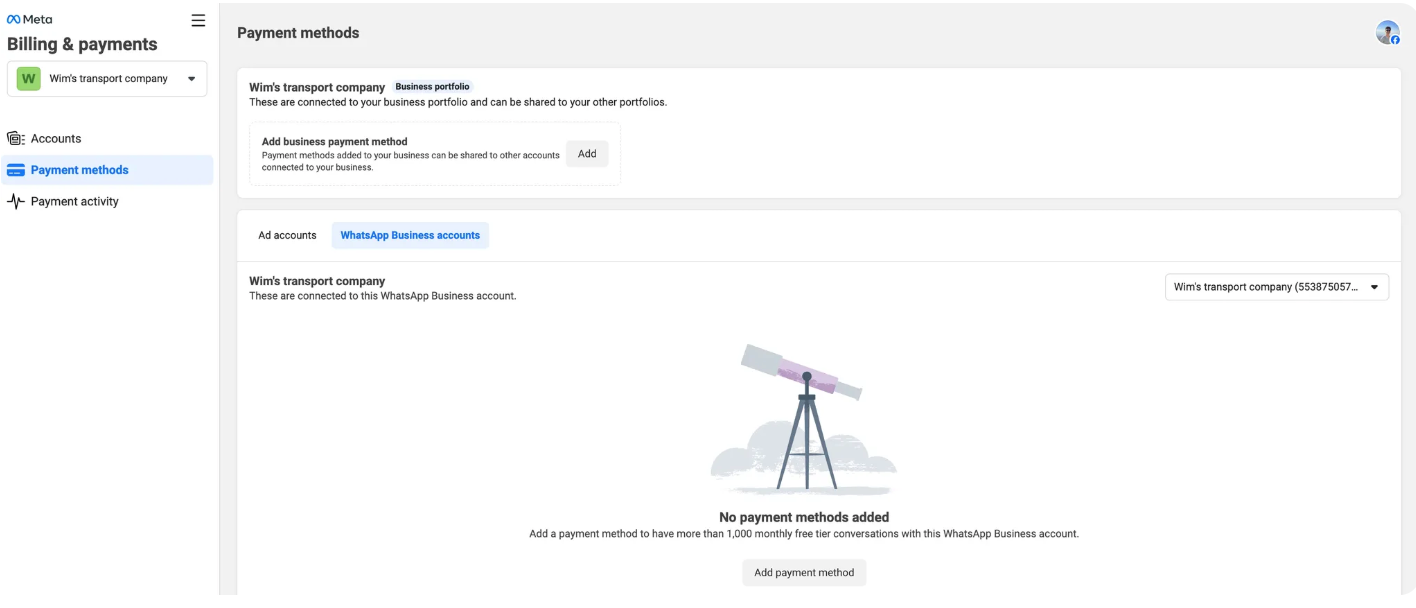
To send template messages that open conversations with drivers, a valid payment method must be added to the WhatsApp business account. This can be done in the Facebook billing hub: https://business.facebook.com/billing_hub. Under Payment methods > WhatsApp Business accounts, select the business account:
2. Complete business verification (within 30 days)
To unlock full messaging capabilities:
-
Go to Meta Business Manager: https://business.facebook.com
-
Navigate to Business Settings > Business Info
-
Click “Start Verification”
-
Submit the required documents:
- Business registration certificate
- Tax documents
- Utility bills or bank statements
:::
Troubleshooting
1. Phone number verification fails
Issue: Verification code not received
Solutions:
- Make sure the number can receive SMS/calls
- Try the alternative verification method
- Check whether the carrier is blocking the number
2. Business Manager not verified
Issue: Limited to 2 phone numbers
Solution:
- Complete business verification in Meta Business Manager
- Submit all required documents
- Allow 2–3 business days for review
4. Session timeout
Issue: Embedded signup session expires
Solution:
- Complete signup within 60 minutes
- Have all information ready before starting
- Clear the browser cache and restart if needed
5. Number already registered
Issue: Phone number is already associated with WhatsApp
Solution:
- Delete the existing WhatsApp account first
- Wait 24 hours before attempting signup
- Contact the previous provider to release the number (if applicable)
FAQs
Why is a Facebook account needed for the WhatsApp integration?
WhatsApp is owned by Meta (formerly Facebook), so a Facebook account is required for authentication. The Facebook account used to set up the WhatsApp business account becomes the admin account, which manages the WhatsApp business settings. An admin can add other accounts with different roles to the WhatsApp business account.
Is a new phone number needed?
It depends on the current situation:
- If the company already has a business phone number that is not linked to any WhatsApp account, this existing number can be used
- If the number is already linked to a WhatsApp account, a new number is needed
- For testing or implementation without purchasing a second physical phone, an eSIM is recommended if the device supports both eSIM and physical SIM simultaneously
How can access to the WhatsApp Business account be shared within a company?
Once the WhatsApp Business account is set up by an admin, that admin can grant access to other team members by adding them with appropriate roles through the Meta Business Manager. This allows multiple team members to manage conversations without sharing phone devices.
This addition should help clarify the most common questions that arise during the setup process and prevent similar questions in the future.
An error message states “Maximum amount of phone numbers reached”
An unverified WhatsApp business account can only have up to 2 linked phone numbers. To add another one, either:
- Verify the WhatsApp business
- Remove one of the existing numbers
Are messages sent to drivers charged?
Qargo does not charge for using the WhatsApp integration. However, WhatsApp charges may apply; these are paid directly to Meta.
-
If the driver sends an initial message, messages can be sent and received for free within a 24-hour period. Any message received from the driver acts as a ‘refresh’ of the timeframe.
- All conversation history is retained in the app.
-
If a Qargo user initiates a ‘Template Message’ to start a conversation with a driver, this incurs a WhatsApp charge (2 cents).
- This is charged to the credit card linked to the Meta business account.