
INTEGRATIONS - Claude: connect to Qargo over MCP - Walkthrough
Connect a Qargo account to Claude, then ask Claude questions about live data. Who sets it up depends on the Claude plan, and Claude Code follows a different route.
Table of contents
Prerequisites
- Qargo Intelligence on the tenant. MCP is part of the Qargo Intelligence add-on. If the tenant does not have it, contact the Account Manager.
- MCP access set for the user. A Super admin in the organization sets it in Configuration > Organization settings > Users. No request to Qargo is needed. See INTEGRATIONS - Connect an AI assistant to Qargo over MCP for the steps.
- The usual Qargo sign-in details. There is no separate key or token.
| Setup | Who adds the Qargo connector | Sections to follow |
|---|---|---|
| Claude Desktop or claude.ai, Team or Enterprise | An Owner, once for the organization | Team and Enterprise: add the connector, then Team and Enterprise: connect an account |
| Claude Desktop or claude.ai, Free, Pro or Max | Each user, individually | Free, Pro and Max: add the connector individually |
| Claude Code | Each user, per project | Claude Code: register the server |
Team and Enterprise: add the connector
On Team and Enterprise plans, only an Owner can add a custom connector. Add it once for the whole organization. Members then connect their own Qargo accounts.
Requirements
- Owner or Primary Owner rights in the Claude organization. Members cannot add custom connectors.
- MCP access set in Qargo for the users who need it. A Super admin sets it per user in Configuration > Organization settings > Users. Do this before adding the connector, so members can connect immediately.
Add the connector
- Navigate to Organization settings > Connectors.
- Click Add, then Custom. Choose Web if Claude asks for a connector type.
- Enter Qargo as the name.
- Enter https://mcp.qargo.com/mcp as the remote MCP server URL.
- Click Continue.
- Leave Authentication and OAuth client as Claude fills them in. Claude detects the correct settings for Qargo, so there is no need to open Advanced or enter an OAuth client ID or secret.
- Click Add.
What adding it does, and does not do
- Adding the connector grants nobody access to data. It only makes Qargo available to connect to.
- Each member authenticates separately and receives only their own Qargo permissions.
- Claude settings cannot widen Qargo access. A member on Read-only cannot change data, whatever the organization allows. Levels are set per user in Qargo, under Configuration > Organization settings > Users.
Members then follow the next section.
Team and Enterprise: connect an account
Qargo should already appear in the connector list. If it does not, ask an Owner to add it.
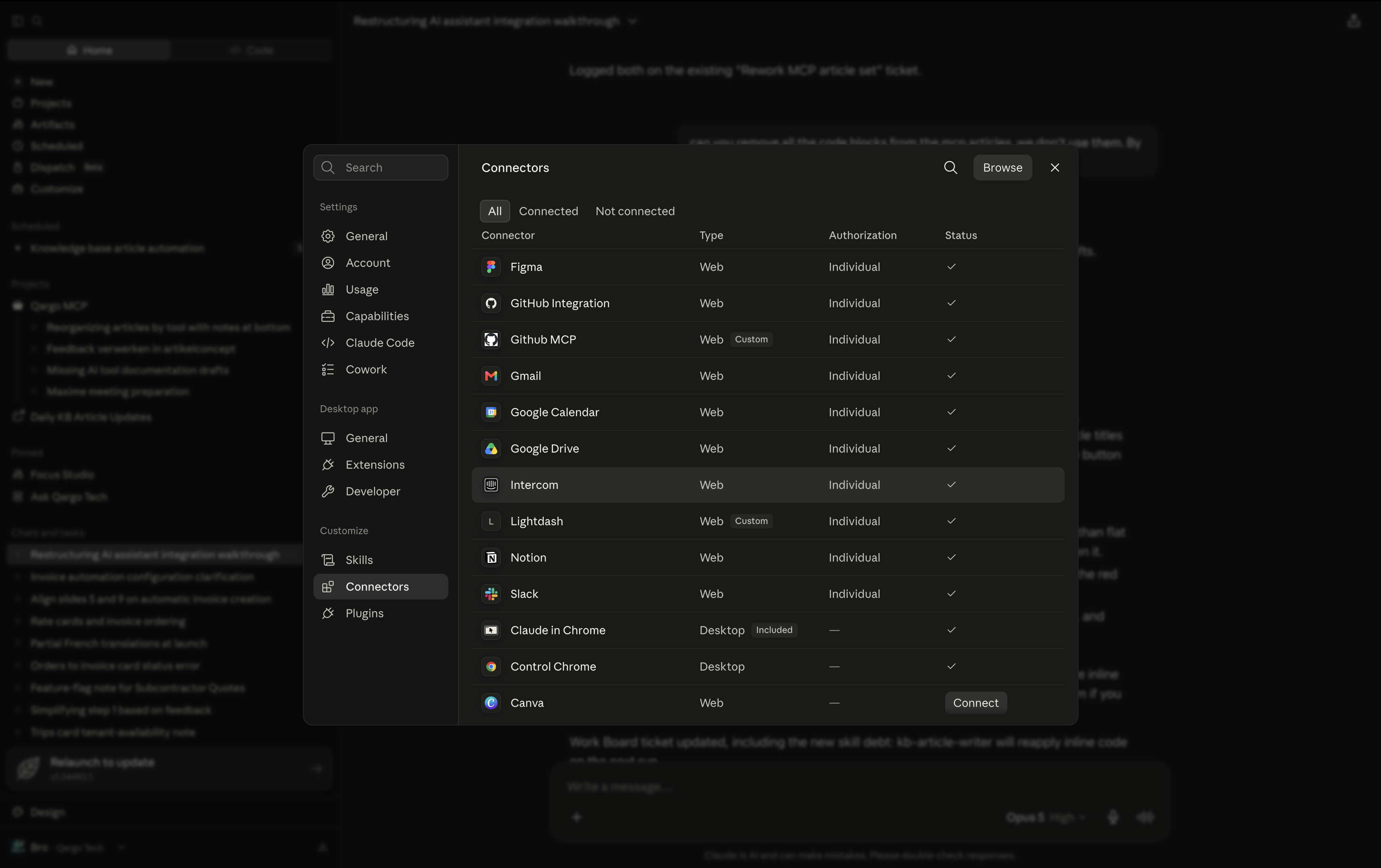
- Navigate to Customize > Connectors.
- Find Qargo in the list and click Connect.
- Sign in with the normal Qargo credentials when the browser opens.
- Approve the access request. The browser returns to Claude.
Free, Pro and Max: add the connector individually
On an individual plan, there is no Owner to wait for. The Free plan allows one custom connector.
- Navigate to Customize > Connectors.
- Click Add at the top right of the Connectors panel, then Add custom connector.
- Enter Qargo as the name and https://mcp.qargo.com/mcp as the remote MCP server URL.
- Click Continue.
- Leave Authentication and OAuth client as Claude fills them in. Claude detects the correct settings for Qargo, so there is no need to open Advanced or enter an OAuth client ID or secret.
- Click Add, then Connect, and sign in with the Qargo credentials.

Claude Code: register the server
Claude Code uses one terminal command instead of a settings panel. Every user sets this up individually, whatever the plan.
Requirements
- Claude Code installed and working in the project that needs Qargo access.
- A local browser. Authentication opens one. It cannot be completed over a remote shell session.
Register the server
- Open a terminal in the project that should have access.
- Run claude mcp add —transport http qargo https://mcp.qargo.com/mcp.
- Run claude mcp list. Qargo shows as Needs authentication, which is expected at this point.
- Type /mcp inside Claude Code.
- Select qargo, press Enter, then choose Authenticate. A browser window opens.
- Sign in with the normal Qargo credentials. The terminal then reports the server as authenticated.
Verify the connection
Ask Claude to list the Qargo tenants. A reply naming the tenant confirms that the connection works.
Name Qargo in the question when Claude answers from general knowledge instead of Qargo data, for example: ask Qargo which orders are still unplanned for tomorrow.
Changing data
The first change to production data in a session is stopped, and Claude returns an approval link. Open it, approve, and ask Claude to retry. Full steps are in INTEGRATIONS - Connect an AI assistant to Qargo over MCP.
Troubleshooting
| Issue | Resolution |
|---|---|
| Qargo is not in the connector list and the Add menu offers no Add custom connector option | The account is on Team or Enterprise. Ask an Owner to add the connector. |
| The Add button is missing from Organization settings | The user is not an Owner or Primary Owner. Ask one to add the connector. |
| Members cannot see Qargo in their connector list | Confirm that the connector was added at the organization level, not in a personal profile. |
| The browser shows an unknown client error during sign-in | Reconnect the connector. On Team or Enterprise, ask an Owner to remove and re-add it. This can happen after a Qargo platform update. |
| The connector is listed but Claude has no Qargo tools | Either the session expired (sessions typically last a day), so connect again, or Qargo is switched off for this conversation. Click the + button in the chat, hover over Connectors, and toggle Qargo on. |
| Claude reports that MCP access is not enabled for the user | The user’s access is still set to Disabled. Ask a Super admin to set it in Configuration > Organization settings > Users. |
| Claude can list tenants but every other request fails | External API access is not enabled on the tenant. Contact the Account Manager. |
| A read works but a change is refused | The user is on Read-only. A Super admin can change the level in Configuration > Organization settings > Users. |
| No browser opens during Claude Code authentication | The session is running over a remote shell. Authenticate on a machine with a browser instead. |
| /mcp does not list qargo | The current project is different from the one where the server was registered. Change directory, or add the server again with —scope user. |
| The terminal reports an unknown client error | Remove the server with claude mcp remove qargo, then add it again. This can happen after a Qargo platform update. |