
FAQ: Logging in to Qargo
All the frequently asked questions about logging in to Qargo are here:\nThe current login screen, first login for new users, automatic sign-out, and troubleshooting.
Table of contents
How to log in to Qargo
-
Go to the Qargo login page.
-
Enter the email address.
-
Click Next.
-
Two options then display:
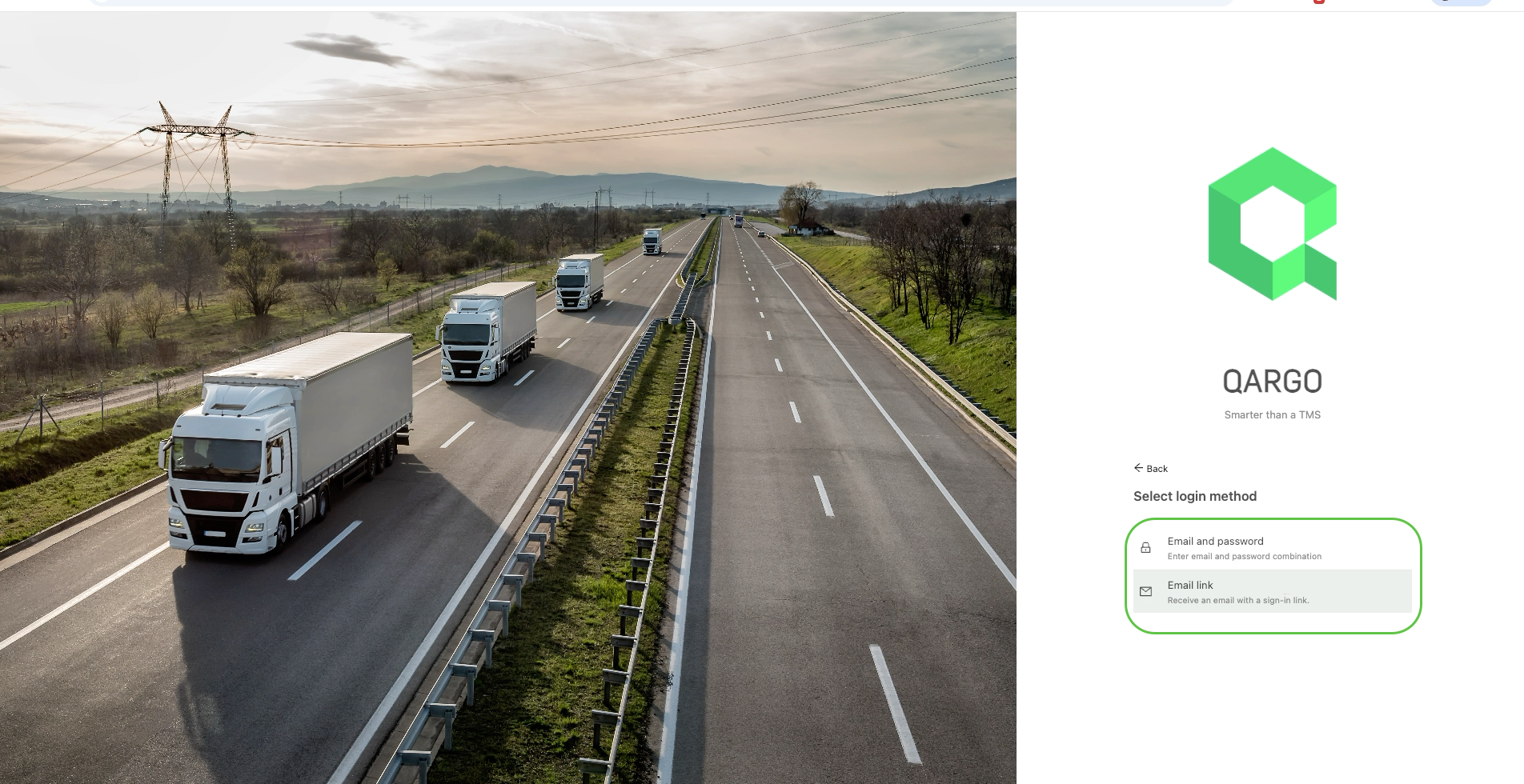
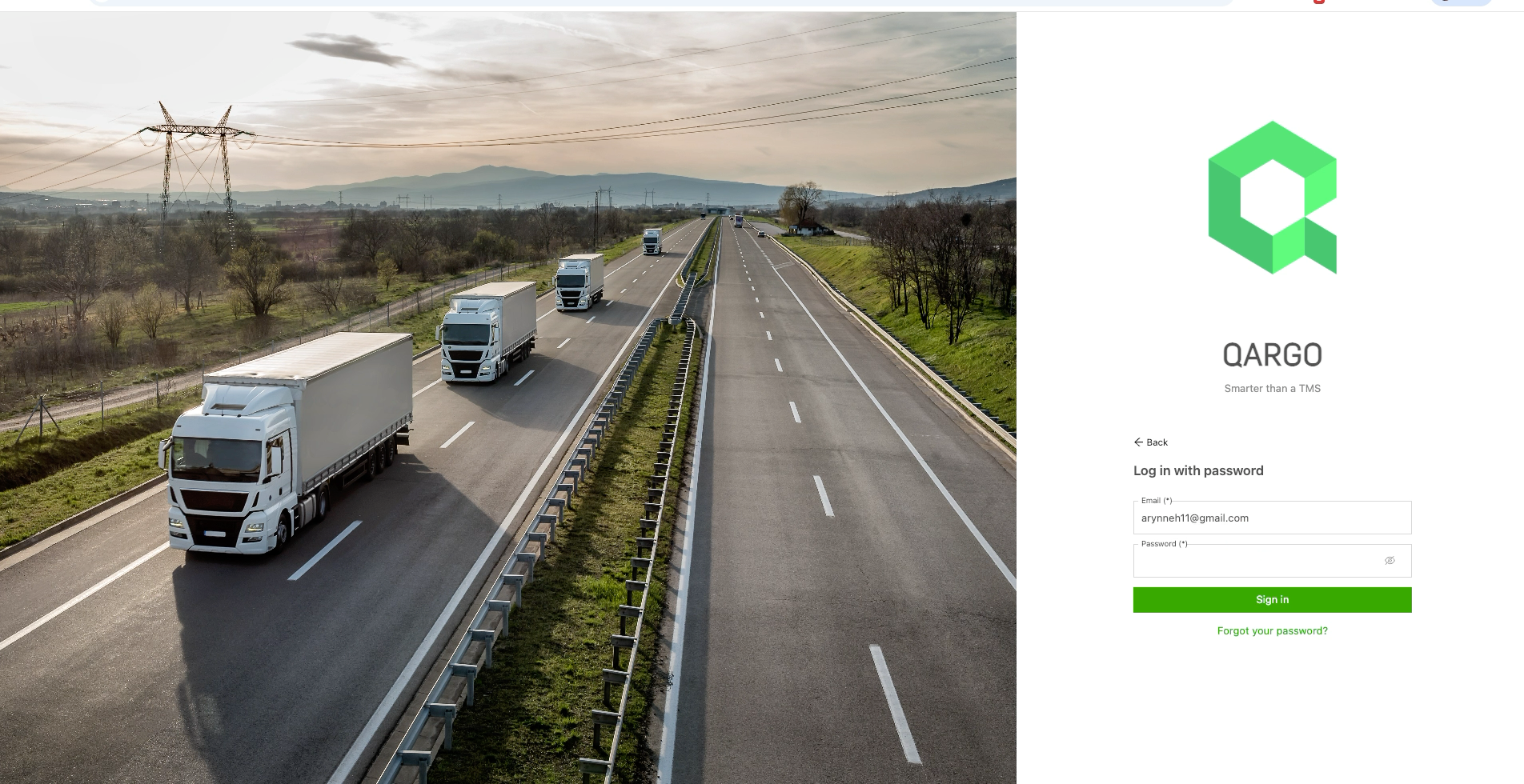
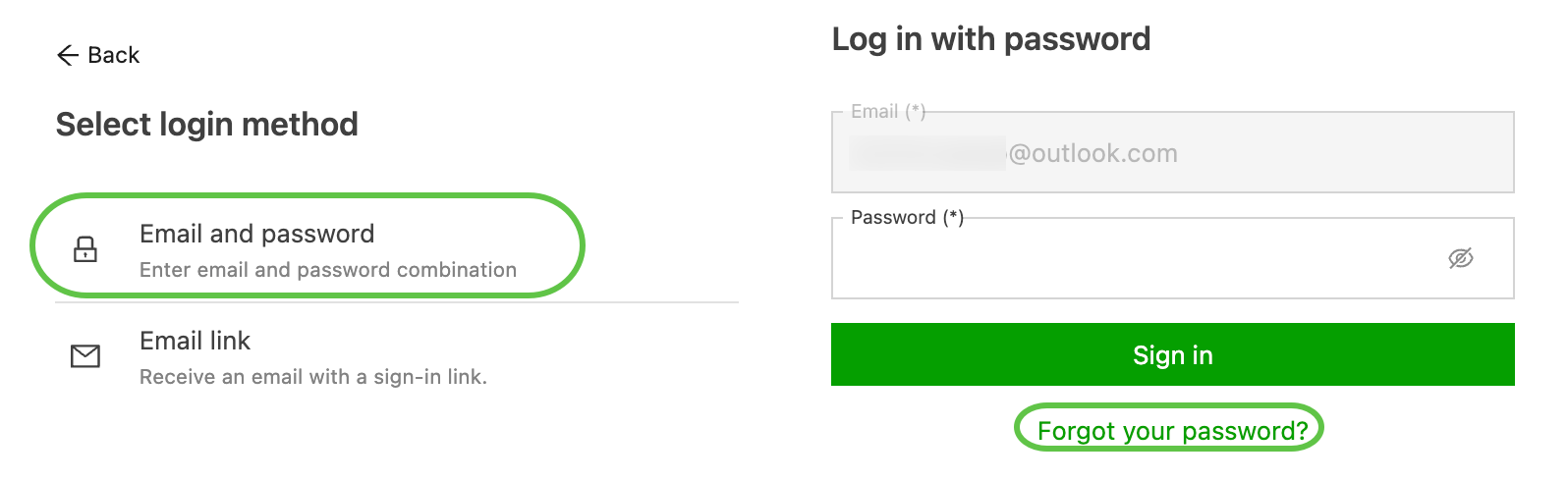
Email and password: Use the password created earlier. If the password is forgotten, click Forgot your password? to receive a password reset email.
Email link: An email with a secure link is sent. Click the link to log directly in to Qargo.
How drivers can log in to the driver mobile app
- Open the driver mobile app.
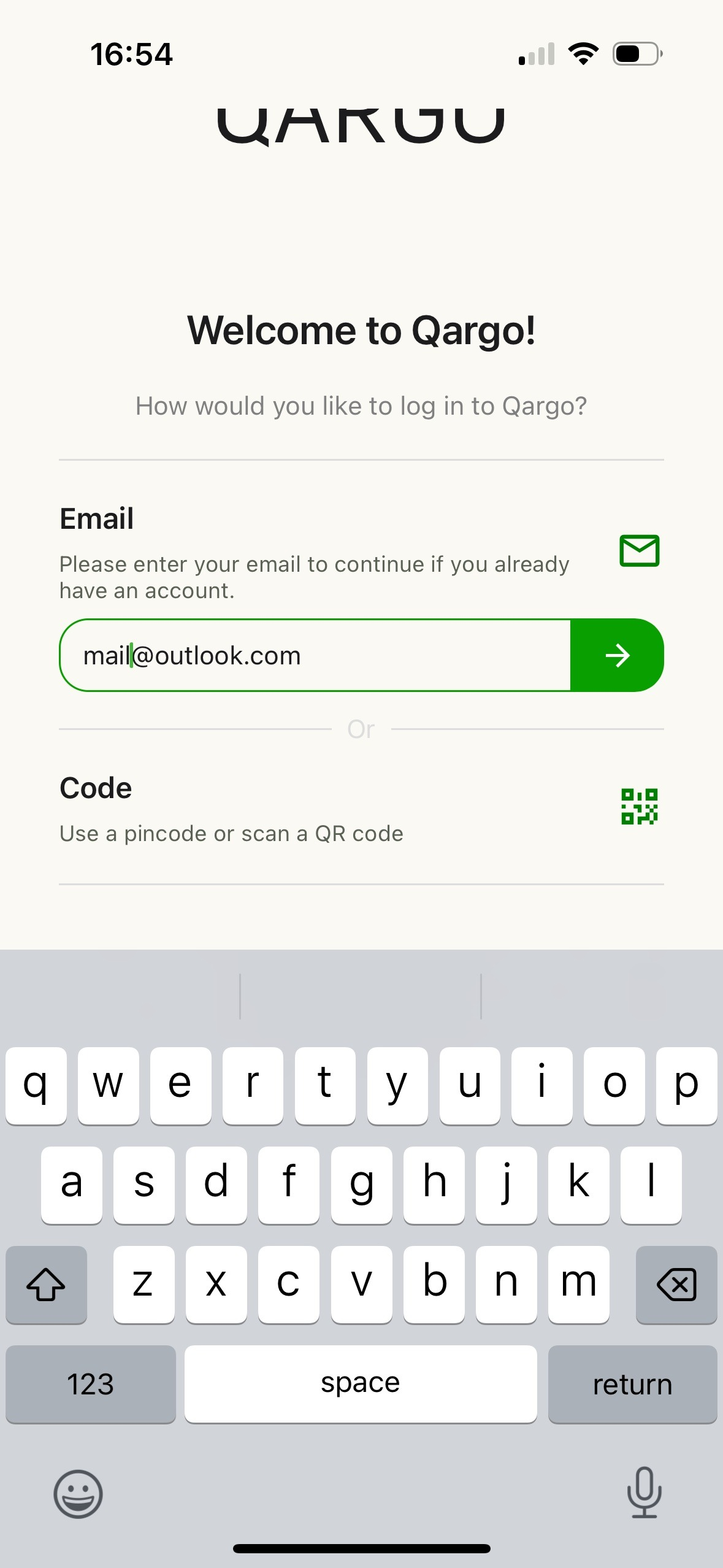
- Two options (Email and Code) appear.
For Email: Enter the email address, and click the arrow icon.
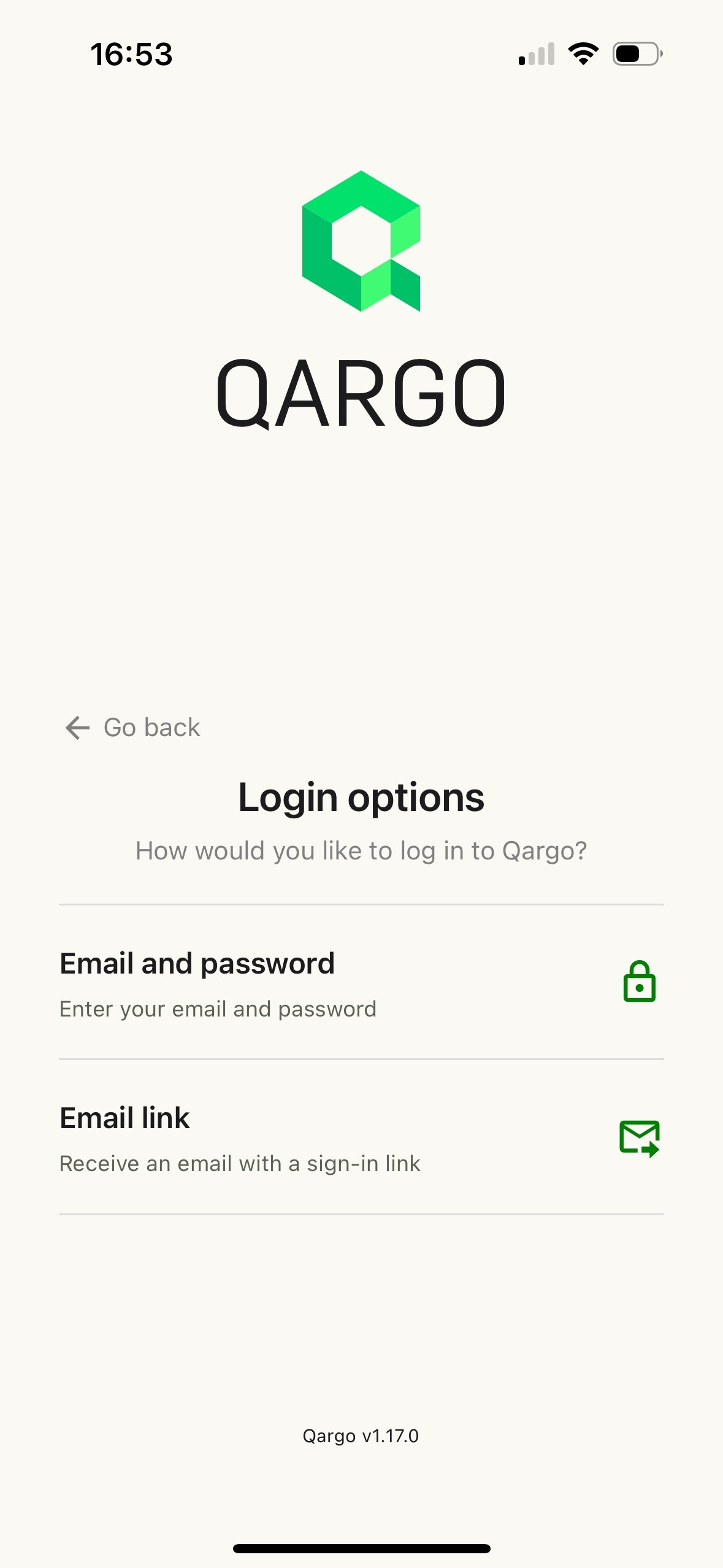
Choose one of the options (for details, see How to log in to Qargo).
For Code: A one-time load code is generated on dispatch. The driver can enter this code to get access for the duration of the load. Once the load is completed, the code is no longer active.
To enable this, see Activate the mobile app for a driver.
How to log in as a new user
Q. A new Qargo user has been added. How does the new user log in? An email arrived, but the link doesn’t seem to work.
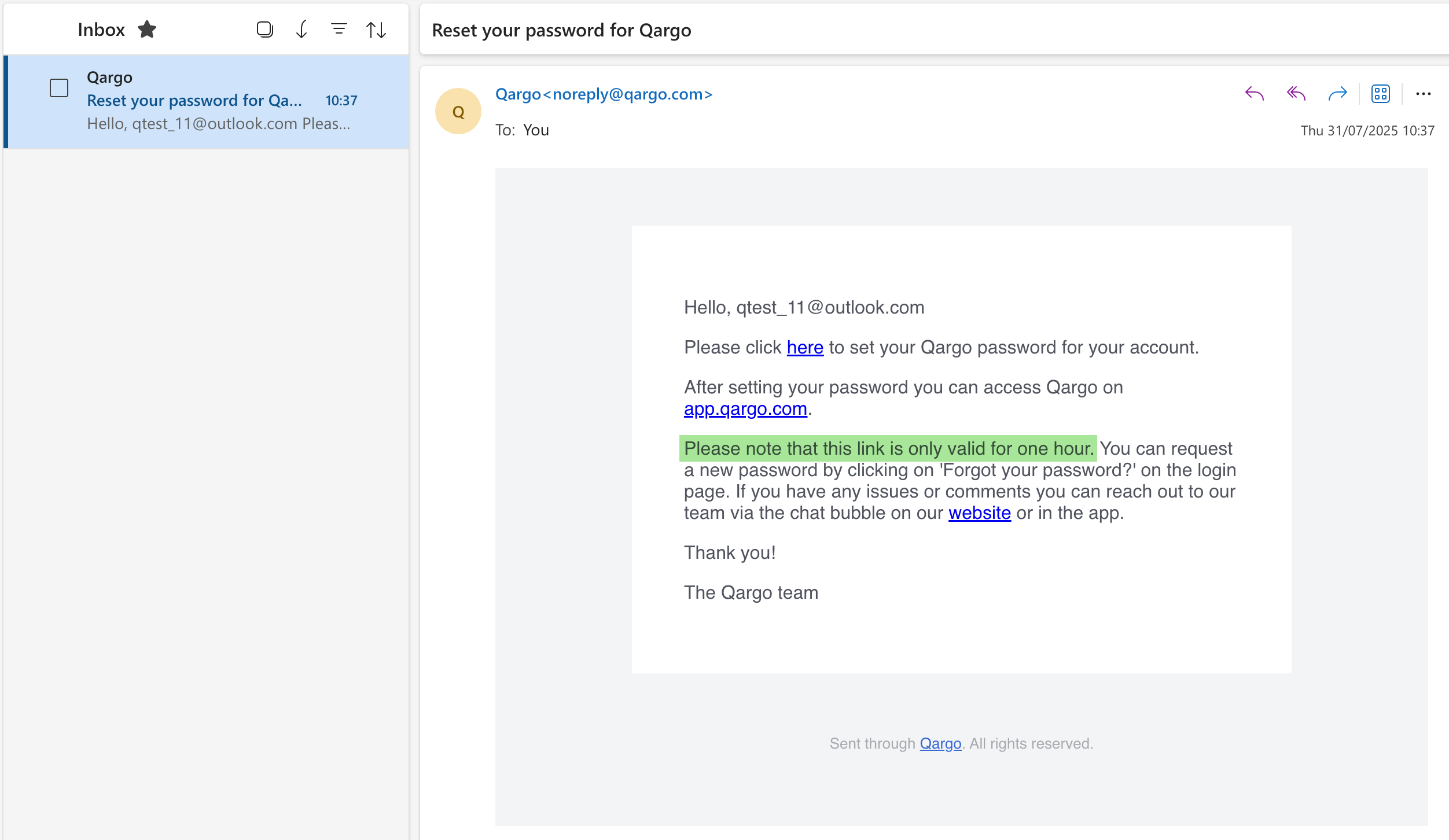
A. When a new user is added to a Qargo account, an email is sent to that user’s email address. The subject line is Reset your password for Qargo.
-
Click the link in the email.
-
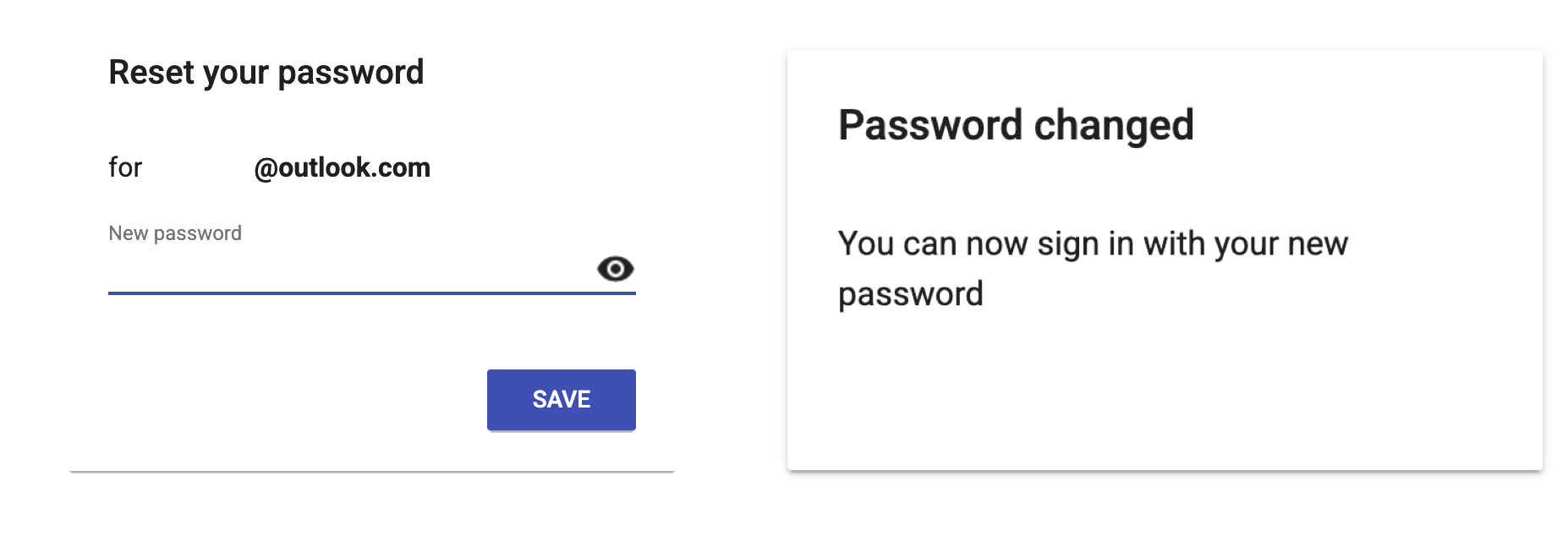
A reset password window displays.
-
Create a password and click Save.
-
A confirmation message displays.
-
Go to the main login page: app.qargo.com/login.
Automatic sign-out (Super Admins)
Important: This feature only affects users who can access the Qargo web app. It does not apply to users of the customer portal or carrier portal.
Q. For system security, can a limit be set on how long users stay logged in? Can users be forced to log back in after a certain amount of time?
A. Yes. A maximum session duration can be configured in the account. Super Admin users can configure the organization settings to include a session duration threshold. This simply means there is a maximum number of days users can stay logged in to the platform before the system automatically logs the user out. The next time the user loads the Qargo platform, the user is redirected to the main login screen.
Configuration
-
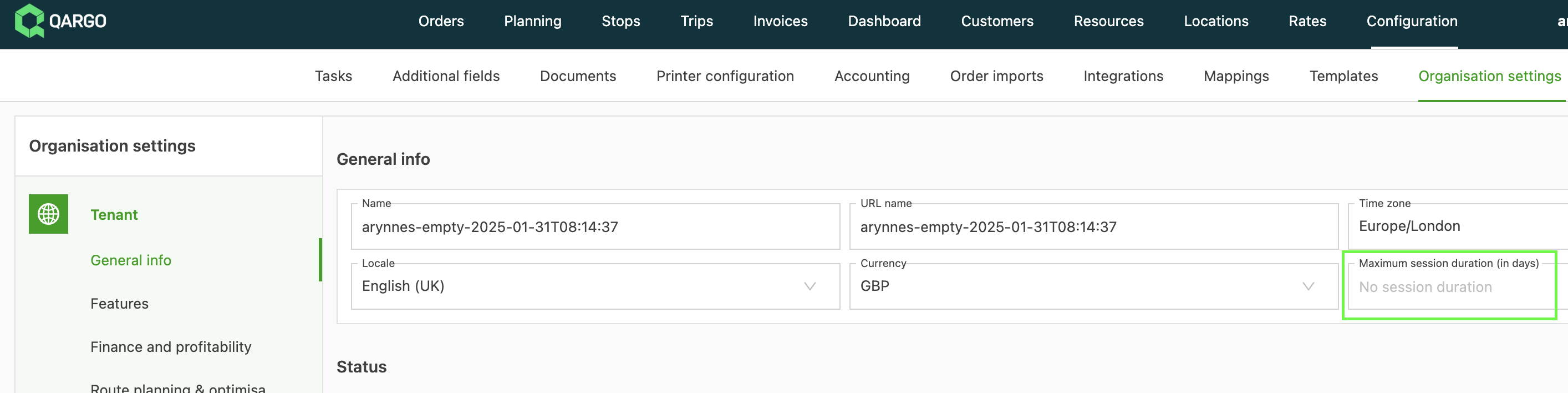
Go to Configuration > Organization settings.
-
In the General info section, find the field Maximum session duration.
-
Enter the maximum number of days users can remain logged in.
-
Click Save.
How it works
- After saving, users have that number of days before they are logged out.
- The system calculates this from the user’s last logged in time.
- Once the maximum is exceeded, the user is logged out and redirected to the main login screen.
- The user logs in with the preferred method (email and password, or secure link).
- Logging out the user does not force a password change. All previous login credentials stay the same.
- Logging out the user does not change or remove custom saved views (orders, stops, loads) the user created, as long as they were saved in the system.
Troubleshooting
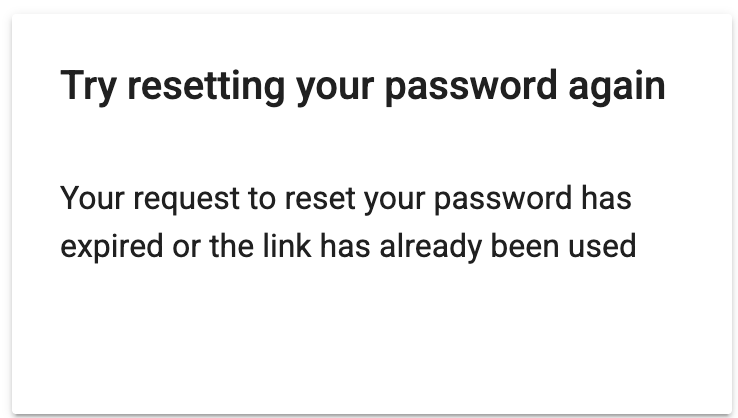
Link expired or already used
Symptom: A warning displays that the link has expired or has been used. The initial email link is valid for 1 hour and for a single use only.
-
Go to the main login page: app.qargo.com/login.
-
Enter the email address and click Next.
-
Select the login method Email and password.
-
The email field is pre-filled and cannot be changed.
-
Click Forgot your password.
Stuck on “Initializing”
Symptom: The user has entered an email address, but the screen only shows “Initializing” and the login does not complete. This typically happens when too many sessions are active.
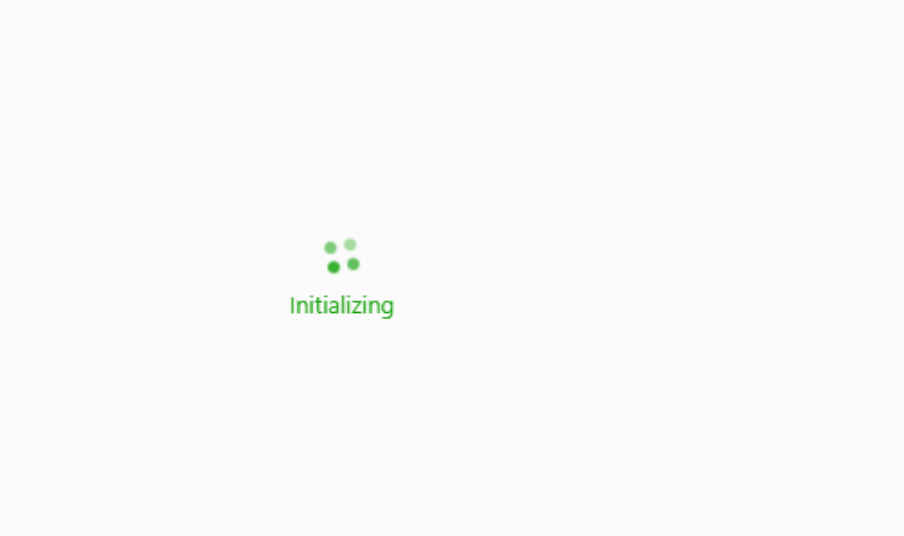
- Go to https://app.qargo.com/logout. This closes all active sessions.
- Log in again via app.qargo.com/login.
This should resolve the issue.
Other session or login errors
- Restart the browser or app: fully close and reopen the web browser or mobile app for a fresh session, then try again.
- Force logout and log in again: clear stuck sessions by visiting the Qargo logout URL (http://app.qargo.com/logout), then log in again. These steps resolve most session-related login errors.
Mobile app: unable to log in
Symptom: An error directs the user to contact support.
- Verify that the email address used is the same as the email address on the resource profile.
- Confirm that the email format is correct. Check for any punctuation that needs to be included.
- Once validated, click the Reset password button to generate a new email link.
Mobile app: Reset password button not available on the resource profile
- Remove the email address from the resource.
- Toggle Mobile access off and save the profile.
- Toggle Mobile access back on, add the email address again, and save.
This should re-enable the Reset password button.