
Understanding the driver mobile app
This article provides an overview of the Qargo driver mobile app and the workflow once a load is dispatched.
Table of contents
- Logging in
- Stops view
- Shipment list screen
- Stop group detail screen
- Task view
- Task list screen
- Task detail screen
- Offline functionality
- Contract carrier setup
- Troubleshooting
Logging in
* Instructions for activating the driver mobile app are available here.
There are three (3) possible ways to log in:
-
Email and password: Use the email address on the driver profile and a password. If the user/driver has not set a password or has forgotten it, go to the reset password flow.
-
Magic link: Enter the email address set on the driver profile, and a link is sent. The link must be opened on the device that will be used to log in to the app.
-
Code: A one-time load code generated on dispatch. The driver can enter this code to get access for the duration of the load. Once the load is completed, the code is no longer active.
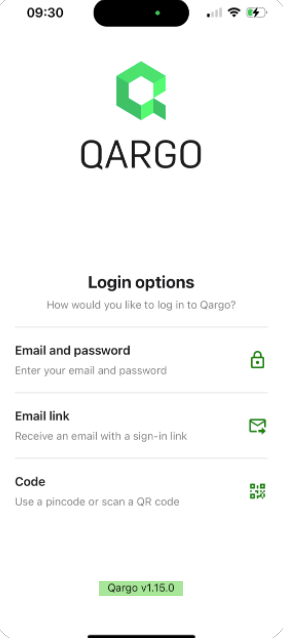
If drivers have persistent login issues:
-
Verify driver setup: Make sure the driver’s account is set up as a driver resource in Qargo:
- Go to Resources in Qargo.
- Check that the mobile app toggle is turned on for the driver and that the email address is correct.
-
Verify supported login methods: Check that drivers are trying to log in with one of the valid methods listed above.
Reset password flow
Driver password reset
On the email + password login screen, tap the ‘Forgot your password?’ link.
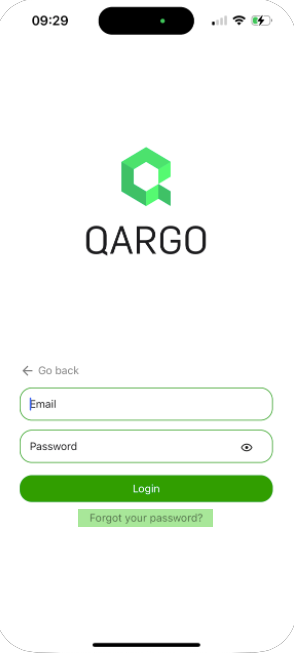
- Clicking the link in the email prompts the user to reset their password.
- Enter the email address, and a password reset email is sent.
If the password reset email does not arrive, drivers should:
- Check email address: Verify that the correct email address linked to the app account was entered.
- Spam/junk folder: Look for the reset email in the spam or junk folder of the inbox.
Admin user password reset
Super admin and admin users can reset the password for the driver. There are 2 options to do this:
-
Generate password reset email
-
Set password in browser
Generate password reset email
-
Go to Resources and open the driver profile
-
In the Mobile app/Contract carrier portal section, find the ‘password reset’ button
- Check that the grayed-out email address is the correct one for the driver
-
Select the option to ‘generate the password reset email’
- A notification appears in the top right corner confirming that the email has been sent
-
The driver receives an email to reset the password.
Set password in browser
- Go to Resources and open the driver profile
- In the Mobile app/Contract carrier portal section, find the ‘password reset’ button
- Select the option to ‘Set password in browser’
- A new tab opens where the admin user can type the new password
- The admin user must share the new password with the driver
Stops view
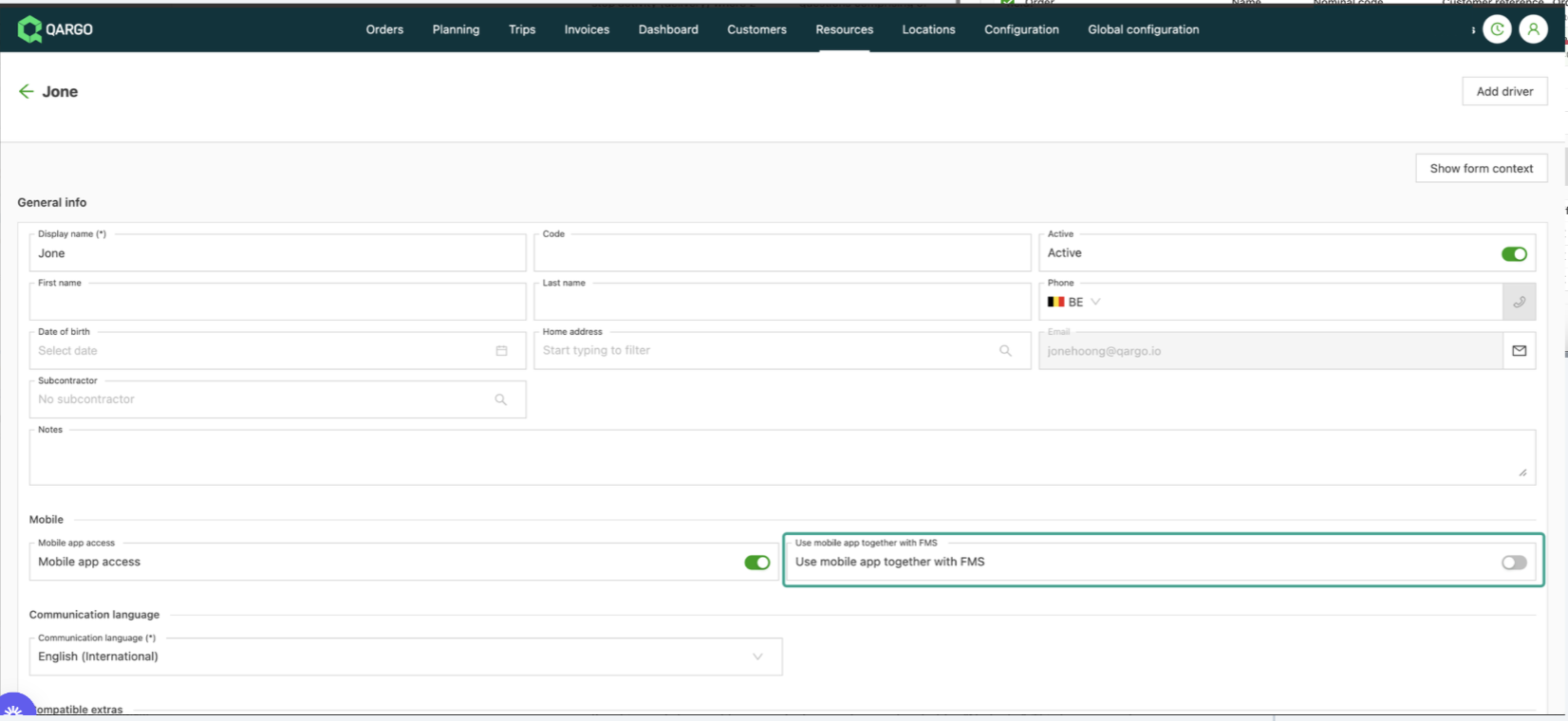
Only users who use the mobile app in combination with an FMS see the Task view.
Acknowledge load details
When a load is dispatched to the app, it appears in the Stops list as New, with a red border. In both the load and the planning board, an ‘Unread’ label is displayed until the driver acknowledges the load details in the app.
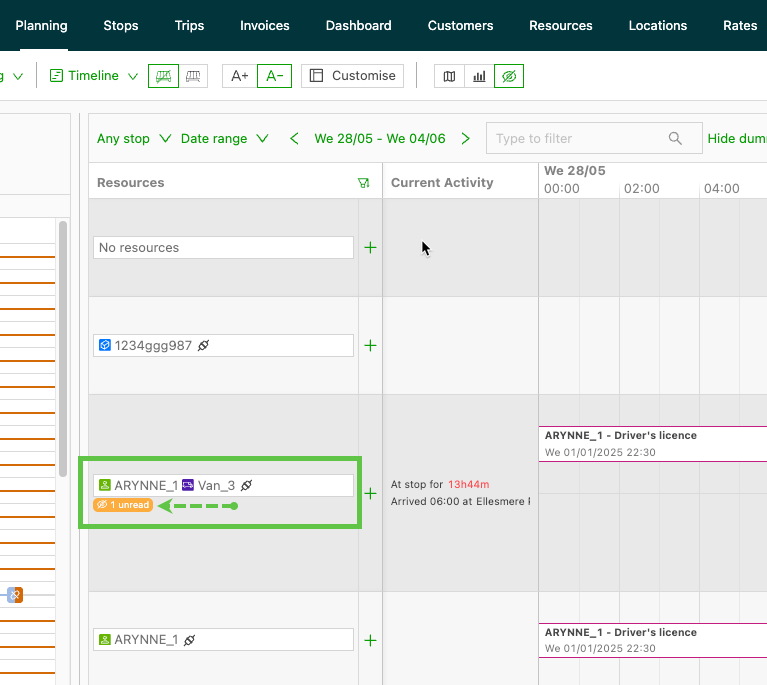
The driver must tap ‘Mark as seen’ to acknowledge the load.
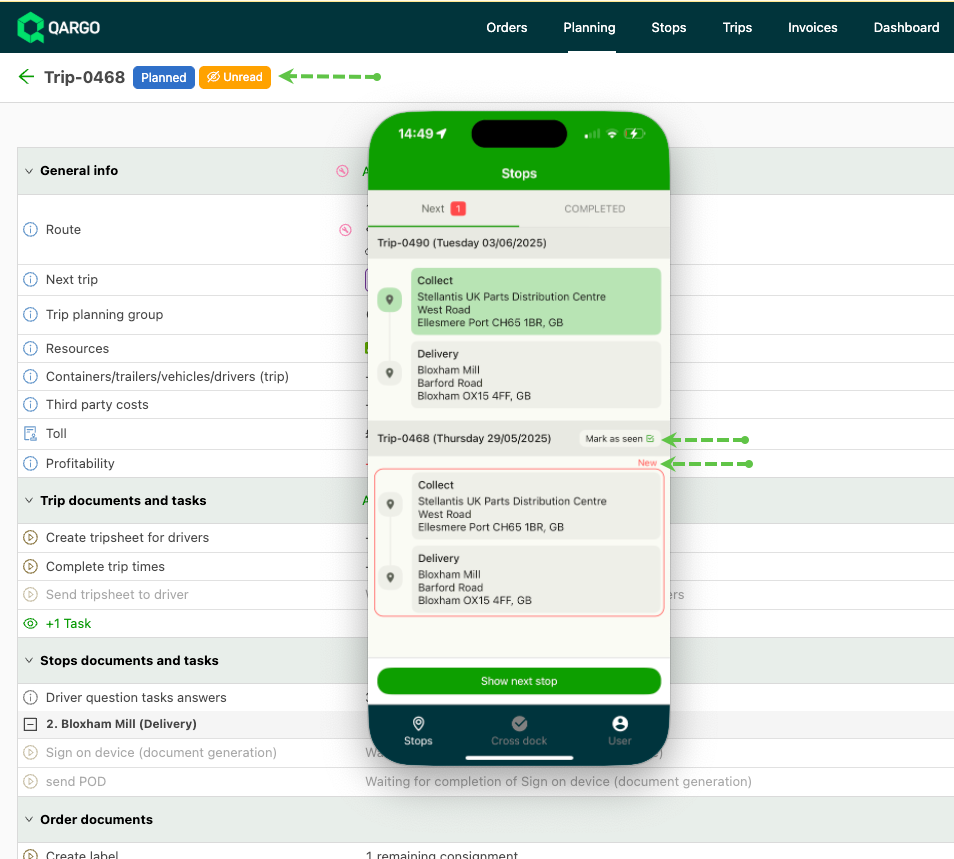
Once the driver acknowledges the load and taps ‘mark as seen’, the label in the load updates to ‘Read’. The label in the planning board is removed.
The stops view is the standard view. It consists of two separate screens: a list screen with uncompleted (default) and completed shipments, and a stop group detail screen.
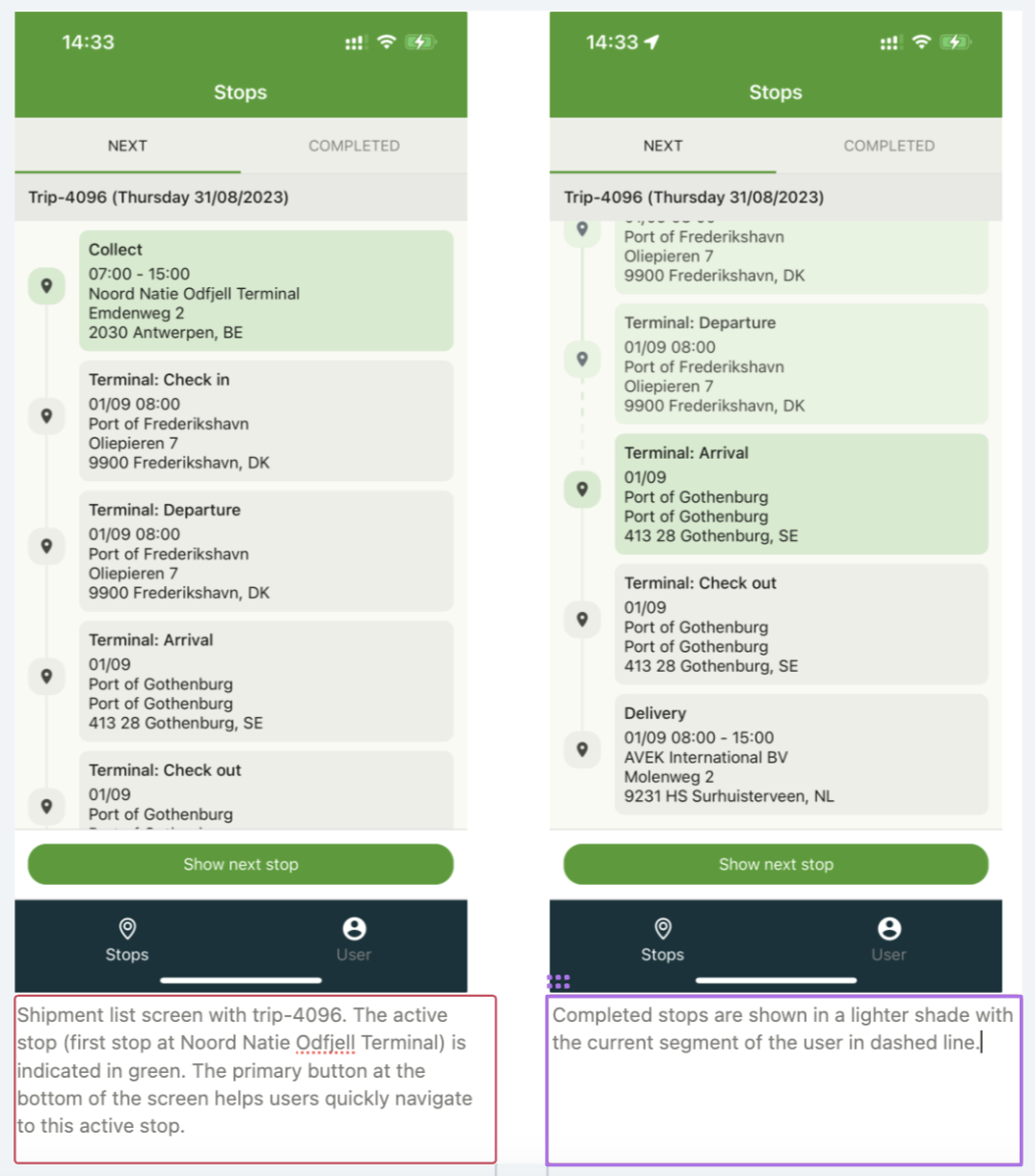
Shipment list screen
- The shipment list screen shows shipments that have been dispatched to the driver and that started no more than one week ago.
- Shipments only move to the completed tab once all their stops are completed.
- Each shipment has a top bar and a route chain with stop cards.
- The top bar shows the shipment description.
- Each stop card shows the main stop activity label and the stop location group description.
- Tapping a stop card takes the user to the next screen.
Stop group detail screen
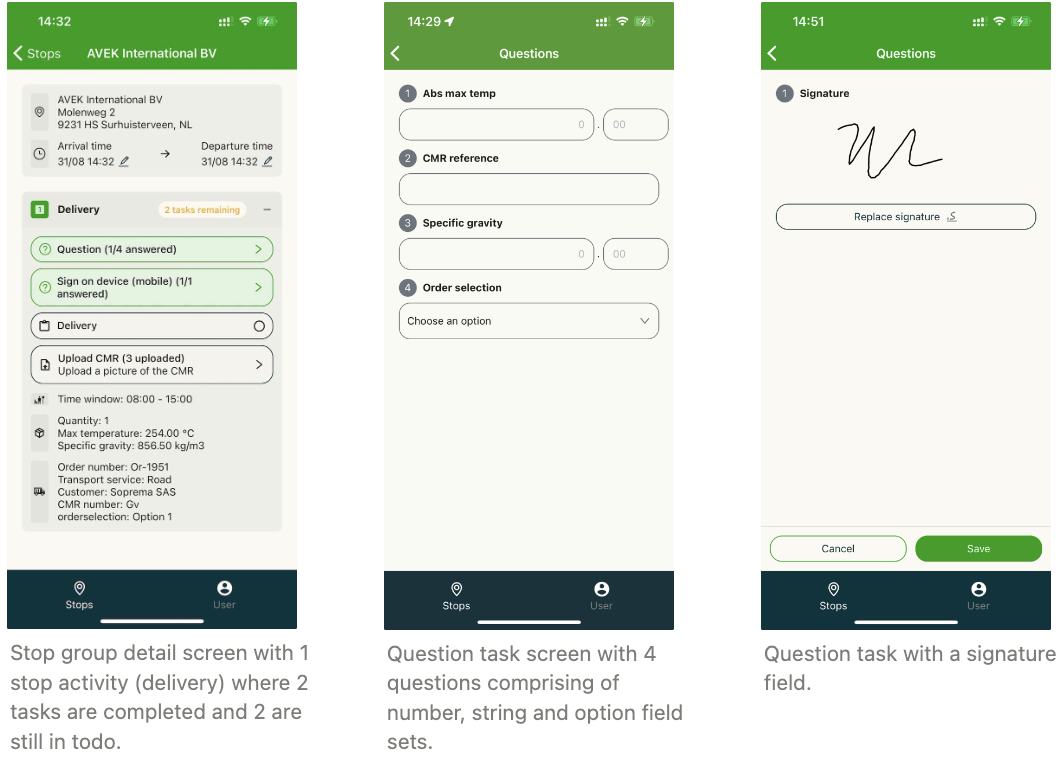
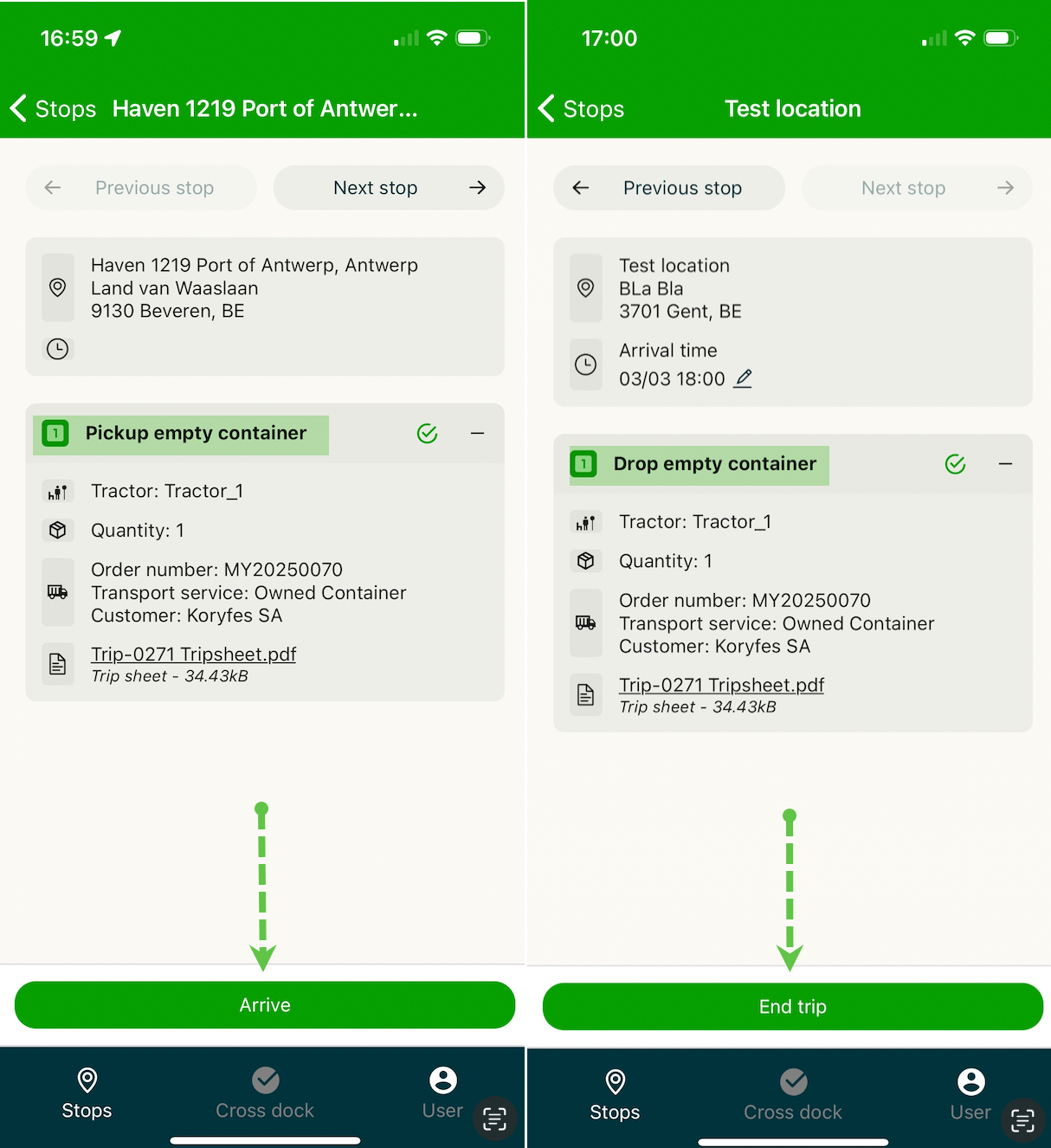
° The stop group detail screen lists all information about the stop group: The top card contains the location, times (which can be edited) and contact information.
° Each stop activity in the stop group has a separate collapsible card with the stop activity label in the title, followed by all the tasks, then the stop information, goods information and order information.
° Completed stops are shown with a green border and background, open tasks with a dark background, and disabled tasks are lightly shaded. There are 3 types of tasks:
-
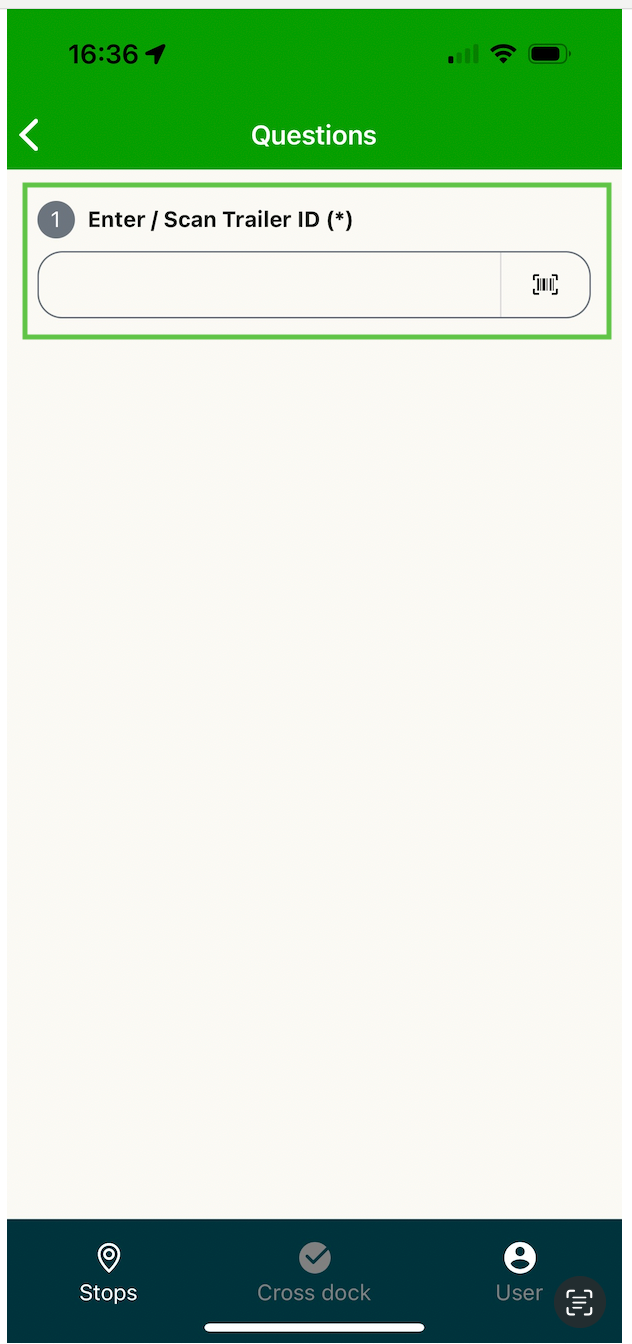
Question task: Takes the user to a new screen to answer questions defined in the web application. Input types include manually typed numbers, options, documents and signatures. QR codes and barcodes can also be scanned to enter trailer or container IDs (see Enter a trailer or container ID).
-
Document upload task: Opens a bottom sheet with the different options:
-
General task: For example, loading or unloading. Tapping the button completes the task.
On stops that have not been completed yet, a primary action button appears at the bottom showing “Start driving”, “Arrive” or “Depart”.
Some actions can only be completed once the driver has arrived at the stop.
Driver scan: pickup/delivery
In some cases, the driver may need to scan pallets at the pickup and/or delivery locations. Drivers can scan multiple barcodes, which improves visibility of which pallets were picked up/delivered.
To enable this functionality:
-
Create a new task on loads to prompt the driver to scan codes.
Driver scan workflow:
- Once the barcode has been added in the mobile app and the user taps ‘save’, the barcode can no longer be edited or removed. Before tapping save, it can still be edited or removed.
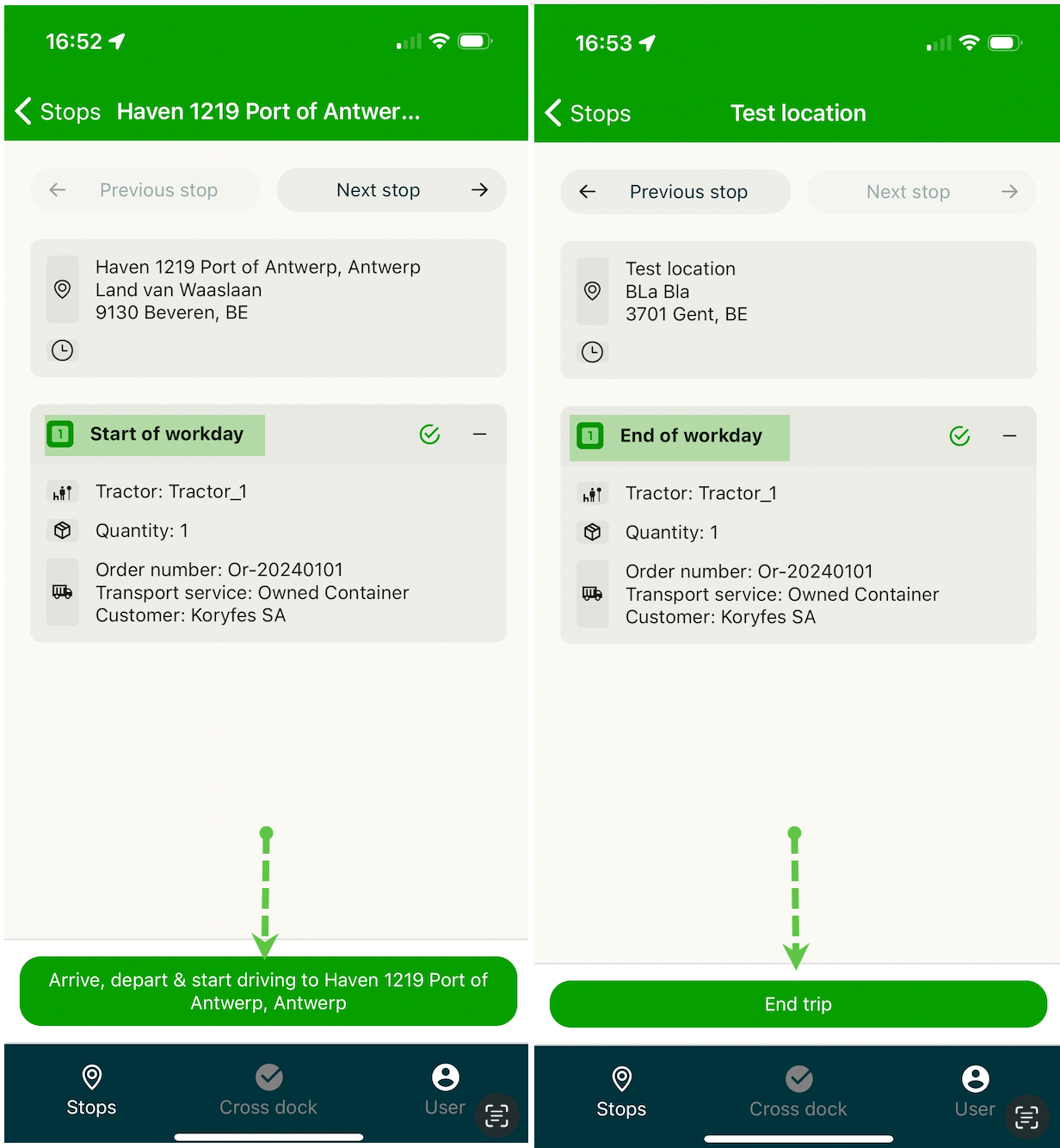
1-click completion:
Start/end workday: complete with a single click.
Task view
The task view is only available when the resource uses the app together with an FMS. (More information here.)
This view is similar to the stops view: it also combines a list screen and a detail screen, but here tasks are the main focus.
Task list screen
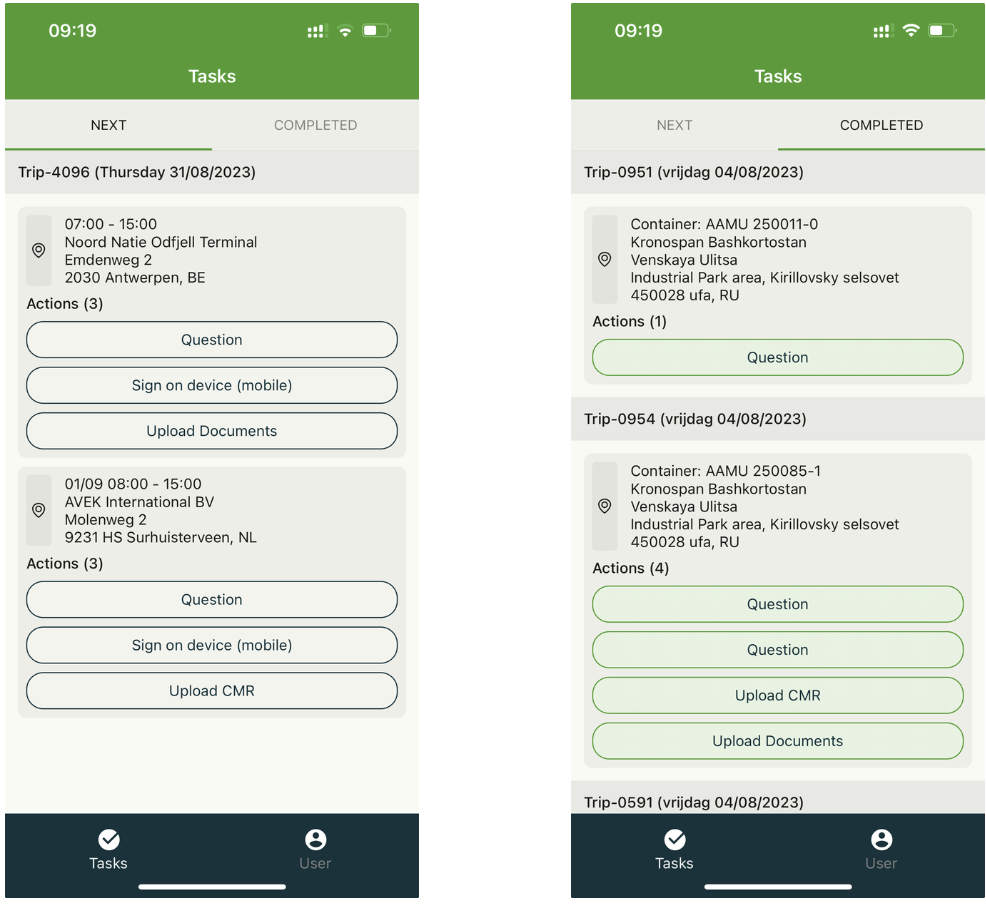
Like the shipment list screen, the task list screen has a separate section for each shipment (including the “shipment description” header), but it only shows the tasks in “to do”.
Each section is made up of stop cards that show the stop description and the remaining tasks.
❗ Tasks are the main object here. Once a task has been completed, it moves to the “completed” tab.
Stops without any tasks are hidden from the view, and a shipment moves to the completed tab without waiting for all its tasks to be finished.
If a shipment has no tasks, a “No tasks” placeholder is shown.
This placeholder only moves to the completed tab once the shipment has been completed.
Task detail screen
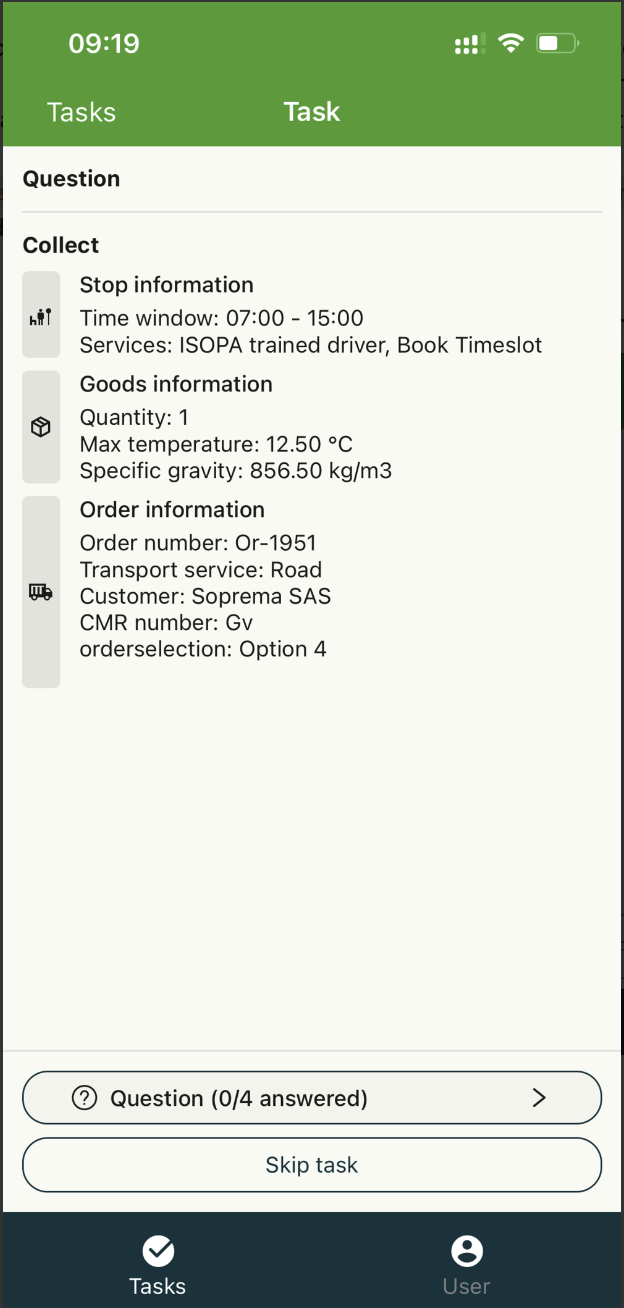
Tapping a task in the list screen does not complete the task directly; it takes the user to the detail screen.
This screen shows the user the same information as the stop group detail screen. As a reminder: stop activity label in the title, followed by all the tasks, then the stop information, goods information, order information and documents.
At the bottom of the screen, users can complete the action or skip it.
Enter a trailer or container ID
Drivers can enter the trailer or container ID for an order or load. They can type it, or scan a QR code or barcode.
Set up the question (planner or admin)
-
Go to Configuration > Tasks > Loads.
-
Create a Question path at the workflow step where the driver should enter the ID.
-
Use the toggle to make the answer required, or let the driver skip it.
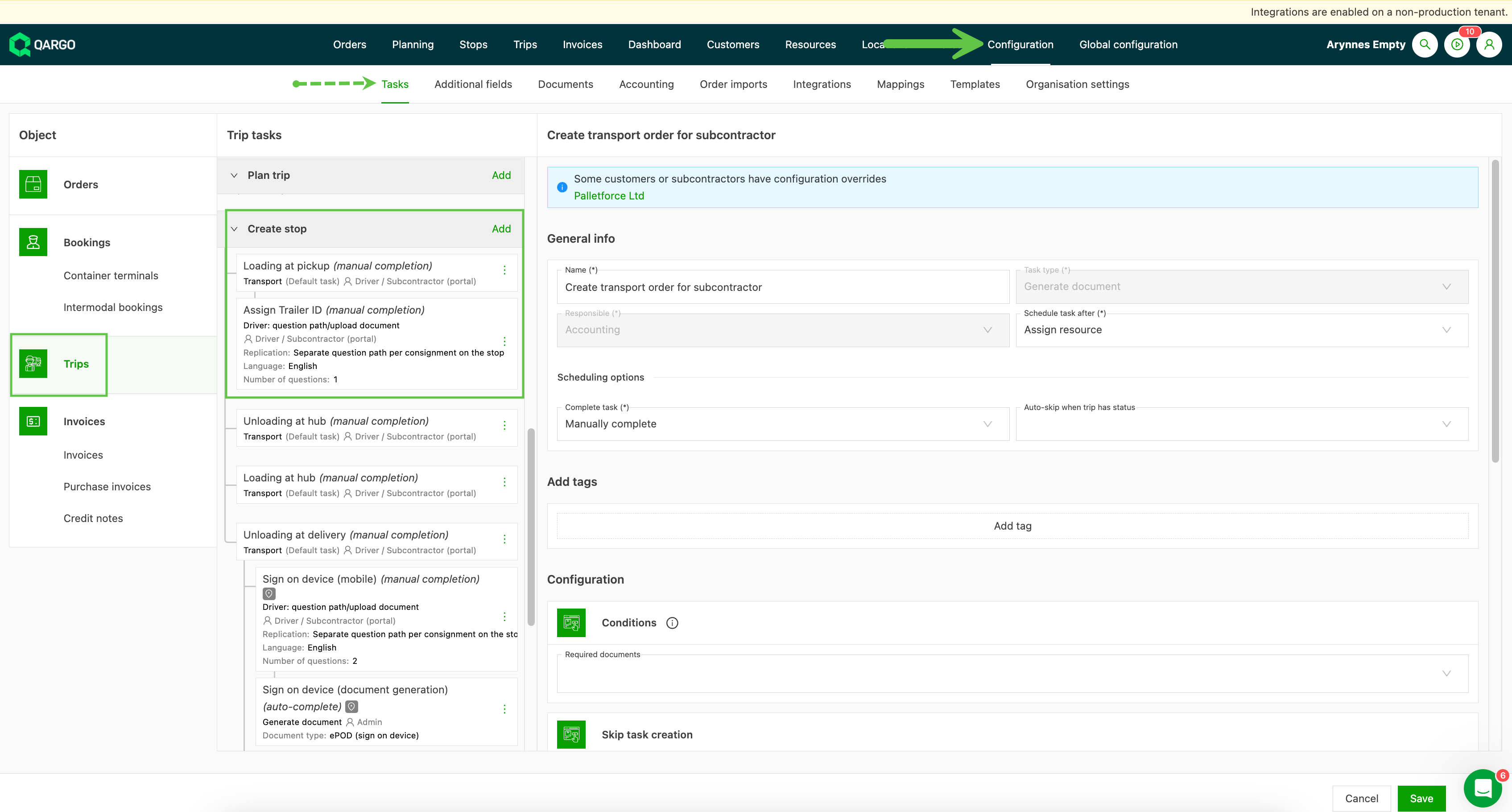
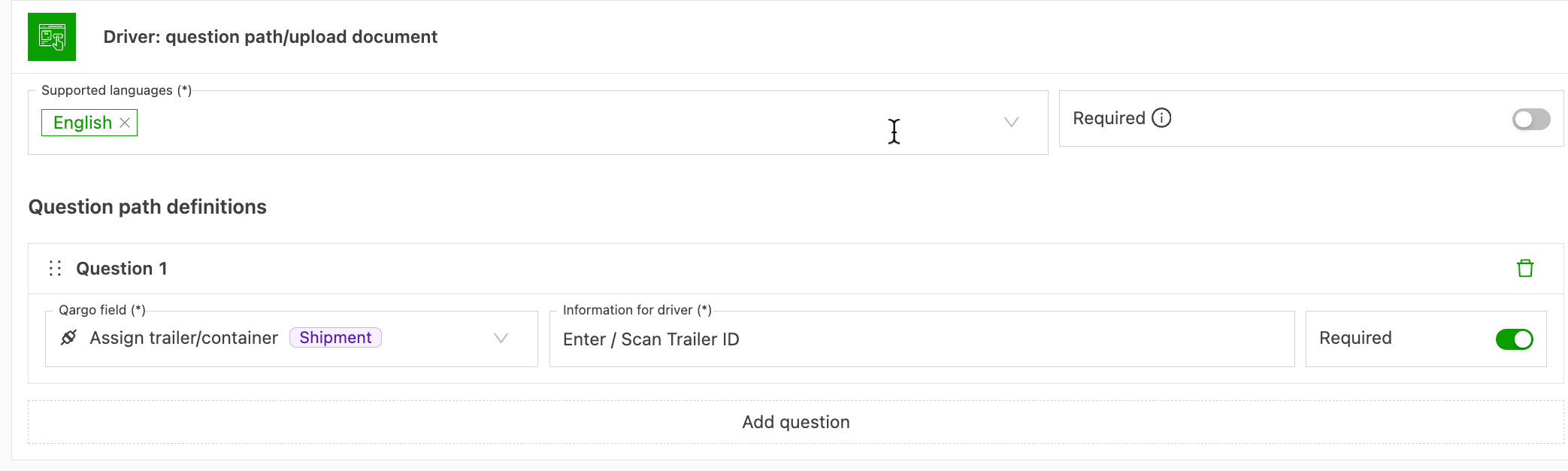
The question appears on the driver’s next assigned order.
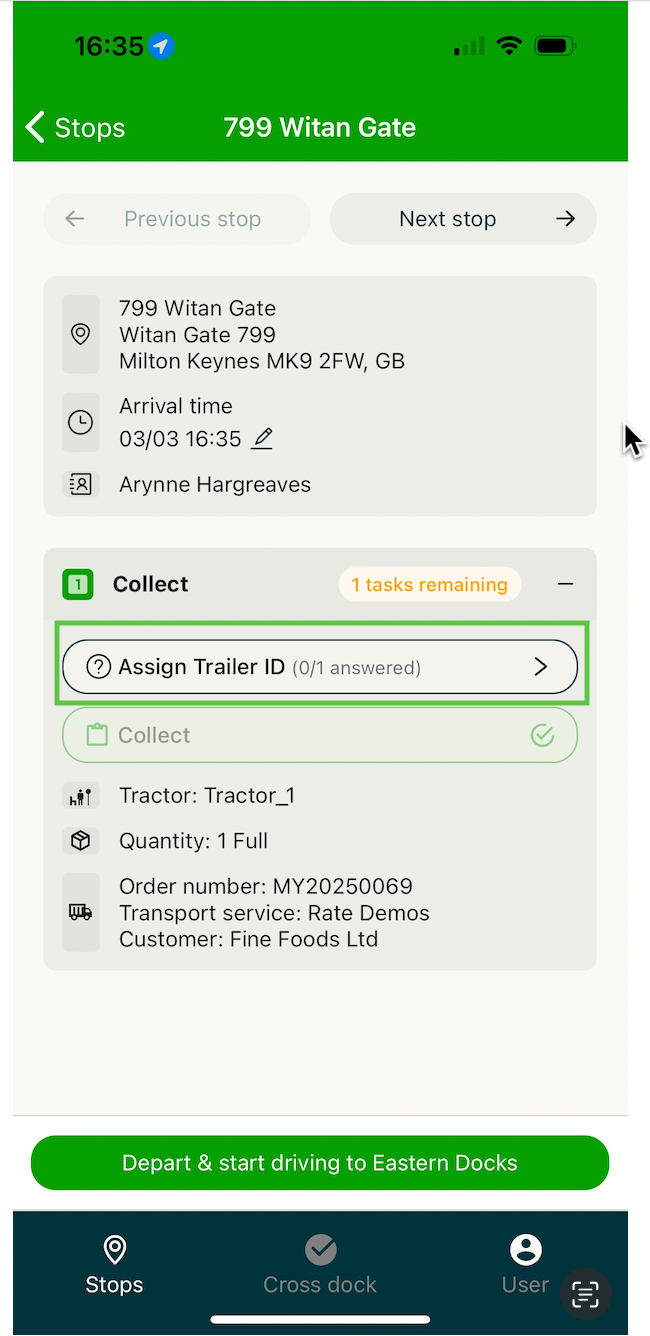
Enter the ID (driver)
- Type the ID, or scan the QR code or barcode with the device camera.
- After a scan, the details are filled in automatically. The driver then moves to the next question or completes the stop.
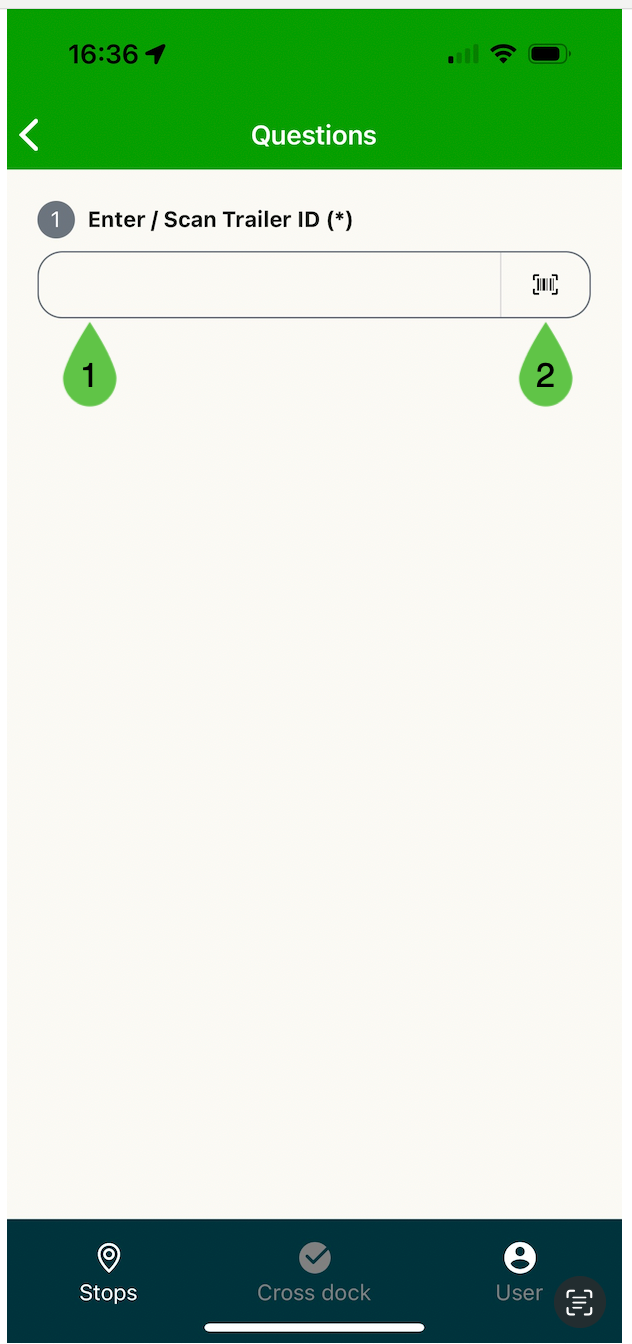
What happens next
-
Resource is active in the account: Qargo assigns it to the order and the load.
Orders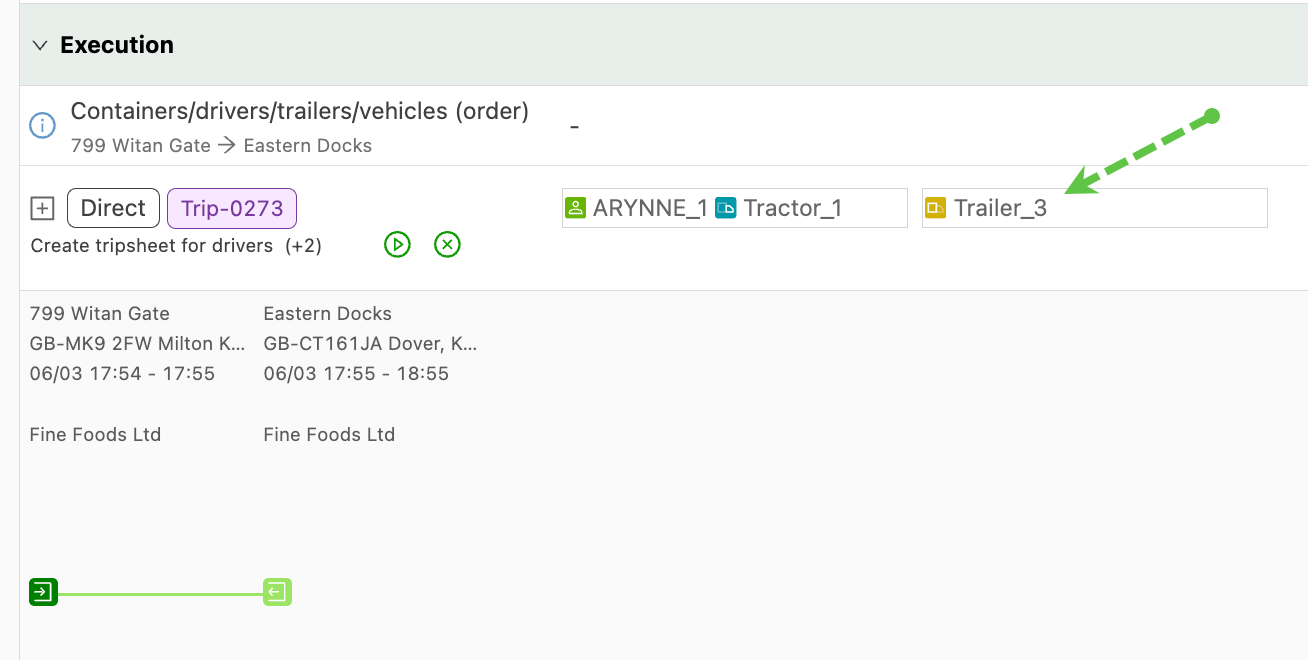
Loads
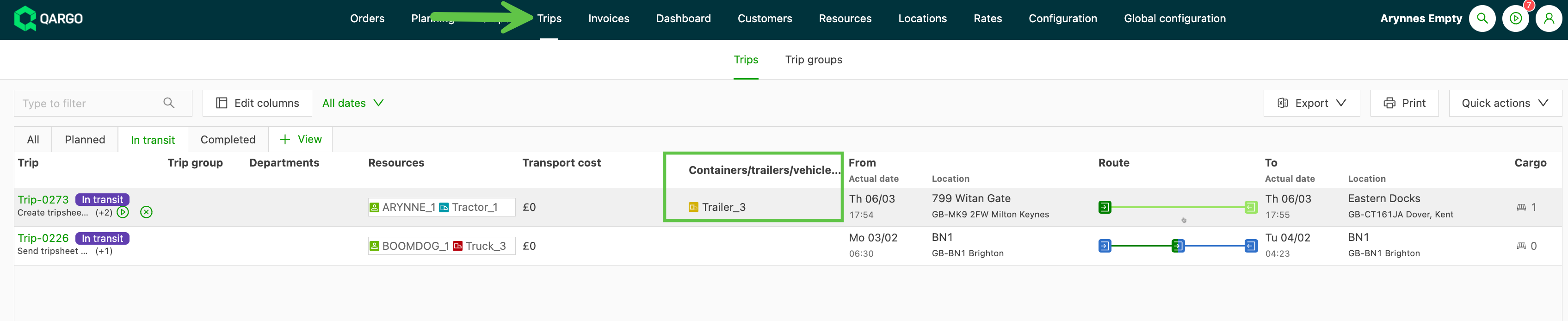
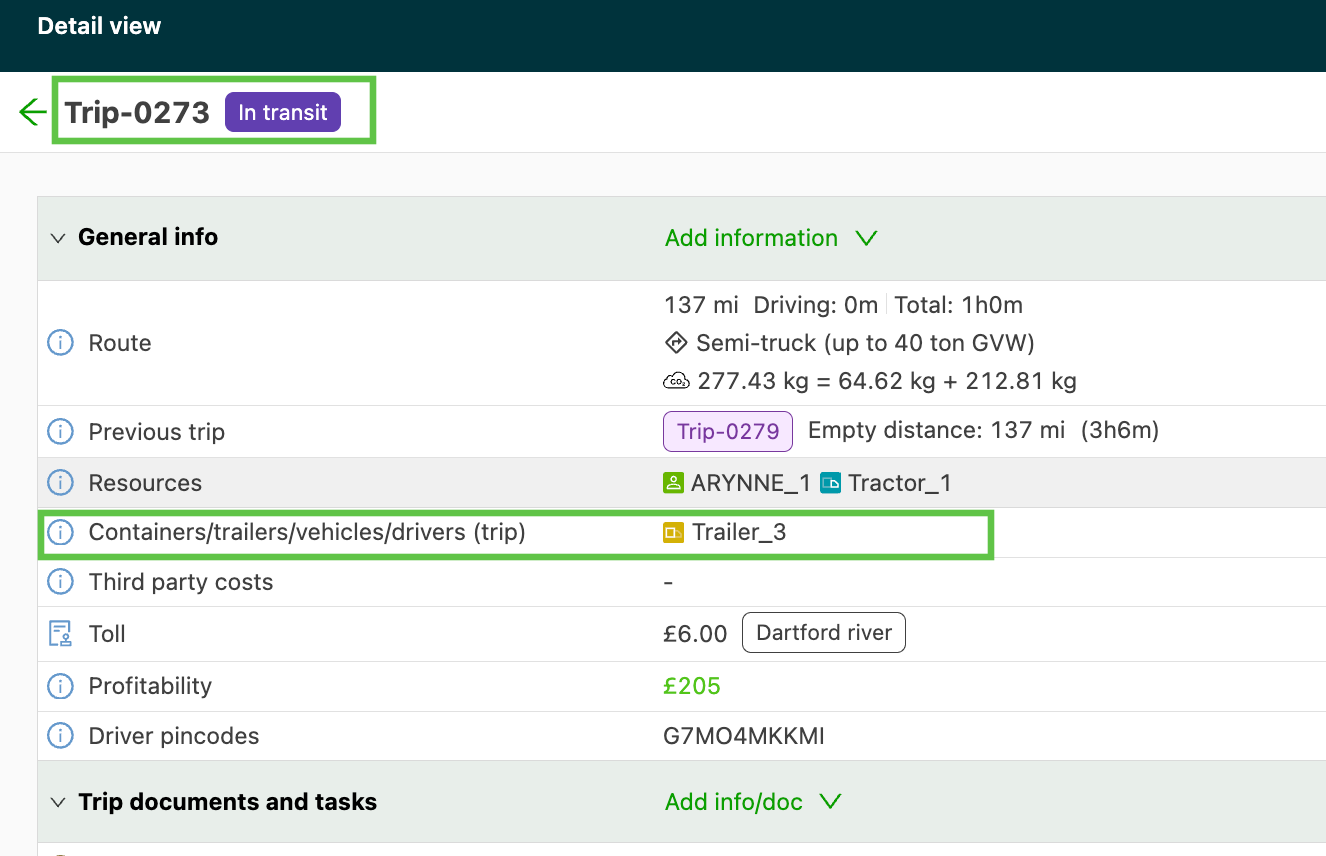
-
Resource is not in the account: Qargo records the ID in the Question / Answers panel.
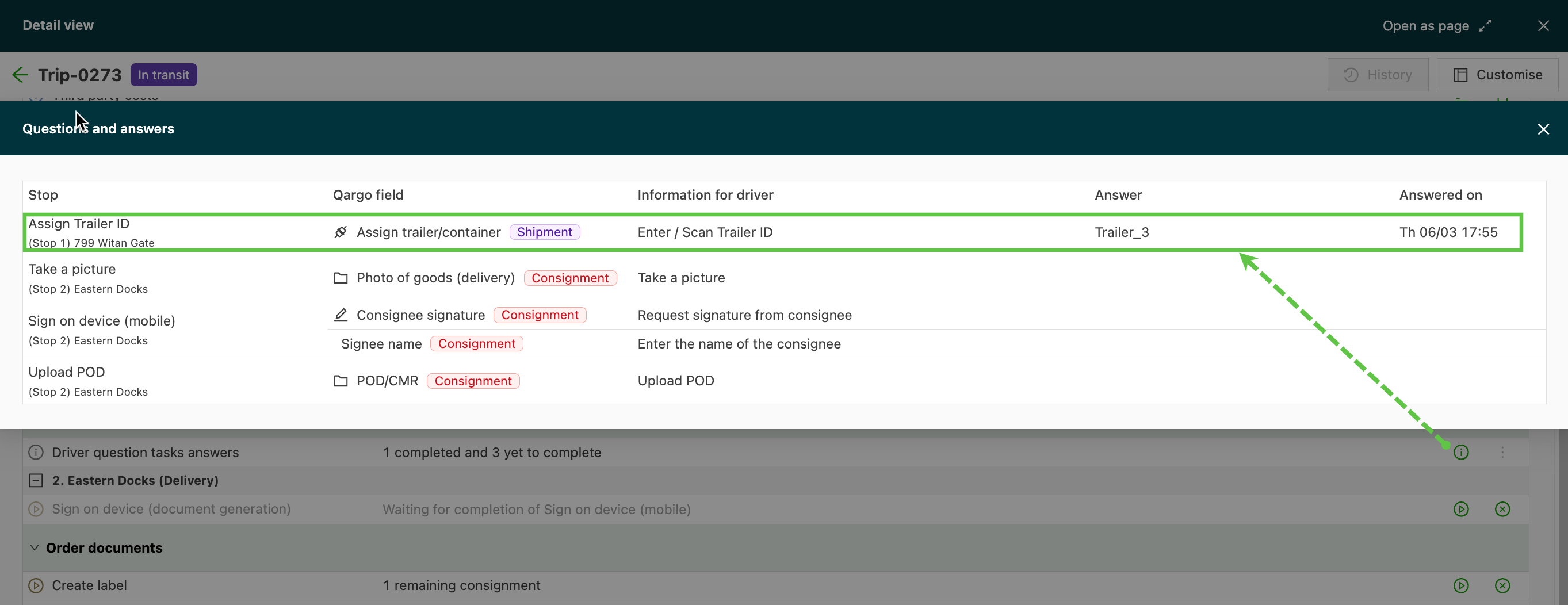
Offline functionality in the Qargo driver mobile app
The Qargo driver mobile app lets drivers continue their tasks even when the internet connection is poor or unavailable. The offline functionality works as follows:
Capturing photos and documents
At a delivery stop, drivers can capture the required photos or documents directly in the app. If the upload fails because of poor connectivity, the app saves the data locally.
Collecting signatures and names
Drivers can go ahead and collect the stop-level signature and name, so that critical delivery information is not missed.
Syncing data
Once the driver has a stable internet connection again, they can open the load in the app and complete any pending uploads. The app automatically syncs the data and triggers the proof of delivery (POD) flow. This workflow lets drivers keep moving without delays while still capturing and uploading all necessary delivery information.
Enabling contract carrier drivers to use the driver mobile app
Contract carrier drivers can also use the Qargo driver mobile app to upload PODs and complete stop times. To enable this functionality:
Create external driver accounts
Add each contract carrier driver as an external driver in the system. Make sure each driver has their own email address for account creation.
Grant driver mobile app access
Assign the contract carrier drivers to loads as resources. Send the job details to their mobile app.
Driver actions
Contract carrier drivers can log in to the app to upload POD documents and complete stop times as required. This setup lets contract carrier drivers fit seamlessly into the delivery workflow, so that all tasks are completed efficiently.
Troubleshooting
Common issues in the Qargo driver mobile app
The Qargo driver mobile app is an effective tool for carrying out tasks, but users may occasionally run into technical issues. Solutions to common problems are listed below.
Login troubleshooting
- Check that the driver is registered as a resource in Qargo, and check the supported login methods, such as email/password, magic link or load codes.
Task completion challenges
- Confirm with the driver that the internet connection is stable. Switching between Wi-Fi and mobile data can help.
- Have the driver clear the app cache and restart the app to resolve temporary glitches.- Tell drivers about the app’s offline functionality so they can complete tasks during connectivity issues.
- Advise drivers to sync their data as soon as they have internet access again to avoid delays in processing PODs.
Display problems
- Update the app to the latest version, or log out and back in, to fix missing jobs after tenant-specific activation.
For any other issues, contact the Qargo support team.
A walkthrough of the driver mobile app is available below: