
Tasks — Tasks on order templates
Tasks can now be configured on order templates, enabling structured quote workflows like generating PDFs, logging follow-ups, and uploading confirmations — all from the template itself.
Table of contents
Introduction
Tasks can now be configured on order templates, the reusable blueprints used to copy and create live orders. Tasks configured on a template appear in a ‘to complete’ status whenever the template is opened. This enables structured workflows such as generating a PDF quote, tracking follow-up calls, or uploading signed confirmations.
Key terminology
| Term | Definition |
|---|---|
| Order template | An order saved in Template status that serves as a reusable blueprint. Quotes in Qargo are built on order templates. |
| Create order template section | The workflow section, found under Configuration > Tasks > Orders, that defines which tasks appear specifically on orders in Template status. |
Configuration (Super Admin user)
To make tasks available on quote templates, a Super Admin must first configure the task workflow.
-
Navigate to Configuration > Task configurations.
-
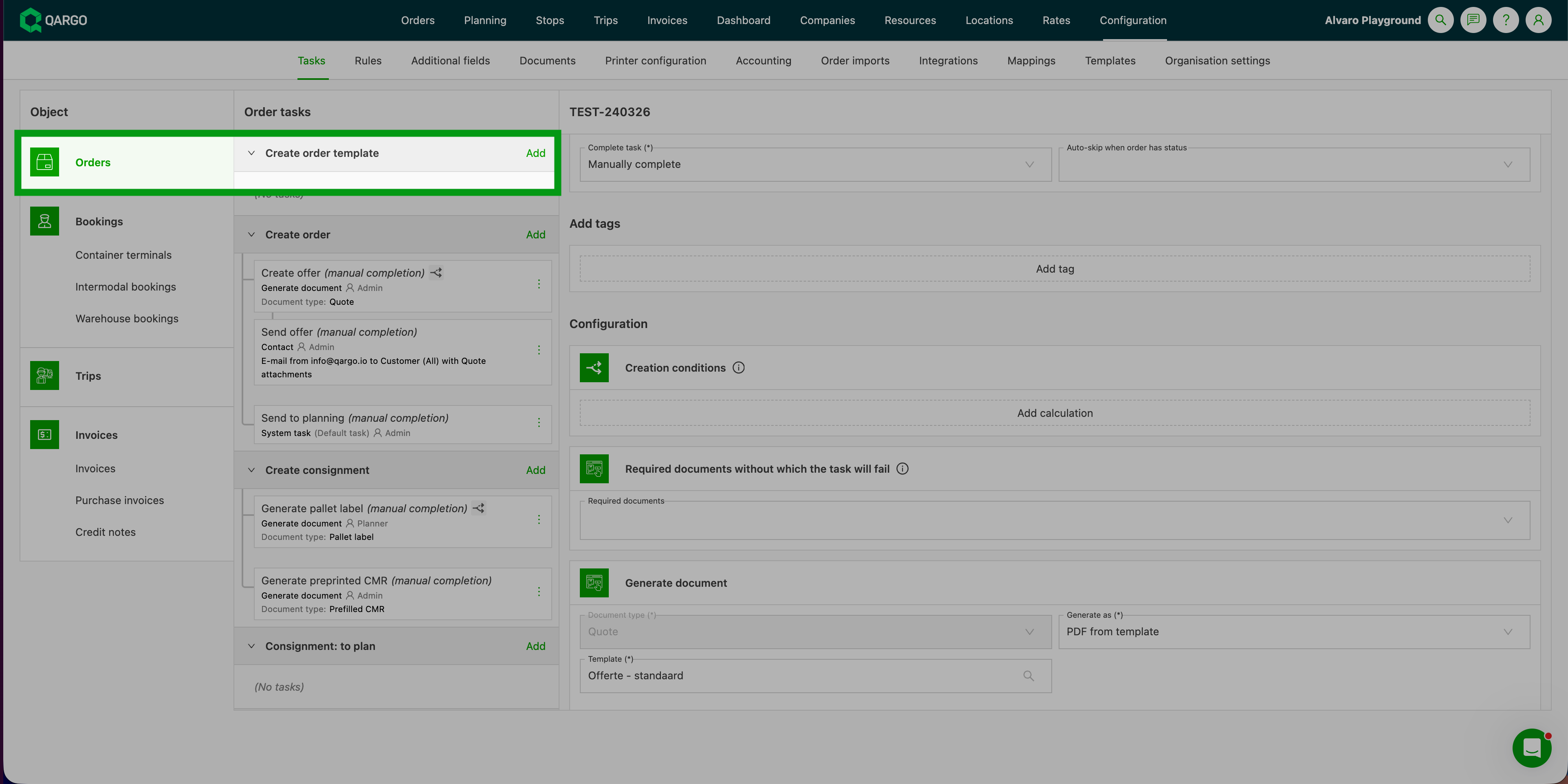
Locate the Create template section. This section controls which tasks appear when an order is in Template status.
-
Click Add task within the Create template section.
-
Select one of the supported task types:
- Contact: e.g., Call customer to follow up on quote
- General: e.g., Review rating before sending
- Generate document: e.g., Generate PDF quote for customer
- Upload document: e.g., Upload signed quote confirmation
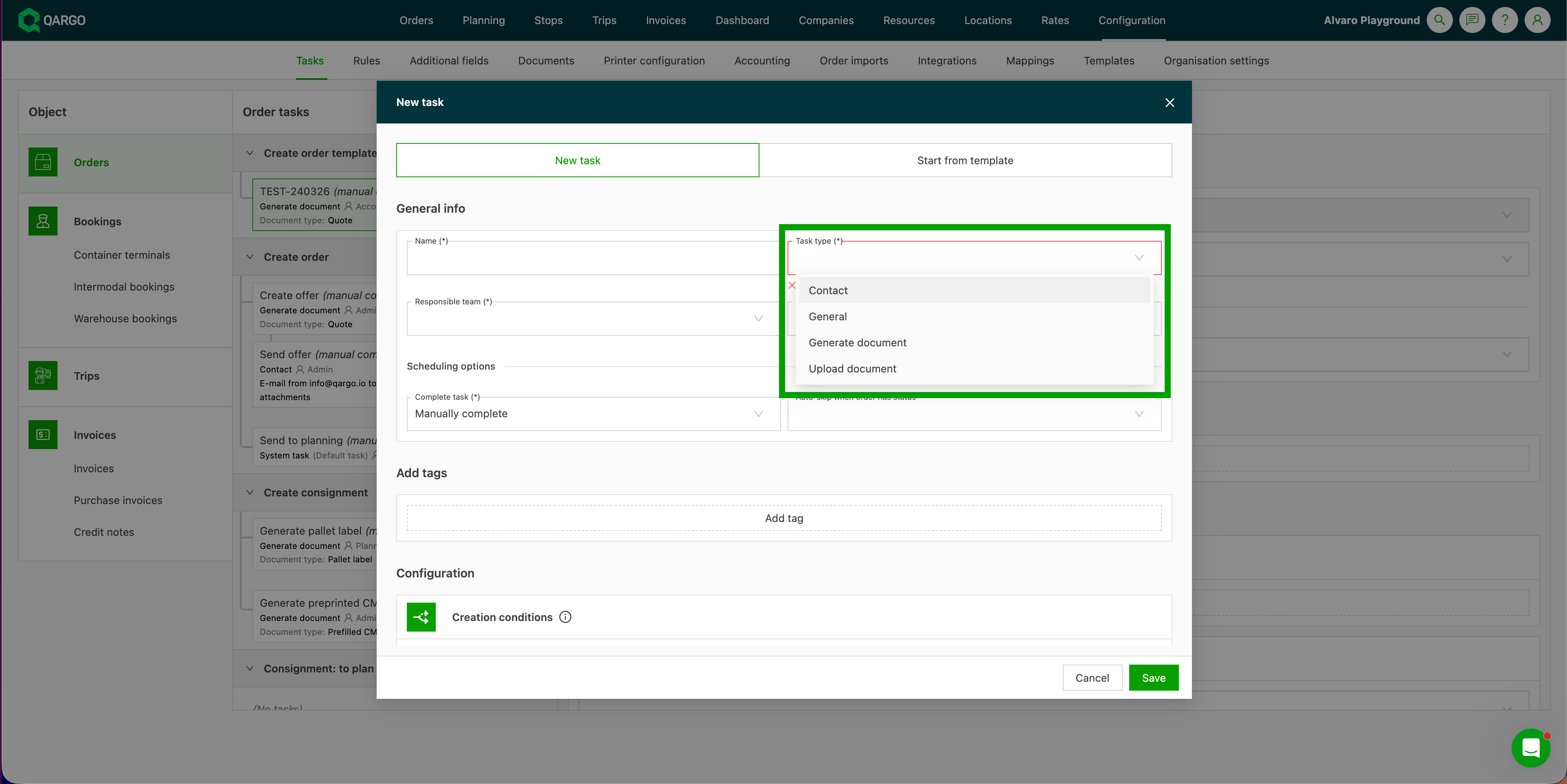
5. Configure the task details and click Save.
Steps for workflow
Once configured, tasks appear automatically on any order in Template status.
- Open or create an order template (an order in Template status).
- The tasks configured in the Create order template section appear automatically in To do status.
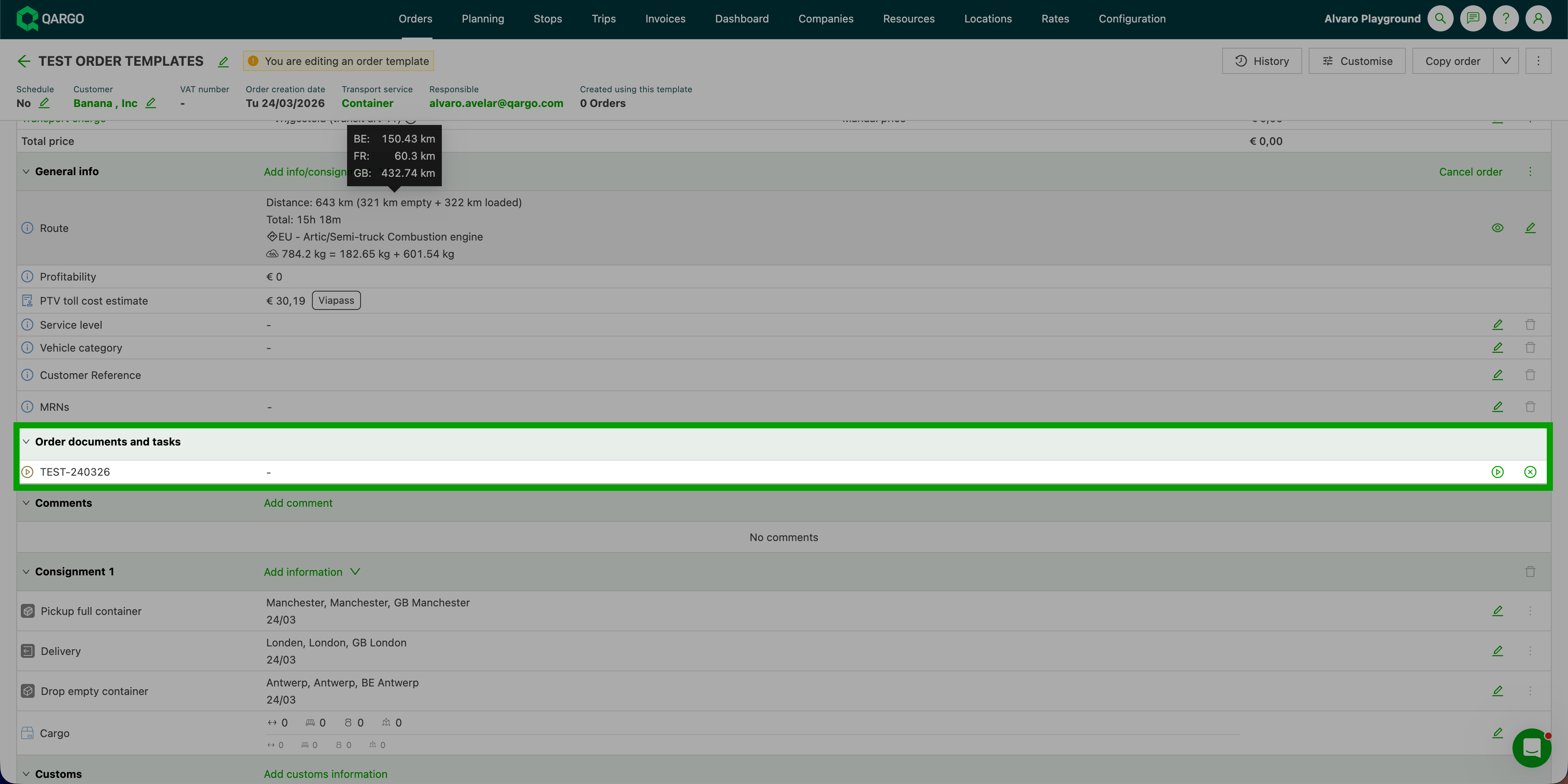
- Complete tasks directly on the template. For example, use a Generate document task to produce a PDF quote to send to the customer.
Using task conditions for template orders
Templates can refer to both Orders and Quote tenders. An option under Task Configuration > Creation conditions allows users to assign specific tasks to the different template options (Orders / Quotes).
-
Navigate to Tasks
-
Select the task to update or click Add to add a new task
-
Locate the Configuration panel and select Calculation method = Simple rule
- Set the metric Order / Template type is Order / Quote (Value)
-
Save the task
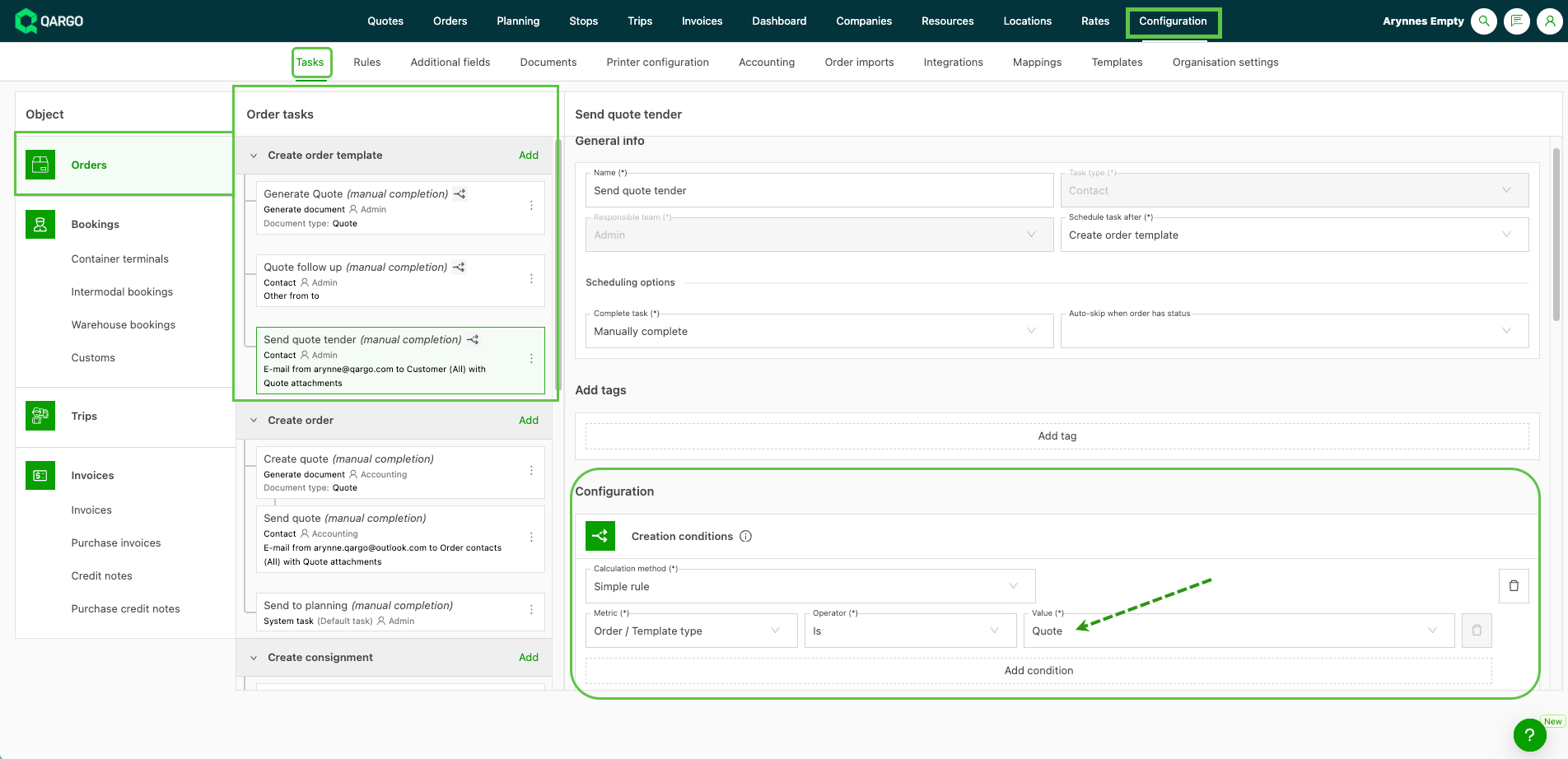
- Once a task condition is set, the configured tasks only apply to the relevant template types.
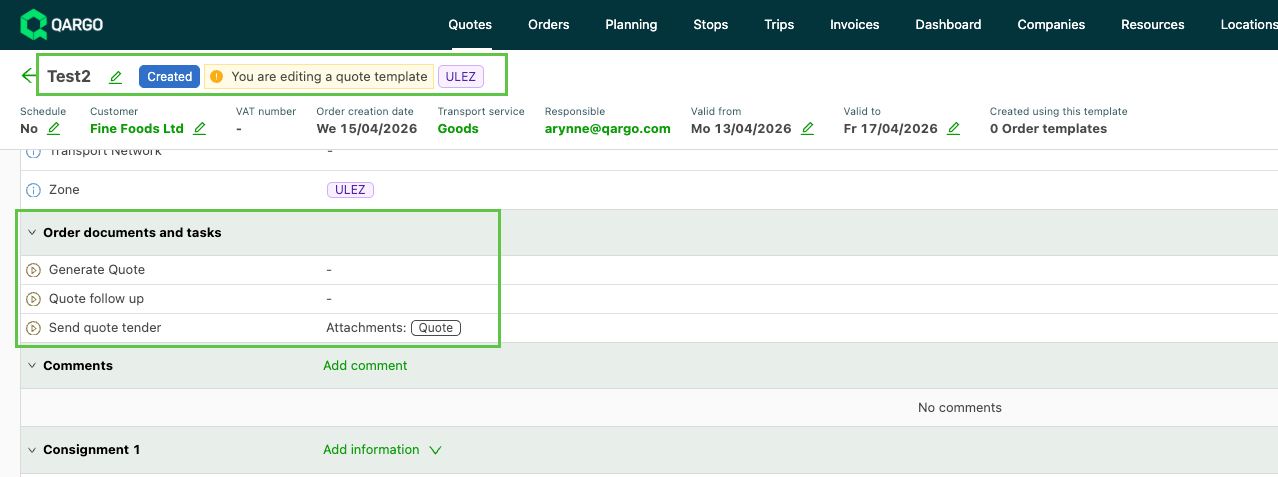
Quote Tender (template): Tasks set up when conditions apply
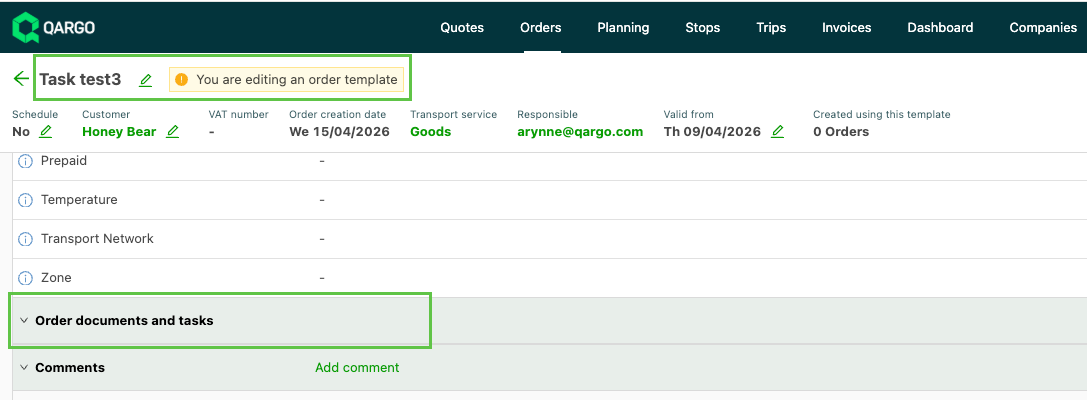
Order Template: No conditions apply to order templates, so no tasks are created.
Limitations
- Only order-level tasks are supported in this version. Shipment-level document tasks are not included.