
Quotes – Tender quotes: what, why and how.
Tender quotes bring status tracking, validity periods, and a structured workflow from quote to order template to order, all managed from a new top-level Quotes menu.
Table of contents
Summary
What are tender quotes?
- A new module for managing recurring or contract-based price agreements with customers, accessible from a dedicated top-level Quotes menu.
- Tender quotes have a status lifecycle, optional validity date ranges, and link directly into the order template workflow.
Why do they exist?
- Previously, quotes in Qargo had no way to track whether a price offer had been sent, accepted, or declined. There was also no way to define how long an offer remained valid. This created operational blind spots and manual workarounds.
How do they work?
- A new top-level Quotes menu sits alongside Orders and contains two tabs: Spot quotes (existing functionality, now relocated) and Tender quotes (new).
- Tender quotes move through a manual status workflow and can be copied to order templates once accepted. Validity enforcement then carries through to order creation.
Terminology
| Term | Definition |
|---|---|
| Spot quote | A one-off, ad hoc price quote for a single transport request. Previously found under Orders > Quotes; now located in Quotes > Spot quotes. |
| Tender quote | A recurring or contract-based price agreement managed through the new Tender quotes tab, with status tracking and validity periods. |
| Status | The current stage of a tender quote’s lifecycle: Created, Sent out, Accepted, Declined, or Canceled. |
| Valid from / Valid to | The date range during which a tender quote or order template is considered active. |
| Max orders | An optional cap on the number of orders that can be generated from a tender quote. Exceeding the cap triggers a warning but does not block order creation. |
| Order template | A reusable order structure created from an accepted tender quote, used to generate actual orders. |
| Expired | A tender quote or order template whose validity end date has passed. Expired quotes remain visible with a red tag; expired templates are hidden from the templates list. |
The Quotes menu
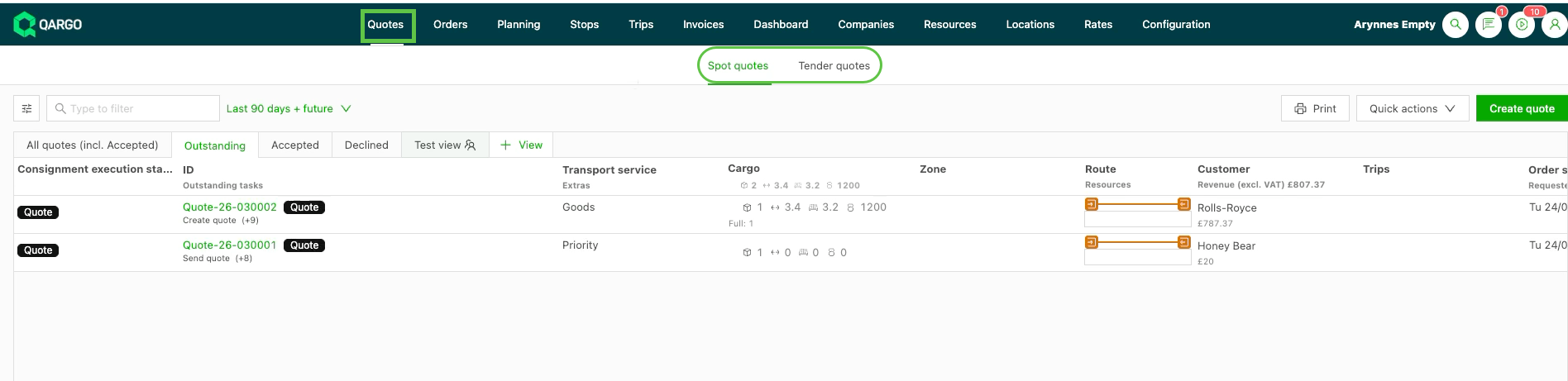
A new top-level Quotes menu is accessible in the main navigation, next to Orders. It contains two tabs:
- Spot quotes: the existing quote functionality, relocated here from Orders > Quotes. Spot quotes handle one-off, ad hoc price quotes and remain functionally unchanged.
- Tender quotes: a new list view for managing recurring or contract-based quotes, with filtering, inline status editing, and Excel export.
Saved views
A saved view captures the active filters, column selection, and sort order. This makes it easy to return to a specific setup without reconfiguring it manually.
Creating a saved view
- Navigate to Quotes > Tender quotes.
- Configure the desired filters, columns, and sort order.
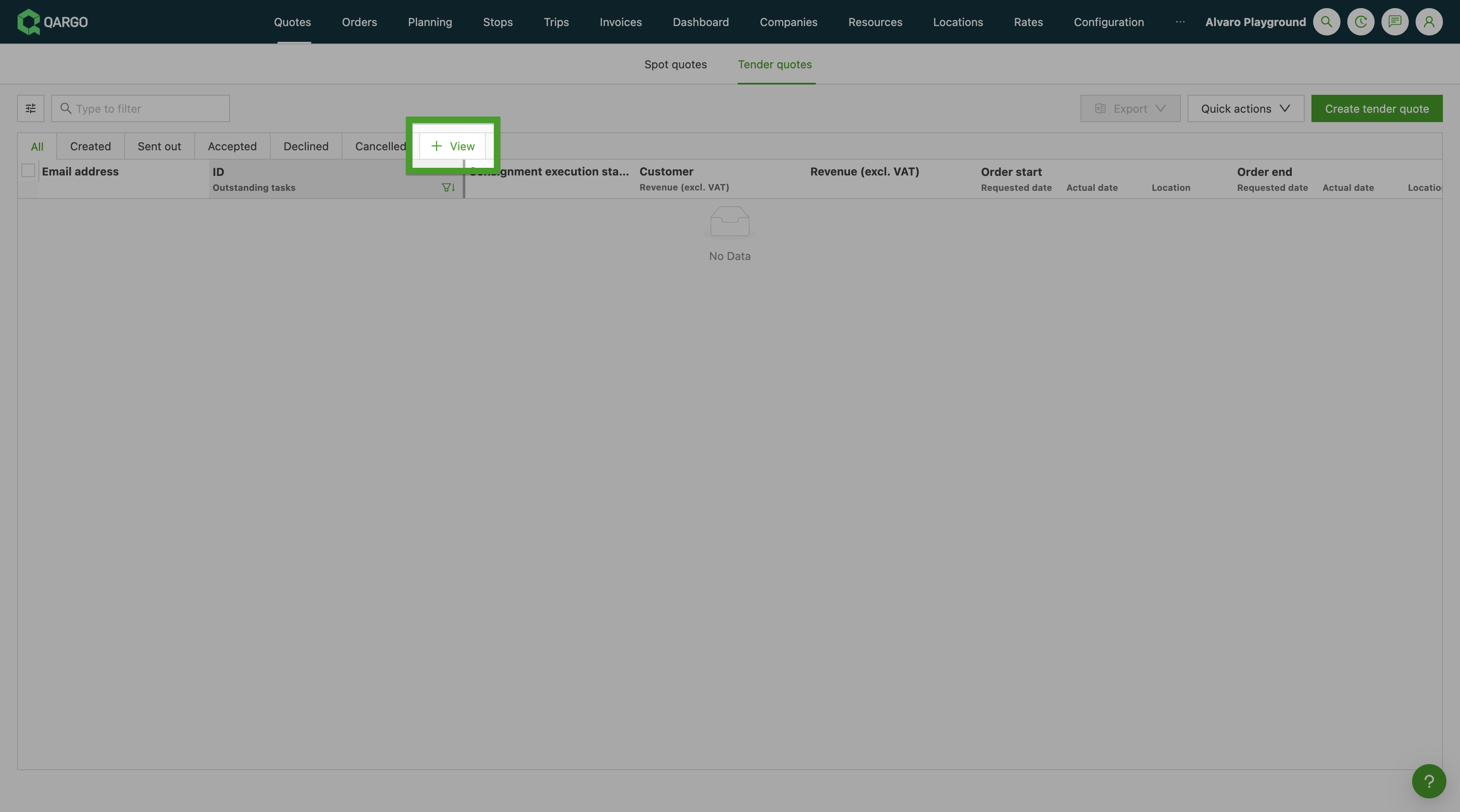
- Click + View next to the status filter tabs.
- Enter a name for the view and confirm.
The new view appears as a tab alongside the default status filters (All, Created, Sent out, Accepted, Declined, Canceled).
Managing saved views
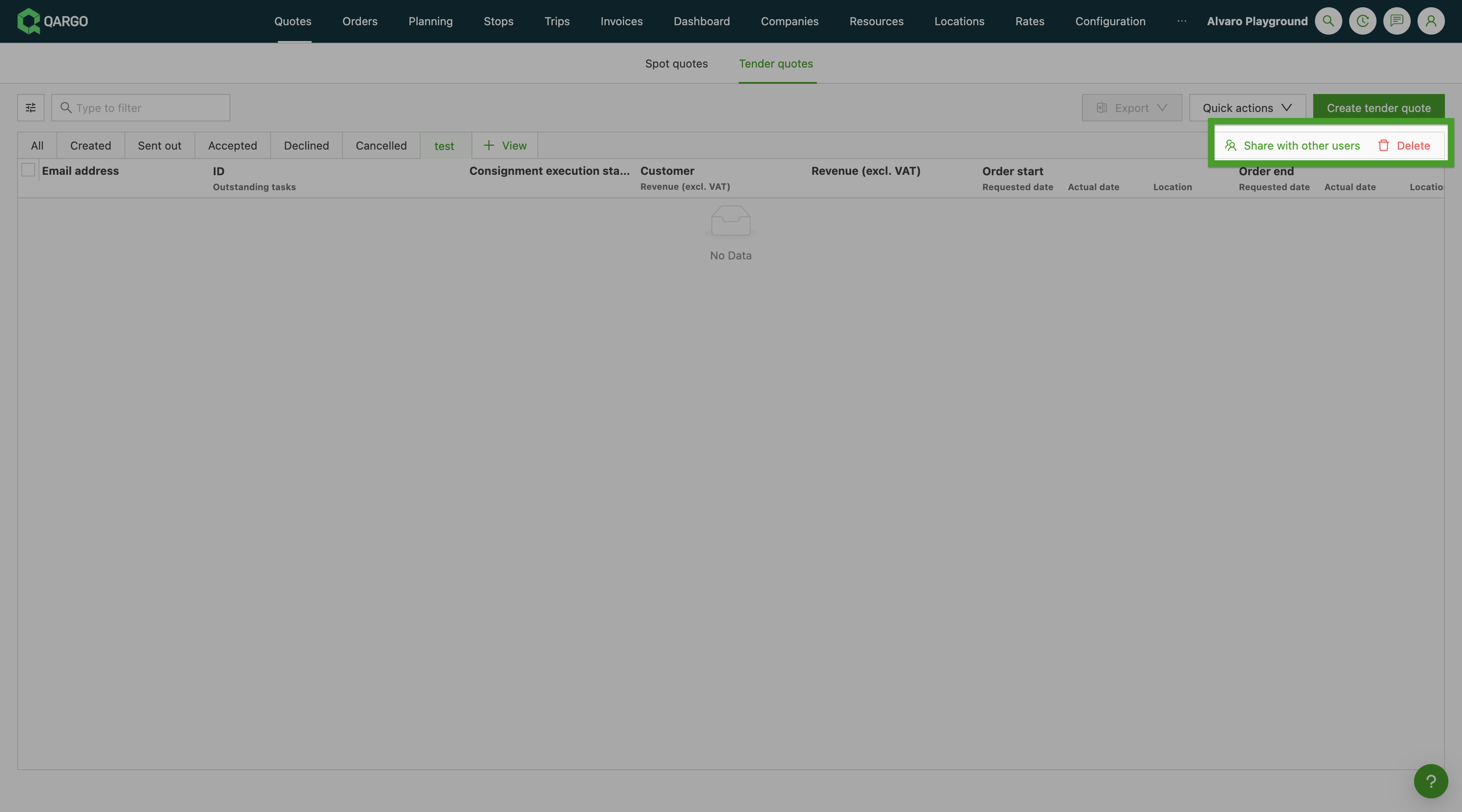
Saved views can be shared (super admin only) and deleted.
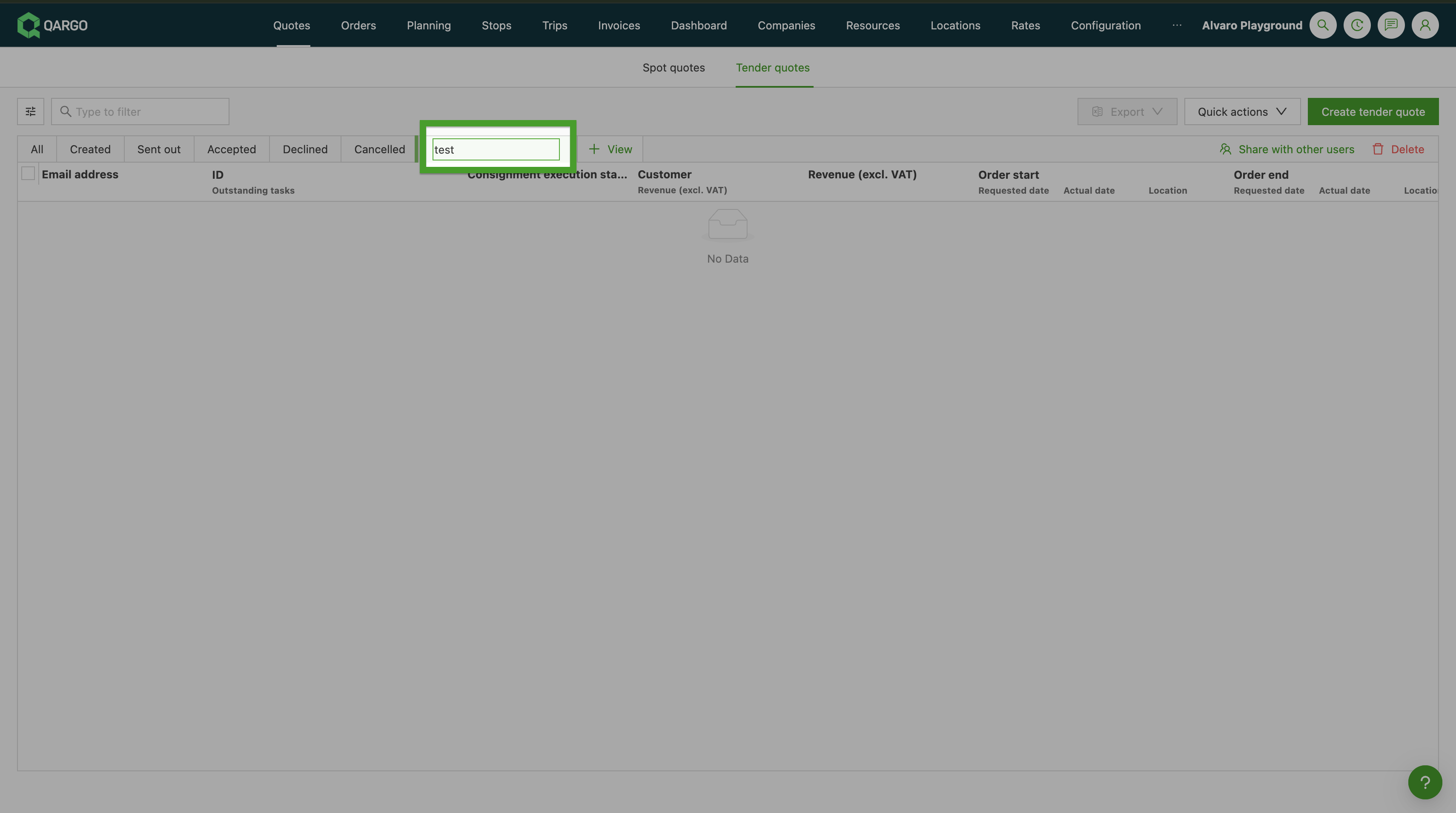
A view can be renamed by clicking its name. This makes the name editable.
Status filter tabs (All, Created, Sent out, etc.) operate independently of saved views. Changing the status filter does not alter the configuration of the active saved view.
Tender quotes
Creating a tender quote
- Navigate to Quotes > Tender quotes.
- Click Create tender quote to open a new tender quote form.
- Complete the quote details (route, goods, requirements) in the same way as when creating an order or order template.
- Set the validity period and, optionally, the max orders cap (see the sections below).
- Save the tender quote. The status is set to Created by default.
Statuses
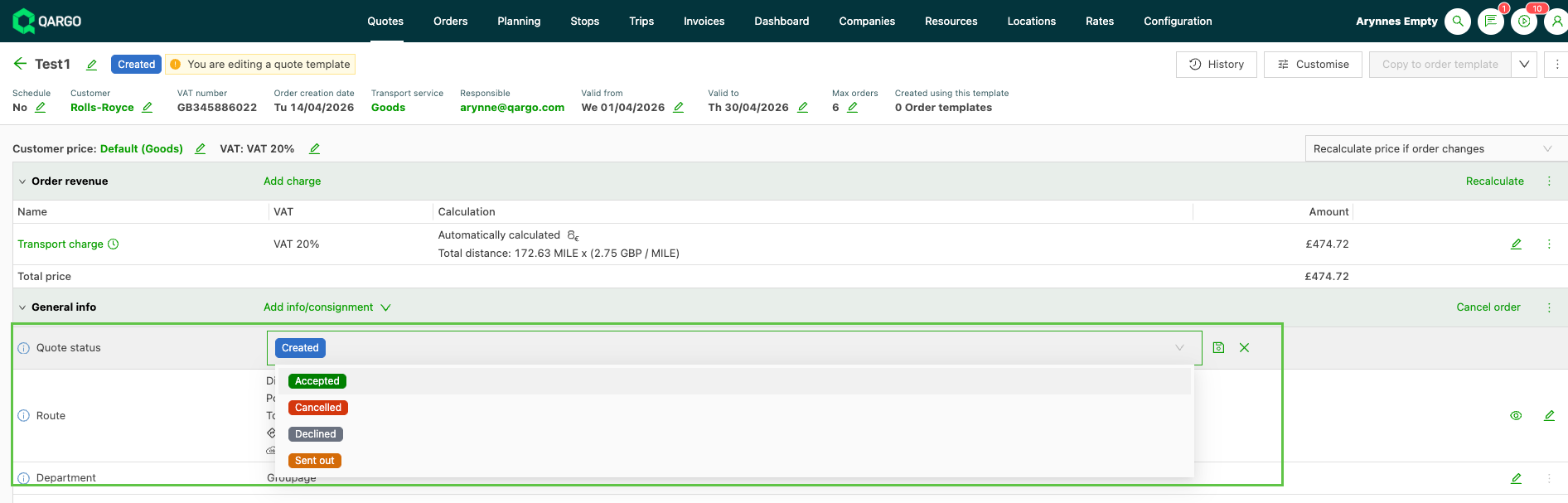
Each tender quote has a status representing its current stage in the lifecycle. Statuses are set manually and can be updated from both the list view and the tender quote detail page.
| Status | Meaning |
|---|---|
| Created | The quote has been drafted but not yet sent to the customer. |
| Sent out | The quote has been shared with the customer and is awaiting a response. |
| Accepted | The customer has agreed to the quoted price. |
| Declined | The customer has rejected the quote. |
| Canceled | The quote has been withdrawn or is no longer relevant. |
Validity period
Each tender quote includes a Valid from date (required) and an optional Valid to date. A Qargo admin setting allows the end date to be made mandatory for the entire tenant.
- Tender quotes whose end date has passed are marked with a red Expired tag in the list view.
- Expired quotes are not hidden; they remain visible for reference.
Set the validity range when creating or editing a tender quote using the Valid from and Valid to date fields.


Max orders cap
An optional Max orders field allows setting a ceiling on the number of orders that can be generated from a tender quote.
- When the number of generated orders exceeds this cap, a warning is displayed.
- Order creation is not blocked: the cap is advisory, not restrictive.
Auto-generated template names
- Template name is optional.
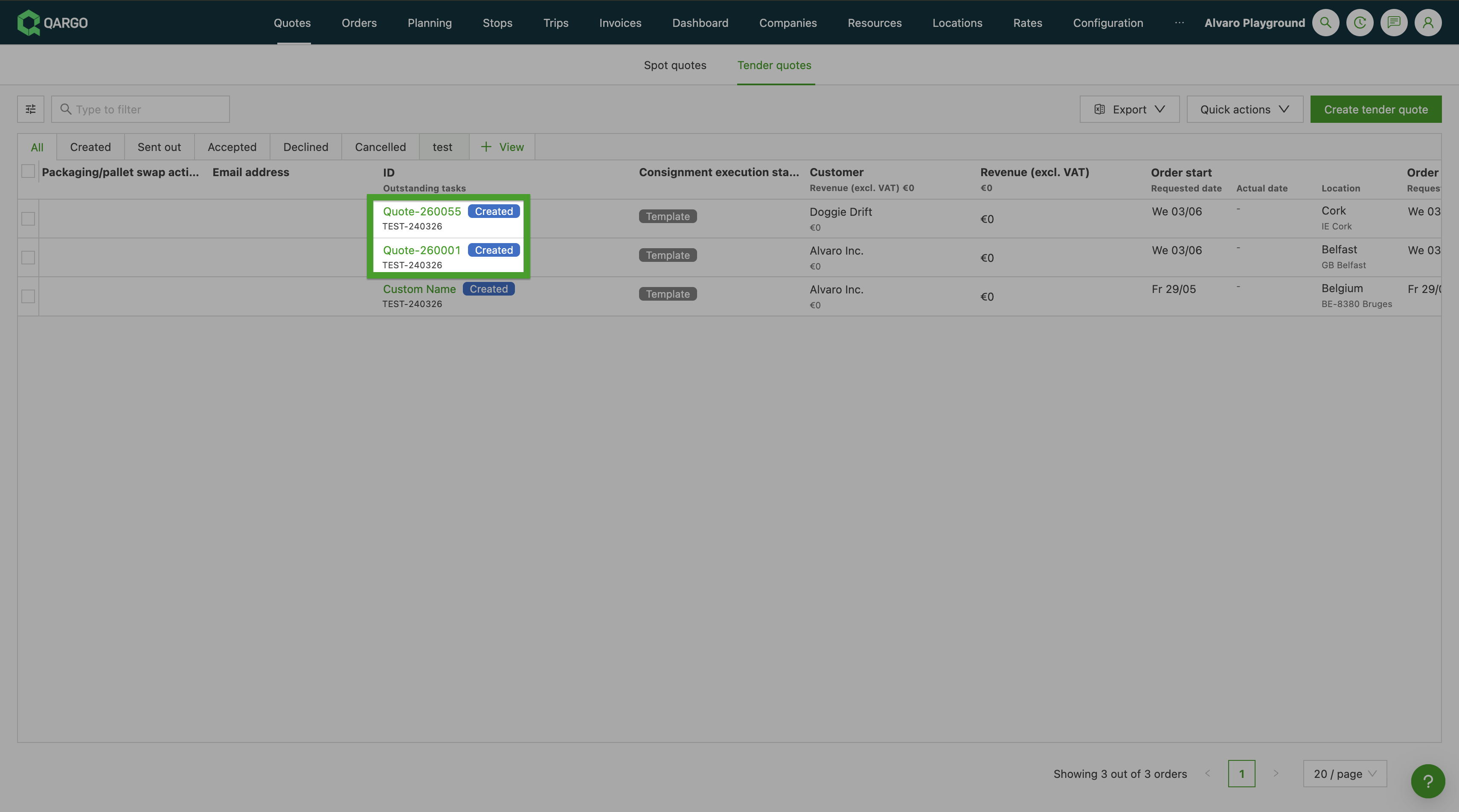
- If Template name is left blank, Qargo automatically creates a unique name when the tender quote is saved.
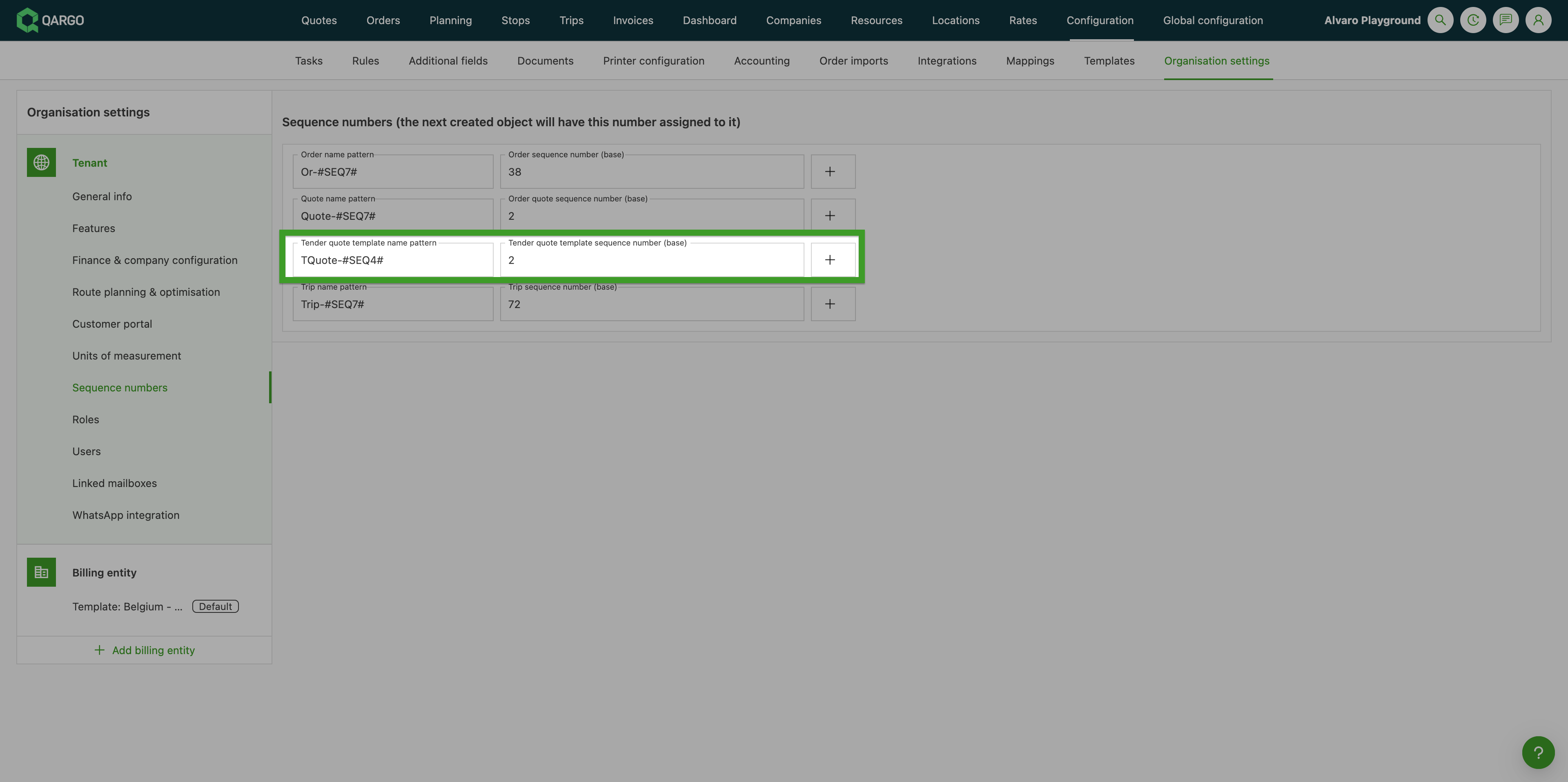
- The name is generated using the Tender quote template sequence pattern configured in:
Configuration > Organization settings > Sequence numbers
How it works
-
Leave Template name blank
- Qargo automatically generates the name.
- This works when creating a tender quote manually or when importing one.
-
Enter a Template name
- Qargo saves the name as entered.
- The custom name is not changed or overwritten.
-
For imports
- A blank or missing
template_nametriggers automatic name generation for that row. - A
template_namewith a value keeps the provided name.
- A blank or missing
-
Tender quote and spot quote numbers are separate
- Creating a tender quote does not change the spot quote counter.
- Creating a spot quote does not change the tender quote counter.
Configuring the Tender quote template pattern
-
Go to Configuration > Organization settings > Sequence numbers.
-
Find the Tender quote template row.
Name pattern
The pattern tells Qargo how to build each automatic quote name.
The following elements can be used:
-
#SEQ#: adds an automatically increasing number.- Add a number to control the number of digits.
- Example:
#SEQ4#→0001,0002,0003
-
#DATE()#: adds the quote creation date.- Add a date format inside the brackets.
- Example:
#DATE(%y)#→26
-
Plain text: adds any fixed text.
- Example:
TQuote-
- Example:
These elements can be combined in any order.
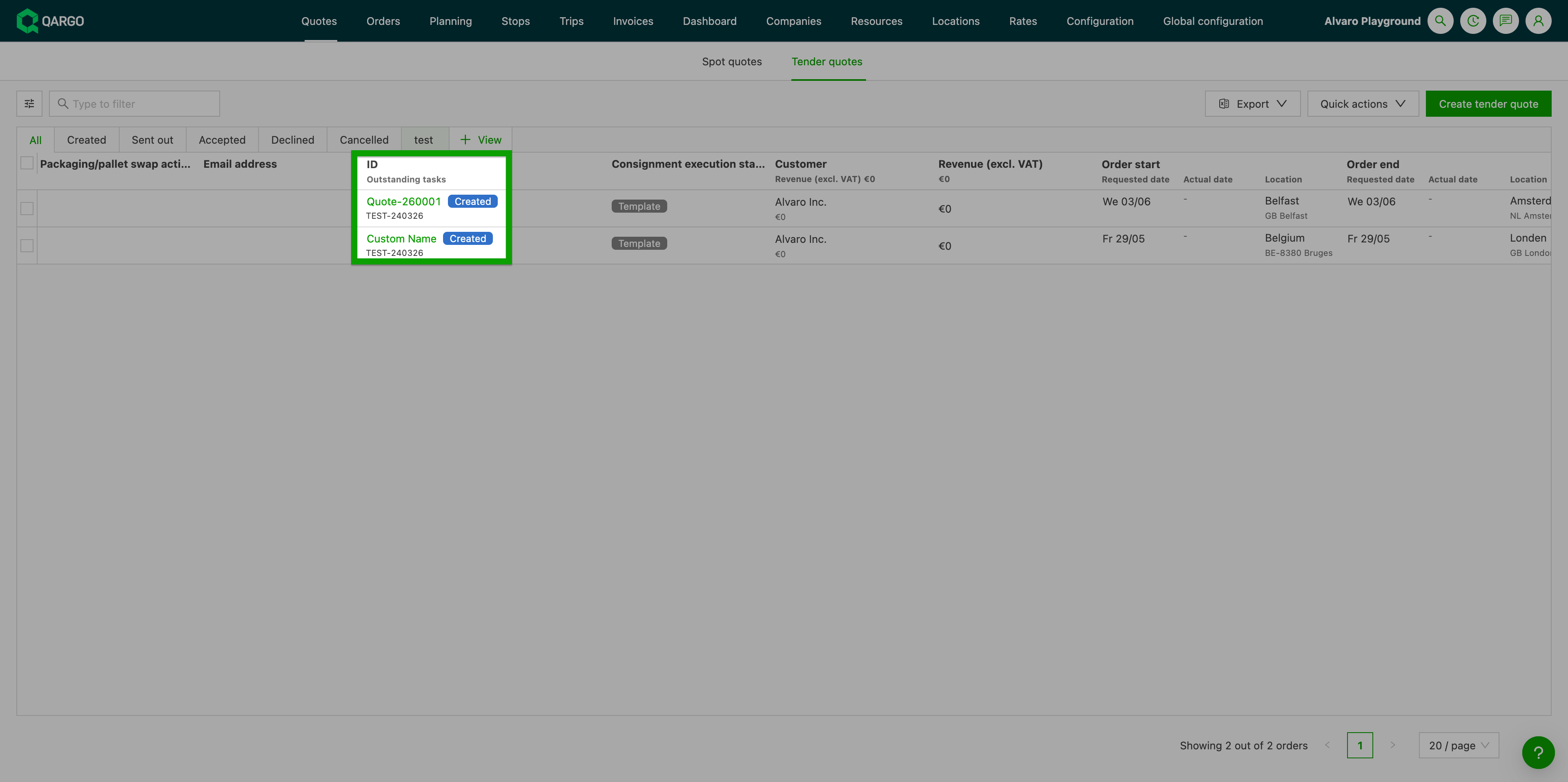
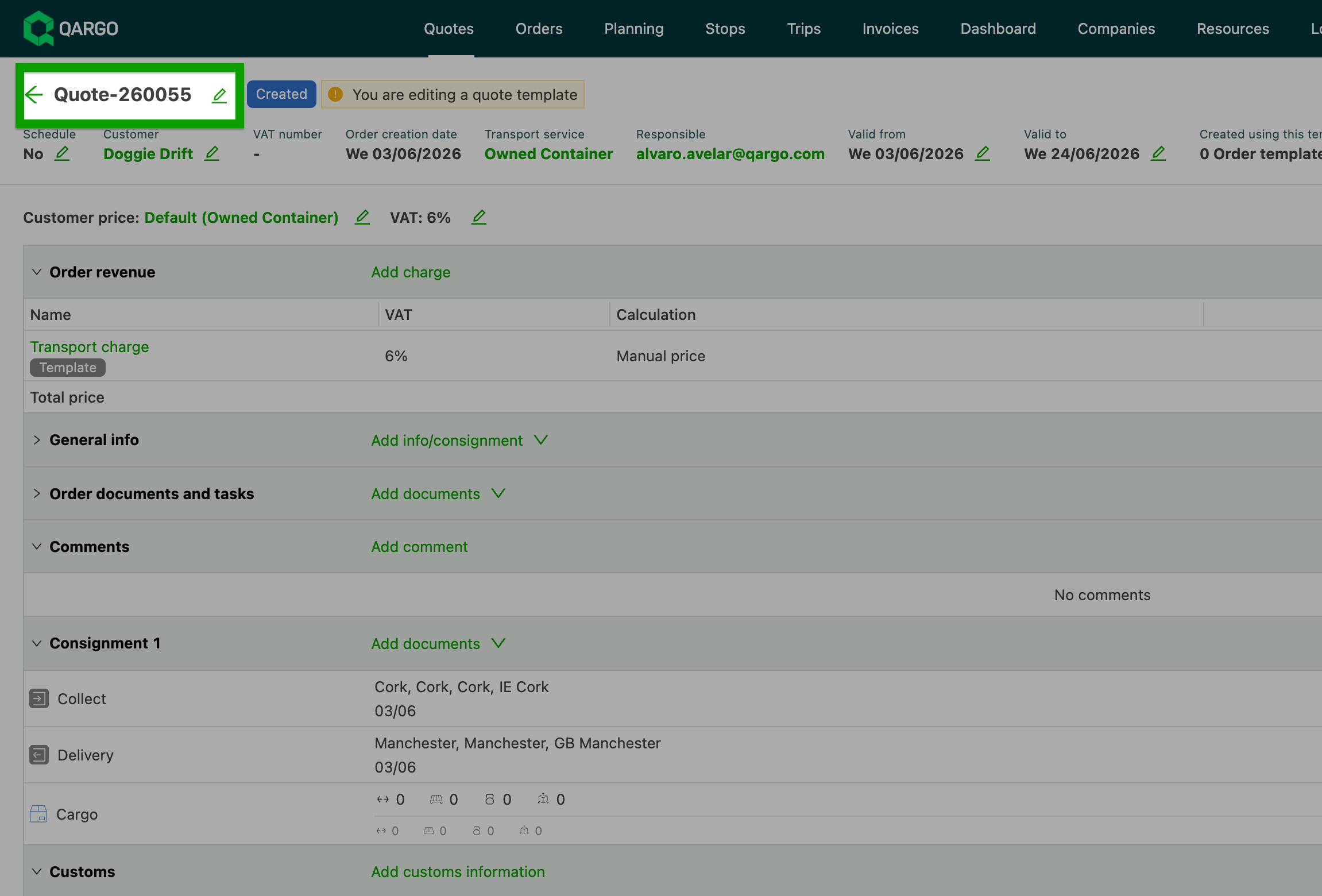
Example:
- Pattern:
Quote-#DATE(%y)##SEQ4# - First quote:
Quote-260001 - Second quote:
Quote-260002 - Third quote:
Quote-260003
Choose the starting number
-
The number Qargo uses can be set to continue existing quote numbering.
-
This is useful when tender quotes have already been named manually and gaps should be avoided.
-
For example:
- The last manually created quote is
TQuote-0050. - Set the Tender quote template sequence number so the next generated quote continues from
0051.
- The last manually created quote is
-
To change the starting number:
- Find Tender quote template in Sequence numbers.
- Click the + button.
- Enter the sequence number to use.
Using task conditions for tender quotes
Under Task configuration > Creation conditions, users can designate specific tasks that apply to their tender process.
-
Navigate to Tasks.
-
Select the task to update, or click Add to add a new task.
-
Configure the task type (Contact, Generate, etc.).
-
Locate the Configuration panel and set Calculation method to Simple rule.
- Set the metric Order / template type.
- Set the operator Is.
- Set the value Quote.
-
Save the task.
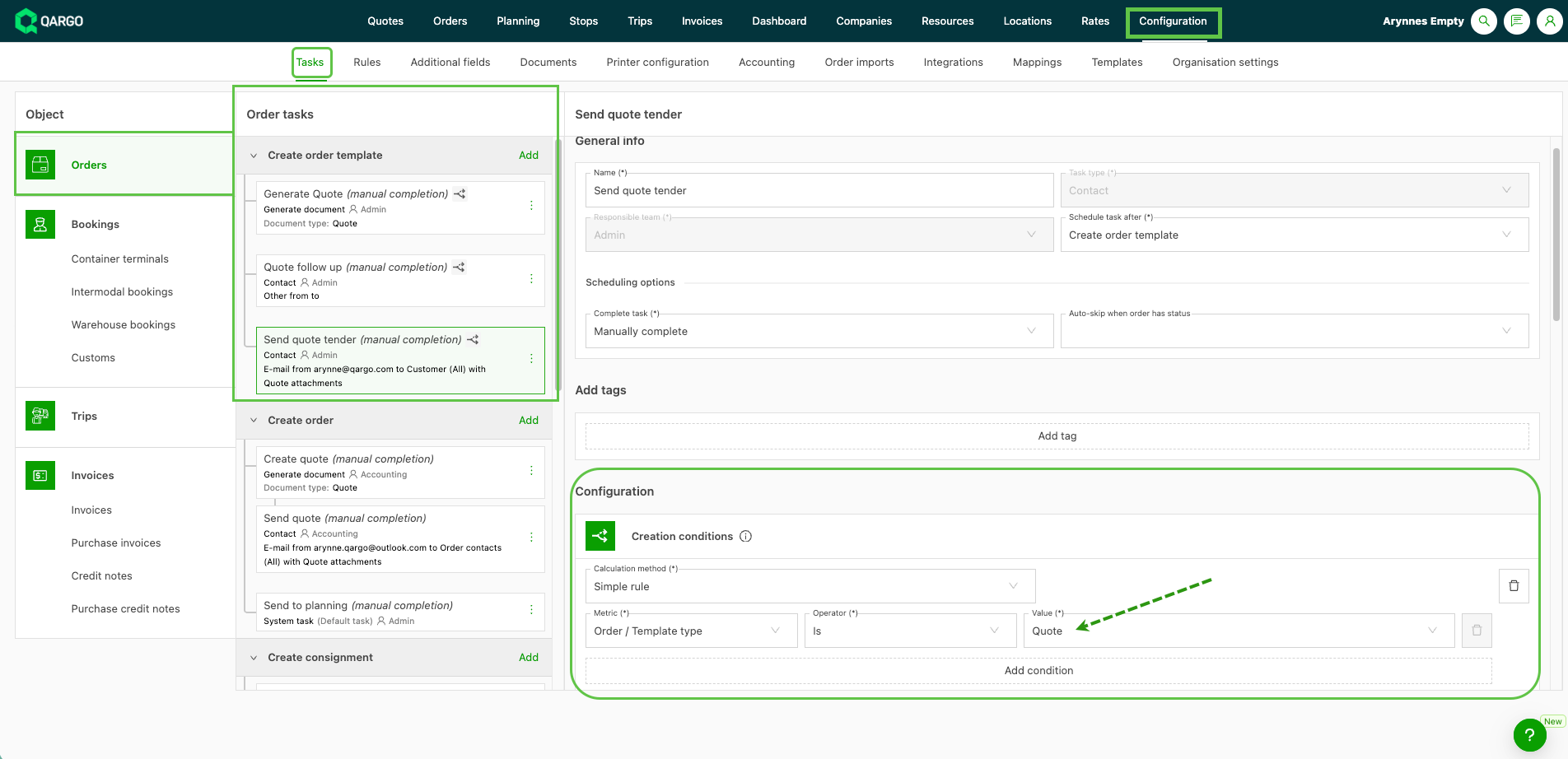
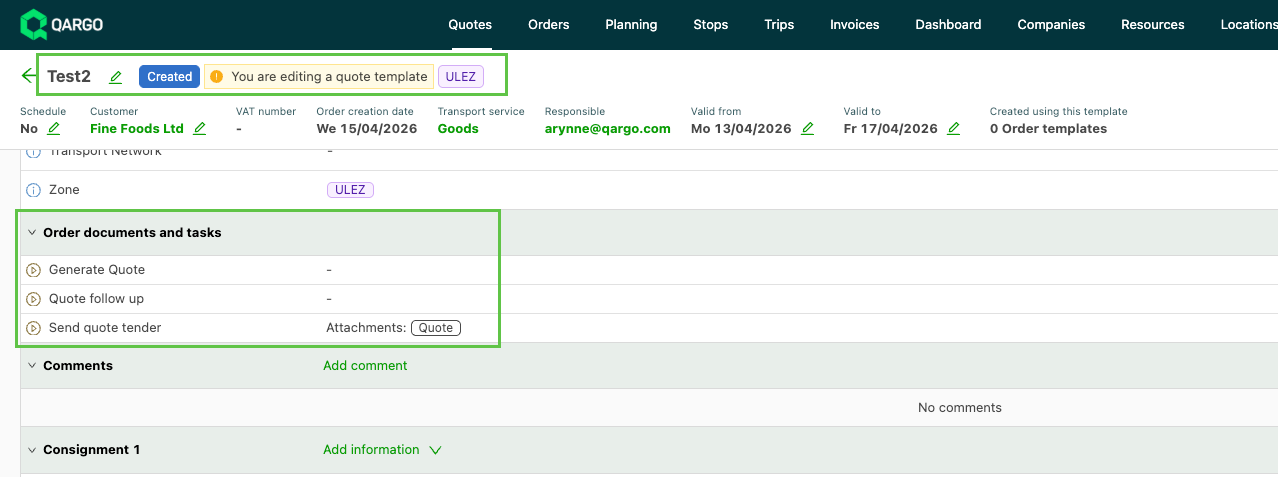
- Once a task condition is set, the configured quote tasks only apply when a tender quote is created.
Quote tender (template): tasks set up when conditions apply
From tender quote to order template to order
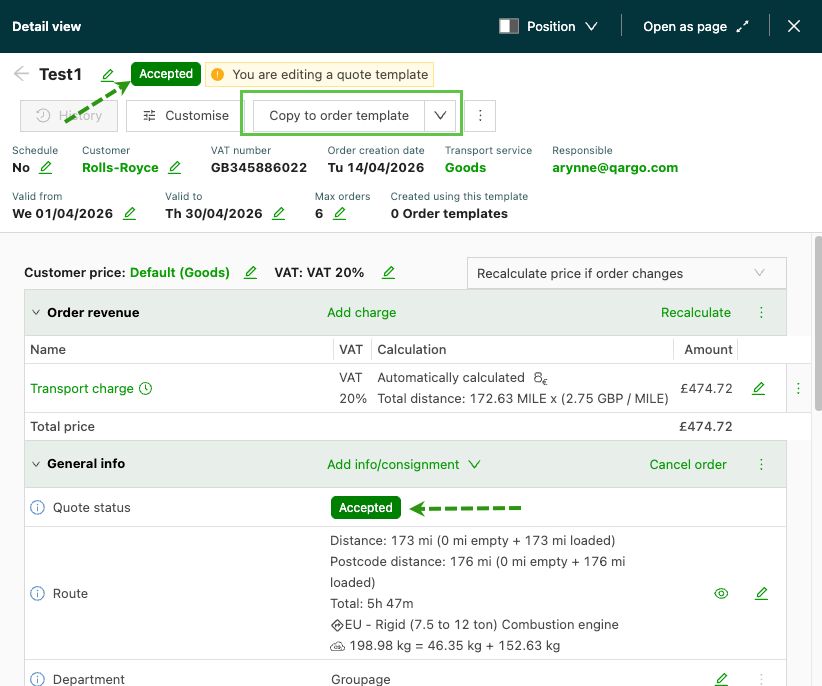
When a tender quote reaches Accepted status, the workflow continues in three steps:
- Copy the accepted tender quote to create a new order template. This is a manual action; there is no automatic conversion.
- The order template is created with the route, goods, requirements, validity dates, and max orders cap carried over from the tender quote. These fields are managed independently on the template after creation.
- Create actual orders from the order template as needed.
Validity enforcement on order templates
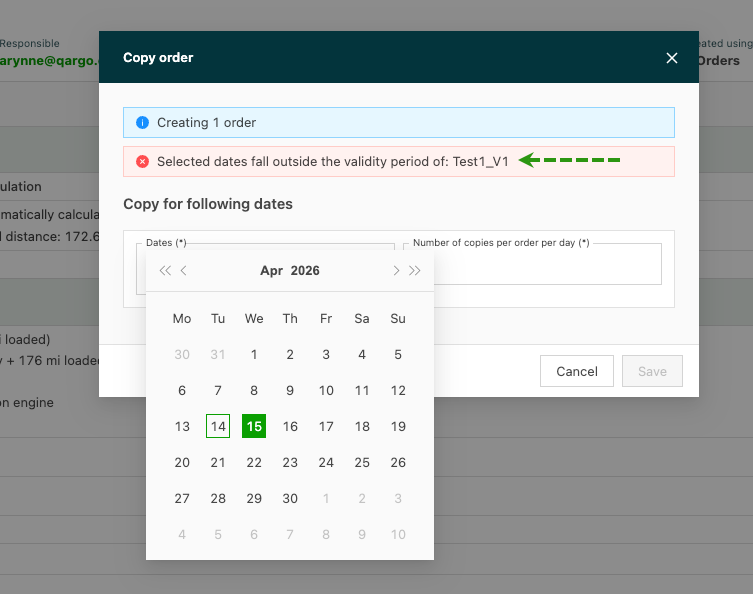
Order templates created from tender quotes carry validity dates forward. Validity is actively enforced during order creation:
- Expired templates (past their Valid to date) are not shown in the templates selection list.
- When an order is created manually, order creation is blocked if the pickup date falls outside the template’s validity range.
- In the order import flow, expired templates are automatically filtered out of the template dropdown.
Duplicating a tender quote or order template
Both tender quotes and order templates can be duplicated. The duplicate copies all fields, including route, goods, requirements, and validity dates.
- Open the tender quote or order template to duplicate.
- Select the duplicate action from the options menu.
A new record is created with all fields pre-populated. Statuses on duplicated tender quotes reset to Created.
Documents
Files can be attached to a tender quote directly from the quote detail page. This mirrors the document handling available on spot quotes, so supporting materials can be stored alongside the quote record throughout its lifecycle.
Attaching a document
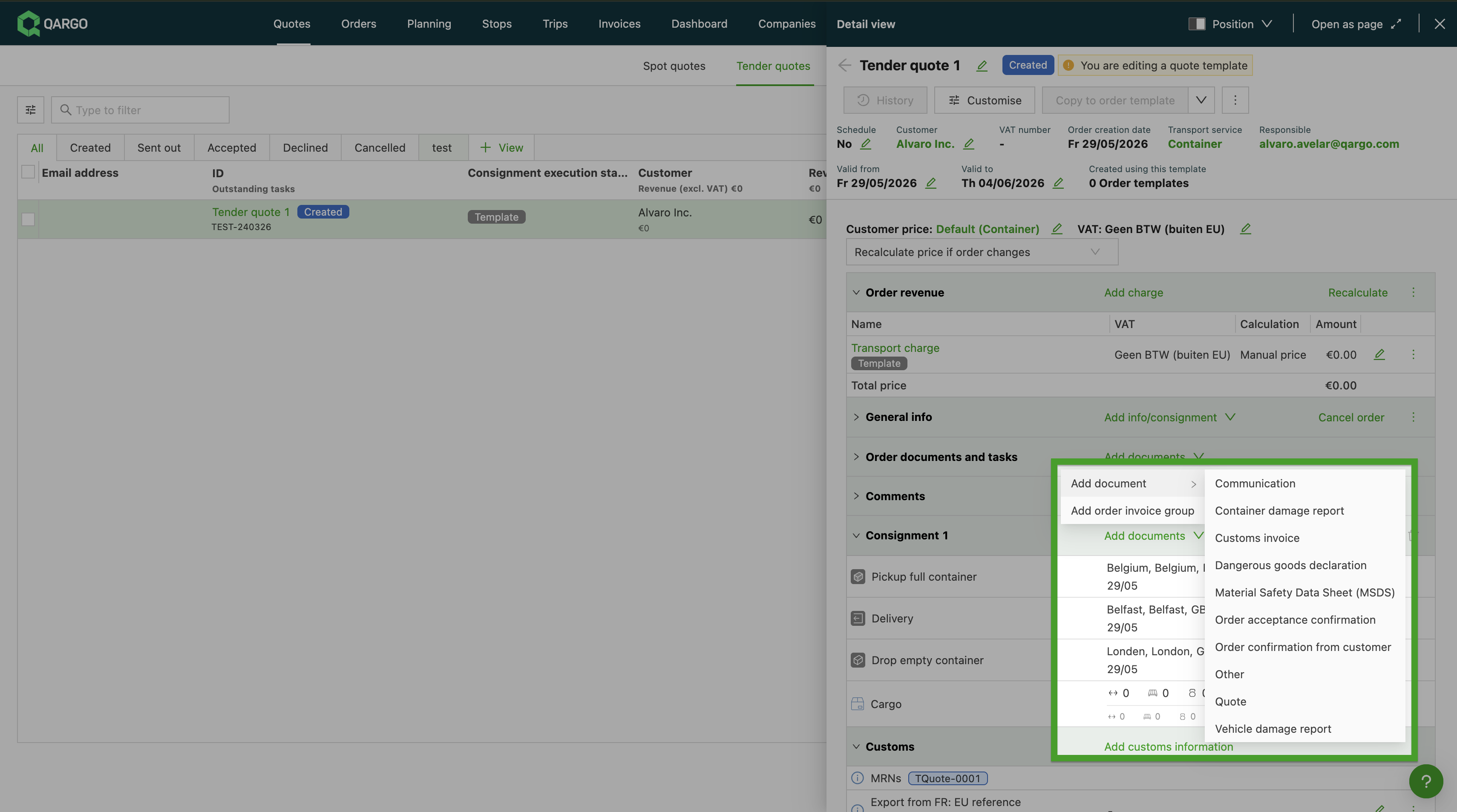
- Open the relevant tender quote (Quotes > Tender quotes).
- Scroll to the Order documents and tasks section.
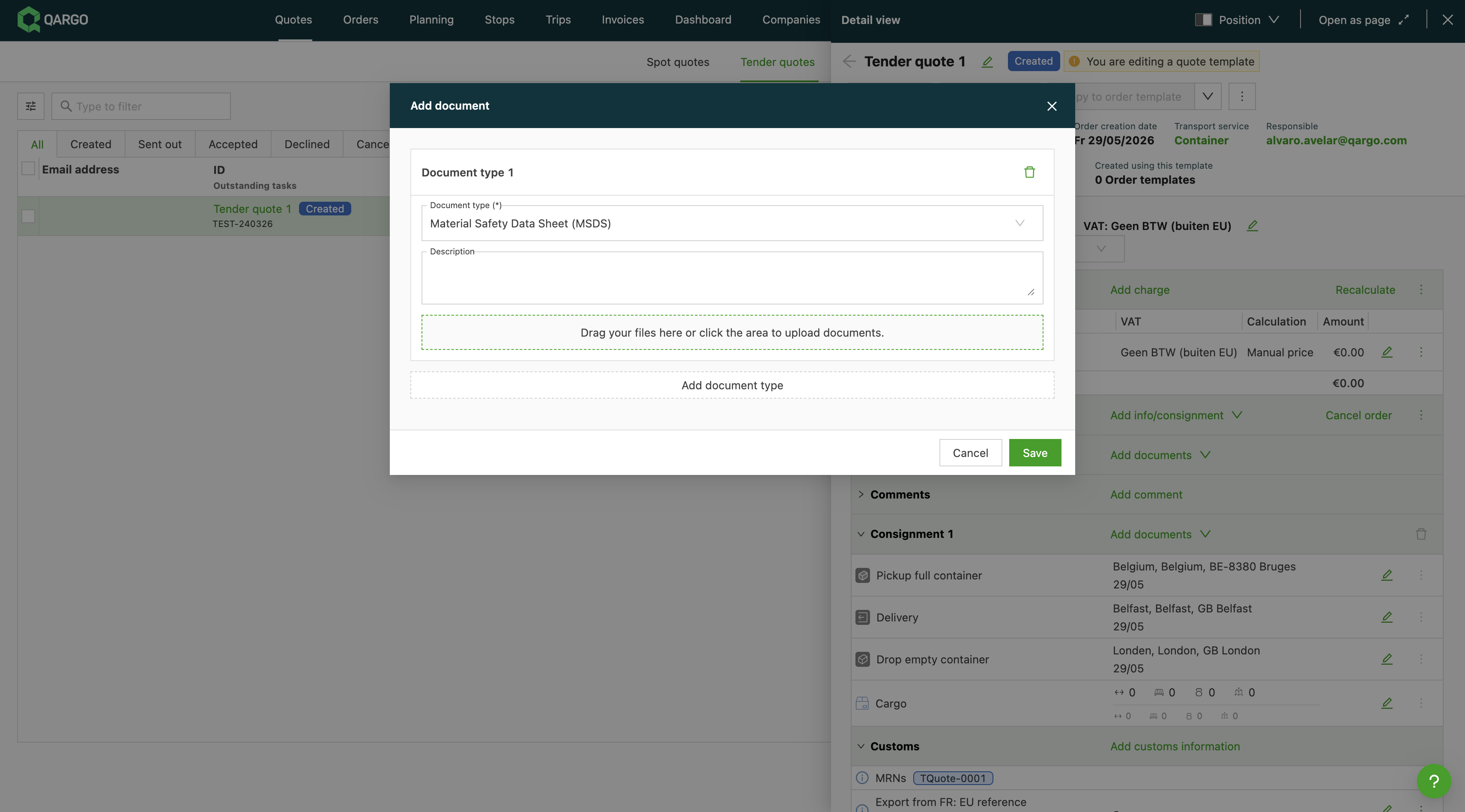
- Click Add documents > Add document.
- Select the appropriate document type and click the Drag your files here or click the area to upload documents button.
- Save to confirm.
Attached documents persist through all status changes. They remain visible whether the quote is Accepted, Declined, or Canceled.
Troubleshooting
| Issue | Resolution |
|---|---|
| The Tender quotes tab is not visible | The Quotes feature flag must be enabled for the tenant by a Qargo admin. |
| An expired template is not appearing in the order import dropdown | Expected behavior: expired templates are automatically filtered out of the dropdown. |
| Order creation is blocked when using an order template | Check the template’s Valid to date. If the pickup date falls outside the validity range, creation is blocked. Adjust the template validity or use a different template. |
| A max orders warning is appearing | The number of orders generated from this tender quote has exceeded the optional cap. The cap is advisory; order creation can still proceed. |
| The status does not update automatically after sending a quote | Statuses are manual. There is no automated trigger; the status must be updated manually from the list view or the detail page. |
| Spot quotes are not visible under Orders > Quotes | Spot quotes have moved to the new Quotes menu in the top navigation. Navigate to Quotes > Spot quotes. |