
Feature release – May 2026
This article highlights the new features and enhancements released by Qargo this month.
Week 1
⏱️ Automatic ETA recalculation for loads in transit
💰 Carrier invoice – Select all loads on ‘Loads to bill’
🕐 Configuration – Find recently viewed order, load or invoice records.
📄 Check the doc, keep the list: inline document preview
🚢 Intermodal – Intermodal departures column to view ferry info
✅ Tasks – Fix failed tasks fast using quick actions
Week 2
🔒 Saved views – Restrict sharing to selected users
☣️ Orders – ADR column, filters & packaged item columns
📍 Rate cards – “Any stop” conditions and metrics
🔀 Rate cards – Stage type, resource type & intermodal connection conditions
🔗 Rate cards – Dependent calculations
Week 3
⚖️ Planning – Intermodal weight fields: tare, freight & VGM
🛃 Customs – Customs pre-notification: shipment customs fields update
⚙️ Configuration – Auto-assign rules: overwrite existing values toggle
♾️ Planning – Infinite scroll on the To plan orders list
Week 4
📝 Configuration – Increased custom fields limit (30 → 50)
🗓️ Planning – Assign resources to specific stops on a load
⚙️ Configuration – Role-based order creation permissions
🖥️ Customer portal – Create orders from templates
💰 Orders – Toll cost calculation
💰 Rate cards – Fixed customer on price list charges
📥 Order import – Template-based order routing
Week 1
⏱️ Automatic ETA recalculation for loads in transit
Qargo can now continuously update estimated arrival times while a driver is on the road, with no stop completion required. Stop times on the planning board shift automatically as GPS data comes in. This gives planners a live view of how the load is progressing.
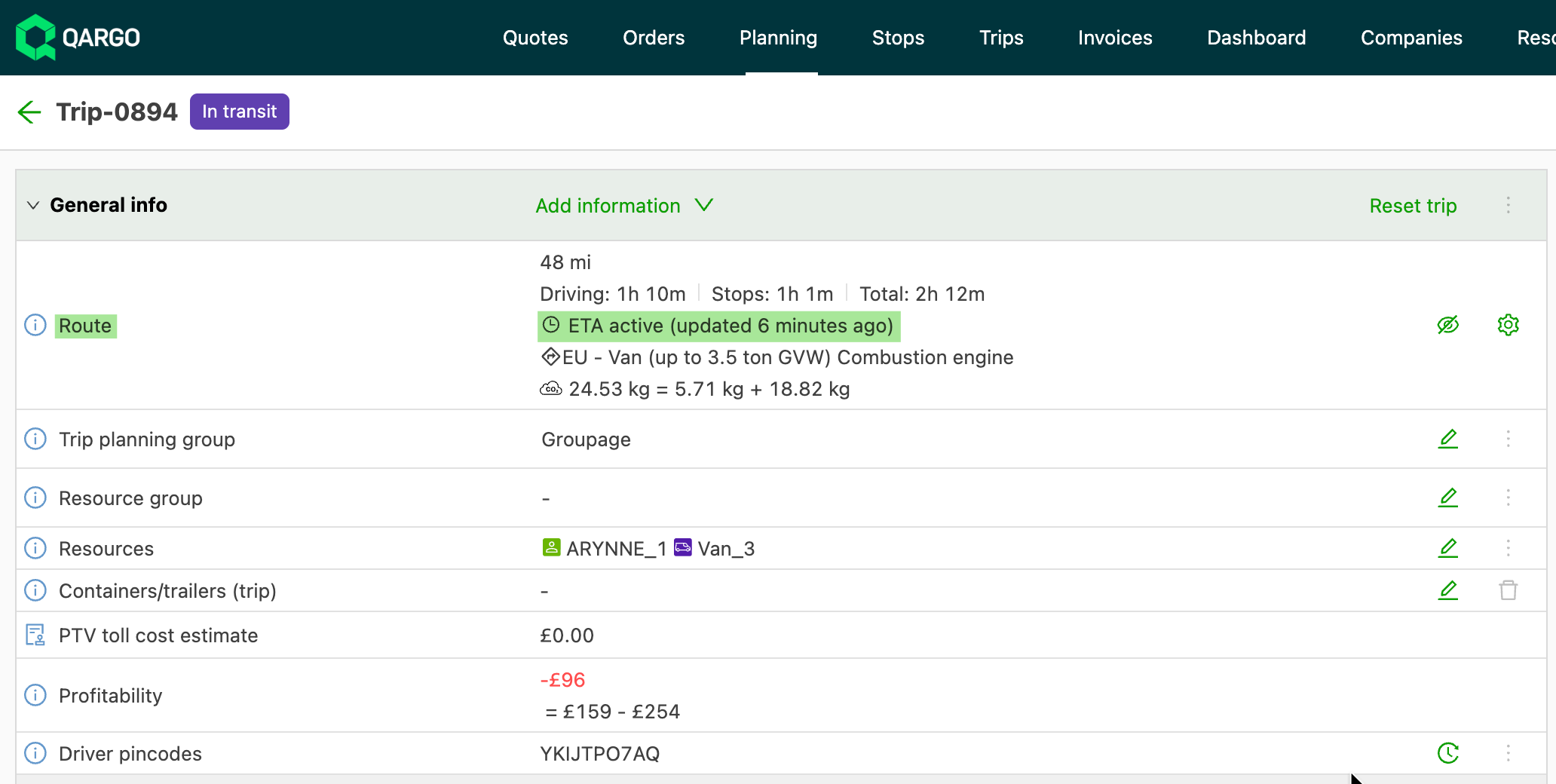
How it works (must be ‘in transit’)
- Qargo collects GPS position pings from the Qargo mobile app or a connected telematics system (FMS) and uses them to recalculate the ETA for the next upcoming stop.
- All subsequent stop times shift forward or back by the same amount. This keeps the full schedule aligned without any manual intervention.
- Updates happen as frequently as every 5 minutes when a driver is close to a stop, and up to every 2 hours on long-haul legs.
- If a driver stays at a stop longer than planned, Qargo automatically detects the extended on-site time and shifts all downstream timestamps forward to match.
- Option to ‘opt out’ of automatic ETA and use milestone events (i.e., completed stops) to update the ETA. Contact the Qargo account manager to opt out of this feature.
Learn more about ETA updates in Qargo
💰 Carrier invoice – Select all loads on ‘Loads to bill’
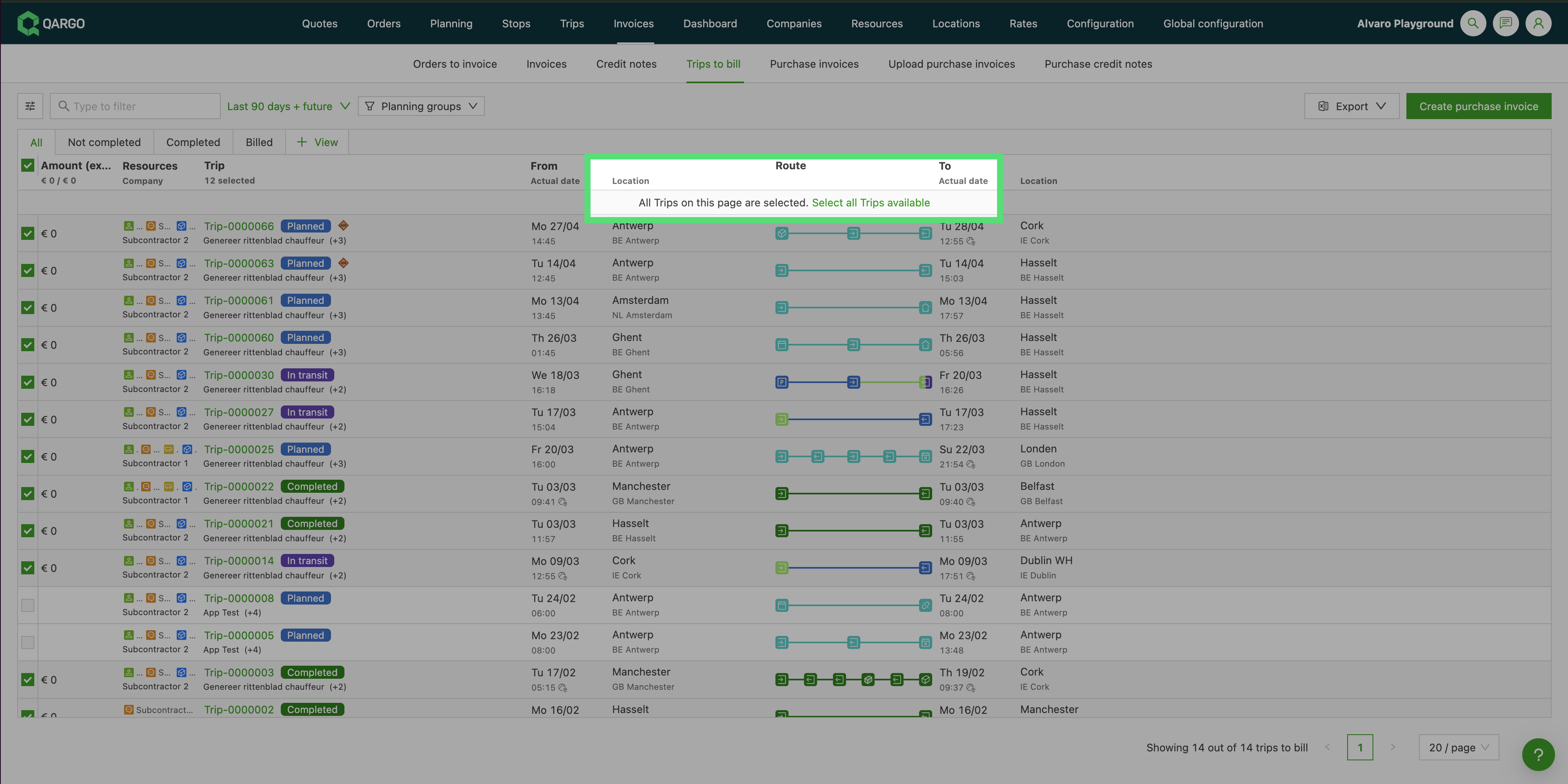
The Loads to bill view now supports cross-page selection: select every load matching the filters in a single click, regardless of how many pages the results span.
A Select all checkbox in the table header selects the full filtered result set, not just the loads on the visible page. Selections persist as users move between pages. From there, all standard bulk actions work on the full set: Create billing proposal, Create carrier invoice / self-bill, and Bulk complete.
This brings Loads to bill in line with the existing behavior on Orders to invoice.
🕐 Configuration – Find recently viewed order, load or invoice records.
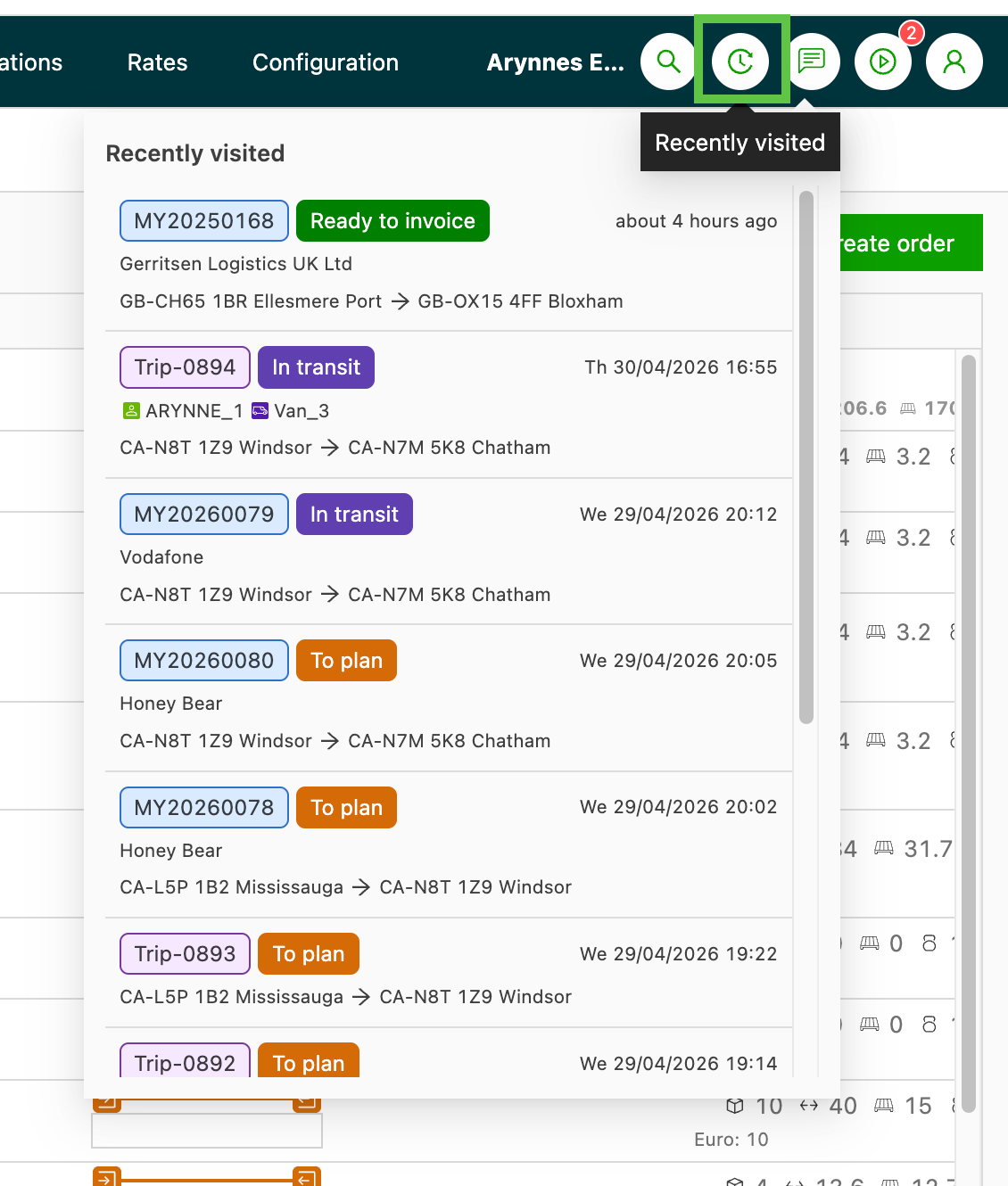
A new Recently visited panel in the top navigation bar gives instant access to the last 20 operational records opened, with no search and no extra tabs.
What’s new
Click the clock icon in the top navigation bar to open the pop-out. It shows up to 20 recently opened objects (orders, loads, load groups, invoices, credit memos, and templates), sorted newest first. Each row shows the reference, current status, primary context (customer, route, or invoice total), and how long ago it was opened. Click any row to access the record right away.
📄 Check the doc, keep the list: inline document preview
Clicking a POD or document tag on the Stops tab or Orders list now opens a preview panel beside the table. Documents can be verified without navigating away from the list.
- The preview panel supports configurable dock positions: left, right, top, bottom, or split view.
- Drag the divider to resize it.
- AI Document Intelligence data (signed status, ZIP codes, weight, reference numbers, and document type) is displayed alongside the document for quick validation.
- PDFs, images, Word, and Excel files are all supported.
- Email attachments open in the existing mail thread viewer.
Why it matters
Verifying a POD previously meant leaving the list to open a separate document page, which broke the review flow. Teams checking documents before billing can now see the document and AI-validated fields in the same view, without losing their place.
View documents in Stops and Orders
🚢 Intermodal – Intermodal departures column to view ferry info
An optional column on the Orders list displays ferry booking details (departure time, operator, and connection), so intermodal planners can monitor their fleet without opening each order individually.
- Enable Intermodal departures via Edit columns on the Orders list.
- Each order row with intermodal bookings then shows up to two ferry legs inline. Orders with more legs display a +X indicator.
- Hovering over the column opens a full booking details popover per leg. It includes departure and arrival times, operator, booking reference, booking status, vessel name, voyage code, pre-boarding notification status, and goods movement reference.
Learn more about the Intermodal departures column
✅ Tasks – Fix failed tasks fast using quick actions
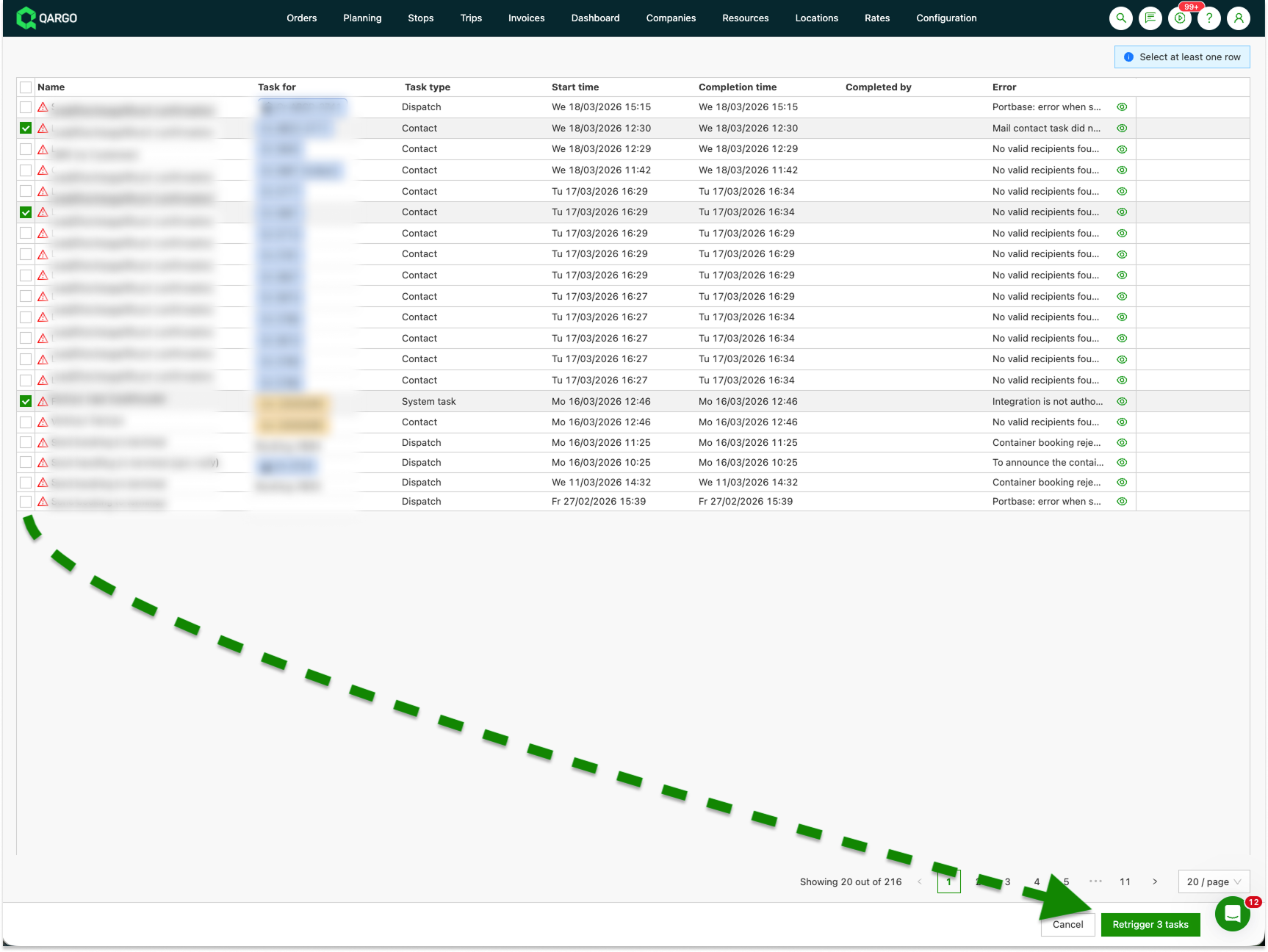
When tasks fail in bulk (after an integration hiccup or a bad import), users can retrigger, reset, or skip them all in one go instead of handling each one individually.
On the Failed tasks page, a new quick action button lets users choose a bulk operation: Retrigger tasks, Reset tasks, or Skip tasks.
- After the action is selected, checkboxes appear next to each eligible task. Ineligible tasks are grayed out automatically.
- A footer shows the action button (only active once at least one task is selected) and a Cancel button to exit bulk mode without making changes.
- Reset tasks also works for tasks stuck in a loading state, which makes it useful beyond error recovery.
:::
Week 2
🔒 Saved views – Restrict sharing to selected users
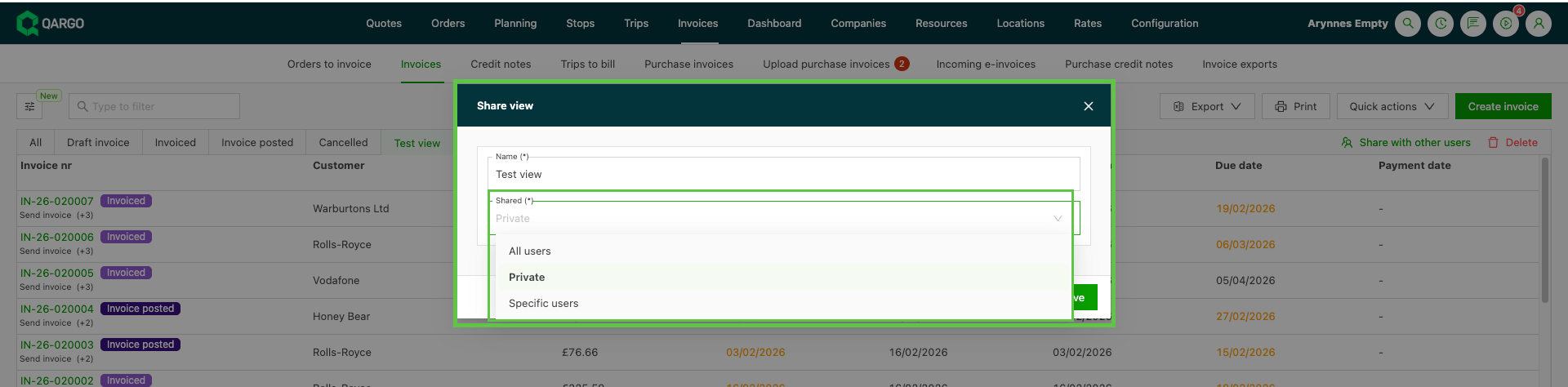
Saved views can now be shared with a specific list of users. A new three-state Share view screen replaces the old share toggle. It gives Super Admins precise control over who sees which views in their tab bar.
-
Three sharing states:
- Private (default: creator only)
- Selected users (a chosen list of users plus the creator)
- All users (everyone in the tenant, equivalent to the previous shared behavior)
-
A multi-select user picker when choosing Selected users, with the creator included automatically so the view can never be accidentally hidden from its owner
-
The same Share view screen applies across every list page that supports saved views: Orders, Planning, Loads, Stops, Load groups, Invoices, Credit memos, Loads to bill, Carrier invoices, and Quotes
-
Existing shared views are automatically mapped to All users. Behavior does not change until a Super Admin switches a view to Selected users
Learn more about sharing views with other users
☣️ Orders – ADR column, filters & packaged item columns
The Orders list now makes hazardous materials (HazMat) information visible at a glance. With a dedicated ADR column, new filters, and packaged item custom field columns, compliance and operations teams no longer need to open each order individually to check ADR status.
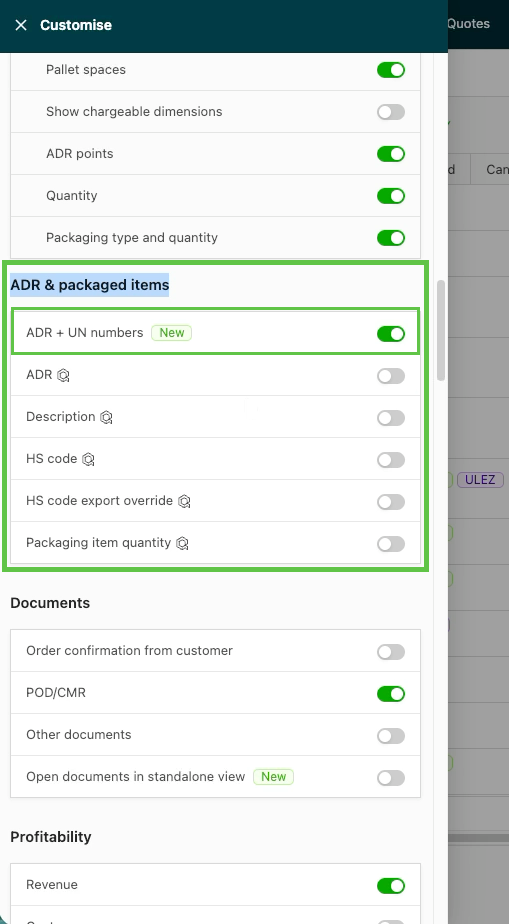
- A new ADR + UN number column showing ADR status, the Limited Quantity flag, and UN number(s) per order. Hover to see the full ADR details, including class, packing group, and HazMat points
- New ADR filters: filter orders by ADR yes/no or by one or more specific UN numbers
- Packaged item custom fields available as toggleable columns and filters on the Orders list (requires the Packaged items feature flag to be enabled on the tenant)
- A restructured Customize panel with grouped sections: Goods, Freight dimensions, and ADR & packaged items
Learn more about using and viewing ADR details in orders
📍 Rate cards – “Any stop” conditions and metrics
Use “Any stop” as a stop position option on rate card conditions, rate table columns, and auto-assign resource rules. Instead of specifying a fixed stop position (1st pickup, last delivery, etc.), the “Any stop” metric evaluates a condition against every stop on the order. The condition passes if at least one stop matches.
- “Any stop” position option on customer and contract carrier rate card conditions using stop-level metrics (country, postal code, ZIP code zone, location, stop extras, stop action type)
- “Any stop” available as a column option in rate tables. Combined with “Fixed per stop”, it applies a separate rate for each matching stop on the route
- “Any stop” extended to the Route metric in auto-assign resource rules, enabling rules to evaluate intermediate stops that were previously unreachable
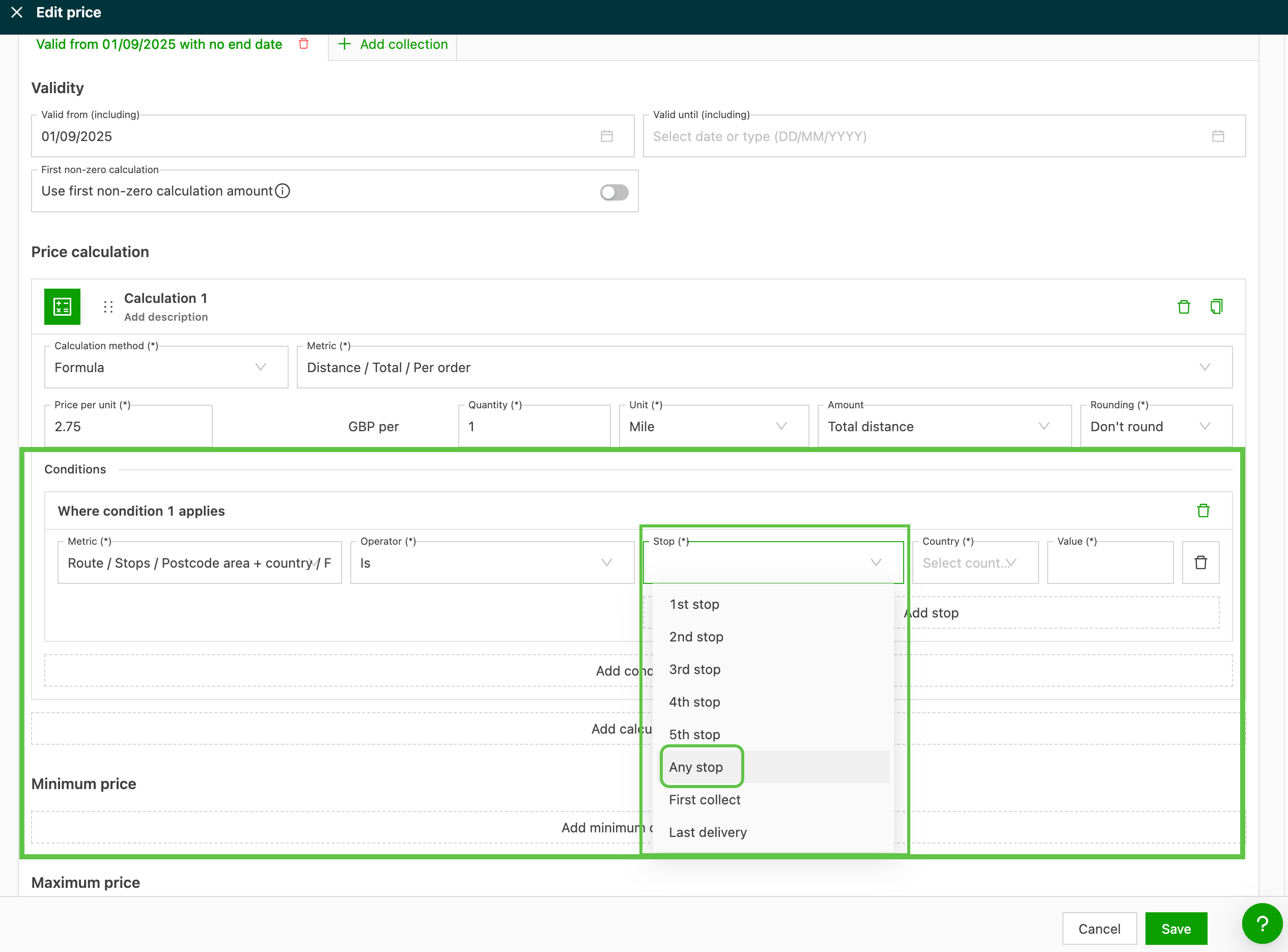
Use ‘Any stop’ as a condition and metric on rate cards
🔀 Rate cards – Stage type, resource type & intermodal connection conditions
Three new condition types are now available on customer price lists and contract carrier rate cards:
- Stage type
- Resource type
- Intermodal connection
Use these conditions to apply charges and third-party costs automatically based on the legs present in the route, the equipment assigned to the load, or a specific intermodal connection. Manual entries per load are no longer needed.
- Stage type condition: triggers a charge when the route contains at least one leg of the selected type (Transfer, Pickup, Delivery, Empty)
- Resource type condition: evaluates the primary or secondary resource assigned to the load (Trailer, Container, Chassis, Ferry resource)
- Intermodal connection condition on customer price lists: matches a specific operator and connection (e.g., P&O > STDR-DUB)
- Intermodal connection condition on contract carrier rate cards: includes additional match fields such as Accompanied, Number of drivers, Resource type, and Temperature plugin
- All three conditions can be freely combined with each other and with existing conditions on the same rate card line
Configure and use multimodal rating conditions
🔗 Rate cards – Dependent calculations
Rate card calculations can now be made conditional on the results of other calculations on the same price list.
Two new mechanisms give precise control over when a calculation applies:
- Pick first matching calculation: evaluates calculations from top to bottom and applies the first one that returns a non-zero result.
- Other charge dependency: makes a calculation conditional on whether a specific other charge on the same price list meets a defined threshold. For example, a surcharge can be suppressed when a fixed rate has already been applied.
Learn how to use dependent calculations on rate cards
:::
Week 3
⚖️ Planning – Intermodal weight fields: tare, freight & VGM
Three weight fields are available on every intermodal booking.
- Tare weight
- Freight weight
- VGM (verified gross mass)
The values are visible directly on the booking list and the intermodal leg hover card. They are also available as cost-side rate metrics for weight-based rating, and they are dispatched automatically to supported ferry and rail partners.
What’s included:
- Tare weight, Freight weight, and VGM fields on every intermodal booking, populated automatically from the assigned resource and linked orders
- Manual override option for VGM
- Three columns on the intermodal booking list for enhanced visibility
- Weight values visible on the intermodal leg hover card on the order table
- Three new cost-side rate metrics for weight-based rating rules
Read more about intermodal weight fields
🛃 Customs – Customs pre-notification: shipment customs fields update
The customs pre-notification process includes new shipment-level customs data.
When an order with shipment customs fields is planned to a load, the Export MRN, Import MRN, Transit MRN, and related fields now automatically pre-populate the pre-notification form. This reduces manual re-entry when preparing border crossing notifications.
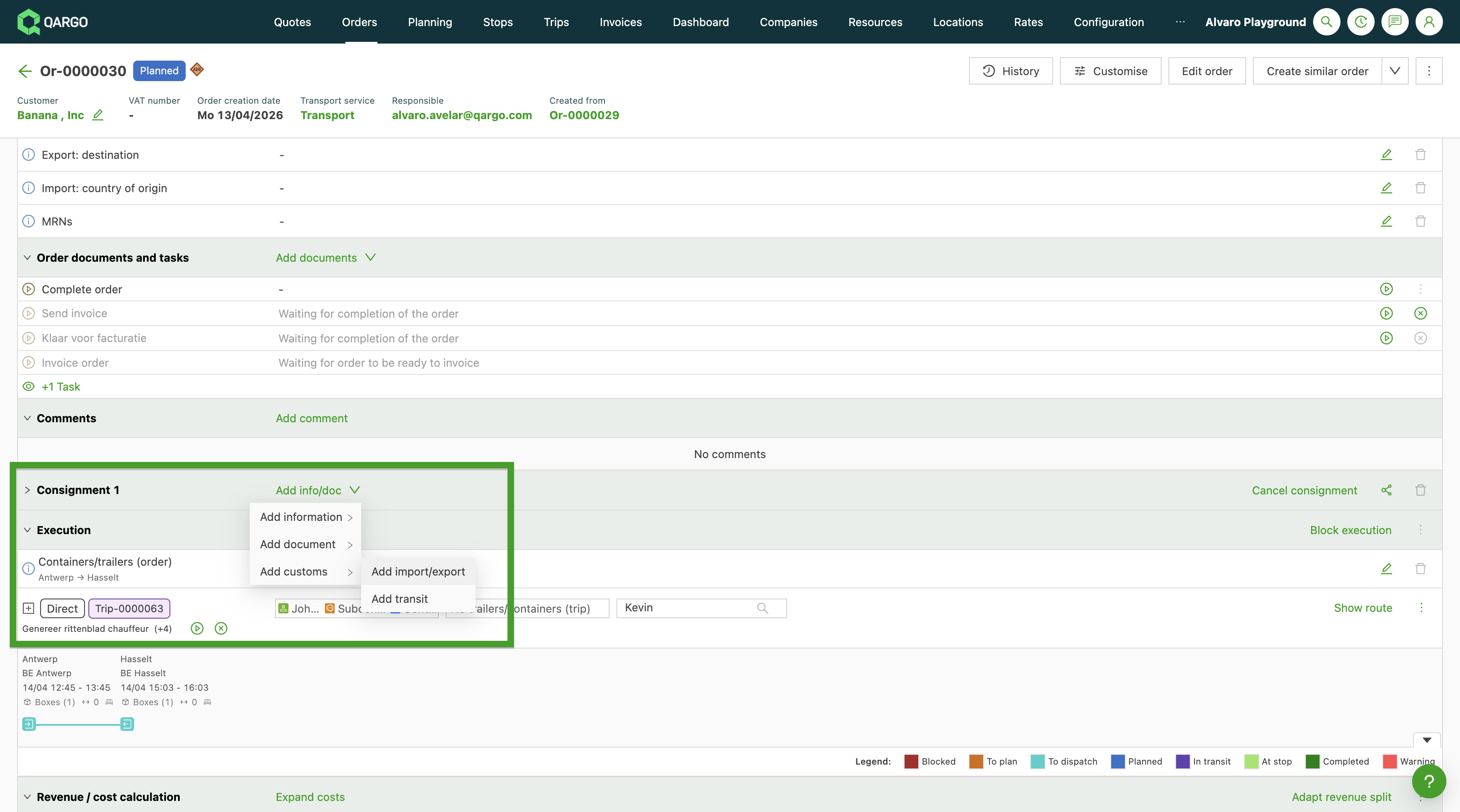
- New “Adding customs information on an order” section covering the Export, Import, and Transit tabs and their fields
- Export MRN, Import MRN, Transit MRN, and related references now auto-populate customs pre-notifications when an order is planned to a load
- Updated Loads section noting that both Export and Import fields populate their respective pre-notification sections when filled
Learn more about adding customs information to an order
⚙️ Configuration – Auto-assign rules: overwrite existing values toggle
Auto-assign rules now include an Overwrite existing values toggle. It gives per-rule control over whether a rule replaces a field that already contains a value. Previously, all rules skipped populated fields by default. Now overwriting can be allowed on a rule-by-rule basis when the rule’s conditions are met.
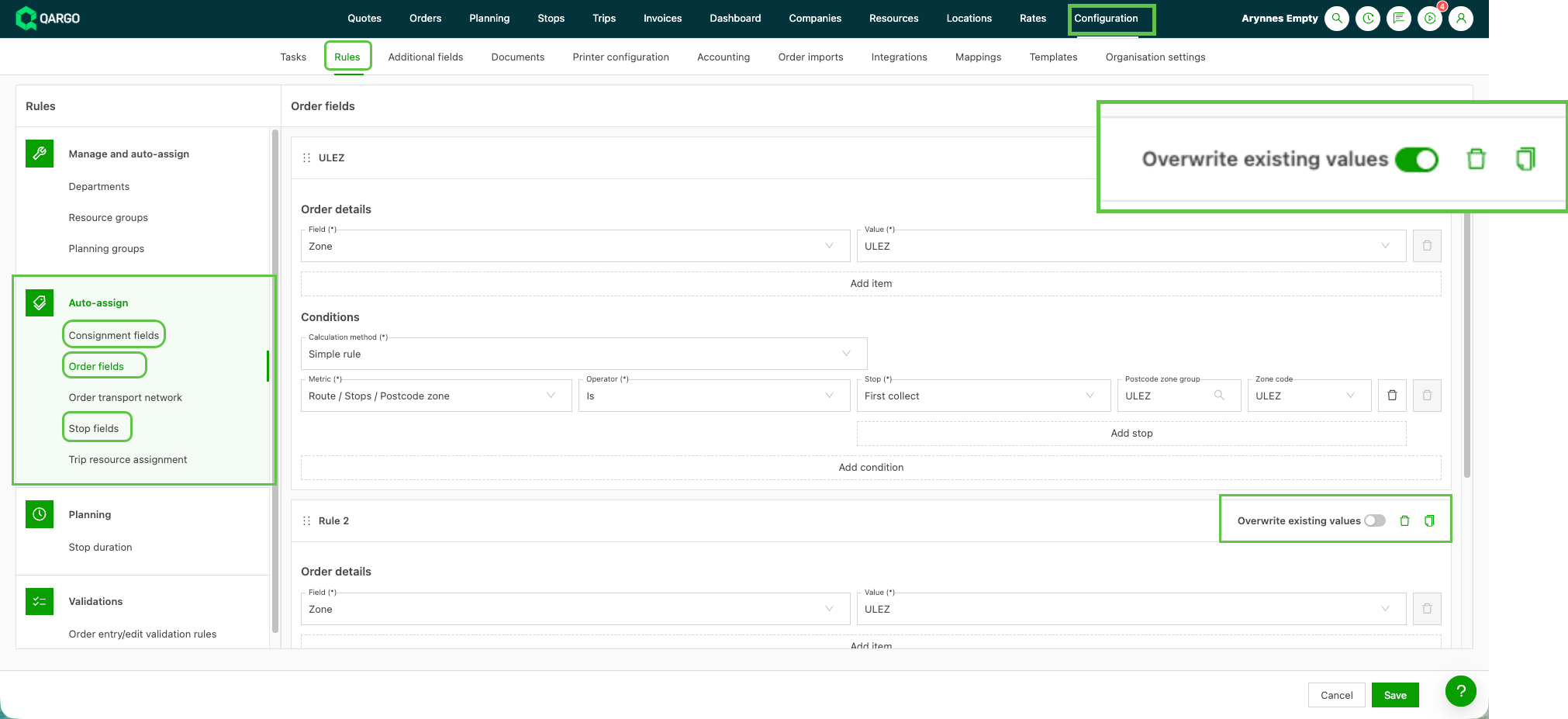
- New Overwrite existing values toggle on every auto-assign rule in Configuration > Rules
- Available for shipment, order, and stop fields
- The default behavior (skip populated fields) is unchanged for all existing rules until the toggle is explicitly enabled
- Overwriting applies on create and update events only; existing records are not retroactively affected
Learn how to enable the overwrite rule on fields
♾️ Planning – Infinite scroll on the To plan orders list
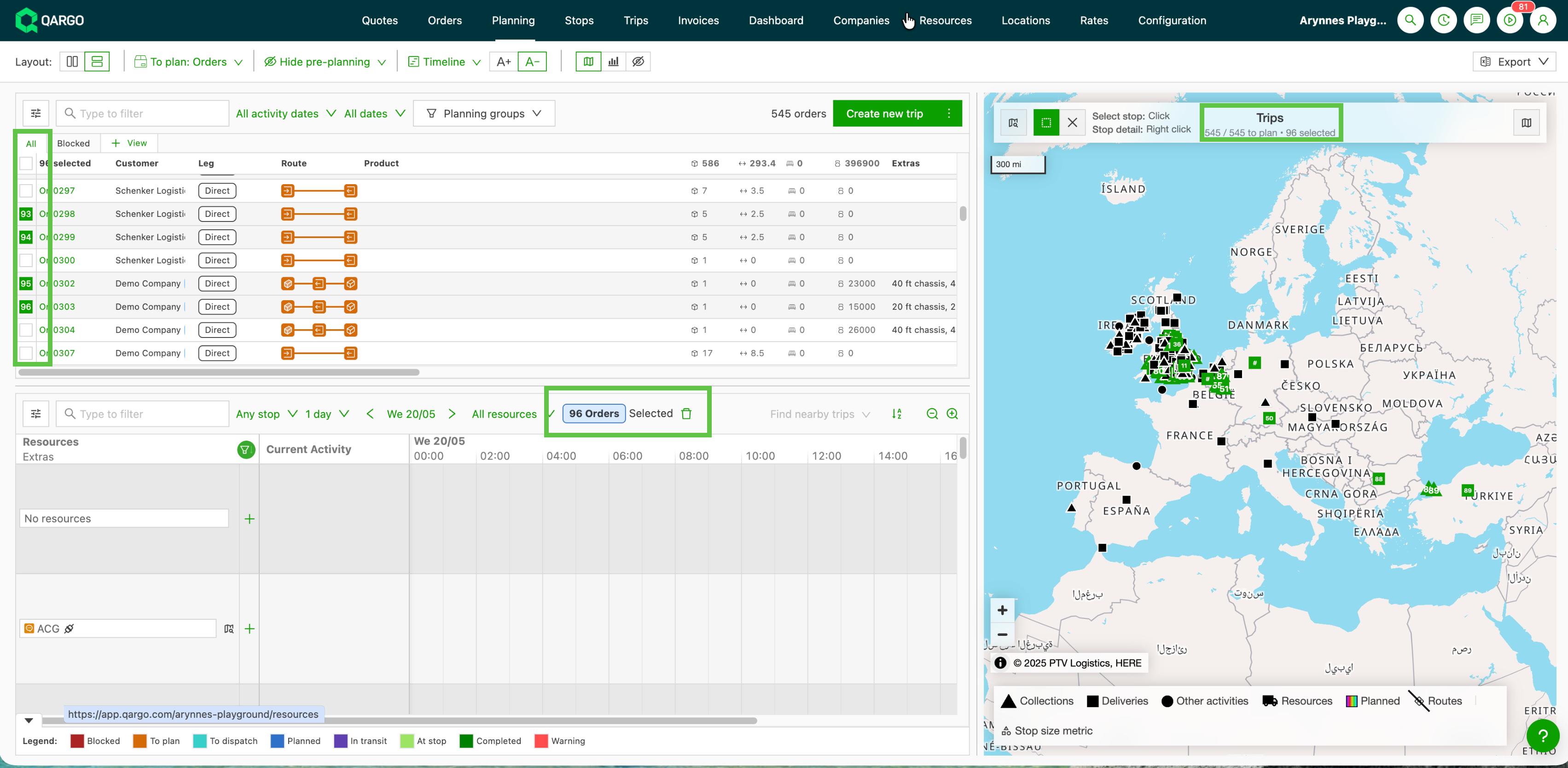
The To plan: Orders list on the Planning page now uses infinite scroll, which removes the previous limit of 100 orders per page.
-
Orders load automatically when the user scrolls to the bottom of the list. The full workload is accessible in a single session without stepping through pages.
-
Infinite scroll replaces page-based pagination on the To plan: Orders list
-
Orders load automatically in batches when scrolling to the bottom
-
Drag-and-drop to and from the planning timeline continues to work as before
-
Changes to filters, sort order, or search reset the list to the top and start a fresh load
Week 4
📝 Configuration – Increased custom fields limit (30 → 50)
The maximum number of active additional fields per entity has been increased from 30 to 50. This applies to all configurable entity types: Orders, Invoices, Resources, and Customers. Inactive or archived fields do not count toward the limit.
Configure and use custom fields
🗓️ Planning – Assign resources to specific stops on a load
When a trailer, container, chassis, or third-party cost is dragged onto a load, users can now choose exactly which stops the assignment covers. Previously, it defaulted to the full load from first to last stop. This gives planners more precise control over partial-leg resource assignments without needing to split loads.
What’s included:
- Start location and End location dropdowns on resource assignment: Start/End load, Select stop on load, or Add new stop to load
- Applies to trailers, containers, chassis, and third-party costs (not general resources such as drivers or trucks)
- New stops can be added inline during resource assignment without leaving the planning board
- For third-party costs, setting the same stop for both start and end assigns the cost to that single stop only
Assign a resource to specific stops on a load
⚙️ Configuration – Role-based order creation permissions
The order creation methods available can now be controlled per role. Admins can enforce template-based workflows and restrict direct order creation for specific user groups. Changes take effect immediately for all users assigned to the updated role.
What’s included:
- New Roles menu in Configuration > Organization settings with four per-role permissions: Order/spot quote not from template, Order from template, Tender quotes, and Order templates
- Permissions can be enabled or disabled independently per role
- Create buttons and menu entries adjust automatically across the web app and customer portal
- Separate Customers must create orders from template toggle in the customer portal settings to restrict portal users to template-only creation
Configure order permissions by role
🖥️ Customer portal – Create orders from templates
Customer portal users can now create orders directly from preconfigured order templates. This reduces repetitive data entry for recurring transportation routes. Locations and transportation service are locked to the template, while dates, quantities, and references remain editable per booking.
What’s included:
- New Templates subtab under Orders on the customer portal, showing all templates for the logged-in customer
- Create order from template action opens a prefilled form with locked and editable fields clearly indicated
- The feature is enabled via a toggle in Configuration > Organization settings > Customer portal configuration
- Each portal user sees only the templates of their own customer (RBAC-filtered)
Learn how customer portal users create orders from templates
💰 Orders – Toll cost calculation
Exclude specific toll systems from rate card charge calculations using the new Per toll system metric. Users can now filter exactly which systems are included in a charge, and the exclusion applies automatically to all future orders and loads on that rate card.
What’s included:
- New Per toll system metric on rate card charges
- Filter toll costs by named toll system rather than a combined total: Not in / In operators to exclude or allowlist specific toll systems per charge
- Configurable on both individual rate cards and reusable charge templates
- Support for stacking multiple exclusions on a single charge
Exclude toll systems from rate card charges
💰 Rate cards – Fixed customer on price list charges
A fixed customer can now be assigned to individual charges on a revenue price list, so that specific charges are automatically invoiced to a different customer rather than the order’s main customer. This is ideal for setups where certain surcharges need to be billed to a sister entity, holding company, or separate brand, without any manual reassignment per order.
What’s included:
- New Fixed customer field on each charge in a revenue price list, configurable per charge line
- The customer picker filters automatically by matching currency to prevent invoice mismatches
- Charges with a fixed customer are split into separate invoices per customer at billing time
- Orders with multi-customer charges remain in Orders to invoice until all customers have been invoiced
Define the customer for fixed price charges
📥 Order import – Template-based order routing
Incoming EDI and API orders can now be matched automatically to an order template on import. Multi-stop routes, intermodal legs, contract carrier assignments, and rating are then applied without manual rebuilding. If no matching template is found, the import fails cleanly and a dispatcher can assign the correct template manually.
What’s included:
- Use template matching toggle on an order import master, with Match on options: Pickup and delivery, Pickup only, or Delivery only
- Automatic matching on customer, transportation service, and stop locations using location aliases
- Failed imports appear in the Order import list with a Select template action for manual assignment
- The shipment count must match the template exactly for a successful match