
Save views on the order list page
Table of contents
Views can be filtered, saved, and even shared with other users in the organization on the order list page.
Create a view
- Navigate to the order list page.
- Create the desired filter
- Click + View
- Edit the name of the filter
- Click Create view
Once the view is added, 2 actions are available:
- Share with other users
- Delete
Share views with other users
Shared views are configurations that all users of a team or organization can access. These views allow consistent data presentation and standard workflows. However, since they are shared, updates to these views will have an impact on all users. Only Super Admins can create, edit, and save changes to shared views. Even if a user originally created a shared view, they cannot save changes to it unless they have Super Admin permissions.
Sharing views (Super Admin users only)
Custom views can be shared with other users. When a view is shared, both the filter configuration and the column ordering and visibility settings are included. This makes it easy for teams to work from a consistent data layout without each user needing to configure their own filters.
To share a custom view, options include sharing with all users or with selected users
-
From the custom view, click the Share with other users link
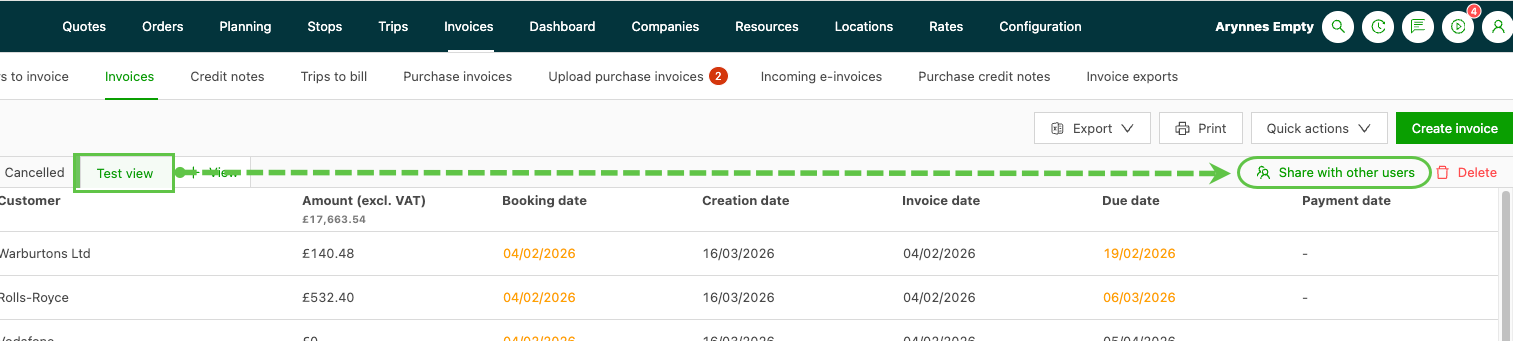
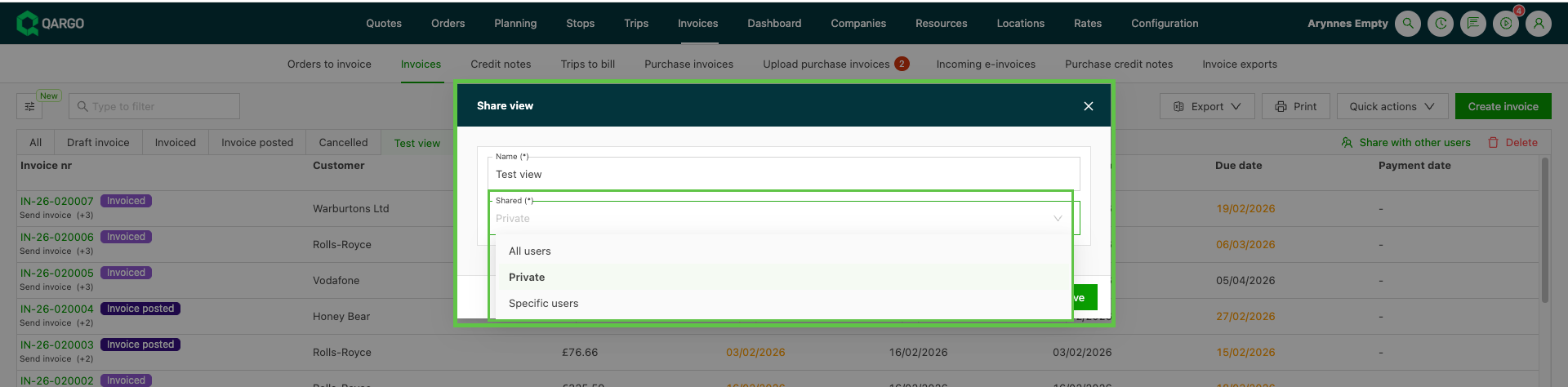
A popup screen opens, allowing the user to select the sharing option:
-
All users: Shares the view with all users who have access to the page / view
-
Private: Keeps the view private to the user who created it
-
Specific users: Select users from the dropdown to share the view with (marked with ✅)
- Multiple users can be selected, but they must already exist in the platform
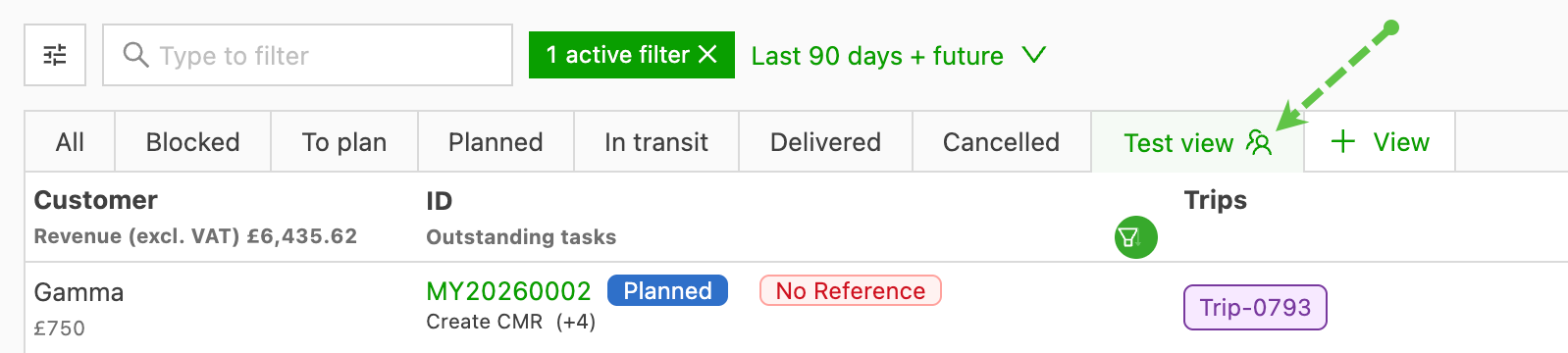
- The view will be shared with users within the organization; an icon is added to indicate that this is a shared view.
Customizing shared views: impact and alternatives
If customizations are required that apply only to the individual user, consider one of the following alternatives:
-
Personal views: Create a non-shared view where settings can be customized freely without affecting others.
-
Personal bookmarks: Save specific configurations for personal use by creating bookmarks for quick access.
- Changes made to a shared view—such as adjusting filters, columns, or other settings—will automatically apply to all users of that view once saved, ensuring shared views remain consistent across the organization.
Delete views
Once a view has been created, it can be deleted afterward.
- Navigate to the view (click the header of the view)
- Click Delete
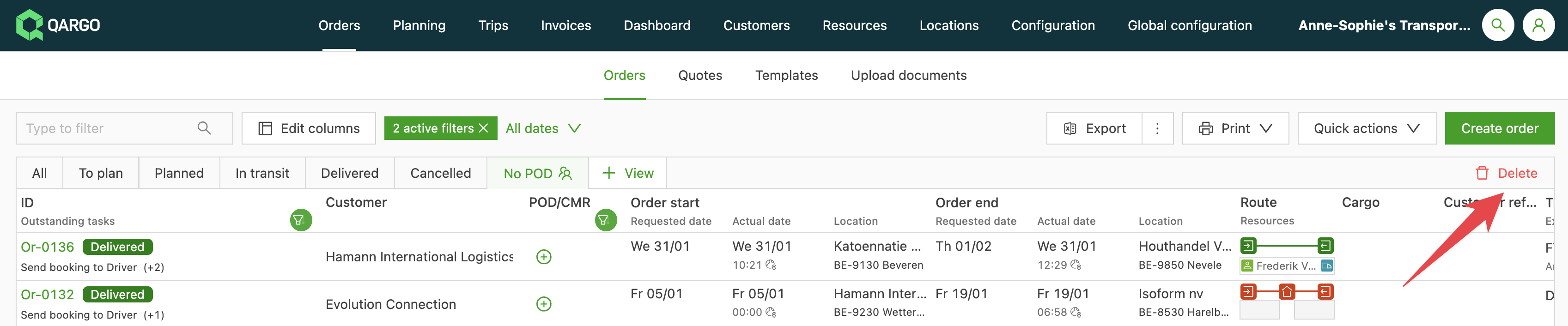
Note: If a shared view is deleted, it is also removed for other users. Deleting a shared view removes it entirely from the system and makes it unavailable for all users. Since shared views are designed to be universal, this action cannot be undone for specific users. It’s important to notify other users who rely on the view before deleting it.