
Order import: template-based order routing (what, why, and how)
Map incoming orders to templates automatically. Covers template matching configuration, handling failed imports, and resolving incorrect address selection.
Table of contents
Summary
- What: A new template-matching layer for Order import automatically links an incoming EDI or API order to an Order template. The order inherits the template’s full planning structure (multi-stop route, intermodal legs, splits, contract carrier assignments, rating).
- Why: EDI/API orders previously arrived as flat pickup-to-delivery records. Dispatchers had to rebuild the planning structure manually for every imported order, even when the same route ran daily. Template-based import eliminates that repetitive work.
- How: An Order import master is configured to require template matching (Qargo admins only). When an order arrives, Qargo matches it to a template based on customer, transportation service, and stop locations. The matched template’s structure is applied to the new order. If no match is found, the import fails with an error, and a dispatcher can manually assign the correct template.
Prerequisites
- At least one Order template must exist and be correctly configured with the expected route structure.
- Location aliases must be set up on the template’s stops so incoming location references can be matched.
- The Order import feature must be enabled for the tenant.
- Template matching configuration is only available to Qargo admins (or super admins if the Create transformation mapping feature flag is enabled).
Use cases
- An intermodal operator receives daily EDI orders for the same ferry routes. Template matching automatically applies the correct departure, transfer, and delivery stops. Dispatchers no longer need to rebuild the route each time.
- A transportation company imports API orders for recurring customer lanes. The import master is configured to match on both pickup and delivery locations. This ensures the right template (including contract carrier assignments) is selected.
- An import order arrives with an unknown location alias. The import fails, and a dispatcher uses the Select template action to assign the correct template and complete the import manually.
Terminology
| Term | Definition |
|---|---|
| Order import master | A configured import source in Configuration > Order import that defines how incoming orders are processed. |
| Order template | A preconfigured order in Qargo containing a full route structure: stops, transportation service, contract carrier assignments, and rating. |
| Template matching | The process of automatically pairing an incoming import order with an Order template based on customer, transportation service, and stop locations. |
| Location alias | An alternative name for a location, used to match incoming location references to Qargo locations in the template. |
| Select template | A manual action on a failed import row that lets a dispatcher assign a template and retry the import. |
Configuring template matching on an order import master
-
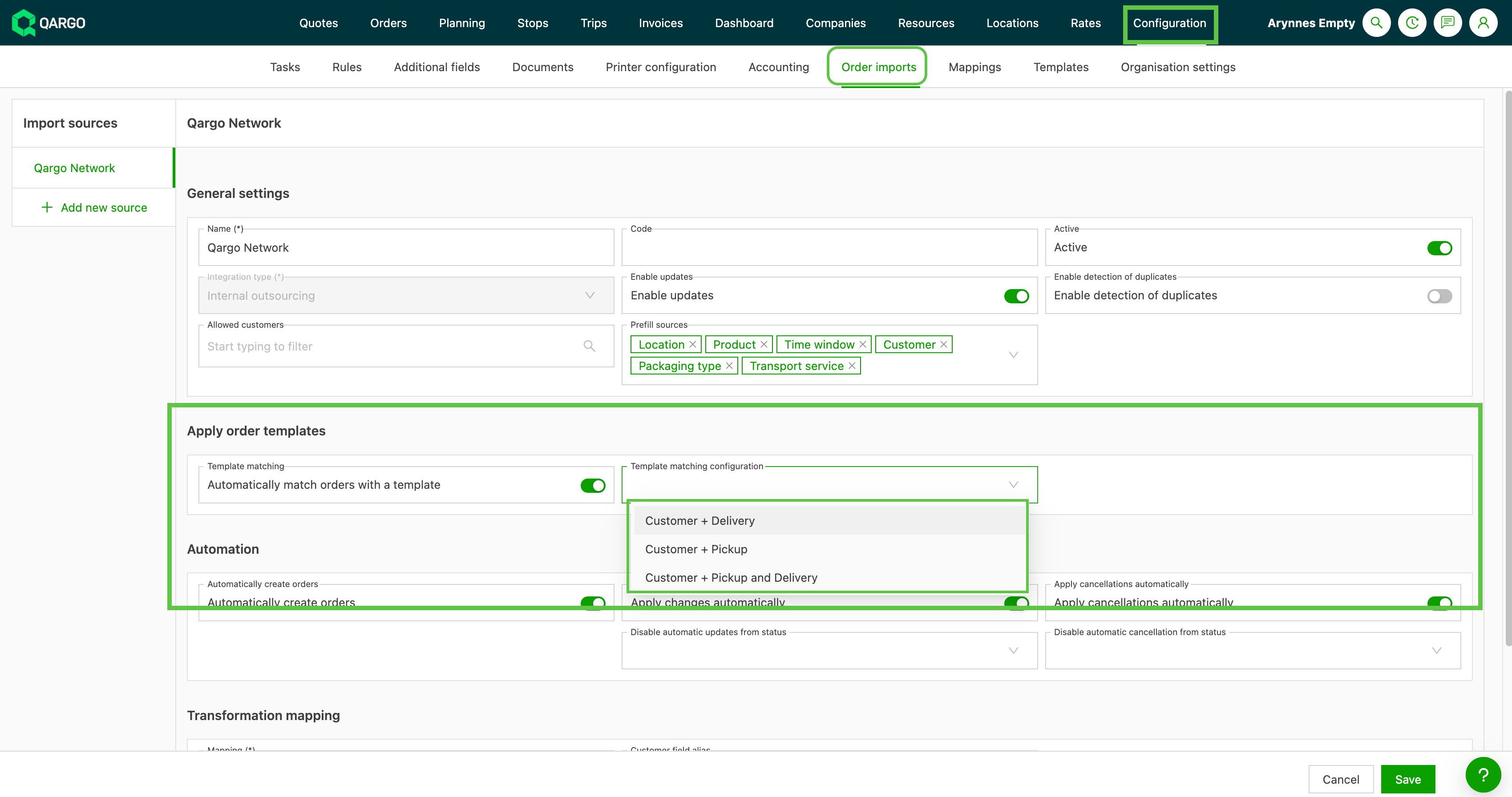
Navigate to Configuration > Order imports
-
Open the relevant Order import master or create a new one.
-
Enable the ‘Template matching’ toggle. When it is enabled, all orders arriving through this import source must be matched to a template. There is no per-order opt-out.
-
Select the Match on setting:
- Pickup and delivery: the template is matched on both pickup and delivery locations (strictest matching).
- Pickup only: matched on pickup location only.
- Delivery only: matched on delivery location only.
-
Save the configuration.
How template matching works on import
When an order arrives through a template-enabled import master:
- Qargo checks the incoming order’s customer, transportation service, and stop location(s) against all available Order templates.
- The number of shipments in the template must match the incoming order exactly.
- Stop locations are matched using location aliases. The incoming location reference must correspond to an alias on the template’s stops.
- Setup and teardown stops are excluded from matching. Only pickup and delivery locations are used.
- If a matching template is found, the order is created using the template’s structure, with the import data (dates, quantities, references) applied on top.
- If no matching template is found, the import fails.
Handling failed template imports
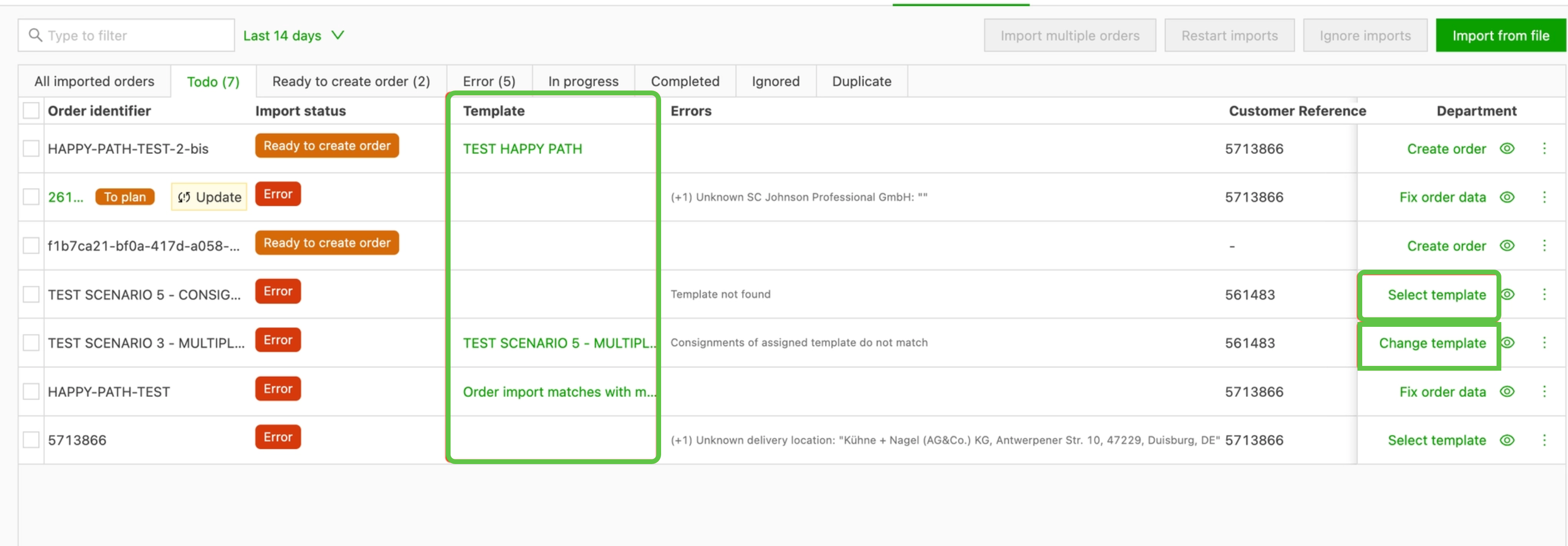
Failed imports appear in the Order import list with an error status.
- Open Orders > Order imports to view the list.
- Identify the failed row. It shows an error status indicating that no template was found.
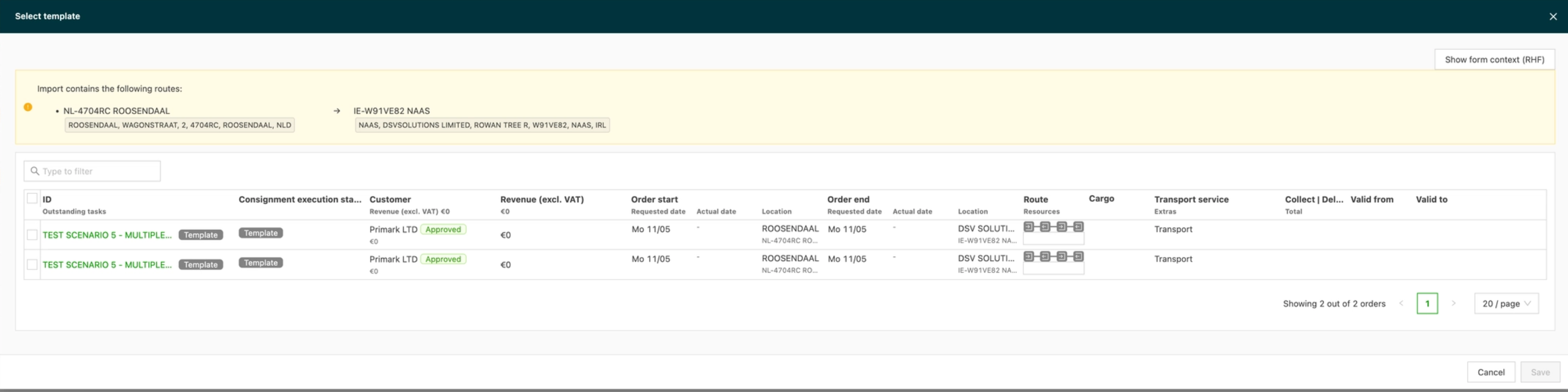
- Select the Select template action on the row.
- Choose the correct template from the picker.
- Confirm. The order is created from the selected template, with the import data applied on top.
Resolving incorrect address selection
Incorrect address selection during imports or AI/OCR matching can disrupt operations. The sections below explain the common causes, the steps to resolve them, and measures to prevent them from happening again.
Common causes
- Import alias configuration. An incorrect import alias set on a location may cause Qargo to substitute one address for another when a specific name or alias appears in the import file. For example, if a location has an alias such as “Karlsgarde,” Qargo may map this name to the wrong address.
- AI/OCR matching errors. When data is imported from documents such as PDFs, the AI/OCR system may suggest the wrong location if the location data in Qargo does not closely match the wording on the document. Misalignment in key fields such as location name, address, or display name can lead to incorrect matches.
Fixing alias-related issues
To resolve problems caused by an incorrect import alias:
1. Navigate to the location’s settings.
2. Open the location record in Qargo that is being incorrectly selected.
3. Locate the Import/export aliases section in the location profile.
4. Edit the alias using the pencil icon to correct it, or remove the alias entirely if it is causing incorrect matches.
Improving AI/OCR matching accuracy
To help the AI/OCR system select the correct location:
1. Ensure that location data in Qargo matches the wording on the source document as closely as possible.
2. Align key fields (location name, address, and display name) with the document’s terminology.
3. Use consistent and precise naming conventions across similar locations to give the AI clearer context for distinguishing between options.
Preventive measures
- Regularly review and update location aliases to ensure they accurately reflect the intended mappings.
- Standardize naming conventions for locations and addresses in Qargo to minimize discrepancies between import data and Qargo records.
- Test imports with sample data to verify that the correct addresses are being selected before rolling out a new import configuration.
Limitations
- Always-on matching. Once template matching is enabled for an import master, all incoming orders through that source must map to a template. There is no way to create an order without a template through that source.
- No retroactive reapplication. Templates cannot be applied to orders that were already imported without one.
- Strict shipment count. The template must have exactly the same number of shipments as the incoming import order.
- Manual location aliasing. Location aliases must be created manually on the template’s stops. There is no automatic alias generation.
- No rule-based optimization. If a route requires conditional extra stops or dynamic splits (e.g., emballage stops, location-based splits), these must already exist in the template. Template matching does not add or modify stops dynamically.
- Customer portal imports. Portal users cannot select a template. Portal orders go through the same automatic matching as EDI/API orders.
Troubleshooting
| Issue | Likely cause | Resolution |
|---|---|---|
| Import fails with a “no template found” error | No template matches the incoming customer, transportation service, or stop locations | Check that a template exists for this route and that location aliases are correctly configured on the template’s stops |
| Import fails despite a matching template | Shipment count mismatch between the template and the incoming order | Ensure the template has the same number of shipments as the import order |
| Select template action is not available | The import master does not have template matching enabled | Enable Use template matching in the import master configuration |
| Template is found but the wrong route is applied | Incorrect alias on a stop | Review and correct the location aliases on the matching template |
| Incorrect address is selected during import | An incorrect import alias is configured on the location | Review and correct the alias in the location’s Aliases section (see Resolving incorrect address selection above) |
| AI/OCR suggests the wrong location from a document | Location data in Qargo does not closely match the wording on the source document | Align the location name, address, or display name in Qargo with the document’s terminology |