
Integrations - Importing orders into Qargo
Learn how to import orders into Qargo via API or partner integrations. Covers mapping, validation and troubleshooting.
Table of contents
Introduction
Qargo supports multiple ways to bring orders into the platform at scale. This article explains the key concepts and the main import paths most customers use: integration partners and Qargo’s public API. It also links to resources for manual imports and pallet network workflows. A troubleshooting guide covers common errors and how to resolve them.
Terminology
| Term | Description |
|---|---|
| Order | A shipment record in Qargo. Orders can include one or more stops and associated documents. |
| Import | The process of creating or updating orders in Qargo by sending structured data from an external system. |
| Source system | The system where the data originates, for example a TMS, ERP, WMS, or marketplace. |
| Mapping | The transformation of fields from the source system to Qargo’s order schema. |
| DTO (Data Transfer Object) | The structured payload that carries order data into Qargo via integrations, EDI, or API. |
| Validation | Qargo’s checks to ensure incoming data is complete, correctly formatted, and consistent with business rules. |
| Acknowledgment | The response returned to the sender. It indicates success, partial success with warnings, or failure with errors. |
| Idempotency key | A unique identifier that the client generates and includes with a request, typically in the HTTP header. Its purpose is to ensure a request can be safely retried without unintended side effects, i.e., duplication. |
Import paths overview
Qargo supports several import methods. This article focuses on the three most common automated paths.
- Integration partners (pre-built connectors)
- EDI partners (industry-standard document flows)
- Qargo API (direct programmatic integration)
For manual file uploads and pallet network–specific flows, see:
Import via integration partners
Best for organizations using popular ERPs, WMSs, or logistics platforms that already have a Qargo-certified connector.
-
How it works
- The partner connector exports order data on a schedule or event.
- The connector maps the partner’s schema to Qargo’s order DTO.
- Data is transmitted to Qargo via a secure channel defined by the connector.
- Qargo validates and ingests the data, then returns acknowledgments and error details.
-
Typical capabilities
- Field mapping presets maintained by the partner
- Incremental updates for order changes
- Attachment support when the partner shares documents
- Automatic retries and dead-letter handling
-
What to configure
- Credentials or API keys provided by Qargo or the partner
- Optional field overrides and value normalization rules
- Default behaviors for missing optional fields
- Notification preferences for import failures
-
When to choose this
- The goal is the fastest path to go-live with the least custom code
- The partner already supports Qargo or a very similar schema
Import via Qargo API
Best for teams that want full control and immediate feedback, or when no partner connector is available.
-
Endpoint model
- Create order
- Update order
- Attach documents and references
- Retrieve and search orders for confirmation
-
Payload guidance
- Use ISO 8601 for date-times with time zone offsets
- Provide consistent units for weights, volumes, and counts
- Include stable external IDs for idempotency and de-duplication
- Send complete address blocks where possible, including country codes
-
Reliability patterns
- Use idempotency keys to safely retry on network failures
- Implement exponential backoff for 429 and transient 5xx responses
- Log validation errors and surface them to operations teams
-
Security
- Use scoped API keys or OAuth as provided
- Rotate credentials regularly and avoid hard-coding secrets
-
When to choose this
- The team controls the source system and can build quickly
- Fine-grained control over payload shape, timing, and retries is needed
Data mapping checklist
Before go-live, confirm that the following are aligned between the source system and Qargo:
| Parties | Customer, shipper, receiver, payer, and contact roles consistently mapped. |
|---|---|
| Locations | Names, addresses, country codes, and optional geo; avoid ambiguous free text. |
| Dates and times | Pickup, delivery, and ready-by windows in ISO 8601 with explicit time zones. |
| Goods details | Item lines, packages, pallets, dimensions, hazardous materials (HazMat) flags. |
| Accessorials and add-ons | Surcharges and service-level options mapped to Qargo’s add-on model. |
| References | Customer order numbers, purchase orders, and trading-partner references. |
| Documents | Attachments for CMR, POD, labels, and customs documents if available. |
Operational controls
| De-duplication | Provide a stable external ID. Qargo can reject duplicates or upsert as configured. |
|---|---|
| Partial updates | Decide whether updates replace full objects or patch specific fields. |
| Status handling | Agree which events the import can set and which ones operations drive. |
| Cutover strategy | Define a window when both the old and new systems may run, and how to avoid double-booking. |
Best practices to prevent issues
-
Validate before sending
Run a pre-check in the source system for required fields, date-time formats, and units. -
Standardize codes
Maintain a lookup for services, equipment types, and accessorials that maps to Qargo codes. -
Use idempotency
Always send idempotency keys for creates. Log the key-to-order ID mapping. -
Monitor and alert
Set up notifications for failed imports and integrate error logs with observability tools. -
Document the mapping
Keep a living mapping document so future changes do not break imports. -
Ensure all data, particularly dates, follows valid formats.
-
Use unique identifiers for new orders to avoid misclassification.
-
Regularly check import files for typographical errors or data inconsistencies.
Troubleshooting
Below are common errors seen during order imports, their likely causes, and how to resolve them. The error text may vary slightly depending on the import path.
Order pre-fills (configured by Qargo Admin)
If pre-filled order data appears incorrect or not as expected, the cause may be the order import mapping.
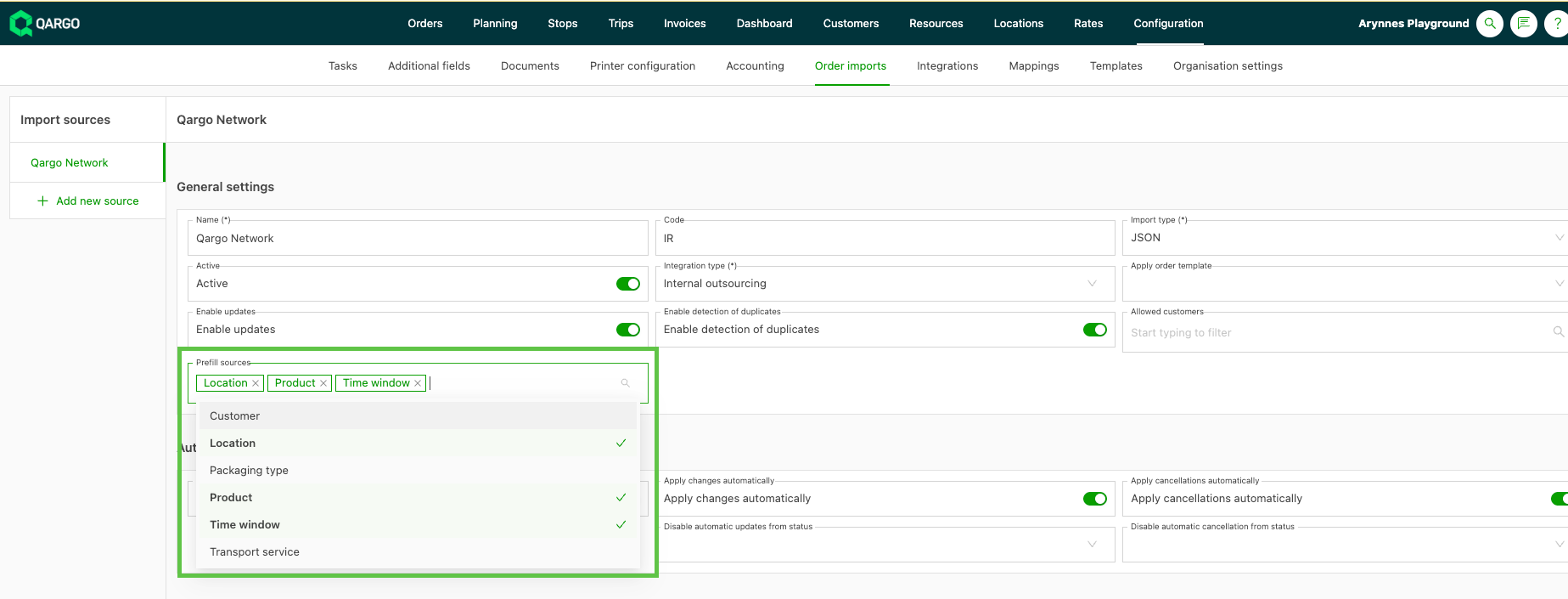
- Fields included in the order import mapping take priority over any other default values elsewhere in the platform, for instance pre-fills from the customer profile.
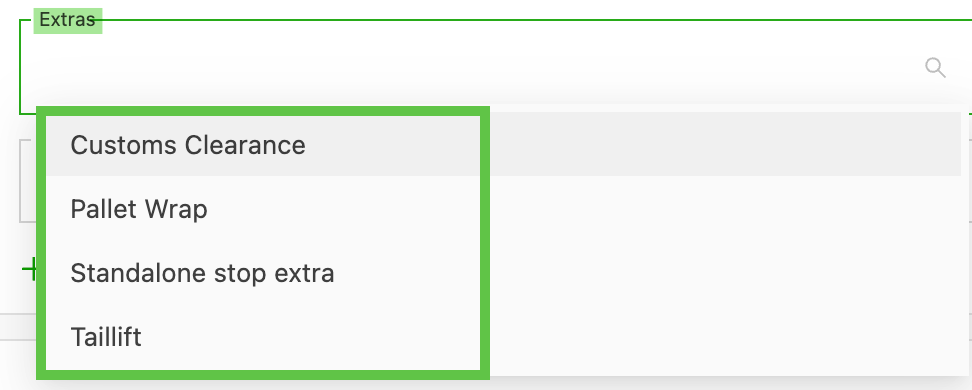
- Where other options are defined that include multiple options to select (i.e., extras), the values from the order import are added alongside any options that are already selected.
FAQ - Pre-fills
Q. How can certain pre-fills take precedence when they can come from different sources for the same target field?
Example: Start / end time windows - pre-fills can be defined by:
- Transportation service
- Customer
- Location
- Time window
A. The most specific pre-fill is applied. In the example above, the logic follows how granular the selections are: first the transportation service, then the customer and locations, followed by the time window for the stop. So in this instance, the pre-fill comes from the last selection (time window), as this is considered the most specific option.
Q. Is there a way to pre-fill with the opening hours of the location, or do they have to be entered manually for each imported order? Is there a quick way to pull in the times when locations are available for pickup / delivery?
A. Yes, opening hours for locations can be pre-filled when importing orders and included in the stop time window settings. This gives clear visibility of when the stop action can be completed if no specific appointment or time window is required. A feature flag can be enabled to automatically use the opening hours defined on the location for order imports.
Best practices to prevent issues
-
Validate before sending
Run a pre-check in the source system for required fields, date-time formats, and units. -
Standardize codes
Maintain a lookup for services, equipment types, and accessorials that maps to Qargo codes. -
Use idempotency
Always send idempotency keys for creates. Log the key-to-order ID mapping. -
Monitor and alert
Set up notifications for failed imports and integrate error logs with observability tools. -
Document the mapping
Keep a living mapping document so future changes do not break imports.