
Data import: importing location data
A comprehensive guide to importing location data, which supports the bulk import of locations along with aliases for external integrations and stop prefill configurations.
Table of contents
- 📖 Key terminology
- ✅ Critical import requirements & limitations
- 🛠️ Step-by-step data import process
- Step 1: Download the template
- Step 2: Fill in the Excel template
- Step 3: Submit for upload
- 🔎 Troubleshooting common location import errors
- ✨ Best practices for importing locations
- ➡️ What to do next
- 📈 Use cases for location import
The location import feature is a powerful tool for adding essential location information to a Qargo tenant in bulk. This guide walks through the process, from filling in the provided template to understanding the different configurable sections.
📖 Key terminology
- Location: A single physical address or business.
- Order import alias: A unique identifier for a location. It links the location to an external system for imports and exports.
- Stop prefill: A section for prefilling specific details for any stops made at a location, such as duration or time windows.
✅ Critical import requirements & limitations
-
Mandatory fields: For an import to succeed, all mandatory columns must be filled in. These are address, city, country, name, and postal_code.
-
Unique identifiers:
-
row_id: This is the primary identifier. If a row_id is provided, the system uses it to match and update an existing location, overriding any other identifier.
-
order_import_alias__location_identifier: If no row_id is present, this field is used to identify the location. This is relevant only when an alias is being added or updated.
-
address: This is the default unique identifier and the most common use case. If neither a row_id nor an order_import_alias__location_identifier is provided, the system uses the address to identify or create the location.
- When the address is the unique identifier, the system creates a new location if the imported address does not exactly match an existing one. This can lead to duplicate locations.
-
-
Stop prefill configuration: Stop prefill fields are only used if the stop_prefill__type column is filled in.
🛠️ Step-by-step data import process
Step 1: Download the template
A specific spreadsheet template is available for uploading location data. To edit and upload the data, a copy of the template must be downloaded:
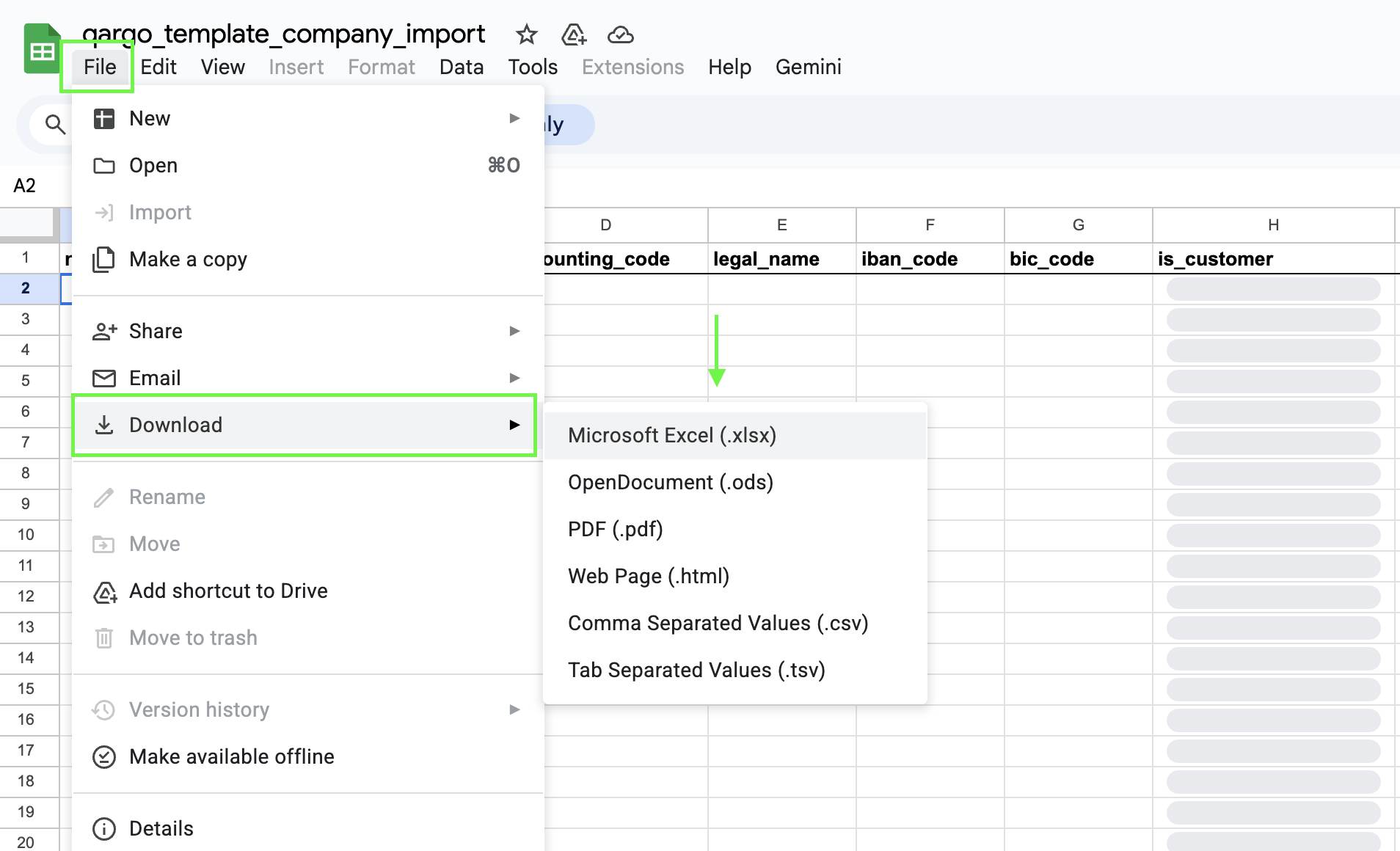
- Click the link: Location data import template
- Once the template opens, go to File and select Download
- Save the template (in .xlsx or .csv format) to the computer and begin entering the company data.
Step 2: Fill in the Excel template
Open the template and fill it in with the required data. The template contains column headers that correspond to the fields in Qargo.
- Required fields: Fill out all the required fields (a complete list of required fields is in the next section of this article). An import fails if these fields are left blank.
- Formatting: Pay close attention to the specified data format (e.g., dates, numbers, text).
Step 3: Submit for upload
- During onboarding: Work directly with the onboarding manager to upload the initial business data. The onboarding manager guides the process and ensures a successful import.
- After onboarding: For all future data updates and imports, contact the account manager. The account manager assists with the upload process and provides ongoing support.
📝 Details of the location import template
The following tables give a detailed, field-by-field explanation of the Excel template for location import. The template is divided into three parts: Location details, Order import aliases, and Stop prefill configuration. The explanation covers data formats, required fields, and best practices for filling in each column.:
Location details
| Column name | Required/optional | Remarks | Example |
|---|---|---|---|
| name | Mandatory | The common name of the place or business. | Googleplex |
| address | Mandatory | The primary street address of the location. | 1600 Amphitheatre Parkway |
| address_second_line | An optional second line for additional address details, such as an apartment or suite number. | Suite 201 | |
| city | Mandatory | The city or town | Mountain View |
| postal_code | Mandatory | The postal or ZIP code | 94043 |
| state | The state, province, or region. | California | |
| country | Mandatory | The country where the location is found. | United States |
| description | Detailed description of the place, its purpose, or its features. | A beautiful park with walking trails and a large playground. | |
| latitude | Geographic coordinate (north-south) | 51.21049 | |
| longitude | Geographic coordinate (east-west) | 3.808144 | |
| place_id | A unique identifier for the place, from Google Places | ChIJ2e6n95nFwoAR0pG9C-PTBOM | |
| display_name | The code and display name of the location | ABC-12345 | |
| row_id | Qargo internal ID (to force an update) | ||
| selectable_on_customer_portal | Indicates which locations are visible in the customer portal.\ | ||
| Visibility limited to ALL or NONE customers. | ALL |
Order import aliases
| Column name | Required/optional | Remarks | Example |
|---|---|---|---|
| order_import_alias__location_identifier | Mandatory if export or import is true. | Order import alias from the external system.\ | |
| When filled in, this field is used to match existing locations. If import or export is true, it also creates a new order import alias for this location if the alias is new | LOC12345 | ||
| order_import_alias__export | Set to TRUE if the alias should be used for exporting orders. | TRUE | |
| order_import_alias__import | Set to TRUE if the alias should be used for importing orders. | TRUE | |
| order_import_alias__name | Use when the identifier is a technical code. | Main Warehouse | |
| order_import_alias__integration_partner | The integration partner for the export. Ask the professional services team for this value | MORETMS |
Stop prefill configuration
| Column name | Required/optional | Remarks | Example |
|---|---|---|---|
| stop_prefill__type | Defines the type of the stop prefill. Alerts are not supported through bulk upload\ | ||
| Supported values are: PICKUP , DELIVERY , OTHER , or ALL. Only one value is supported for each location | PICKUP | ||
| stop_prefill__duration | Override for the duration of the stop. This overrides any default duration. | 6000 (seconds) | |
| stop_prefill__reference_number | Reference number to fill in on the stops. | REC-011 | |
| stop_prefill__notes | Additional info | Ring doorbell twice | |
| stop_prefill__time_start | Time window for this location. Format as\ | ||
| HH:MM, where MM must be 00 or 30. | 09:00 | ||
| stop_prefill__time_end | Time window for this location. Format as\ | ||
| HH:MM, where MM must be 00 or 30. | 17:30 | ||
| stop_prefill__time_window | Name of the window. This window must exist and the name must be spelled correctly. The professional services team provides these. | Full day | |
| stop_prefill__extras | ; separated list of extras\ | ||
| This extra must exist and the name or code must be spelled correctly. The professional services team provides these. | Re-delivery ; First-delivery | ||
| stop_prefill__custom_fields__<custom_field> | Name of the custom field.\ | ||
| This field must exist and the identifier must be spelled correctly. The professional services team provides these. |
Opening hours (spaces & single digits not allowed)
| Column name | Required/optional | Remarks | Example |
|---|---|---|---|
| opening_hours__monday | ; separated list of time intervals | 08:30-9:30;13:00-14:00 | |
| opening_hours__tuesday | ; separated list of time intervals | 08:30-9:30;13:00-14:00 | |
| opening_hours__wednesday | ; separated list of time intervals | 08:30-9:30;13:00-14:00 | |
| opening_hours__thursday | ; separated list of time intervals | 08:30-9:30;13:00-14:00 | |
| opening_hours__friday | ; separated list of time intervals | 08:30-9:30;13:00-14:00 | |
| opening_hours__saturday | ; separated list of time intervals | 08:30-9:30;13:00-14:00 | |
| opening_hours__sunday | ; separated list of time intervals | 08:30-9:30;13:00-14:00 |
🔎 Troubleshooting common location import errors
-
Missing mandatory fields: The import fails if any of the mandatory fields (address, city, country, name, or postal_code) are left blank.
-
Duplicate locations created: This error occurs when the address is the unique identifier and the imported address does not exactly match an existing record. In that case, the system creates a new location instead of updating the existing one. Make sure the address is an exact match, or use the row_id or order_import_alias__location_identifier to update the record.
-
Incorrect data format: Make sure that data in fields such as country (the country field requires a two-letter code, e.g., GB, not “UK”; see this list for Alpha-2 country codes) and time_start (HH:MM) is formatted correctly.
-
Sheet name: The sheet in the Excel template file must be named exactly ‘Import’. Any other name causes an error when the file is uploaded.
-
Invalid stop prefill value: The import fails if the value in stop_prefill__type is not one of the supported values.
-
Address validation error: An error occurs if the Google Places API cannot validate the address and the latitude and longitude coordinates are also missing. To resolve this, make sure the address is correct, or manually enter the latitude and longitude coordinates.
-
Case-sensitive column headers: Column headers must use the correct casing (e.g.,
vat_number, notVAT_number). With incorrect casing, the system does not recognize the header, so the data in that column is silently ignored and not imported. -
Leading apostrophe errors: Data in a cell cannot begin with an apostrophe (’). If an apostrophe is used, the system does not recognize the value, and an error may occur. This rule is waived only if the article explicitly states that an apostrophe should be used for a specific field.
-
Why is Qargo selecting the wrong address during an import?
The most likely cause is an incorrect import alias on the location record. If a location has an alias that matches a name in the import file, Qargo maps the import to that location — even if it is the wrong one. Open the location in Qargo, go to its settings, and check the Aliases section under the Locations tab. Use the pencil icon to correct the alias, or remove it entirely if it should not be there. -
Why is the AI/OCR system picking the wrong location from a document?
This usually happens when the location data in Qargo does not closely match the wording on the document. Check that the location name, address, and display name match how they appear on the PDF or document being imported. The closer the match, the more accurately the AI can identify the correct location. -
How can incorrect address selection be prevented in the future?
Three things help: keep aliases up to date and set them only when genuinely needed, use consistent naming conventions for locations across Qargo, and test new import setups with sample data before running them in full.
✨ Best practices for importing locations
- Use a new template: Always use a blank template downloaded directly from the Qargo platform for each new import.
- Clean the data: Before attempting an import, make sure the data in the source file is clean, consistent, and correctly formatted to minimize errors.
- Consider file size: Importing longer sheets can take a significant amount of time to process.
➡️ What to do next
Once locations have been imported successfully, they can be used for order creation. They appear as available pickup and delivery points when a new job is created.
📈 Use cases for location import
The location import is an invaluable tool for several key business processes:
- Initial tenant setup: Filling a new Qargo tenant with a complete list of regular customer, supplier, or warehouse locations.
- Adding new locations: Bulk adding new business locations or pickup/delivery points after a company expansion.
- Integration setup: Creating or updating a location’s order import aliases to link it to an external system.