
Data import: importing order data
A comprehensive guide to importing orders into Qargo.
A comprehensive guide to importing order data. This import supports the bulk creation of orders for both sandbox and live tenants, which is useful for data loading, system integration, and testing. This article outlines the specific requirements, best practices, and common issues.
📖 Key terminology
- Order: A request for a transport job or service.
- External ID: A unique identifier for an order from an external system.
- Stop: A specific location or point in a journey where a task is performed.
- Product: A specific item or commodity being transported.
- Service: The type of service being provided (e.g., transport).
✅ Critical import requirements for orders
Before importing order data, consider the following requirements and warnings to ensure data integrity.
- User permission prerequisite: The manual order data import functionality is restricted. Only users with Superadmin privileges can perform the order import.
- Companies prerequisite: All customers relevant to the order must already exist in the Qargo system.
- Products prerequisite: All products included in the order must already exist in the product catalog.
- Unique identification: The Order number or External ID serves as the unique identifier for the order.
- Date and time format: All date and time fields must be in the correct format as specified in the template to avoid import failure (YY/MM/DD).
Validation rules: Numeric fields must contain only positive values (with exceptions for fields like absolute_min_temperature_value and absolute_max_temperature_value). Date fields must follow the format YYYY-MM-DD. Dropdown fields must match predefined values. In addition, imports are capped at 100 lines per file.
🛠️ Step-by-step order import process
Follow these steps to import order data successfully.
Step 1: Confirm import functionality (or verify activation status)
Confirm with the account manager that the manual data import functionality has been activated.
Step 2: Download template
A specific spreadsheet template is available for uploading order data. To edit and upload the data, a copy of the template must be downloaded:
- Click the link: Order data import template
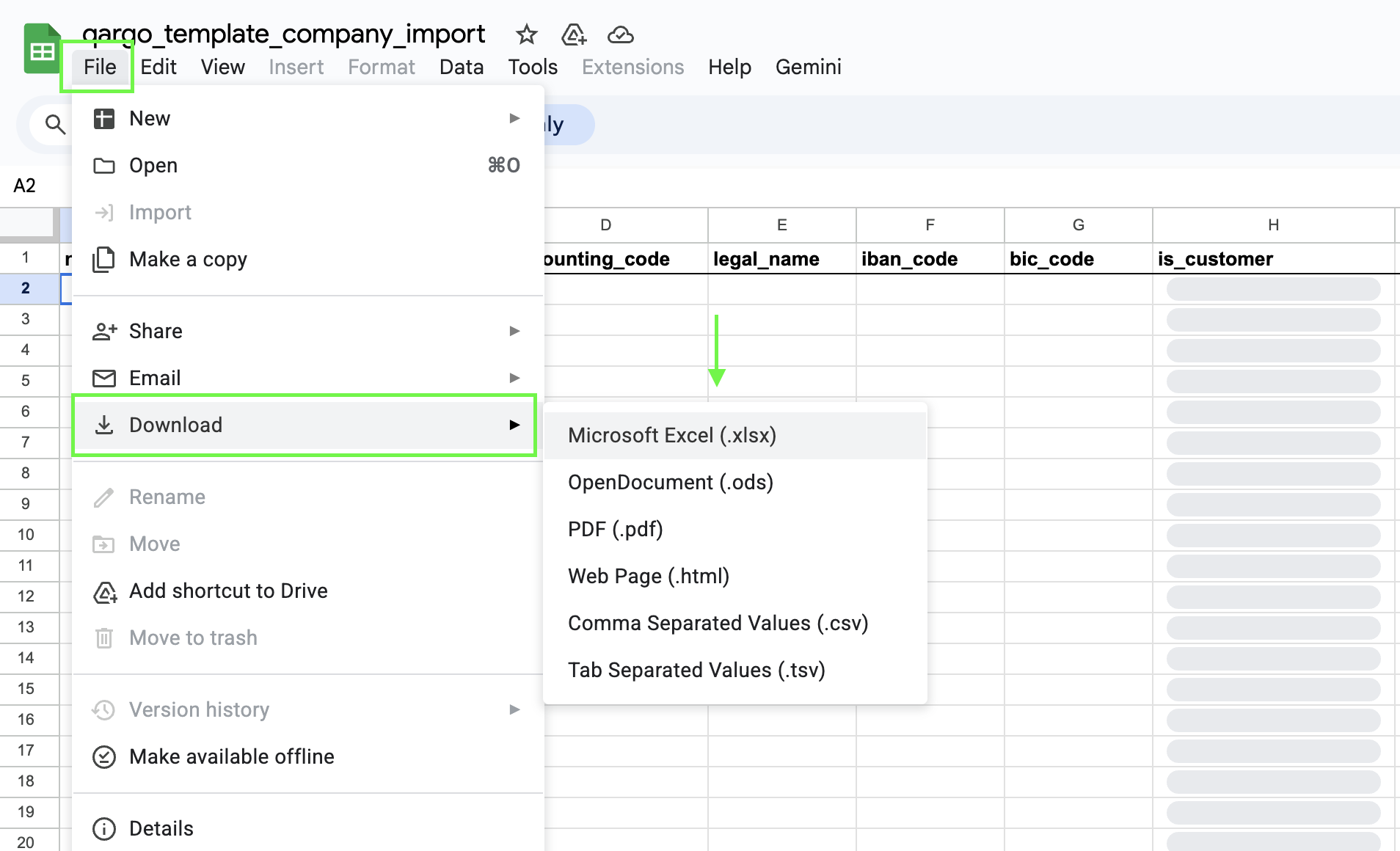
- Once the template opens, go to File and select Download
- Save the template (in .xlsx or .csv format) to a computer and begin entering the company data.
Step 3: Fill in the Excel template
Open the template and populate it with the required data. The template contains column headers that correspond to the fields in Qargo.
-
Required fields: To create a basic order, make sure the following fields are included:
transport_service,customer_code,order_reference_number(unique for each line),pickup_date,delivery_date,pickup address(complete address or components) withpickup_name, anddelivery address(complete address or components) withdelivery_name. -
Formatting: Pay close attention to the specified data format (e.g., dates, numbers, text).
-
Custom field naming: When using custom fields, make sure the column headers follow the naming convention with double underscores (e.g.,
order_custom_field__FIELD_ID).
Template customization with custom fields
Custom field mappings make it possible to import data into fields tailored to specific customer requirements. These fields must be created and named appropriately before the mapping is configured. The naming convention for custom fields in import files uses two underscores in the column name (e.g., custom_fields__example).
- Create the custom field in Qargo: Navigate to
Configuration > Additional fieldsto create a new custom field. Note the assignedfield ID. - Add the custom field to the template: Add a column named in the format
order_custom_field__FIELD_ID(e.g.,order_custom_field__invoicegroup). - Formatting tips: Make sure column headers match exactly, avoid apostrophe-prefixed data, and include the “Import” sheet naming convention.
- Test the configuration: Import a test file for the designated customer to verify that the data populates the custom field correctly.
Limitations and considerations
- Customer-specific configuration: Custom field mappings are configured for specific customers. If data is imported for a different customer, the custom field will not be populated.
- Mapping changes: If the same custom field mapping is needed for additional customers, a mapping update must be requested, or the mapping must be configured separately for each customer.
Step 4: Upload file
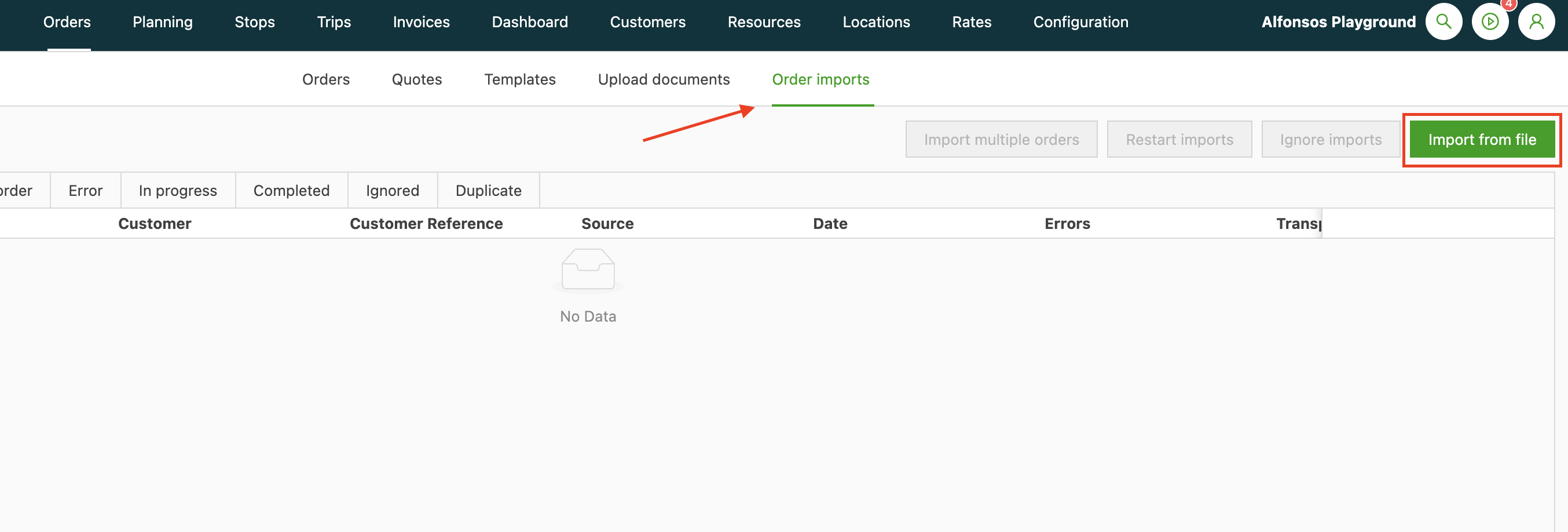
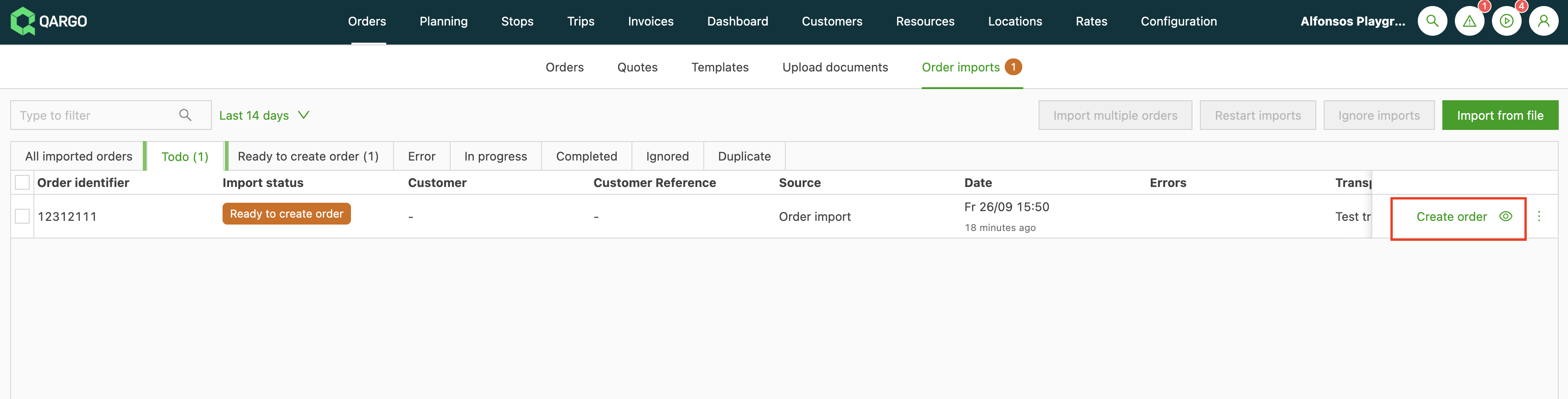
To upload the completed file, navigate to the Orders module, select the Order imports tab, and click Import from file.
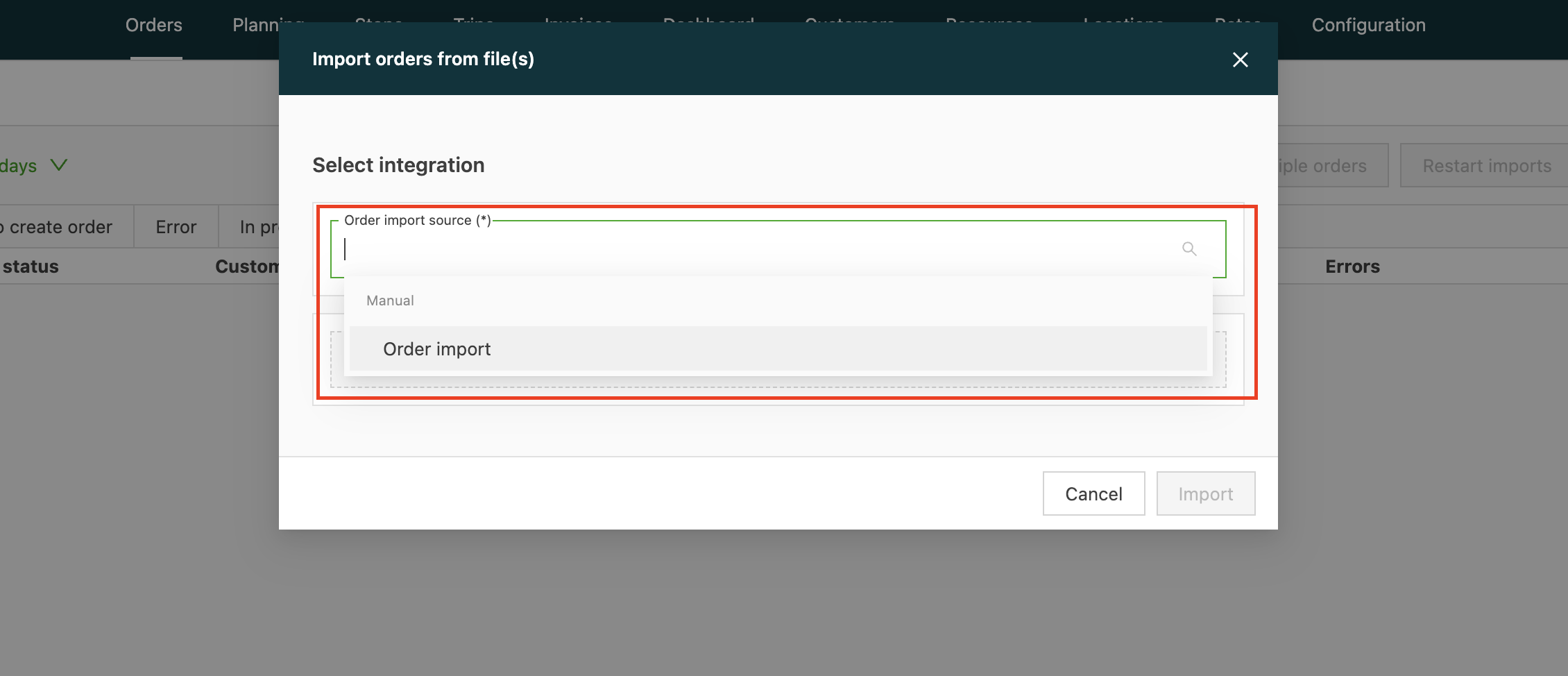
The source of the import must be selected. When the source is a manual template upload, select the Manual source integration.
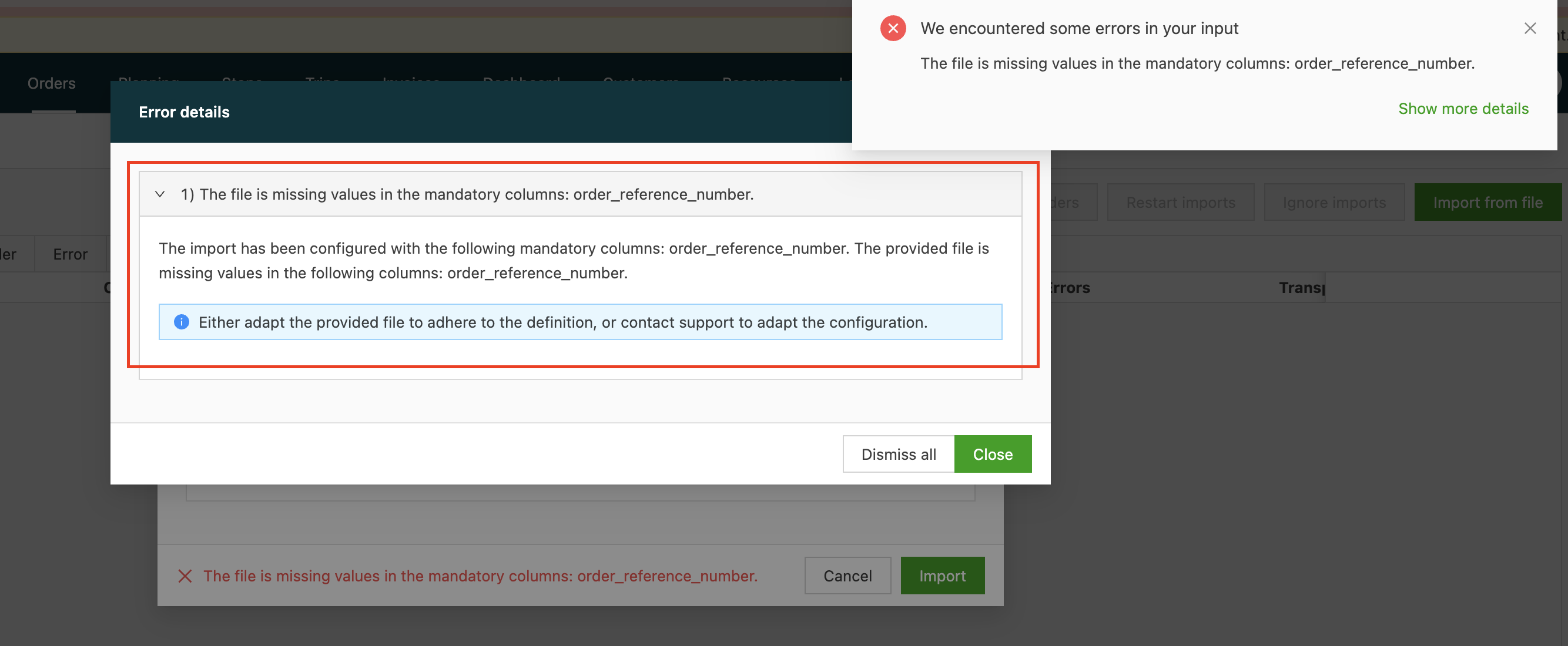
The document can then be uploaded. If there are any errors, a message describing the issues will appear, and the system will suggest possible solutions.
Step 5: Review and finalize
Resolve any validation errors identified by the system and finalize the import by creating the order(s).
📝 Details of the order import template
This section provides a detailed, field-by-field explanation of the Excel template for order import, including data formats, required fields, and best practices for populating each column.
| Column name | Required/optional | Remarks | Example |
|---|---|---|---|
| transport_service | Optional | Transportation service configured in Qargo | Transport 2 |
| customer_code | Optional | Customer code used in the application. Must exactly match the Customer code of a customer record already imported into Qargo. Used in combination with Display name to ensure order uniqueness. | 2322 |
| customer_name | Optional | Must exactly match the Display name of a customer record already imported into Qargo. Used in combination with Customer code to ensure order uniqueness. | Qargo |
| customer_reference_number | Optional | A reference number for the customer’s internal tracking. | CUST-REF-001 |
| order_reference_number | Mandatory | A general reference number for the order. | |
| order_requested_price | Optional | The value should be a numeric representation of the price; the currency is based on the tenant’s configured currency. | 50 |
| order_service_level_code | Optional | A unique code identifying the service level. | EXP-01 |
| pickup_date | Optional | YY/MM/DD | 2026/01/20 |
| pickup_time_start | Optional | HH:MM:SS | 12:00:00 |
| pickup_time_end | Optional | HH:MM:SS | 13:00:00 |
| pickup_name | Optional | ||
| pickup_full_address | Optional | The full, primary address of the pickup location. | 123 Transport Way, London, E16 2NZ |
| pickup_address_line_1 | Optional | ||
| pickup_address_line_2 | Optional | ||
| pickup_postcode | Optional | ||
| pickup_city | Optional | London | |
| pickup_country | Optional | GB | |
| pickup_notes | Optional | ||
| pickup_reference_number | Optional | ||
| delivery_name | Optional | ||
| delivery_date | Optional | Year/Month/Day | 2016/09/20 |
| delivery_time_start | Optional | HH:MM:SS | 13:00:00 |
| delivery_time_end | Optional | HH:MM:SS | 13:00:00 |
| delivery_full_address | Optional | The full, primary address of the delivery location. | 123 Transport Way, London, E16 2NZ |
| delivery_address_line_1 | Optional | ||
| delivery_address_line_2 | Optional | ||
| delivery_postcode | Optional | ||
| delivery_city | Optional | Brussels | |
| delivery_country | Optional | BE | |
| delivery_notes | Optional | ||
| delivery_reference_number | Optional | ||
| absolute_min_temperature_value | Optional | Lowest temperature the product can handle. | |
| absolute_max_temperature_value | Optional | Highest temperature the product can handle. | |
| volume_lt | Optional | ||
| quantity | Optional | ||
| weight_kg | Optional | ||
| goods_description | Optional | ||
| pallet_spaces | Optional | Number of standard pallet spaces the product occupies. | |
| loading_meters | Optional | ||
| adr_un_number | Optional | ||
| packaging_type | Optional | ||
| packaging_size | Optional | ||
| product_name | Optional | Product name displayed in Qargo | Aardappelen |
🔎 Troubleshooting common order import errors
This section covers specific errors that may occur during the import of order data.
-
Company not found: For an order to be uniquely identified and managed in Qargo, the combination of the External ID and the Customer name must be unique.
-
Location not found: A common error occurs when a stop’s location address does not match an existing location in the system.
-
Product not found: If a product’s name in the order does not match a product already in the catalog, the import will fail.
-
Incorrect date/time format: A frequent issue with order imports is incorrect date or time formatting, which causes the import to fail.
-
Address fields: The Country field requires a two-letter code (e.g., GB, not “UK”). The Alpha-2 codes are available in this list.
-
Case-sensitive column headers: Column headers must be entered with the correct casing (e.g.,
vat_number, notVAT_number). Incorrect casing causes the data in that column to be silently ignored and not imported, because the system does not recognize the header. -
Leading apostrophe errors: Data in a cell cannot begin with an apostrophe (’). If an apostrophe is used, the system will not recognize the value, and an error may occur. This rule is waived only if the article explicitly states that an apostrophe should be used for a specific field.- Custom fields not populating: Verify that the field’s mapping is correct for its entity level (e.g., stop level, order level, shipment level). For instance, shipment-level fields need the header format
consignment_custom_field__[FIELD_ID]. Similarly, make sure column headers are formatted according to the specification (e.g.,order_custom_field__[FIELD_ID]with double underscores). -
File format alignment: A mismatch between the selected import type and the uploaded file format (e.g., uploading an XLSX file when the system is set to CSV) can cause import failures without specific error messages. Make sure the file format matches the system’s configuration settings to avoid issues.
-
Imported value not populating: If the custom field is not populated during import, make sure that:
- The import file uses the correct naming convention for the custom field.
- The import is being performed for the customer the mapping was configured for.
-
Testing with the wrong customer: If testing or importing for a different customer, the mapping will not apply. Verify that the test file corresponds to the correct customer.
-
Unique order identifiers: Each line must have a unique value in the
order_reference_numbercolumn to avoid import errors. -
Transportation service required: Each line must specify the type of transportation service; a missing value will result in errors or stalled imports.
✨ Best practices for importing orders
To ensure a smooth and accurate import, consider the following best practices.
- Import prerequisites first: Before importing orders, make sure that all associated companies, locations, and products have already been successfully imported into the system.
- Test with a small batch: Test the import process with a small sample of 5–10 orders first to verify that the data is formatted correctly before a full import.
➡️ What to do next
Once orders have been successfully imported, they are available in the Orders module. They can then be planned, assigned to drivers, and dispatched as part of transport operations.
📈 Use cases for order import
The order import is a valuable tool for several key business processes.
- Sandbox testing: The primary use case is to quickly create a large amount of test data in a sandbox tenant to support training, test workflows, and demonstrate the platform’s capabilities without affecting a live environment.
- System migration: In some cases, a one-time import can be used to migrate historical or pending orders from a legacy system.