
Planning – ETA calculations in Qargo: what, why, and how
Qargo has 2 methods to recalculate ETAs for loads in transit, based on either milestone events (completed stops) or the driver's live GPS position. Both keep planning board stop times accurate throughout the journey.
Table of contents
Summary
What is ETA in Qargo?
- In Qargo, the ETA (estimated time of arrival) is the estimated start time of each stop on a load.
- This value is shown on the planning board for each stop. It is also sent to external systems and portals where applicable.
Why does it matter?
- Accurate ETAs help planners spot delays early, manage receiving terminals, and keep customers informed.
- How ETAs update, and how often, depends on the method active for the load.
What are the two methods?
- Milestone-based updating (classic): ETAs update when the driver completes or departs a stop. Between stops, times stay static.
- Automatic in-transit recalculation: ETAs update continuously during transit using the driver’s live GPS position.
Use cases
- Long-haul carriers with overnight runs need to know whether a driver will arrive on time for a morning delivery window, without calling the driver or waiting for stop completion. Automatic ETA updates give planners a live view of the load throughout the night.
- Operations teams managing international shipments with 6–8 hour transit legs can see updated stop times on the planning board as the load progresses. This lets them proactively inform receiving terminals of any delays.
- Planners overseeing high-volume fleets need to identify late-running loads early to re-plan pickups or notify customers, rather than being caught off guard when a driver arrives late.
Terminology
| Term | Definition |
|---|---|
| ETA | Estimated time of arrival. In Qargo, this is the estimated start time of each stop |
| Milestone-based updating | ETA method where stop times update only when a driver completes or departs a stop |
| In-transit recalculation | ETA method where stop times update continuously during transit using live GPS data |
| FMS | Fleet management system: an external telematics platform (e.g., Samsara, Transics, Webfleet) that sends the driver’s GPS location to Qargo |
| Anchor stop | A stop with a fixed or pinned timestamp, used to plan a route backward from a set arrival time |
| Time window | A defined earliest and latest arrival window set on a stop |
| Planning board | The main Qargo screen where planners manage loads, resources, and stop times |
| Operations events | The history of a load’s recorded events, such as stop arrivals and departures, geofence events, and ETA recalculations. Opened from the clock icon on the Events row. |
| Last tracking update | How long ago the newest position update arrived for the resources on a load. |
Method 1: Milestone-based ETA updates
This is the classic ETA behavior in Qargo and the default when automatic in-transit recalculation is not active.
With this method, stop ETAs only update when a driver completes or departs a stop. Between stops, while the driver is in transit, stop times remain static at their last calculated value. The planning board does not reflect updates until the next stop event occurs.
What this looks like in practice
When a driver departs stop 1, Qargo recalculates and updates the ETAs for stop 2 onward. If the driver then runs into traffic or takes longer than planned to reach stop 2, those downstream stop times do not update again until stop 2 is completed or the driver departs.
As a result, planners may experience this: “the driver is clearly late but the ETAs on the board aren’t moving.” This is expected behavior for milestone-based updating. The ETAs are correct as of the last stop event, not as of the current moment.
Method 2: Automatic in-transit ETA recalculation
This method adds continuous ETA updates during transit, using the driver’s live GPS position. Rather than waiting for a stop event, Qargo periodically recalculates the ETA for the next upcoming stop while the driver is on the road. Any updated times appear on the planning board in near real time.
How it works
While a driver is in transit, Qargo uses incoming GPS position pings to periodically recalculate the ETA to the next upcoming stop. These pings come from either the Qargo mobile app or a connected FMS integration. Once the new ETA is calculated, all subsequent stop timestamps on the load shift forward or backward by the same time difference. The full schedule stays aligned without any manual intervention.
Recalculation frequency
The update frequency adapts to how close the driver is to the next stop:
| Time until the next stop | ETA updates at most every |
|---|---|
| Less than 15 minutes | 5 minutes |
| 15 minutes to 1 hour | 10 minutes |
| 1–2 hours | 30 minutes |
| 2–4 hours | 1 hour |
| More than 4 hours | 2 hours |
This tiered approach keeps ETAs accurate when it matters most, without unnecessary recalculations on very long legs.
Position updates that arrive before the wait time is over are skipped. The ETA updates with the first position after it.
On-site stop time adjustment
When a driver stays at a stop longer than planned, Qargo detects the extended on-site duration. It then automatically shifts all downstream stop timestamps forward by the same amount. A delay at one stop is immediately reflected across all remaining stops on the load, with no manual adjustment needed.
Tracking and ETA updates on a load: check the latest update
The Operations section of a load shows when the last position update and the last ETA recalculation arrived. The Operations events window lists the recorded events of the load next to the load map.
Latest tracking and ETA update: check on a load
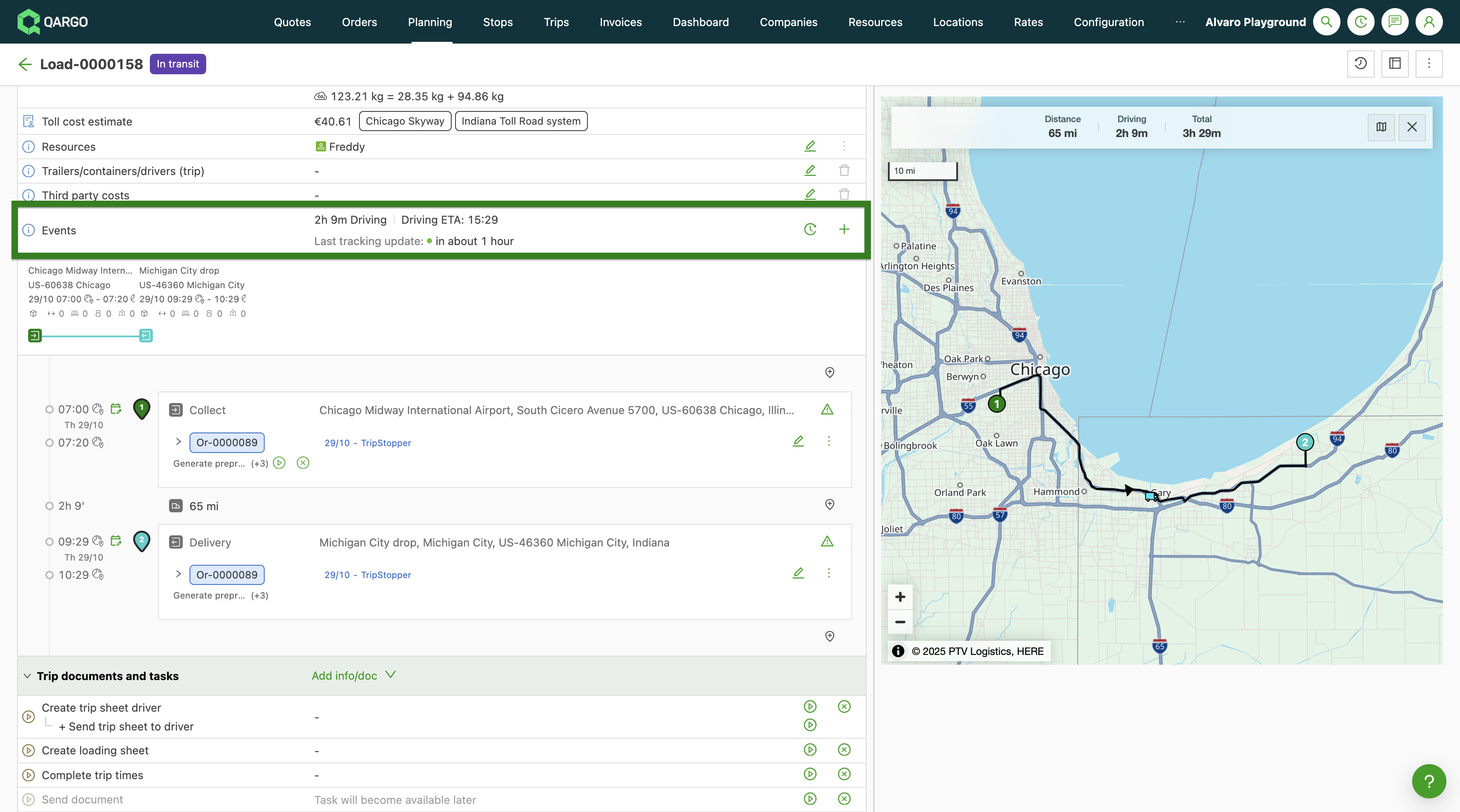
- Open the load from Loads > Loads.
- Find the Events row in the Operations section, directly below General info.
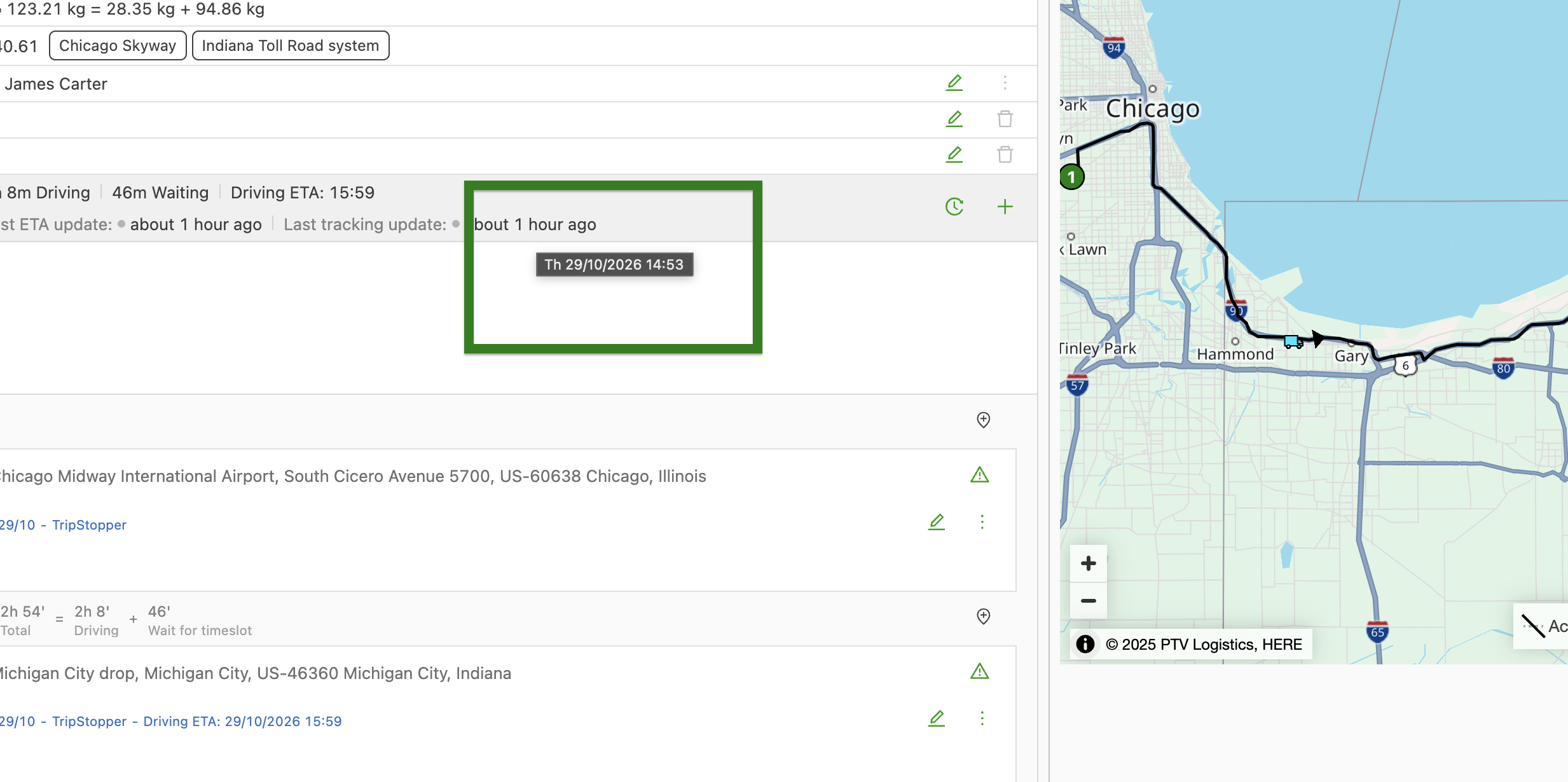
- Check Last ETA update and Last tracking update. Each shows how long ago the update arrived, for example 5 min ago.
- Hover over a time to see the exact date and time.
Operations events: review the history of a load
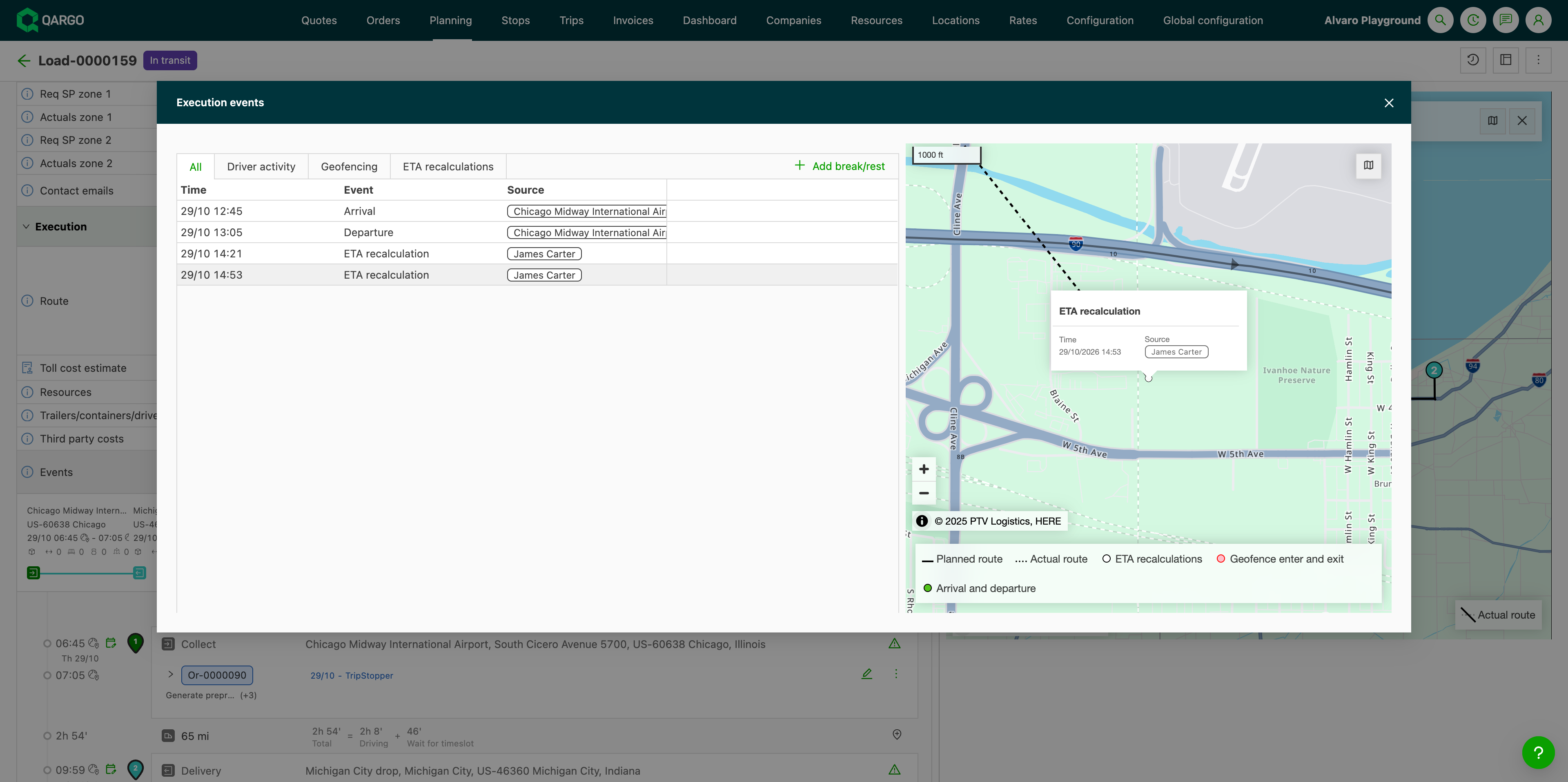
- Click the clock icon on the Events row. The Operations events window opens on the Driver activity tab.
- Select a tab: All, Driver activity, Geofencing, or ETA recalculations. The Arrival and Departure rows of each stop are on the Driver activity tab.
- Click a row. The map next to the table zooms to where the event happened.
Events row, Operations events, and load map: what is shown
-
Colored dot: next to Last ETA update and Last tracking update on the Events row. It shows how recent the update is. Green: less than 15 minutes old. Orange: 15 minutes to 1 hour. Gray: more than 1 hour, or no update yet. The time next to the dot says the same in words, for example 5 min ago.
-
Columns: each tab shows Time, Event, and Source, oldest first.
-
Source: the integration, driver, or vehicle that sent the event. For Arrival and Departure, it shows the stop’s location.
-
Arrival and Departure: the actual start and end times of each stop.
-
Filters: filter Time by date range, and Event and Source by value. The table cannot be sorted or exported.
-
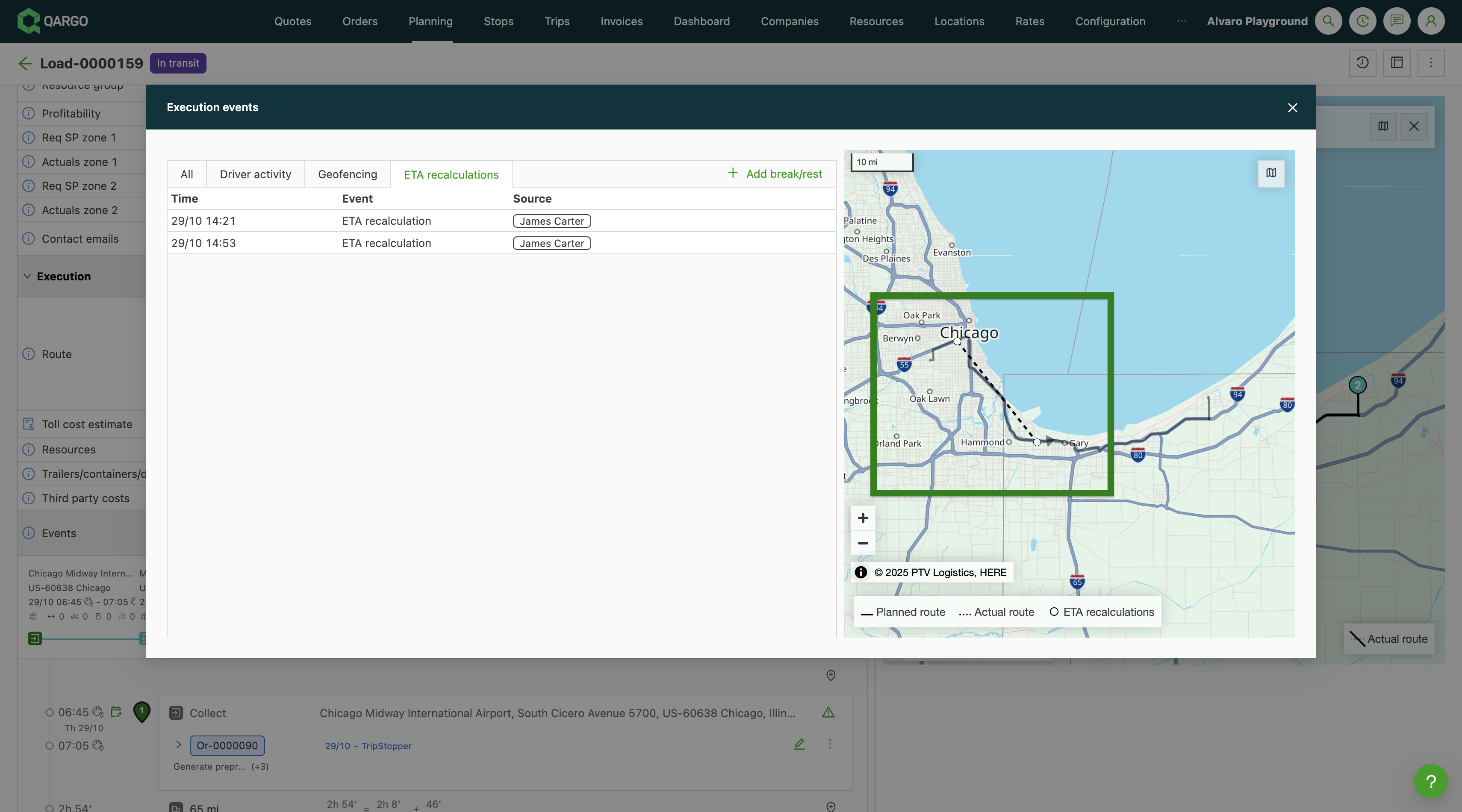
Actual route: click Actual route in the bottom-right corner of the load map to show a dashed line through the ETA updates. At least 2 ETA updates are needed to show the line. It is off by default and requires PTV ETA calculation.
This video explains how ETA recalculation works and how to set it up:
Other status options
Each status below pauses the ETA. The reason shows on the Route row of the load as ETA: reason while the load is in progress and PTV ETA calculation is on.
| Status on the Route row | Needs attention (shown in orange) |
|---|---|
| Driver is at the stop | No |
| Driver is near the next stop | No |
| Driver passed the stop without completing it | Yes |
| Driver is on an intermodal leg (ferry/train) | Yes |
| Stops are being executed out of sequence | Yes |
| Driver has been near the stop for too long | Yes |
| Driving leg has taken far longer than planned | Yes |
| Navigation route has expired | Yes |
| Calculation request limit reached | Yes |
Time windows and anchor stops
When a load has time windows or anchor stops set, the in-transit recalculation method handles them as follows:
Time windows
A time window defines the earliest and latest acceptable arrival time for a stop.
- If the recalculated ETA falls within the time window: the ETA updates normally within the window.
- If the recalculated ETA is earlier than the window opening: the ETA snaps forward to the window opening time. The driver is not shown as arriving before the window.
- If the recalculated ETA is after the window closes: the ETA keeps the shifted (late) value, showing a realistic late arrival. The system does not artificially pin the ETA to the window closing time.
Anchor stops
An anchor stop is a fixed or user-set timestamp on a stop. It is often used when planning a route backward from a required arrival time.
- If the driver arrives early: the ETA snaps back to the anchored time.
- If the driver is running late: the ETA shifts past the anchored time to reflect the realistic late arrival.
Configuration and activation
Automatic in-transit ETA recalculation requires the following:
1. Feature activation
Automatic ETA recalculation requires activation.
-
Go to Configuration > Organization settings.
-
Select Route planning & optimization from the tenant settings.
-
Turn off Include rest and break times in calculation.
- Turn on Use PTV ETA calculation to enable the feature.
2. Live GPS location data
ETA recalculation requires Qargo to receive continuous GPS position pings from the driver.
This works via:
- Qargo mobile app: no FMS integration is required. The Qargo mobile app alone is sufficient, as long as location sharing is active on the driver’s device.
- FMS/telematics integration: any connected FMS integration that sends GPS positions (e.g., Samsara, Transics, Webfleet) also works.
Mobile-only setups are fully supported; a telematics provider is not needed.
3. PTV routing required
The recalculation is built on PTV’s routing engine. A valid route must have been calculated for the load using PTV before in-transit recalculation can run.
Limitations
The following limitations apply to the automatic in-transit recalculation feature:
- Accessing the Qargo driver mobile app with a PIN code: no tracking data is sent in these sessions. Automatic ETA therefore does not work when only the Qargo driver mobile app is used.
- FMS break and rest data: break and rest time information from FMS integrations is not factored into the recalculation. Planned breaks may cause ETA deviations that are not reflected in the updated timestamps.
- External visibility systems: updated ETAs are not yet pushed to customer portals or external tracking integrations.
- Late-running alerts: the current release updates timestamps but does not trigger visual indicators or notifications when a load is running behind schedule.
- Next stop only: the ETA is calculated individually for the next stop only. All subsequent stops shift by the same delta.
Troubleshooting
| Issue | Likely cause | What to check |
|---|---|---|
| ETAs are not moving during transit | Milestone-based updating is active. This is the default where in-transit recalculation is not enabled | Check Route planning & optimization under Organization settings. Turn on Use PTV ETA calculation. Contact the Qargo account manager if additional help is needed with this feature. |
| ETAs are not updating even with the feature active | No GPS pings are being received | Confirm that the driver has location sharing enabled in the Qargo mobile app, or that the FMS integration is actively sending GPS positions.\ |
| Check whether the driver uses PIN code sessions to access the Qargo app. PIN code access does not provide tracking. | ||
| Updated ETAs are not visible in the customer portal or external tracking systems | ETA updates are not yet pushed to external visibility systems | This is a known limitation in the current release. External system updates are planned |
| ETAs appear less accurate than expected | FMS break/rest time data is not factored in | Planned breaks from FMS integrations are not currently reflected in the recalculation |
| Stop times shifted unexpectedly | On-site stop time adjustment detected a longer-than-planned stop | When a driver stays beyond the planned stop time, all downstream timestamps shift forward automatically. This is expected behavior |
| ETA shows later than the time window closing time | The driver is running late past the window | Time windows do not prevent late ETAs; they only snap early arrivals forward. A late ETA displays realistically past the window end |
| Last tracking update has a gray dot | No position update in the last hour, or none received yet | Confirm that the driver shares location in the Qargo mobile app, or that the FMS integration is sending GPS positions. |
| No actual route on the load map | Actual route is turned off, PTV ETA calculation is not on, or the load has fewer than 2 ETA updates | Click Actual route in the bottom-right corner of the load map. Check that Use PTV ETA calculation is on under Route planning & optimization in Organization settings. |
| ETA did not change after a new position update | The next ETA update is not due yet | Check Last ETA update on the Events row. The ETA updates again after the wait time in the recalculation frequency table. |