Customize the loads page
Table of contents
Customize the columns
The way loads and load details appear on the loads page can be customized.
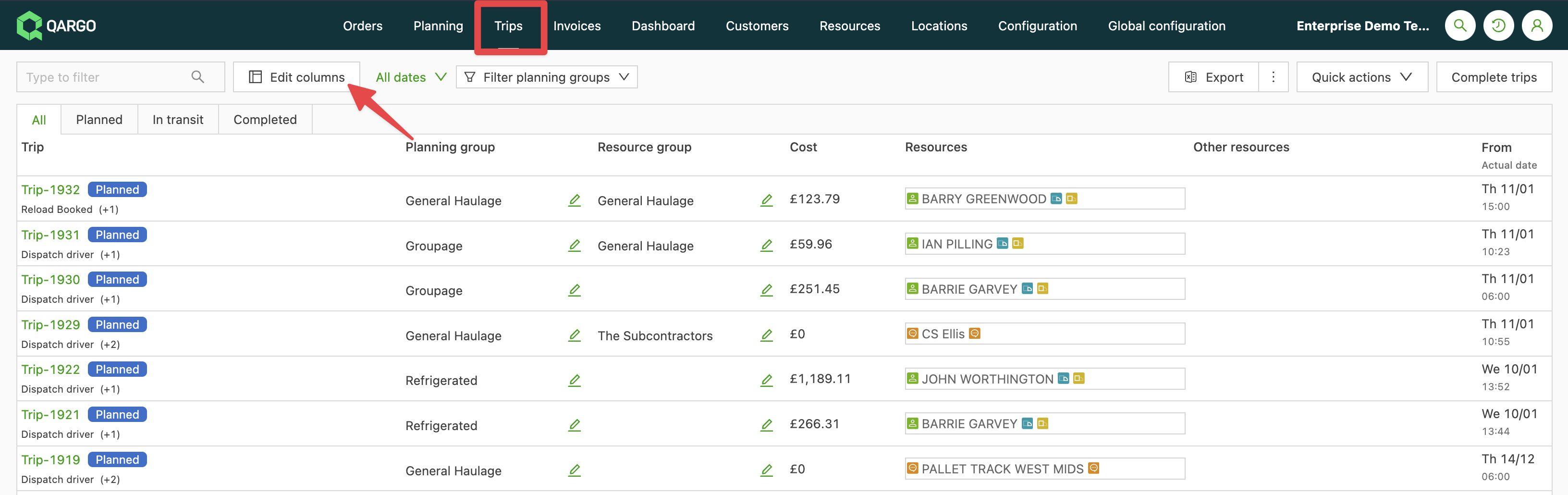
- Navigate to Loads.
- Click the settings icon above the table. The Customize panel opens.
This opens a side pane on the left side of the screen.
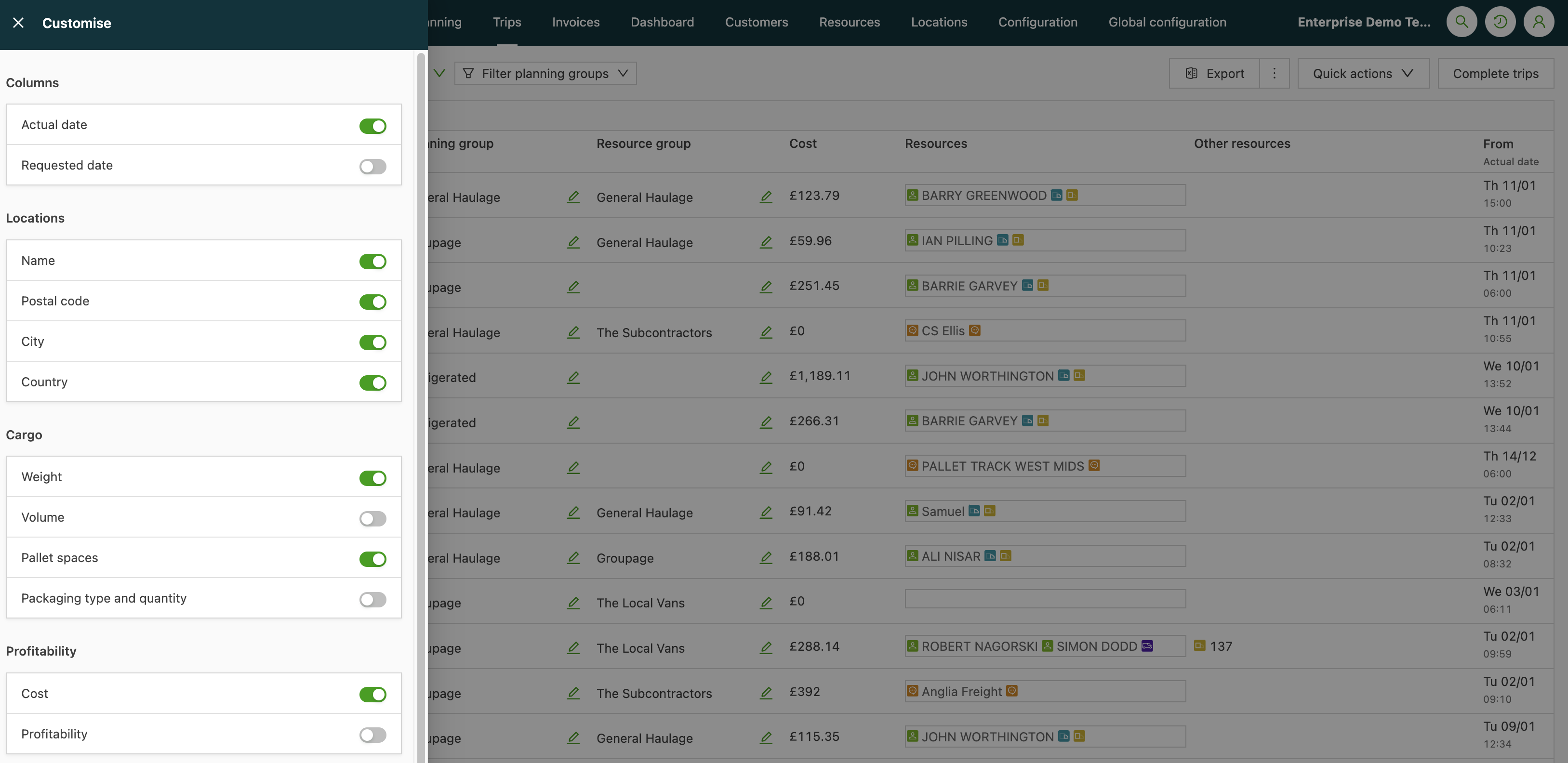
- Select the load details to show on the loads page.
- Close the side pane when done.
Column headers can also be dragged and dropped to change the order of the columns.
Last tracking update column
The Last tracking update column on the Loads list shows how long ago the latest position update arrived per load.
Last tracking update column: show it on the Loads list
- Open LOADS > Loads.
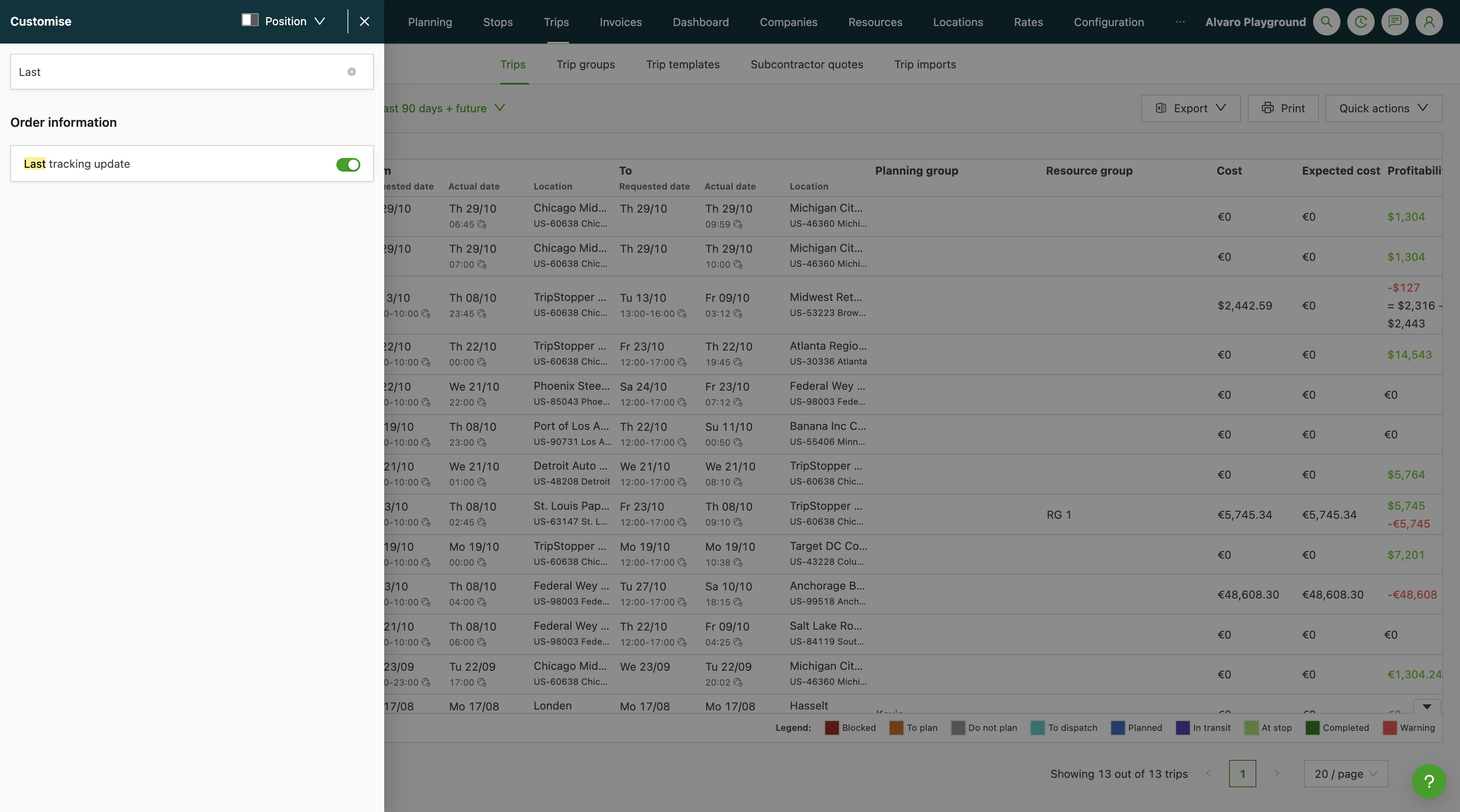
- Click the settings icon above the table. The Customize panel opens.
- Switch on Last tracking update under Order information.
- Close the panel. The column shows the time since the latest position update, for example 12 min ago.
- Open the map icon in a cell to see the last known position of the vehicle.
How it works
- Default: the column is off until switched on in Customize.
- Filters and sorting: the column cannot be filtered or sorted.
- Completed loads: updates that arrive within the planned stop window of a load, plus a margin, count for that load in any status. A completed load can show an update received shortly after completion.
Filter data
Data on the loads page can be filtered with the filter icon in the table header.
- Click the filter icon.
- Select the data to filter.
- Close the modal.
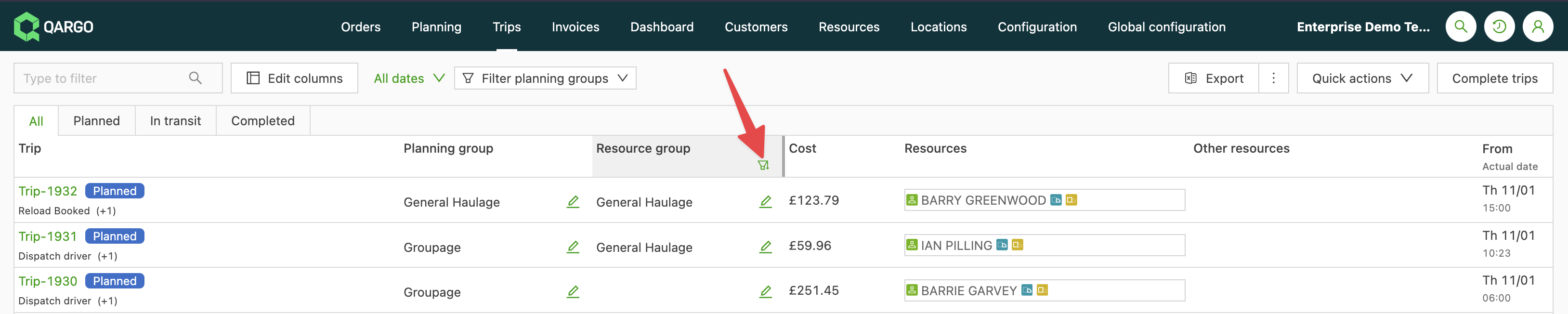
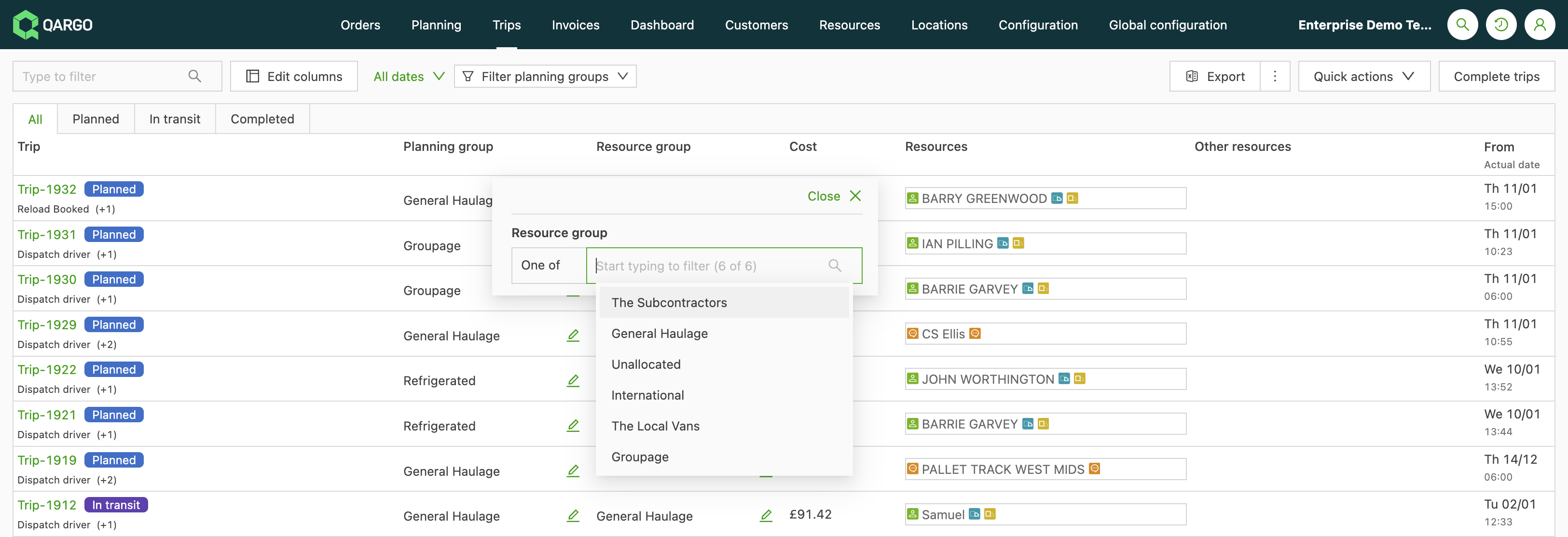
The filter is saved. The same view appears the next time the order list page is opened.
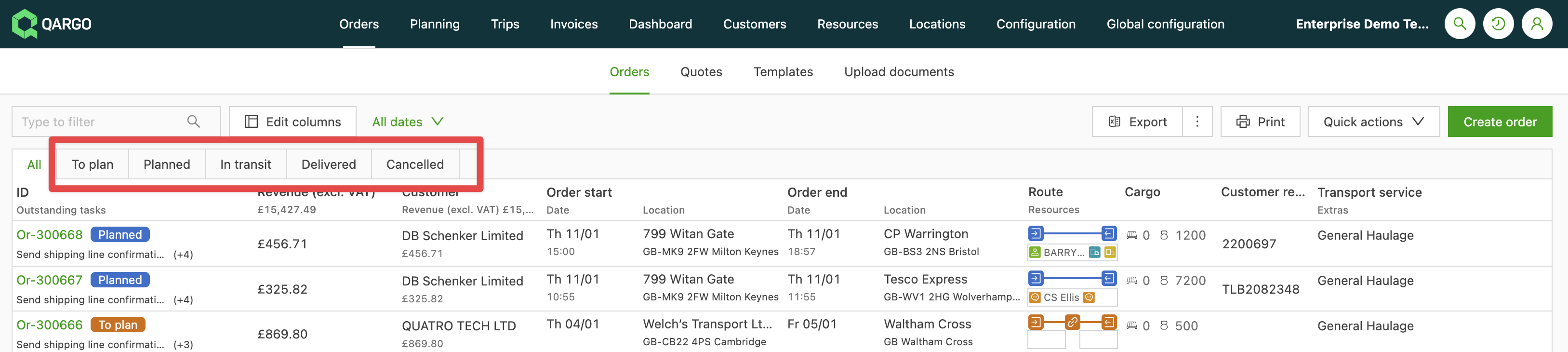
Loads can also be filtered by status with the standard filters available:
- All
- Planned
- In transit
- Completed