
Orders – Customize the detail view order page
Customize order page data by navigating to Orders, selecting an order and clicking 'Customize' to update the options shown in the order details.
When users understand the customization options and limitations, they can better tailor the order screen to their needs.
🎥 Watch this explanatory video or follow the steps in the article below:
To customize what data is included on the order detail view:
-
Navigate to Orders.
-
Click an order number or row to open the details page.
-
Click the Customize action in the top right corner.
- Use the search filter to look for specific data.
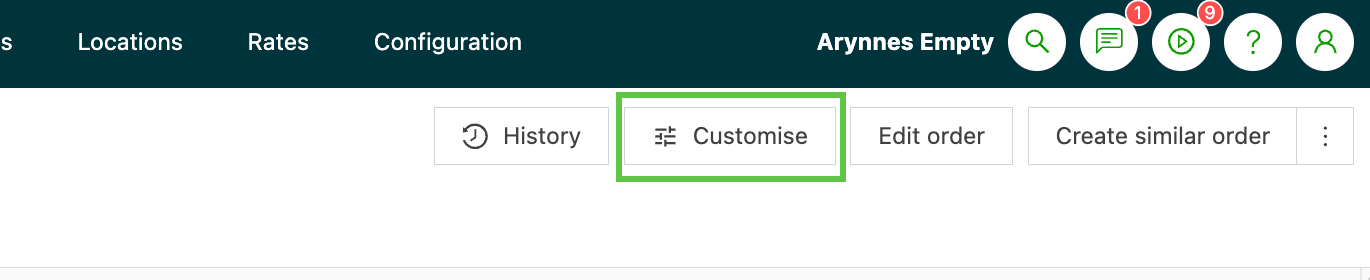
After the user clicks it, a side panel opens on the left side of the screen. Users can select specific data to display in some of the panels on the order detail view.
- Toggle selected data on or off to display it in the related panel.
- For example, toggling off Packaging type in the Stop summary hides the details in the Operations panel. This information still appears in the shipment information under the Freight field.
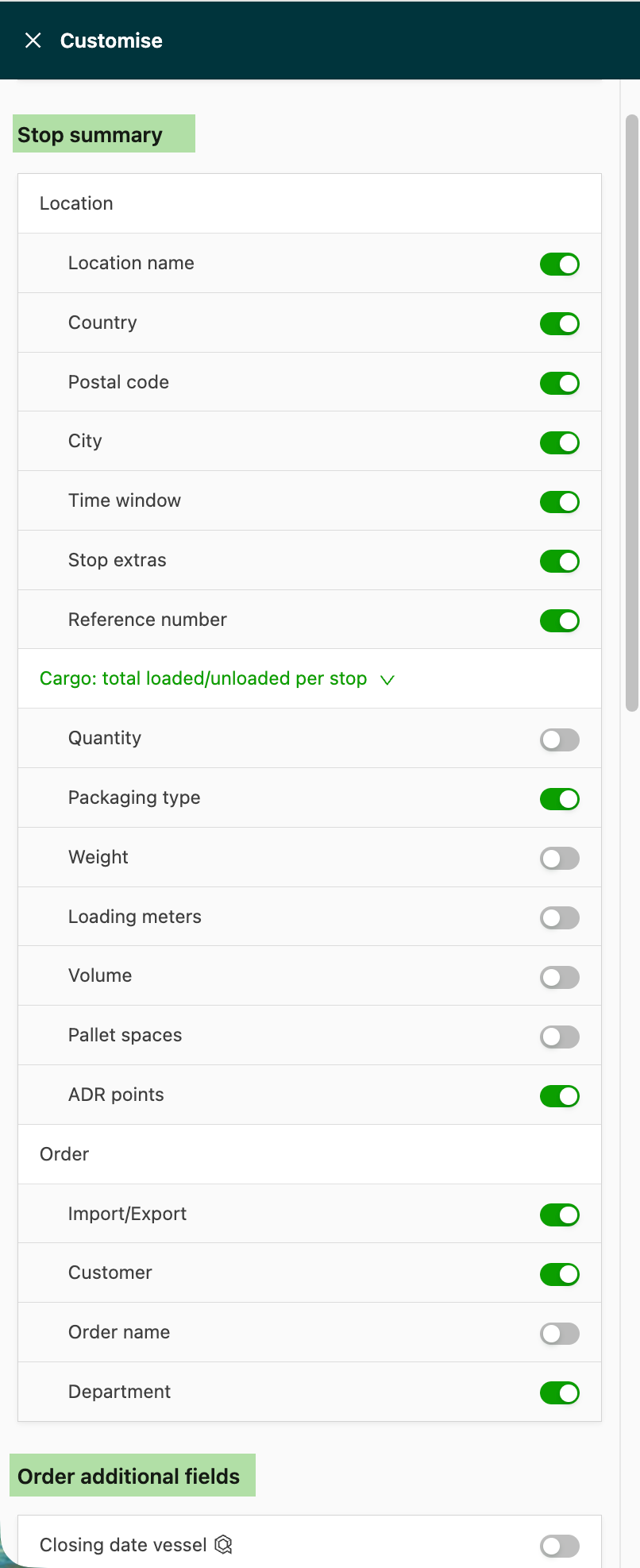
Individual data fields are displayed based on the configuration of the related transportation service. However, users can change which details are visible when an order is opened, such as specific panels or the map panel.
- Expanding or collapsing specific panels, such as the map pane, can help tailor the view to the user’s needs.
- Some features, such as the document viewer, require manual interaction each time.
To set the map view as the default each time an order is opened:
-
Where the map is not already visible but is required
- In the General info panel, click the eye icon to open the map
-
Where the map is already visible but is not required
- In the General info panel, click the eye icon to close the map
- In the map panel, click the X in the corner to close the map
-
Refresh the page. This view should become the default
- Open a new order to verify.
Using the arrow to collapse or expand panels changes the order detail view and displays specific data fields.
This helps users see only the essential details relevant to their role, while still keeping access to all the order details they might need.