
Orders – Toll cost calculation
Understand how Qargo calculates toll costs for orders and loads, including how to configure routing profiles per vehicle type and how to exclude specific toll systems from rate card charge calculations.
Table of contents
Introduction
Qargo uses PTV for route and toll cost calculation. The toll cost calculation logic for an order differs slightly from the logic for a load.
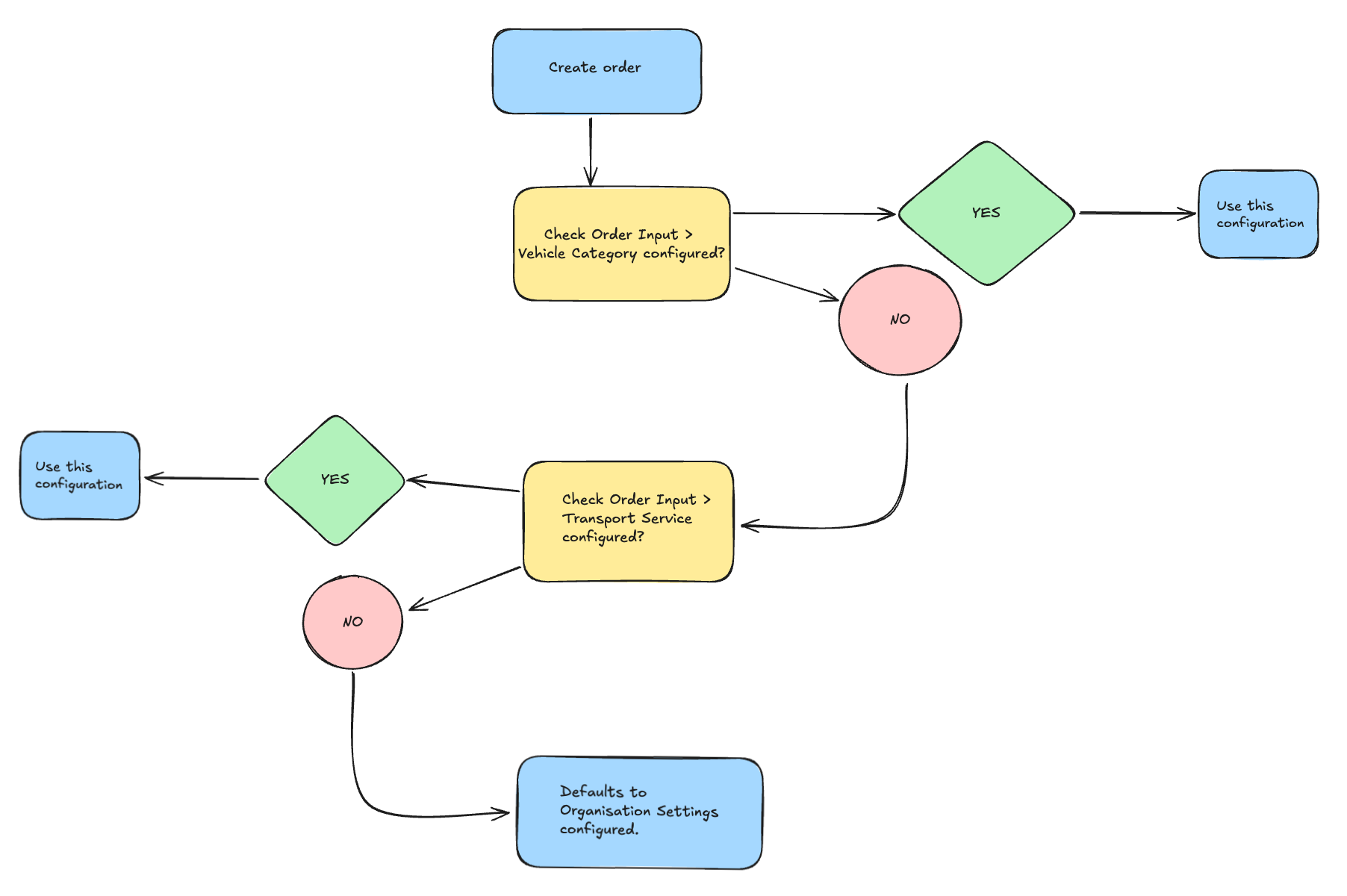
A default order routing profile can be configured in transportation services and the vehicle category. When an order is created, sequential logic determines the correct vehicle type for routing and toll calculations.
Rate card charges can also be configured to exclude specific toll systems. Carriers whose base rates already include certain tolls (e.g., Belgian road tolls) can then avoid double-charging without manual order adjustments.
Terminology
| Term | Definition |
|---|---|
| PTV | A routing and toll cost calculation engine used to determine distances, travel times, and toll charges based on vehicle type and route. |
| Routing profile | A set of rules in Qargo that define how routes and tolls are calculated for a given vehicle type. Can be configured at the organization, transportation service, or vehicle category level. |
| Vehicle category | Classification of vehicles in Qargo (e.g., Van, Rigid, Semi-truck) that determines the applicable routing profile and toll calculations. |
| Order | Represents a customer shipment request. Routing and toll costs at the order level are determined by the configured routing profile, before the load is created. |
| Load | The operations phase of an order, where resources such as drivers, tractors, trucks, vans, and trailers are assigned. Toll calculations at this level are based on the actual resource vehicle type. |
| Organization settings | A global configuration in Qargo that defines the default routing profile to be used when no specific profile is set in transportation services or vehicle categories. |
| Transportation services | A configuration area in Qargo where routing profiles can be defined per transportation service, influencing toll and routing calculations at the order level. |
| Resource | Operational unit used in loads, including driver, tractor, truck, van, and trailer. The resource type determines the vehicle profile applied to the load. |
| GVW (gross vehicle weight) | The total weight of a vehicle, including its maximum payload, used to classify vehicles into categories (e.g., Van up to 3.5 t, Rigid 7.5–12 t, Semi-truck up to 40 t). |
| Axle configuration | Details about the number and arrangement of axles on a vehicle or trailer. In some regions, toll costs depend on axle configuration in addition to vehicle category. |
| Contract carrier resource | External resources (e.g., contract carrier drivers or vehicles) assigned to loads. If limited information is available, toll calculation falls back on organization-level routing profiles. |
| Fallback profile | The routing profile applied when no specific vehicle-based or service-based routing profile is configured. Defaults to the organization settings profile. |
| Toll system | A named toll operator or scheme returned by PTV routing (e.g., Viapass, Autoroutes de France, Liefkenshoektunnel, Eurovignet). |
| Per toll system metric | A calculation metric on a rate card charge that evaluates toll cost filtered by toll system name, rather than returning a combined total across all systems. |
| Charge template | A reusable rate card charge configuration that can be applied across multiple rate cards. |
| Rate card | A rating configuration in Qargo that defines how charges are calculated for a customer or transportation service. |
Configuring routing profiles
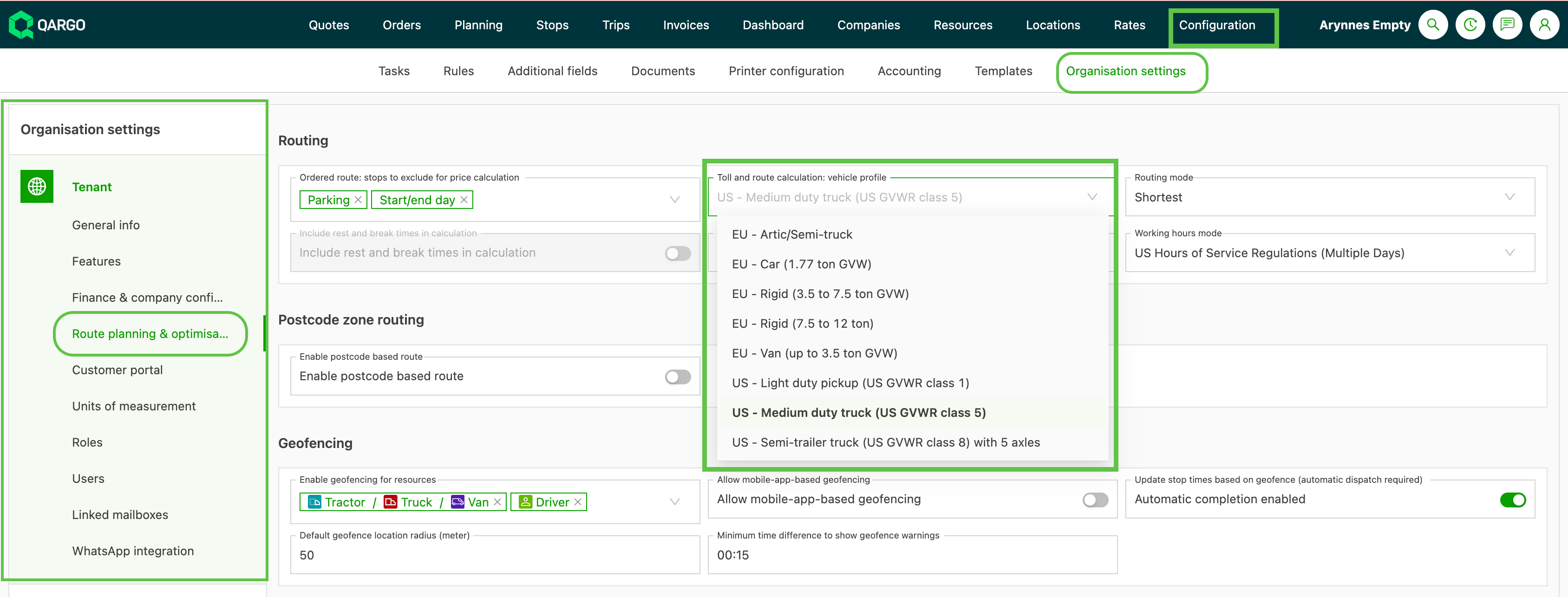
1.) Validate routing in organization settings
- Navigate to Configuration > Organization settings > Route planning & optimization
- From the Routing panel, validate the default vehicle profile set
- Update to the appropriate profile if required
- Save the profile
2.) (Optional) Set default routing in transportation services
- Navigate to Rates > Order input
- From the left-hand menu, select Transportation services
- Select the transportation service to update
- Navigate to the Cost & toll calculation section
- Select the appropriate routing profile from the dropdown
- Save the profile
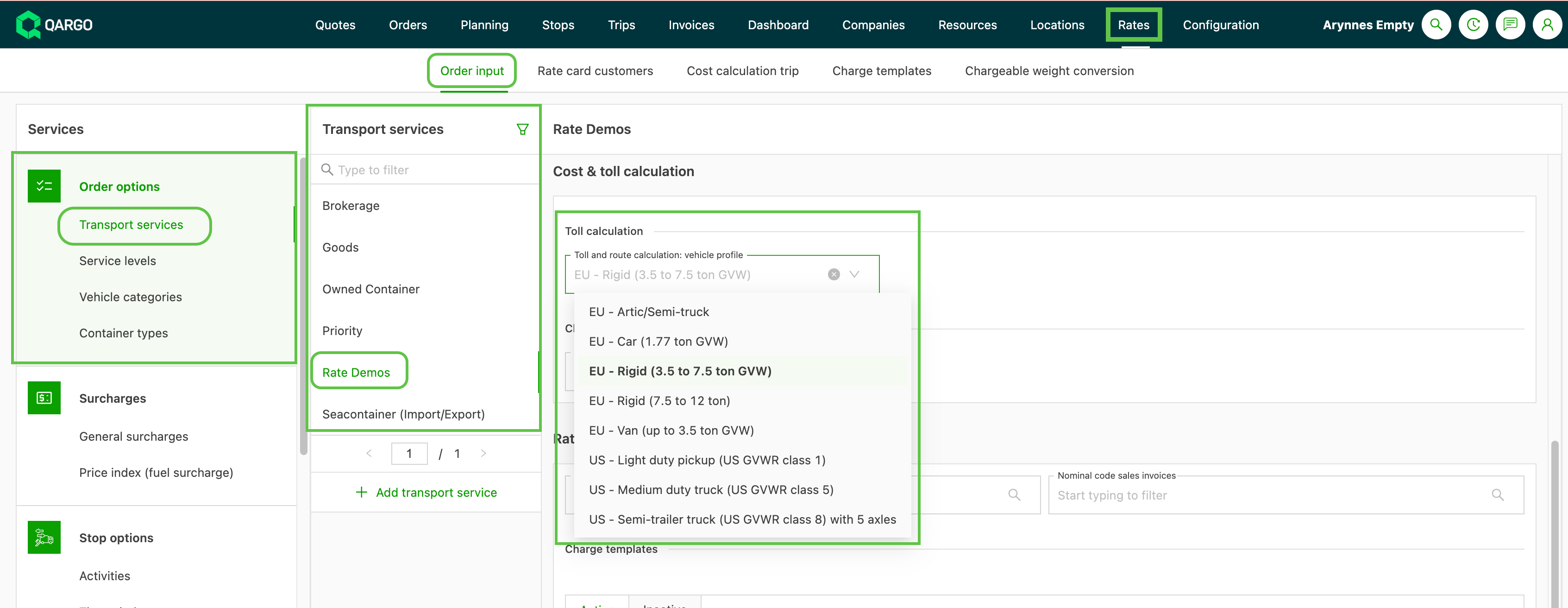
A routing profile can be set for each transportation service offered. Profiles can be unique to each service.
3.) (Optional) Set default routing in vehicle categories
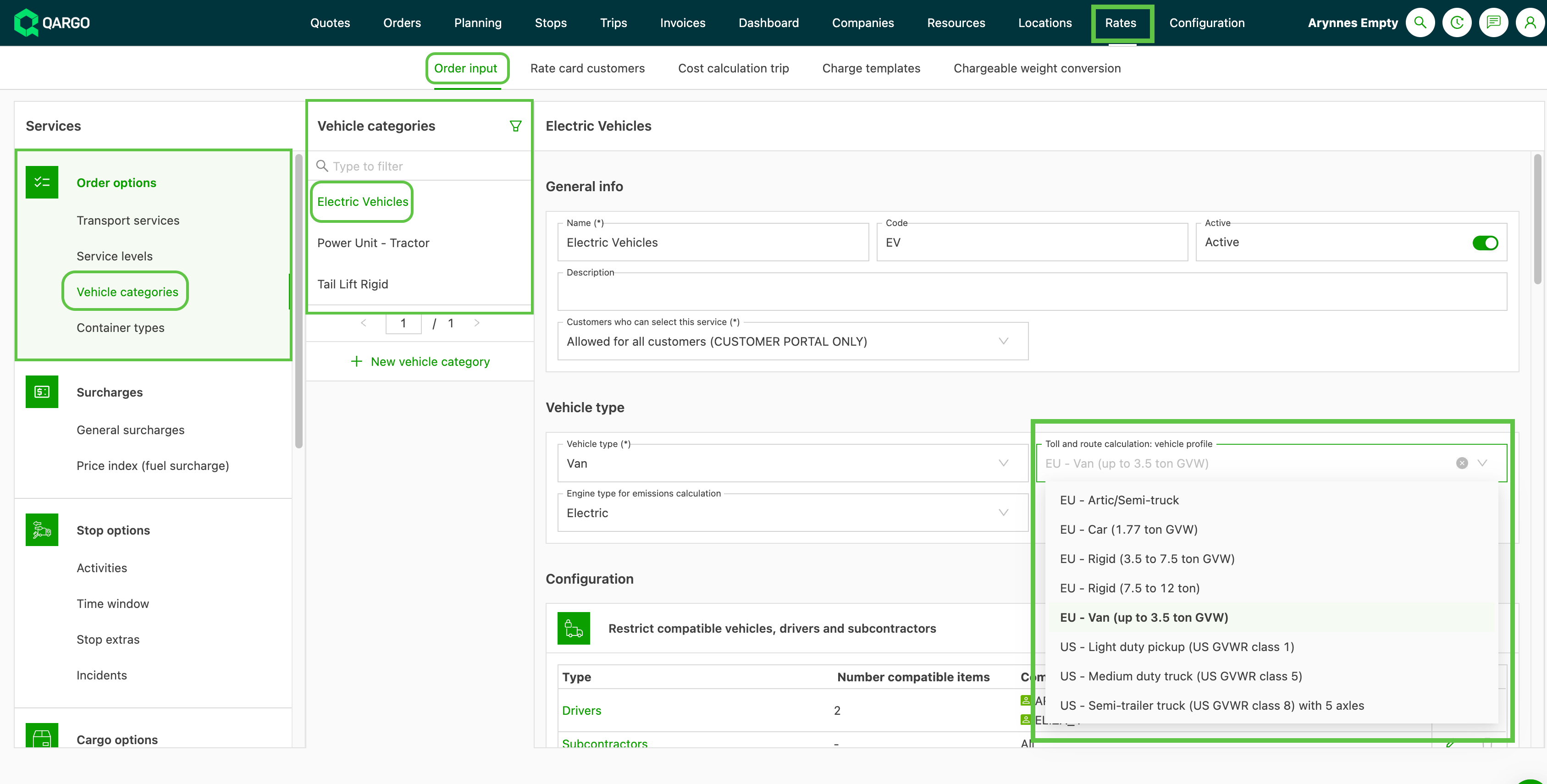
- Navigate to Rates > Order input
- From the left-hand menu, select Vehicle categories
- Select the vehicle category to update
- Navigate to the Vehicle type section
- Select the appropriate routing profile from the dropdown
- Save the profile
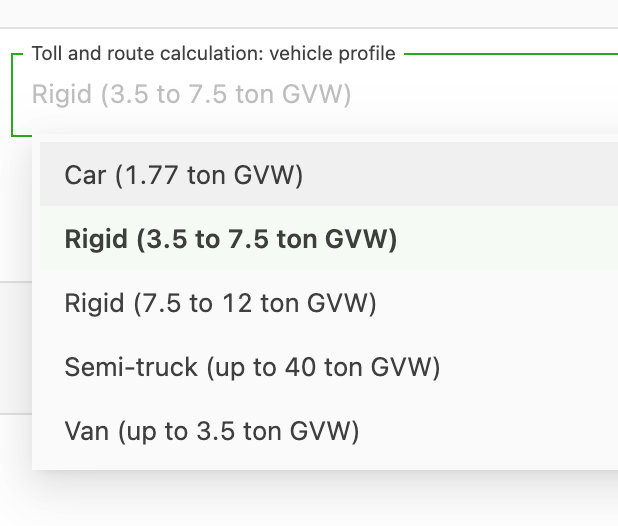
Qargo vehicle profile and the equivalent PTV category
| Routing profile category | PTV routing category | Description |
|---|---|---|
| Car | EUR_CAR | up to 1.77 t GVW |
| Van | EUR_VAN | up to 3.5 t GVW |
| Rigid | EUR_TRUCK_7_49T | 3.5 t–7.5 t GVW |
| Rigid | EUR_TRUCK_11.99T | 7.5 t–12 t GVW |
| Semi-truck | EUR_TRAILER_TRUCK | up to 40 t GVW |
Toll cost on orders
When an order is created, Qargo uses logic based on the configurations to check the vehicle type.
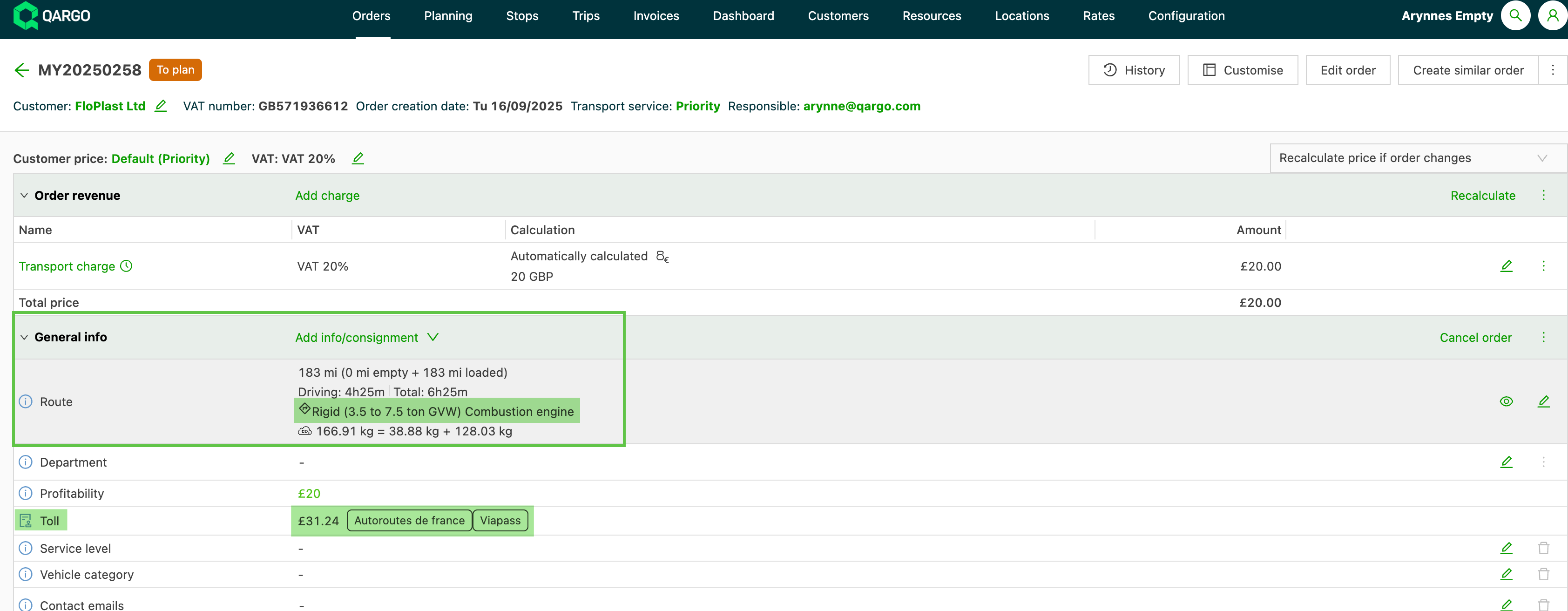
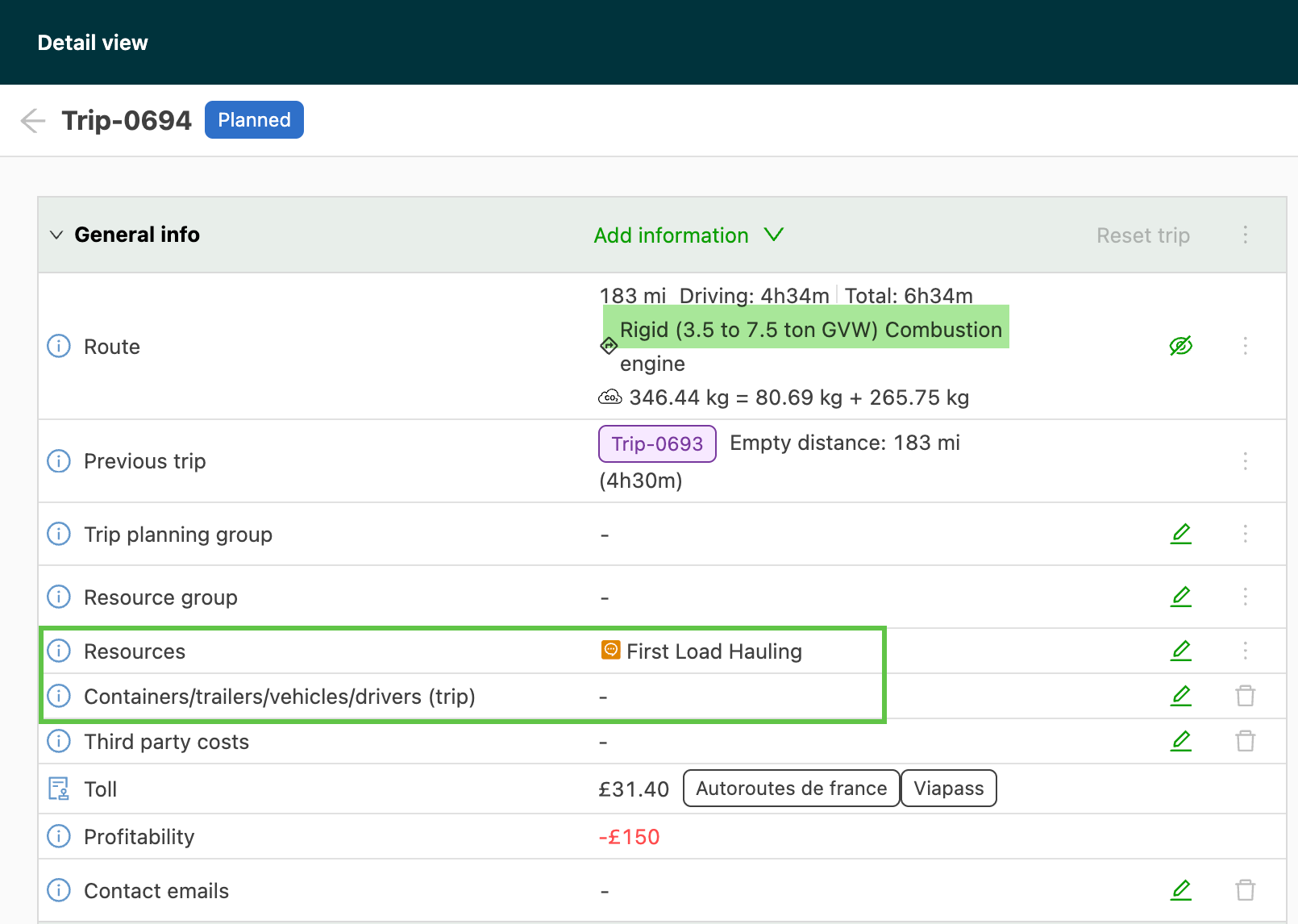
- In the order, under General info, the route details display the default vehicle profile
- This is based on the configured routing profile
- Toll calculations are based on the vehicle profile shown here
- If time windows are enforced, the planned operations time determines whether day or night rates apply, ensuring accuracy based on the order’s schedule.
Order logic workflow to set vehicle profile
Toll cost on loads
Once a Resource is assigned to a load, the vehicle type associated with the resource is used to generate the routing and the toll.
Qargo vehicle profile and the equivalent PTV category
| Routing profile category | PTV routing category | Description |
|---|---|---|
| Van | EUR_VAN | up to 3.5 t GVW |
| Rigid (Truck 3.5–7.5 t) | EUR_TRUCK_7_49T | 3.5 t–7.5 t GVW |
| Semi-truck (Tractor and/or Trailer) | EUR_TRAILER_TRUCK | up to 40 t GVW |
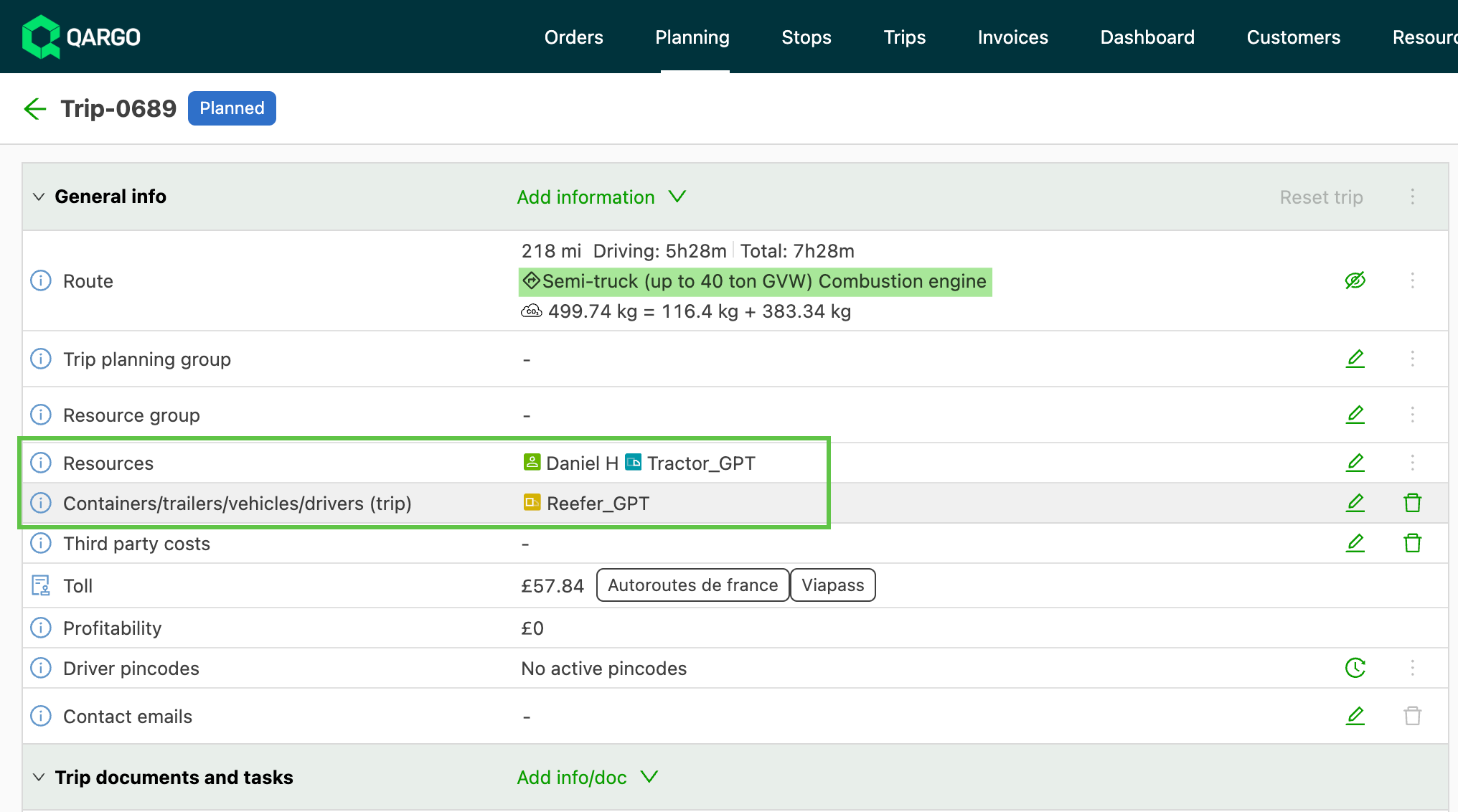
Use case 1: Own resources
Own resources, including driver, vehicle, and trailer. The vehicle profile defaults to Semi-truck based on the vehicle and trailer resources.
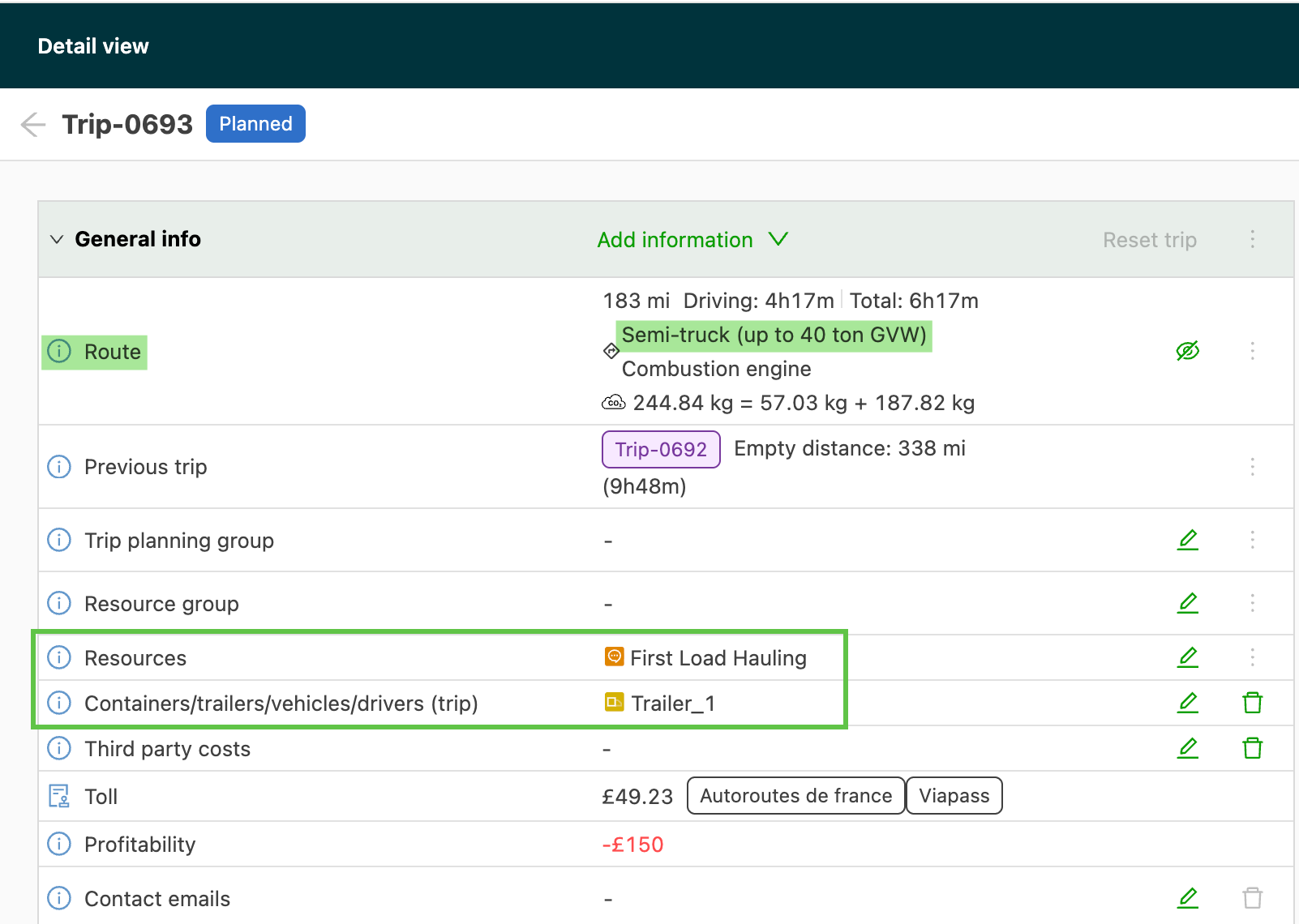
Use case 2: Contract carrier resource (driver)
A contract carrier resource (driver) is assigned with the company’s own internal trailer. The vehicle profile defaults to Semi-truck based on the assigned trailer resource, on the assumption that a semi is required to haul the trailer.
Use case 3: Contract carrier load — no trailer
Only a contract carrier is assigned, with no additional resources. The vehicle profile defaults to the Organization settings routing profile, as the actual vehicle resources are unknown.
Load workflow logic is based on resource type. Where multiple resources are assigned (e.g., Truck and Trailer), the highest-weight resource is used to calculate route and toll.
Load workflow logic is based on resource type. Where multiple resources are assigned (e.g., Truck and Trailer), the highest-weight resource is used to calculate route and toll.
| Resource type | Qargo vehicle profile | Contract carrier resource |
|---|---|---|
| Tractor | Semi-truck (up to 40 t GVW) | As per Qargo vehicle profile |
| Trailer | Semi-truck (up to 40 t GVW) | As per Qargo vehicle profile |
| Truck | Rigid (3.5 t–7.5 t GVW) | As per Qargo vehicle profile |
| Van | Van (up to 3.5 t GVW) | As per Qargo vehicle profile |
| Driver only | Vehicle profile selected in organization settings | As per Qargo organization settings |
| Generic contract carrier | Vehicle profile selected in organization settings | As per Qargo organization settings |
Examples:
- A trailer and a tractor → Semi-truck (up to 40 t GVW)
- A rigid truck (3.5 t–7.5 t GVW) + trailer → Semi-truck (up to 40 t GVW)
- A driver (organization settings profile) + tractor → Semi-truck (up to 40 t GVW)
To change the vehicle profile used in the load, the resource must be changed.
-
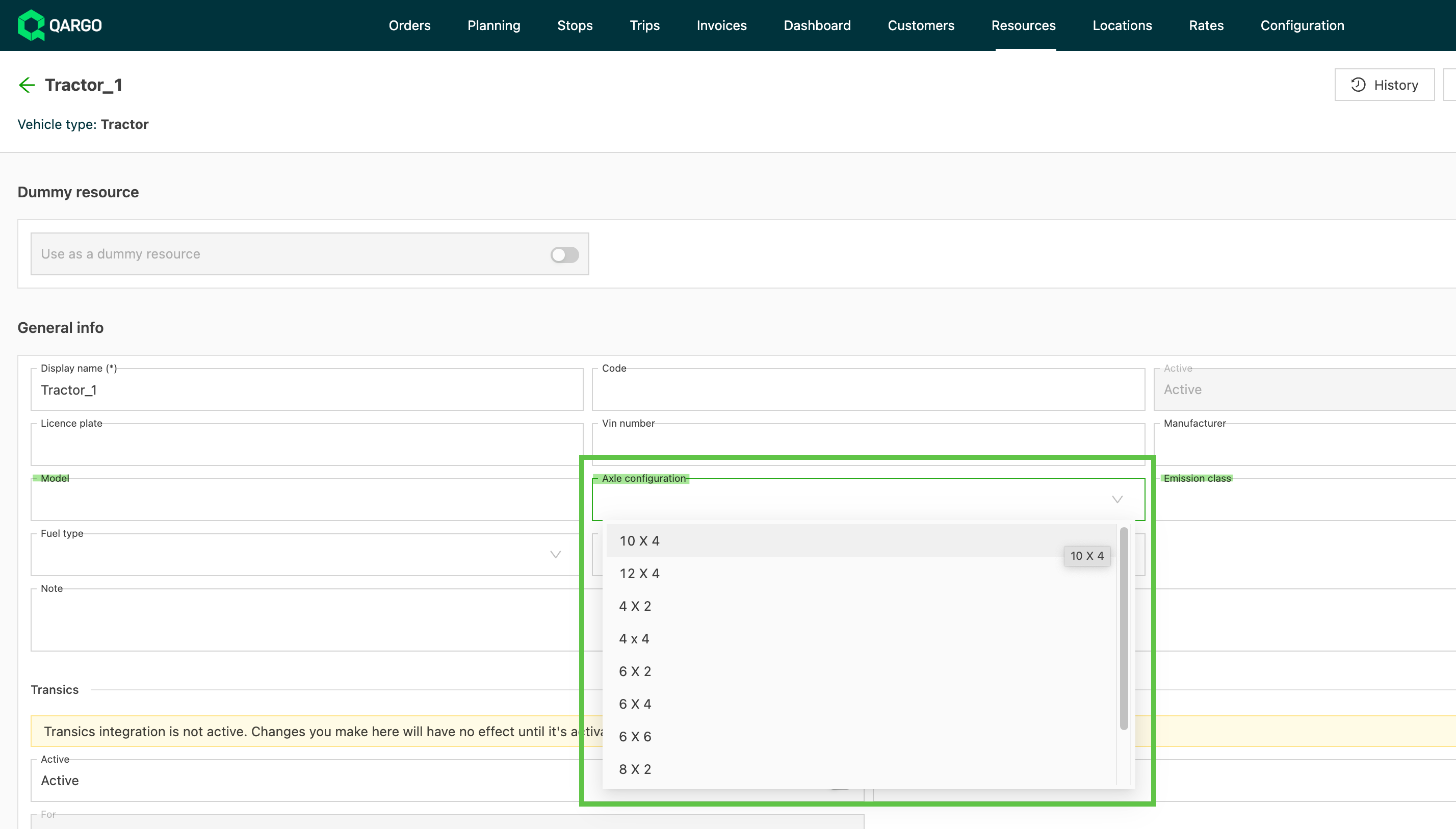
In some regions, tolls can also be calculated based on the Axle configuration specified in the resource profile.
- This typically applies to trailers, but can also apply to tankers if used.
Excluding toll systems from rate card charges
Rate card charges can be configured to exclude specific toll systems from the toll cost calculation using the Per toll system metric. This is useful when a carrier’s base rate already includes certain tolls (e.g., Belgian road tolls via Viapass). It avoids double-charging without manual adjustment on every order.
Use cases
- A carrier includes Belgian road tolls in the base transport rate → exclude Viapass and charge only for other systems (e.g., Autoroutes de France)
- A carrier holds a separate tunnel contract → exclude Liefkenshoektunnel from the standard Qargo toll charge
- A carrier manages vignette costs separately → exclude Eurovignet from the Qargo toll calculation
- An intermodal operator needs system-level exclusion because different contract carriers use different routes through different toll systems
Configure a per toll system exclusion on a rate card
-
Navigate to Rates > Rate card customers
-
Open the relevant rate card and locate the toll cost charge, or add a new charge
-
Set the calculation metric to Route / Total toll cost / Per toll system
-
Set a condition row:
- Metric: Per toll system
- Operator: Not in (to exclude), or In to set an allow list for specific systems
- Value: type the name of the toll system (e.g., Viapass); a list of known available systems displays
-
Add additional condition rows for each further toll system to exclude; each condition is evaluated independently
-
Save the rate card; the exclusion applies automatically to all future orders and loads on this rate card
Configure a per toll system exclusion on a charge template
- Navigate to Rates > Charge templates
- Open the relevant charge template or create a new one
- Follow steps 3–5 from the rate card configuration above
- Save the template and apply it to the relevant rate cards to propagate the exclusion
Stacking multiple exclusions
Multiple toll systems can be excluded by adding several condition rows on the same charge, each with the Not in operator. Each condition filters independently: all matching systems are removed from the toll cost total before the charge is calculated.
Alternatively, add separate charge calculations within the same rate card if different exclusion rules are needed for different scenarios.
Troubleshooting
| Issue | Likely cause | Resolution |
|---|---|---|
| The Per toll system metric does not appear in the calculation metric list | Toll routing is not active or the rate card charge is on an older version | Verify that PTV routing is enabled for the transportation service; refresh the rate card editor |
| The toll system name does not appear in the autocomplete list | The system is not in Qargo’s current toll system list (~204 systems sourced from PTV production data) | Type the system name exactly as it appears in PTV; contact support if the system is missing and expected |
| The toll charge still shows the full combined toll cost | The Per toll system metric is set but no condition row has been added | Confirm that a Per toll system condition row with the correct operator and value has been saved on the charge |
| Eurotunnel costs cannot be excluded via this feature | Eurotunnel is globally excluded from Qargo’s toll calculation by default | No action required; Eurotunnel costs are never included in Qargo’s toll charge |
| A new toll system does not appear in autocomplete | The autocomplete list is updated periodically from PTV production data | Contact support to request a list refresh that includes the new system |
Additional information
PTV provides an overview of toll systems by country (see the PTV toll overview) and a map with toll sections.
For rate card configuration, see also: Rates – Rate card customers.