Rate card – formula price calculation metrics
This article covers the calculation metric options that are available when configuring price lists based on a formula.
Table of contents
Price list calculations can be set up based on a fixed amount, a formula or a rate table. Each calculation method has additional metrics that are used to calculate the final price.
This article looks at the options available when using the calculation “Formula” as the basis of the customer price list. Formulas allow for greater flexibility when configuring price lists. The tiered setup allows users to create price lists that account for specific aspects of a load, i.e., loaded/empty distance or wait times.
Add metrics/options
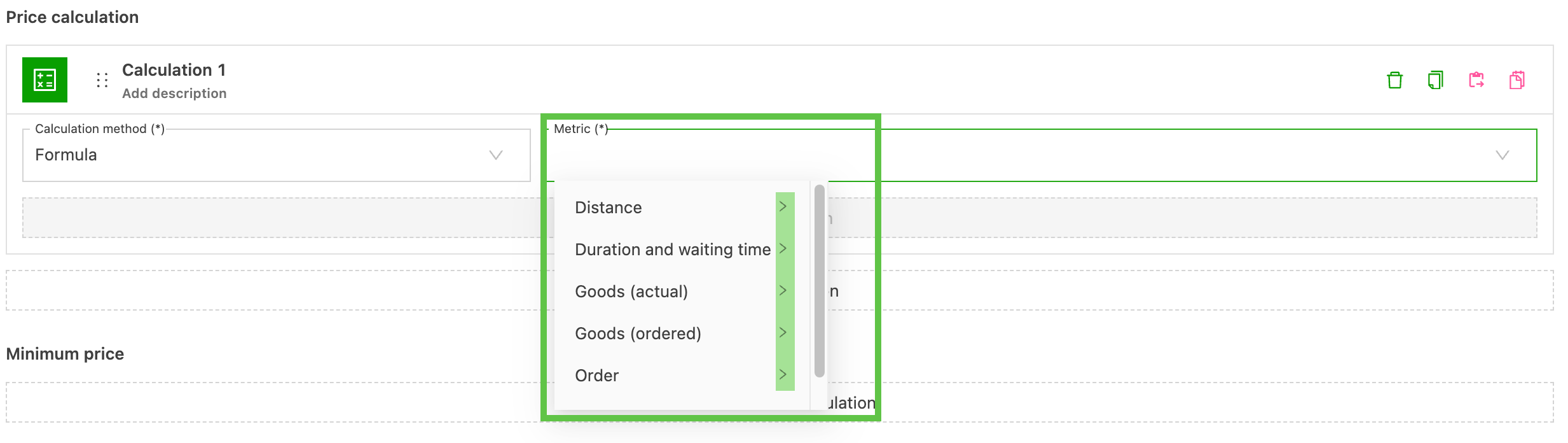
Select the calculation method “Formula”. In the “Metric” drop-down, the options are organized on a tiered basis. Selecting a Tier 1 option exposes additional tiered options to create the rating formulas, as follows:
-
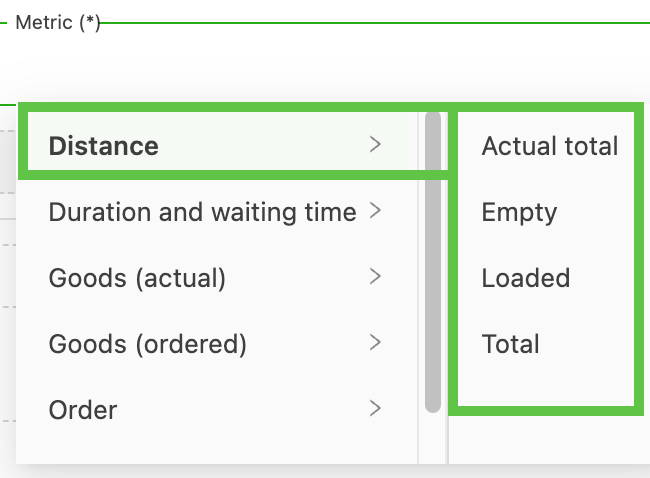
Distance: This gives various distance-based calculation options. The distances used are calculated based on the order stop locations.
-
Actual total / Total: For orders with “actual distance” data (i.e., mobile app usage), the system can calculate the distance between the first and last stop. The “total distance” calculation looks at the mileage based on the entire load.
-
Empty: The system checks how much distance (km/mi) is driven without goods. This allows loads to be priced at different rates based on loaded and empty miles.
-
Loaded: Loaded mileage is calculated from the loaded distance, using the mileage at the start and end of the load segments.
-
-
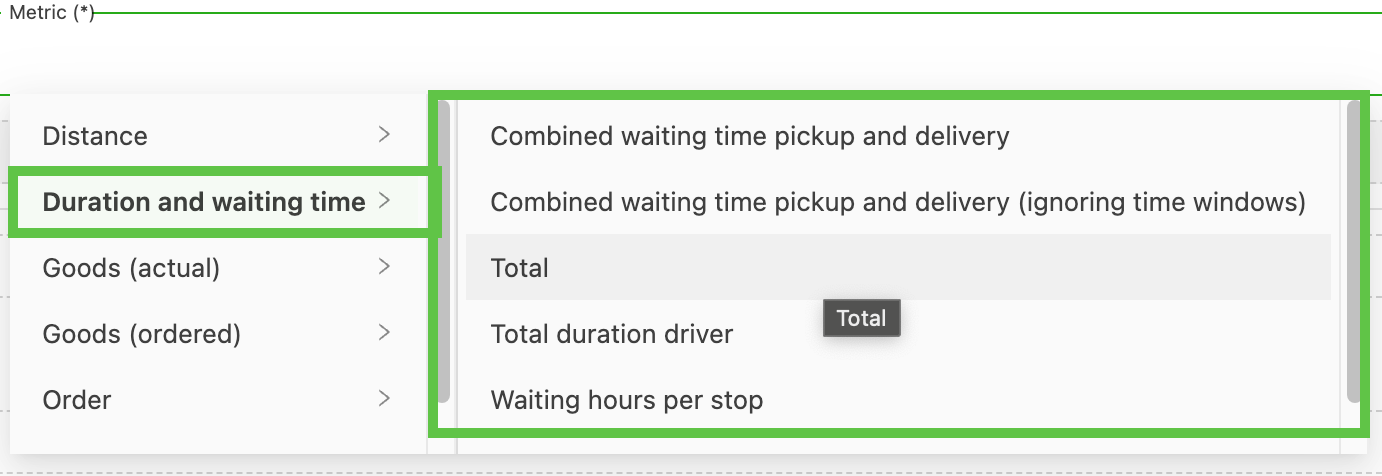
Duration & wait time: This calculates the total time spent on a load or at stops. Users can choose whether early arrivals (before a stop’s scheduled time slot) are included in the duration or ignored. Wait times often include a “free period” before charges begin to apply, and charges can be rounded to the nearest quarter or full hour.
-
Combined wait time pickup and delivery / Combined wait time pickup and delivery (ignoring time windows): Total duration at pickup and delivery stops; this also includes terminal stops.
-
Total: The duration from the start to the end of the order, including time spent at terminals between the order’s own stops. Only the stops of this order are counted. Stops on the same load that belong to other orders are not included.
-
Total duration driver: Accounts for the total duration of a load from the first stop to the last, including driving time, time spent at stops, rest periods and breaks.
-
Wait hours per stop / Wait hours per stop (ignoring time windows): Detention calculations are only complete once both loading and delivery are finished.
-
-
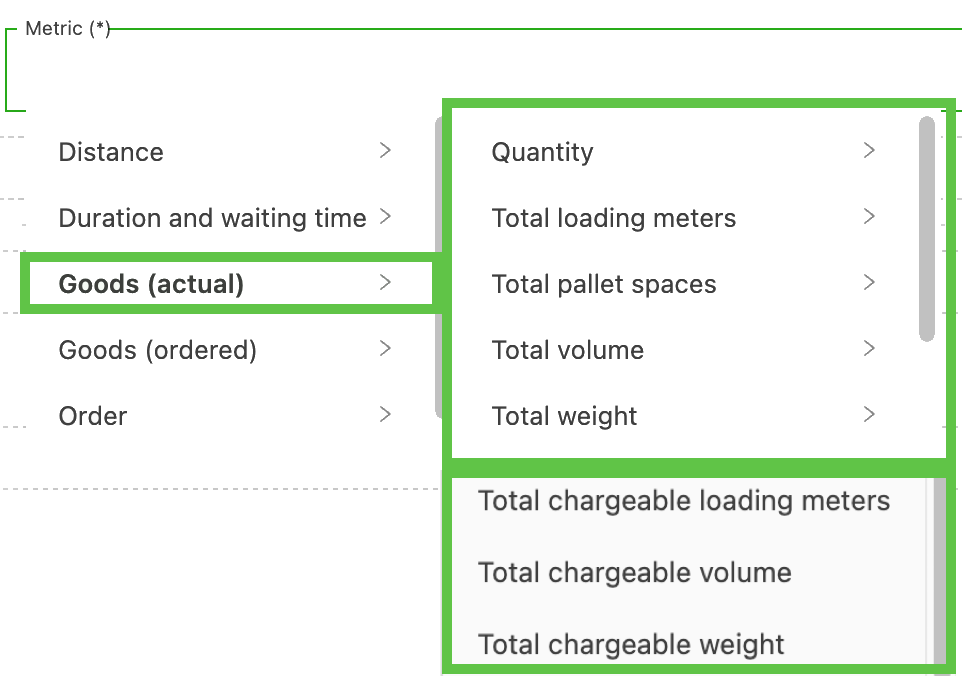
Goods (actual): Calculated based on actual loaded metrics, which can be calculated in a number of ways (below).
-
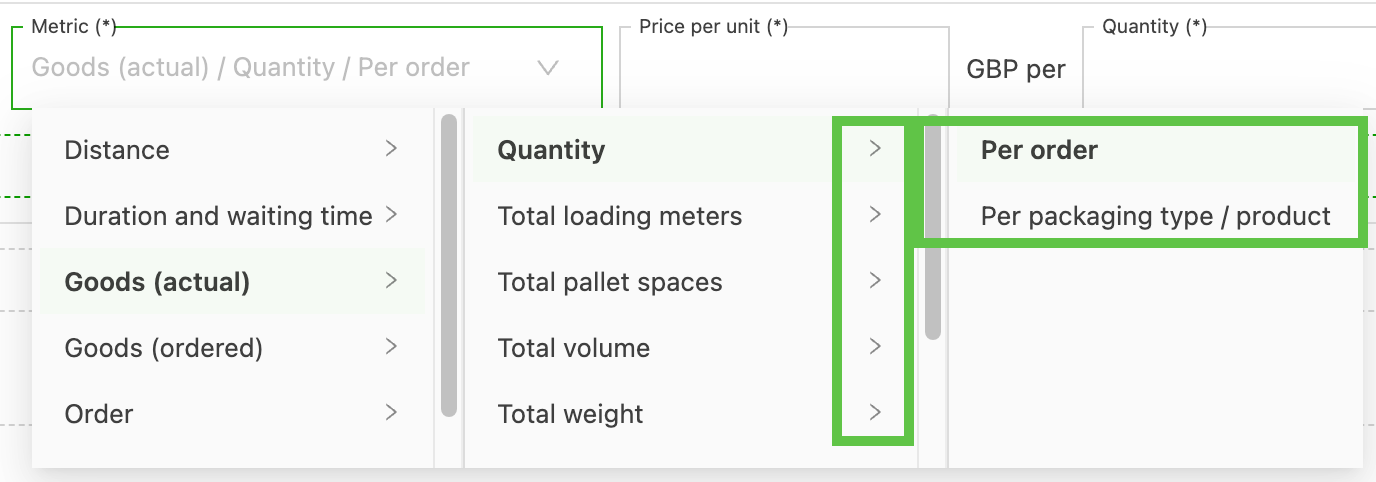
The system can group additional calculations, based on the selected metrics, by
-
Order
-
Packaging type/product
-
-
-
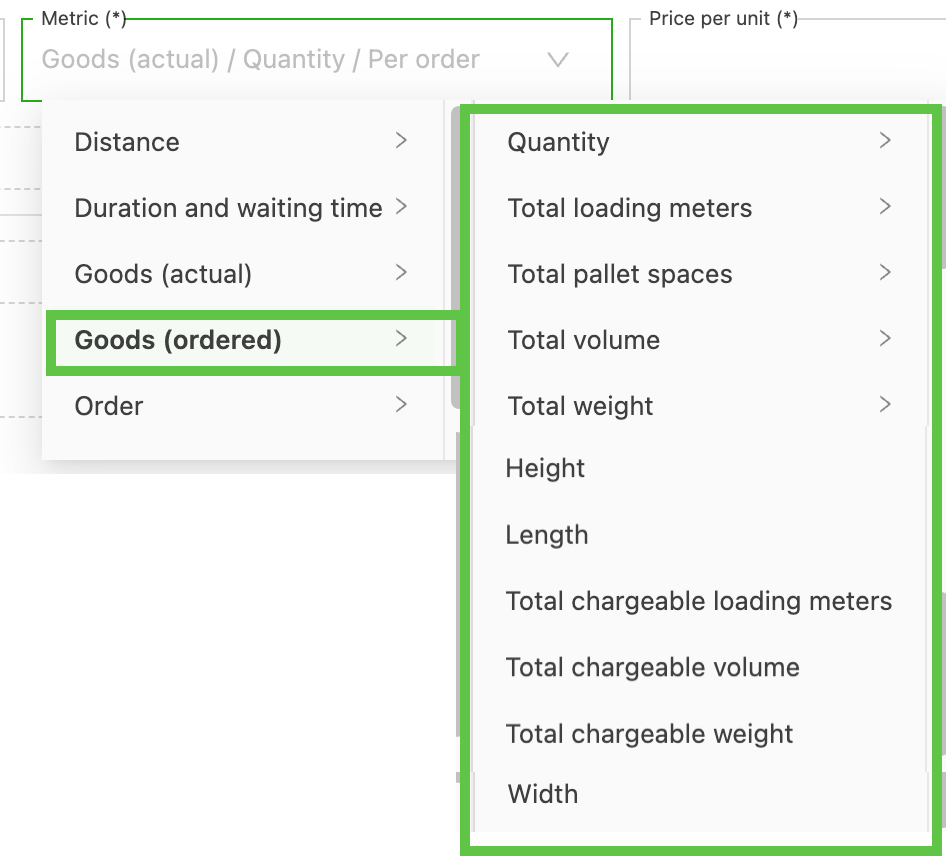
Goods (ordered): The system bases the rating on the ordered goods quantity.
-
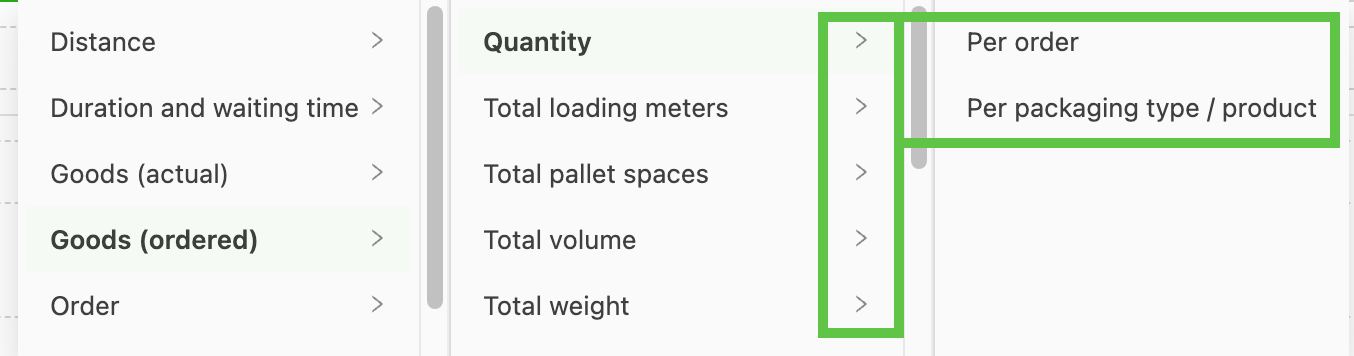
The system can group additional calculations, based on the selected metrics, by
-
Order
-
Packaging type/product
-
-
Order: The requested price indicates how much the customer is willing to pay for a transport order. This is typically set up as part of an integration that supports sending orders with an agreed set price. Note that this involves additional engineering resources as part of the setup.
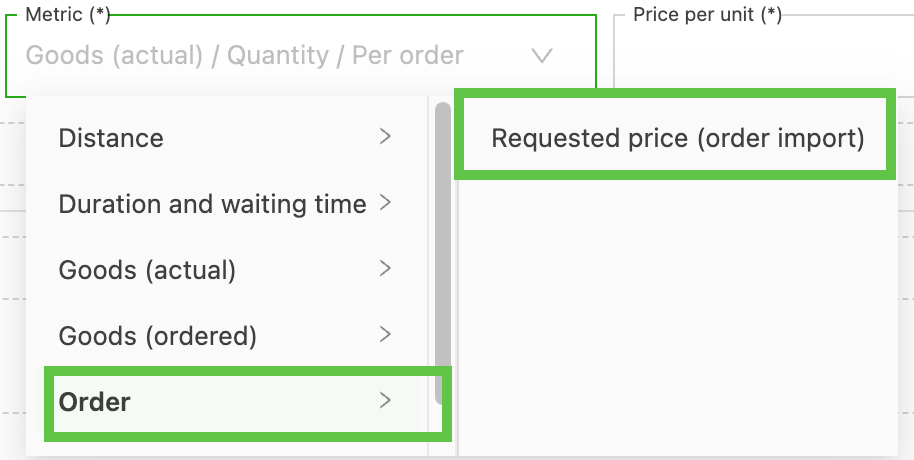
- This can also be used as part of the setup when using internal sourcing.
-
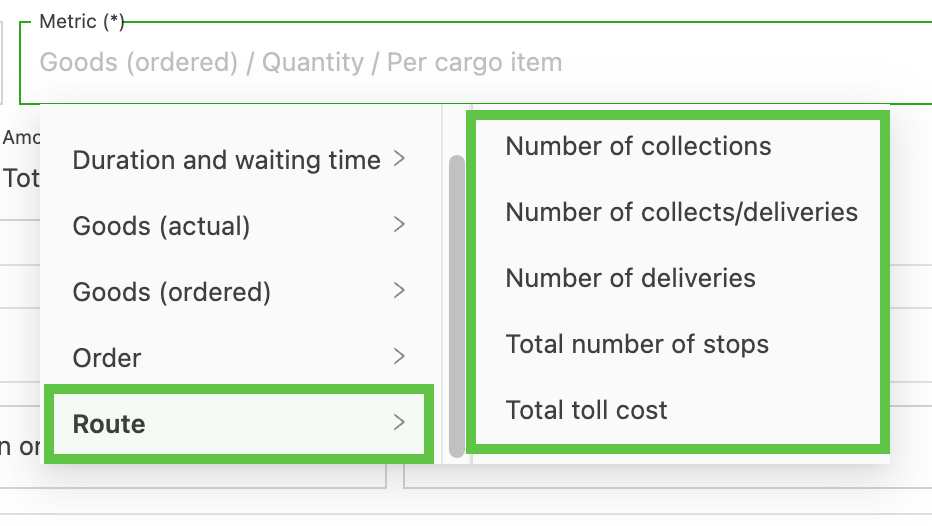
Route: Rating calculations can be done based on route or delivery metrics.
-
Number of pickups: The number of pickup stops.
-
Number of pickups/deliveries: Based on the number of pickups and deliveries in a route.
-
Number of deliveries: The number of delivery stops.
-
Total number of stops: Based on the total number of stops in a route.
- Both the number of pickups/deliveries and the number of stops options include the option to set an offset (see below).
-
Total toll cost: Adding toll costs allows a percentage of toll costs to be set, with the default at 100%. *Note: toll costs are provided through mapping services and should be considered “estimates”.
When using toll calculations, it is important to note the following:- Toll calculations depend on the vehicle type configuration.
- Toll costs vary between order and load, since routes can be recalculated during planning.
- If the route calculation fails, tolls will not calculate correctly.
-
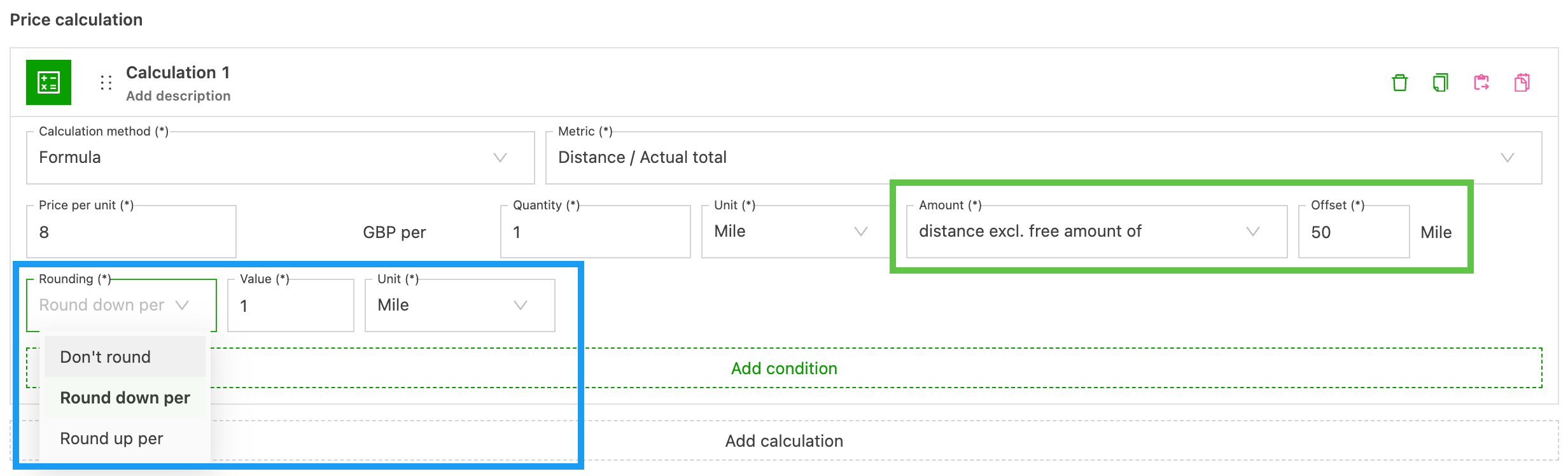
- Include a “free amount” by using the Offset field. Enter the “free” amount before the calculation begins.
- The “Percent” adjustment gives the option to increase/decrease by a percentage.
- “Rounding” options are used to round the set metric (ft / km / m / mile).
- These options only show if the corresponding distance metric (loaded, etc.) is selected. This reduces user error by only allowing corresponding options to be configured together.