
Rate card - wait time configuration
Configure waiting hours in the price list configurator: set metrics and stop types, and optionally apply the Arrival before window end condition to skip charges when a driver arrives after the time window has closed.
Summary
What is this?
- Waiting hours are an automatic surcharge that can be added to a rate card. The surcharge charges for time a driver spends waiting at a stop beyond the agreed free period.
- Configuration happens in Rates > Order input > Waiting hours. This dedicated section keeps waiting hour surcharges separate from general surcharges like tolls and fuel.
- Waiting hour charge details can be included automatically in contact task emails and PDF documents using dedicated template variables.
- The Arrival before window end condition allows waiting hours to be skipped automatically when a driver arrives after the end of the agreed time window.
Why does it exist?
- Without this feature, planners must manually reject waiting hour charges for every stop where a driver arrived late. This process takes a lot of time and does not scale for high-volume operations.
- Waiting hours previously lived in General Surcharges alongside tolls, fuel, and other charges, so the system could not identify them separately. Contact task email templates had no variables for waiting hour details, and PDF templates could not show a dedicated waiting hours section.
- The dedicated Waiting hours category makes the charge identifiable by the template engine. This enables automatic email notifications and document output without manual input.
How does it work?
- A waiting hours surcharge is created in Rates > Order input > Waiting hours and linked to a rate card.
- A calculation is configured using a wait time metric, a price per unit, and (optionally) a late-arrival exclusion.
- Template variables in the contact task email editor and the PDF template data schema let waiting hour charges appear separately and automatically on notifications and documents.
Prerequisites
-
Access to Rates > Order input is required to create or edit surcharges.
-
A rate card (price list) must already exist and be in use for the relevant transports. See Rate card - transport charges for how to set one up.
Use cases
-
Automatic waiting hour notifications Planners can send a contact task email to the shipper whenever waiting hours are registered on an order. With the dedicated category and template variables, the email shows the calculation and total automatically. No manual typing is needed.
-
Waiting charges on delivery confirmation Waiting charge details can be included in the POD email sent at delivery. The customer then sees the charge alongside the delivery confirmation, rather than receiving it separately after a potential dispute.
-
Automatic waiving of charges for missed appointments Some transportation companies are required to waive wait time charges when a driver misses an agreed time slot. The late-arrival metric variants automate this logic directly in the rate card, without manually rejecting each charge.
-
High-volume operations For operations handling a large number of orders, especially those using automated imports, manually identifying and rejecting late-arrival waiting hours is error-prone and difficult to maintain. Configuring the exclusion in the rate card ensures the correct behavior is applied to every order without planner intervention.
-
Combined pickup and delivery loads For loads rated using a combined waiting metric across all stops, late-arrival exclusion is available through dedicated metric variants. Any stop where the driver arrived after the time window end contributes zero to the combined total.
Terminology
| Term | Definition |
|---|---|
| Waiting hours | Time a driver spends at a stop beyond the free waiting period, which can be charged as a surcharge. Also referred to as wait time. |
| Time window | The agreed arrival window for a stop (e.g., 08:00–09:00). |
| Surcharge | An additional charge applied on top of the base rate card rating. |
| Rate card / price list | The rating configuration applied to transports for a specific customer or transportation service. |
| Metric | The calculation method used to determine how much wait time is measured at a stop. |
| Per-stop metric | A metric that calculates wait time independently for each individual stop. |
| Combined metric | A metric that calculates wait time across all pickup and delivery stops on a load combined. |
| Arrival before window end | A condition in the calculation editor that checks whether the driver arrived before the time window closed. When set to True, waiting hours are skipped for stops where the driver arrived late. |
| Billing entity | The legal entity under which the charge is invoiced, with its own tax and GL code settings. |
| Charge template | A reusable calculation defined on the surcharge itself, which can be applied across rate cards. |
Configure waiting hours
Step 1 — Create or open a Waiting hours surcharge
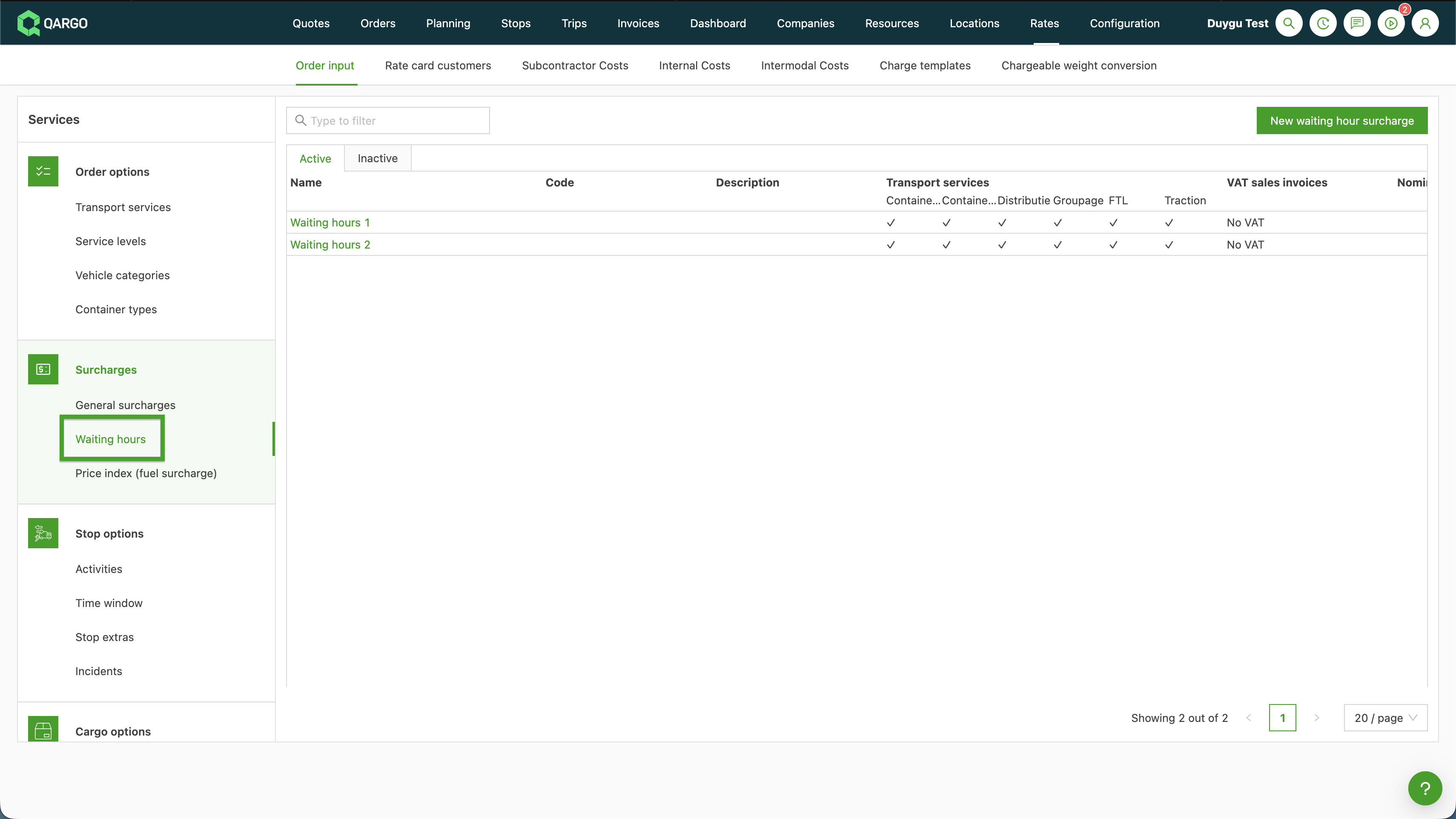
- Navigate to Rates > Order input and select Waiting hours under Surcharges.
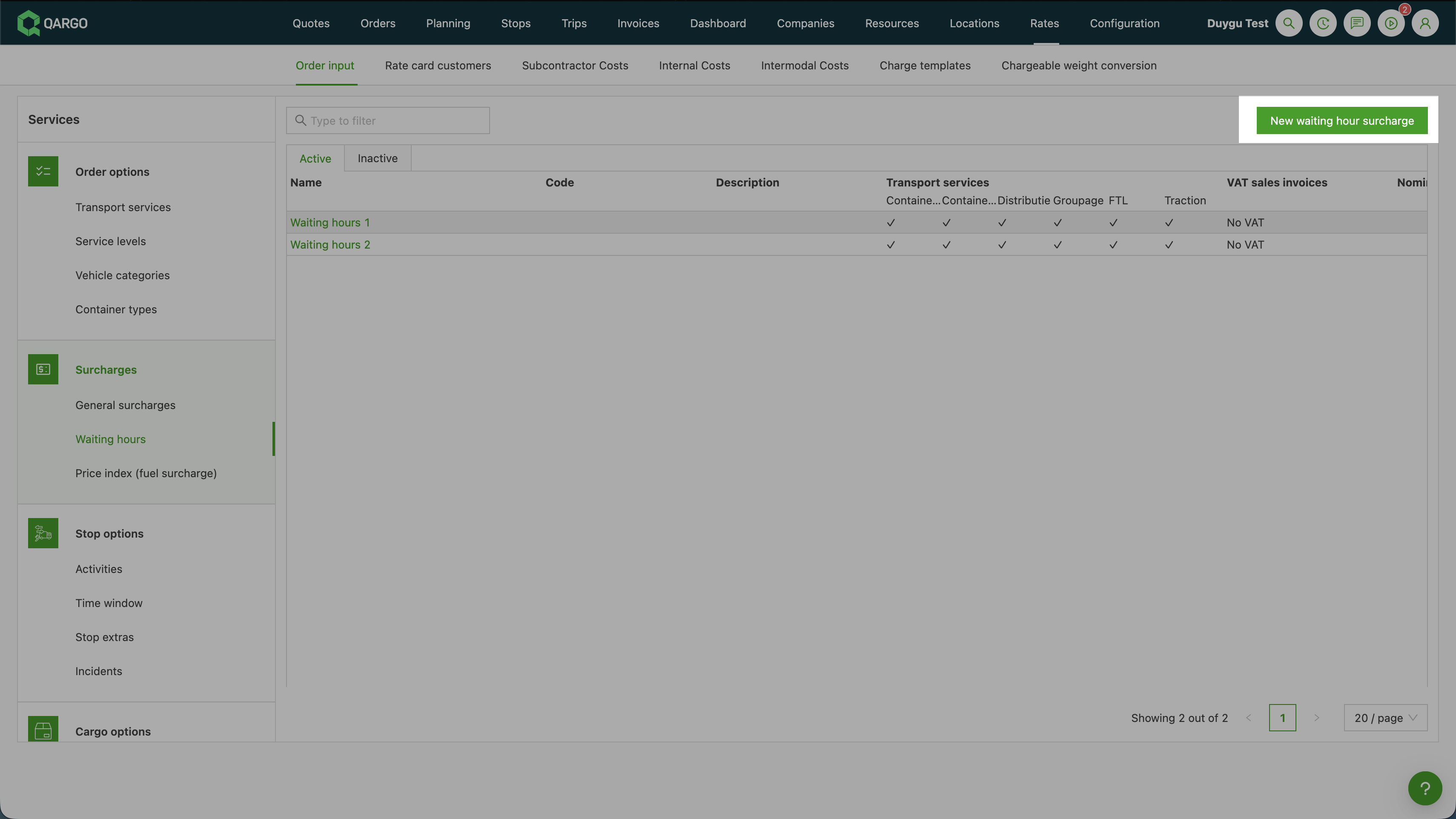
- Click New waiting hour surcharge (or open an existing one to edit it).
- Enter a name under General info. A code and a description are optional.
- Add a billing configuration under Rate calculation: select the billing entity, the tax for sales invoices, and the GL codes for sales and carrier invoices. Additional billing entities can be added with Add billing configuration.
- Set each transportation service to Active or Inactive to control which services the surcharge applies to.
- Click Save.
🎥 More information about the new Waiting hours surcharge category is available in this video:
Step 2 — Link the surcharge to a rate card
The surcharge can be linked to a rate card in two ways: directly from the surcharge, or from the rate card itself.
From the surcharge (per transportation service):
- Open the waiting hour surcharge and scroll to the transportation service the charge applies to. The transportation service must be set to Active.
- Click Link rate card under that transportation service. A dialog lists the rate cards for that service with their validity dates.
- Select the rate card(s) the surcharge should apply to and click Save.
From the rate card:
- Open the rate card (price list)
- Click Add charge to open the Add service to rate card window.
- Select the surcharge under the dedicated Waiting hour surcharge group
- Click Save.
Step 3 — Configure the calculation
Calculations can be defined centrally on the surcharge as a charge template, or edited per rate card.
- Open the waiting hour surcharge and click Add template under Charge templates (or open the charge inside a rate card and click Edit).
- Enter the template name, rate card type, and currency.
- Click Add calculation and select Formula (Fixed amount, Rate table, and Percentage of charges are also available).
- Select the metric under Duration and wait time > Wait time.
- Enter the price per unit, per unit quantity, and unit. Set a Free amount if a grace period applies before charges begin (for example, 2 free hours).
- Configure unit rounding and any minimum, maximum, or cap values if required.
- Click Save.
Option A: Per-stop waiting hours (recommended for most setups)
Available metrics
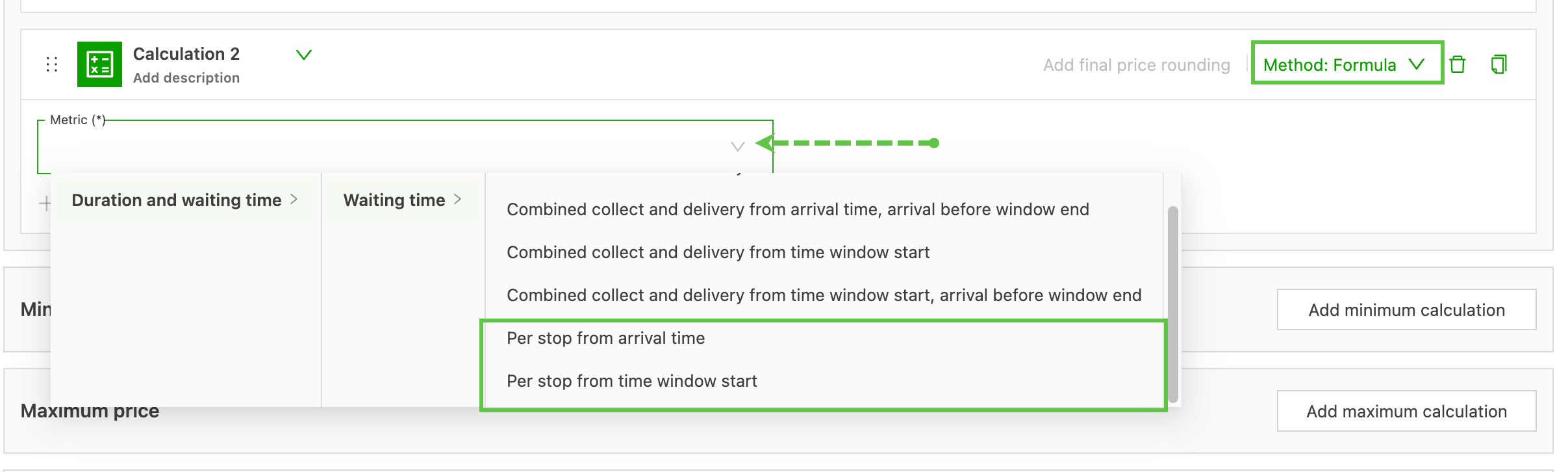
Per-stop (recommended for most setups) Calculates wait time independently for each pickup or delivery stop:
- Per stop from time window start: counts waiting from the later of driver arrival or window start. Early arrivals are capped to the window start; late arrivals still count.
- Per stop from arrival time: counts waiting from the moment the driver arrives, regardless of the time window.
Option B - Combined wait time pickup and delivery
Calculates wait time across all pickup and delivery stops on a load together. This is typically used for per-stage rating setups:
- Combined pickup and delivery from time window start
- Combined pickup and delivery from arrival time
- Combined pickup and delivery from time window start — arrival before window end
- Combined pickup and delivery from arrival time — arrival before window end
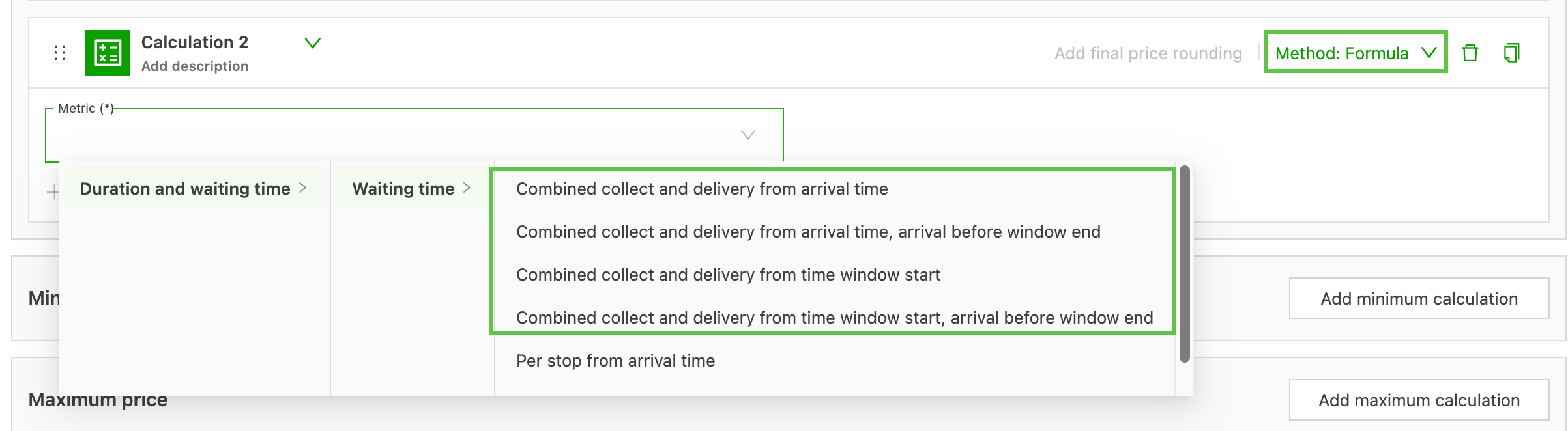
The arrival before window end variants exclude stops where the driver arrived after the time window closed. Those stops contribute zero to the combined total automatically, with no manual action needed.
Step 4 (Optional) — Skip waiting hours when the driver arrives after the time window end
This step applies when waiting hours should not be charged if the driver arrives after the end of the agreed time window. For example, a missed appointment can mean that no detention applies.
For per-stop metrics: Add the Arrival before window end condition to the calculation.
- In the calculation editor, click Add condition.
- Select Current stop as the condition category.
- Select Arrival before window end.
- Set the value to True.
- Click Save.
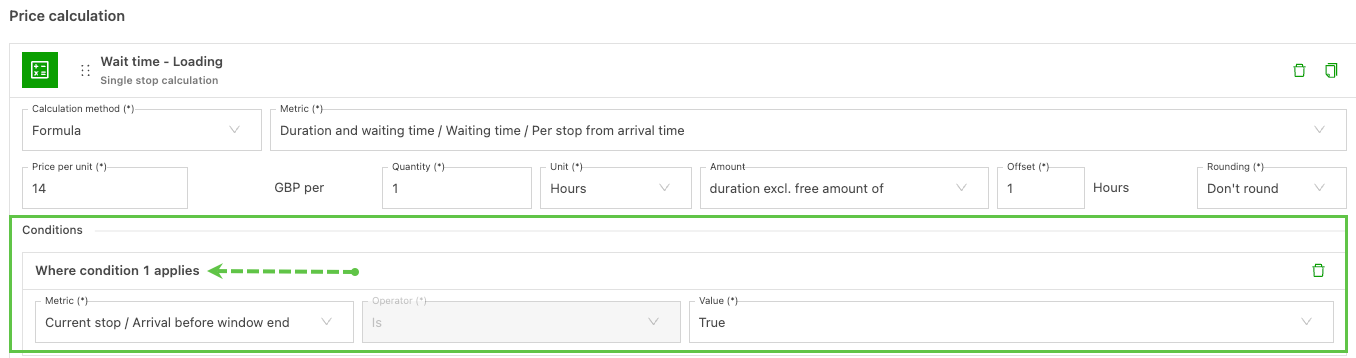
How the condition works:
- Driver arrived before the time window ended → waiting hours are calculated normally.
- Driver arrived after the time window ended → waiting hours for that stop are set to €0. No manual action is needed.
Example: A calculation is configured at €70/hr using Per stop from time window start with Arrival before window end = True.
- A pickup stop has a window of 06:30–08:00. The driver arrives at 08:30 (after the window end) → result: €0.
- A delivery stop has a window of 22:00–23:30. The driver arrives at 22:00 and spends 20 minutes on site → result: €23.33 (0.33h × €70/h).
For combined metrics: Use the arrival before window end variants from the metric selector (see Step 3). The condition cannot be added directly to combined metrics, because there is no single stop for it to evaluate against.

Step 5 (Optional) — Show waiting hour charges in contact task emails
Waiting hour charge details are available as template variables in the contact task email editor.
-
Navigate to Configuration > Tasks and open the relevant contact task (communication method: E-mail).
-
Type
#{{in the mail body where the charge details should appear and search for “waiting”. The available variables under Charge summary are:- Total Waiting Surcharges Calculation: shows the calculation string (e.g.,
2 × (50.0 EUR / 1)) - Total Waiting Surcharges Excl Tax
- Legal currency variants of the above
- Total General Surcharges Without Waiting Surcharge: shows other surcharges separately from waiting charges
- Total Waiting Surcharges Calculation: shows the calculation string (e.g.,
-
Wrap the variables in a conditional block so the section only renders when waiting hours are present on the order.
-
Click Save.
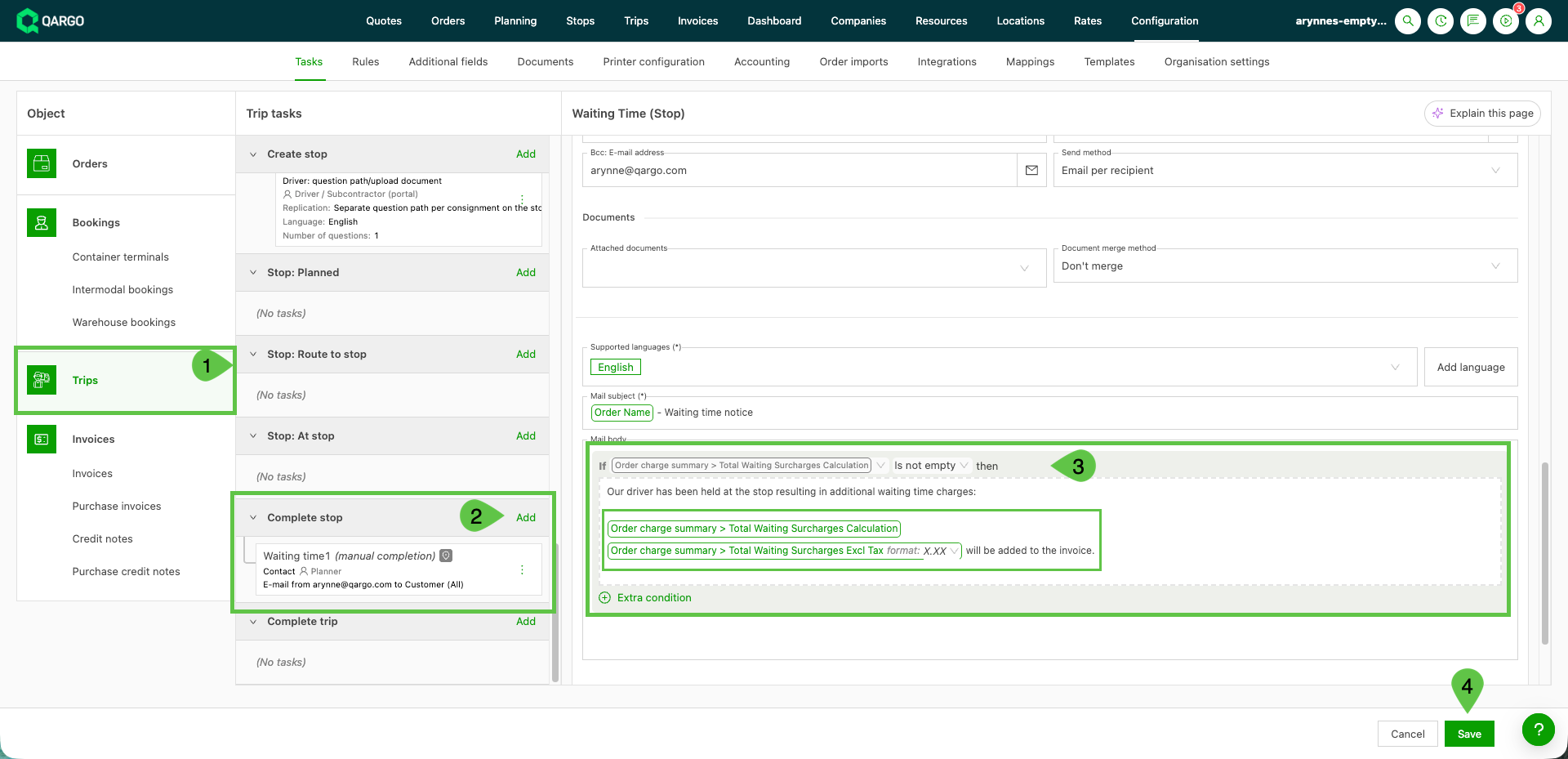
Every contact task email for an order with waiting hours then includes the charge details automatically. Contact task trigger logic is unchanged; only the available template variables expand.
🎥 This video explains how to display wait times in emails and documents:
Step 6 (Optional) — Show waiting hour charges on PDF documents
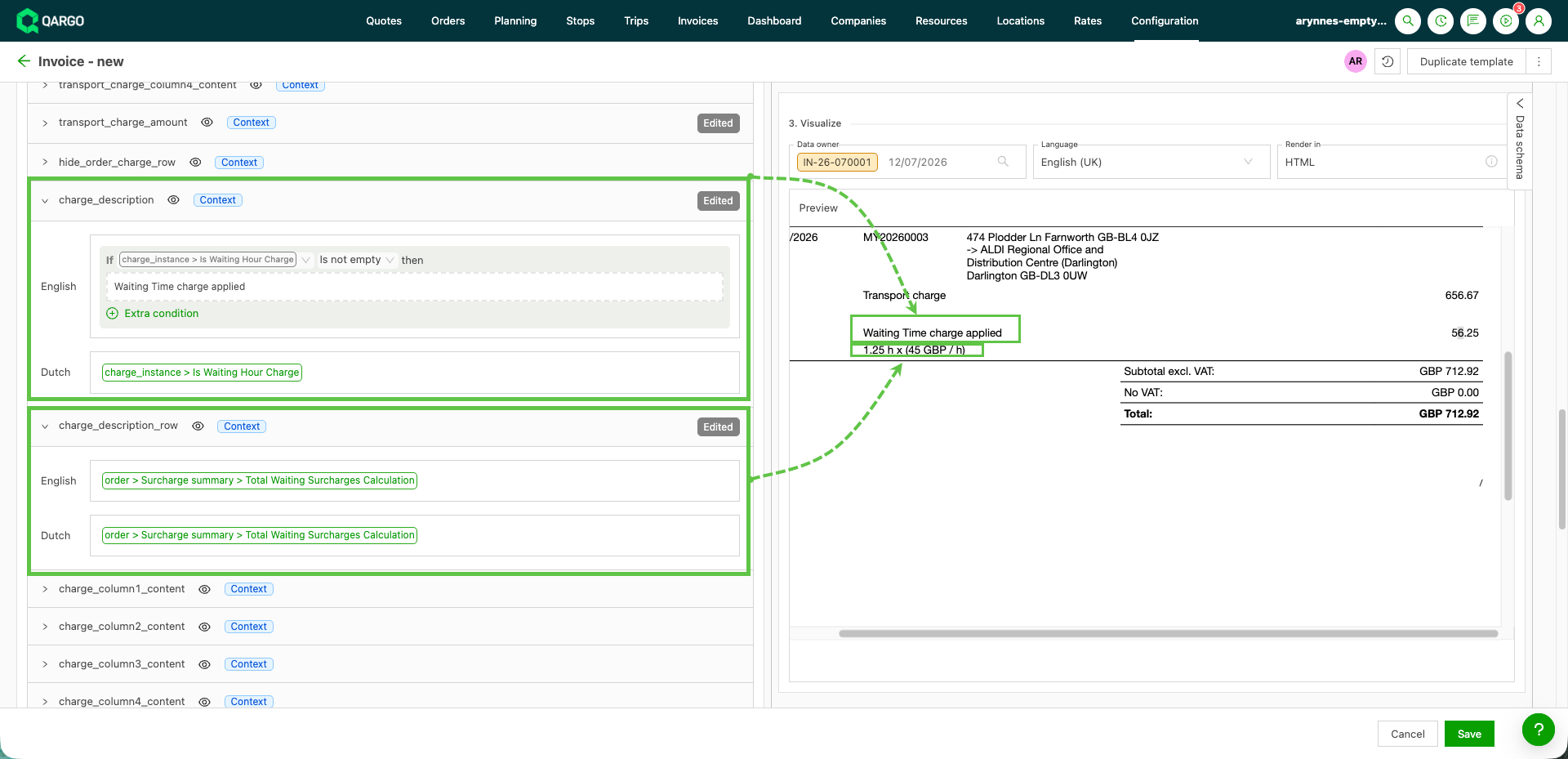
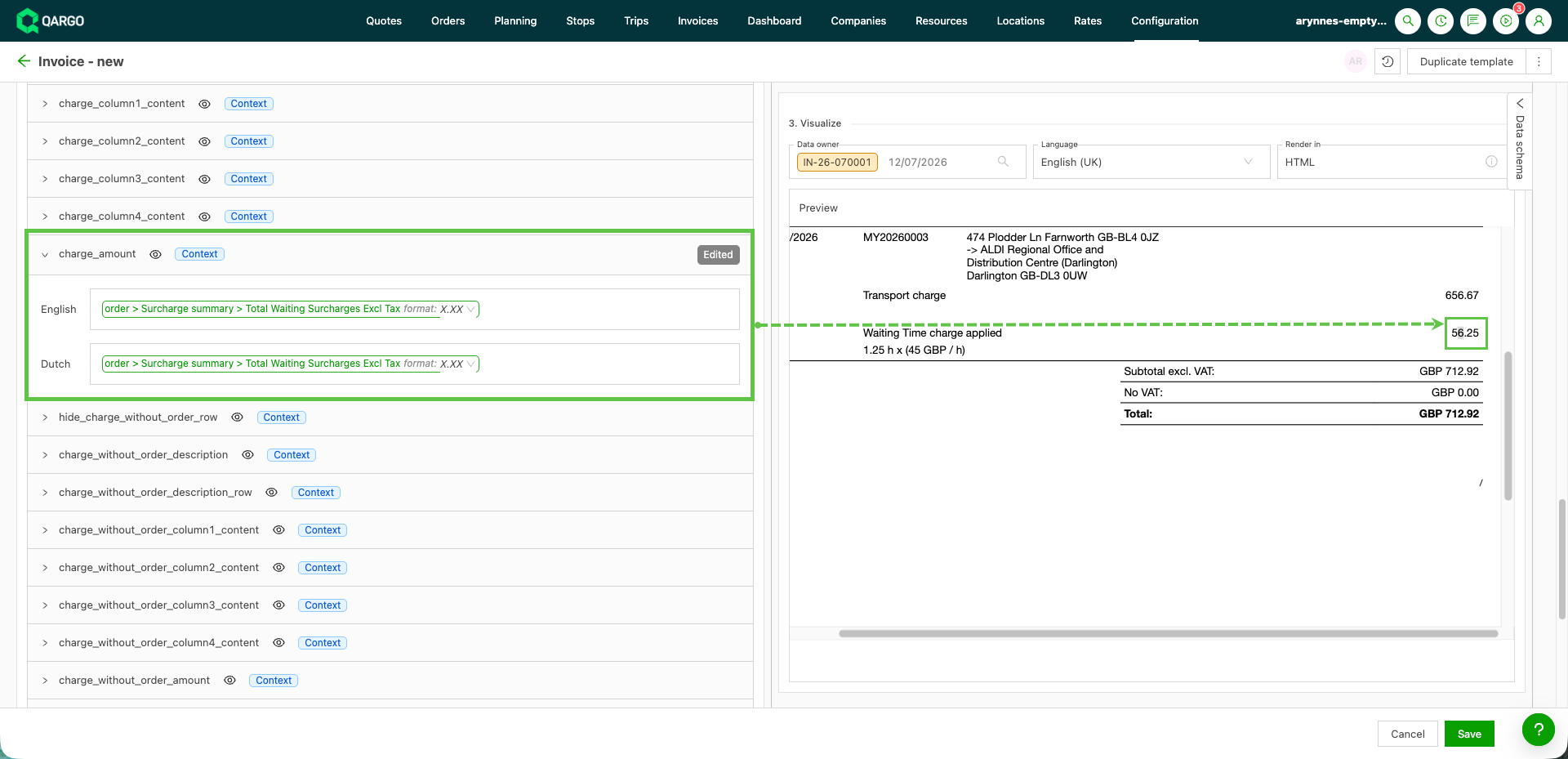
Waiting hour values are available in the PDF template editor under Configuration > Templates, in the template data schema under Surcharge summary:
- Waiting hours calculation string
- Total excluding tax
- Total for general surcharges excluding waiting charges
These fields can be added to invoice and transport document templates so waiting hour charges appear separately from other surcharges.
Step 7 — Save and validate
- Click Save in the calculation editor.
- Confirm the waiting hours surcharge is enabled and linked to the intended rate card.
- Test with a sample order that includes both an on-time stop and a late-arrival stop (if using the late-arrival exclusion) to confirm the expected amounts are calculated.
- If using email or PDF variables, test a contact task or document to confirm charge details render correctly.
Limitations
- Template variables show order-level totals only. Per-stop or per-activity breakdown is not included in this version.
Troubleshooting
| Issue | Resolution |
|---|---|
| Waiting hours charge is not appearing on orders | Confirm the surcharge is linked to the same rate card used for that transport, the transportation service is set to Active, and Save was clicked after editing the calculation. |
| Waiting hours are being charged for late arrivals | For per-stop metrics, confirm the Arrival before window end condition has been added and set to True. For combined metrics, confirm the correct arrival before window end variant has been selected. |
| The Arrival before window end condition is not visible | Check that a per-stop metric (From time window start or From arrival time) is selected. This condition is not available for combined metrics; use the dedicated metric variants instead. |
| An existing waiting hours surcharge still shows under General surcharges | Not all surcharges are migrated automatically. Switch the surcharge’s category manually. |
| The waiting hours variables are missing in the email template editor | Confirm the charge was created in the Waiting hours section (not as a general surcharge). The variables sit under Charge summary in the variable picker. |
| Historical orders are not showing the updated calculation | Waiting hours configuration changes apply to orders processed after the rate card update. Historical orders are not recalculated automatically. |
| The combined metric arrival before window end variants are not visible | These variants may not yet be available in the account. Contact the Qargo support team for confirmation. |