
Intermodal — Intermodal departures column on the Orders list — what, why and how
The Intermodal departures column on the Orders list gives planners a real-time ferry booking overview per order, without opening each order individually.
Table of contents
Summary
What is it?
- A new optional column in the Orders list called Intermodal departures. It displays ferry booking information for each order at a glance.
Why does it exist?
- Intermodal planners who manage high volumes of ferry orders previously had to click into each order to check departure times and booking details. This caused missed real-time updates and slowed down daily operations.
How does it work?
- Enable the column via Edit columns on the Orders list. Each order row then shows up to 2 ferry legs with the departure time, operator and connection. A +X indicator shows additional legs. Hovering over the column opens a popover with full booking details per leg.
Use cases
- Operations teams that monitor large volumes of intermodal orders can check ferry departure times without opening each order. This reduces manual navigation and improves reaction time when sailings change.
- Planners checking for changes made by colleagues can see updated departure times directly in the list view. This reduces the risk of missed changes affecting planning decisions.
Terminology
| Term | Definition |
|---|---|
| Intermodal departures | The column in the Orders list that displays summary ferry booking data inline for each order |
| Leg | A single ferry crossing within an order’s intermodal journey, consisting of one departure and one arrival |
| Booking reference | The unique reference number assigned to an intermodal ferry booking |
| Pre-boarding notification | A status field indicating whether the pre-boarding notification has been submitted to the ferry operator |
| Goods movement reference | A reference code used to identify the movement of goods through an intermodal terminal |
Enabling the Intermodal departures column
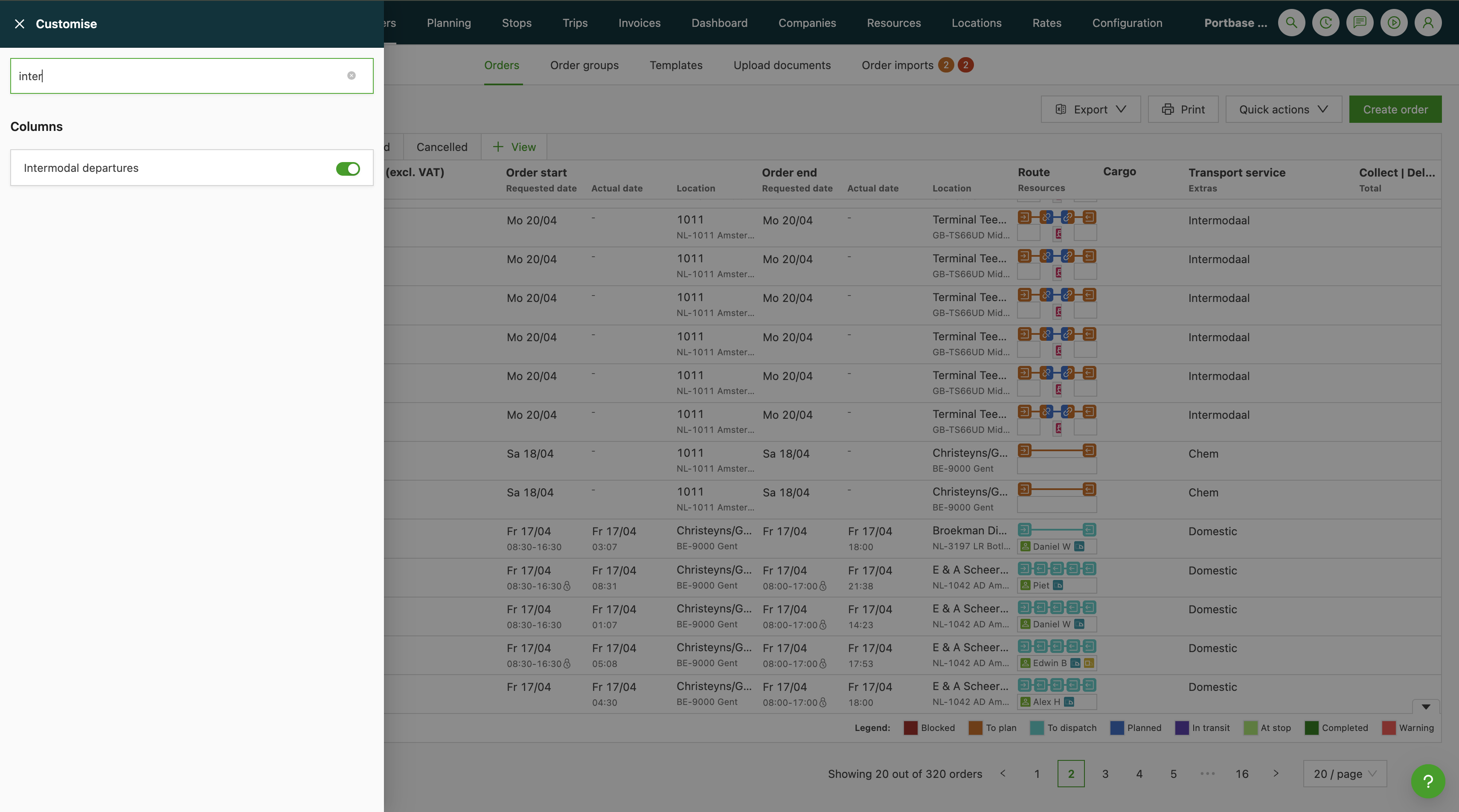
Navigate to Orders in the Qargo navigation sidebar.
Click the Customize button on the Orders list toolbar.
Search or scroll to find Intermodal departures in the column list and enable it.
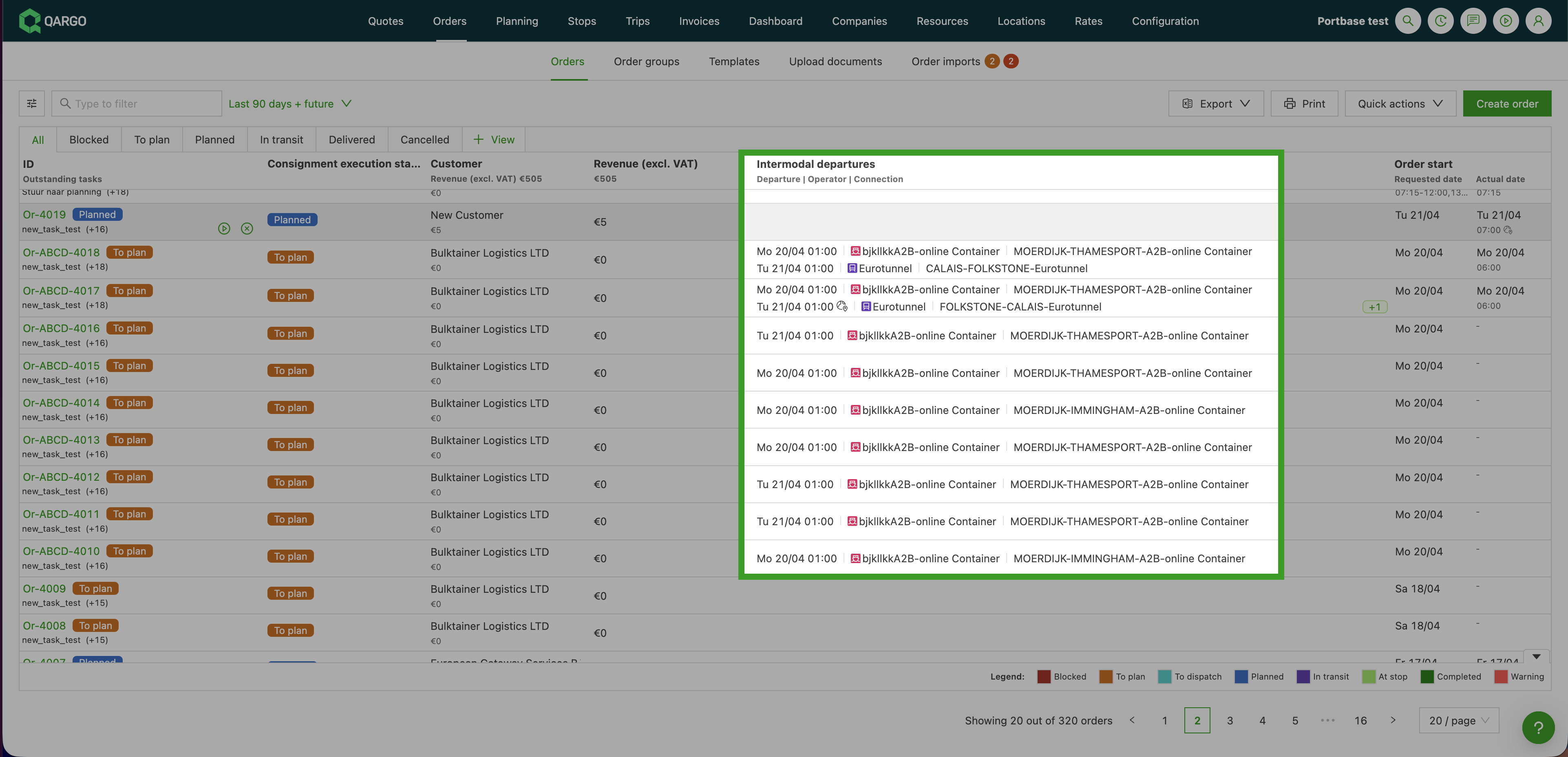
The Intermodal departures column now appears in the Orders list. Each row with intermodal bookings shows up to 2 ferry legs inline, displaying:
- Planned departure time
- Operator name
- Connection name
Reading ferry booking details
Each cell in the Intermodal departures column shows a summary of the order’s ferry legs. Orders with more than 2 legs show a +X indicator in the cell.
Hover over the Intermodal departures cell in any order row to open the booking details popover.
The popover displays the following information for each leg:
- Departure date and time
- Arrival date and time
- Operator
- Booking reference
- Booking status
- Vessel name
- Voyage code
- Pre-boarding notification status
- Goods movement reference
Limitations
- Only the first 2 legs appear inline in the column. Additional legs are available in the hover popover via the +X indicator.
- Arrival timestamps are not shown inline. They are only visible in the hover popover.
- The information displayed in the Intermodal departures column is not configurable.
- The column is only available in the Orders list view.
Troubleshooting
| Issue | Resolution |
|---|---|
| The Intermodal departures column is not visible in Edit columns | Confirm access to the Orders list and the Edit columns option. The column is available to all users with access to the Orders list. |
| No data is shown in the cell for an order | Confirm that the order has at least one intermodal booking leg assigned. Orders without intermodal bookings display an empty cell. |
| The arrival timestamp is not visible in the column | Arrival times are only shown in the hover popover. Hover over the cell to view full booking details, including the arrival time. |
| The +X indicator is visible but not all legs are shown inline | Only the first 2 legs appear inline. Open the hover popover via the +X indicator to view all additional legs. |
| The hover popover does not appear | Make sure the cursor is directly over the Intermodal departures cell. Refresh the page if the issue persists. |