
Orders - Intermediate stops column on Orders and To plan - What, why & how.
The Intermediate stops column lists every intermediate stop on a multi-stop load across the Orders overview and the Planning To plan: Orders table, so planners can read a full route at a glance without opening each order.
Table of contents
Summary
What is the Intermediate stops column?
- A column, available on both the Planning To plan: Orders table and the Orders overview, that shows every intermediate stop on a load in stop order instead of only the first one.
- Intermediate stops are all stops that are not already shown in the first, last, or unload columns: extra pickups, extra deliveries, and non-transport stops such as customs, cleaning, and drop-container stops.
Why was it introduced?
- The To plan: Orders table previously showed only the first intermediate stop, even when a load routed through several cities, and the Orders overview had no intermediate stops column at all.
- Seeing a full multi-stop route therefore meant opening each order individually. Several customers asked for the complete route to be visible directly from the planning and order tables.
How does it work?
- On Planning > To plan: Orders, the Intermediate stops column now lists all intermediate stops for the load in stop order.
- On the Orders overview, the same Intermediate stops column is available as an opt-in column, added through Edit columns, and is filterable so planners can filter on any intermediate stop city.
- Both columns follow the existing location display options (country, postal code, city), the same settings used by the other stop-location columns.
Use cases
- Operations teams that work order-centric from the Orders tab can filter on an intermediate stop city, so redirected or redelivered orders are not missed when filtering by start date.
- Planners scanning the To plan table can read the full sequence of cities a load routes through, for example a route through several ports, without opening the load detail.
- Dispatchers reviewing multi-drop orders can confirm every intermediate delivery city at a glance.
Terminology
| Term | Definition |
|---|---|
| Intermediate stop | Any stop on a load that is not shown in the first, last, or unload columns: extra pickups, extra deliveries, and non-transport stops such as customs, cleaning, and drop-container stops. |
| Intermediate stops column | The column, on the Orders overview and the Planning To plan: Orders table, that lists every intermediate stop for a load in stop order. |
| Edit columns | The Orders overview control used to add or remove columns, including the opt-in Intermediate stops column. |
| Location display options | The per-column setting that controls how each stop location is shown (country, postal code, city). |
Enabling the column on the Orders overview
The Intermediate stops column is hidden by default on the Orders overview and is added through Edit columns.
Navigate to Orders in the Qargo navigation sidebar.
Click the Edit columns (Customize) button on the Orders toolbar.
Search or scroll to find Intermediate stops in the column list and enable it.
The Intermediate stops column now appears on the Orders overview.
On the Planning > To plan: Orders table, the column is already present and lists every intermediate stop automatically, so no setup is required there.
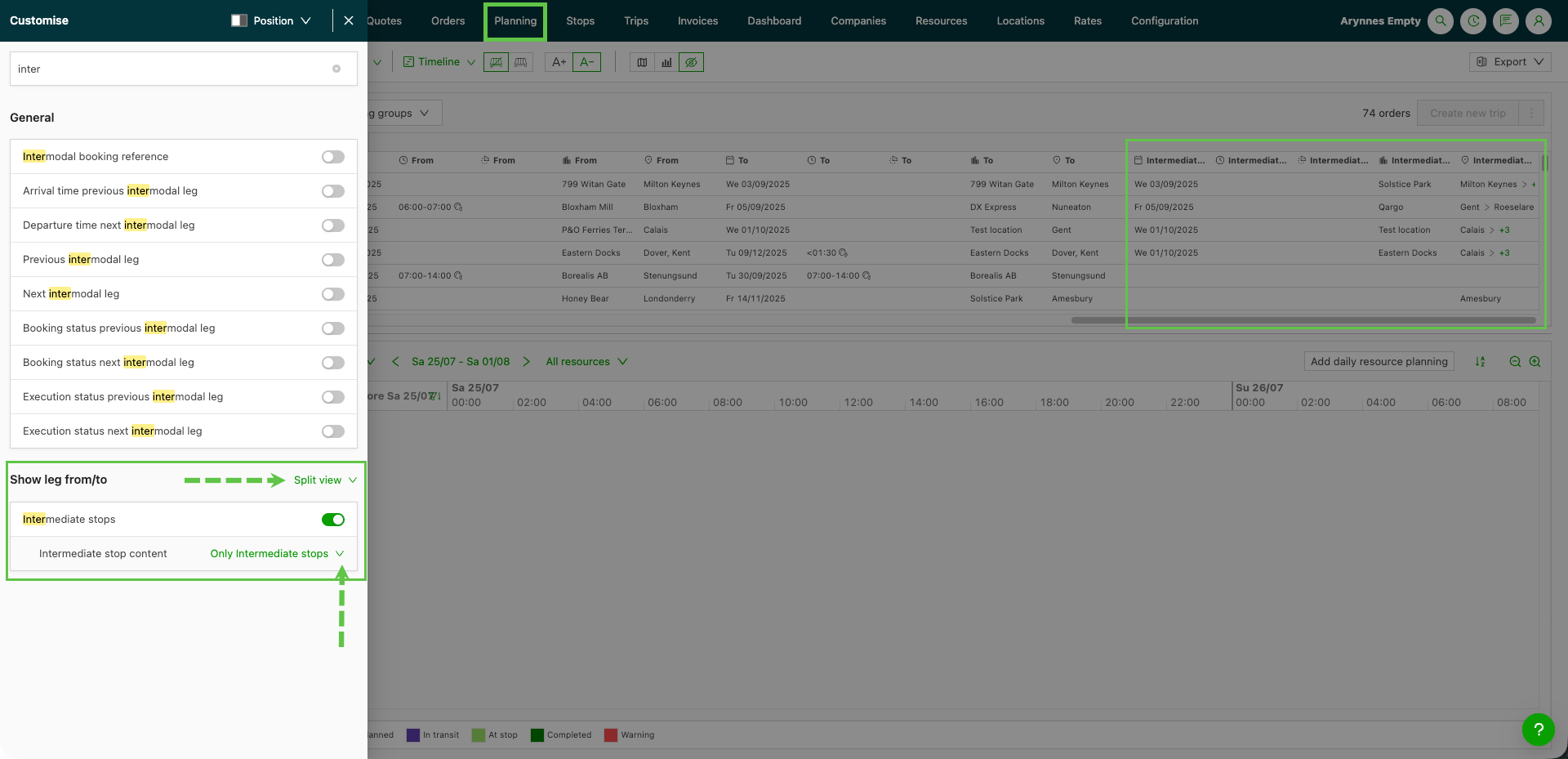
Reading the column
Each cell in the Intermediate stops column shows the intermediate stops for that order in stop order, following the column’s location display options (country, postal code, city).
Where an order routes through several intermediate stops, the cell shows a compact summary with a count indicator (for example first stop +2). Hovering over the cell opens a popover that lists every intermediate stop in order.
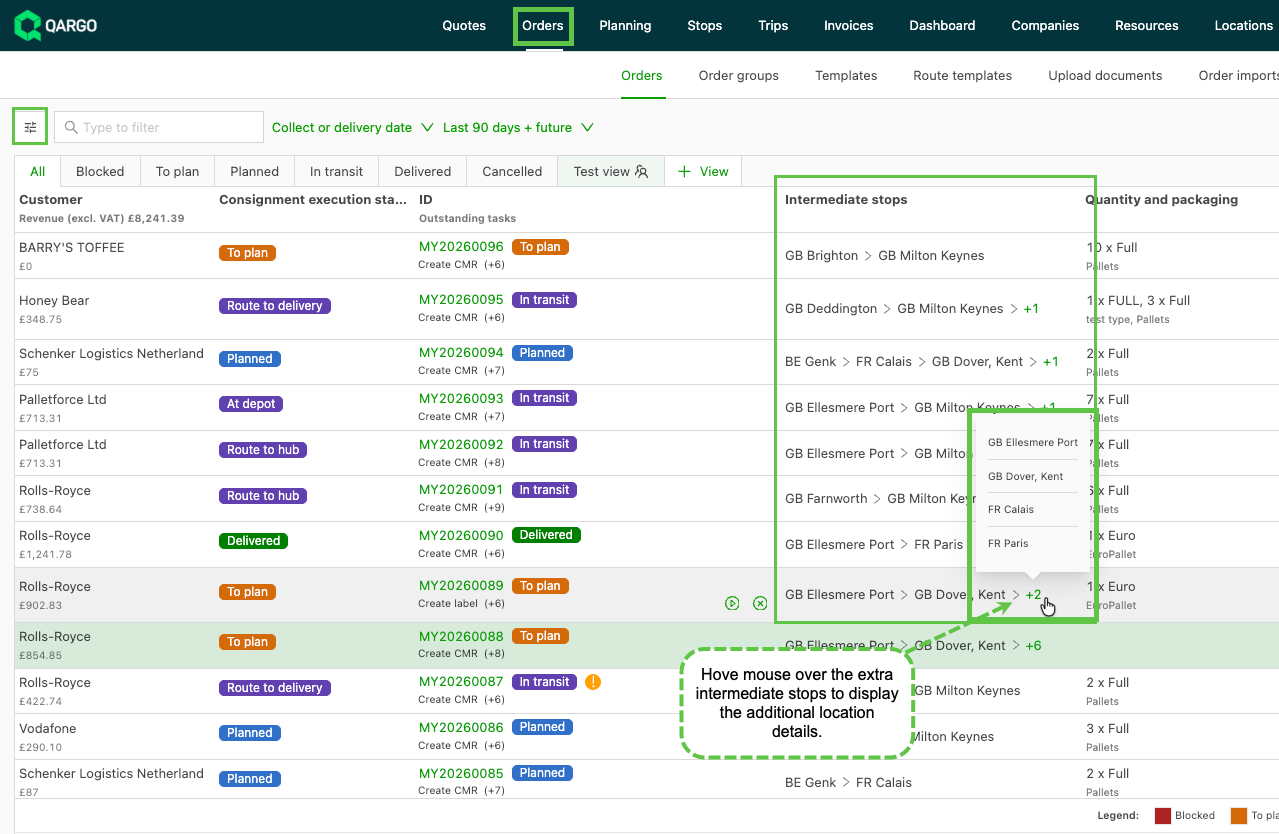
Filtering on an intermediate stop
On the Orders overview, the Intermediate stops column is filterable, so planners can surface every order that routes through a given city.
Open the filter on the Intermediate stops column.
Enter the intermediate stop city to filter on.
Orders that pass through the selected city remain in the list, so redirected or redelivered orders are no longer missed when filtering by other criteria such as start date.
Troubleshooting
| Issue | Resolution |
|---|---|
| The Intermediate stops column is not visible on the Orders overview | The column is hidden by default. Add it through Edit columns on the Orders toolbar. |
| A cell in the Intermediate stops column is empty | The order has no intermediate stops: it has only a first and a last or unload stop. Only stops beyond those appear in this column. |
| Filtering on an intermediate stop date does not work | Only the intermediate stop city can be filtered in this release. Stop times and dates are deferred. |