
Feature release – August 2026
This article highlights the new features and enhancements Qargo released this month.
Week 1
🧾 Invoices — Override the bill-to on orders and charges
🧾 Invoices — Auto-complete carrier invoice uploads for self-bills
📦 Rates - New package size conditions
🧮 Invoices — Consolidating fixed resource costs across loads
⚠️ Custom exports — Partial export warning
📄 Customer portal — Invoices and credit memos on the customer portal
📍Customer portal — Share planned & actual load times on the portal
📊 Customer portal — Excel and CSV order exports
Week 2
🛰️ Mobile app — Location tracking for QR/PIN driver sessions
✅ Mobile — One question per goods line for good-level questions
🔎 Orders — Filter orders by pickup or delivery date
📦 Orders — Add and use the Packaging column
📍 Orders — Show every intermediate stop on Orders and To plan
Week 4
🔎 Orders — The new Packaging column in the Orders list
⚙️ Orders — Pickup and delivery date defaults
📦 Orders — Prefill packaged item fields from a product
📅 Orders — Requested dates and times when adding a shipment
🔄 Orders — Empty pallet swaps at stop level
📄 Invoices — Configurable row sort order in document templates
Week 1
🧾 Invoices — Override the bill-to on orders and charges
The invoice recipient for an order’s charges can now be redirected to a different billing company, without changing the operational customer on the order itself. A default bill-to can be set per customer so new orders route automatically. The bill-to can also be overridden in bulk across a batch of orders, or on a single charge, whenever a shared rate card or a separate legal entity needs its own invoice recipient.
What’s included:
- Default bill-to field per customer for new orders
- Bulk override across multiple selected orders
- Per-charge override for one-off cases
Invoices - Override bill-to on orders & charges
🧾 Invoices — Auto-complete carrier invoice uploads for self-bills
When Qargo generates the invoice on a contract carrier’s behalf, the carrier invoice flow no longer stalls at the Upload carrier invoice task. A new Self-bill document type satisfies that task automatically, so Post carrier invoice and Mark as paid become available with no manual upload needed. If charges are invoiced entirely outside Qargo, they can also be marked as Invoiced externally from the Loads to bill charge view, with no carrier invoice document required at all.
What’s included:
- New Self-bill document type, configured per contract carrier
- Upload carrier invoice task auto-completes once a Self-bill is generated
- Invoiced externally action for charges handled outside Qargo
Create contract carrier self-bill for carrier invoices.
📦 Rates - New package size conditions
On the Goods (ordered) / Predefined package size + packaging type condition in the Edit price modal, select the In or Not in operator.
- Conditions are evaluated per freight line, so In and Not in match packaging types within a single freight line, not across different lines on an order.
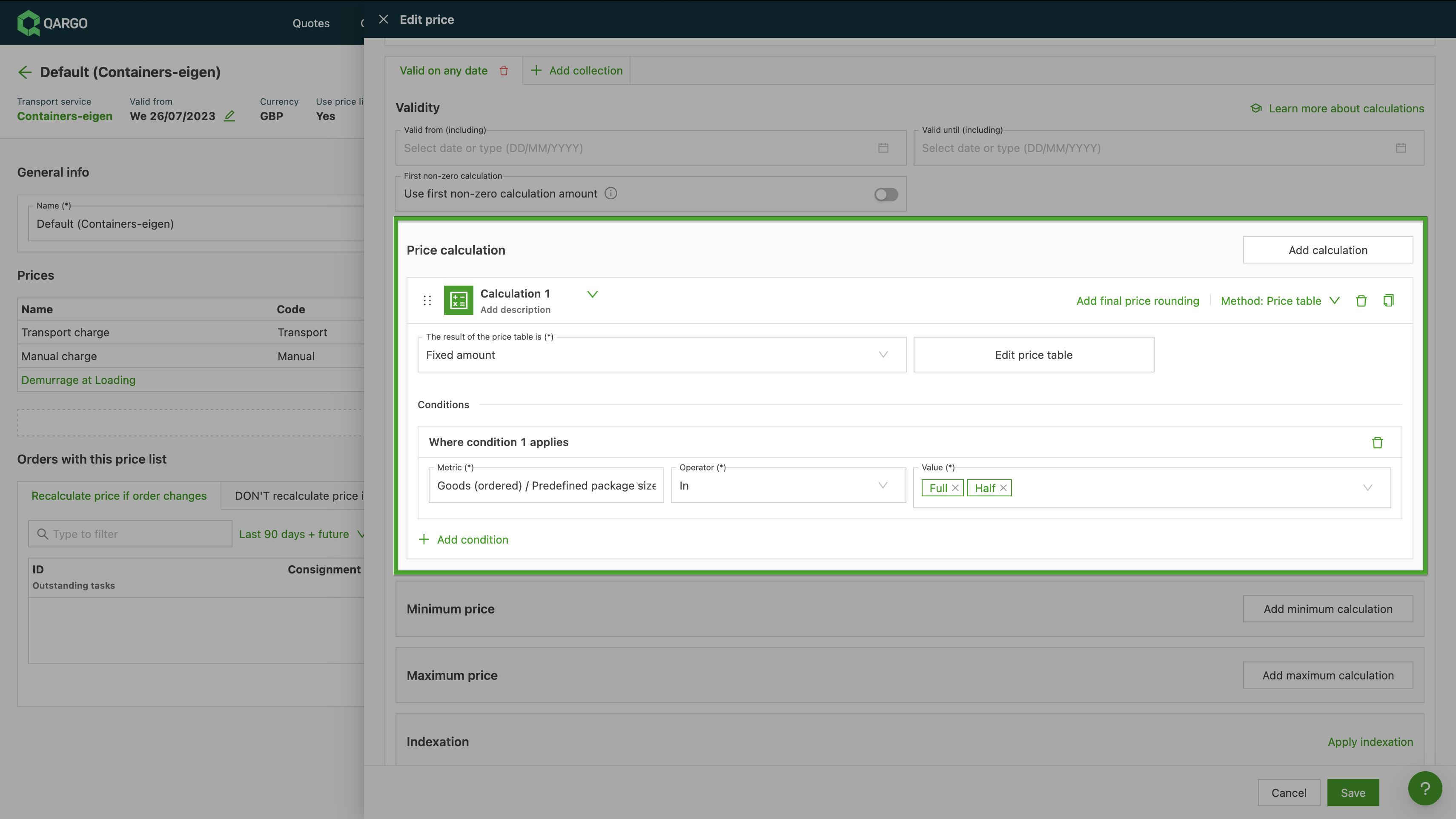
To set this up:
- Navigate to Rates > Rate card customers and open the relevant rate card.
- Open the Edit price modal and add or edit a Predefined package size + packaging type condition.
- Select the In or Not in operator.
- Configure the Value field, now a multi-select, and choose the list of packaging types to match.
🧮 Carrier invoices — Consolidating fixed resource costs across loads
A fixed daily or weekly resource cost can now be split evenly across every load that shares the same resource and day or week, instead of the full cost being applied to each load individually. A new Consolidation: split fixed cost over loads setting on cost rate cards (under Rates > Internal costs or Contract carrier costs) makes this possible. This fixes a long-standing profitability blind spot where a driver running several loads in a day had their cost counted multiple times over.
What’s included:
- New consolidation setting on internal and contract carrier cost rate cards
- Four grouping options: same start date, same end date, same start week, or same end week
- Split amount shown directly in the Resource costs section on each load
Consolidating fixed resource costs across multiple loads
⚠️ Custom exports — Partial export warning
When an export from any list page (Orders, Loads, Invoices, Credit memos, or a custom export) would be cut off because the result set exceeds the limit, a clear warning now appears before it downloads. This closes a gap where a truncated file could look complete, so missing records were only spotted once the numbers stopped adding up. Choose Export anyway for the partial file, or Cancel to narrow the filters or switch to a custom export for the full data set.
Improved export warning when data limits are reached.
📄 Customer portal — Invoices and credit memos on the customer portal
Customers can now view and download their invoices and credit memos straight from the customer portal, complete with the charge breakdown and the PDF, once the relevant toggles are switched on. That means fewer requests for invoice copies landing in the inbox, since customers can retrieve everything themselves as soon as an invoice leaves Draft status.
What’s included:
- Show charges and Show invoices toggles per customer
- Invoice and Credit memo document types exposed via Documents configuration
- Line-item charge breakdown and a downloadable PDF in the invoice detail view
Customer portal - Invoices and credit memos
📍Customer portal — Share planned & actual load times on the portal
It is now possible to control which loads share their planned and actual times on the customer portal, by enabling a flag on the load task that triggers it. Once enabled, the portal shows the planned time before a load is confirmed (tagged to confirm), then the exact completed time once a stop is done. Customers only ever see trusted times.
Customer portal - Sharing load times
📊 Customer portal — Excel and CSV order exports
Portal users can now export their order list directly from the customer portal as a CSV or Excel file, using any export template enabled for portal use. This gives customers a way to pull their own order data into their own systems and reports, without taking screenshots or asking the operations team to run a manual export.
What’s included:
- Export respects the filters already applied on the Orders list
- Larger exports are delivered by email instead of a direct browser download
Week 2
🛰️ Mobile app — Location tracking for QR/PIN driver sessions
Drivers who sign in with a one-time QR code or PIN code are now tracked on the live tracking map, just like drivers who sign in with email or a magic link. Once a QR/PIN driver grants location permission and starts an active load, they show up on the map alongside the company’s own drivers. Contract carriers and external carriers are therefore visible without a separate tracking product.
What’s included:
- GPS tracking for QR/PIN driver sessions during active loads
- Same live tracking map dispatchers already use, no separate view
- Groundwork for future arrival detection (geofencing)
Tracking via QR/PIN access on the Qargo mobile app
✅ Mobile — One question per goods line for good-level questions
When a stop has several goods lines, drivers can now answer good-level questions (like pallet counts or packaging updates) for each line separately, instead of one shared question that only ever updated the first line. Each question is labeled with the goods identifier, so drivers always know which line they’re answering, and the answer syncs back to the correct line.
What’s included:
- One question generated per goods line, each labeled with its goods identifier
- Applies in the mobile app, carrier portal, and Trimble board computer question paths
How to add questions and answers in the mobile app
🔎 Orders — Filter orders by pickup or delivery date
The Orders overview can now be filtered by pickup date, delivery date, or both, using the same date filter already available on the Planboard. This brings forward-looking, date-type filtering to Orders. Upcoming pickups or deliveries can be found without widening the date range and scanning the list by hand.
What’s included:
- Filter by pickup date, delivery date, or both
- Same presets as the Planboard filter (today, this week, next week, and more)
- Works with saved views
Filter orders by pickup or delivery date
📦 Orders — Add and use the Packaging column
The Orders list now has a dedicated Packaging column that shows packaging quantity, size, and type for every goods line, with no need to scan the Freight column. Turn it on via Customize, and filter the Orders list by packaging type or size to quickly find the right orders.
What’s included:
- Packaging quantity, size, and type per goods line, shown on two clear lines
- Filter by packaging type or packaging size
- Freight column now shows only dimensions and weight
Add and use the Packaging column
📍 Orders — Show every intermediate stop on Orders and To plan
Every intermediate stop on a multi-stop order is now visible, not just the first one. The Intermediate stops column on Planning > To plan: Orders lists all extra pickups, deliveries, and stops like customs or cleaning in stop order. The same column is now available on the Orders overview too. This makes it possible to read a full route at a glance, or filter Orders by an intermediate stop city, without opening each order individually.
What’s included:
- Full list of intermediate stops, in stop order, on both To plan: Orders and the Orders overview
- Opt-in column on the Orders overview, added via Edit columns
- Filterable by intermediate stop city
Week 4
🔎 Orders — The new Packaging column in the Orders list
The Orders list now has a dedicated Packaging column showing packaging quantity, size, and type per goods line, and the column can be filtered. Turn it on with the Packaging type and quantity toggle under Freight dimensions in the Customize panel. This is handy for planning pallet or cattle transport, where packaging is needed as a column that can be read at a glance and filtered. Once it’s on, the Freight column shows dimensions and weight only.
What’s included:
- Quantity and packaging size on the first line, packaging type on the second
- A +X indicator and hover detail table for orders with several goods lines
- Clicking the cell opens the same Edit Freight modal as the Freight column
- Filtering by packaging type, packaging size, or both
⚙️ Orders — Pickup and delivery date defaults
Order default values can now prefill the pickup date and the delivery date, which previously stayed empty on every new order. Each date takes a day type and an offset. The dates land on the order form as soon as the transportation service or customer is selected, before saving, which is something the service level lead time could never do. Defaults set on a customer overrule those set on the transportation service, so one customer can deviate without a separate transportation service.
What’s included:
- Day type of calendar days or business days, with business days skipping the weekend
- An offset of up to 5 days added to the order creation date
- Configuration per transportation service or per customer
- Selecting a service level hands the delivery date back to the lead time calculation
Prefilling pickup and/or delivery dates
📦 Orders — Prefill packaged item fields from a product
Products can now store packaged item defaults, so dispatchers no longer retype the same details on every order. The product configuration page has a new Packaged Item section. When a product is selected on a good, Qargo fills those values onto the first packaged item automatically. ADR properties now live in the same section, so hazardous materials (HazMat) data and commodity codes are configured in one place.
What’s included:
- HS commodity code and HS code export override stored on the product
- ADR properties grouped into the new Packaged Item section
- Automatic creation of the first packaged item for non-ADR products, so prefilled values are visible on the good
- Child product values overriding parent product values
- Prefill in manual order creation and in order imports, with import prefill opt-in per order-import master
- Product master data import columns for the new packaged item fields
Prefill packaged item fields from the product details.
📅 Orders — Requested dates and times when adding a shipment
When a shipment is added to an existing order, the stop-positioning screen now shows the requested date and time for every existing stop. There is no longer any need to jump to the order detail to check dates before deciding where the new pickup and delivery belong. This makes sequencing multi-stop groupage orders and late bookings much quicker. The dates appear automatically; there is nothing to configure.
🔄 Orders — Empty pallet swaps at stop level
Empty pallet swaps can now be recorded at the stop level, as a single transaction per packaging type, instead of being tied to each goods line. That means mixed-type exchanges are finally possible: delivering loaded Euro pallets and taking empty Block pallets back at the same stop, including packaging types that aren’t on the order at all. Loaded pallet swaps are unchanged: they stay at goods level and are still created automatically at pickup and delivery.
What’s included:
- One transaction per packaging type per stop, aggregated across all goods lines
- Stop-level pallet swaps available on both pickup and delivery stops
- A read-only summary of the stop’s swaps on the order detail
- Trimble and Samsara question paths that can be mapped to a stop-level empty swap, so drivers record unplanned empties from the board computer
- Automatic like-for-like empties still available as a setting, with driver answers overriding them
Recording empty pallet swaps at a stop
📄 Invoices — Configurable row sort order in document templates
Document templates can now sort the rows they render by a chosen field, so generated PDFs follow a predictable order instead of a fixed internal one. Set the sort once per template under Configuration > Templates, and every document produced from it respects that order. This is useful for invoices a customer needs to reconcile, or self-bills that should be grouped per driver. Existing templates keep their current behavior until a new sort key is picked.
What’s included:
- A Sort section on the row-iteration block, with Sort by and an Ascending or Descending direction
- An optional secondary sort key as a tiebreaker
- Order row keys: order number, customer reference, requested and actual pickup and delivery dates, last shipment stop timestamp
- Charge row keys: driver name, resource (vehicle) name, load number, estimated start timestamp, charge name
- Vehicle and driver as additional keys on load export templates