
Customer default order prefill
Enhance consistency and efficiency with a streamlined approach to automatically prefill order forms. Selecting a transportation service or a customer can complete predefined fields.
Table of contents
Introduction
Enhance consistency and efficiency with a streamlined approach to automatically prefill order forms. Selecting a transportation service or a customer can complete predefined fields.
Default settings, such as transport network or vehicle category defaults, can significantly influence order processing. They automate selections and can override manual inputs.
Create order prefills based on:
- Transportation service: Used for all orders under that service, regardless of customer
- Customer level: Used for orders made by a specific customer.
When a transportation service or customer with a defined prefill is selected, the entire prefill is completed. Form fields that the user has already filled in are not overwritten.
However, these defaults can override manual selections. This may lead to unintended outcomes if they are not configured correctly.
Impact and management of default settings
Default settings streamline order processing but require careful management to avoid unintended consequences. For instance, transport network defaults can override manual selections and limit flexibility. Vehicle category defaults may lead to incorrect categorization if they do not match the order requirements.
Configuration
Transportation service order default
- Navigate to Rates > Order input
- From the Order options side menu, select Transportation service
- Select a transportation service from the available options, or click + Add transportation service to add the service first.
- Click Edit order default values to add the required data
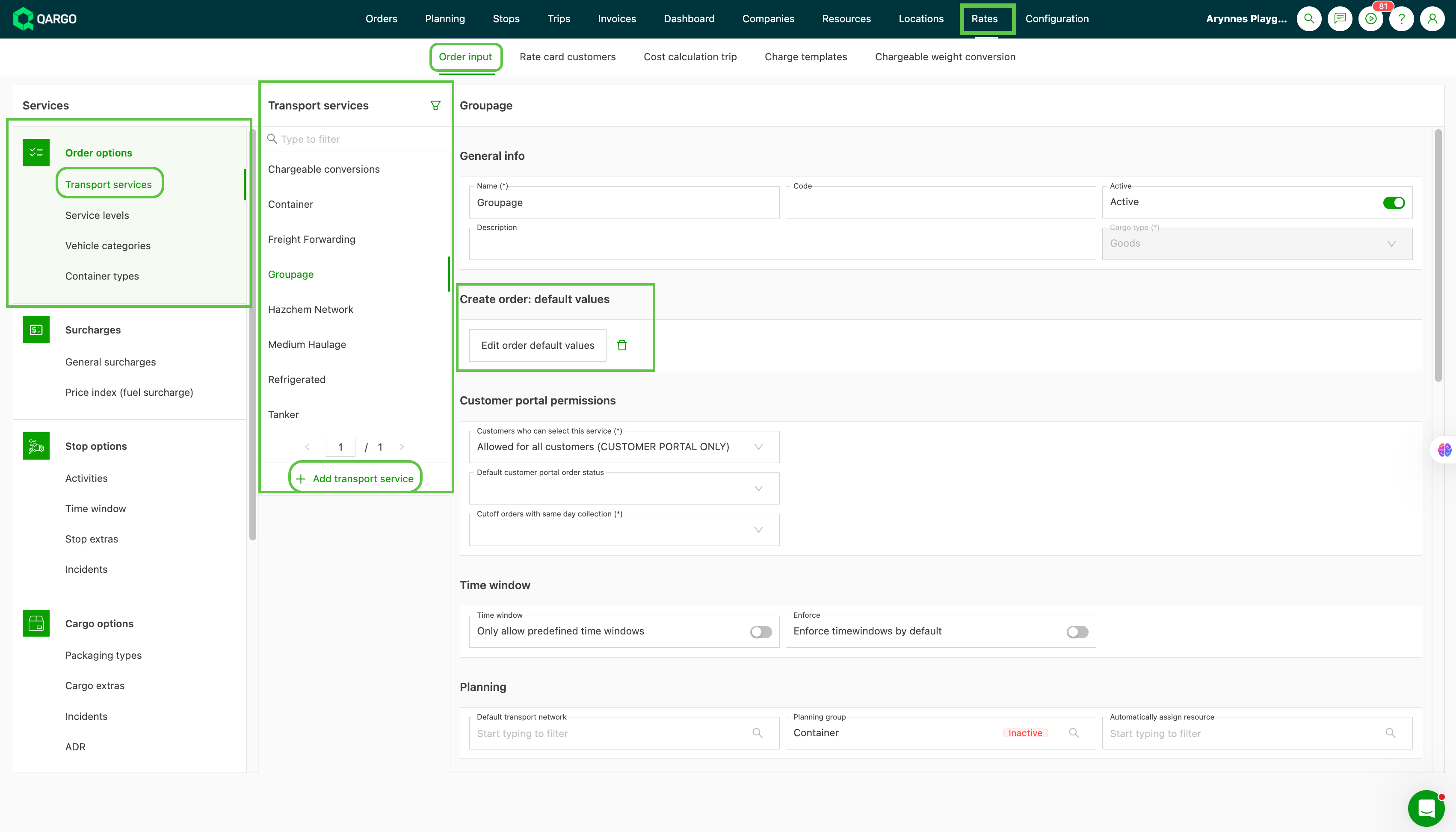
Use caution, as these defaults can sometimes lead to unintended consequences. Examples include overriding manual inputs or not matching specific order requirements.
Edit order default values opens a page similar to order capture.
From here, the user can select which fields should be prefilled when the particular transportation service is used.
For example, selecting the option Opening hours as the time window always applies it to orders that use this transportation service. The system then looks at the location and only uses the opening hours included in the location profile. Toggle on Add time slot to include a specific start and end time for the stop.
Company order default
To configure it at the company level:
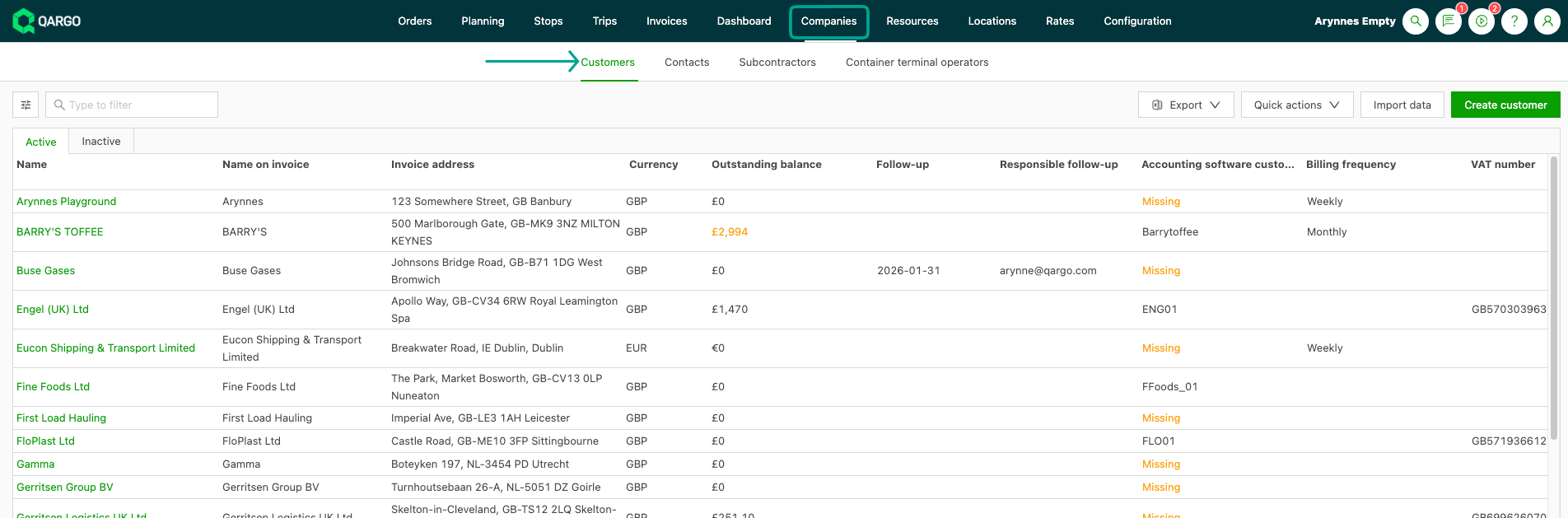
- Navigate to the Companies module
- Select the Customers tab
- Click the customer profile
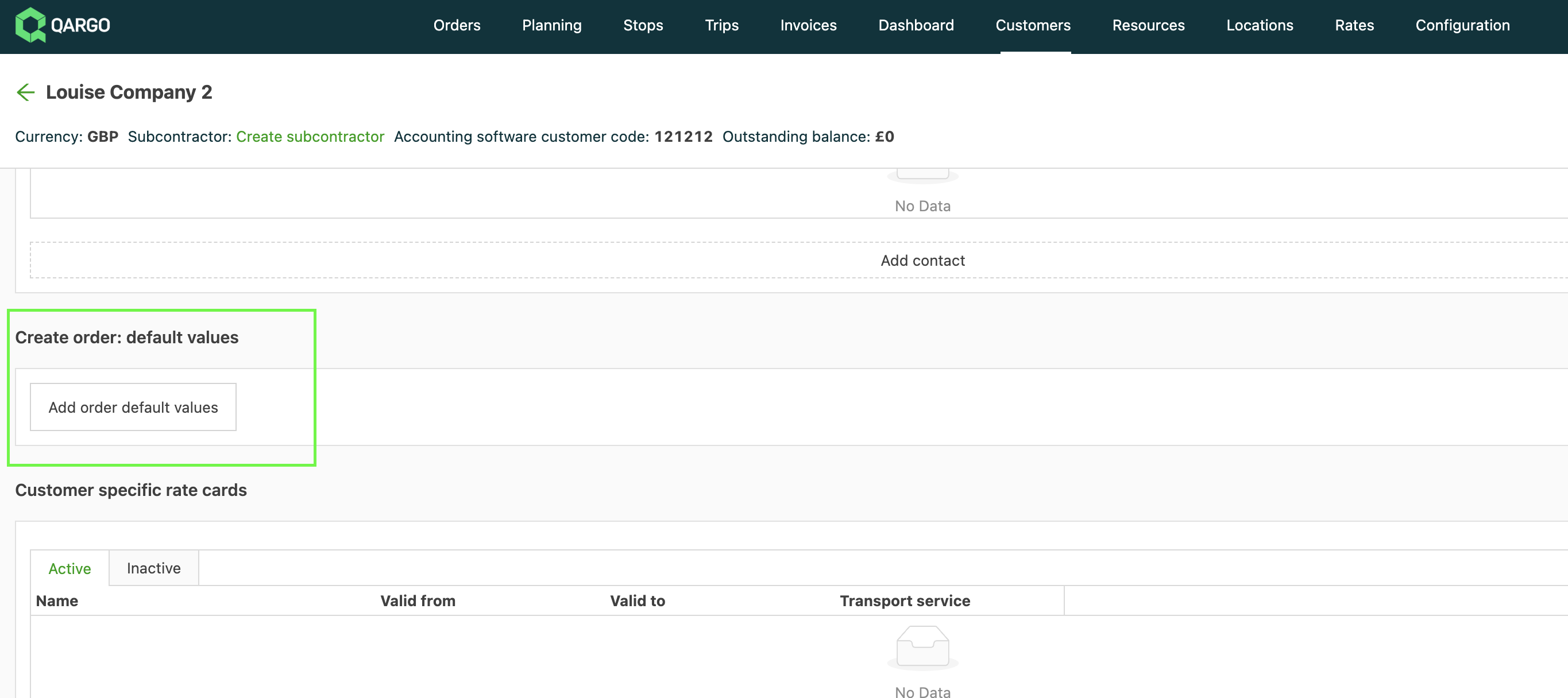
2. Scroll down and click Add order default values
Below is an example of how default values are automatically applied when a related transportation service is selected during order creation.
\
Prefilling the pickup and delivery date {#h_6827dca03d}
The Edit order default values form can now prefill the Collection date and Delivery date, in addition to the fields covered above. Until now, both dates stayed empty on a new order. The pickup date was set manually, and the delivery date simply mirrored it. Each date can now have a default that appears on the order form before the order is saved. The service level lead time could never do this, because that calculation only runs once the order has been saved.
Each date default has two settings:
- Day type:
Calendar daysorBusiness days. A business day offset skips the weekend; a calendar day offset does not. A calendar offset of +1 configured on a Friday therefore lands on Saturday, while a business day offset of +1 lands on Monday. - Offset: a number of days, up to a maximum of 5, added to the order creation date to produce the prefilled date.
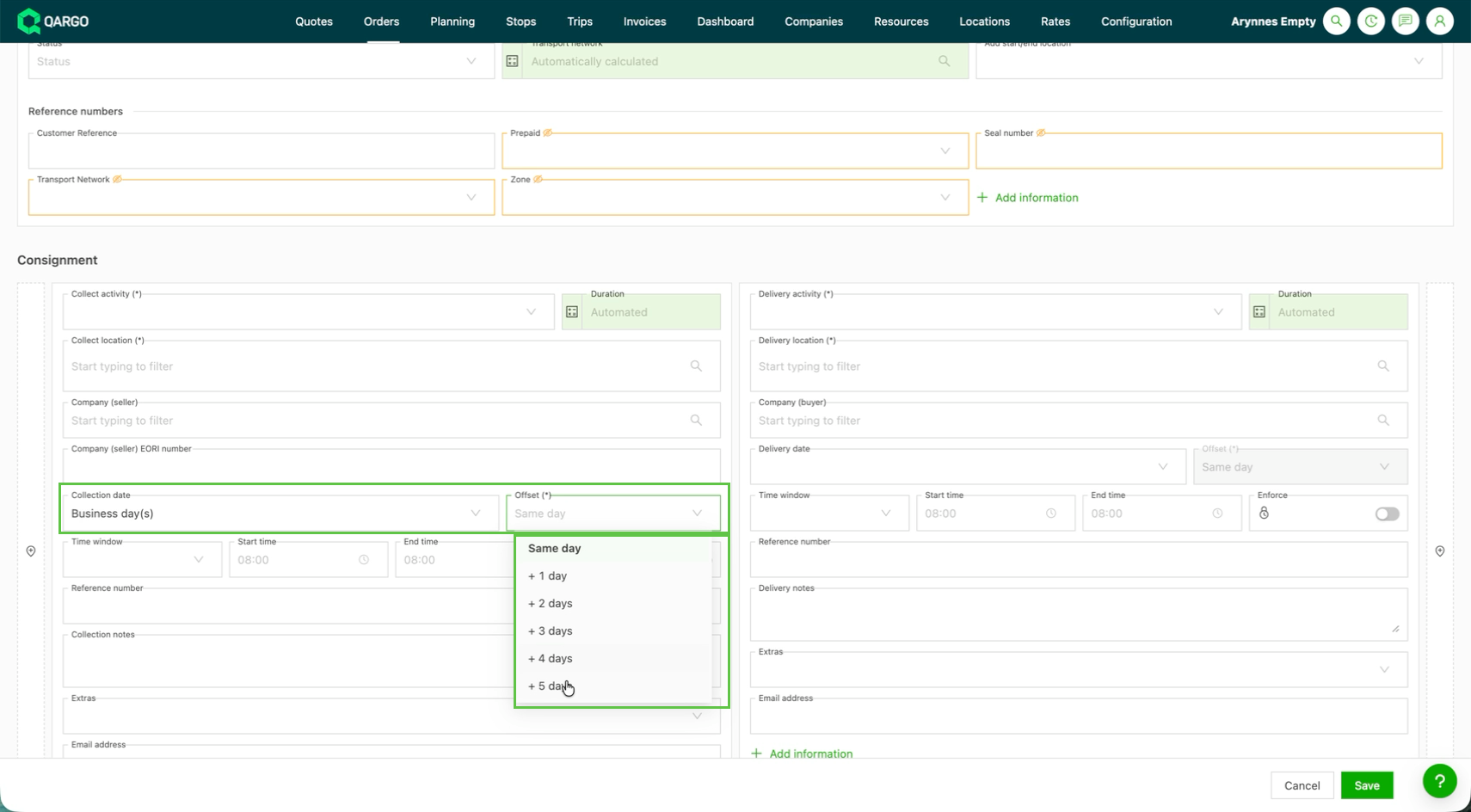
Setting the date defaults
- Navigate to the
Edit order default valuesform, either per transportation service (RATES > Order Input) or per customer (COMPANIES > Customers), as described in the sections above. - Set the day type and offset for the
Collection dateand theDelivery date. - Save the default values.
Once configured, the dates appear on the order form as soon as the transportation service or customer is selected, before saving. Order default values set on a customer override those set on the transportation service. This lets a single customer deviate without needing a separate transportation service.