
Invoices: how to override the bill-to on orders and charges (walkthrough).
Redirect who receives the invoice for an order's charges to a different billing company, in bulk or by default per customer, without changing the operational customer on the order.
Table of contents
Redirect who receives the invoice for an order’s charges to a different billing company, in bulk or by default per customer, without changing the operational customer on the order.
Prerequisites
- The billing company that should receive the invoices must already exist as a customer in Qargo.
- The billing company’s currency must match the currency of the charges being redirected. Mixed-currency selections are blocked.
Use cases
- A shared rate card where wait-time charges across several customers must all be invoiced to one central billing entity, rather than edited charge by charge after the fact.
- Operations where the party placing the order differs from the party receiving the invoice, such as a holding company or a separate legal entity within the same group.
- A separate billing entity needs to be set, distinct from the operational customer, instead of duplicating customer records.
Set a default bill-to on a customer
- Navigate to Companies and open the relevant customer under Customers.
- Locate the Billing config section on the customer detail page.
- Select the billing company in the Default bill-to field.
- Save the customer.
Once a Default bill-to is set, charges on new orders for that customer are pre-assigned to the chosen billing company.
Override the bill-to on orders in bulk
-
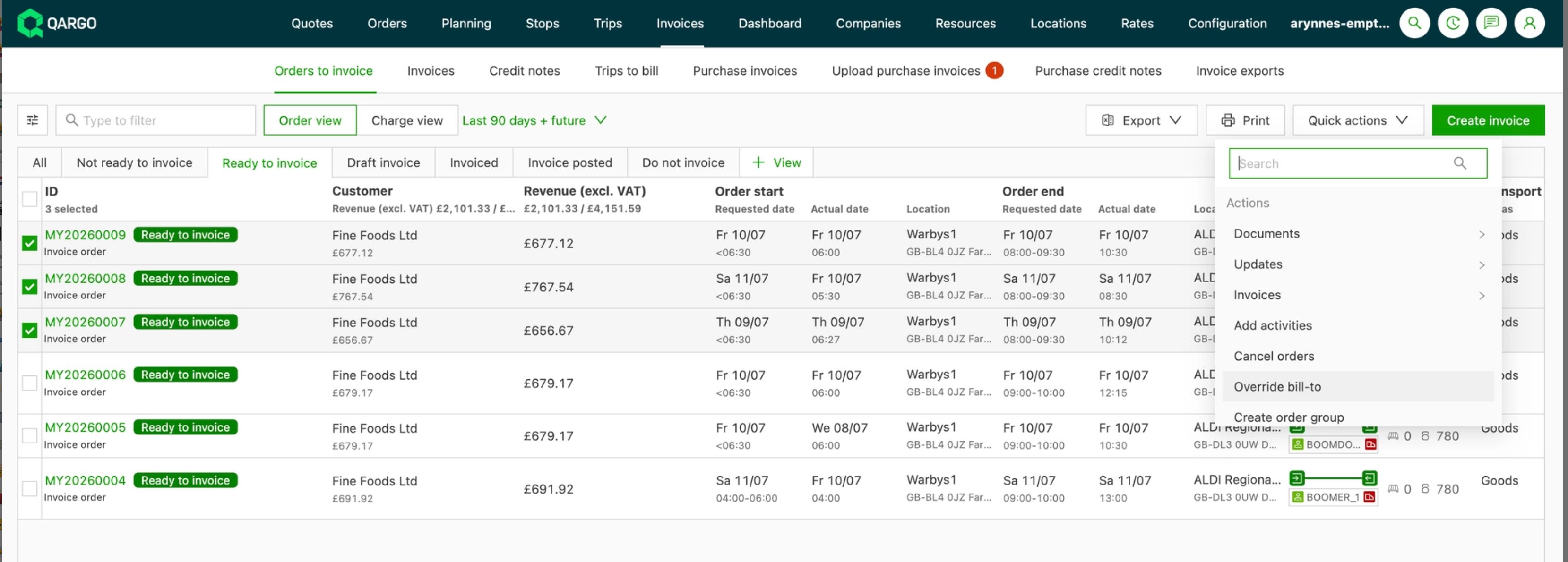
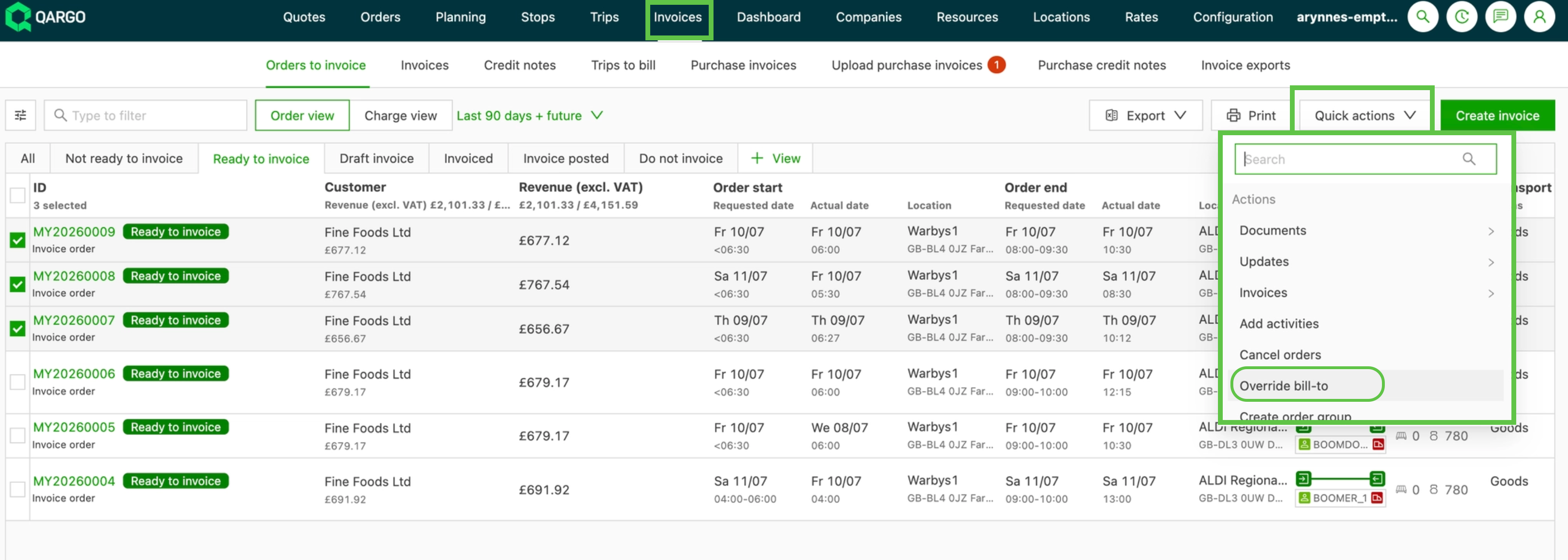
Navigate to Invoices and open Orders to invoice.
-
Select the orders whose charges should be redirected.
-
Open Quick actions and click Override bill-to.
-
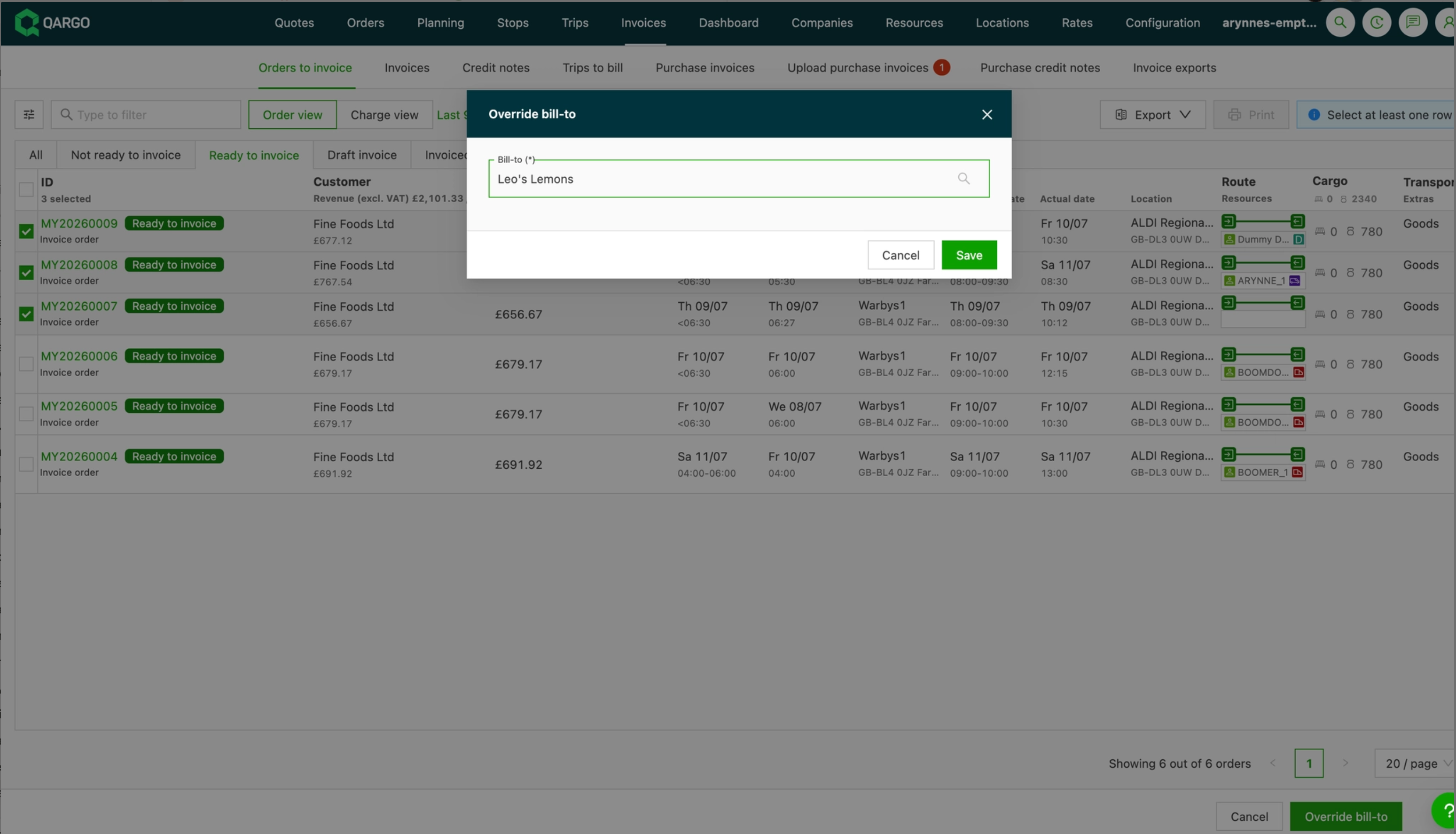
Confirm the order selection by clicking the Override bill-to button that appears at the bottom of the list.
-
Select the billing company in the Bill-to (*) field of the Override bill-to dialog.
-
Click Save to reassign all charges on the selected orders to the chosen company.
All charge types on the selected orders are redirected to the chosen billing company in one step.
Set the bill-to on a single charge
- Open the order from Invoices or Orders.
- Locate the Order revenue section and click the edit (pencil) icon on the charge to redirect.
- Select the billing company in the Customer (*) field of the Edit charge dialog’s Billing section.
- Click Save.
Troubleshooting
| Issue | Resolution |
|---|---|
| The Override bill-to action is blocked with a currency error | The selected orders contain charges in more than one currency. Reselect orders that share a single currency. |
| Some charges were not redirected by the bulk override | Charges already on an invoice, posted, or canceled cannot be rerouted. Only not-yet-invoiced charges are updated. |
| A new order did not pick up the expected billing company | Confirm a Default bill-to is set in the customer’s Billing config. The default applies to new orders only, not existing ones. |
| Revenue reports still show the operational customer rather than the billing company | Revenue reporting attributes revenue to the order’s operational customer, not the bill-to company. This is expected behavior in this release. |