
Invoices - Auto-create an invoice when an order is Ready to invoice
An invoice can be created automatically the moment an order reaches Ready to invoice status, so finance teams no longer need to open each order and invoice it manually.
-
Each customer that should be auto-invoiced must use Separate invoice per order as the billing preference.
- For background on billing preferences, see Invoices - Auto-assign invoice groups to orders and Billing preferences
Use cases
- A carrier that bills one order at a time wants every completed order invoiced immediately, without a daily manual billing round.
- A finance team wants draft invoices generated automatically on completion so they can be reviewed before being finalized.
🎥 Video walkthrough
Enabling auto-creation for the tenant
To auto-create an invoice once an order reaches Ready to invoice status, some configuration is needed. If invoices for most customers need to be auto-created, this can be set up at the tenant level.
-
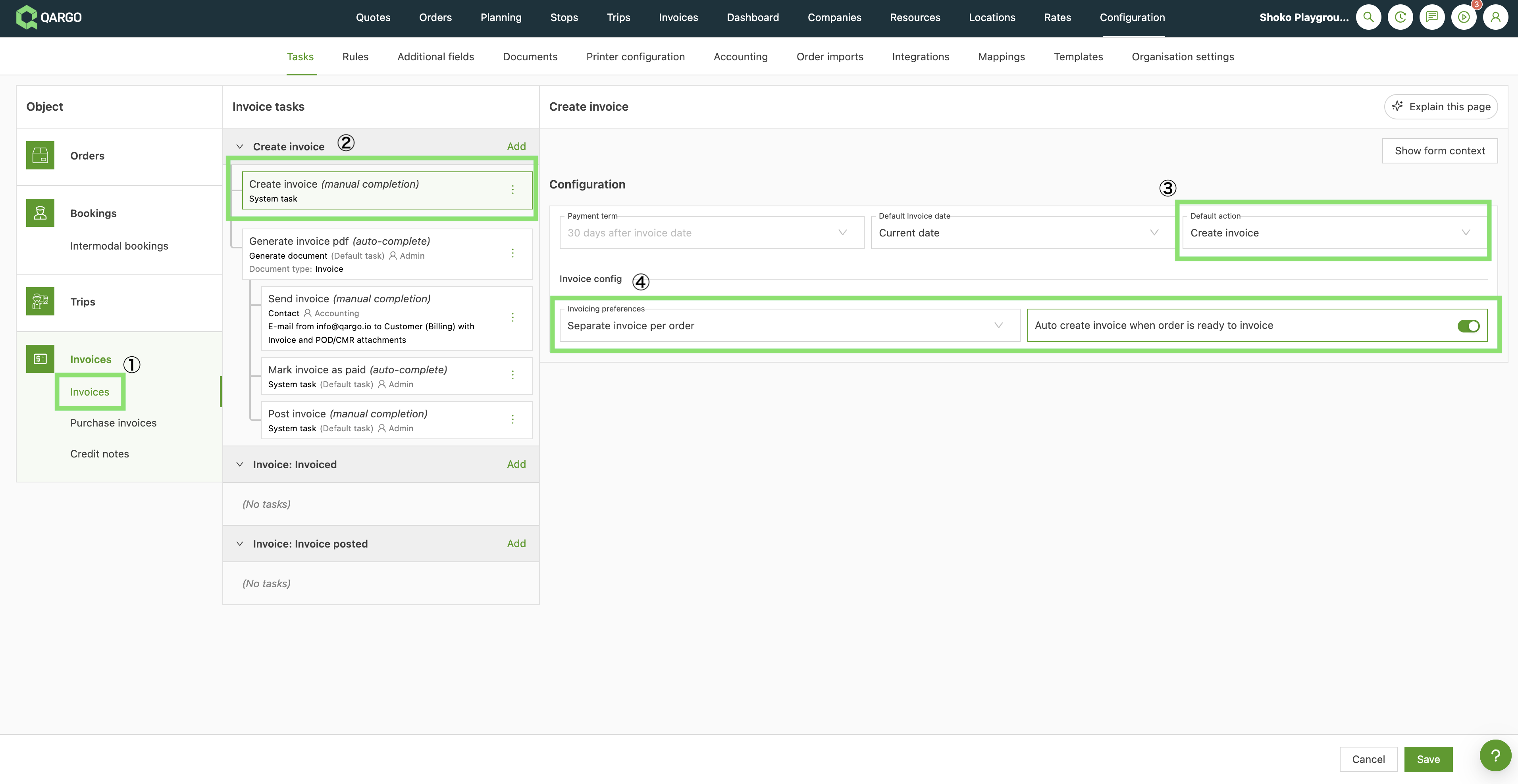
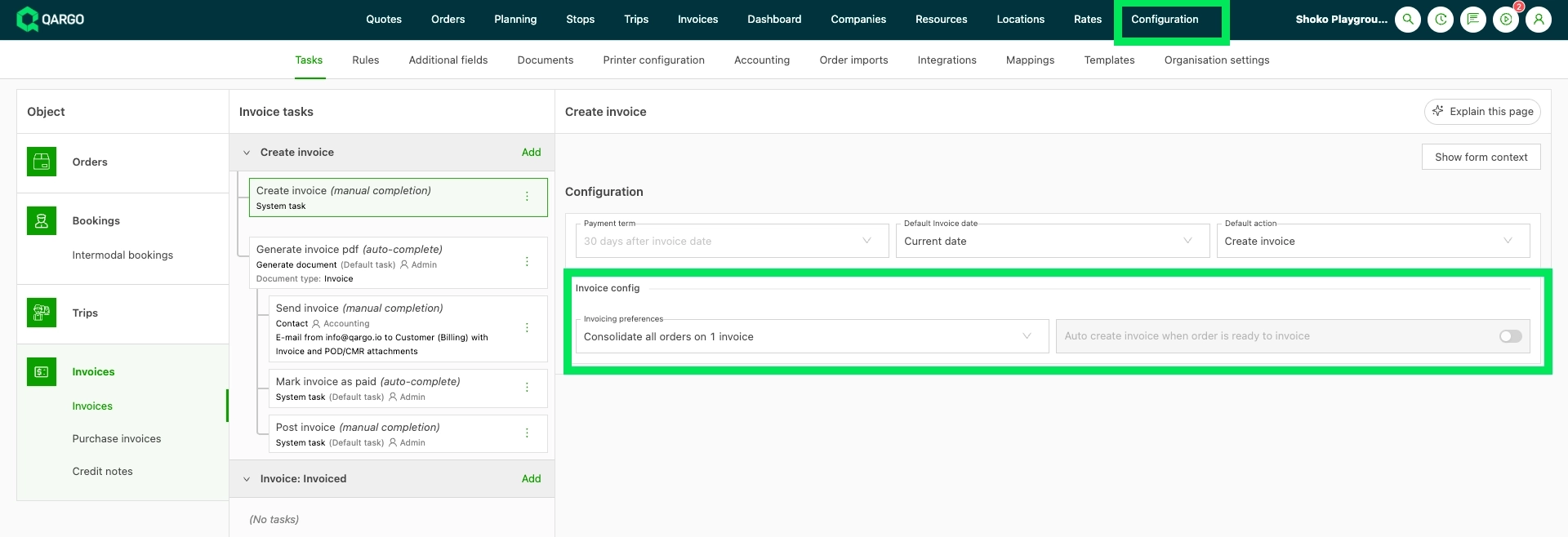
Navigate to Configuration > Tasks.
-
Click the Invoices section.
-
Select the Create invoice task.
-
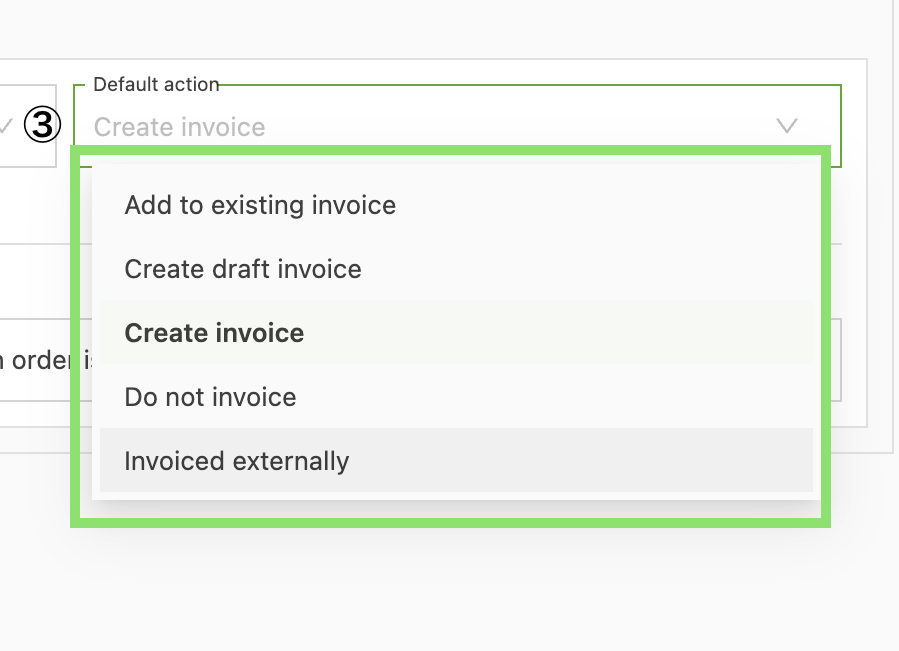
Set Default action to either Create invoice (for a finalized invoice) or Create draft invoice (for a draft to be reviewed).
-
Select Separate invoice per order for Invoice preferences.
-
Enable the Auto create invoice toggle.
Note: This option is only available when Invoice preferences is set to Separate invoice per order. -
Save the configuration.
Override the setting per customer
Qargo can also be configured to auto-create invoices per customer. This is especially useful when only a small number of customers need this function, without setting it up at the tenant level.
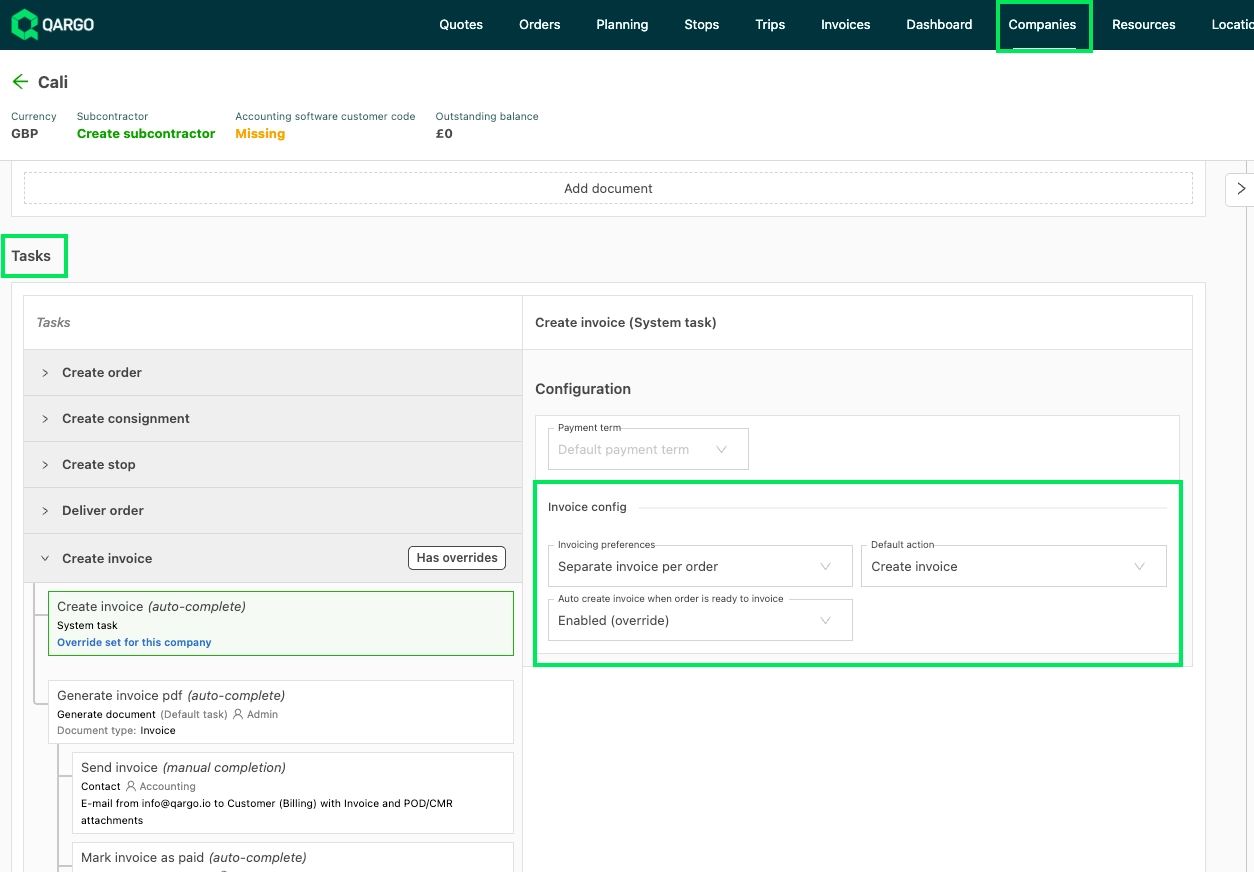
- Open Companies > Customers.
- Click a relevant customer.
- Scroll down to the Tasks section.
- Click Create invoice > Create invoice (auto-complete).
- Set Invoice preferences to Separate invoice per order.
- Set the default action to either Create invoice or Create draft invoice.
- Enable Auto create invoice when order is ready to invoice.
- Save the customer configuration.
Tenant-level default setting
Customer-level setting
Workflow
Once everything is configured, follow these steps to see automated invoice creation in action.
-
Go to Order.
-
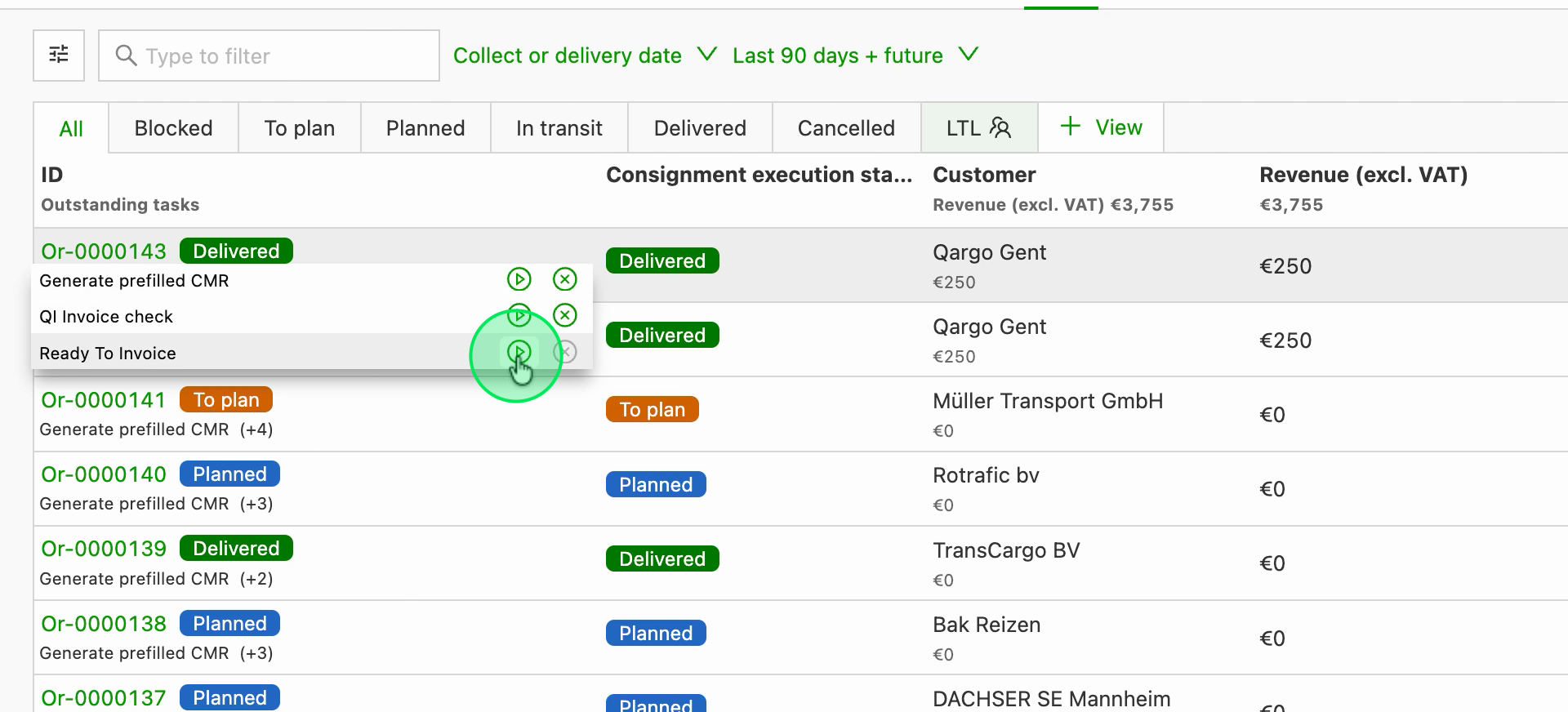
Move a relevant order to the Ready to invoice status. The system detects this change.
-
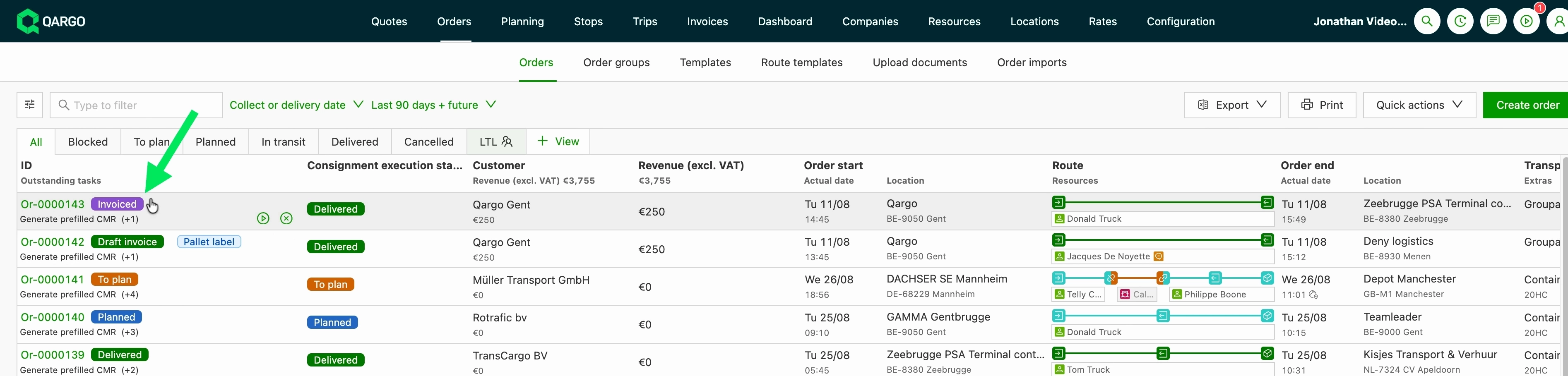
If the default invoice preference is set to Separate invoice per order, the system automatically creates either a draft invoice or a final invoice and links it to the order.
-
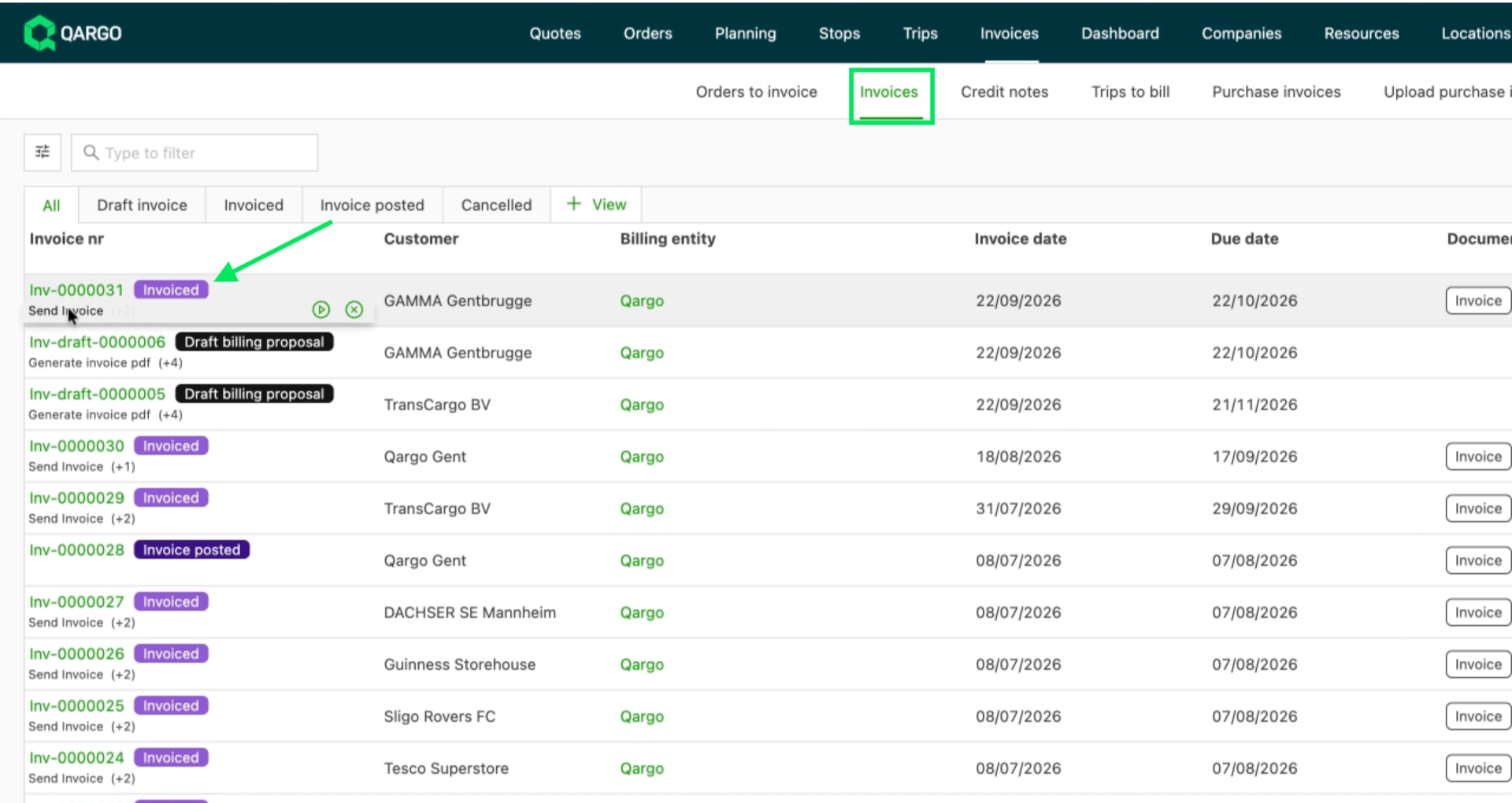
The order automatically moves from the Orders to invoice page to the Invoices page.
-
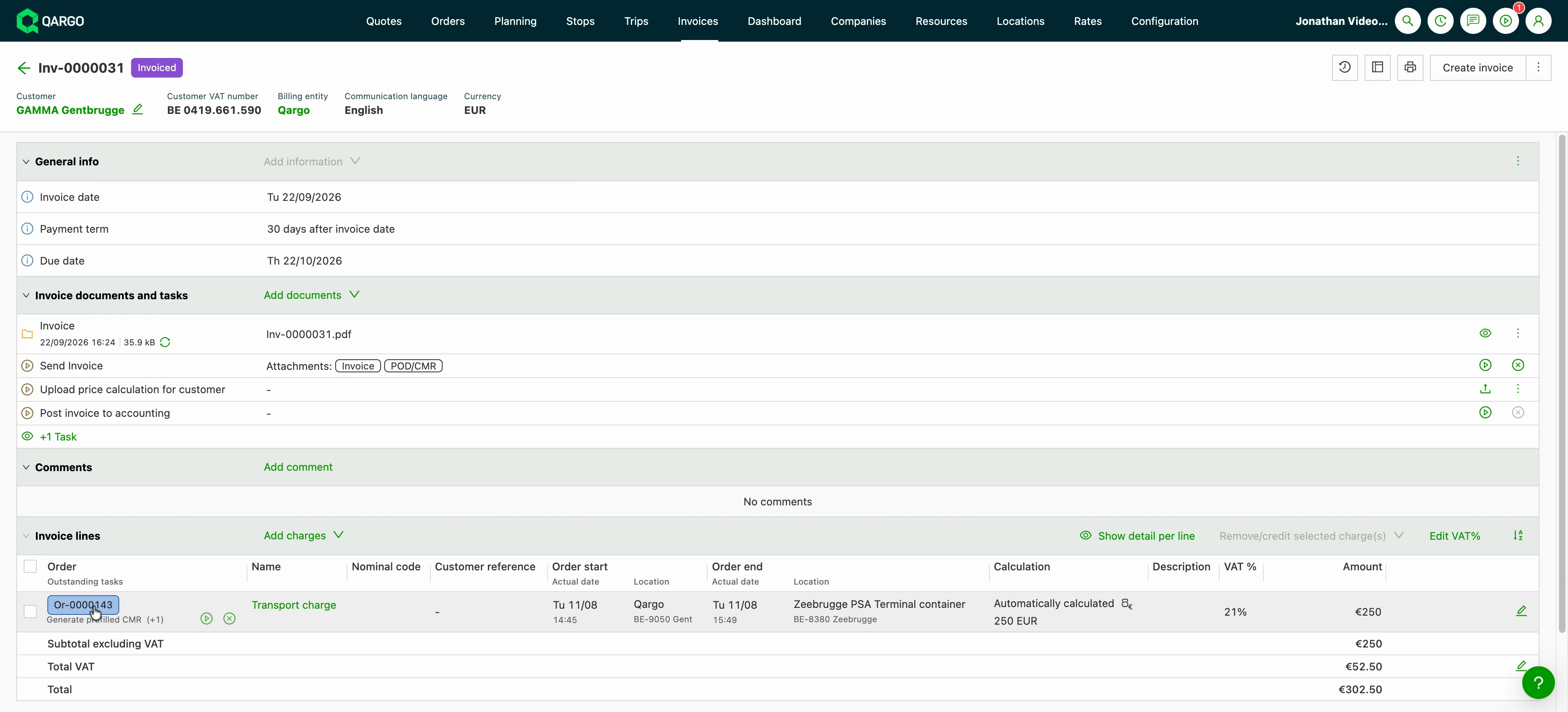
Click the relevant (draft) invoice to see the details.
Note
- Grouped billing (per billing cycle, per reference, per purchase order, or a fixed number of orders per invoice) and delayed billing (a number of days later, or only once a POD is attached) are not included.
- A single order can still produce more than one invoice. Charges are grouped by billing group code, customer, billing entity, and currency.
Troubleshooting
| Issue | Resolution |
|---|---|
| Turning on the tenant toggle has no visible effect. | Confirm that each customer that should be auto-invoiced uses Separate invoice per order. Consolidate all is the default for new and existing customers and is not covered in this version. |
| No invoice appears after the Ready to invoice task completes, and no error is shown. | Check that the billing entity has an active accounting & ERP integration, or switch Default action to Create draft invoice. |