
Invoices – customer invoice preferences
Set invoice preferences per customer for flexible billing. Configure payment terms, consolidation and grouping in the customer Tasks panel.
Table of contents
Invoice preferences can be defined at the customer level. This gives maximum flexibility to meet customer billing requirements, including payment terms or a specific invoice consolidation requirement.
-
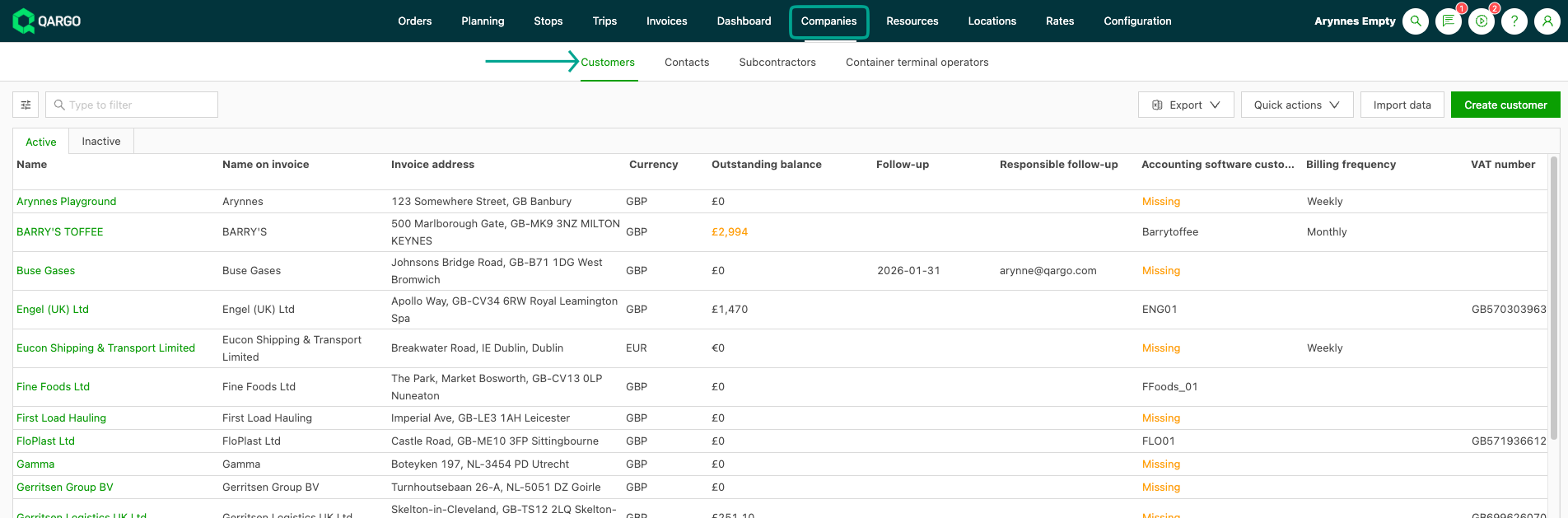
Navigate to Companies
-
Select ‘Customers’
-
Click the name of the relevant customer.
-
In the customer profile, scroll down to the Tasks panel and click ‘Create invoice’.
Configuration:
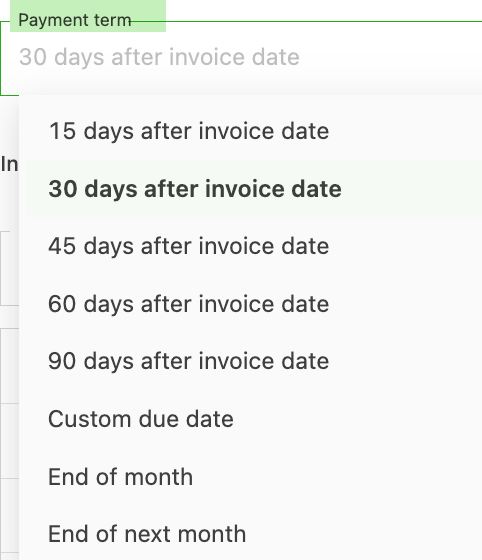
Payment terms:
Set the terms agreed with the customer from the available options. This mirrors the setting under ‘General Info’. Any update here is applied in both sections.
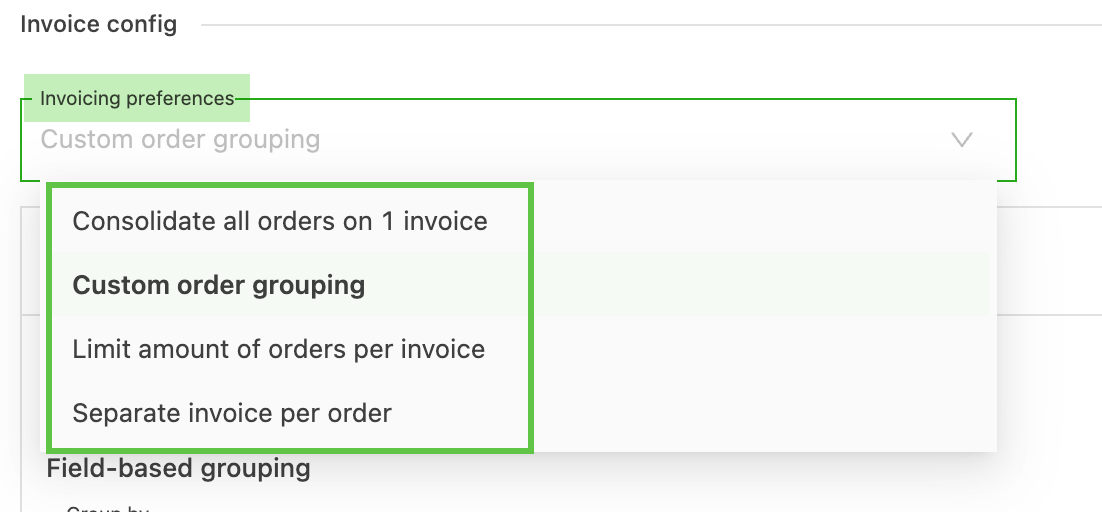
Billing preferences:
Several options are available to accommodate customer invoice preferences. These include options to consolidate all invoices or to provide a separate invoice per order. The number of orders per invoice can also be limited.

Use the custom order grouping option to create customer-specific rules for how invoices should be grouped. There are 2 grouping options:
- Field-based grouping – based on order fields, i.e., locations, references, etc.
- Time-based grouping – based on a date type, i.e., 1st pickup, and set on an interval, i.e., Weekly.
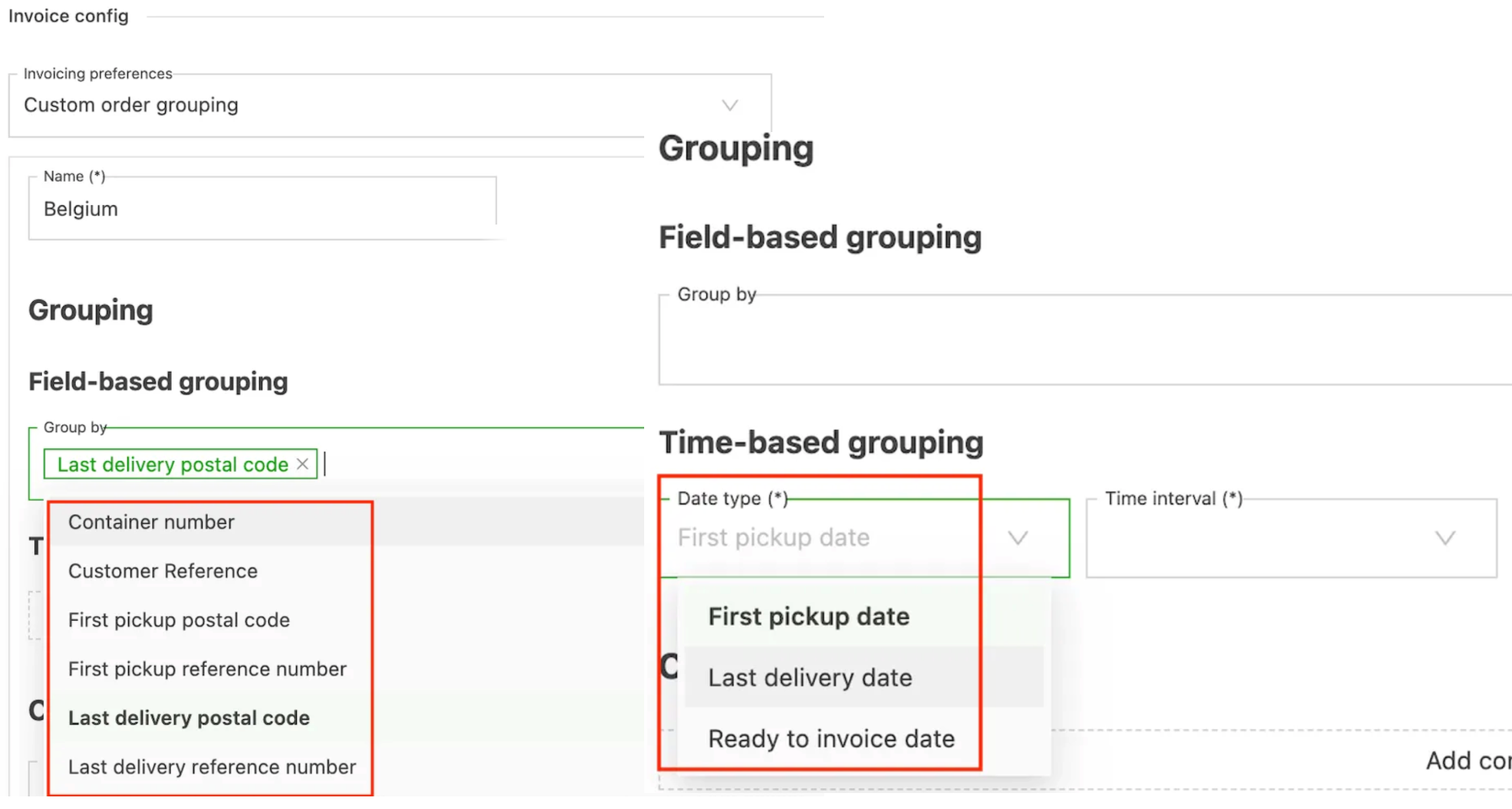
Once set, these rules automatically consolidate the orders into the appropriate invoice group. Multiple rules can be configured; however, the system uses ‘first-match’ logic. This means that if all the parameters of the first rule are met, the order is assigned to that group. The system stops processing rules at this point, so it is important to order the rules by priority.
When invoices are created for the customer, the orders are grouped onto invoices based on these settings.
When creating the invoices, the grouping can be modified without changing the main configuration. This allows changes to be made to a specific invoice without modifying the overall configuration.
To learn more about creating auto-assigned customer invoice groups, click the link below.