
Feature release – April 2026
Week 2
🔎 Configuration – Improved load visibility to enhance efficiency
🗺️ Planning – Select & drop terminal stop grouping enhanced
🏷️ Orders: New additional goods/freight details for customs details
📐 Rate cards – New girth calculation metric
⏰ Configuration – Stop durations that scale with freight
Week 3
💰 Loads – Track expected vs actual costs
🚫 Planning – Unavailabilities always visible in the Blocks view
🔗 Loads – No login? No problem. Tracking links are live
🗺️ Planning – See the full picture: plan smarter from the map
📋 Quotes – Tender quotes: manage price agreements end-to-end
Week 5
⚓️ Planning – Anchor stop route calculations
💰 Rate cards – Improved wait hour calculations for stops
🏗️ Resources – Chassis is now a separate equipment type
↑ Sort order and load lists by custom fields
📑 Document matching for multiple references
🚢 Intermodal – Move intermodal orders to a different departure in bulk
🚢 Intermodal – Biweekly recurrence for intermodal connection timetables
Week 2
🔎 Configuration – Improved load visibility to enhance efficiency
Orders, loads, invoices, and other detail views can be opened as a side or bottom preview slider, without leaving the current screen or losing context.
What does this do?
- Detail views throughout Qargo (orders, loads, load groups, order groups, invoices, carrier invoices, credit memos, and carrier credit memos) can be opened in a preview slider instead of a full-screen overlay, keeping the rest of the screen visible
Why does this exist?
- Opening a full detail modal forced planners and operations staff to lose context every time they needed to inspect a record.
How does it work?
-
Clicking a record opens the preview slider alongside the current screen. This is available for orders, loads, load groups, order groups, invoices, carrier invoices, credit memos, and carrier credit memos
-
The preview slider can be positioned left, center, right, or at the bottom of the screen
-
Clicking Open as page in the preview slider header opens the full record in its own page
🗺️ Planning – Select & drop terminal stop grouping enhanced
When an order is added to an existing load using ‘Select and Drop’, Qargo now automatically places the terminal (load/unload) stop next to the matching terminal stop already on the load.
What changed
Before: When an order was added to a load, every stop, including terminal stops, landed exactly where it was dropped. If the new order had a terminal stop at the same location as one already on the load, it had to be manually dragged next to the existing one.
Now: When using ‘Select and Drop’, Qargo detects when both orders share a matching terminal (load/unload only) and automatically moves the new terminal stop next to the existing one. The rest of the stop sequence stays intact; nothing else is moved or reordered.
How to use it
- Select the checkbox next to the order that needs to be added to an existing load
- Move the cursor to the planning timeline and position it before the last stop of the existing load
- Click to drop. Qargo automatically groups the terminal stop next to the matching one already on the load
Learn how automatic grouping for terminal stops works
🏷️ Orders: New additional goods/freight details for customs details
Carriers doing cross-border transportation need to provide detailed freight information when preparing customs declarations, including goods descriptions, invoice values, net weight, and shipping marks. New additional fields allow users to document key customs data on shipments and goods and prepare accurate customs documentation directly from Qargo data.
Shipment fields:
- Commercial invoice: total value, currency, and reference name
Goods items
- Net weight (alongside existing gross weight)
- Shipping marks
- Commercial invoice value per item
Orders – Freight & goods details for cross-border shipments
📐 Rate cards – New girth calculation metric
Transportation companies can now use Girth ((Width + Height) × 2 + Length) as a metric across three areas of the rate card system. This enables automatic classification of shipments, such as loose colli vs. pallet freight, for dimension-based billing.
What’s included:
- Girth available as a calculation metric in formula-based price calculations (evaluated per freight item)
- Girth available as a metric in rate table lookups for girth-based rating tiers
- Girth available as a condition on chargeable weight conversion factor lines (e.g., girth ≤ 300 cm → bill on cubic meters; above threshold → bill on loading meters)
- Both per-good (Girth) and max-across-goods (Max girth) variants supported
- Girth is computed automatically from existing freight item dimensions; no extra data entry is required
Limitations:
- All three dimensions (Width, Height, Length) must be filled in on a goods line for girth to compute. Missing dimensions result in a calculation error on the charge
- The formula is fixed: (Width + Height) × 2 + Length. Custom composite formulas are not supported
- Girth is a goods-level metric only; it does not aggregate across goods lines
📚 Rate card – Girth-based rating – What, why & how
⏰ Configuration – Stop durations that scale with freight
Planning accurate routes just got a lot easier. Stop activity durations can now be calculated automatically based on the actual goods being loaded or unloaded. If a stop has 20 pallets instead of 5, the planning engine accounts for that without any manual adjustments.
What’s included:
- Formula-based rules: define how long a stop takes per unit of freight. Set rules like “5 minutes per pallet” or “2 minutes per loading meter,” and durations update automatically as goods change.
- Fixed rules: apply a flat time value to specific stop activities when the duration doesn’t depend on freight volume.
- Condition-based scoping: rules can apply only in specific contexts, such as transportation service, vehicle category, customer, service level, stop activity label, container type, location, and more. Different durations for different operations, all in one place.
- Automatic recalculation: whenever stops are added, removed, or reordered on a route, durations recalculate instantly.
- Combine calculations: stack a fixed base time with a formula in a single rule. For example: 15 minutes base + 5 minutes per pallet.
Rules are configured under Configuration > Rules > Stop duration, following the same pattern as other rule types already in Qargo.
Read more: Configuration – Calculated activity duration rules
:::
Week 3
💰 Loads – Track expected vs actual costs
What’s included
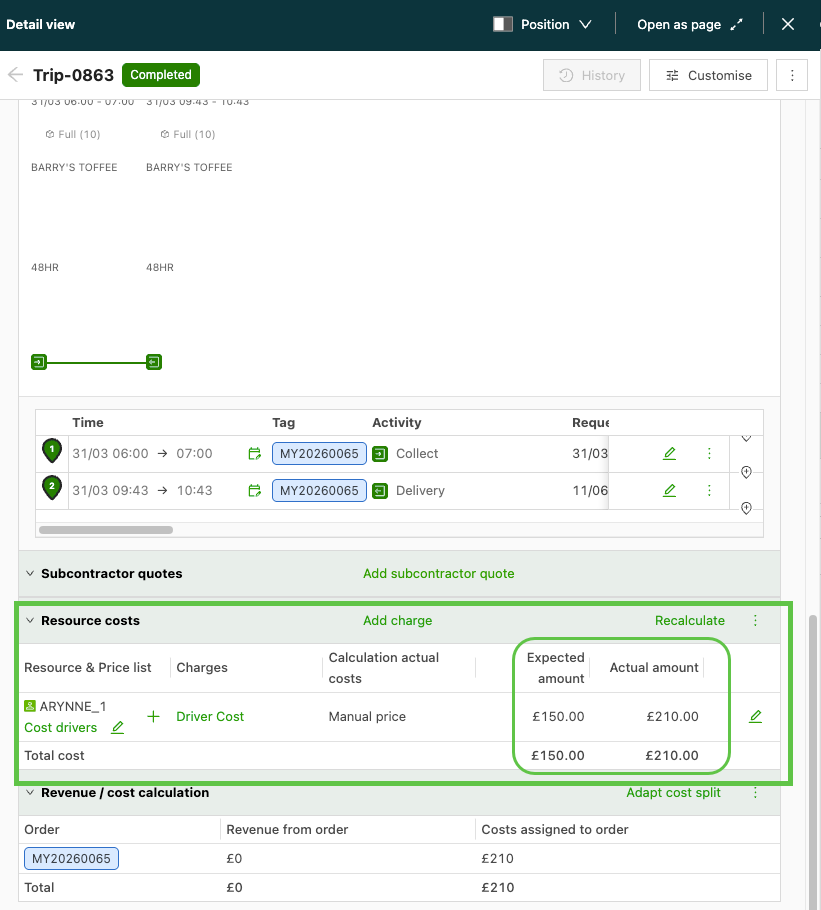
It is now possible to compare what a load was expected to cost at the time of planning with what it actually cost after operations. This is done directly on the load, without the need to export data or rely on external tools.
Here’s how costs are captured:
- Expected amount: calculated from rate cards and charge configurations while the load is in Planned status (or earlier). The moment the load moves to In Transit, this figure is locked and cannot change.
- Actual amount: the live cost figure, updated to reflect anything that happens after planning: extra kilometers driven, manual adjustments, or a carrier invoice received from a contract carrier. This is the amount sent to the accounting package.
Benefits
- See at a glance whether a load cost more or less than planned, directly on the load detail page
- Compare contract carrier invoices against what was expected at planning time, making it easier to spot and follow up on unexpected differences
- Build BI dashboards showing cost variance by route, resource type, or time period to identify patterns in planning accuracy
Read more about expected vs actual costs on loads
🚫 Planning – Unavailabilities always visible in the Blocks view
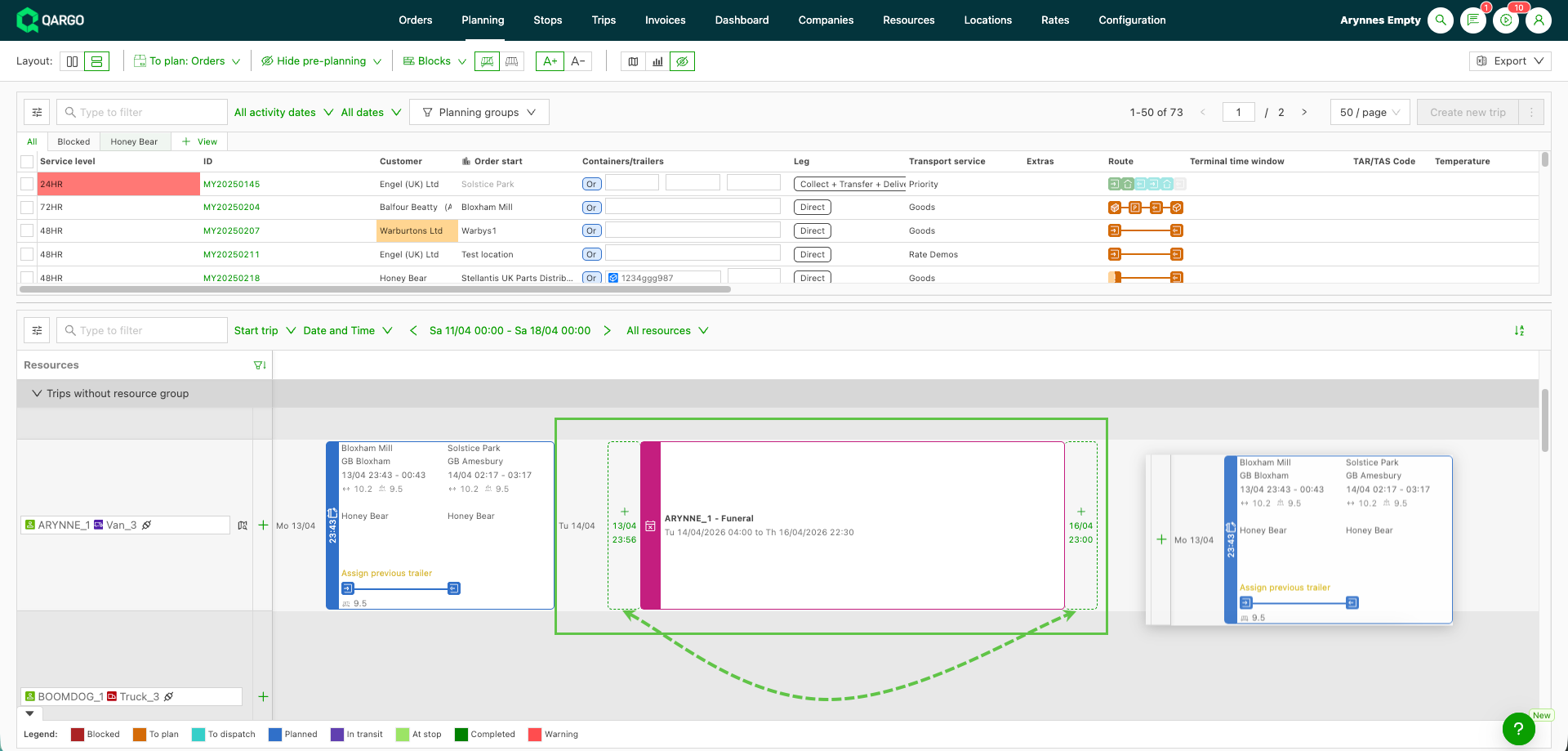
Resource unavailabilities (holidays, sick days, shift schedule absences, and notes) now stay visible in the Blocks planning view, even when loads are already assigned to the same resource row.
Unavailability indicators appear directly on the resource row in all three states:
- Empty row: the unavailability is shown on its own, with a drop zone available for assigning a new shipment
- Row with loads assigned: the unavailability indicator stays visible alongside the planned load(s), sorted by start time
- Row with loads and multiple unavailabilities: each unavailability keeps its own position in the row, sorted by start time, with individual drop zones where applicable
Benefits
- The full scheduling picture for a resource is visible without leaving the Blocks view
- Fewer view switches mean faster planning decisions
- Drag-and-drop next to unavailabilities makes it quicker to assign shipments around constraints
Learn more about unavailability views in planning
🔗 Loads – No login? No problem. Tracking links are live
Tracking links give receivers and delivery contacts a live window into their shipment: no Qargo account, no friction, no phone calls.
- 📬 Zero effort for recipients: they get a link, they click it, they’re in. No signup, no password, no portal.
- 📍 Real-time visibility: live map with driver position, stop details, estimated timestamps, and freight info, all in one place.
- 📵 Fewer “where is my delivery?” calls: recipients can track their own shipment, so dispatchers can focus on what matters.
- ⚙️ Fully configurable: Super admins control exactly which fields appear on the tracking page via a simple template.
- 🔒 Secure by default: links expire automatically after 30 days and can be manually revoked at any time.
- 🤝 Works for everyone: receivers, warehouses, 3PL partners, one-off delivery contacts. Anyone who needs visibility can simply be sent the link.
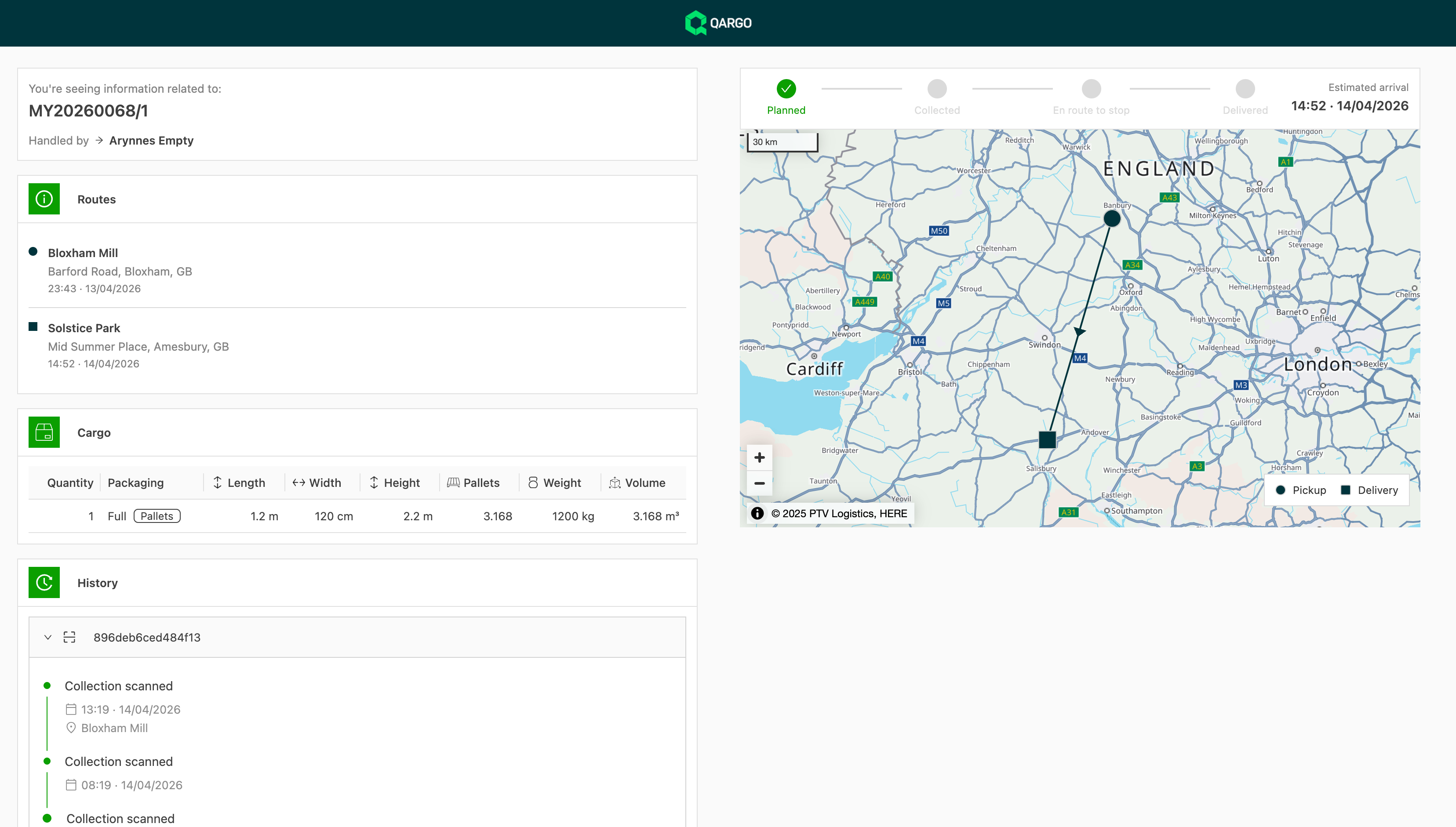
Setup takes three steps: enable the integration, configure the template, and add the tracking link variable to a contact task. After that, every new shipment gets its own unique link automatically.
Read more about shipment tracking links
🗺️ Planning – See the full picture: plan smarter from the map
The planning board map used to show only the orders on the current page (up to 100). With hundreds of unplanned orders spread across multiple pages, planning was done blind. That’s now fixed.
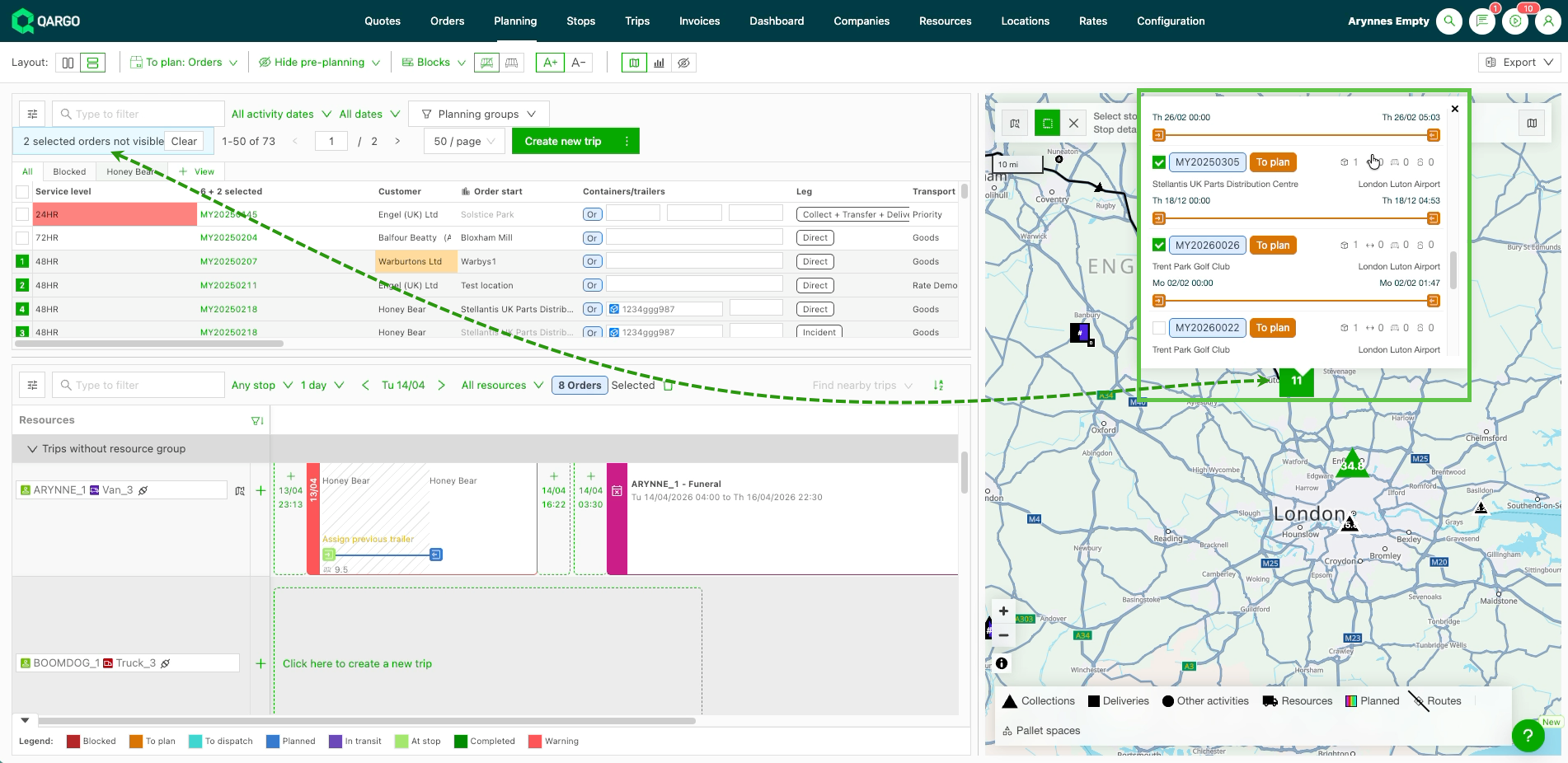
The map now displays up to 1,000 “To plan” orders at once across all pages. This gives a true geographic overview of everything that needs planning, without paging through results.
Clicking a stop on the map now opens a redesigned popover showing:
- Every order at that location, with address, date, time, and goods details
- Planned orders with their assigned resource and load tag
- Checkboxes to select orders directly from the popover; selections sync instantly to the To plan list
- Cmd/Ctrl + click for quick multi-select
- Hover over a load tag to highlight that load on the planning board timeline
Click the link below 👇 to learn more about the new map planning features.
📋 Quotes – Tender quotes: manage price agreements end-to-end
Until now, quotes in Qargo had no way to track whether a price offer had been sent, accepted, or declined, and no way to define how long it was valid. That meant manual workarounds, lost context, and no visibility into the quoting pipeline. Tender quotes change that.
A dedicated Quotes menu now sits alongside Orders in the navigation, with two tabs:
- Spot quotes: the existing quote workflow, now in its new home
- Tender quotes: a new list for managing recurring or contract-based price agreements
Each tender quote includes:
- Status tracking: move quotes through Created → Sent out → Accepted → Declined → Canceled, from the list or the detail page
- Validity periods: set a Valid from and Valid to date so everyone knows exactly how long a price offer stands. Expired quotes are flagged with a red tag but kept visible for reference
- Max orders cap: optionally set a ceiling on the number of orders a quote can generate, with a warning when it’s exceeded
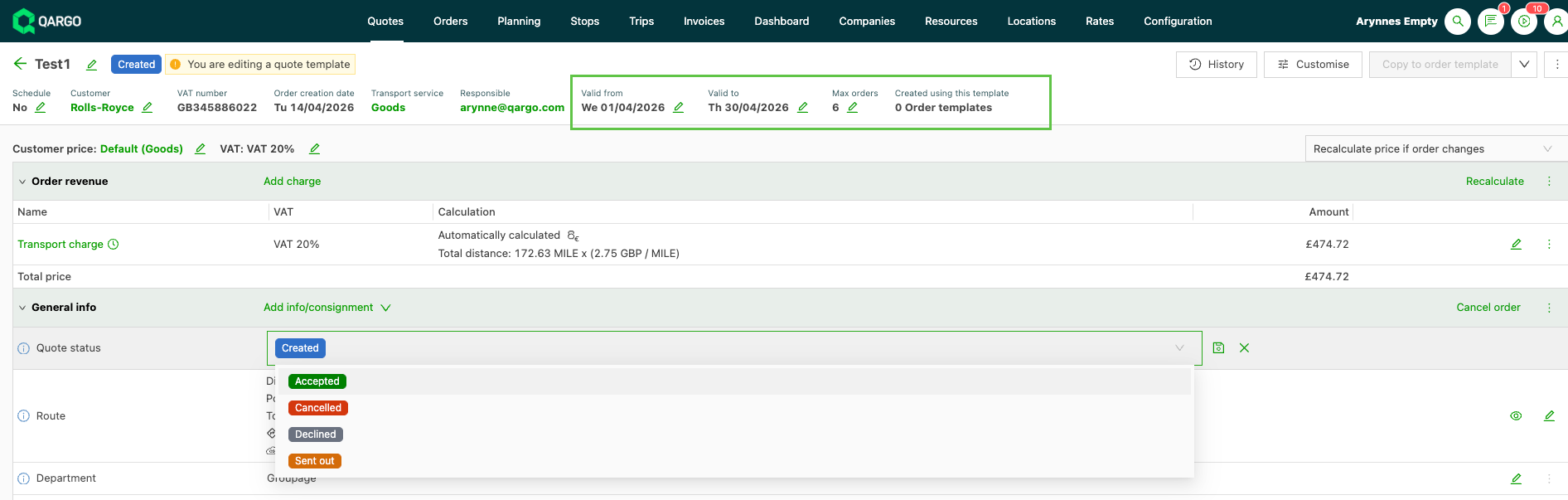
Click the link below 👇 to learn how to use the new tender quotes feature.
Learn more about tender quotes.
:::
Week 5
⚓️ Planning – Anchor stop route calculations
Planners often work with fixed delivery or unloading times that cannot be moved. Anchor points set fixed arrival times and let Qargo automatically position earlier stops based on travel times. When a stop is marked as an anchor, Qargo automatically repositions all preceding stops based on driving durations to ensure the load arrives at the anchored stop on time.
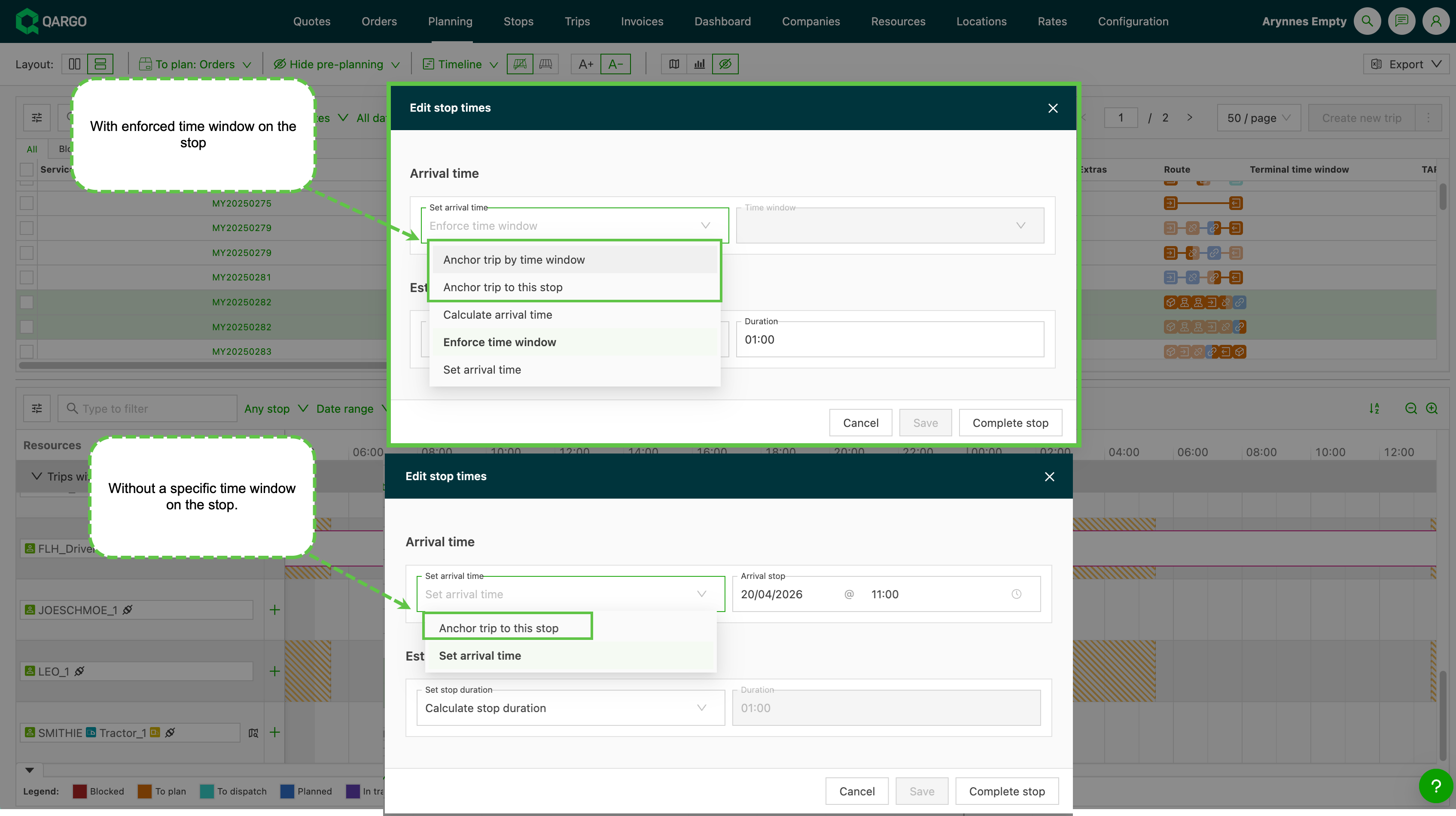
Set an anchor using either the planning board right-click toggle or the edit stop times modal. Qargo then recalculates the entire route backward from that anchor point, adjusting all preceding stops accordingly. This feature eliminates manual work by automating backward route calculation.
Learn how to use anchor stops when planning.
💰 Rate cards – Improved wait hour calculations for stops
When a driver misses the agreed arrival window, some transportation companies are required to waive wait charges entirely. Until now, this had to be handled manually, stop by stop.
Introducing the Arrival before window end condition, which can be applied directly to a wait hours calculation in the price list. When enabled, any stop where the driver arrived after the time window closed is automatically set to 0, with no manual intervention required.
What’s included:
- A new Arrival before window end condition in the calculation editor, available for per-stop wait hours metrics (From time window start and From arrival time)
- Two new combined metric variants for customers using combined pickup + delivery wait time: Combined wait time pickup and delivery – From time window start (no charge if late) and Combined wait time pickup and delivery – From arrival time (no charge if late)
How it works:
In the calculation editor for the wait hours line, click Add condition, select Current stop > Arrival before window end, and set the value to True. From that point on:
- If the driver arrived before the time window ended → wait hours calculate as normal
- If the driver arrived after the time window ended → wait hours for that stop are €0, automatically
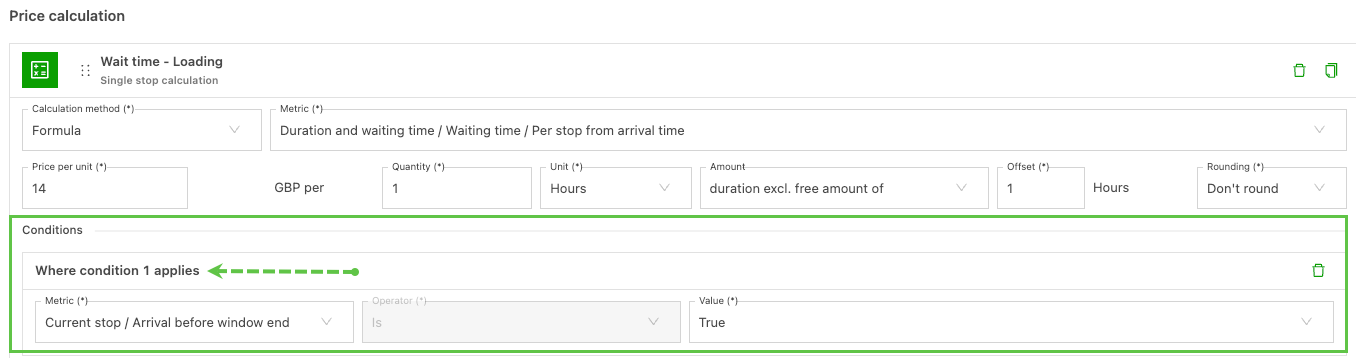
For combined wait time setups, select the matching “(no charge if late)” metric variant instead of adding a condition. Combined metrics span multiple stops, so the logic is built into the metric itself.
Wait hour calculation improvements
🏗️ Resources – Chassis is now a separate equipment type
What changed
Chassis and trailers are no longer treated as the same thing. Qargo now models them as distinct equipment types, so a chassis appears as a chassis on the planning board, not as a “trailer” that planners have to mentally reinterpret.
What’s included
- Chassis has its own resource type in Qargo, separate from trailers
- Planners can allocate chassis and trailers independently, reducing the risk of assigning the wrong equipment to a job
- Drivers see the correct equipment type on their assignments
Benefits
- Fewer planning board errors: no more trailers standing in for chassis
- Cleaner allocations in intermodal and container workflows
- Drivers get accurate equipment information, which matters when equipment type affects how a job is handled
Chassis do not include freight-specific fields. The following are not available on chassis:
- Freight capacity (loading meters, pallet spaces, volume, payload)
- Compartments
- Roof type
Chassis do carry over all other trailer configuration fields: general info (name, code, license plate, VIN, manufacturer, model), dimensions (length, width, height, tare weight, GVWR), and planning availability and allocation behavior.
Learn more about using chassis vs trailers
↑ Sort order and load lists by custom fields
Custom fields in the Order list and Load list can now be sorted ascending or descending. Previously, custom fields only supported filtering, so finding the right records meant manually scanning through long lists.
- Text custom fields sort alphabetically (A → Z or Z → A)
- Date custom fields sort chronologically (earliest → latest or latest → earliest)
- Shipment fields such as CMR reference are now also sortable in the Order list
To sort by a custom field, click the column header. Click again to reverse the sort direction, the same behavior as built-in fields.
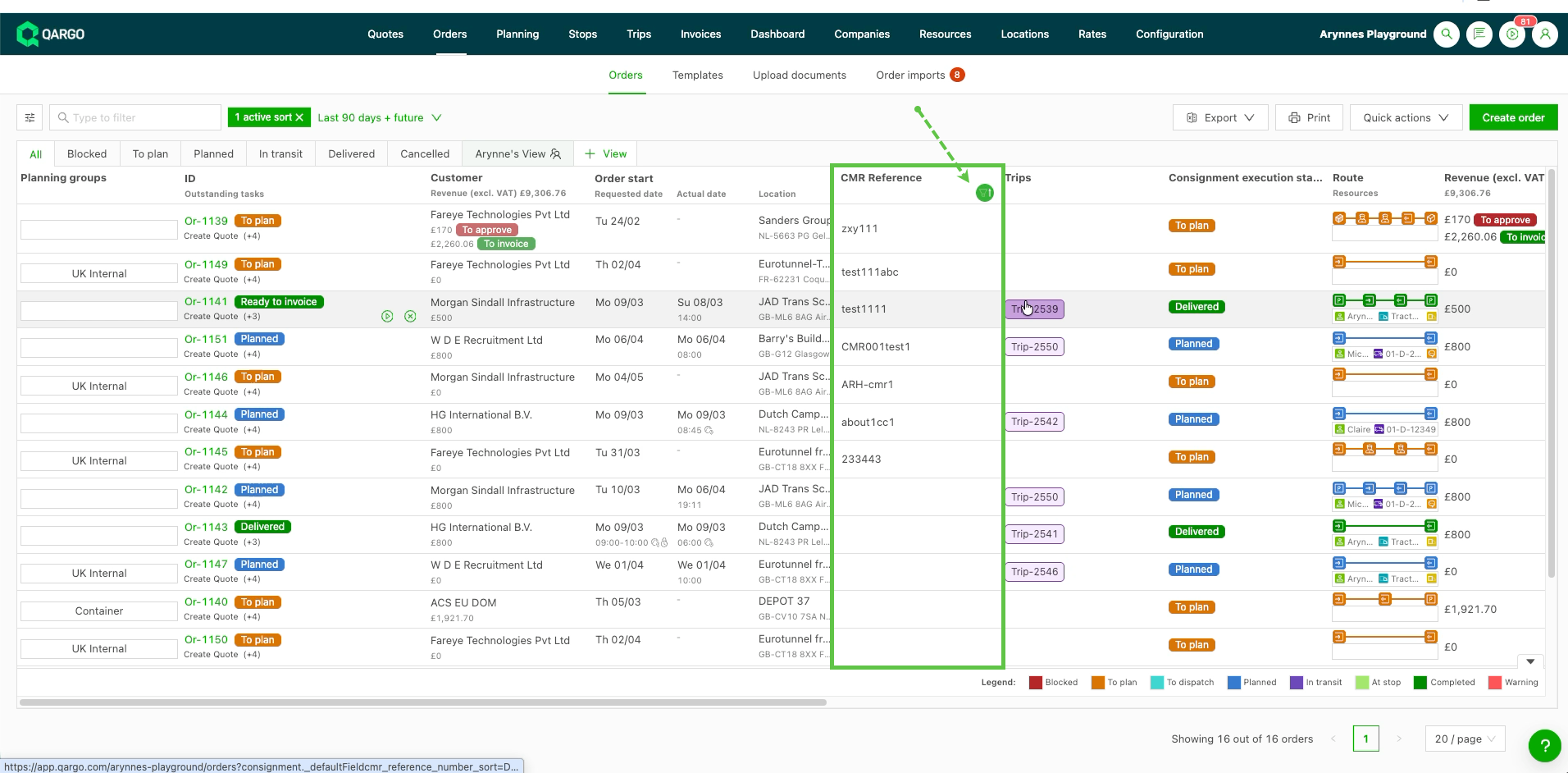
Limitations
- Available in the Order list and Load list only. Planning, Legs, Stops, and other list views are not yet supported.
- Dropdown custom fields are not sortable in this release.
📑 Documents – Matching now handles multiple references
When multiple reference numbers are stored in a single order field, separated by commas, semicolons, slashes, or dashes, Qargo now splits these lists into individual references before running the match. Each value is treated as a separate, standalone reference. This means documents containing just one of those references now match correctly as an exact match, not a partial one.
- Reference fields containing multiple values separated by
, ;/or-are now split into individual references before document matching runs - Each split value is matched independently, reducing false positives and missed matches
- A carrier invoice or uploaded document that only prints one of the values (e.g.,
6650852from a field containing6650852, 1000) is still auto-linked to the correct order or load - Applies to all reference fields used in document scanning: load name, order name, intermodal booking reference, container no., CMR reference, shipment reference, and more
Note: A comma without a trailing space (e.g., Ref 1,000) is treated as a thousands separator and is not split.
FAQ – Carrier invoice scan and match
🚢 Intermodal – Move intermodal orders to a different departure in bulk
Multiple orders within a departure can now be selected and all reassigned to a different departure in a single action. This works across different operators and connections, so a sailing on one carrier can be replaced with a departure on another in just a few clicks.
- In the Intermodal list view, click a departure to highlight it and filter the bookings table below; select the checkboxes next to the orders to reassign
- An Assign button appears on every other departure row, one for each possible target
- A confirmation dialog shows how many orders will be moved, and to which intermodal connection, before anything changes
- Canceling keeps the current selection intact, so no work is lost
- Works across different operators and connections: for example, a Unifeeder sailing can be reassigned onto a Hupac rail connection in one step
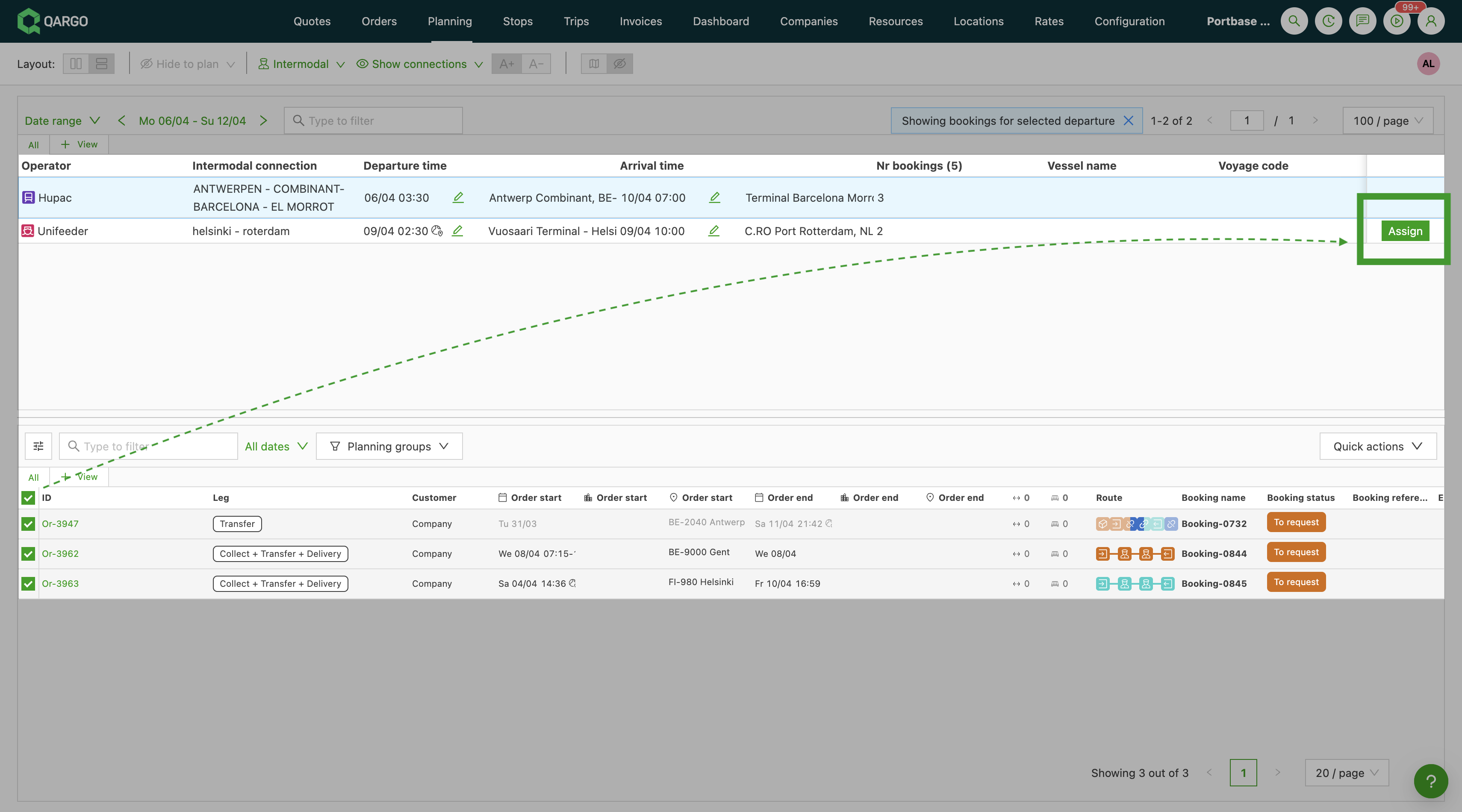
Bulk update to departure dates
🚢 Intermodal – Biweekly recurrence for intermodal connection timetables
Timetables now support biweekly recurrence. When setting up or editing a timetable, a weekly (default) or biweekly schedule can be selected. For biweekly timetables, a start date anchors the pattern, and the load date picker automatically filters to show only the relevant departure dates.
- New Recurrence setting when adding or editing a timetable: Weekly (default) or Biweekly
- When Biweekly is selected, a Start date field appears. Pick any date in the week the pattern should begin; Qargo uses the Monday of that week as the anchor
- When booking a load on a biweekly timetable, the date picker only shows valid departure dates (every other week)
- Weekly and biweekly timetables can coexist on the same intermodal connection