
Loads: expected vs. actual costs
Track expected costs during load planning and compare them with actual costs after operations to identify cost overruns and measure profitability.
Summary
What is this feature?
Expected vs. actual costs gives a side-by-side comparison of what a load was expected to cost (at the time of planning) and what it actually cost once completed.
Why does it exist?
Before this feature, the original planned cost was overwritten when a load was carried out. There was no way to look back and see whether a load cost more or less than expected, or to track planning accuracy over time.
How does it work?
-
Planned status: Qargo calculates costs based on the configured rate cards and charge configurations.
- Calculations are stored as the Expected amount, a snapshot of the cost while the load is still in Planned status (or earlier).
-
In Transit or later:
- The expected amount is locked. Any changes made after that point (for example, extra km driven, a manual override, or a carrier invoice received from a contract carrier) are reflected in the Actual amount only.
Prerequisites
Before the expected vs. actual costs columns are visible, the following must be in place:
-
Feature activation: this feature is controlled by a setting that is turned off by default.
-
Cost calculations configured: rate cards or internal cost calculations must already be set up in Qargo for expected costs to be calculated. See the Cost calculation trip article for guidance on setting these up.
Terminology
| Term | Meaning |
|---|---|
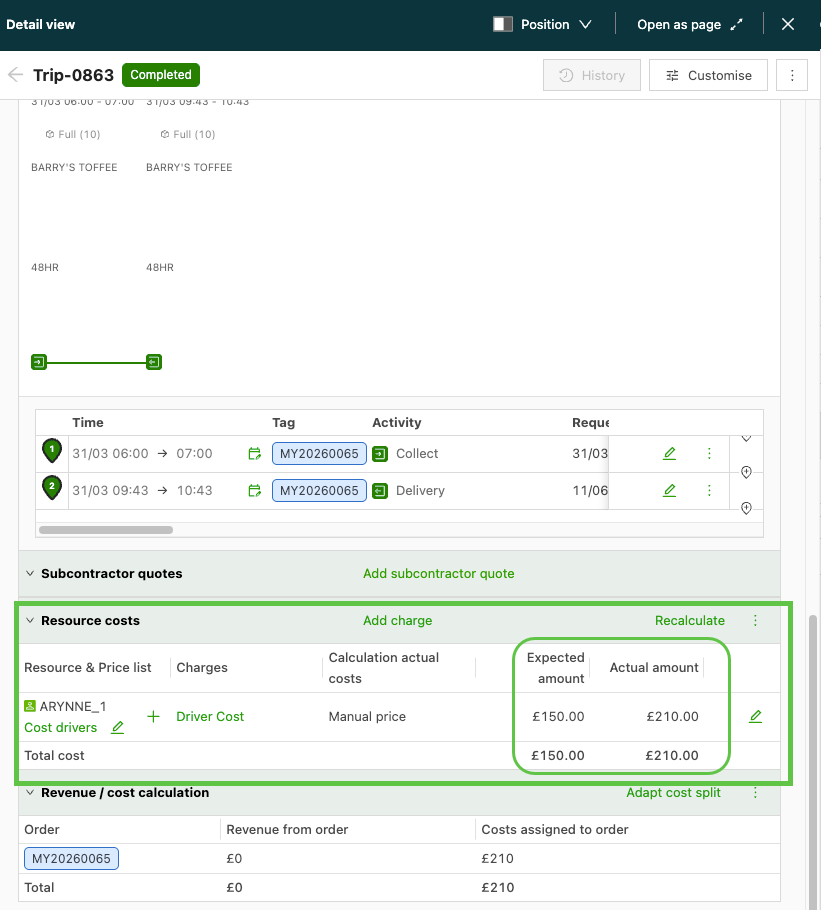
| Expected amount | The cost of a charge as calculated while the load was in Planned status or earlier. Locked when the load moves to In Transit. |
| Actual amount | The current charge amount, reflecting the final cost after operational data, manual adjustments, or carrier invoice matching. This is the amount sent to the accounting package. |
Where to find expected costs
Once the feature has been enabled, the expected and actual cost columns appear in three places on a load:
- Load detail – P&L section: The clearest side-by-side view. Shows total expected costs vs. total actual costs for the load.
- Order summary: Expected and actual cost columns are visible for each order linked to the load.
- Charge table: Each individual cost line on the load shows an Expected amount column alongside the standard cost column.
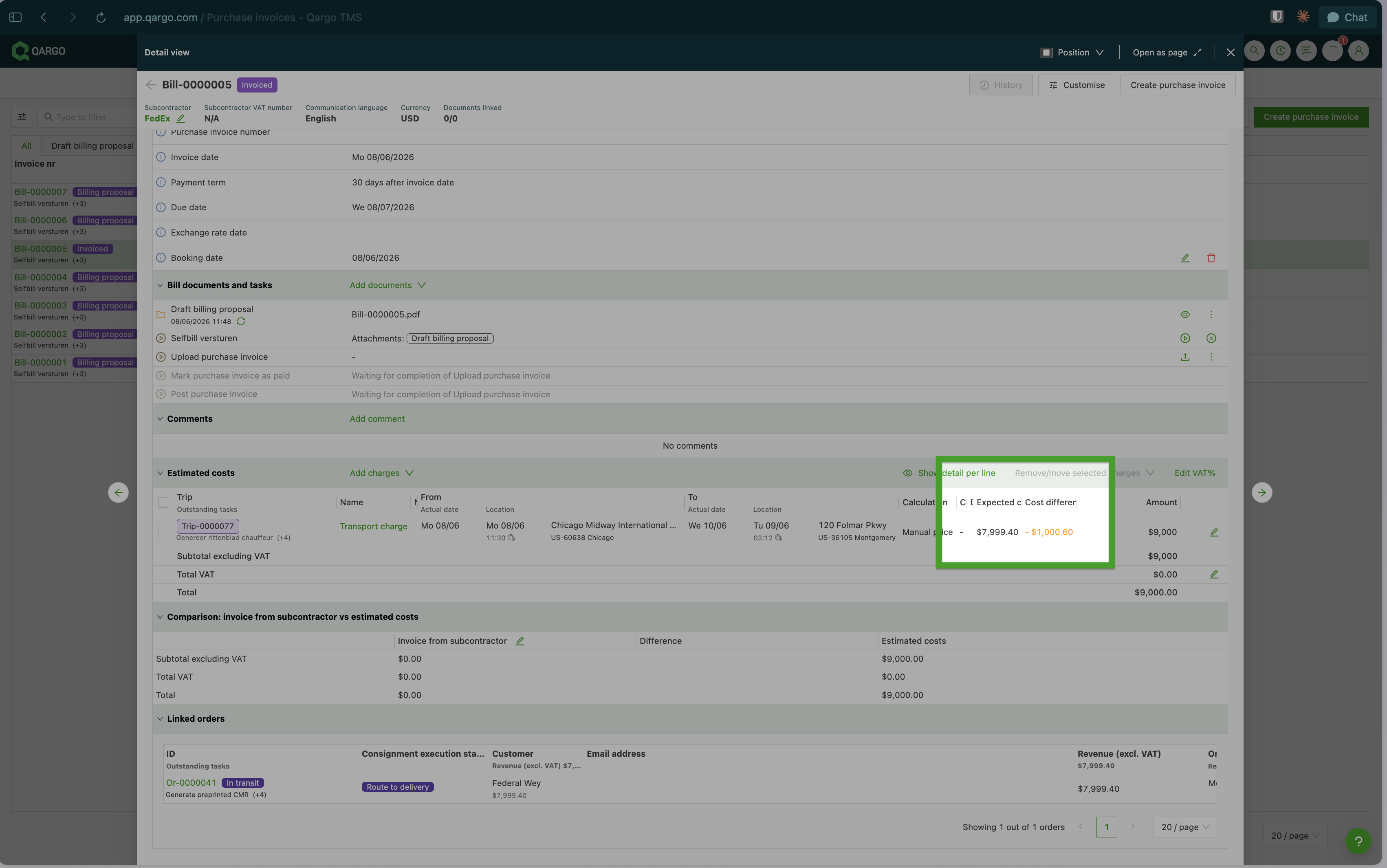
Expected and actual costs on the carrier invoice detail view
Expected cost data is now visible directly on the carrier invoice detail view. There is no longer any need to open the P&L section of each linked load to compare planned and invoiced amounts.
🎥 This video shows how estimated costs compare with actual costs:
When Has expected charges is enabled, two columns appear on the carrier invoice:
-
Expected cost: The cost expected when the load was planned.
-
Cost difference: Expected cost minus actual cost.
- Positive = the contract carrier charged less than expected.
- Negative = the contract carrier charged more than expected.
No additional setup is needed. If the feature is disabled, the invoice stays unchanged.
Refreshing the expected amount
The expected cost can be updated, for example after correcting a planning error before a load departs.
- Open the load detail page.
- Find the charge to update.
- Click Recalculate.
- Select Update expected amount.
This updates the expected cost to the current actual cost. This is possible while the load is Planned or In Transit.
Reporting on expected vs. actual costs
Use dashboards/BI reporting to analyze expected vs. actual costs.
The following fields are available on the carrier invoice line items:
expected_charge_amountexpected_charge_amount_tenant_currency
In-app filtering and sorting by cost difference is not currently available.
Common use cases
-
Check planning accuracy
- A load was expected to cost €120, but the actual cost was €132.
- The €12 difference shows the planner that the load cost more than expected.
-
Check contract carrier invoices
- The expected cost was €120, but the contract carrier invoiced €132.
- Finance can quickly spot the difference and check why the invoice is higher.
-
Review load profitability
- After a load, an operations manager can compare the expected and actual costs.
- This can help identify routes or resources that regularly cost more than planned.
-
Analyze cost trends
- Finance can use BI dashboards to compare expected and actual costs across routes, contract carriers, or time periods.
- This helps identify patterns and improve future cost planning.
Limitations
- Expected costs are only available for loads planned after the feature was enabled.
- Filtering or sorting by cost difference is not currently available in the app.
- Expected and actual costs are internal only and are not shown to customers or contract carriers.
- There are no automatic alerts when actual costs exceed expected costs.
- Deleting and re-adding a charge, or changing the price list for an assigned resource, resets the expected cost.
- Charges added directly to invoices without a linked cost rate card do not have an expected cost.
Troubleshooting
| Issue | What to check |
|---|---|
| Expected cost columns are not visible on the load | The feature may not be enabled for the account. Contact Qargo support to have it activated. |
| The expected cost is empty for some charges | The charge may have been added after the load moved past Planned status, or the charge was deleted and re-added. Only charges that existed while the load was in Planned status have an expected cost. |
| Expected cost equals actual cost even after the load is completed | If no changes were made to costs after planning (same km, no manual adjustments, no carrier invoice with a different amount), expected and actual costs are the same. This is normal. |
| Expected costs are available for some loads but not others | Only loads planned after the feature was enabled have expected cost data. Earlier loads show empty values for expected costs. |
| Cost variance data is not showing in the BI dashboard | Confirm with the data team that the BigQuery pipeline for expected/actual cost data has been set up. BI connectivity requires a separate setup step. |