FAQ: Viewing planned vs. actual times for a load
Table of contents
Q. Is it possible to compare the customer-requested times against the planned times and the times actually realized, and to report on these details?
A. Yes. Planned, estimated, and actual timestamps can be exported for stops and loads. This makes it possible to compare what was planned with what actually happened, which supports better performance tracking and reporting. Analyze load performance by exporting all key timestamps. These exports help measure planning accuracy and identify areas for improvement in operations.
📘 Terminology
| Term | Definition |
|---|---|
| Planned timestamp | The original date and time scheduled for a stop or load. |
| Estimated timestamp | A calculated prediction of when a stop or load is expected to happen, often updated based on progress or conditions. |
| Actual timestamp | The real date and time when a stop or load occurred. |
| Custom export | A user-defined data export that includes selected fields, created to meet specific reporting needs. |
This export feature makes it possible to:
-
Export timestamps for each stop and load, including:
- Planned timestamps – what the planner originally scheduled
- Estimated timestamps – system-calculated predictions based on real-time or updated data
- Actual timestamps – what actually occurred during the load
🧪 Common use cases
- Performance and KPI reports:
Compare planned vs. actual delivery or pickup times to track on-time performance. - Customer service:
Provide accurate records of when deliveries were expected versus when they occurred. - Continuous improvement:
Identify planning patterns or delays and use the data to optimize scheduling.
🔍 Limitations
- This feature is only available for custom exports at the moment.
Standard or built-in exports do not yet include these timestamp fields.
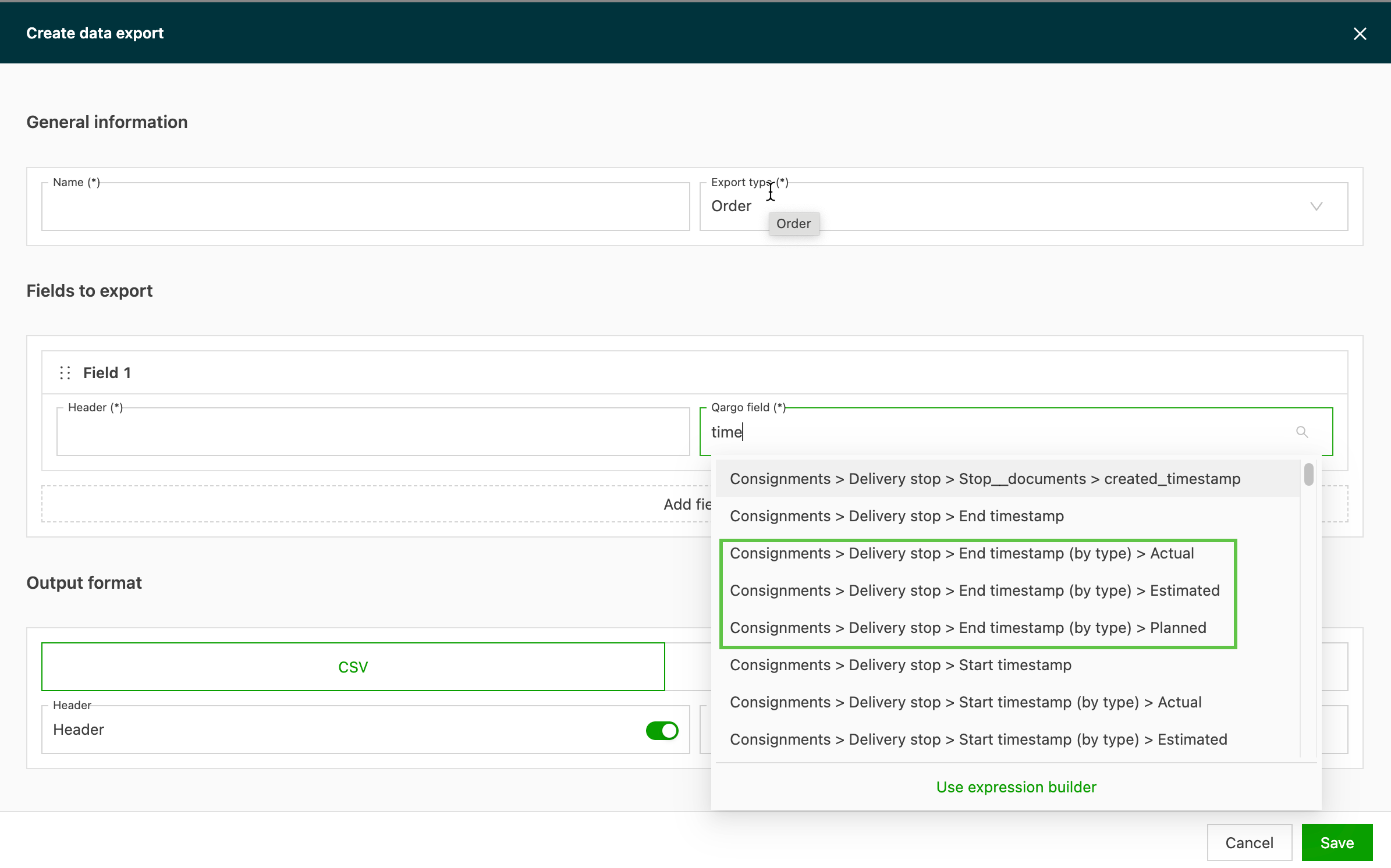
Create an export to show timestamps
- Go to Configuration > Templates
- Select ‘File export/downloads’ from the side menu
- Click the ‘Create export’ button
- Give the export a name and select the ‘Export type’ that reflects the data to capture
Add the fields for the export
- From the ‘Qargo field’ list, select the data to include in the export
- Each timestamp option is available for both the pickup and delivery stops