
Orders – requested date and actual date
Understand how requested date and actual date work in Qargo orders and loads. Use Edit columns to display columns for filtering by either date.
Table of contents
In Qargo, understanding the difference between “Requested date” and “Actual date” is crucial for effectively managing orders and loads. These date fields help streamline operations and enable precise filtering in different workflows. Below is an explanation of these terms and how to filter by them.
What is “Requested date”?
“Requested date” refers to the date entered or captured when an order is created. This is the date intended for the requested action or order creation, and it serves as the basis for date filtering within the Orders list.
Note: The requested date provides the planned or requested timeline for events, making it ideal for use in scheduling and forecasting scenarios.
Discrepancies might occur in integrated systems because requested dates do not synchronize properly when post-dispatch changes are made. This requires manual intervention to realign schedules.
What is “Actual date”?
“Actual date” represents the date when the order or load is actually planned to take place. This may differ from the requested date and is used for filtering within the Loads list.
Note: The actual date reflects the real-world operations timeline of events and displays the most recent recorded date. For instance, data for later dates is only visible after it is updated in the actual date field.
Additionally, the date shown in Qargo often ties to actual timestamps rather than planned ones. For example, if a driver performs an action (such as attaching a trailer) on an earlier day, Qargo displays the load date based on this recorded event rather than the originally planned date.
Key differences between requested date and actual date
- Requested date: Provides the planned or requested timeline for events, aiding in scheduling and forecasting. Ideal for working with the start/end order columns in filtering.
- Actual date: Reflects the real-world operations date. Suitable for monitoring tasks within the start/end order columns or filtering in the Loads list.
How to filter by requested and actual dates
Steps for customizing filters:
- Open the Loads or Orders page, depending on the workflow.
- Select the ‘Edit columns’ button and make sure the relevant columns for Start order and End order are enabled.
- When viewing Orders, use the start/end order columns to filter by Requested date or Actual date.
- When viewing Loads, apply filters using Actual date as the default option.
- Adjust filtering by aligning visible columns with specific date types for flexible views.
This approach ensures flexibility and allows users to quickly toggle or filter based on their needs, regardless of whether they are working with orders or loads.
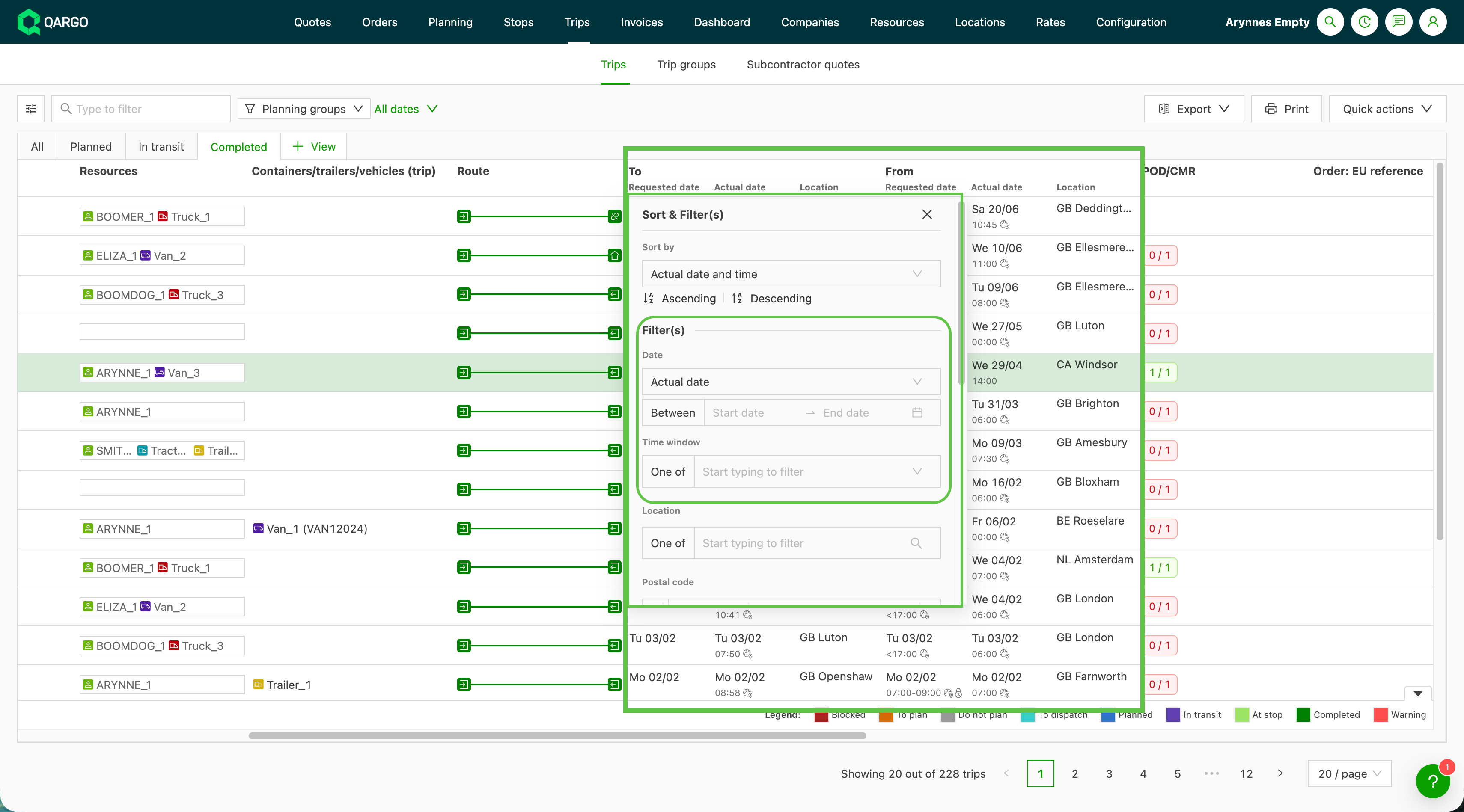
Sort and filter the Loads list by requested date and time
The Loads list (Loads > Loads) can now be sorted and filtered on the requested date and the requested time window, not only the actual date. Previously, the Loads list column menus acted on the actual date alone. When a load’s actual date shifted, for example when a driver completed it a day later than planned, it dropped out of a date-filtered view and planners lost sight of it. These requested-date options bring the Loads list in line with the sort and filter options the order list already offers.
Steps to sort or filter the Loads list on the requested date
- Open the Loads list from Loads > Loads.
- Select the menu on the From or To date column header to open its sort and filter popover.
- Choose Requested date and time in the Sort dropdown to order the list by the requested date instead of the actual date. The existing actual-date option is labeled Actual date and time.
- In Filter by date, set the date-type dropdown to Requested date (the default is Actual date) so the Between start and end range filters on the requested date.
- Apply the Filter by time window section to narrow the list to a specific requested time window.
Troubleshooting missing columns or filters and synchronizing load and order dates
To resolve any issues with missing filtering options:
- Confirm that relevant columns, such as Start order and End order, are enabled in the table view settings.
- Double-check hidden columns or inactive states to ensure proper access to filters for requested and actual dates.
- Refresh the view after making adjustments to reflect updated column visibility.- Address synchronization issues, such as manual changes not updating in third-party integrations or terminal loading action dates affecting load/order displays. Regularly review actual timestamps in the load or order timeline to ensure accurate scheduling.