
Load cost calculation
This article explains how to set up cost calculations that automatically rate loads, giving visibility into load costs and profitability.
Table of contents
Introduction
Cost calculations help calculate what each load costs. Once a price list is configured, the cost appears on each order that matches the configured criteria. The default cost distribution is based on either Distance or Time. Other options can also be configured:
- Chargeable weight
- Loading meters
- Pallet spaces
- Volume
- Weight
The revenue for the same order is calculated from the rate cards. The difference between the revenue and the costs is the profitability shown on each order.


Set up cost calculations
- Go to Rates.
- Click Load cost calculation in the header.
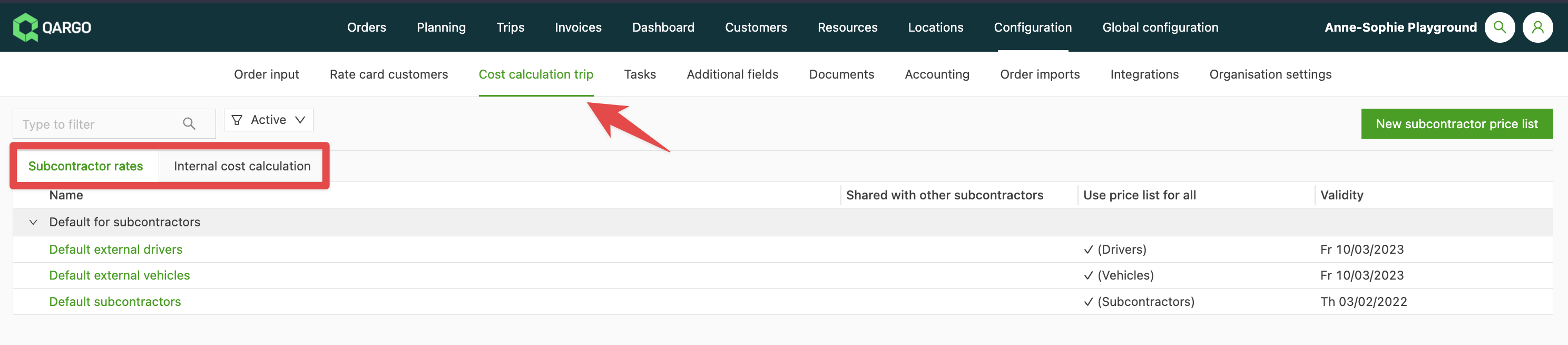
Cost calculations can be configured here for company drivers and vehicles (internal cost calculation) and for contract carriers. These calculations are set up the same way as the rate cards.
👉 Click here to see how to set up internal cost calculations.
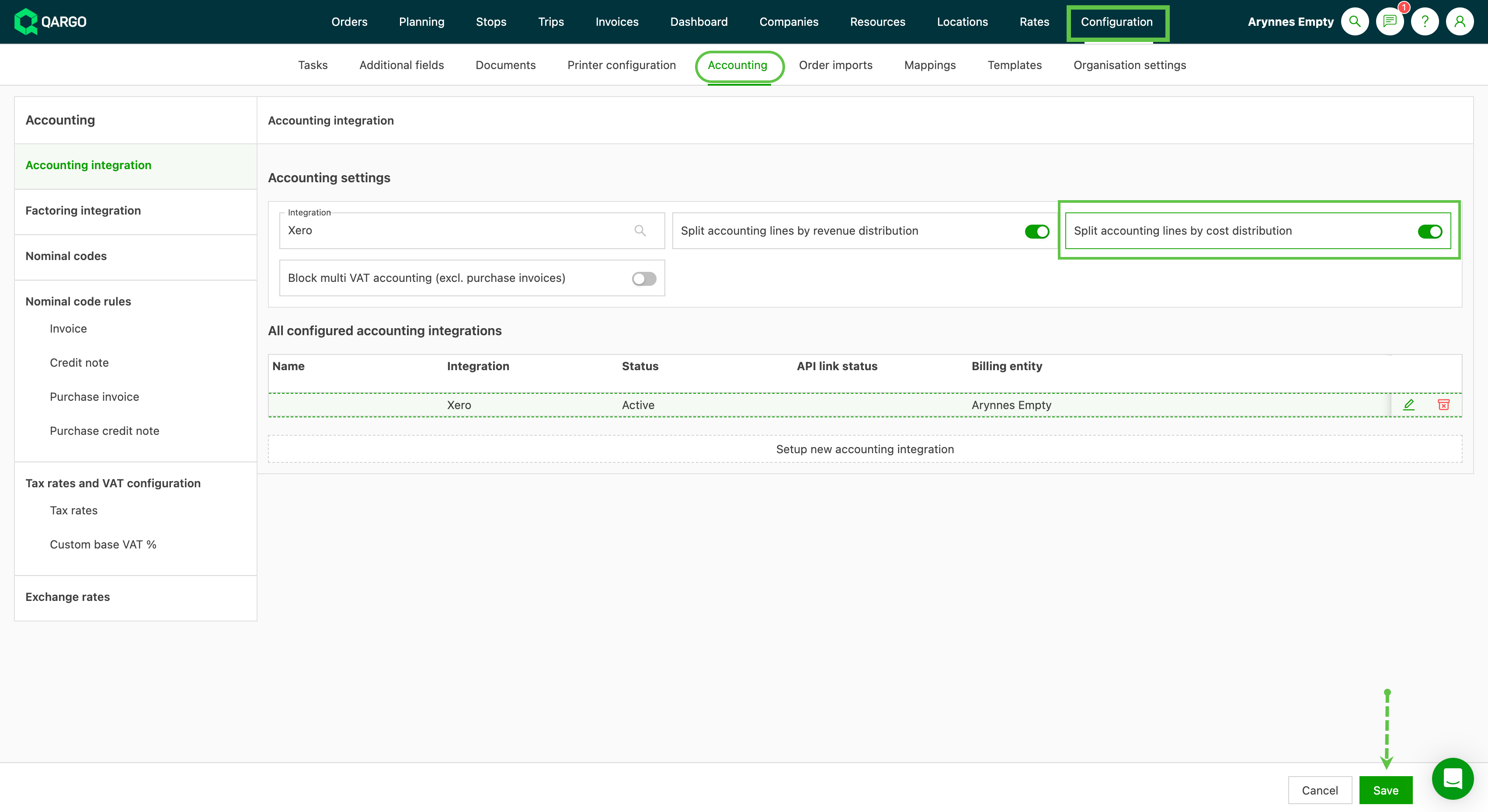
Cost charges linked to a load can now be split across multiple orders for accounting connectors and exports. With the new ‘Split lines by cost distribution’ toggle, costs are automatically allocated per order based on the configured load cost distributions. A separate accounting line is created for each split.
Compatible resources
Select the resources that are linked to the specific cost card.
- Under Rates > Load cost calculations, go to the ‘Linked resources’ panel. If the ‘Use price list for all’ toggle is off, the resource type options appear.
- Click the appropriate line to open the resource types.
- Select one, several or all resource types with a single click.
Set up a contract carrier price list
- Click New contract carrier price list.
A Contract carrier price list can be the default for all contract carriers, or it can apply to only one contract carrier or a set of contract carriers. Once the contract carrier is chosen and the price list has a name, the resources can be linked. Set up contract carrier price lists with care to avoid duplicate costs. For example, make sure the same resource is not assigned more than once on the same load.
The price list can apply to all resources linked to the selected contract carrier(s):
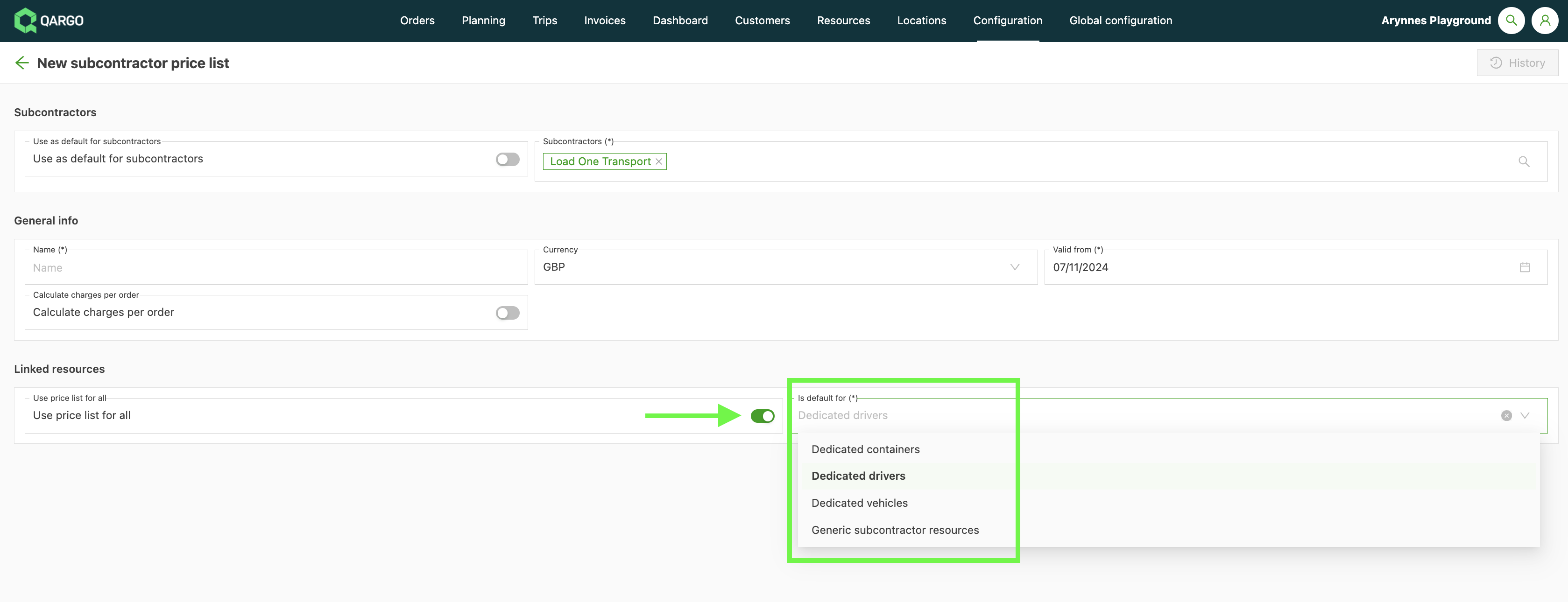
To use the price list for a set of resources only, switch off the “Use price list for all” toggle and select the required resources.
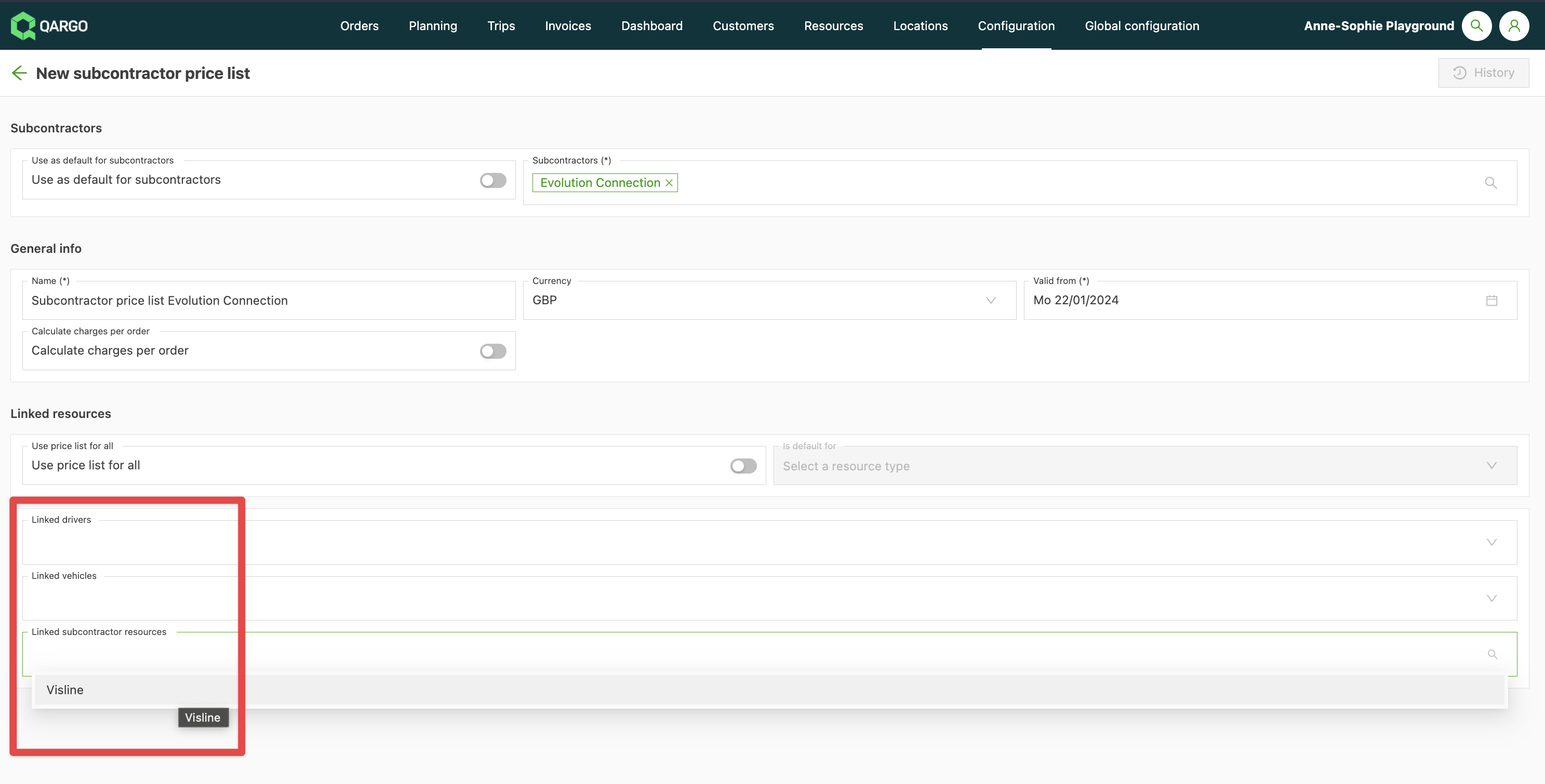
The resources linked to that contract carrier can be selected here. This link is set in Resources (Combinations, Drivers, Vehicles).
Once the resources are selected, save the price list. Prices can then be added to the price list. Prices for these costs are edited the same way as the price list for customers.
The video below explains how to set up contract carrier cost calculations and add a price list to them.
Set up an internal cost calculation
- Click Internal cost calculation.
- Click New internal cost calculation.
Follow the same steps as above for contract carriers.
The video below explains how to set up internal cost calculations for company drivers and add a price list to them.
Calculate charges per order
When an internal cost is created, the “Calculate charges per order” toggle controls whether the cost is calculated separately for each order on a load or once for the entire load.
The toggle is set at rate card (cost price list) level. Once it is active on the rate card, each charge on the price list gets its own “Calculate charges per order” toggle in the Edit price window. This way, the behavior can still be switched on or off per charge. The charge-level toggle is only available once the setting is enabled on the rate card itself.
-
Toggle on: Qargo calculates the cost per order, then adds up those order-level costs for the load.
-
Example:
- Rule: 90% of assigned revenue per order
- Orders: €400, €300, €300
- Cost: €360 + €270 + €270 = €900
- Outcome: Clear per-order costs that add up to the load total
-
Toggle off: Qargo calculates one cost for the whole load based on load-level totals, without a per-order breakdown.
-
Example:
- Rule: 90% of the load’s total assigned revenue
- Load total revenue: €1,000
- Cost: €900
-
Outcome: One load-level cost, no per-order breakdown
Consolidate order revenue on the same load
By default, the revenue distribution override table evaluates the metrics of each order independently. For carriers whose rates are based on the combined volume of all orders on a load, this produces inaccurate cost and profit figures: the per-order lookup does not reflect the actual negotiated rate.
The Consolidation setting on a transportation service pools all orders on the same load, uses their combined metrics and splits the result equally across those orders.
Configure consolidation
The Consolidation setting is on the transportation service, under the revenue distribution configuration. It applies to all exceptions in the override table for that service in the same way. Exceptions cannot use different settings.
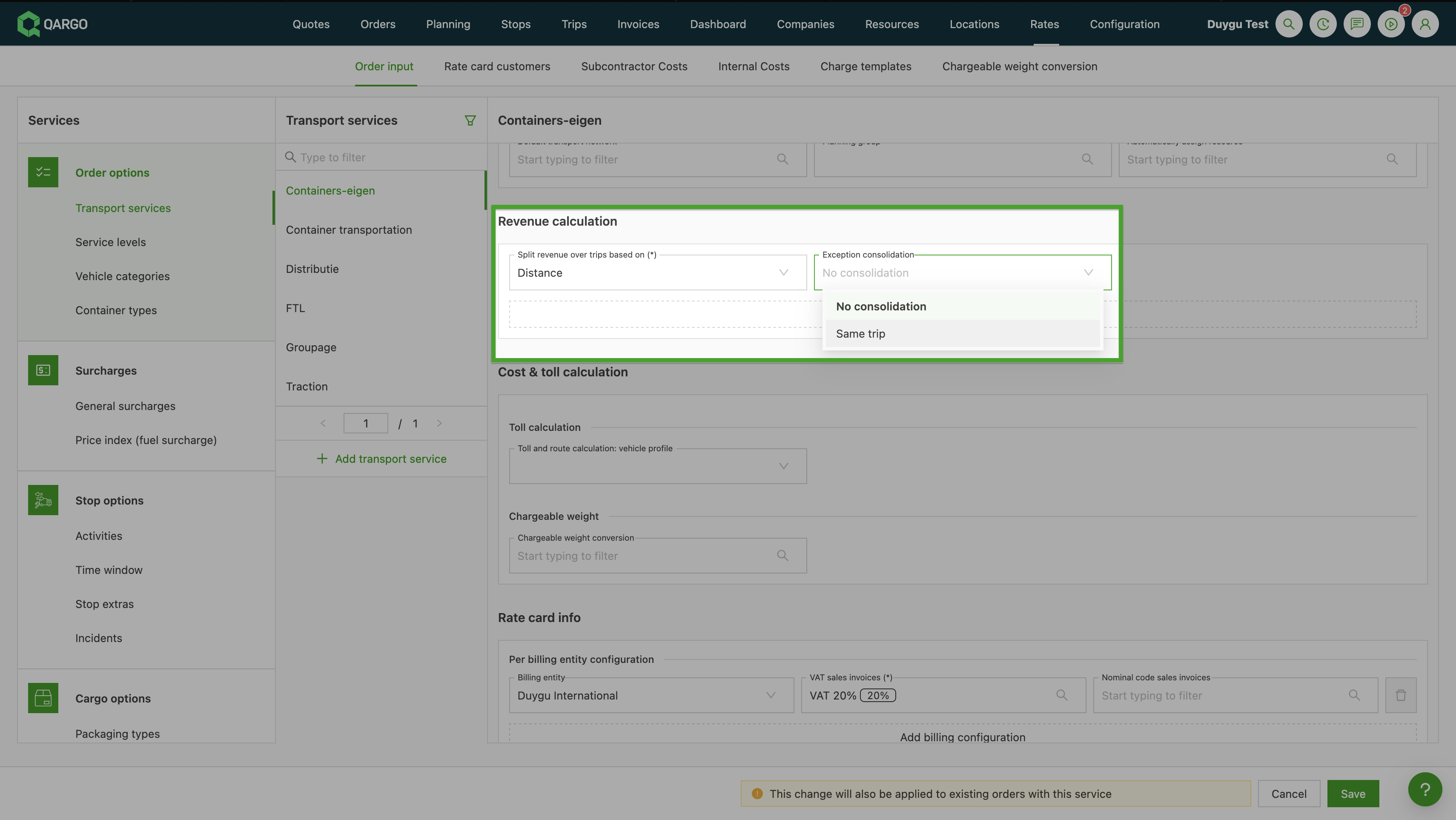
-
Go to Rates > Order input > Transportation services and open the relevant transportation service.
-
Scroll to the Revenue calculation panel.
-
Set the Consolidation dropdown to the appropriate option:
- Don’t consolidate (default). The metrics of each order are looked up individually per exception. This is the existing behavior.
- Consolidate per trip: all orders on the same load are pooled. The combined metrics are used, and the resulting amount is split equally across all orders on that load.
-
Click Save.
How it works
When Consolidate per trip is set:
- Qargo adds up the metrics (e.g., chargeable weight) across all orders on the load.
- The resulting amount is split equally across all orders on the load.
- If an order is added to or removed from the load, the calculation updates automatically for all orders in the consolidated group.
- Canceled orders are excluded from the consolidation group.
Example
Two orders are planned on the same pickup load. The override table uses a fixed charge (€250) and a metric charge (€1/kg). The transportation service is set to Consolidate per trip.
| Order 1 | Order 2 | |
|---|---|---|
| Weight | 200 kg | 100 kg |
| Revenue | €175.53 | €175.53 |
Without consolidation: each order is looked up individually.
- Order 1: €250 + (200 kg × €1) = €450
- Order 2: €250 + (100 kg × €1) = €350
These amounts do not reflect the actual negotiated rate, which is based on the combined weight.
With Consolidate per trip:
- Combined weight: 200 + 100 = 300 kg
- Override table lookup on 300 kg → €250 fixed + (300 kg × €1) = €550 total
- Equal split across 2 orders: €550 ÷ 2 = €275 per order
The consolidated lookup matches the actual negotiated rate. Because of the equal split, smaller orders absorb a higher percentage of the total than their individual metrics would suggest.
Limitations
- Revenue is split equally across all consolidated orders. A proportional split (for example, by order revenue or by each order’s individual metric contribution) is not available.
🔎 Troubleshooting common cost calculation errors
-
Edit icon missing on the resource assignment: The linked cost price list isn’t active at the time of assignment, or the assignment doesn’t allow inline edits.
-
Fix:
- Check that the intended cost price list is active.
- If the icon is still not available, remove the resource from the load, reassign the resource and select the correct active cost price list.
Tips to avoid future errors
-
Audit rate card configurations regularly to make sure they align with billing policies.
-
Check that resources are assigned only once on a load to prevent duplicate allocations.
-
Check contract carrier setups periodically for accuracy.
-
Duplicate contract carrier costs due to rate card configurations: When the “Calculate charges per order” setting is enabled, contract carrier costs may be applied to each order on a load, which leads to repeated charges.
- Fix: Review the rate card configuration and adjust the setting as needed.
-
Duplicate resource allocation: Adding the same contract carrier resource in several roles (e.g., as a trailer and as a primary resource) can cause duplicates.
- Fix: Review the resource allocations on the load and remove any duplicates.