
Shipment tracking: what, why, and how
Share a unique, time-limited tracking URL per shipment with recipients, with no portal account required. Includes a live map, freight details, and configurable fields.
Table of contents
🎥 Watch a video overview of this new feature.
Summary
What is the tracking link feature?
- Each shipment automatically gets its own tracking page. This is a shareable URL that anyone can open without a Qargo account or login.
- Recipients such as receivers, warehouse contacts, or one-off delivery addresses get full delivery visibility as soon as they click the link.
- The page shows all the key information: shipment status, stop locations, estimated timestamps, freight details, pallet scan history, and a live map with the driver’s position when en route.
Why use tracking links?
- Receivers and delivery contacts want to know where their shipment is, but asking them to create a Qargo account isn’t realistic. Tracking links give them a direct view of their delivery without an account.
- Fewer “where is my delivery?” calls and emails mean less time spent chasing updates.
- Tracking links work for any recipient: regular customers, one-off delivery contacts, third-party warehouses, and more.
How does it work?
- A Super Admin configures a tracking link template to define which information fields appear on the page.
- When a shipment is created, a tracking link is generated automatically.
- The link is distributed to recipients through the tasks system (shipment tasks or stop tasks), using the Shipment > Tracking link variable in email templates.
- Links remain active for 30 days after the last shipment update and can be revoked manually at any time.
Terminology
| Term | Definition |
|---|---|
| Tracking link | A unique, time-limited URL that gives a recipient read-only access to a shipment’s tracking page, without requiring a Qargo login. |
| Tracking page | The public-facing web page a recipient sees when opening a tracking link. It displays the status, locations, freight details, and a live map. |
| Tracking link template | A configuration set by a Super Admin that determines which information sections and fields are shown on the tracking page. It applies to the whole tenant. |
| Contact task | An automated email or notification that can be sent to a contact at a defined shipment status. Here, it is used to deliver the tracking link to the recipient. |
| Revoke | Manually deactivating a tracking link so it can no longer be accessed. This is done from the shipment detail view. |
Use cases
Tracking links fit naturally into a wide range of transportation workflows. Here are some common scenarios where teams use them.
Standard receiver notification
The most common use is to automatically email receivers their tracking link when a shipment is planned or picked up. The receiver gets a live view of the delivery without a Qargo account and without any manual effort from the dispatcher.
3PL and multi-party shipments
In 3PL setups, transportation is sometimes arranged for one party but invoiced to another. An example is picking up from a seller and delivering to a fulfillment center. Here, the tracking link lets the seller follow the shipment in real time, without access to the full Qargo portal. Each party sees only what it needs.
Sharing ETAs with delivery locations
Warehouses, ferry terminals, and other fixed delivery points often need to know when a vehicle is arriving. Sending a tracking link to the location contact lets them monitor the ETA directly instead of calling the dispatcher. This reduces inbound calls and keeps handovers smooth.
Replacing track and trace from a previous TMS
For teams migrating to Qargo, tracking links restore the shipment visibility that customers and receivers had in their previous system. Contacts who were used to receiving tracking updates don’t need to change their workflow. They simply receive a link instead.
What recipients see
Opening a tracking link takes recipients straight to a clean delivery overview, with no login and no friction. The page includes:
- Shipment status: the current operations status of the shipment (e.g., Planned, In transit, Delivered).
- Stop details: pickup and delivery locations with references, and estimated arrival timestamps.
- Freight details: freight description, quantities, packaging types, and pallet scan history.
- Map: shows the pickup and delivery locations on a map. When the driver is actively en route to the delivery stop, the map also shows the driver’s live position.
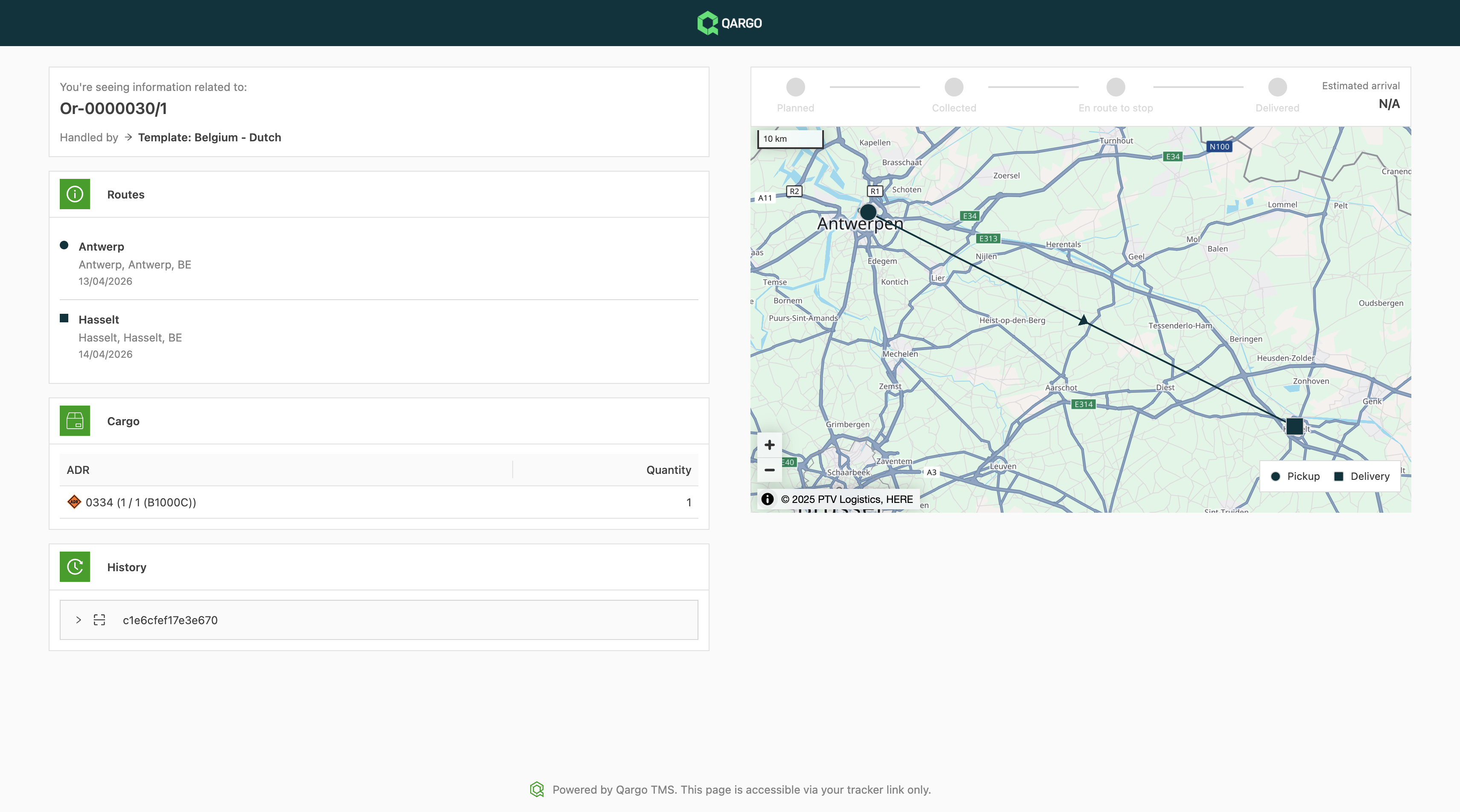
Additional information sections (such as customer reference, container no., transportation service, custom fields, and extra fields) can be made visible by configuring the tracking link template. See Configuring the tracking link template below.
The tracking page is fully responsive and works in both desktop and mobile browsers.
Setup and configuration
Prerequisites
Setting up tracking links takes three steps: one for a Qargo Admin and two for a Super Admin.
- Qargo Admin: Enable the Tracking link integration for the tenant.
- Super Admin: Configure a tracking link template to define what information appears on the page.
- Super Admin: Set up contact tasks (shipment or stop level) to send the tracking link to recipients by email.
Step 1: Enabling the tracking link integration (Qargo Admin)
The Tracking link integration needs to be activated on the tenant before anything else is possible.
Once it is active, tracking links are generated automatically for every new shipment. Nothing further is needed at this stage.
Step 2: Configuring the tracking link template (Super Admin)
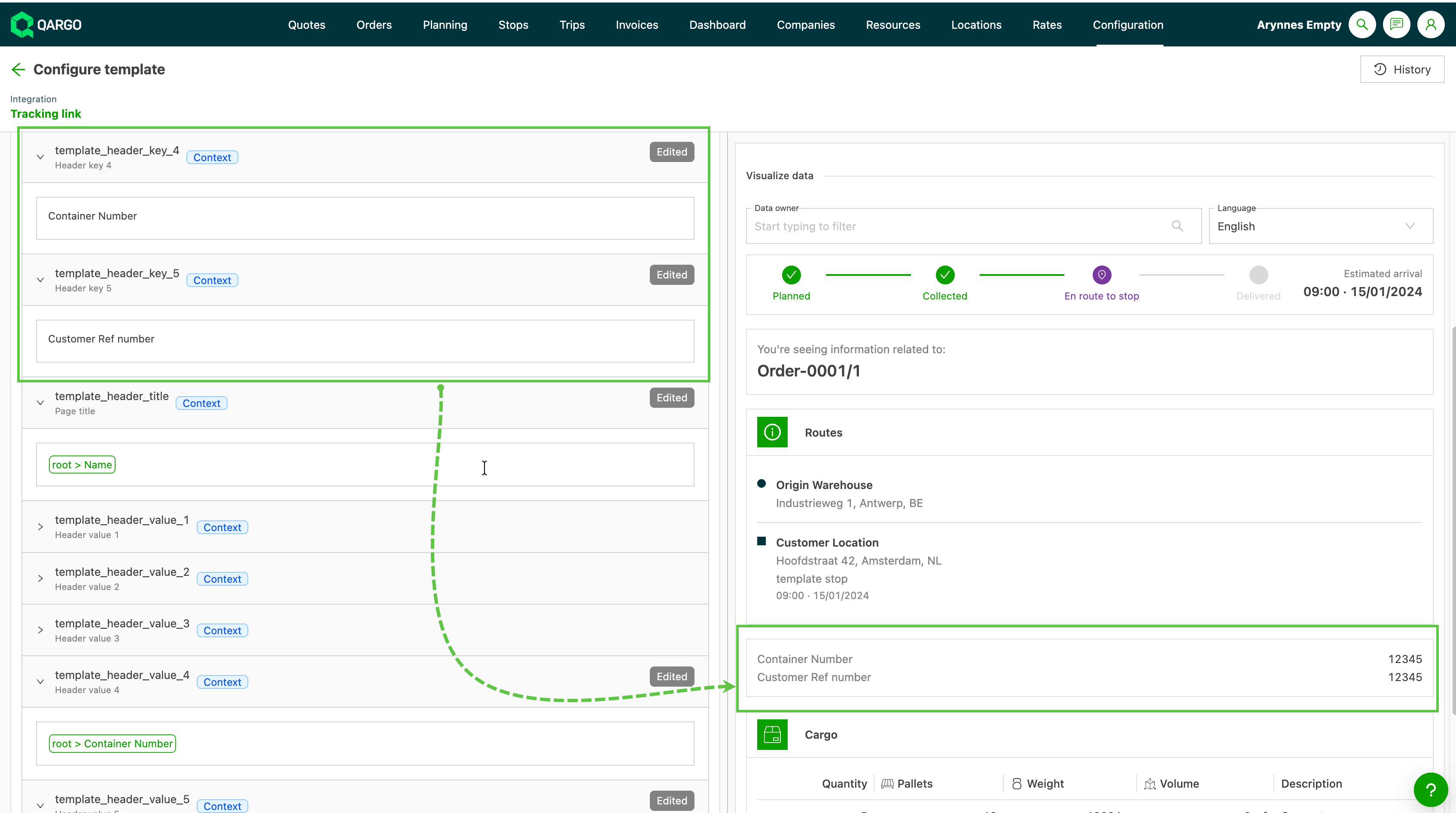
The tracking link template determines what recipients actually see on their tracking page. One template covers all tracking pages across the tenant, so it’s worth taking the time to configure it carefully.
-
Navigate to Configuration > Templates > Integration templates.
-
Select the Tracking link template type.
-
(Optional) Configure any additional fields to add to the default template format.
Available options include:- Shipment status
- Stop references
- Estimated timestamps
- Freight details and pallet scan history
- Customer reference
- Container no.
- Transportation service
- Custom fields
- Extra fields
-
Save the template configuration.
Step 3: Sending tracking links through tasks (Super Admin)
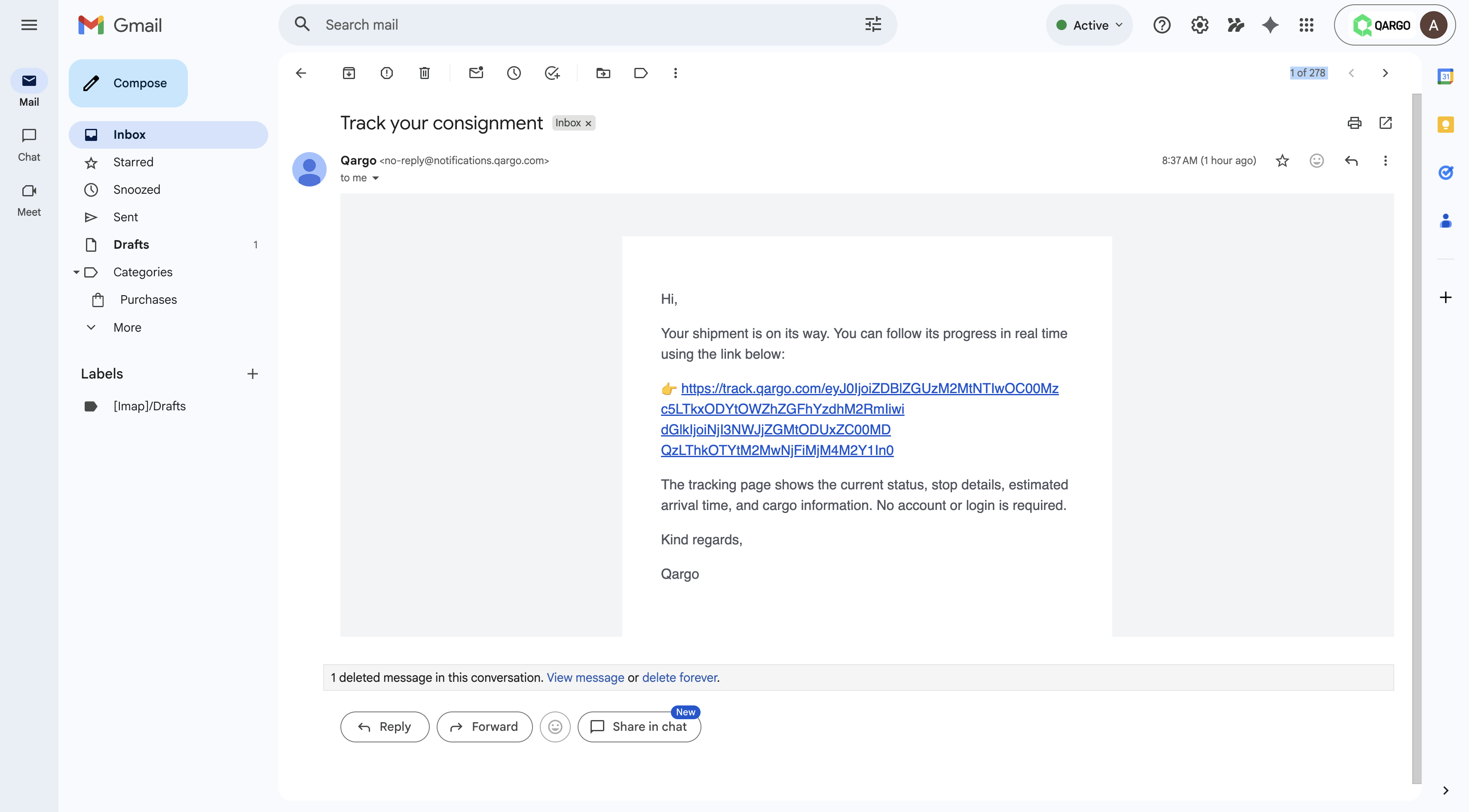
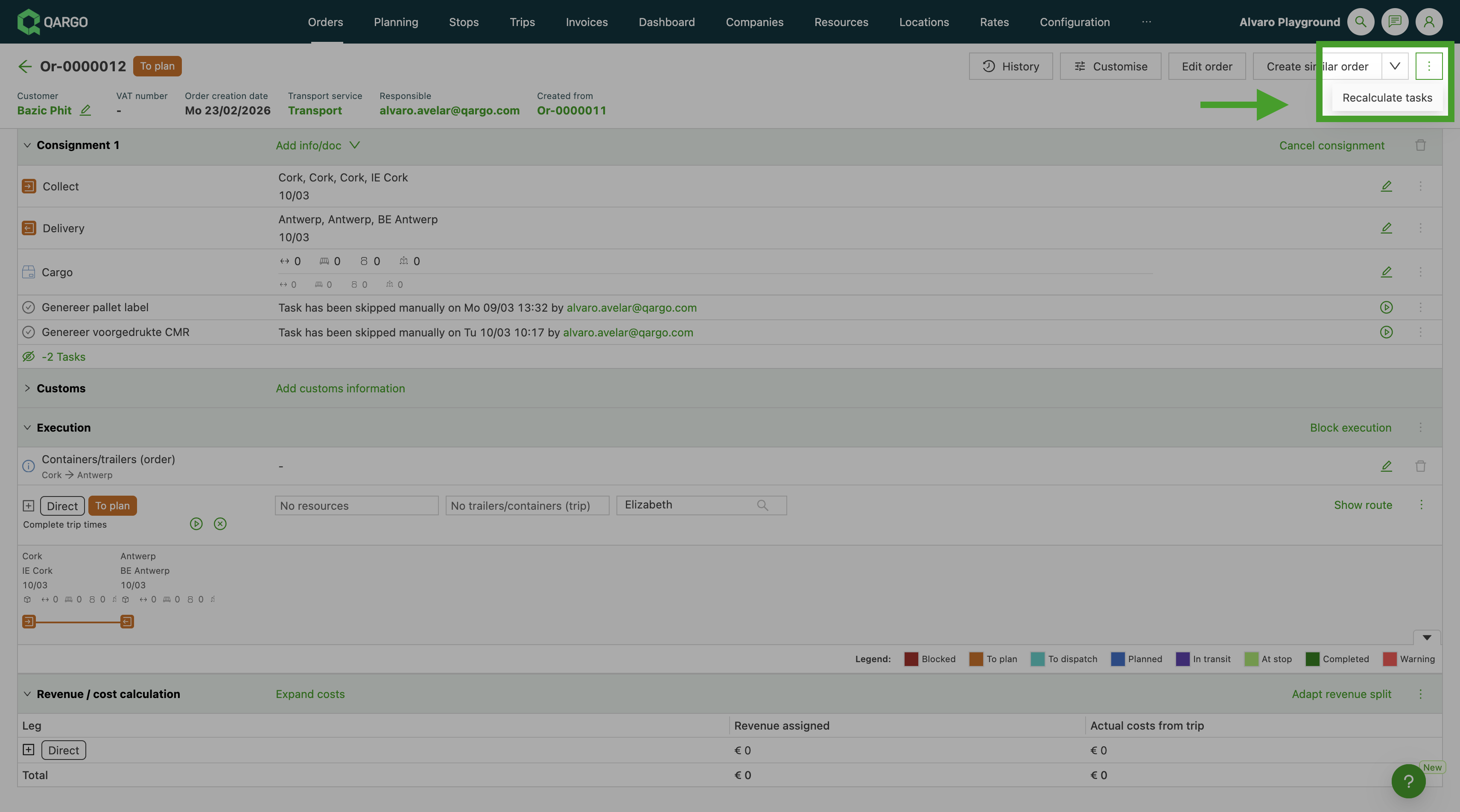
The tracking link reaches recipients through the tasks system. Add the tracking link variable to any shipment task or stop task email template, and Qargo handles the rest. Each recipient automatically gets their own unique link.
-
Navigate to Configuration > Tasks.
-
Select or create a Contact task at the shipment level.
-
In the email body, type
#{{or click the variable button in the editor, search for Shipment > Tracking link, and select it from the list. Qargo replaces this with each recipient’s unique tracking link when the task is sent.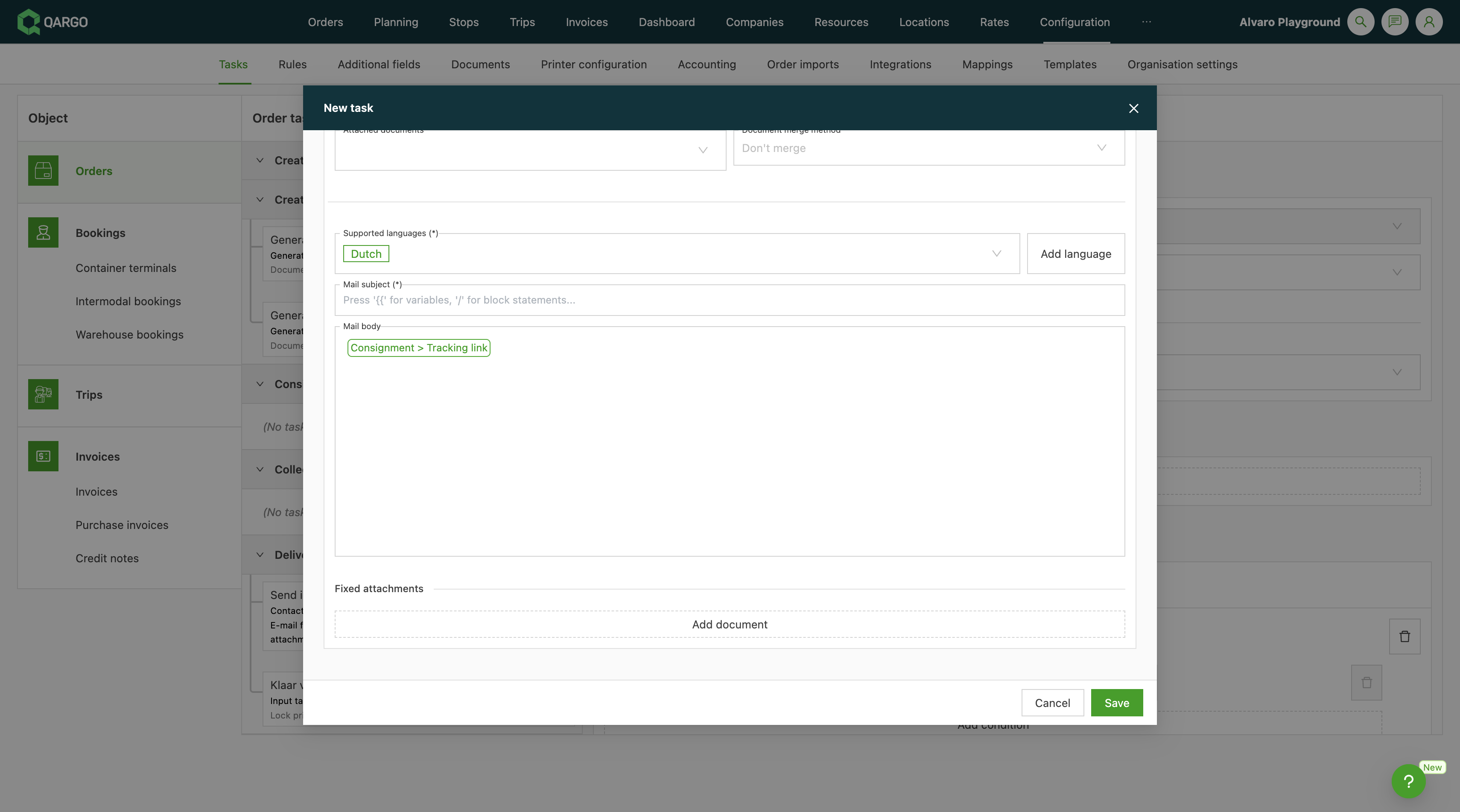
-
Configure the recipient, typically the delivery contact or location contact linked to the stop.
-
Save the task configuration.
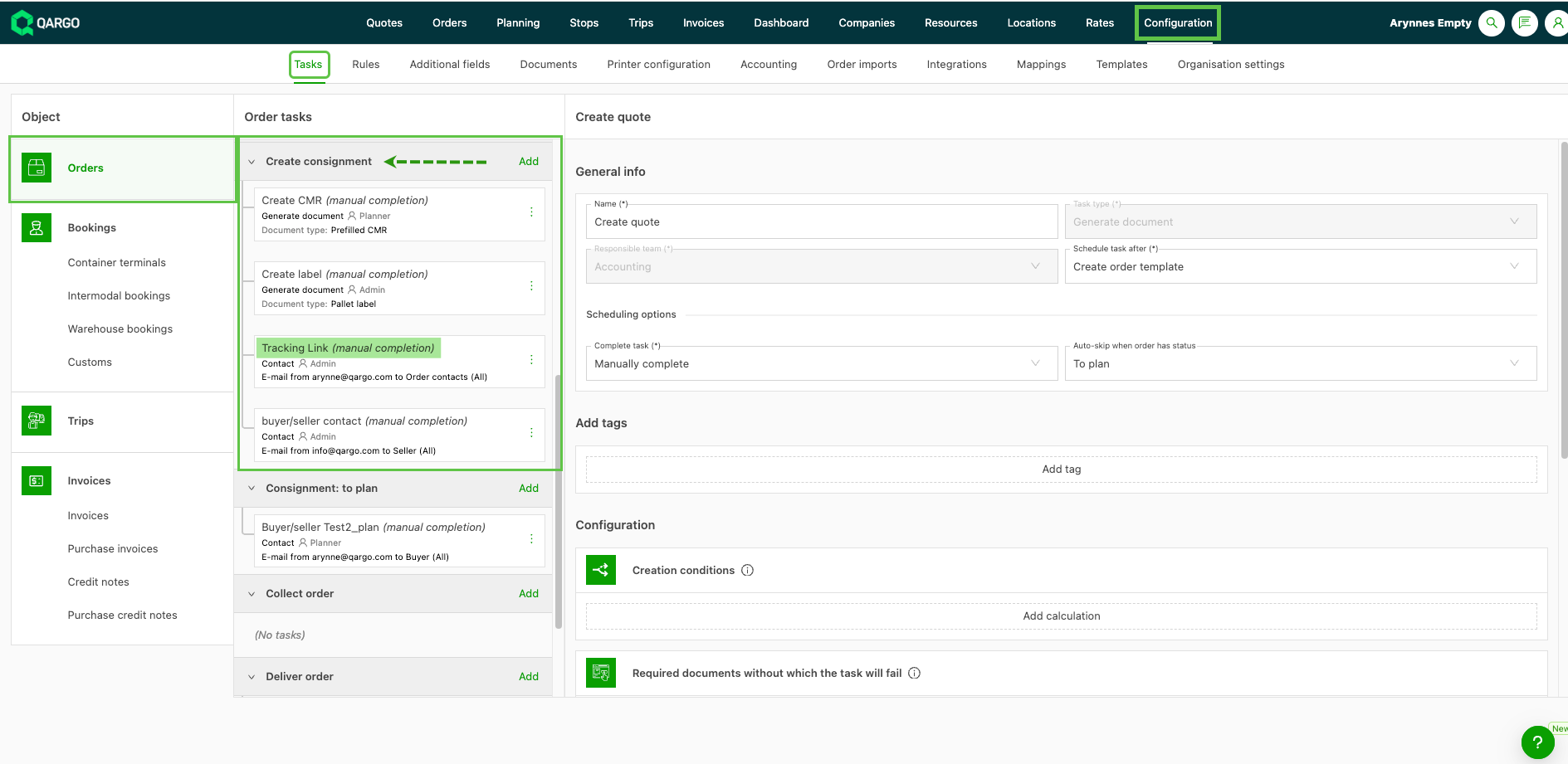
- When the task is triggered, the recipient automatically receives an email containing their personalized tracking link.
Managing tracking links
Link expiration
Tracking links stay active for 30 days after the last update to the shipment and then expire automatically. Recipients who try to open an expired link see a clear expiration message.
Revoking a link
If a link needs to be deactivated early (for example, if it was sent to the wrong contact), it can be revoked at any time from the shipment detail view.
-
Navigate to the order and scroll to the shipment section.
-
Locate the sharing icon.

-
Select Revoke and generate a new link.
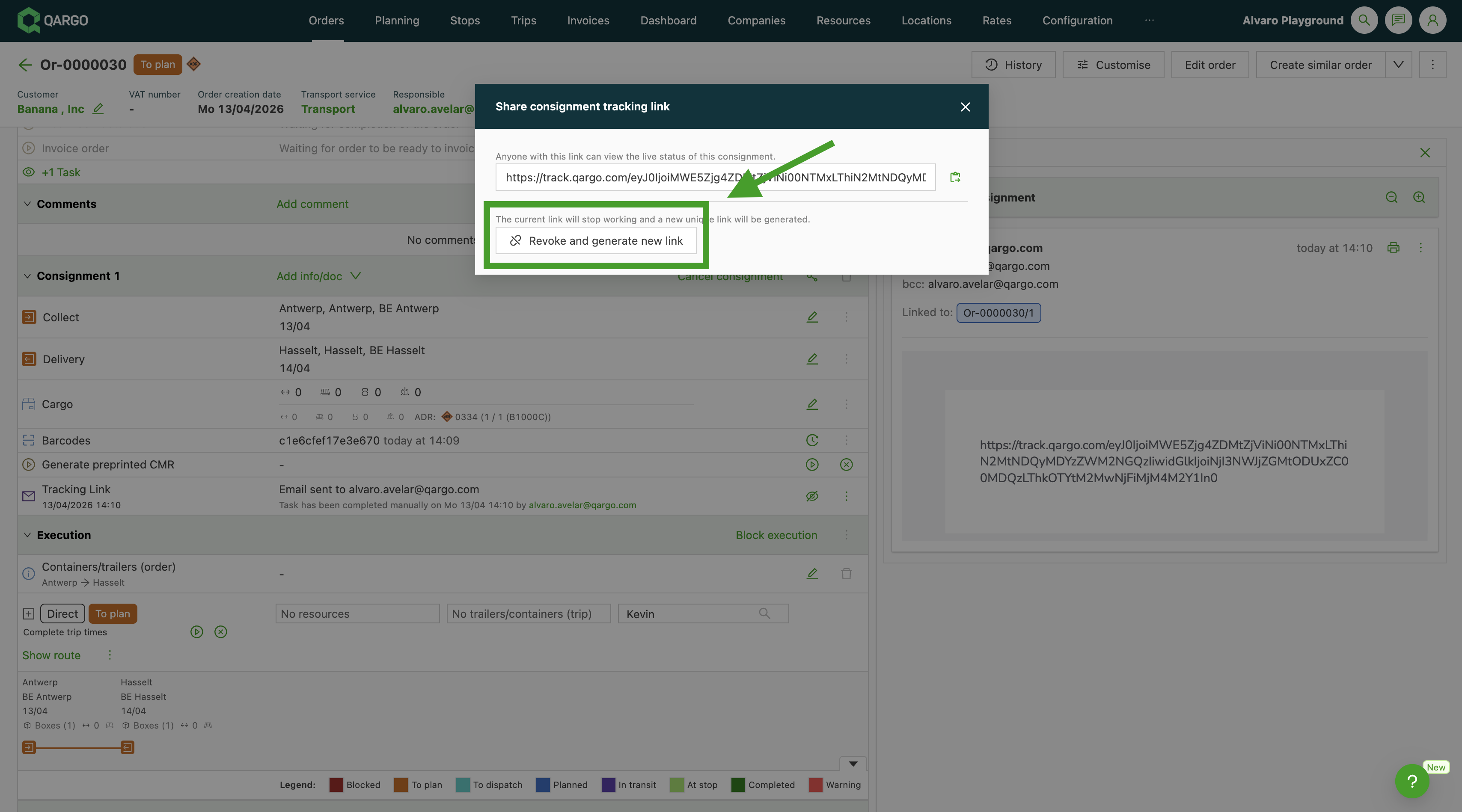
Once revoked, the link is deactivated immediately. The recipient sees an error or expiration message when trying to access the page.
Troubleshooting
| Issue | Likely cause | Resolution |
|---|---|---|
| No tracking link is generated for new shipments | The Tracking link integration is not enabled on the tenant | Contact a Qargo Admin to enable the integration |
| The tracking link variable is not available in the task template editor | The integration is not enabled for the tenant, or the task is not created at the shipment or stop level. | Check whether the task is created at the shipment or stop level. If the issue persists, contact a Qargo Admin |
| The recipient’s link shows an error or “expired” message | The link has been revoked manually, or 30 days have passed since the last shipment update | Revocation cannot be undone. Check the shipment activity and inform the recipient accordingly |
| The driver’s live position is not showing on the map | The driver is not yet en route to the delivery stop, or location sharing is not active on the driver’s device | The live position only appears once the driver is actively en route to the delivery |
| The tracking link covers only one shipment, but the order has several | Expected behavior: each shipment generates its own unique tracking link | Send the relevant shipment-level link to each recipient, or configure tasks at the stop level for more targeted delivery |