
Feature release November 2025
This article highlights the new features and enhancements released by Qargo this month.
Week 1
Watch this week’s video summary
Planning – Select orders on map
Loads – Contract carrier quotes view
Order/Planning – Freight max dimension visibility
Export data – Planned vs actual timestamps
Rates – Chargeable weight in cost rate cards
Configuration – Accounting and organization settings redesigned
Week 2
Planning – Select and drop across multiple windows
Planning – Expand clickable area to open stop details
Navigation – Quick scroll arrows
Planning – Show container terminals info in To plan table
Reports: Custom exports – Expression builder
Week 3
Customers – Credit limit functionality updates
Reporting – Custom export for ‘Extras’ charges
Billing – Flexible charge currency
Billing – Automated tax type determination for contract carriers
Planning – Freight metrics on the plan board
UX update – Unified customization button
Week 4
Orders – Contract carrier summary view
Planning – Order overview added to load details
Reports – Async user exports
Week 1

🗺️ Planning – Select orders on map
Planning orders just got a whole lot easier! The latest update to the Select on map feature gives more flexibility and speed when selecting multiple orders in a specific area. The new polygon option gives users more flexibility when “drawing” the area on the map.
How to use map selection
-
Enable map selection
Click the Map selection icon to activate the feature. Once it’s on, choose between two selection methods: Rectangle or Polygon. -
Rectangle area selector
- Click, hold, and drag on the map to draw a rectangle around the orders to plan.
- All orders within that rectangle are selected instantly.
-
Polygon area selector
-
Click on the map to start defining the edges of the selection.
-
Keep clicking to add each corner of the polygon.
-
Double-click to finish the selection; every order inside the shape is now ready for planning.
-
Whether handling a few stops or an entire fleet’s worth of orders, select orders smarter, faster, and with more precision. Spend less time clicking and more time keeping trucks on the road.
🧾 Loads – Contract carrier quotes view
Manage contract carrier quotes with the new Contract carrier quotes list view. View and manage all contract carrier quotes from one convenient screen.
To access it, navigate to Loads > Contract carrier quotes.
🗂️ Organized by status
Quotes are neatly organized into tabs, making it quick to see where each quote stands:
-
All – View all quotes regardless of status.
-
To request – Default status when a new bid is entered.
-
To approve – For users managing internal approval workflows.
-
Approved – The selected quote; the carrier will receive the load.
-
Rejected – Quotes that won’t be selected.
-
New view – Creates a personalized layout showing only user-selected details.
- Combine with Edit columns to choose which data fields are displayed.
💬 Work smarter, not harder
Quote and counter-offer amounts can now be updated directly from the list, with no need to open each one individually.
-
Click a row to open full order details for a closer look.
-
Use the menu (⋯) at the end of each row to:
- Edit: Update the quote’s status, carrier amount, or counter-offer directly in the list view.
- Upload document: Attach a copy of the carrier’s quote for reference.
- Reject: Mark a quote as rejected without affecting others.
Contract carrier quotes list view
📐 Order/Planning – Freight max dimension visibility
View the maximum unit dimensions directly in the Order list view and Planning orders view, giving better oversight of piece sizes and helping to assess vehicle capacity more efficiently.
How it works
- The Max unit dimensions column shows the largest length, width, and height of any piece within an order.
- This allows planners and operators to quickly gauge if an order fits within available vehicle space without opening each order individually.
Activating the column
-
Go to the ‘Edit columns’ button on the Order list and the ‘Customize’ button on the Planning: Orders view.
-
Toggle the option showing ‘Length x width x height (max)’
-
Enable the column to display it in the table view.
Once activated, the column automatically populates for all orders, giving immediate visibility on piece dimensions across the workflow.
Order list view – Show max dimensions
Planning view – Show max dimensions
⏱️ Export data – Planned vs actual timestamps
Introducing a new way to track and analyze load performance! It is now possible to export timestamps for stops and loads, giving full visibility of planned schedules, system estimates, and actual outcomes.
Key benefits
- Compare planned vs actual: Quickly see how loads performed against the original schedule.
- Improve performance tracking: Identify delays, on-time successes, and planning accuracy.
- Support customer service: Provide precise records of expected versus actual delivery or pickup times.
- Optimize operations: Analyze trends and make data-driven improvements to scheduling and planning.
What’s included
- Planned timestamps – The original date and time scheduled by the planner.
- Estimated timestamps – System-predicted times based on real-time updates.
- Actual timestamps – The real date and time of stops or loads.
Note: This feature is currently available through Custom exports. Standard exports do not yet include timestamp fields.
Start exporting today to gain deeper insights into operations and improve load planning accuracy!
📈 Rates – Chargeable weight in cost rate cards
Unlock greater accuracy in cost calculation! While customer rate cards could already be based on chargeable weight, this capability is now extended to cost rate cards.
Key benefits
- Improved accuracy: Ensure contract carriers are paid based on the correct (chargeable) weight, aligning costs with revenue practices.
- Cost alignment: Seamlessly align internal cost calculations with the chargeable weight logic already used for customer billing.
- Process automation: Eliminate the need for manual calculations or external tools to determine the chargeable weight metric on the cost side.
Chargeable weight in cost rate cards
Users who don’t yet have access to set up the conversion tables can reach out to their onboarding manager, account manager, or support to enable this feature.
⚙️ Configuration – Settings redesigned for easier navigation
The layout of the Accounting settings and Organization settings tabs has been redesigned to improve speed and simplify finding specific configurations.
Instead of scrolling through one long page, all settings are now organized into a quick-access side menu on the left.
Key benefits
- Improved speed: Find the exact configuration section needed instantly by clicking the menu item, eliminating endless scrolling.
- Easier navigation: The new, structured layout provides a clearer overview of all available settings at a glance.
- Better focus: Content is displayed section by section, helping users concentrate on the specific configurations they are editing.
FAQ – Updated settings navigation
:::
Week 2

🖥️ Planning – Select and drop across multiple windows
Users can plan orders across multiple screens or browser windows, for example keeping the To plan list open on one screen and the Plan board on another.
This allows for smoother coordination and visibility when assigning or moving orders between planning stages.
Key capabilities
-
Open the Planning views in separate windows or screens.
-
Easily select and move orders between views:
- To plan → Plan board
- Plan board → Plan board (i.e., move an order between time slots or resources)
- To plan → Pre-plan → Plan board (for staged planning workflows)
Benefits
- Gain better visibility by splitting key views across screens.
- Work faster and more intuitively when planning multiple orders.
- Easily adjust loads without switching tabs or losing context.
📆 Planning – Expanded clickable area for stop details
The planning board’s usability has been improved by making it easier to open Stop details for a load. Previously, users had to click directly on the stop icon. Now, the clickable area has been expanded to make interaction smoother, especially when stops are very short.
-
Each stop is now represented by a gray highlight on the route.
→ Users can click anywhere in this highlight to open the stop details.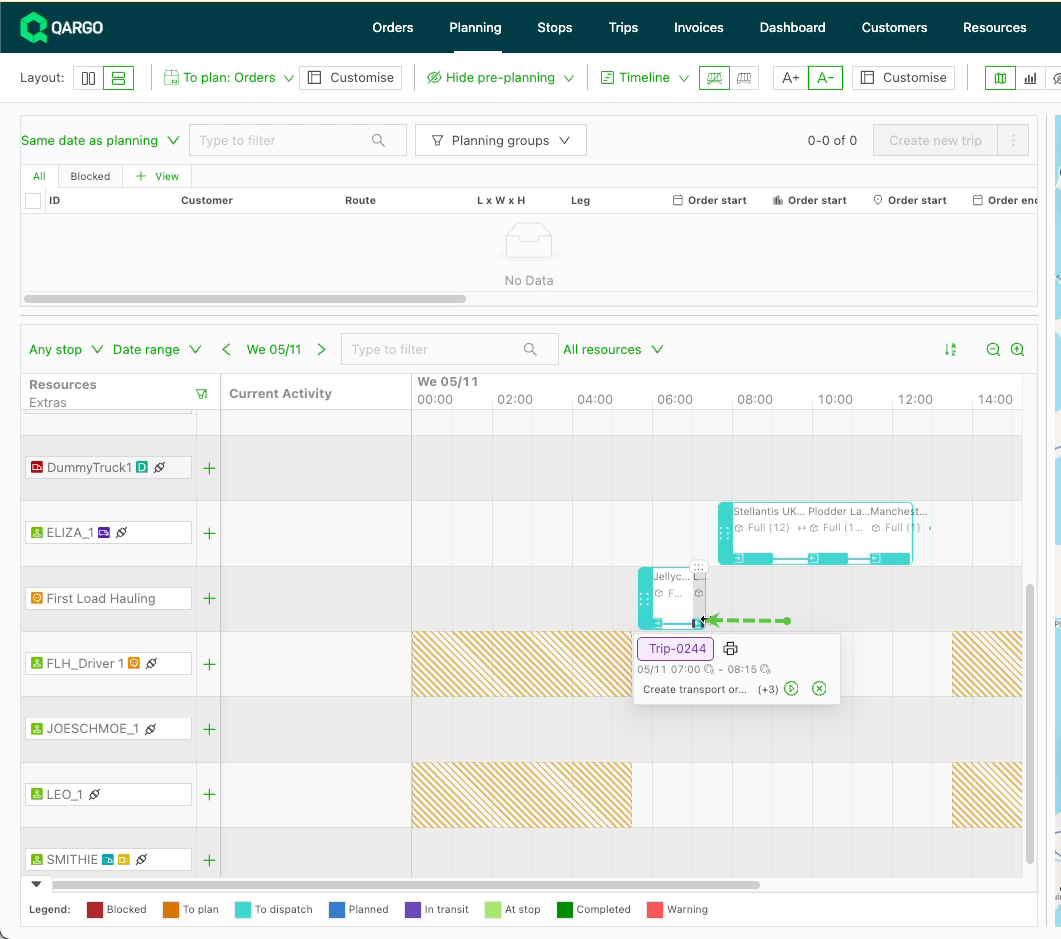
-
Opening Load details is now done from the Load handle or Load number tag inside the stop popup.
To learn more about updating planned orders, click the link below 👇
➡️ Navigation – Quick scroll arrows
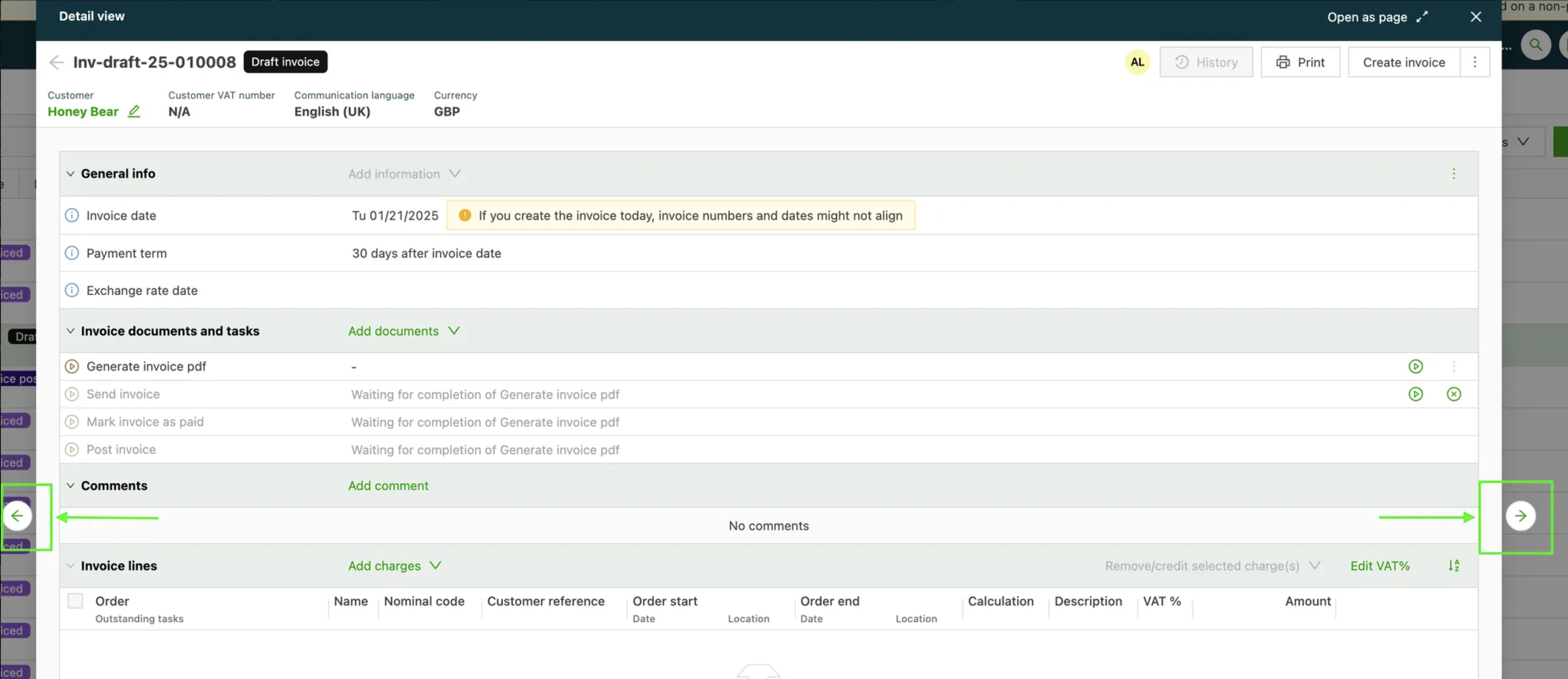
This feature significantly improves the speed and ease of navigation when reviewing orders/invoices/loads by adding dedicated navigation arrows within the individual detail pages.
🧩 What’s new
Previously, to review records sequentially (like reviewing multiple orders or invoices), users had to repeatedly close the detail page and return to the main list.
- Next/previous arrows: Navigation arrows have been implemented within the individual detail pages for orders, loads, and invoices.
- Swift movement: This enhancement allows users to swiftly move to the next or previous record from the original list without having to exit the current detail view.
🔍 Limitations
- Currently, this functionality is not available for planning board tables (including Table view or To plan).
📦 Planning – Show container terminals info in To plan table
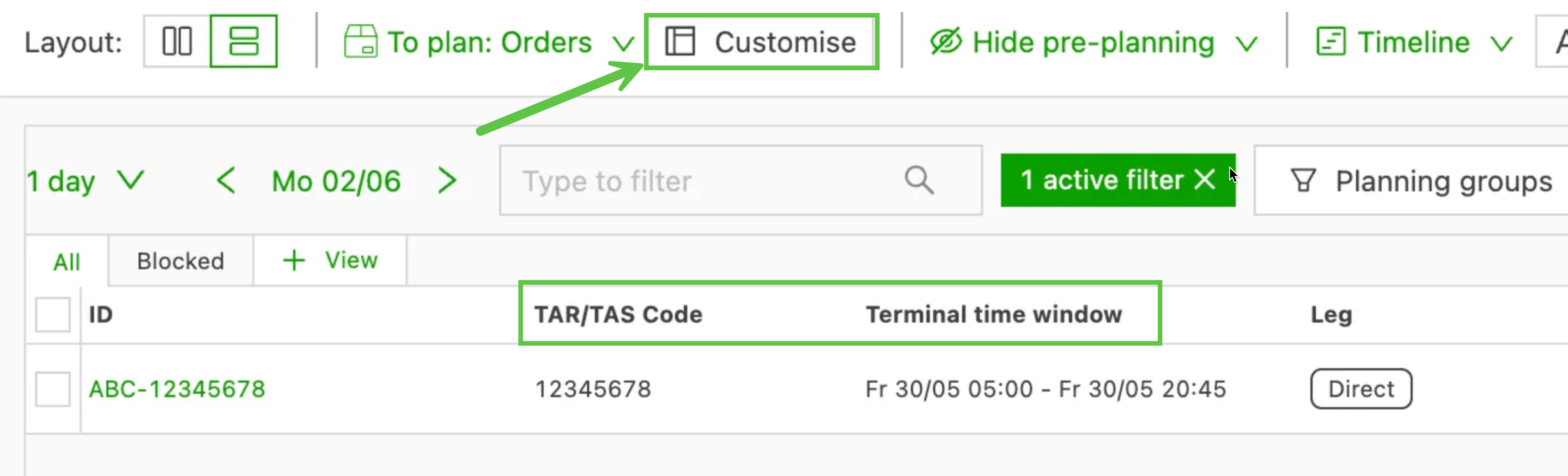
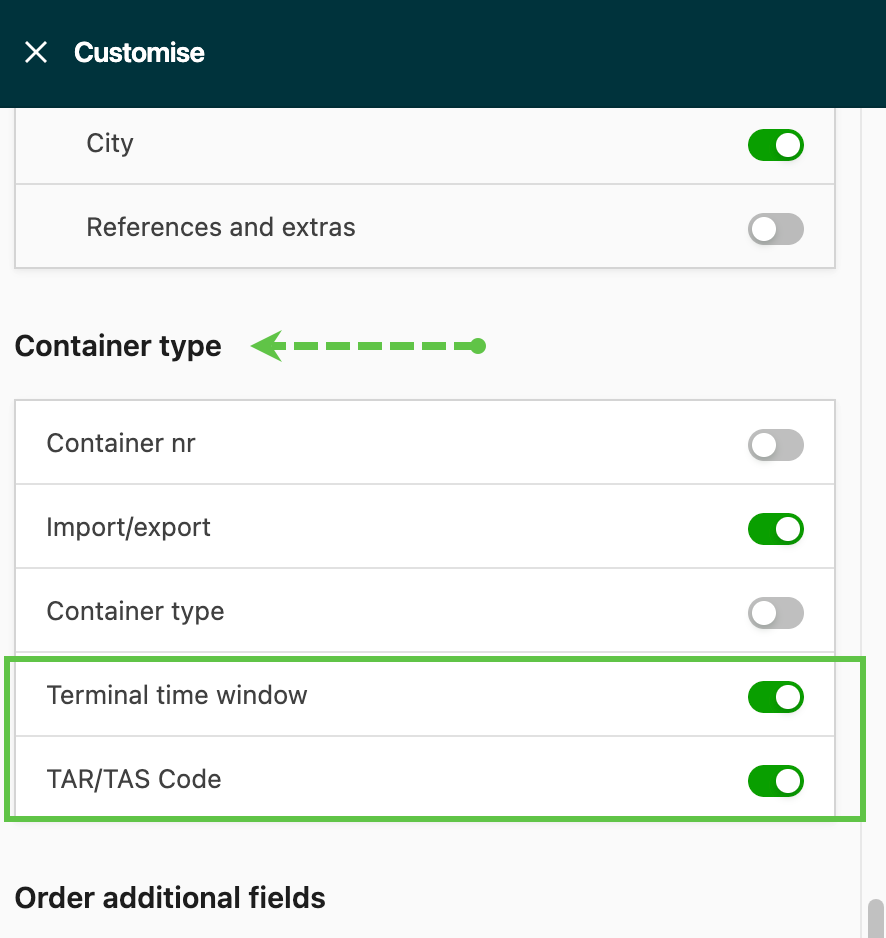
Container terminal bookings are now easier to manage with the option to add new columns for TAR/TAS codes and terminal time window on the To plan table, giving instant access to key booking data.
- Activate the columns via the ‘Customize’ button
🧪 Use cases
- Filter by requested time window to identify and prioritize urgent bookings without opening each order or changing screens.
- Assess container booking status at a glance directly from the To plan list, supporting faster and more informed planning decisions.
🔍 Limitations
- Currently available only for orders that include container terminal booking data.
- Columns must be manually added to the To plan view via column selection.
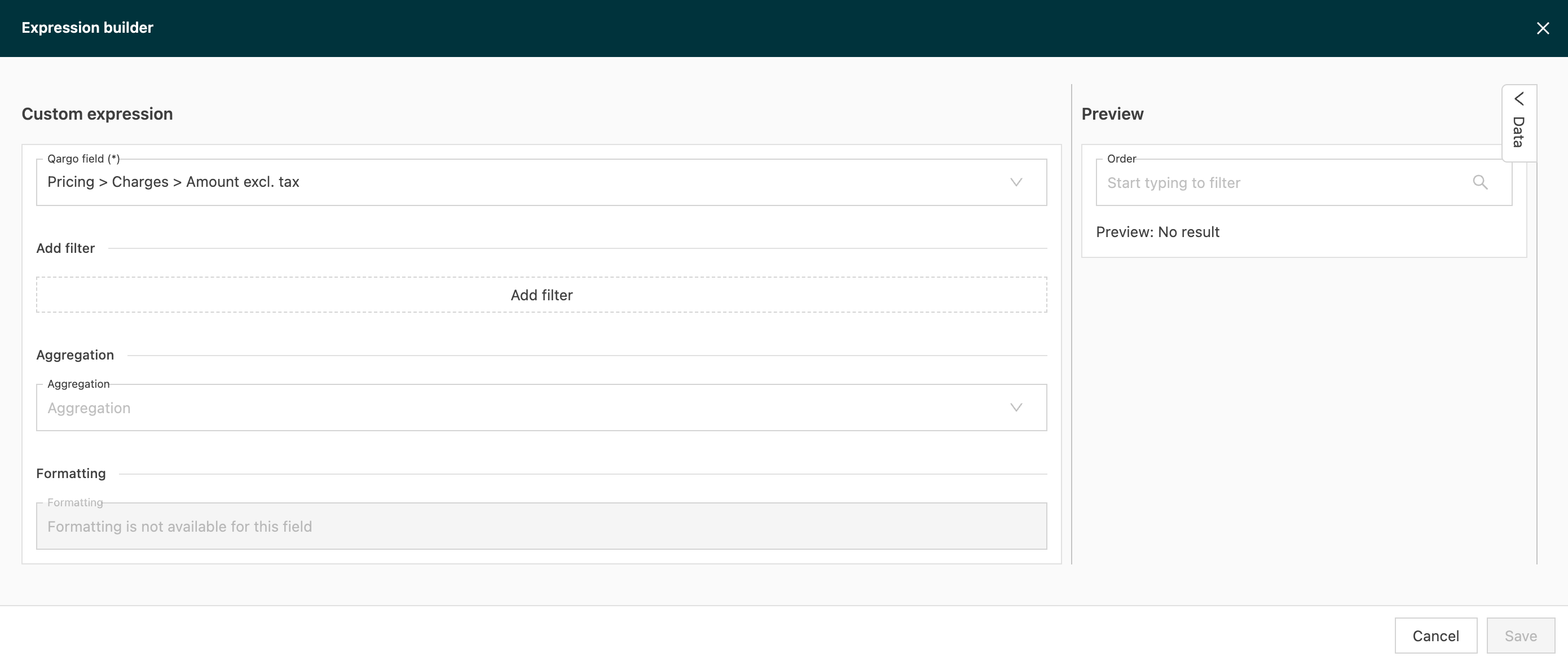
Reports: Custom exports – Expression builder
The Expression builder makes it possible to shape data for custom exports without writing code. It can:
- Filter lists down to just the items needed
- Aggregate values such as sum, count, min, or max
- Format dates, date/times, and numbers for the target system
- Preview results during configuration
Why use it?
- Flexibility: Create tailored CSV or spreadsheet outputs for partners, BI tools, or finance systems.
- Consistency: Save and reuse export mappings across teams.
- Precision: Filter and aggregate directly at export time so downstream spreadsheets stay simple.
Click the link below to learn how to use the additional builder tool👇
:::
Week 3

💳 Customers – Credit limit functionality updates
Manage financial risk and improve cash-flow control with configurable credit limits in Qargo. Qargo can warn users, or even block new orders, when a customer exceeds the assigned limit.
Organization settings for credit limit calculation
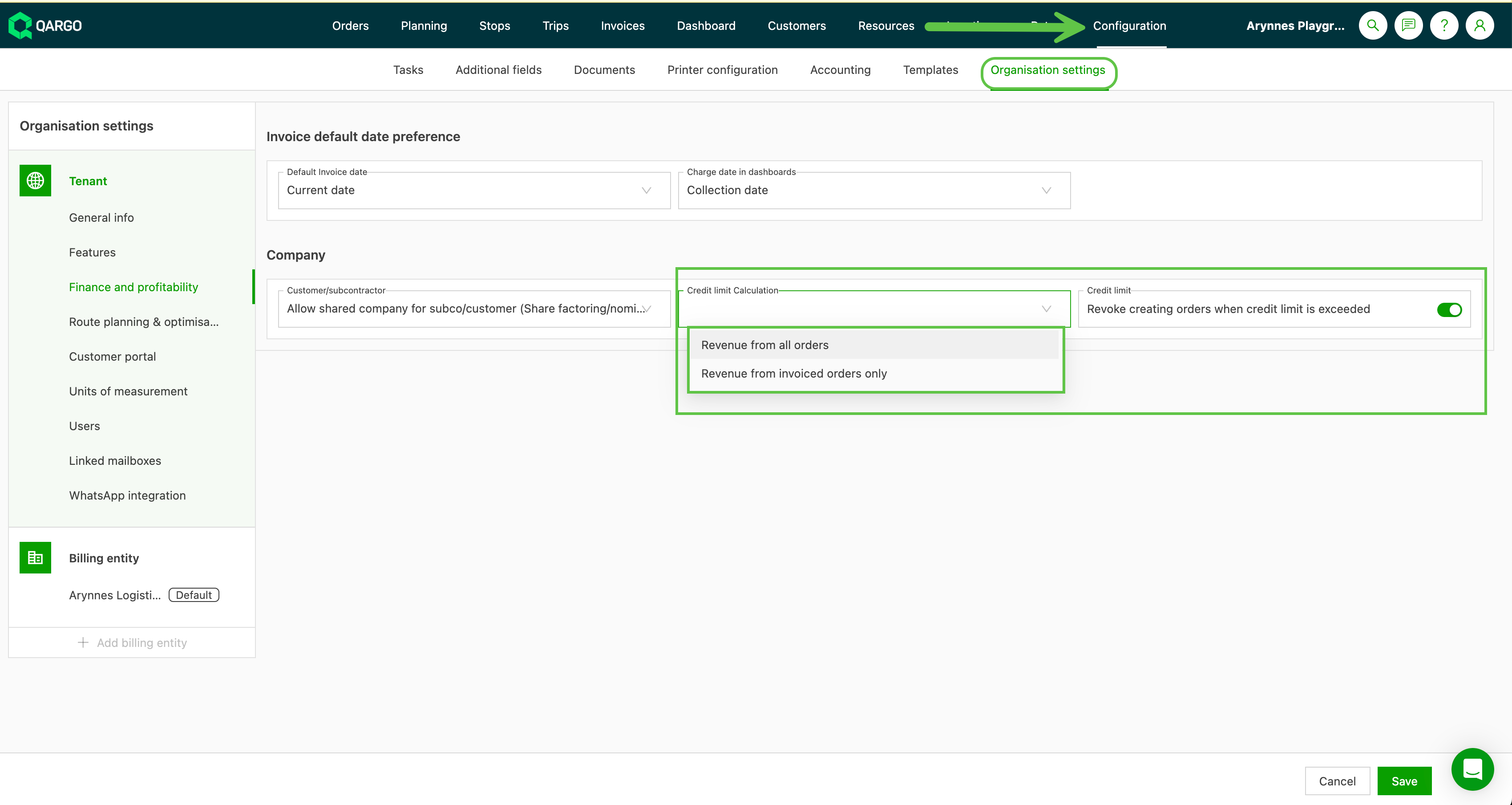
Choose how Qargo calculates a customer’s outstanding balance:
- Revenue from all orders
- Revenue from invoiced orders only
This defines which amounts contribute to the credit-limit check.
Exceeded credit limit notifications
When an order is created for a customer whose outstanding amount exceeds the limit:
-
Qargo displays a warning to the user.
-
If the organization has enabled “Block order creation when credit limit is exceeded”, the order cannot be saved.
-
An error message appears at the bottom of the screen.

-
✨ Reporting – Custom export for ‘Extras’ charges
Last week saw the introduction of the Expression builder, giving teams new flexibility to construct dynamic logic for data exports, reporting, and automation.
This week, that power extends even further with new filtering options for charge types, making it easier to build precise revenue expressions without workarounds or additional schema fields.
New charge-type filter options
Filters can now be applied to expressions that reference charges, giving full control over which charges are included in the calculation.
1. Surcharges – Now fully supported
Previously, the Data Feed only exposed index surcharges (fuel surcharges), which meant UI and export logic were not aligned.
The Expression builder now supports two configuration options:
-
Surcharges (all types)
Includes all surcharge types used in the UI:- General surcharges
- Index surcharges (FSC)
- Any future surcharge types
-
Other surcharges (excluding FSC)
Designed for cases like Mulgrews, where FSC should not be mixed into the surcharge bucket.
This gives teams flexibility to choose the behavior that matches their reporting model.
2. Extras revenue (new category)
Extras can now be selected as a dedicated category.
Extras include:
- All charges where
addon_type≠ surcharge - Any ad-hoc charges
This makes it easy to calculate “All revenue except transport/fuel” or to report on miscellaneous charge items.
3. Consistent filtering across UI and export
The Expression builder now uses the same charge-filtering logic as Qargo’s rating UI, including:
- Filtering out approved DONT_INVOICE charges
- Correct handling of transport charges
- Full alignment with existing frontend behavior
This ensures that what users see in the UI matches what they get in exports and automated calculations, with no surprises.
💱 Billing – Flexible charge currency
This feature allows transport companies to invoice multiple customers using different currencies on a single order, providing enhanced flexibility for international operations.
What’s new
Previously, charges were tied to the price list currency, restricting the ability to bill different customers in their local currencies on the same order.
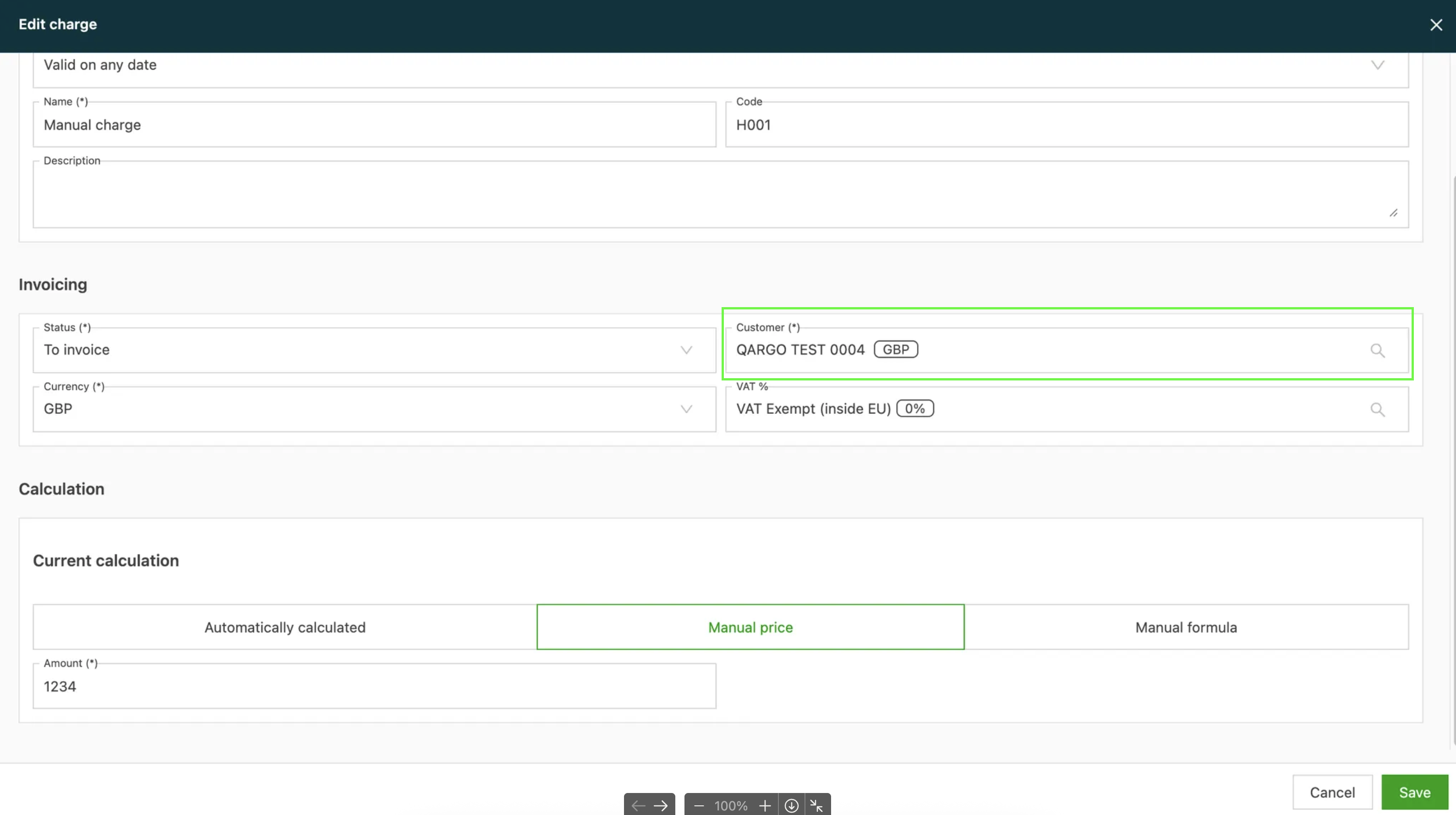
- Independent currency field: A dedicated Currency field is now available on charges, which can be modified independently of the price list currency.
- Multi-customer, multi-currency billing: Different customers can now be billed (e.g., Customer A in GBP for transport, Customer B in EUR for customs admin) on the same order.
- Currency visibility: The Customer dropdown now displays the customer’s default currency to help clearly identify the appropriate billing currency.
- Automatic adjustment prompt: When selecting a customer with a different currency, the system prompts with an automatic currency adjustment.
Limitations
- Manual rating required: When the currency is changed, the charge automatically becomes manual, requiring manual entry of the new price.
- One currency per customer: This initial version assumes one currency per customer.
- No exchange rate conversion: Exchange rate conversion is not included.
FAQ – Flexible charge currency
📓 Billing – Automated tax type determination for contract carriers
This feature simplifies tax compliance by extending the logic for automatic tax type determination to contract carriers, mirroring the existing functionality for customers.
What’s new
Previously, determining the correct tax type for services provided by contract carriers often required manual selection and relied on the user’s knowledge of tax rules for goods movement.
- Expanded auto-determination logic: The system now automatically evaluates the contract carrier’s country, pickup country, and delivery country to determine the correct tax type (e.g., intra-EU, export) for the contracted service.
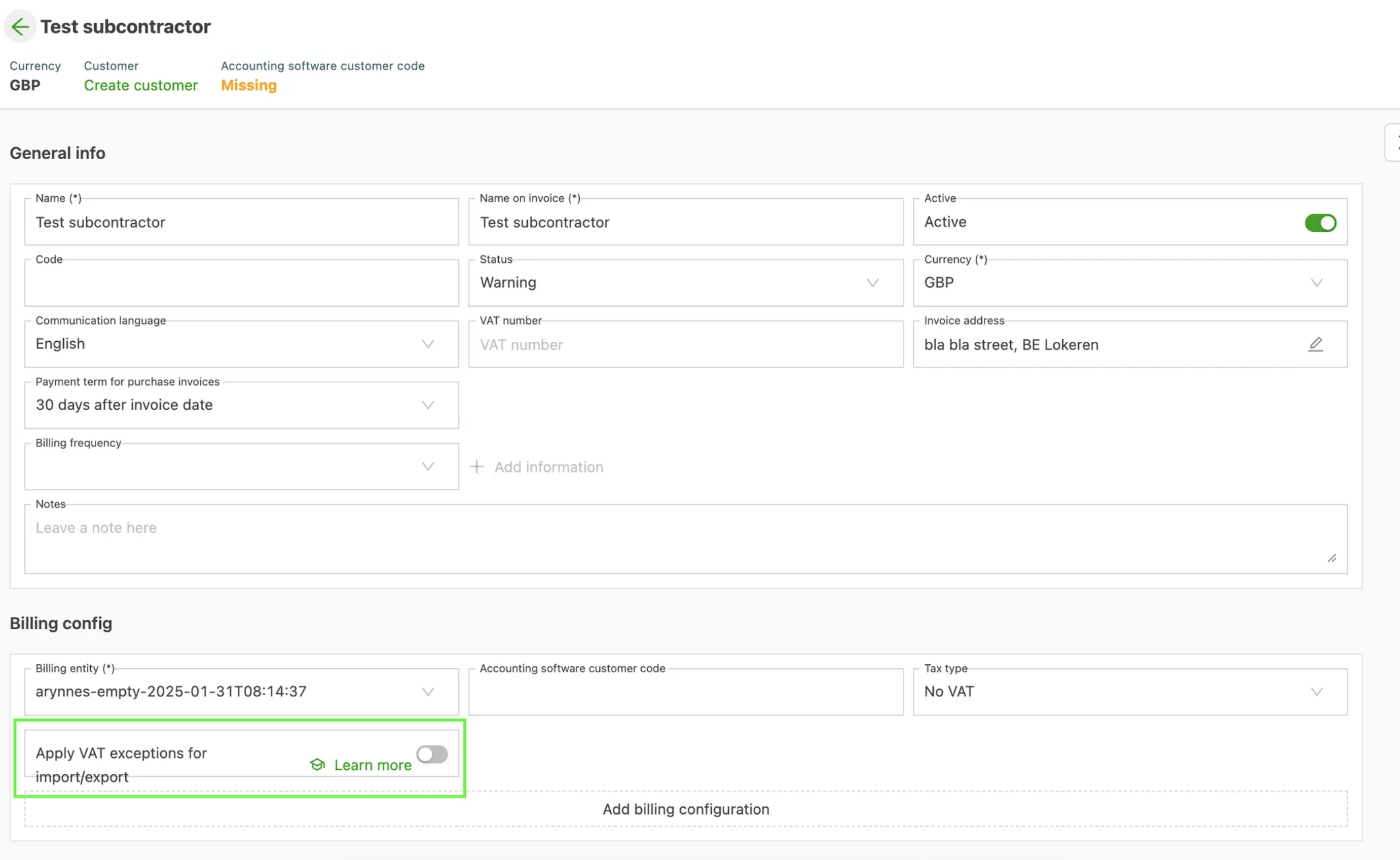
- Contract carrier settings: A new setting is available on the Contract carrier page that makes it possible to enable this auto-determination logic and apply specific tax exceptions. This makes it easier to accurately determine the correct tax type based on the goods movement.
Limitations
- No recalculation after order creation: The tax type is determined based on the locations and contract carrier details at the time of the initial order creation/contract carrier selection. It is not automatically recalculated if the pickup or delivery locations are changed after the order has been created.
- Initial selection focus: The determination process focuses solely on the initial selection of the customer or contract carrier.
FAQ – Automated tax type determination for contract carriers
📦 Planning – Freight metrics on the plan board
A new way to visualize freight utilization directly on the planning board has been introduced. It gives planners clearer visibility of space at the stop level and helps them make quicker, more informed decisions.
What’s new
The Customize option on the planning board lets users pick how freight details appear at each stop:
- Freight: Total loaded/unloaded per stop
_(Existing view, now renamed for clarity.)_ - Freight: Space occupied after stop
_(New option: shows cumulative utilization up to that point.)_
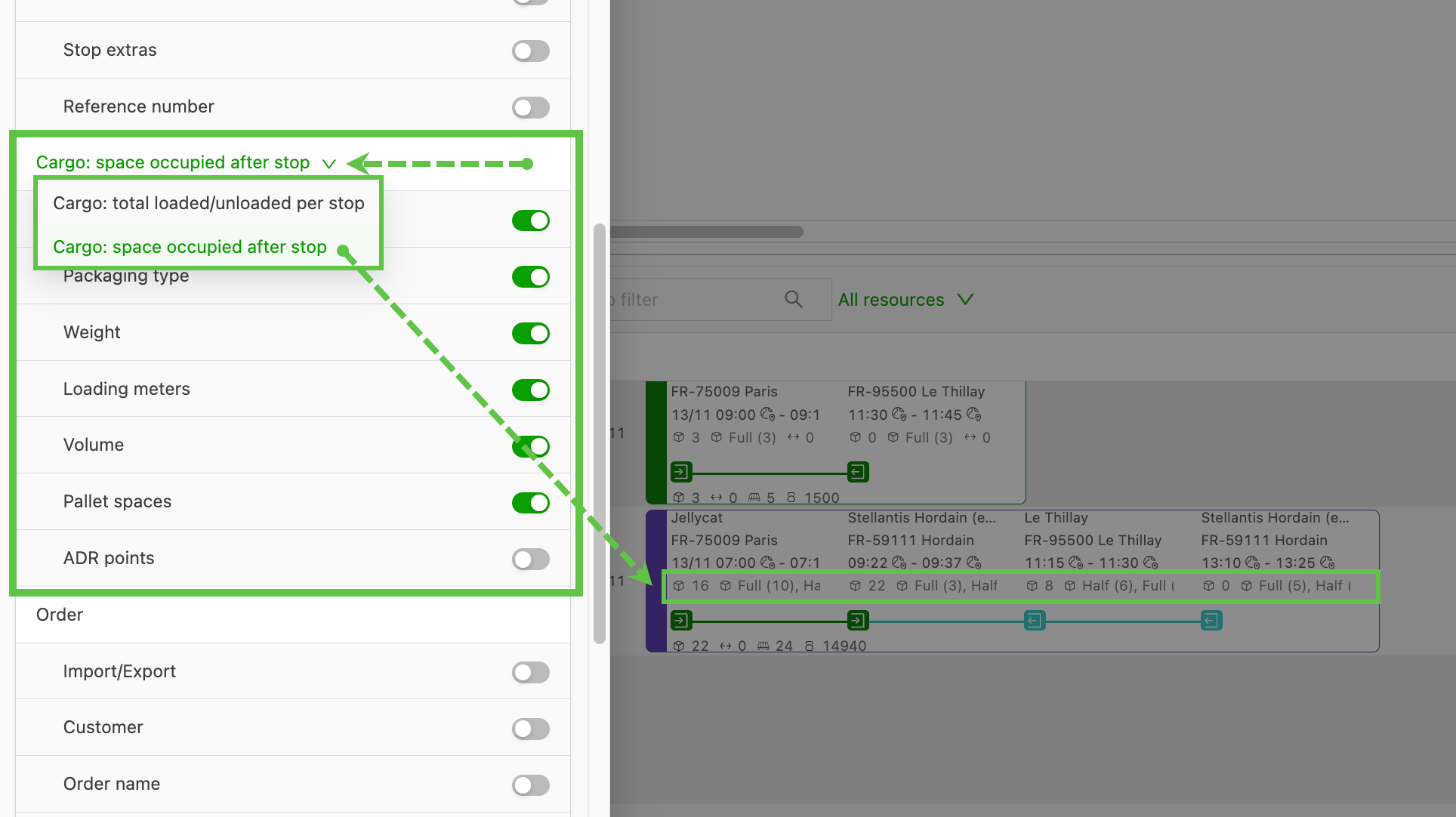
This gives planners the flexibility to view freight information in the way that best suits their workflow.
- Quickly assess available space throughout the full duration of a load.
- Make faster planning and allocation decisions, supported by clear utilization indicators at each stop.
- Understand how each stop impacts the total freight on board, helping avoid over-allocation and identify optimization opportunities.
This helps teams understand remaining capacity at a glance and stay ahead of potential loading or sequencing issues.
✨ UX update – Unified customization button
Personalizing the view across Qargo has been simplified and streamlined, making it faster and more intuitive to access customization tools.
The separate ‘Customize’ and ‘Edit columns’ functions are being unified into a single, intuitive ‘Customization’ button. This button is now positioned directly next to the related table or list it updates.
What’s included
The separate ‘Customize’ and ‘Edit columns’ buttons have been replaced across all key list views with a single, modern icon.
This change impacts the list view pages for critical areas, including:
- Orders (Orders, Quotes, Templates, Upload documents)
- Planning (To plan, Board view)
- Stops & loads
- Billing (All related lists like Invoices, Credit memos, etc.)
- Master data (Customers, Resources, Locations)
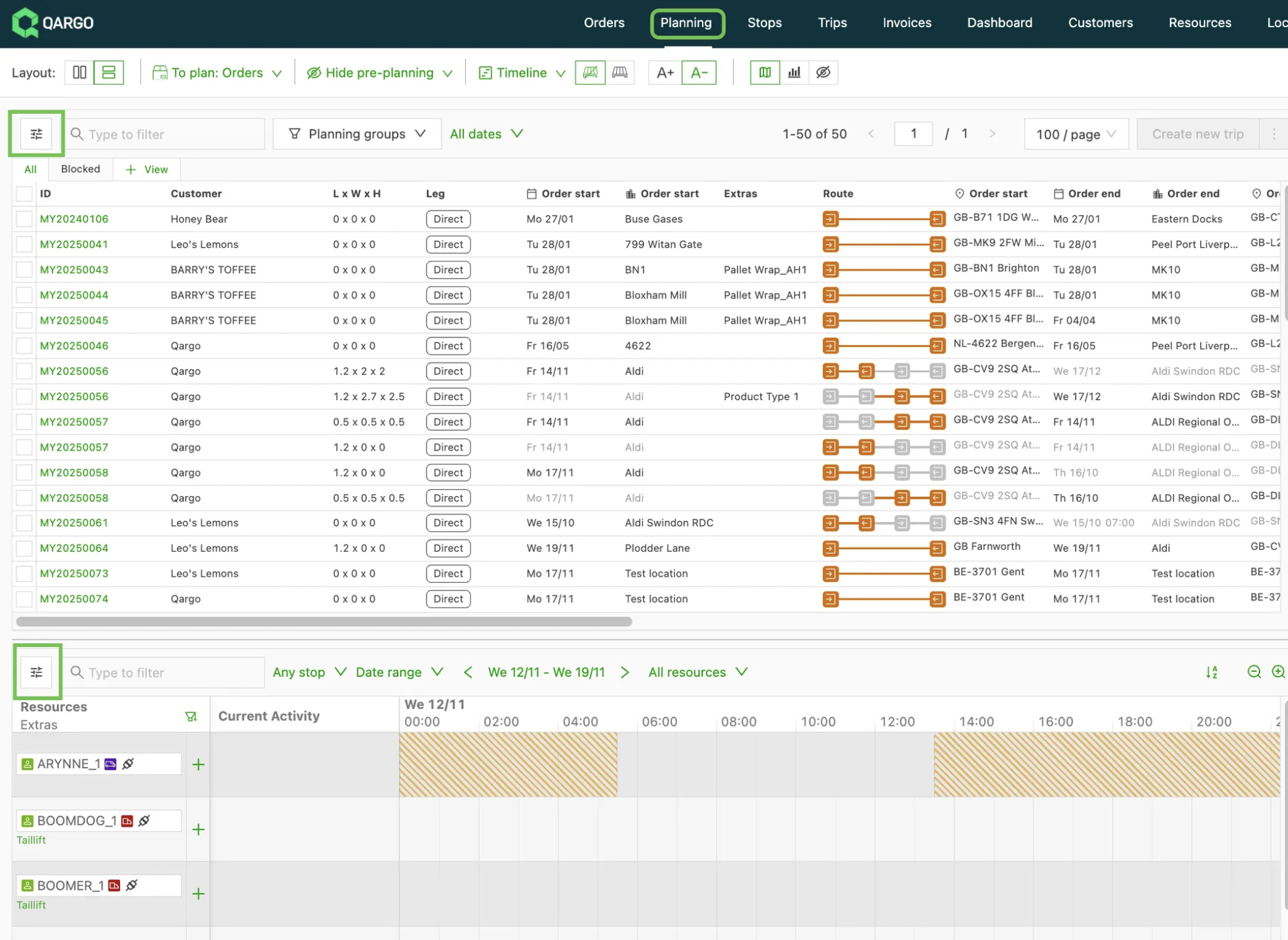
Bonus: On the planning board, the ordering of the date filters has also been improved to be more consistent with other list views across the platform.
Why this helps
- Improved intuition: It is clear exactly where to click to modify the table display or columns.
- Faster access: One click now opens all customization options.
- Consistency: The new icon and placement ensure a predictable experience across the platform.
:::
Week 4

\
🚀 Contract carrier summary – Find the best fit faster {#h_a118eee6dc}
This new feature supports faster, data-driven decisions when selecting a contract carrier. It helps find the most cost-effective and suitable provider by leveraging historical shipment data.
What’s new
Previously, assessing the suitability and typical cost of a contract carrier required manual data lookups or relying on memory. This feature centralizes and highlights key performance indicators to simplify decision-making.
-
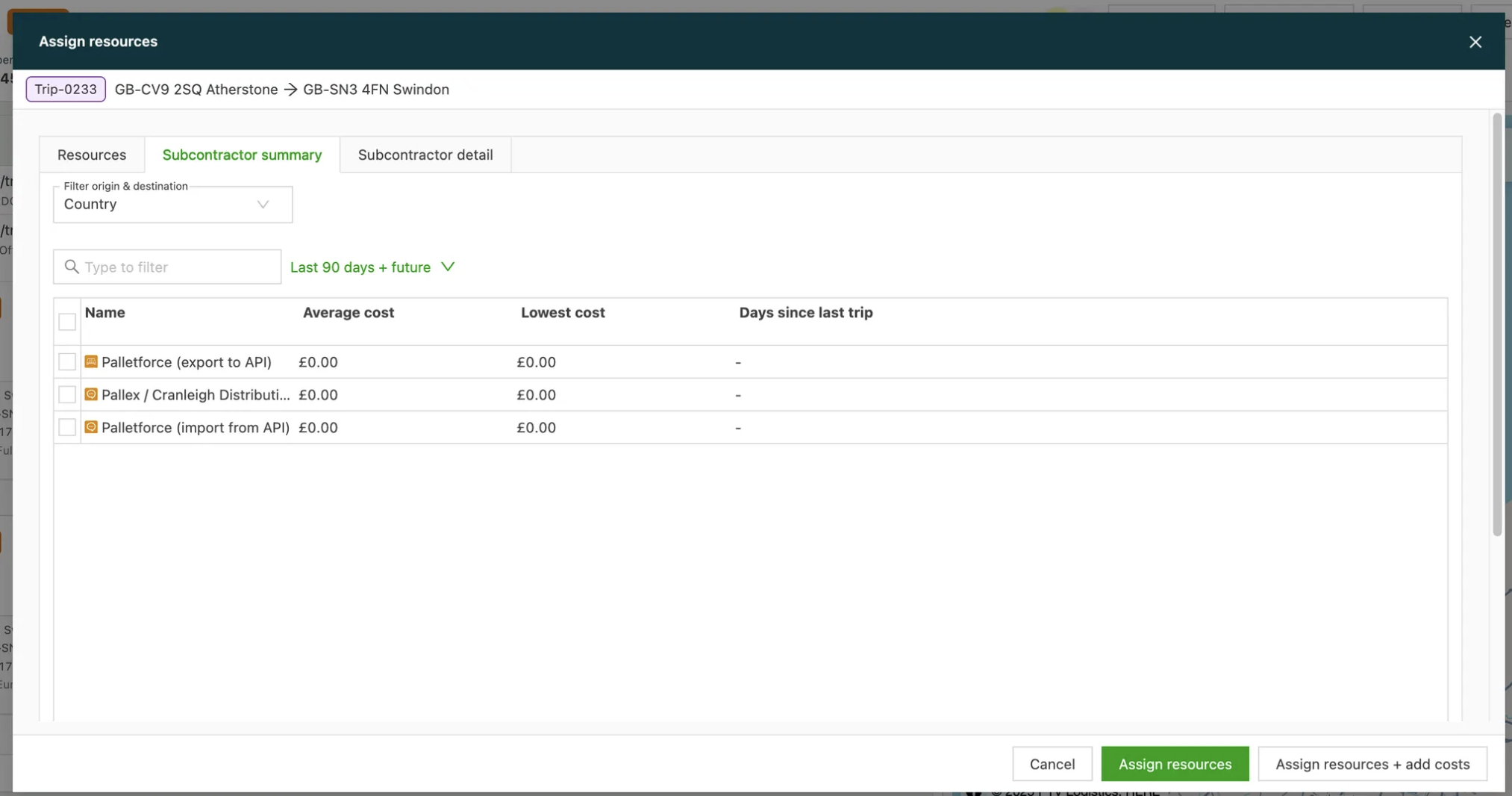
Introducing the Contract carrier summary tab:
- A new tab, Contract carrier summary, is now accessible from the Order list view resources section of an order.
- This view instantly displays crucial comparative metrics for each contract carrier: Average cost, Lowest cost, and Days since last load.
-
Enhanced data filtering:
- Easily refine the displayed historical data to better match current needs by filtering on Origin and destination country and/or ZIP code area + country.
-
Improved quote workflow integration:
- The Add contract carrier quote button on the Order detail (Contract carrier bidding) page now opens this new Contract carrier summary window. This makes it possible to reference critical cost and usage data immediately before requesting a quote.

-
Renamed tab:
- The previous “Contract carrier” tab has been renamed to “Contract carrier detail” to ensure clarity and distinguish it from the new summary view.
Limitations
- Focus on single-shipment orders: The historical data and comparisons are currently limited to single-shipment orders and do not include multi-order loads planned in-house.
- Data scope: The calculations for the metrics are based on the last 1,000 shipments executed by each contract carrier.
📝 Planning – Order overview added to load details
Managing and reviewing orders within a load is now easier than ever.
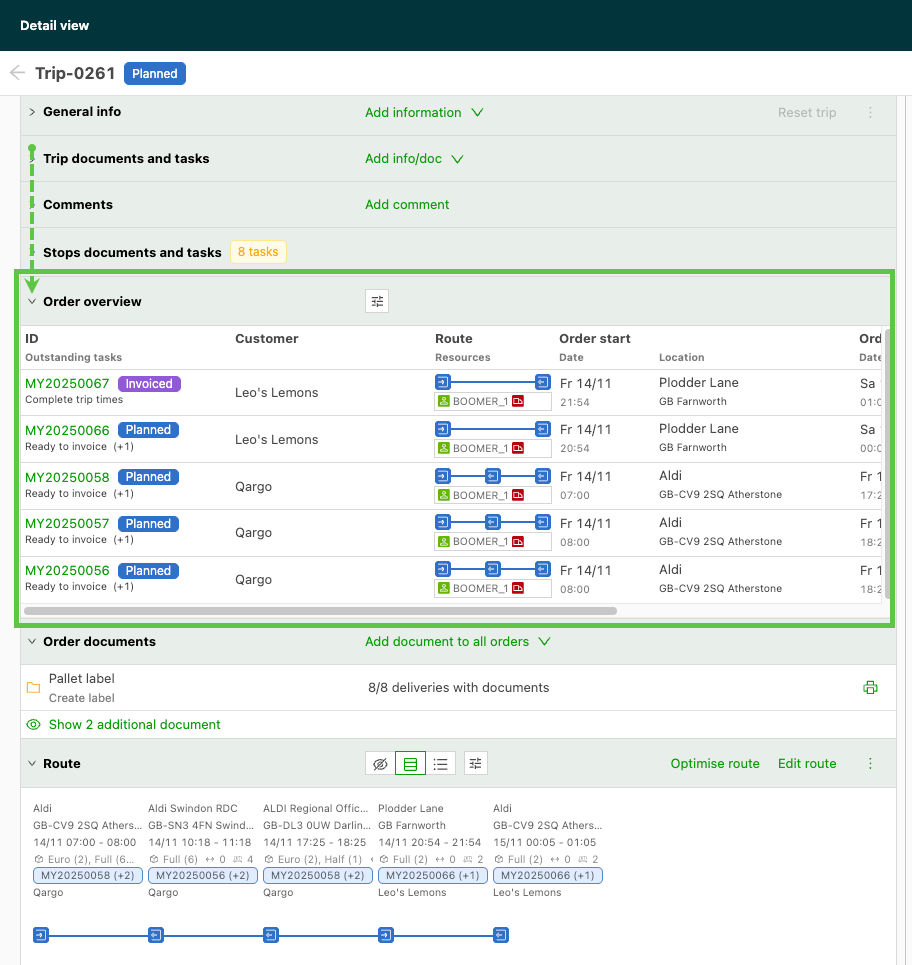
Expand the ‘Order overview’ panel
Click the arrow in the Load detail view to expand the Order overview panel, which is collapsed by default. This gives instant access to all orders associated with a load in one place.
Order-focused table layout
The new table layout is designed with orders in mind, providing a simplified, order-centric view. It is now possible to:
- Review all orders at a glance – see everything in one consolidated table.
- Identify missing or unexpected orders quickly – no more scanning multiple stop rows.
- Navigate directly to order details – jump straight to the relevant order without searching.
- Customize the view – choose which columns and data to display, tailored to individual preferences.
Benefits
- Faster load review: Gain a clear, one-look overview of all orders.
- Reduced cognitive load: Focus on orders without scanning duplicated stop rows.
- Improved data accuracy: A single consolidated table reduces the chance of missed orders or misassignments.
- Better user experience: Intuitive navigation and clarity for loads with multiple orders.
This feature streamlines load management, making it faster, clearer, and more accurate than ever.
📊 Reporting – Async user exports
Export larger datasets without timeouts. Small exports download instantly, and bigger ones are emailed when ready.
What’s new
- Higher practical limits on generic exports
- Background processing with batching for stability
- Email delivery of CSV or XLSX when the export completes
- Small exports still download immediately in the browser
Limitations
- The threshold for instant download vs email varies by export type and data complexity