
Custom exports: using the Expression Builder
Table of contents
- What is the Expression Builder?
- Why use it?
- Terminology
- Notes and current limitations
- Walkthrough: configure and use the Expression Builder
- Charge type filter options
- 1. Surcharges: now fully supported
- 2. Extras revenue (new category)
- 3. Consistent filtering across UI and export
- 4. Include documentation
- Tips
- Advanced: expression mode
- Troubleshooting
This article explains what the Expression Builder is, why to use it for custom exports, and the common terminology. It also includes a step‑by‑step walkthrough with an example. Features and terms reflect the current implementation of the Expression Builder and its underlying query model.
What is the Expression Builder?
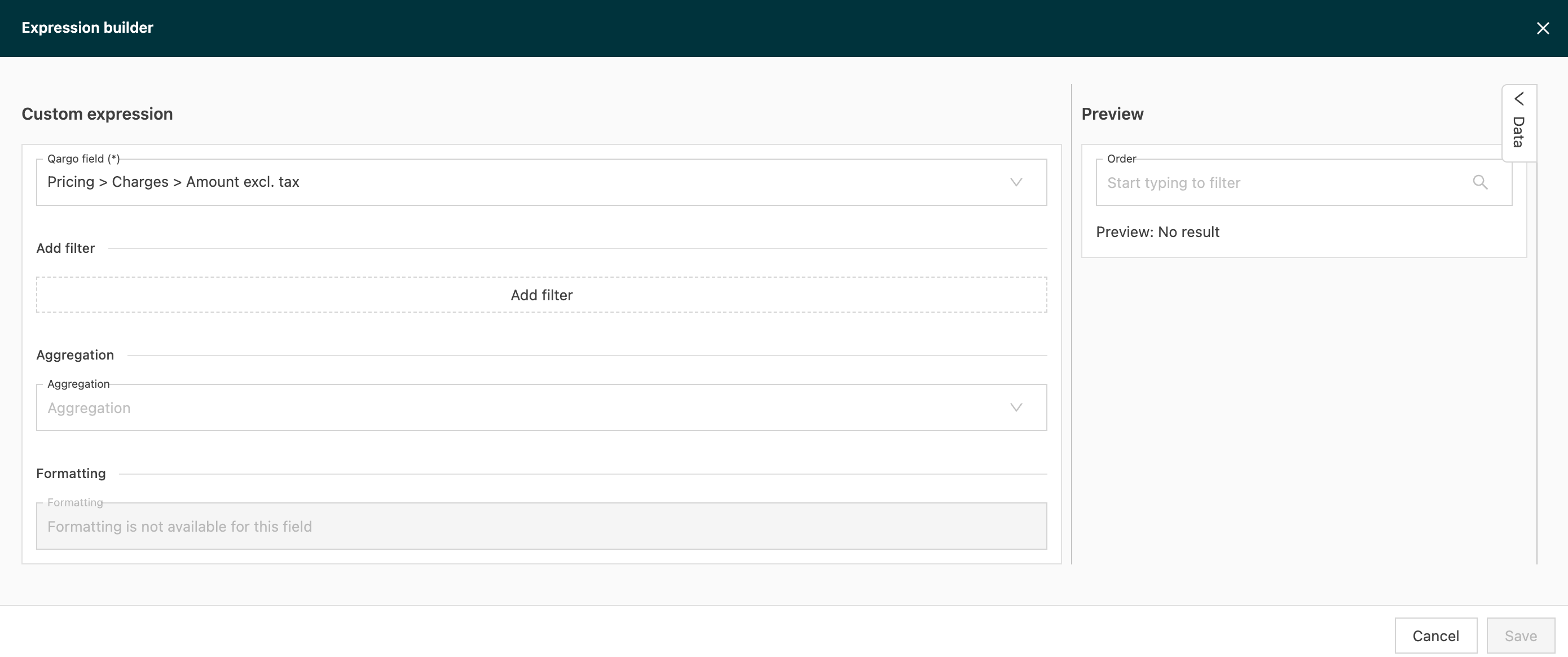
The Expression Builder shapes data for custom exports without any code. It can:
- Filter lists down to just the items needed
- Aggregate values such as sum, count, min, or max
- Format dates, date/times, and numbers for the target system
- Preview results during configuration
Why use it?
- Flexibility: Create tailored CSV or spreadsheet outputs for partners, BI tools, or finance systems.
- Consistency: Save and reuse export mappings across teams.
- Precision: Filter and aggregate directly at export time so downstream spreadsheets stay simple.
Terminology
| Term | Definition |
|---|---|
| Path | A pointer to the data to extract. For example, trip > charges points to the list of charges on a load. |
| Filter | A condition that narrows a list to only matching items. Example: charge_type = “Transport”. |
| Operator | The comparison used in a filter, such as EQ, NEQ, GT, GTE, LT, LTE, IN, NONE_IN. |
| Aggregation | A way to reduce a list into a single value. Options include SUM, COUNT, DISTINCT, MIN, MAX, EXISTS, NOT_EXISTS. |
| Formatting | Output presentation controls for dates, date/times, and numbers, and an optional cast to string for CSV safety. |
| Expression mode\ | |
| (advanced) | A raw expression editor available to admins for complex transformations. |
| Preview | A live rendering that shows the result of the configuration before export. |
Notes and current limitations
- Enum values are not yet translated.
- Filtering inside certain nested lists may require workarounds if a typed path is not available.
- Unit conversions and “combine multiple fields into one column” are tracked separately.
Walkthrough: configure and use the Expression Builder
Below is a common scenario built as two export columns: exporting a load’s transport charge total and a formatted pickup date/time.
Before starting:
- Open an existing custom export mapping or create a new one.
- Identify the entity to export from, such as orders.
Column A: Total transport charges
-
Add a new column
- Name: Total Transport Charge
-
Choose a path
- Path: orders > charges
- This points to the list of all charges on the load.
-
Add a filter
- Filter path: charge_type
- Operator: EQ
- Value: Transport
- Result: Only charges with type Transport are considered.
-
Set an aggregation
- Aggregation: SUM
- Field summed: amount
- Result: Sums the amount across the filtered charges.
-
Formatting
- Numeric format: #,###.00
- Cast to string: On, to ensure CSV cells are never blank and are treated as text if required.
-
Preview
- Use Preview to confirm the resulting number matches expectations.
What this does
- Starts from the charges list
- Filters to charge_type = Transport
- Sums the amount
- Outputs a formatted string fit for CSV importing in accounting tools.

Column B: Pickup date/time (US format)
-
Add a new column
- Name: Pickup Date/time (US)
-
Choose a path
- Path: trip > pickup_datetime
-
Formatting
- Datetime format: yyyy-MM-dd HH:mm:ss
- Example: 2025-12-31 16:45:00
- Cast to string: On, to keep CSV output consistent.
-
Preview
- Confirm the date and time appear in the requested format.
What this does
- Reads the load’s pickup date/time and outputs it in a clear, consistent format for downstream tools.
Export
- Save the mapping and run the export. The CSV includes both columns, using the configured transformation rules.

Charge type filter options
Filters can now be applied to expressions that reference charges. This gives full control over which charges are included in the calculation.
1. Surcharges: now fully supported
Previously, the Data Feed only exposed index surcharges (fuel surcharges), which meant UI and export logic were not aligned.
The Expression Builder now supports two configuration options:
-
Surcharges (all types)
Includes all surcharge types used in the UI:- General surcharges
- Index surcharges (FSC)
- Any future surcharge types
-
Other surcharges (excluding FSC)
Designed for cases like Mulgrews, where FSC should not be mixed into the surcharge bucket.
This gives teams the flexibility to choose the behavior that matches their reporting model.
2. Extras revenue (new category)
Extras can now be selected as a dedicated category.
Extras include:
- All charges where
addon_type≠ surcharge - Any ad-hoc charges
This makes it easy to calculate “All revenue except transport/fuel” or to report on miscellaneous charge items.
3. Consistent filtering across UI and export
The Expression Builder now uses the same charge-filtering logic as Qargo’s rating UI, including:
- Filtering out approved DONT_INVOICE charges
- Correct handling of transport charges
- Full alignment with existing frontend behavior
This ensures that what users see in the UI matches what they get in exports and automated calculations, with no surprises.
4. Include documentation
Users can now include documentation details in reporting, using the Expression Builder aggregation option “Exists”. Details include:
-
Name, description, date/time stamps
-
Using the aggregation ‘exists’ adds the column with ‘true/false’ descriptions
- True = documentation attached to the order
- False = no documentation attached to the order
Tips
- Start with a path and a single filter, then add aggregation and formatting once the preview looks right.
- Use COUNT or EXISTS when a yes/no or a simple quantity of matches is needed.
- Use DISTINCT to deduplicate values when exporting lists into a single cell.
Advanced: expression mode
Workspace admins can switch to a raw expression mode to author complex logic directly. This is useful for edge cases where the form-based builder is too limited. Saved expressions should be documented for maintainability.
Troubleshooting
- Empty cells: Turn on Cast to string to avoid blank values being misread by spreadsheet tools.
- Unexpected totals: Check the filter operator and value spelling. Verify that the path points to the intended list.
- Date formatting: Confirm the date/time format string and whether the source field contains a date or a date‑time.