
FAQ: Planning across multiple windows or screens.
Table of contents
Q. Is it possible to open the Qargo platform on multiple screens and use the ‘Select & drop’ feature to drag orders from one screen to resources displayed on another screen?
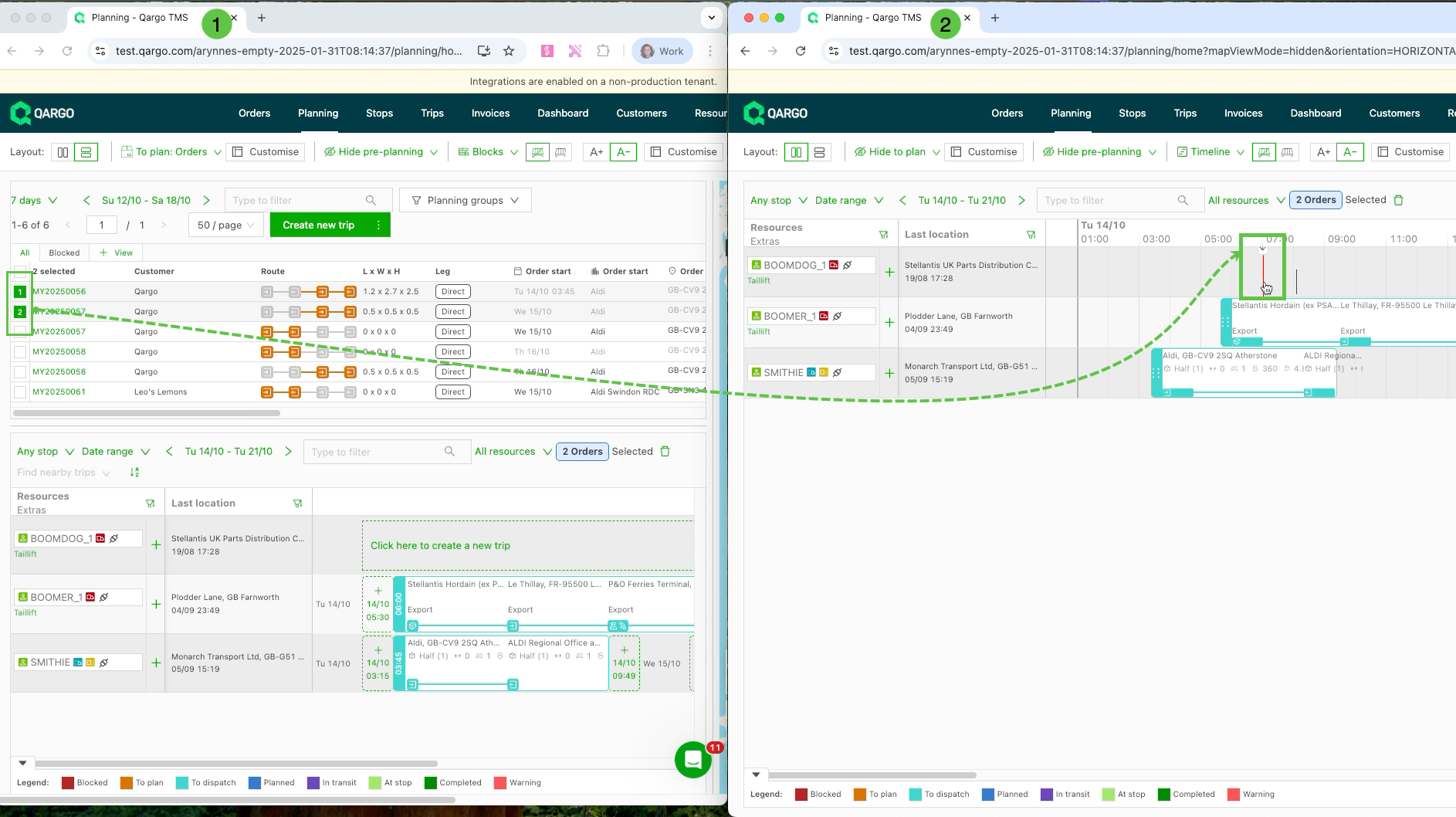
A. Yes. Qargo can be opened on multiple screens or browser windows to make planning orders easier. The “To Plan” overview can be shown on one screen and the Plan Board on another. The Select & Drop feature then moves selected orders between them.
📘 Terminology
| Term | Definition |
|---|---|
| To Plan | A list of orders that are not yet assigned to a resource. |
| Plan Board | The visual scheduling board where planners assign orders to vehicles, drivers, or time slots. |
| Pre-plan | A temporary staging area where orders can be grouped or prepared before they are placed on the Plan Board. |
| Select & Drop | A feature that lets users choose one or more orders and move them into another planning area by dropping them in the desired spot. |
| Resource | A vehicle, driver, or other asset available for planning. |
This feature helps users plan faster and with more visibility by letting them:
- Keep “To Plan” on one screen (for available or unplanned orders)
- Keep the Plan Board on another (for assigning or adjusting orders)
- Select orders on one screen and drop them on the other, for a smooth select-and-drop planning experience.
The following screens can be used in separate browser windows or monitors:
-
To Plan → Plan Board
Select orders in “To Plan” and assign them to resources on the Plan Board. -
Plan Board → Plan Board
Move orders from one resource or time slot to another. -
To Plan → Pre-plan → Plan Board
For workflows where orders are first staged or pre-assigned before they are finalized.
🧪 Common use cases
- Better visibility: Keep unplanned orders visible while the schedule is shown on another screen.
- Faster planning: Move multiple orders quickly between views.
- Easier adjustments: Shift orders or loads without losing the current position or closing views.
🔍 Limitations
- A single order cannot be dragged and dropped directly between screens.
- Instead, select one or more orders and then move them to the Plan Board to place them.
- The “drop” action only works in the Plan Board view once orders are selected.
💡 Tip
For the best experience:
- Use two monitors or large screens.
- Keep both windows open and logged in to the same Qargo account.
- Make sure the browser allows pop-ups or multiple window sessions for Qargo.
These setups help users plan loads more efficiently by spreading out the workspace and avoiding constant tab switching.