
Planning: Preplanning loads using dummy resources
This article shows how to use the additional planning board to preplan loads using dummy resources.
Table of contents
Adding dummy resources gives more flexibility for preplanning resources. Dummy resources can be used to preplan loads on one of the 2 planning boards.
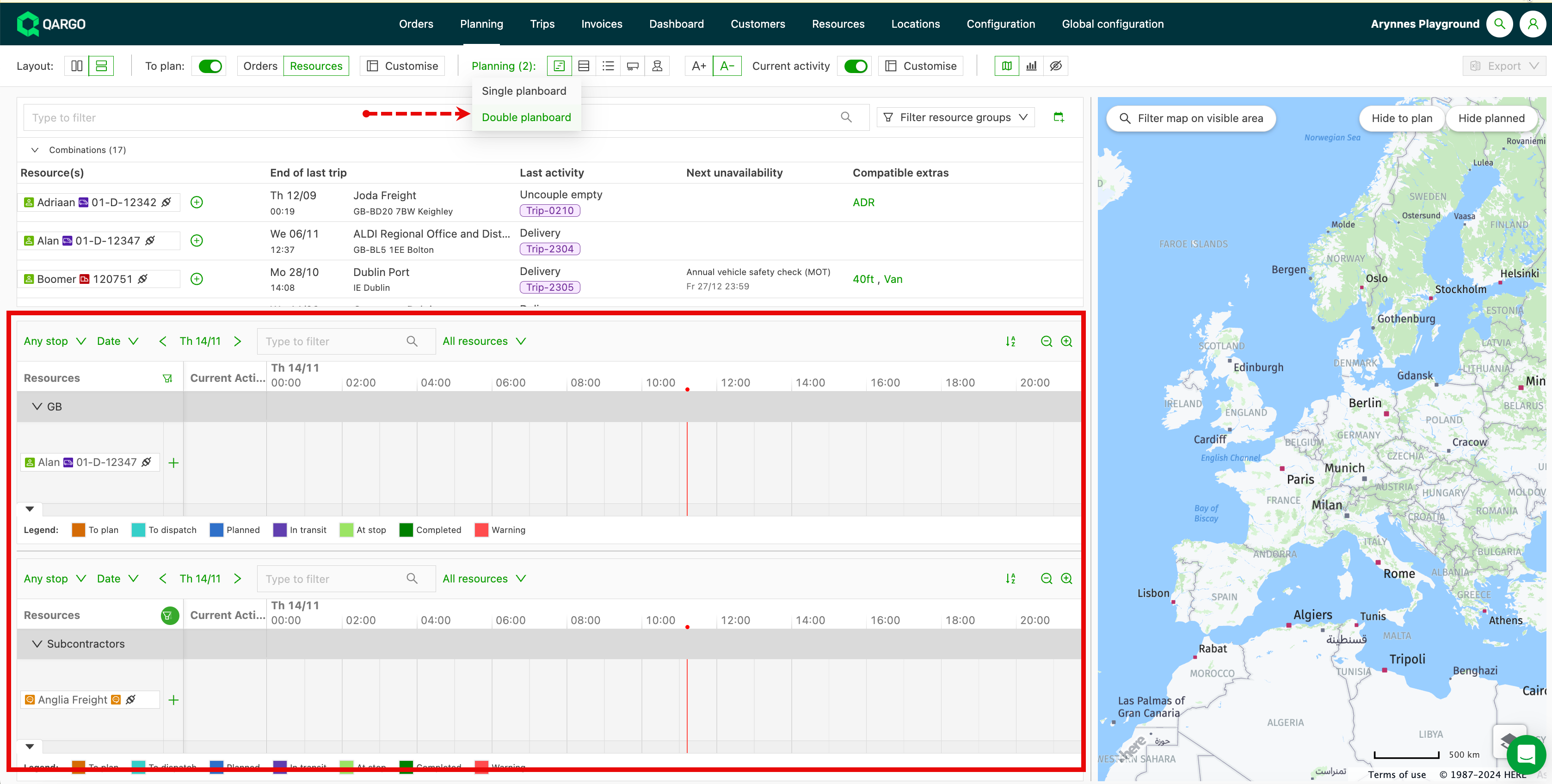
The top of the page can show 1 or 2 timeline or table views for planning. Additional filters include:
- All resources
- Only dummies
- Hide dummies
Multiple planboard view
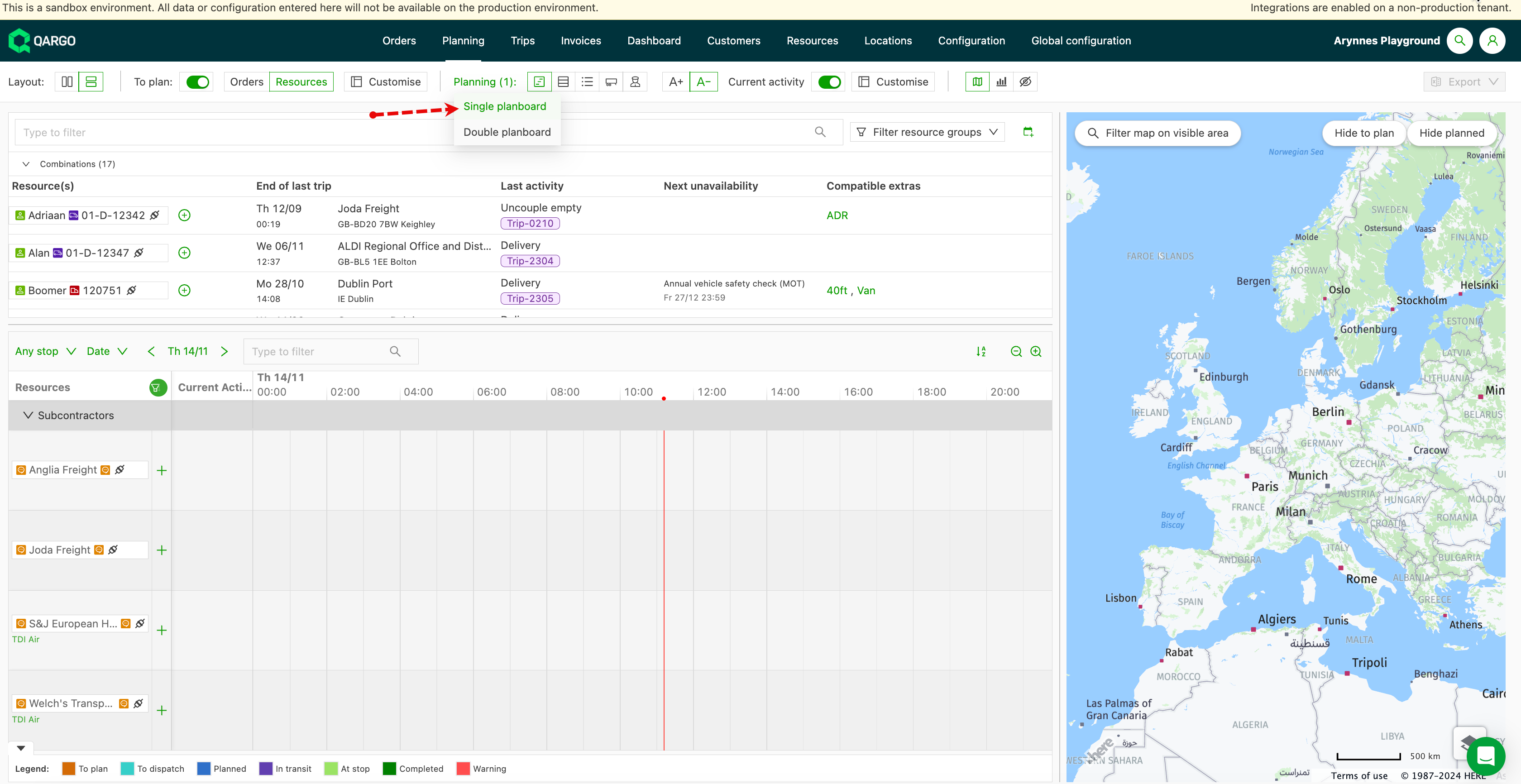
On the Planning screen, select the Planning dropdown. It includes the option to show a Single or Double planboard.
Create dummy resources
Go to Resources. Select Vehicle or Driver and click Add. The option to set a resource as a dummy resource is only available for vehicles and drivers.
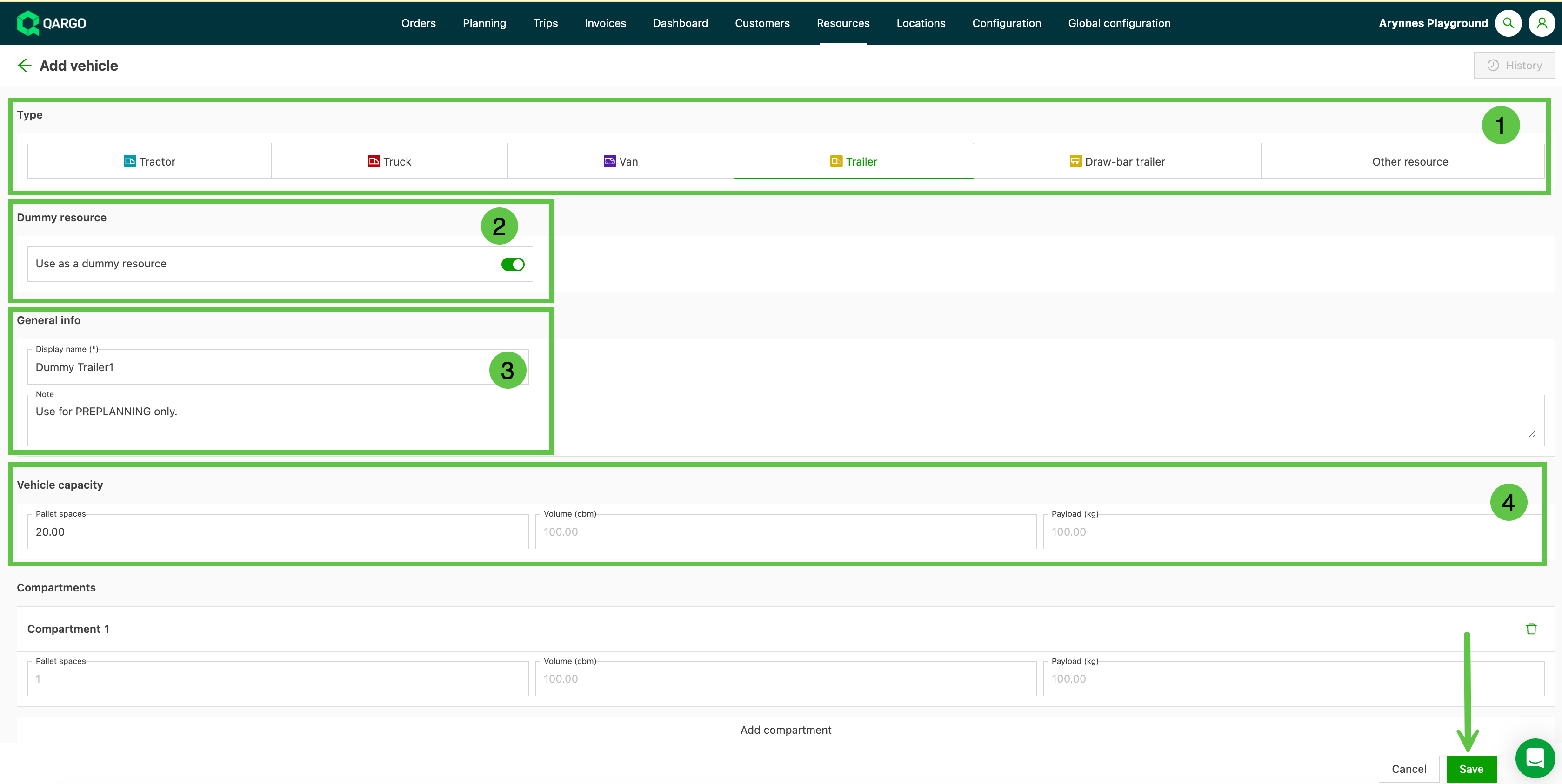
Create a dummy vehicle

- Select the vehicle type.
- Turn on the Dummy resource toggle.
- Complete General info, including a name (mandatory) and a note (optional).
- Complete Vehicle capacity. This is used for optimization.
Create a dummy driver
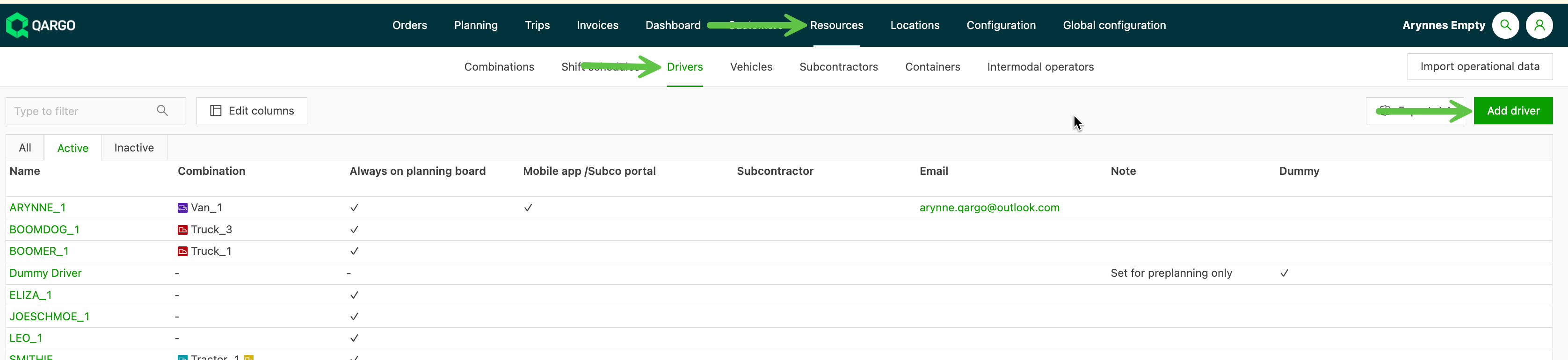
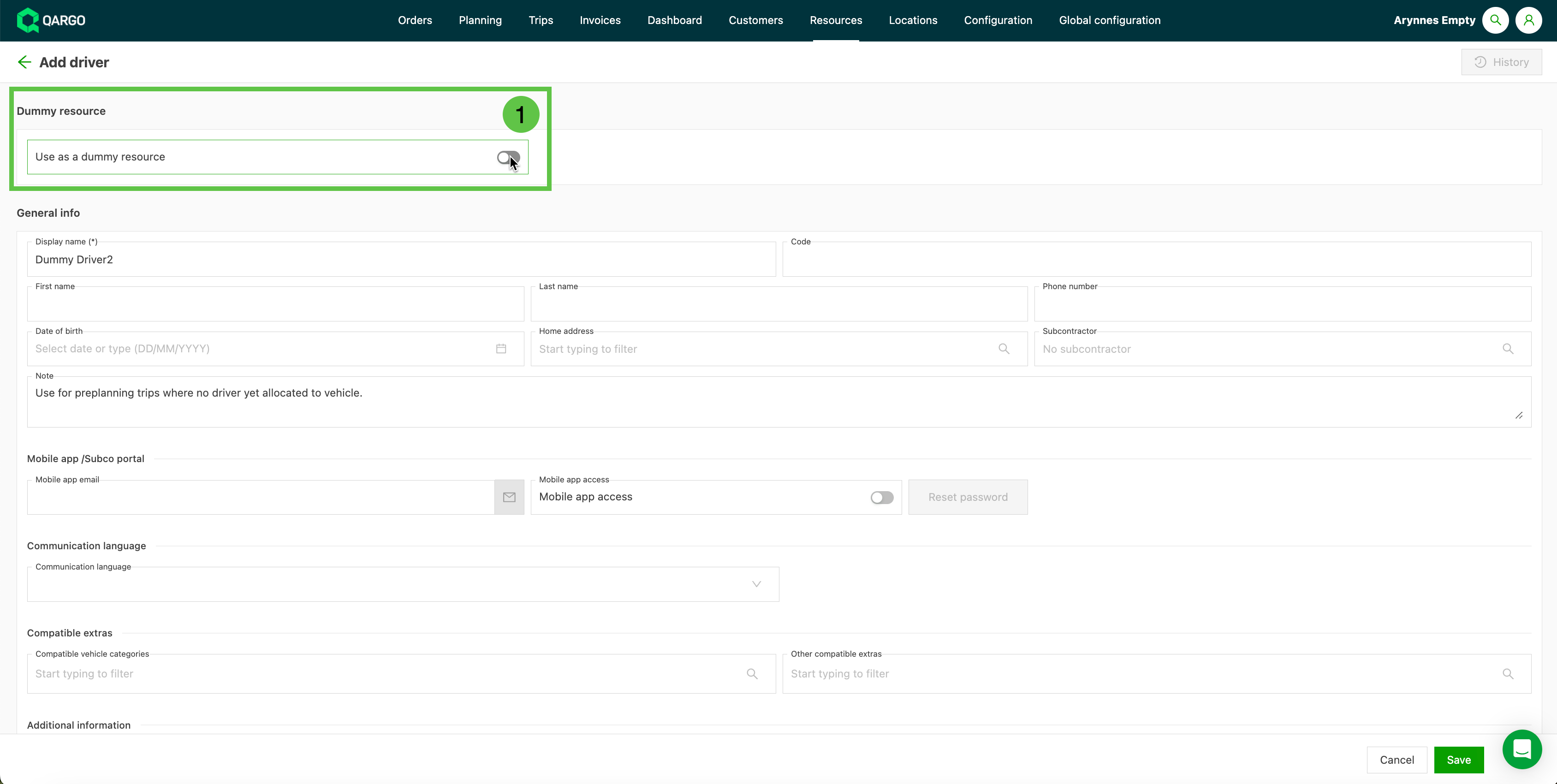
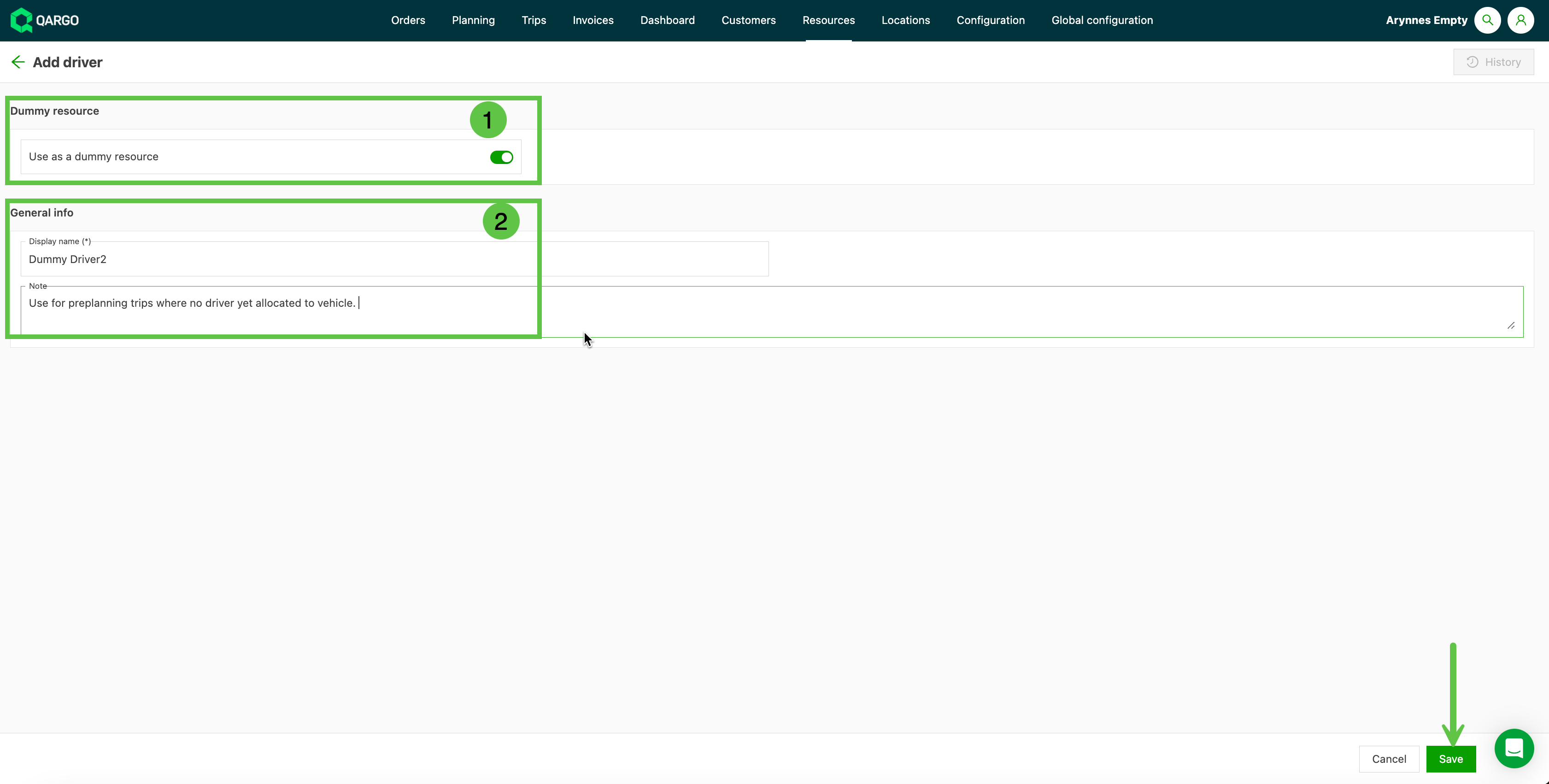
- Turn on the Dummy resource toggle. Once it is enabled, fewer fields are displayed.
- Enter the General information, including the display name (mandatory) and any notes (optional).
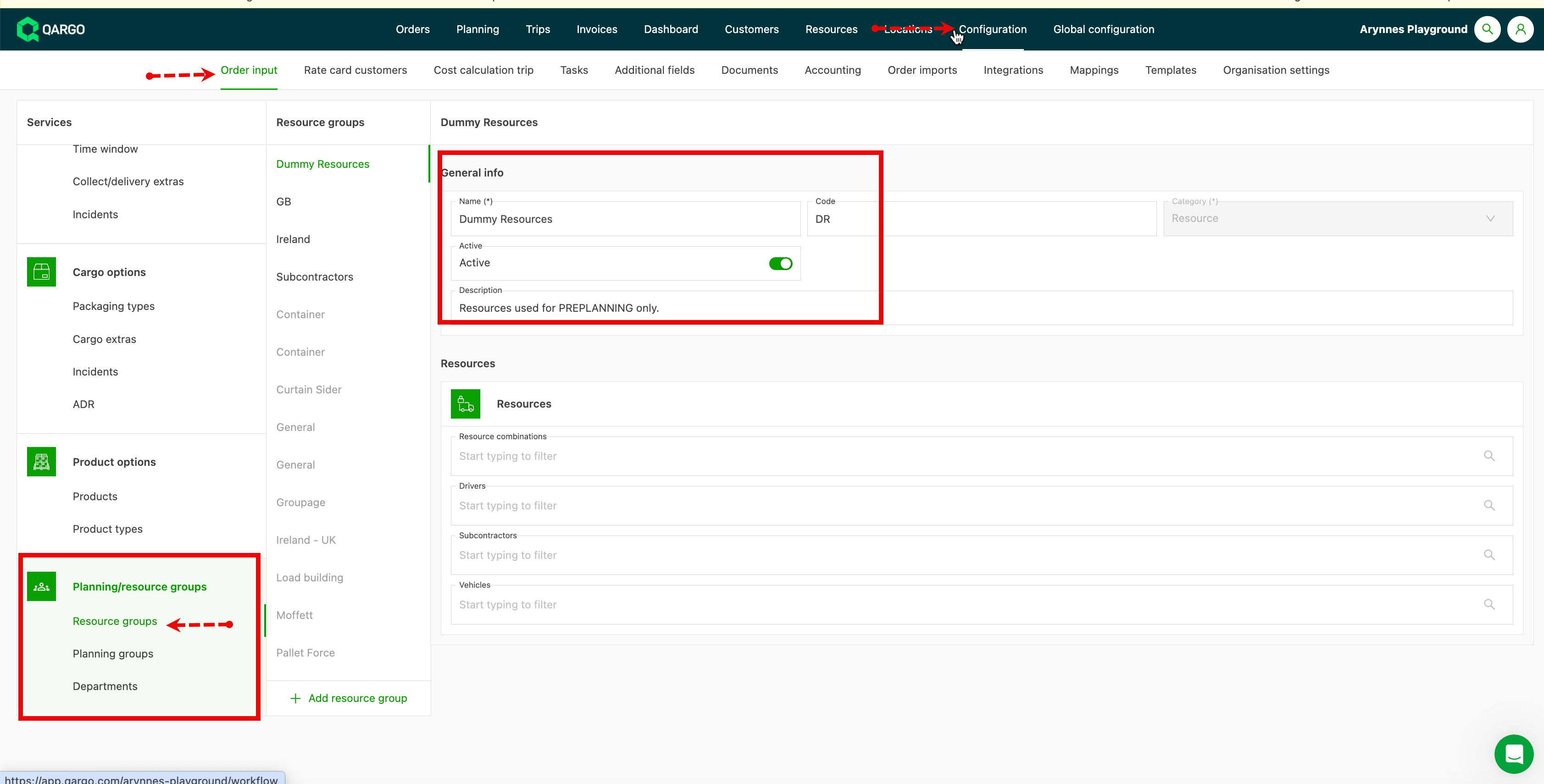
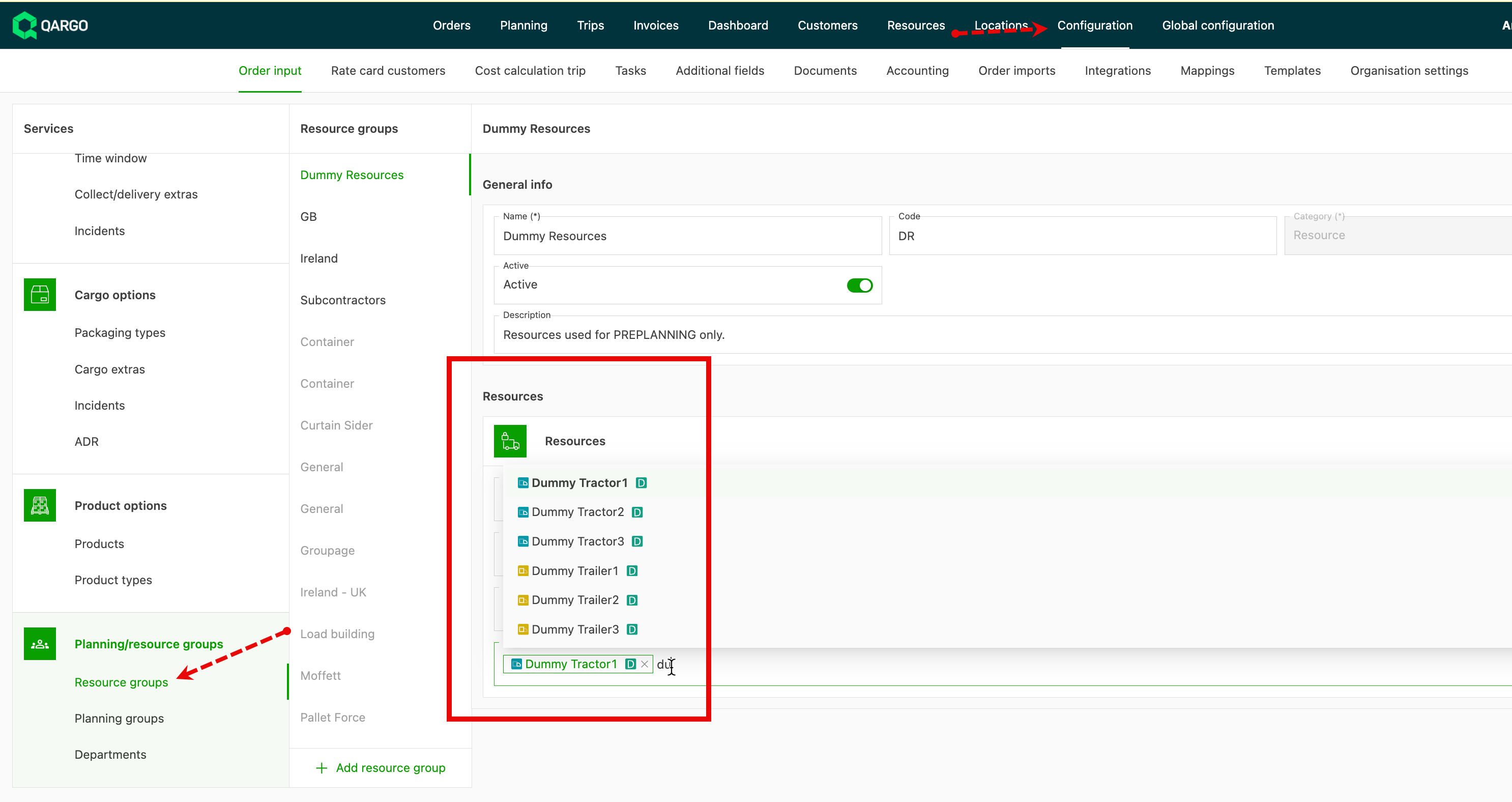
Set up resource groups (optional)
Planboard views
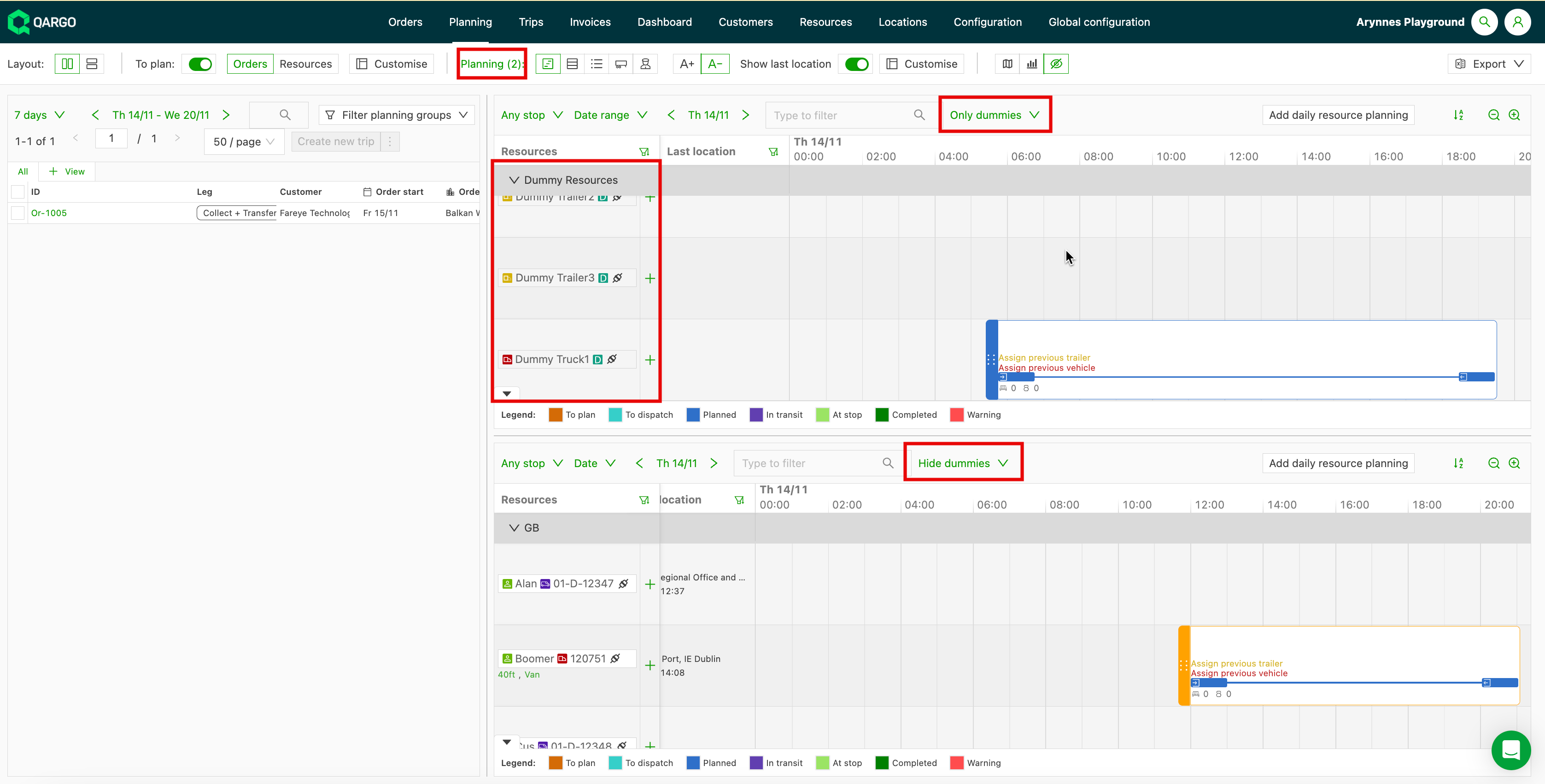
Filtering on dummy resources is available per planboard, and each filter option is independent. This allows each board to filter and show different resources. New filtering options include:
- All resources
- Only dummies
- Hide dummies
Planning to dummy resources
Some orders will be planned onto the same load before it is known which resource (driver, trailer, etc.) will be assigned. These orders can be preplanned to a dummy resource. Planning to dummy resources works the same way as planning to other resources. Drag and drop orders onto the dummy resource to create a load.
Plan to a dummy driver
Plan to a dummy trailer
Reassigning loads to a resource
Loads assigned to dummy resources can easily be reassigned to the actual resource that will complete the load. Drag and drop the load onto the resource on the second planning board. The load details transfer to the new resource.
Dummy resources can be treated much the same way as live resources, including assigning costs if required. All vehicle resources can be created as dummy resources, which makes planning quicker and more efficient.
Using the To plan: Loads view
🎥 Check out the feature overview video below
Use a single list of every unplanned load on the Planboard, with no 7-day limit, so loads waiting for a resource never drop out of view.
-
The To plan: Loads option on the Planboard is a dedicated view that lists every load still waiting for a real resource in one place. This includes loads parked on a dummy resource and loads with no resource at all.
-
Why use it?
- Standard Planboard views only show a rolling 7-day window. Any load older than 7 days drops out of sight and can be forgotten. This view removes that limit, so staged loads and loads without a resource stay visible until a resource is assigned.
-
How does it work?
- The view reuses the existing Pre-planning: Table, limited to dummy-resource loads and loads without a resource. It uses infinite scroll instead of a 7-day cap. Drag loads from the list onto the Planboard to assign a real driver or vehicle.
Use cases
- A planner stages loads during preplanning while drivers are not yet available. Older staged loads no longer disappear after 7 days and get forgotten.
- A load is split, and the new load ends up in Planned status without a resource. It now appears in one list instead of only inside the 7-day window.
- A different planner picks up loads that a colleague staged earlier, without needing to know which date to scroll back to.
Terminology
| Term | Definition |
|---|---|
| Planboard | The main planning board where loads and orders are assigned to resources. |
| To plan dropdown | The control at the top of the Planboard that switches the board’s to-plan view mode. |
| To plan: Loads | The new entry that lists all unplanned loads (dummy-resource loads and loads without a resource) in one infinite-scroll list. |
| Pre-planning | The existing staging area where orders are dragged onto dummy resources to group them. |
| Dummy resource | A placeholder resource used to group orders during preplanning before a real driver or vehicle is assigned. |
| Load without a resource | A load with no resource assigned, often left behind by a split that ends up in Planned status. |
Opening the To plan: Loads view
-
Open the Planboard under Planning.
-
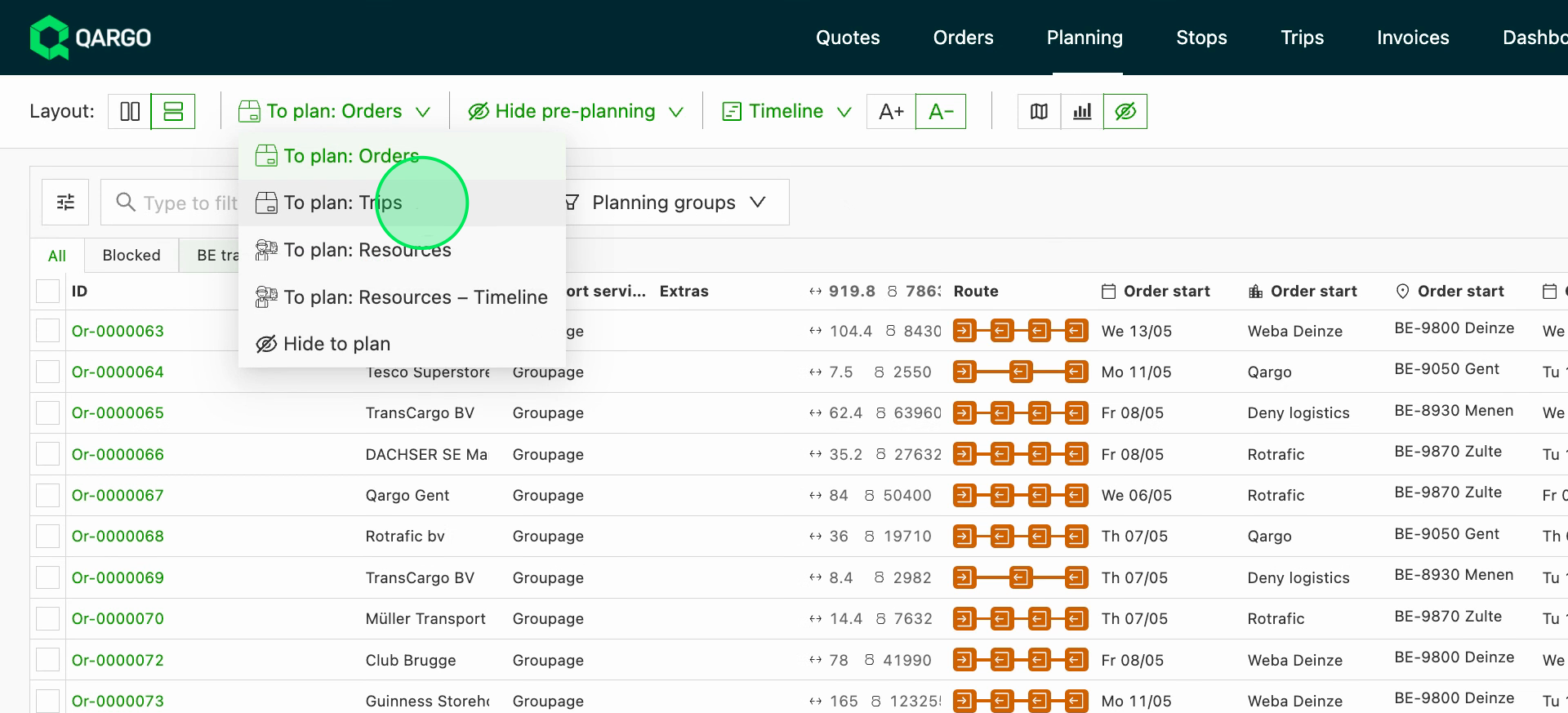
Open the To plan dropdown at the top of the board.
-
Select To plan: Loads, shown next to To plan: Orders, To plan: Resources, To plan: Resources - Timeline and Hide to plan.
-
View every load still waiting for a real resource (dummy-resource loads and loads without a resource) in a single list. The list scrolls infinitely, with no 7-day cap.
Assigning a real resource
- Select any date range needed. There is no 7-day limit, so older loads remain listed.
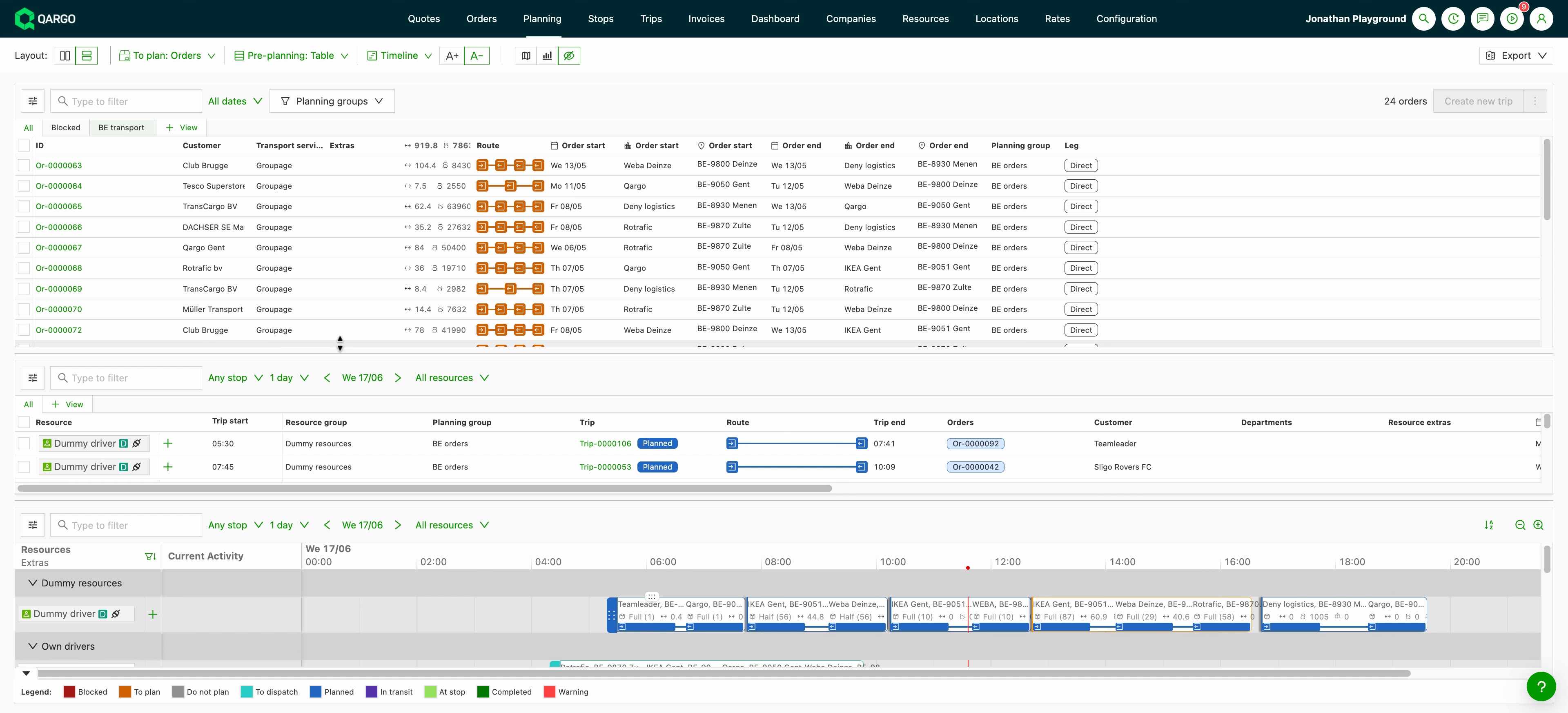
- Drag a load from the list onto the main Planboard below to assign a real driver or vehicle.
- Reorder columns freely if needed. The Resource and Load start columns are no longer frozen in this view.
How it relates to preplanning
- Pre-planning stages orders onto dummy resources to group them.
- To plan: Loads is where those staged loads, and loads without a resource, are picked back up to assign a real resource.
- The two views are mutually exclusive. When To plan: Loads is active, the Pre-planning control is hidden. When Pre-planning is active, the To plan: Loads entry is hidden.
- No configuration is required. The new entry appears in the To plan dropdown automatically.
Troubleshooting
| Issue | Explanation / resolution |
|---|---|
| The To plan: Loads entry is missing from the dropdown | The Pre-planning view is currently active. The two are mutually exclusive: close Pre-planning and the entry reappears. |
| A load is not shown on the map | By design, loads in this view are not plotted on the map. |
| A dummy resource is not listed | Dummy resources with no loads are excluded; only dummy resources that carry loads appear. |
| Split loads do not show as expected | This view only shows split loads that are still to plan in the list; it does not change how load splitting works. |