
Feature release September 2025
This article highlights the new features and enhancements released by Qargo this month.
Week 1
Orders: Pallet pool management in Qargo
Invoices: User warning on zero-value charges
Week 2
Planning: Auto assign resources to an order
Week 3
Planning: Customizable load names
Week 4
Configuration: Printer settings moved
Planning: Inline edit resource groups in the stops view
Orders: Prefill order defaults during order imports
Orders: Filter by load ID in the list view
Week 5
Intermodal planning: Group multiple containers / loads
Configurations: Comments and notes for orders, loads, invoices, and credit memos
Orders: Groupage CMR document update
Rates: New condition for public holidays
Week 1
Orders: Pallet pool management in Qargo
Pallet pool management is a powerful new feature that brings full transparency and control over pallet movements directly into Qargo’s transportation workflows. With this new feature, carriers can now:
- Track pallet swaps at pickup and delivery.
- Maintain balances per customer and location with full visibility.
- Settle balances quickly and accurately.
- Apply rating rules for pallet usage and swaps in rate cards.
Key capabilities
- Automatic prefill of pallet counts (full and empty).
- Driver input via question paths in the driver mobile app.
- Manual adjustments to keep records accurate.
- Settlement workflows at both customer and location level.
- Rate card integration for pallet swap charges.
- Customization options for customer-specific pallet swap rules.
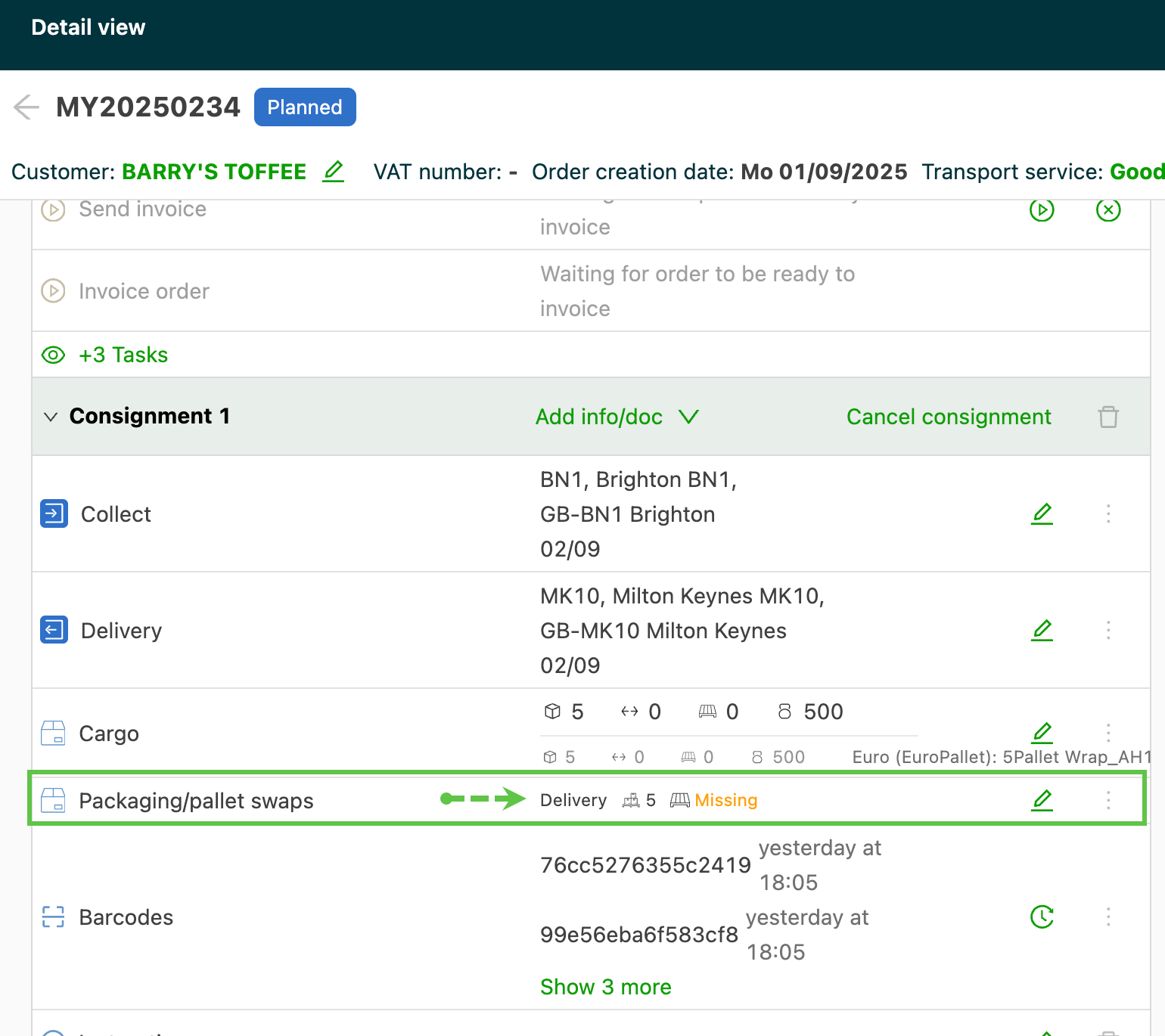
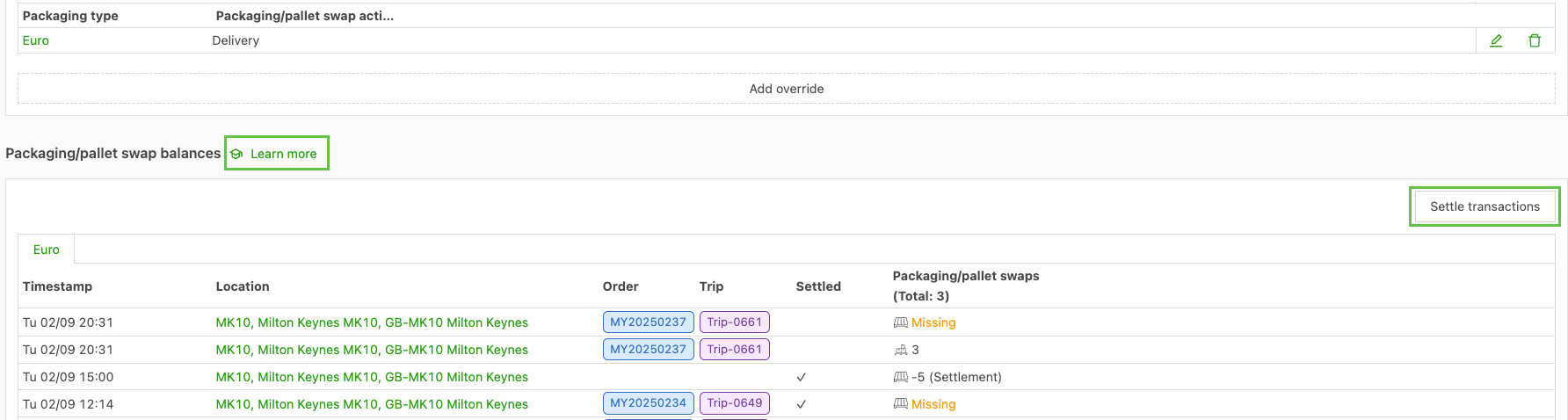
How to configure and use pallet swaps in Qargo
Invoices: User warning on zero-value charges
A new feature has been introduced to improve billing accuracy and prevent common errors.
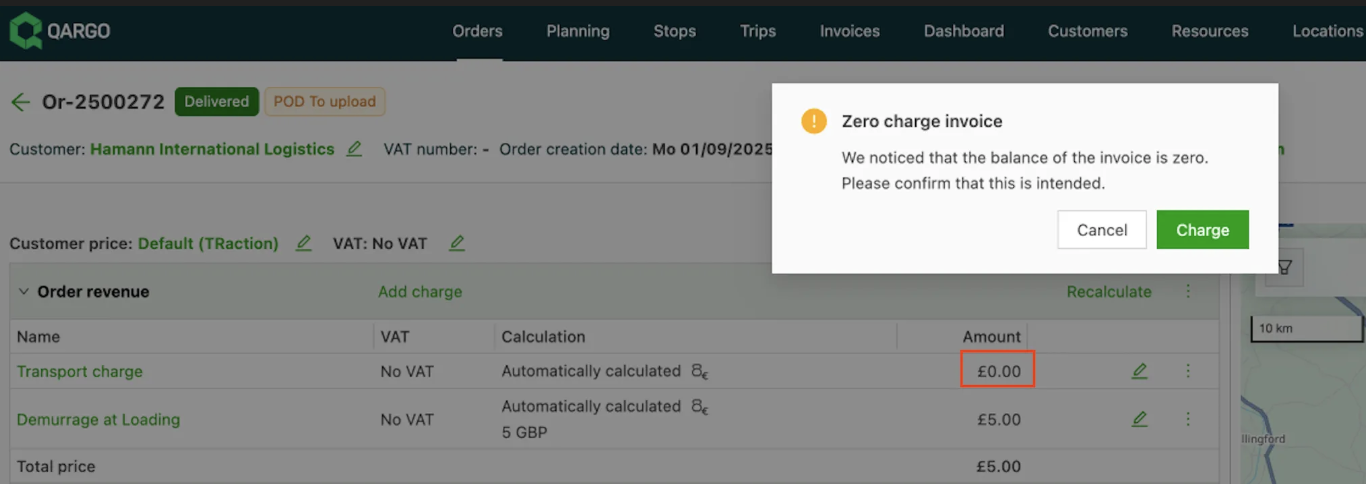
Qargo now displays a warning when an invoice is about to be created with a zero-value transportation charge. This new safeguard ensures all charges are correctly captured before invoices are finalized.
This update appears in two key areas:
-
When setting an order to Ready to invoice
-
When creating an invoice for a single order or in bulk
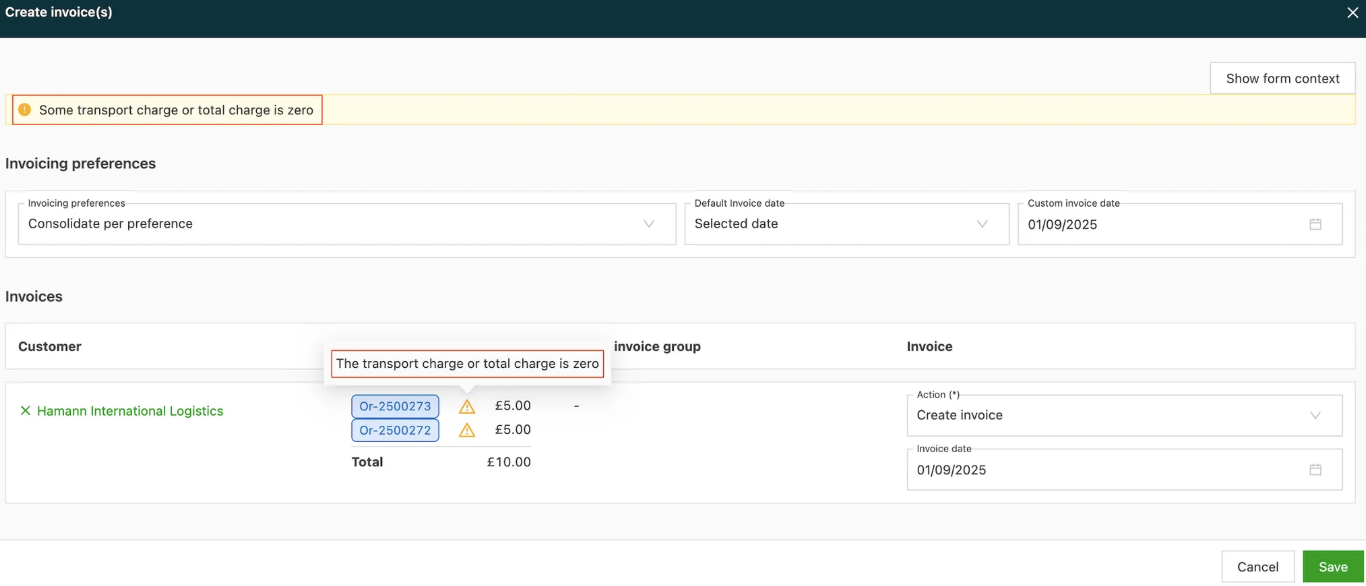
This simple but powerful change helps streamline workflows and ensures greater precision in billing.
:::
Week 2
Planning: Auto assign resources to an order
Auto assign resources is here to streamline planning, making tasks smarter, faster and more accurate. This powerful new feature in Qargo is designed to simplify and speed up planning.
With auto assign resources, users can now:
- Automatically allocate orders to drivers, vehicles, trailers or contract carriers.
- Set flexible rules and conditions based on goods, orders, or routes.
- Reduce manual planning while ensuring consistent and accurate assignments.
This means less time spent matching orders to resources, fewer errors, and smoother operations across the network.
How it works:
- Go to Rates > Order input > Resource assignment.
- Click Add item and select resources.
- Define the conditions (goods, order details, or routes).
- Save the configuration.
When an order is built that meets the conditions set out in the rules, Qargo automatically assigns the specified resource to the order.
Week 3
Planning: Customizable load names
It’s now possible to configure a custom pattern for autogenerated load names, making them easier to organize, track, and align with business processes.
How it works
Just like other sequence numbers, the structure for load names can be defined specifically. This means load identifiers can be tailored to the organization’s preferences, for instance by including a date pattern in the load name.
Example
A load created in 2025 might be named:
TRIP-2025-0001This automatically inserts the year the load is created. Date values are determined at the time the load is created.
Benefits
- Standardize load names across the organization
- Include meaningful date references for easier reporting and searching
- Maintain consistency with existing order or document naming conventions
This update helps keep operations more organized and makes load management clearer than ever.
:::
Week 4
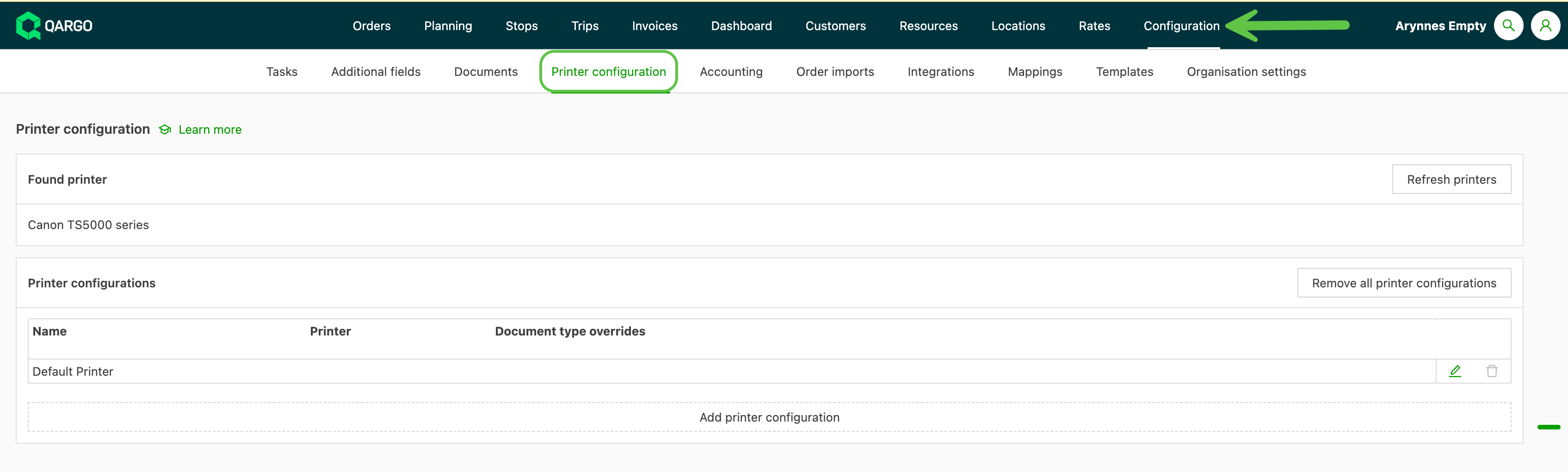
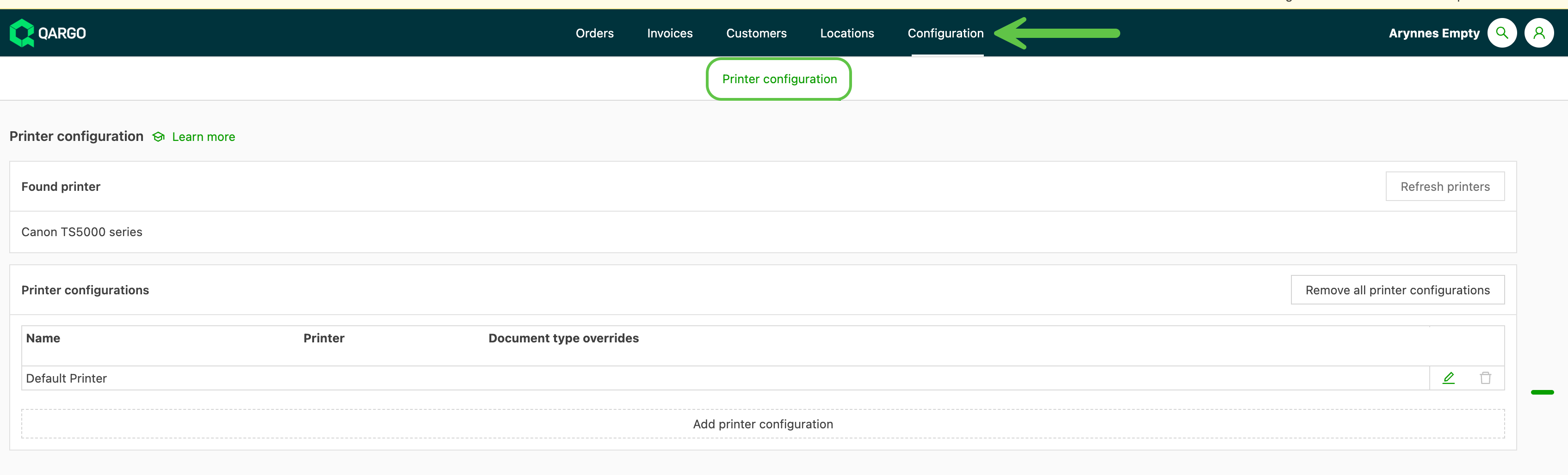
Configuration: Printer settings moved
Adding a printer configuration is even easier with this update! Printer configuration is now available to all users, allowing users to set up printers for convenience.
- Navigate to Configuration > Printer configuration
Users with admin rights
Users without admin rights
Click the link below 👇 to learn how to set up printers.
Planning: Inline edit resource groups in the stops view
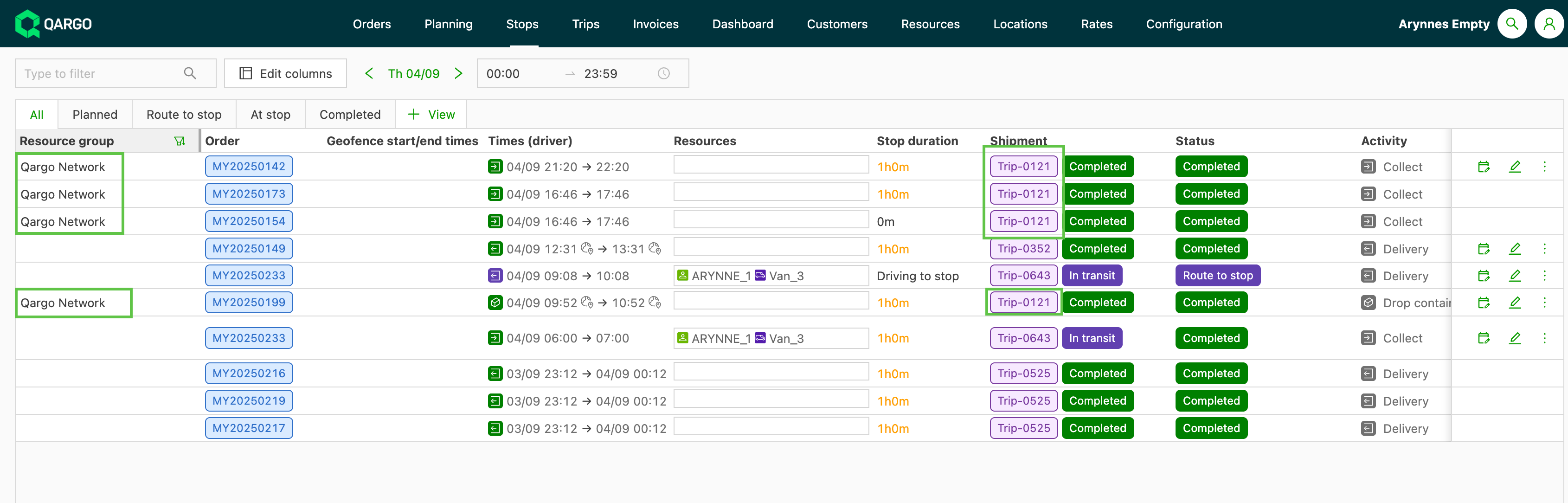
Working with resource groups in planning is even easier. Resource groups can now be displayed and managed directly in the stops view.
✨ What’s new
- A new Resource group column can be added to the stops view.
- Users can assign a resource group directly by clicking into the column on the relevant row.
- The dropdown shows all available resource groups, making selection quick and simple.
🔄 Smarter updates
- When multiple orders are included on the same load, assigning a resource group automatically updates all related orders, keeping everything consistent with just one action.
🎯 Why it matters
This enhancement provides:
- Faster planning workflows
- Greater flexibility by assigning groups directly where users work
- Improved visibility across loads and orders
Click the link below👇 to learn more about setting up and using resource groups.
Orders: Prefill order defaults during order imports
A new enhancement to order imports allows users to prefill values from order defaults, ensuring full consistency with the web application.
- Prefilling worked seamlessly when orders were created manually in the web app, but not when orders were imported automatically. This created extra overhead for customers and the Qargo professional services team.
- Automatic order creation now supports default value prefills, making processes smoother, faster, and more scalable.
🧩 What’s new
-
New configuration options in order import settings:
- Customer
- Transportation service
-
Enabled by default for new imports but must be manually activated for existing ones.
-
Once enabled, any order created through imports or the external API automatically applies the configured default values.
🧪 Use cases
- Customers and transportation services that require specific order inputs no longer need manual adjustments every time.
- Reduces dependency on transformation mapping, cutting down professional services costs and increasing control for users.
🔍 Limitations
- In contrast to the web app, prefills during import do not overwrite existing input values, ensuring imported data remains the source of truth.
Orders: Filter by load ID in the list view
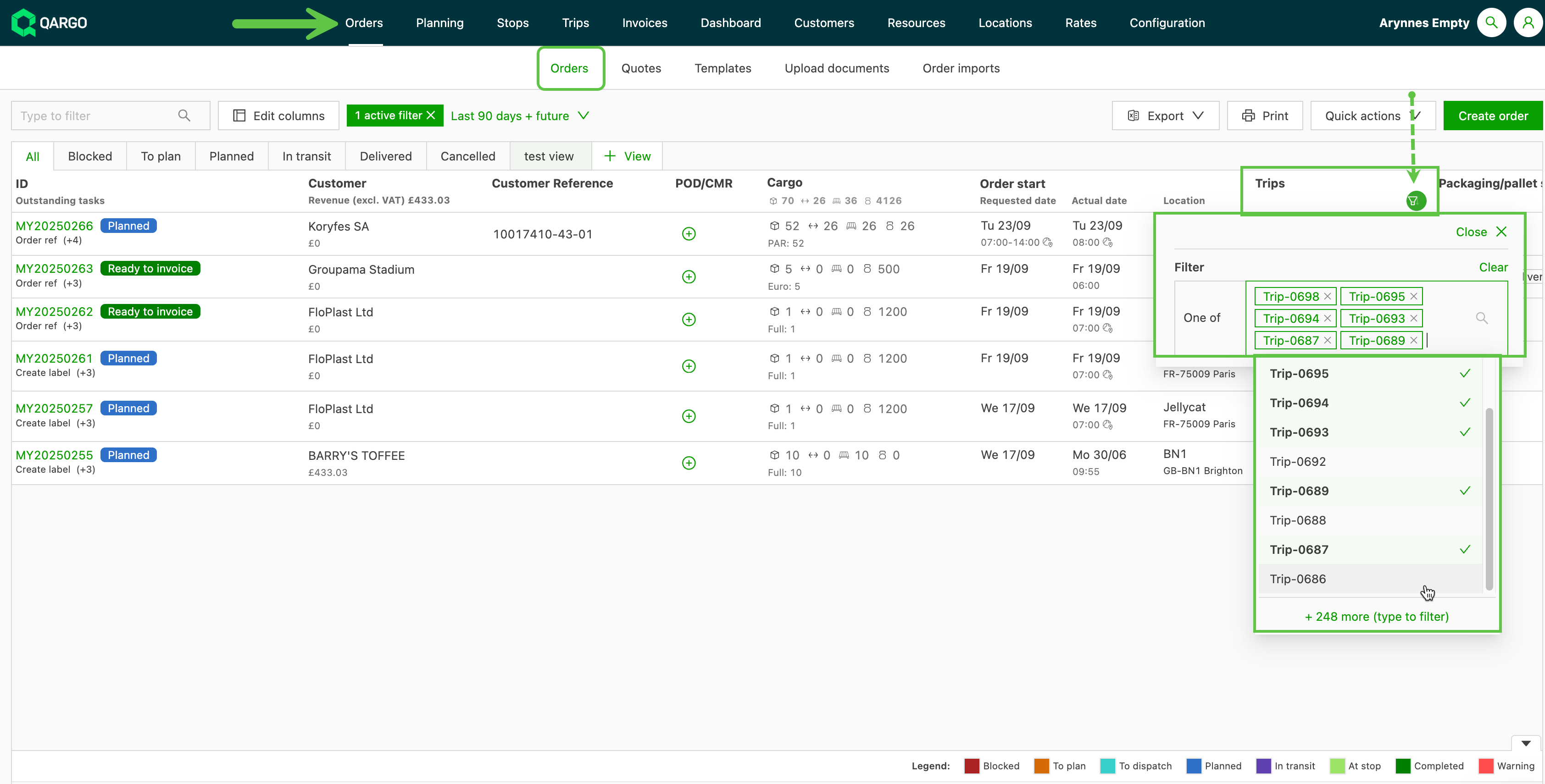
Add the Load ID to the order list view for better visibility and filtering.
✨ What’s new
- Add the Load ID column via the Edit columns button.
- Once enabled, the column appears on the right and can be dragged to the preferred position.
- Supports multi-load filtering, allowing users to quickly narrow down orders by one or more load IDs.
🎯 Why it matters
This update improves order tracking and gives planners more flexibility in managing and analyzing loads directly from the order list view.
:::
Week 5
Intermodal planning: Group multiple containers / loads
Qargo has introduced a powerful new planning view that makes managing intermodal departures and bookings at scale much easier. Planners can manage multiple container bookings across different departures in one place, ensuring better visibility, faster assignments, and clear capacity control.
Who benefits?
- Operators booking multiple containers (one container per load, multiple loads per departure).
- Companies managing voyages or train schedules with limited allocations
- Customers who need detailed departure-level planning, manifests, and capacity checks
🔍 How it works
- A new intermodal departures table provides a clear overview of all upcoming sailings and train departures.
- Clicking a departure highlights it and filters the booking table below, showing only the related bookings.
- Drag and drop makes it quick to assign or move bookings between departures.
- Capacity controls show maximum container and trailer allocations, with a warning when limits are exceeded.
- Simplifies bulk container management across multiple departures
- Saves time compared to adding containers one by one
- Reduces errors by clearly showing when capacity is exceeded
- Provides a single, structured view of departures and bookings, with the flexibility to quickly adapt plans when schedules shift
Configurations: Comments and notes for orders, loads, invoices, and credit memos.
The new comments and notes feature centralizes communication and tracks queries across the entire workflow.
✨ What’s new
- Centralized access: A new Comments icon in the top navigation bar provides instant access to all comments assigned to a user.
- Granular tracking: Comments sections are now available on all order, load, invoice, and credit memo detail pages.
- Custom categories: Comment categories can be assigned and adapted, including deleting them, creating new ones, or marking them with a specific color.
🧩 Key capabilities
- Assign comments directly to specific users for clear follow-up and accountability.
- Categorize comments and track status by resolving them when the task is complete.
- Every comment is automatically timestamped, creating a precise historical audit trail for decision-making.
🎯 Why it matters
This update significantly reduces the time spent tracking down context or manually reminding colleagues about follow-up actions.
Groupage CMR documents
The groupage CMR document feature enables the generation of unique CMRs for each delivery stop group within a single load, drastically simplifying paperwork for complex groupage routes.
✨ What’s new
- The system can now generate a unique, separate CMR document for every delivery stop group within a single, multi-destination load.
- Documents are created by automatically grouping goods destined for the same unloading point (whether it’s a terminal, cross-dock, or final customer).
🎯 Why it matters
This feature matters because it transforms complex, multi-destination document generation from a manual risk into a single, automated step.
-
Boosts efficiency and compliance: Ensures that every terminal or final destination receives its own unique and legally compliant CMR, detailing only the goods being dropped at that specific location.
-
Streamlines administration: Eliminates the need to manually split paperwork for different customers and destinations, drastically reducing administrative time for groupage and cross-dock operations.
Public holiday conditional metric
The public holiday conditional metric is a powerful new metric that enables automatic, accurate rate adjustments based on national public holidays for pickup or delivery stops.
✨ What’s new
- Automatically applies conditional surcharges to accurately account for high operational costs (like double driver wages).
- The metric only recognizes national public holidays; local or regional holidays are excluded from the calculation.
- Guarantees data integrity by automatically recalculating charges for orders from the last month.
⚙️ How it works
-
Go to the relevant Rate card in the Rates module.
-
Click the Charge to edit and select Add calculation.
-
Click Add condition below the calculation.
-
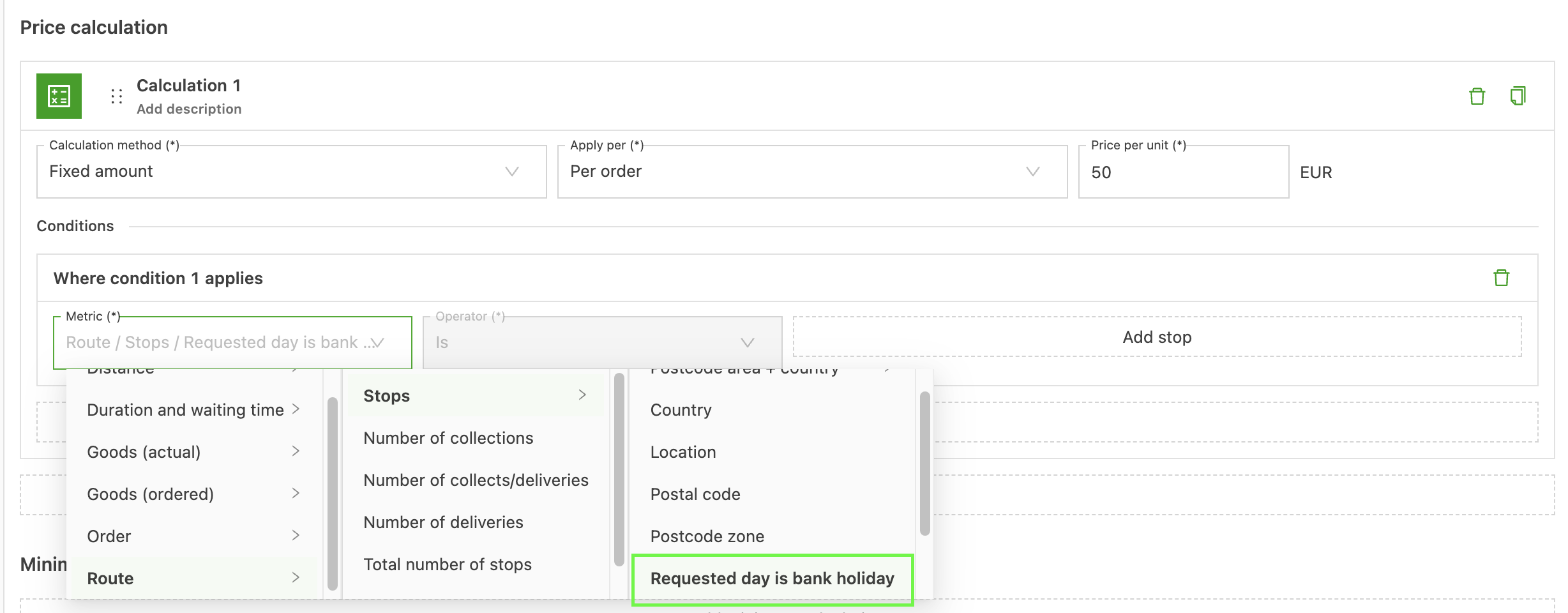
In the metric field, select Route > Stops > Requested day is a bank holiday.
-
(Optional) Select the stop (for example, Delivery) and set the value to True.