
Planning – Auto-assign resources
Rules automatically allocate orders to drivers, vehicles or contract carriers, and can add new orders to an existing matching load instead of creating one load per order.
Table of contents
What is automatic assignment?
The Auto-assign resources feature in Qargo automatically allocates orders to specific resources based on predefined rules. Traditional assignment was linked only to transportation services. This feature offers more flexibility because it enables direct assignment to individual resources under certain conditions.
This reduces manual planning, keeps resource allocation consistent, and supports more efficient operations.
A typical scenario is when orders need to be assigned directly to a terminal (acting as a contract carrier) or to specific drivers or vehicles at that terminal.
Terminology
| Term | Definition |
|---|---|
| Automated resource allocation | A rules-based method for assigning orders or loads to resources without manual intervention. |
| Resource | Any entity eligible to receive an order or load, including drivers, vehicles, trailers, contract carriers, or containers. |
| Conditions | The parameters or criteria that determine when a resource should be automatically assigned. |
| Operator | When configuring conditions, this defines inclusions and exclusions, for instance using ‘is / is not’. |
| Load matching | A rule option that adds a new order to an existing load with the same field values, instead of creating a new load. |
| Load template | A named, fixed sequence of at least two stops that a rule copies into a new load when no matching load exists yet. |
| Matching fields | The order fields (customer reference, recurring route name, and a pickup or delivery date) that must be equal for an order to join a load. |
Configuration steps
-
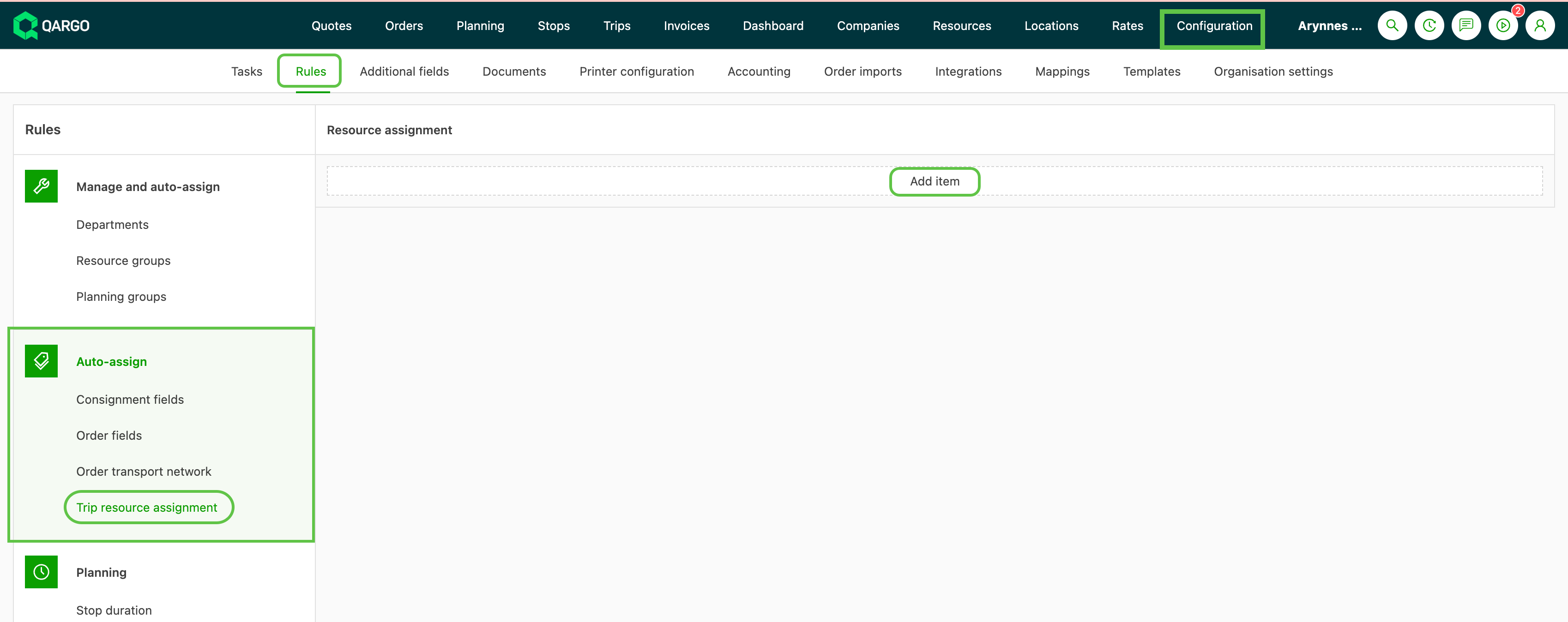
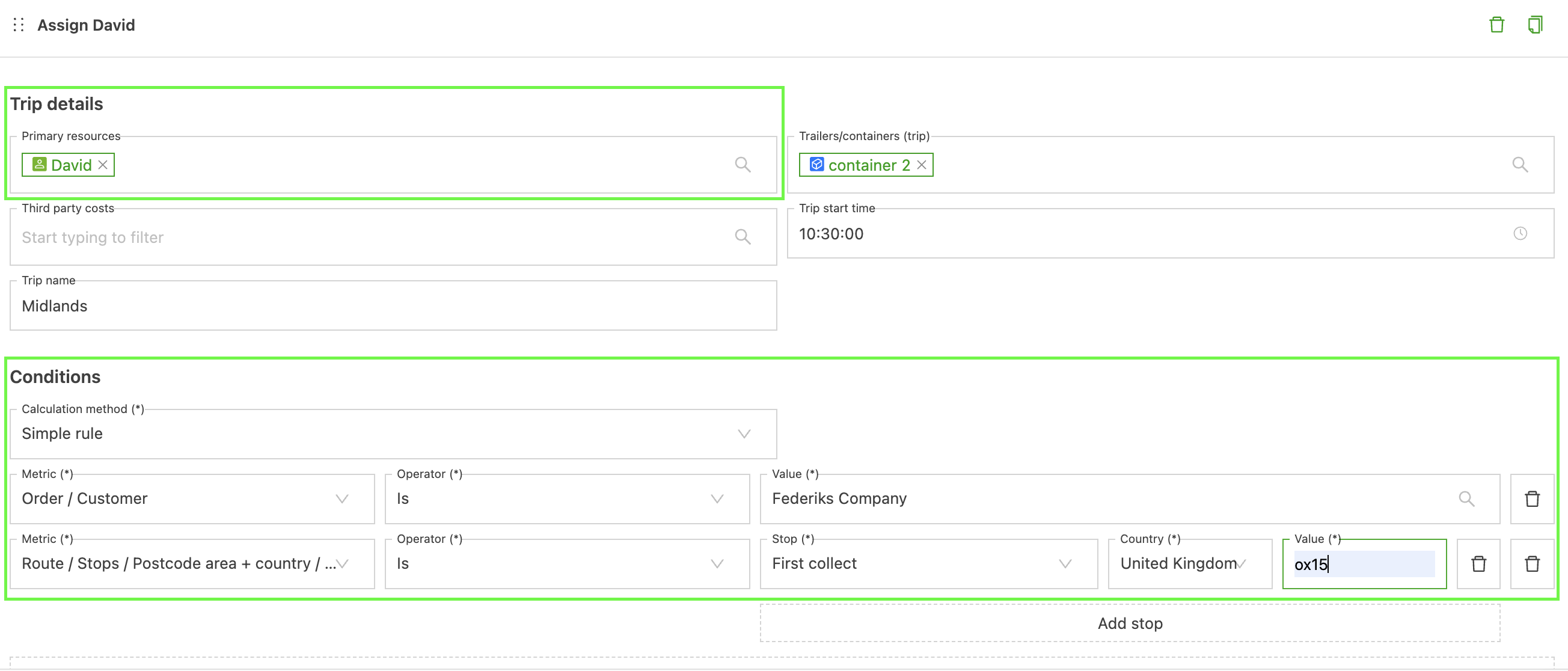
Navigate to Configuration > Rules > Auto-assign > Load resource assignment
-
Click Add item to start configuring.
-
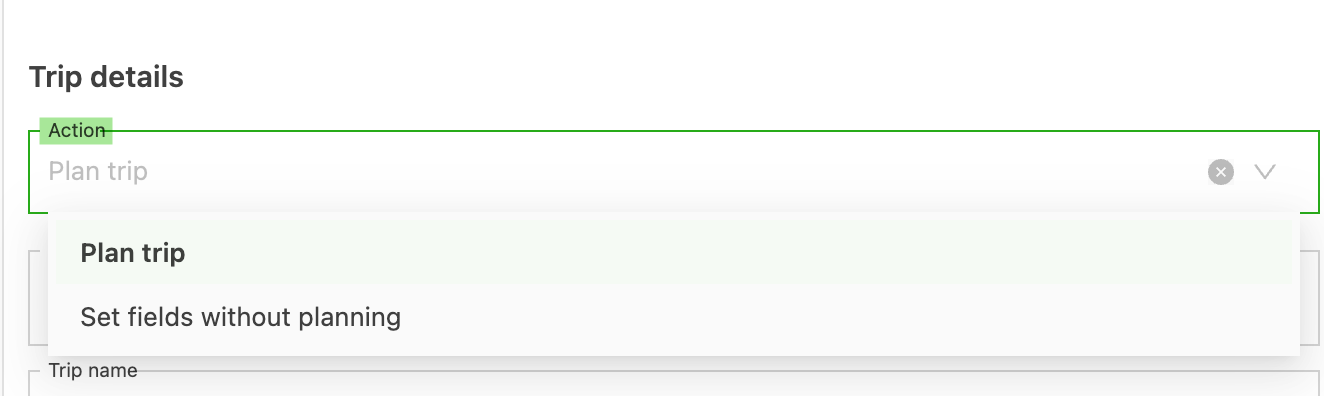
Select the load plan action to determine the status of the load on assignment. There are 2 options:
- Plan load - The load is automatically assigned a Planned status
- Set fields without planning - The load is automatically assigned a To plan status. Users still need to set the load to a Planned status.
-
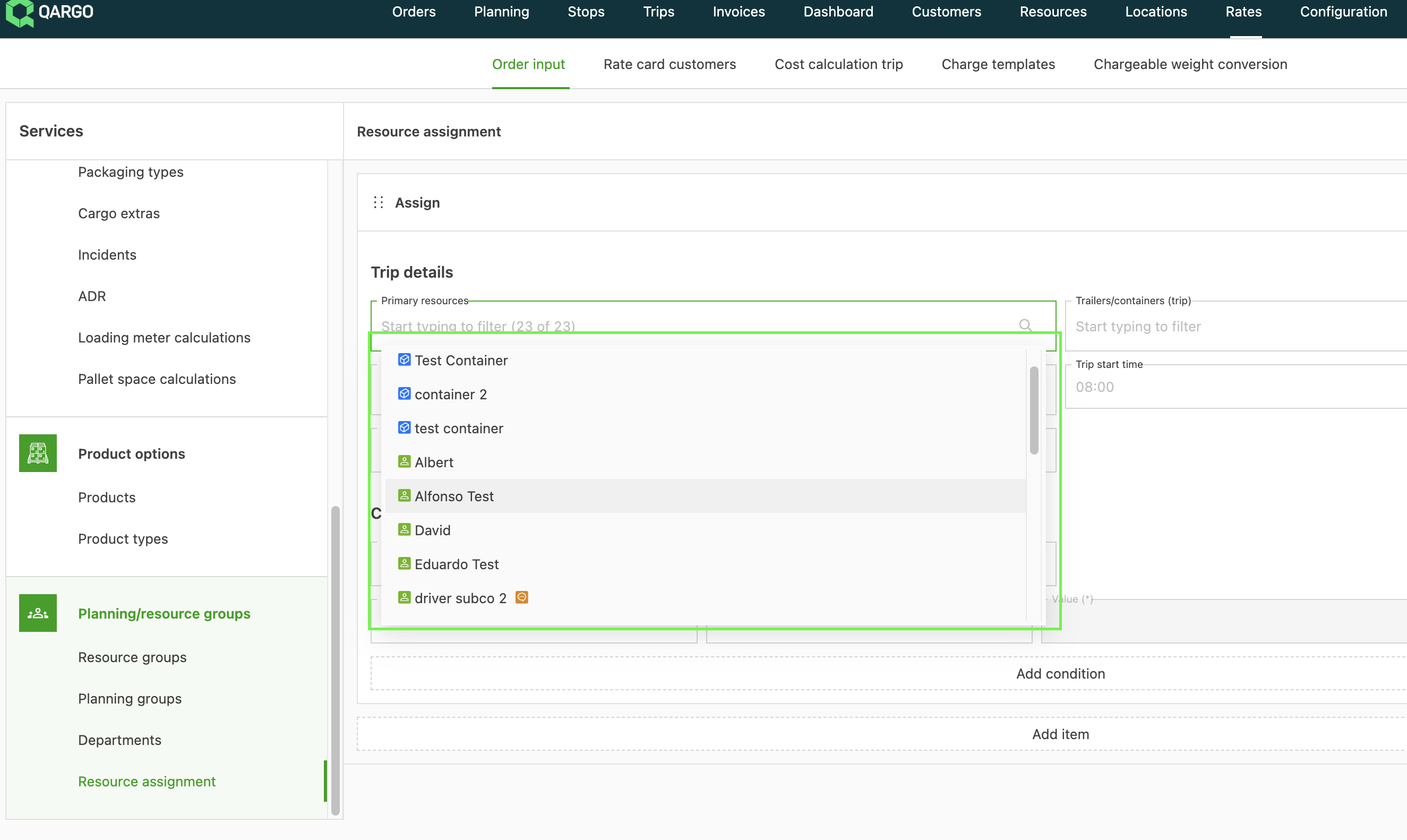
Choose a primary resource from the dropdown.
- Resources must be added in the Resources menu to be available for selection.
-
(Optional) Add secondary resources (these must also be in Resources first).
-
Enter additional details such as load start time and load name.
-
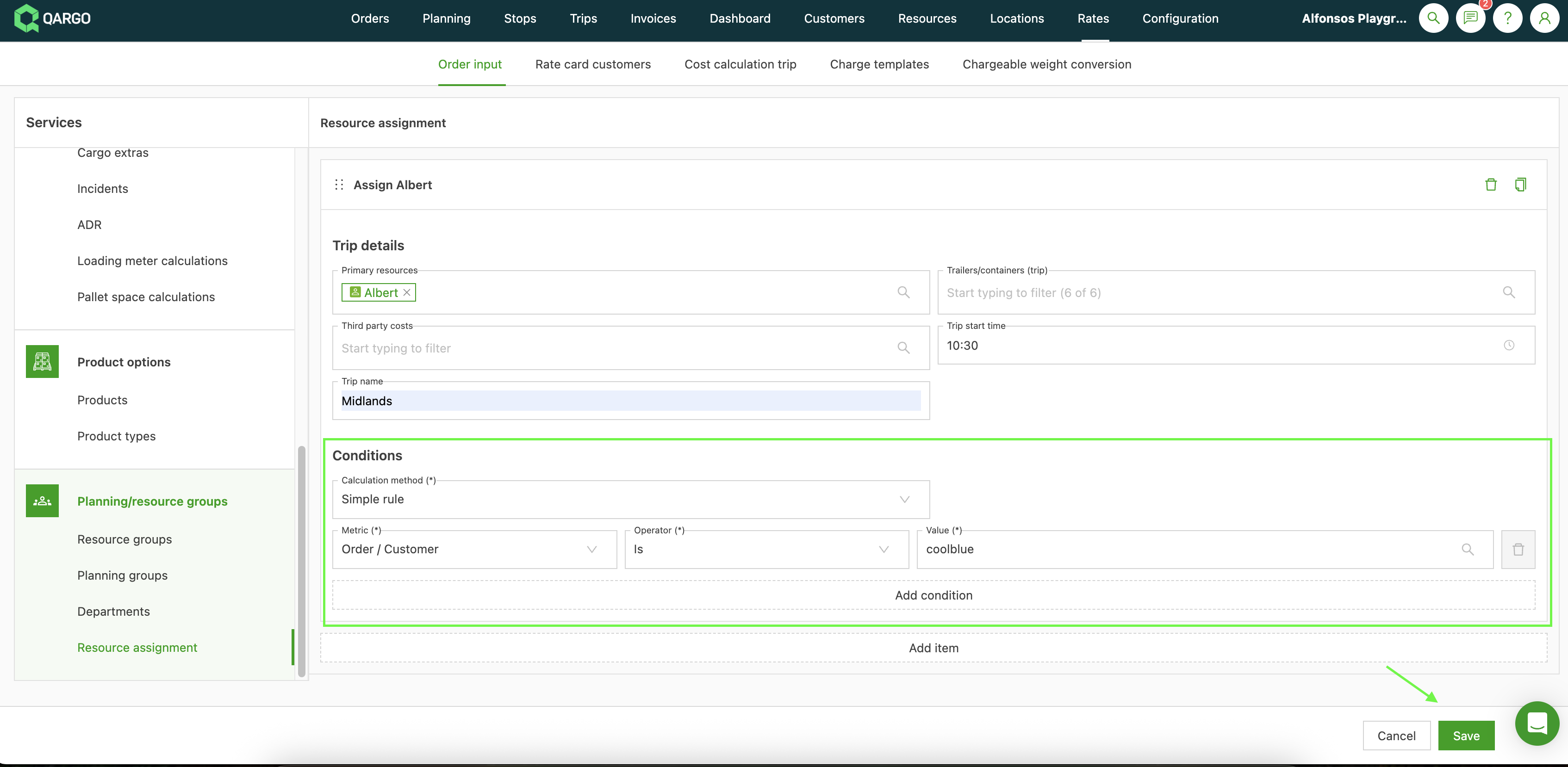
Define the conditions that will trigger the automatic allocation.
-
Save the configuration.
Configuring conditions
Qargo can automatically assign resources, along with a specified start time and load name, based on defined order conditions. These conditions are built using:
-
Two calculation methods:
-
Simple rule: This method creates straightforward rules, consisting of a metric (such as number of pickups or weight), an operator (such as greater or smaller than), and a specific value.

-
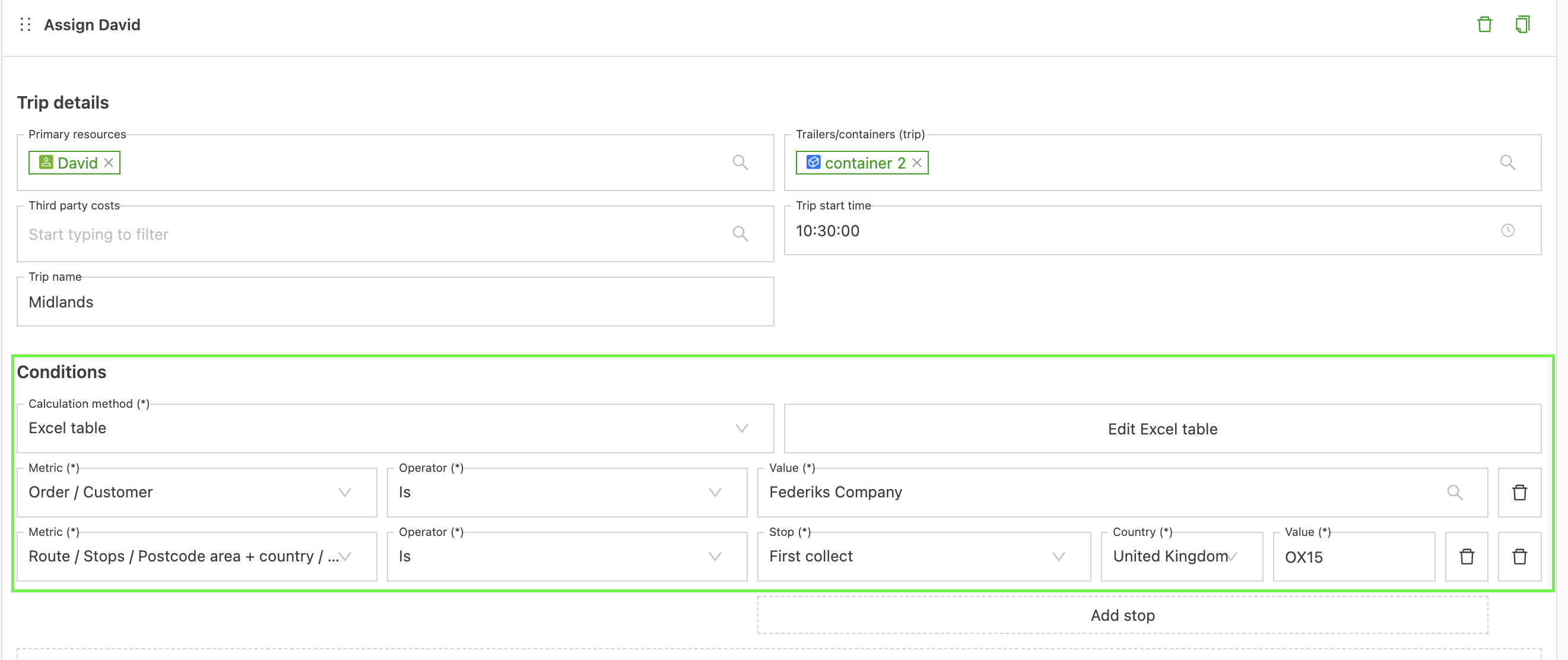
Excel table logic: Conditions can also be defined using an Excel table format.
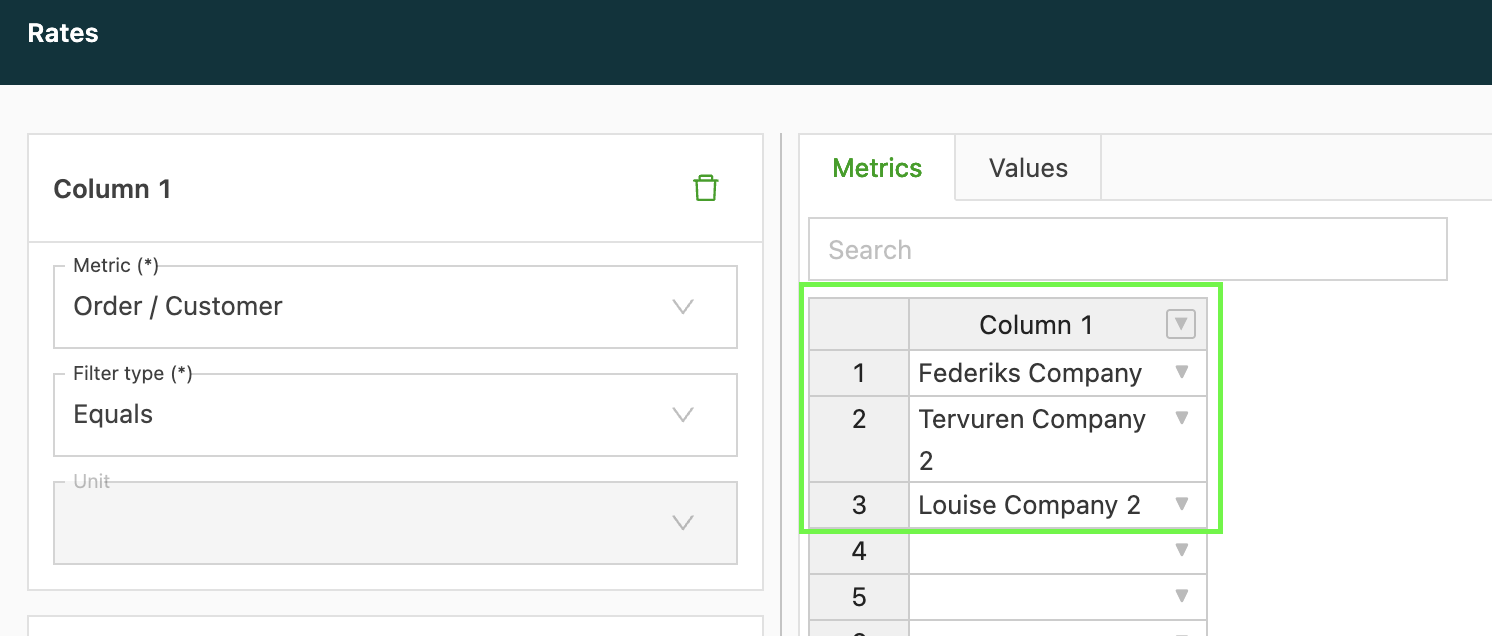
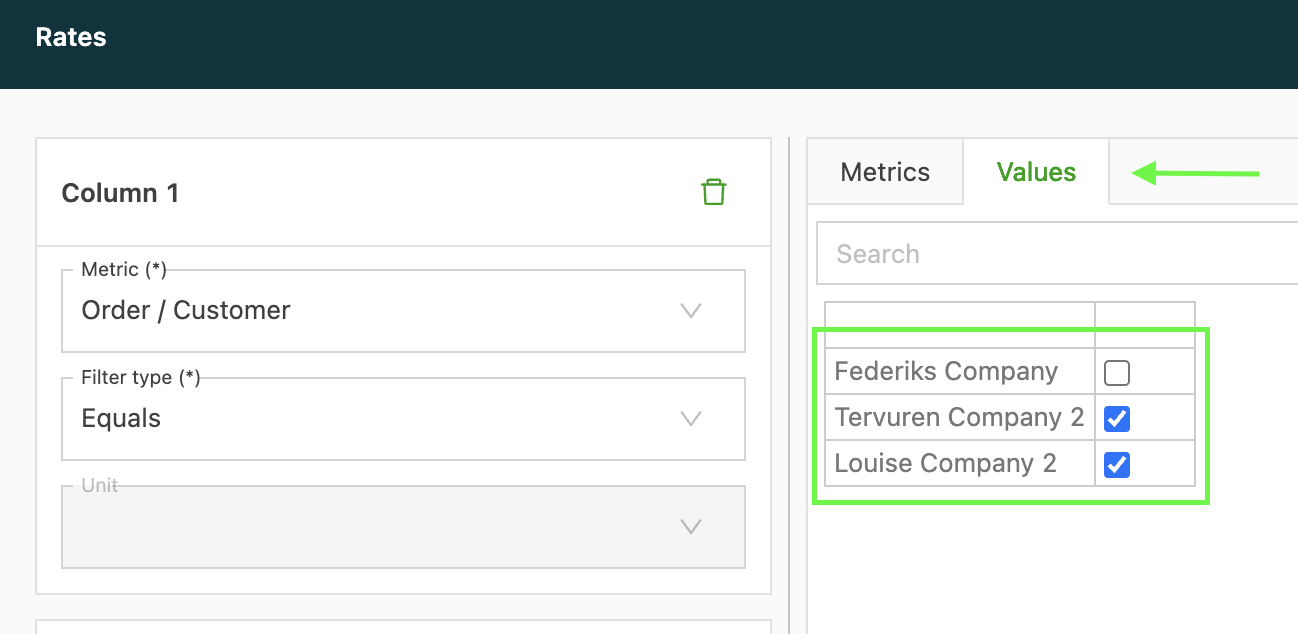
On the Values tab, the resource is auto-assigned to any case where the corresponding metric is checked. Unchecked metrics do not trigger the resource’s assignment.
-
-
Both calculation methods have three possible metrics:
- Goods (ordered). This is based on freight details entered during order creation, including packaging types, quantities or dimensional metrics
- Order. This is based on order details, including transport or service levels, customers or vehicles, and import sources.
- Route. This is based on stop details or activities included in the order.
-
Select the preferred metric, then add the operator that determines whether it is included or excluded in the logic.
-
Add the value associated with the selected metric. The options available here depend on the selected metric.
-
Multiple conditions can be added to each rule (including an Excel table condition plus a simple rule condition) and are executed in the order added.
Load matching
A rule with the action Plan load creates a new load for every order by default. Load matching changes this: a new order can join a load that an earlier order created through the same kind of rule. This removes the daily work of merging loads or dragging orders onto the right load for fixed routes, terminal linehauls and groupage.
How matching works
- A load matches when every selected matching field is equal between the order and the load: Customer reference and/or Recurring route name, plus either First pickup date or Last delivery date.
- Dates are compared, not times.
- The joining order’s stops are inserted into the load.
- Loads that are already dispatched or in progress are never matched.
- The primary resource and load start time set on the rule apply only when the rule creates the load. An order that joins an existing load keeps that load’s resources.
- An order only joins a load made by a rule with the same matching fields. For example, orders handled by a rule matching on Recurring route name do not join a load made by a rule matching on Customer reference.
- There is no bulk reassignment. An order on the wrong load has to be moved manually.
Note for matching
- Matching only happens when an order is created. Loads created by hand, or created before a rule was switched to matching, are not joined.
- Only loads created by the rule after the matching option is switched on can be matched. Existing loads, and loads that planners create by hand, are never joined.
- Matching uses the requested pickup and delivery dates, not times.
- An order with one of the chosen matching fields empty (for example no Customer reference) is not matched and not planned: it gets its own load, but that load stays in To plan without the rule’s resources, so a planner has to plan it.
- Matching applies only to loads created from an order. Other flows, such as terminal splits, are excluded. After a split, the second load is created new.
- If two matching orders arrive at exactly the same moment, each can create its own load instead of joining one.
Configure load matching
🎥 Watch this video on how to set up load matching, and/or follow the steps below:
- Navigate to Configuration > Rules.
- Select Load resource assignment under the Auto-assign section in the left-side menu.
- Open an existing rule or
click Add rule. - Set the Action to Plan load. The Load matching section only shows for this action.
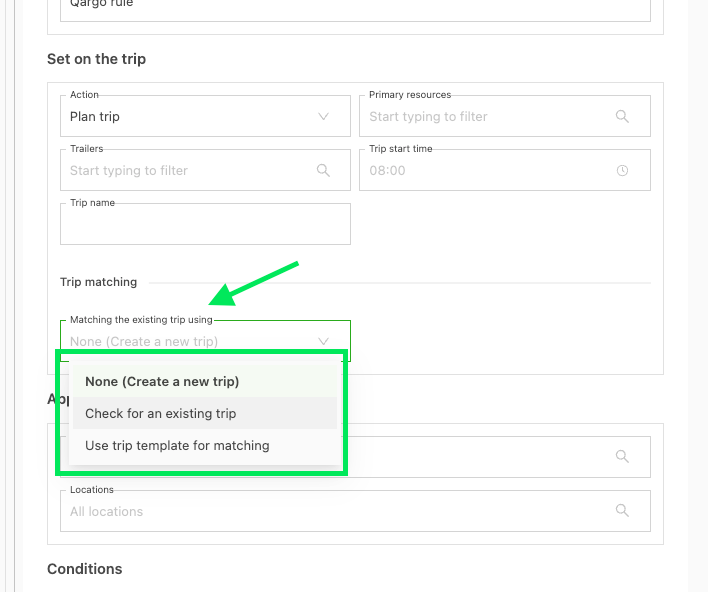
- Select an option under Matching the existing load using:
| Option | Behavior |
|---|---|
| None (Create a new load) | Default. Every order gets its own load. |
| Check for an existing load | The order joins a matching load. If none exists, a new load is created. |
| Use load template for matching | The order joins a matching load. If none exists for that date, a new load is copied from the selected load template. |
-
Choose the matching fields under Match existing load by fields/date:
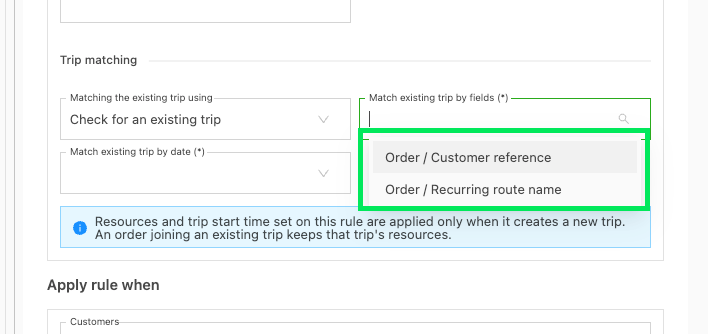
- Customer reference and/or Recurring route name (multi-select)
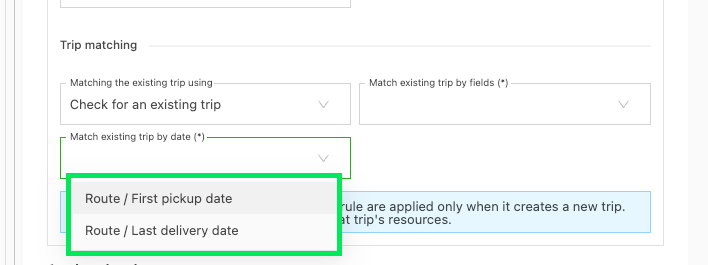
- First pickup date or Last delivery date (single select)
-
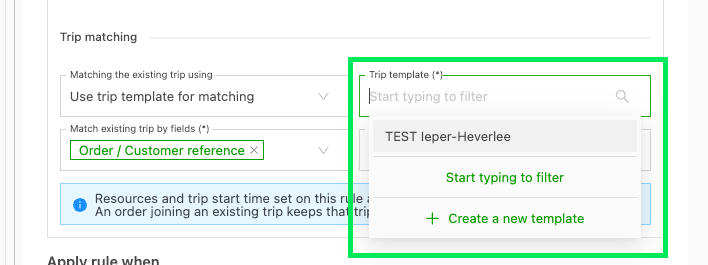
Select a Load template if ‘Use load template for matching’ is chosen. The list ends with Create a new load template, which opens the template modal over the rule. Saving the modal selects the new template on the rule.
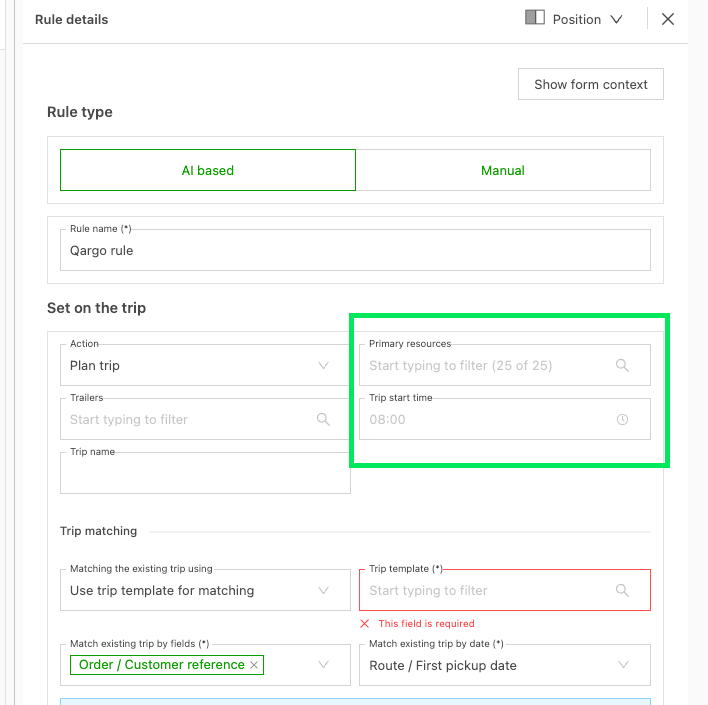
- Set Primary resources or Load start time. A matching rule requires at least one of the two. These values apply only when the rule creates a new load.
- Save the rule.
Load templates
A load template stores a fixed stop sequence for a recurring route. With Use load template for matching, the first matching order for a date creates a load from the template, and later matching orders for that date join it.
What planners see on the load
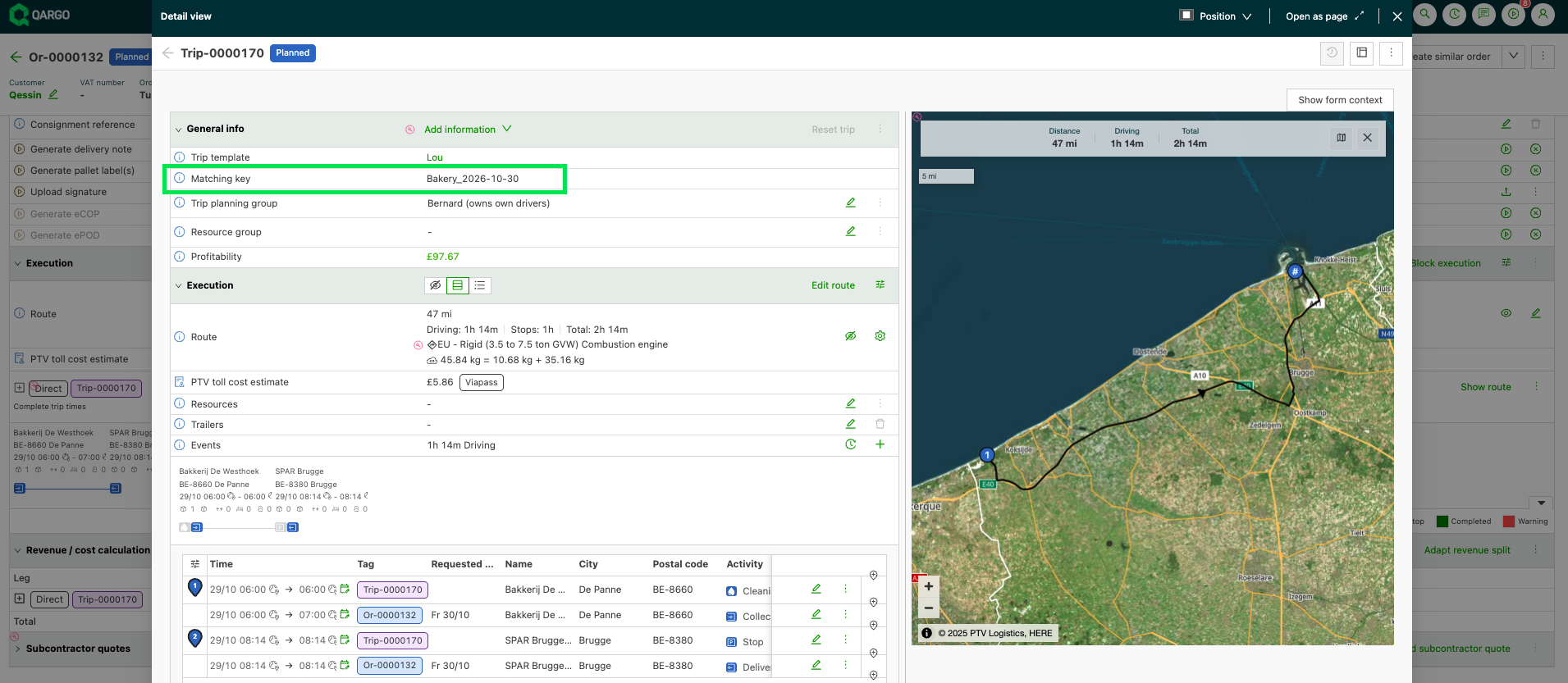
Load detail > General info shows a Matching key row with the values the load matches later orders on, for example a customer reference plus the pickup date (“Bakery_2026-10-30”). The Matching key stays empty on loads created by hand or by a rule set to None (Create a new load).
Example
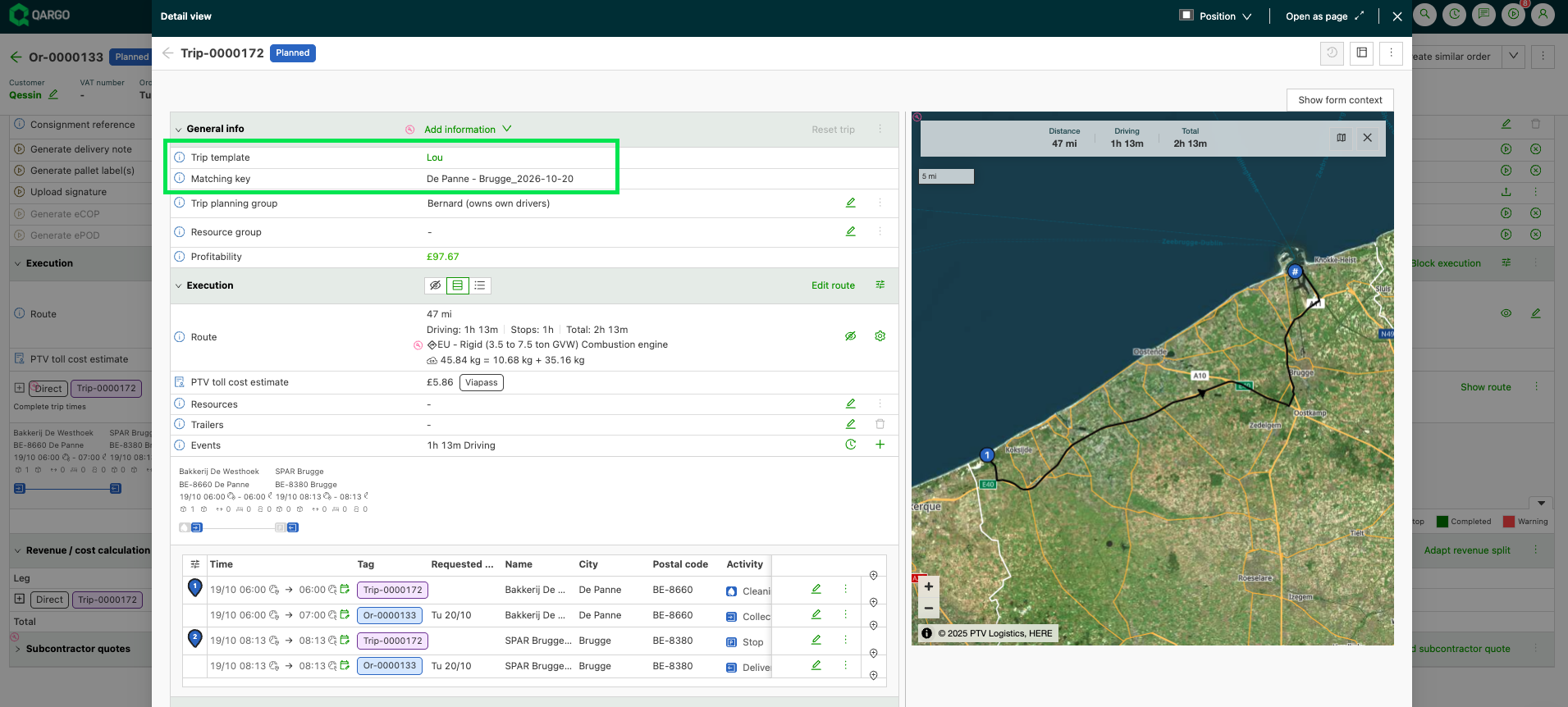
A transportation company runs a regular route between De Panne and Brugge. A load template “Lou” holds two stops, De Panne and Brugge. The rule has the action Plan load and Use load template for matching with this template, and the matching fields Recurring route name and First pickup date.
-
The first order requested for October 20 with the route name “De Panne - Brugge” arrives. No load exists for that date, so a load is copied from the template and the rule’s resources and start time are set.
-
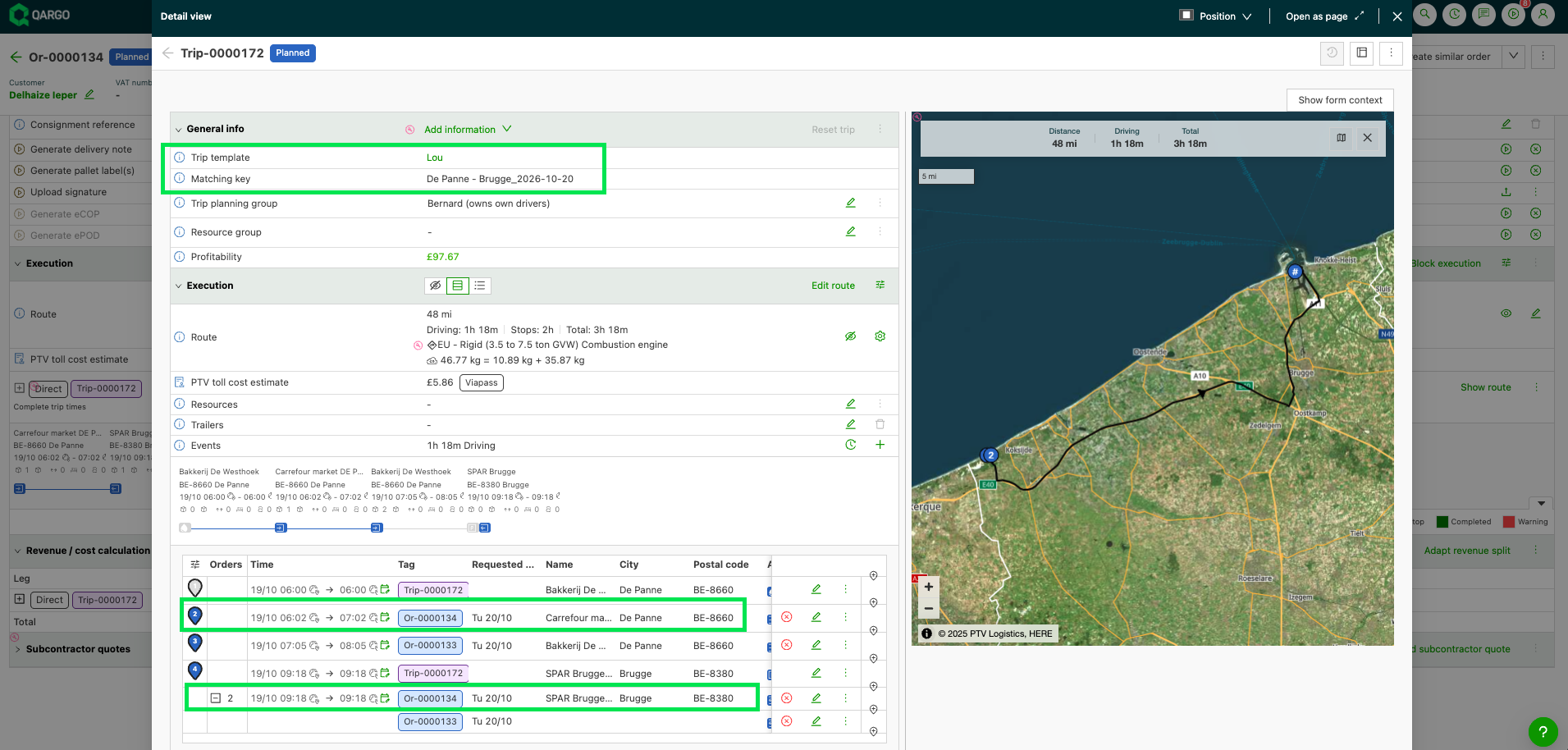
Further orders with the same route name and pickup date join this load, and their stops are inserted into it.
-
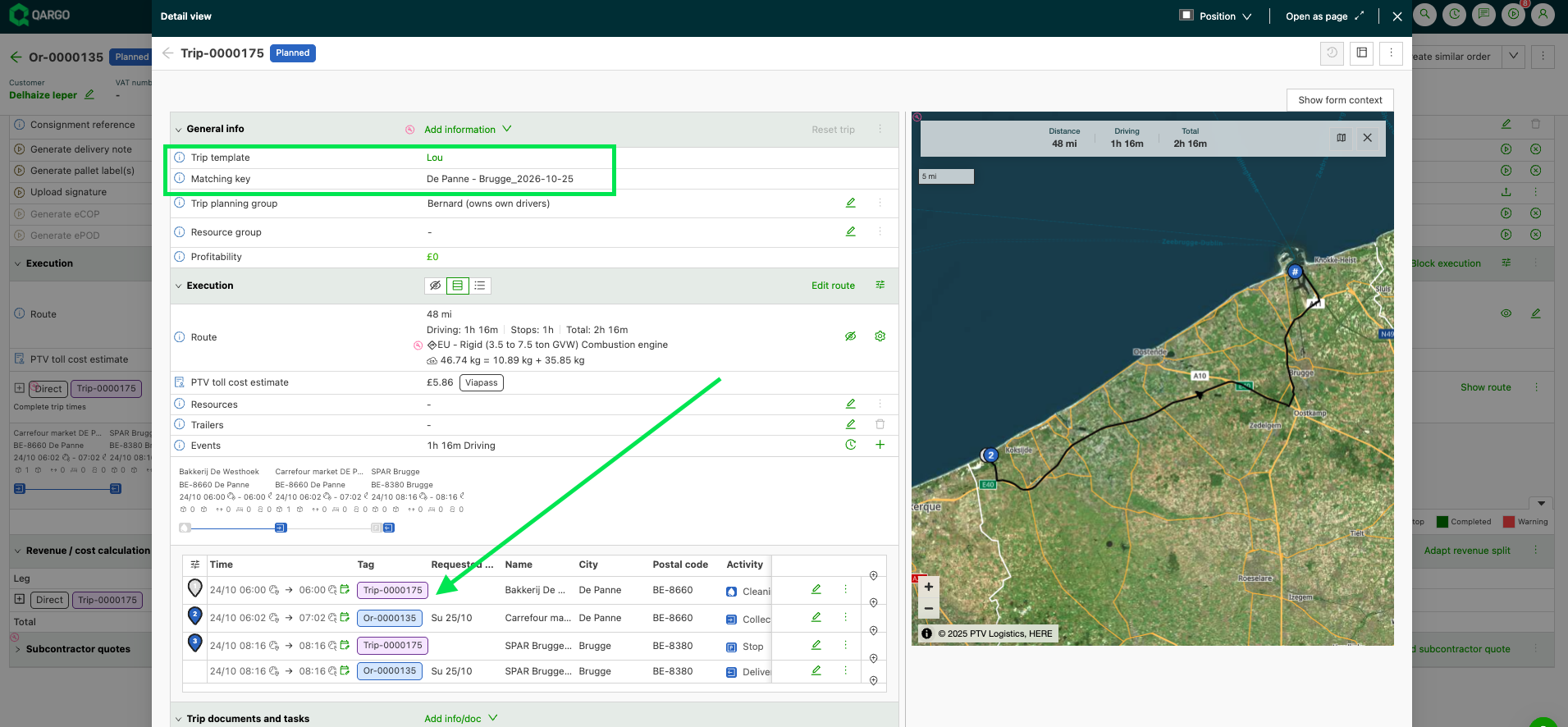
An order for October 25 creates a separate load from the template, because the date differs.
Troubleshooting
-
Rules require at least 1 condition. If a single condition needs an update, select the new value and click Save.
-
If conditions exist but the order is not auto-assigned, review the specific metrics for accuracy.
- For instance, if using ZIP codes, make sure the correct stop is identified, or that the ZIP code is included in a specified ZIP code zone.
-
Order did not join an existing load: check that:
- The load was created by a rule with Check for an existing load or Use load template for matching. Loads created by hand, by a rule set to None (Create a new load), or before the rule was switched to matching are never joined.
- The load is not yet dispatched or in progress.
- Every selected matching field is equal, including the date.
-
Order got its own load that stays in To plan without resources: one of the selected matching fields is empty on the order (for example no Customer reference). Such orders are not matched and not planned, so a planner has to plan the load.
Workflow example
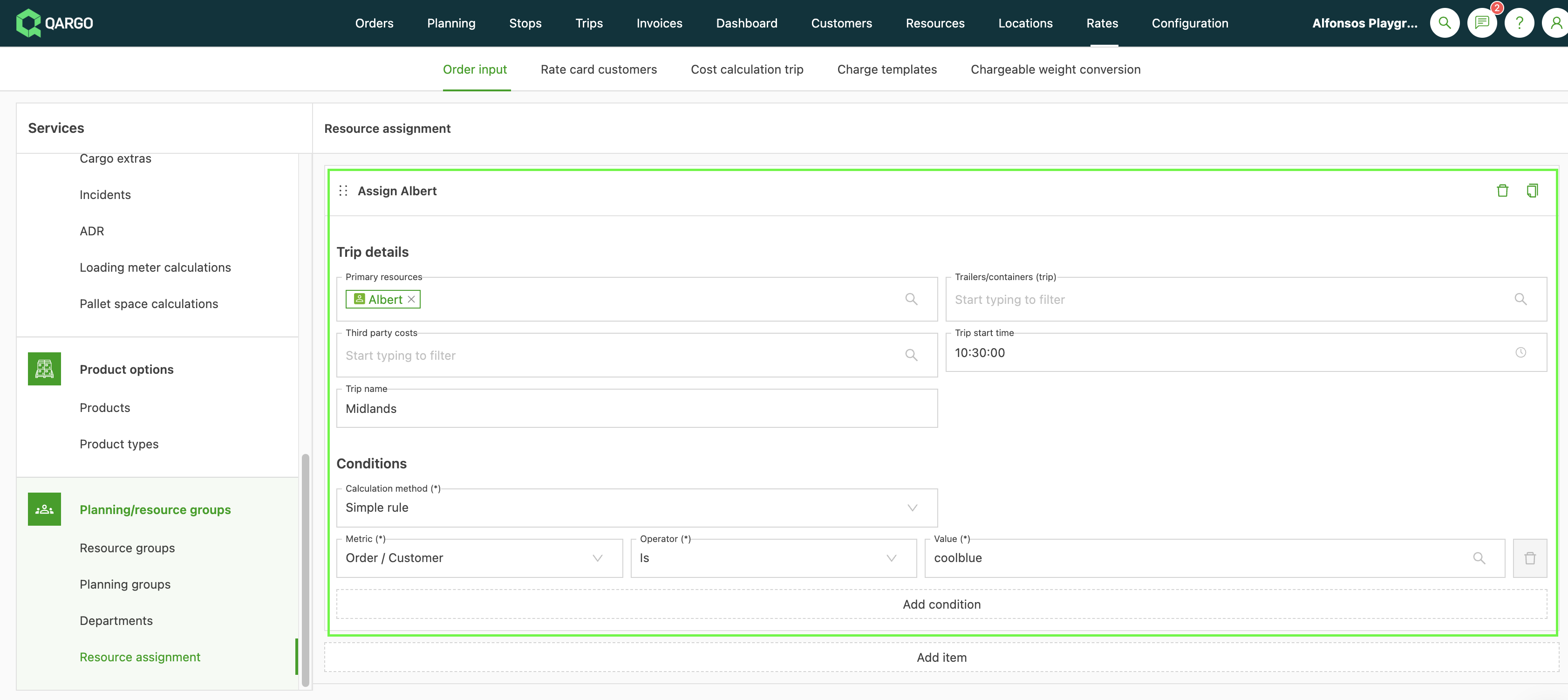
-
When an order is created that falls within the rules set up, the specified resources are automatically allocated.
-
The load is created
-
The order status is automatically set to Planned.
-
Route details show in ‘To dispatch’, unless the task is configured to switch to ‘Planned’ and is set to auto-complete.

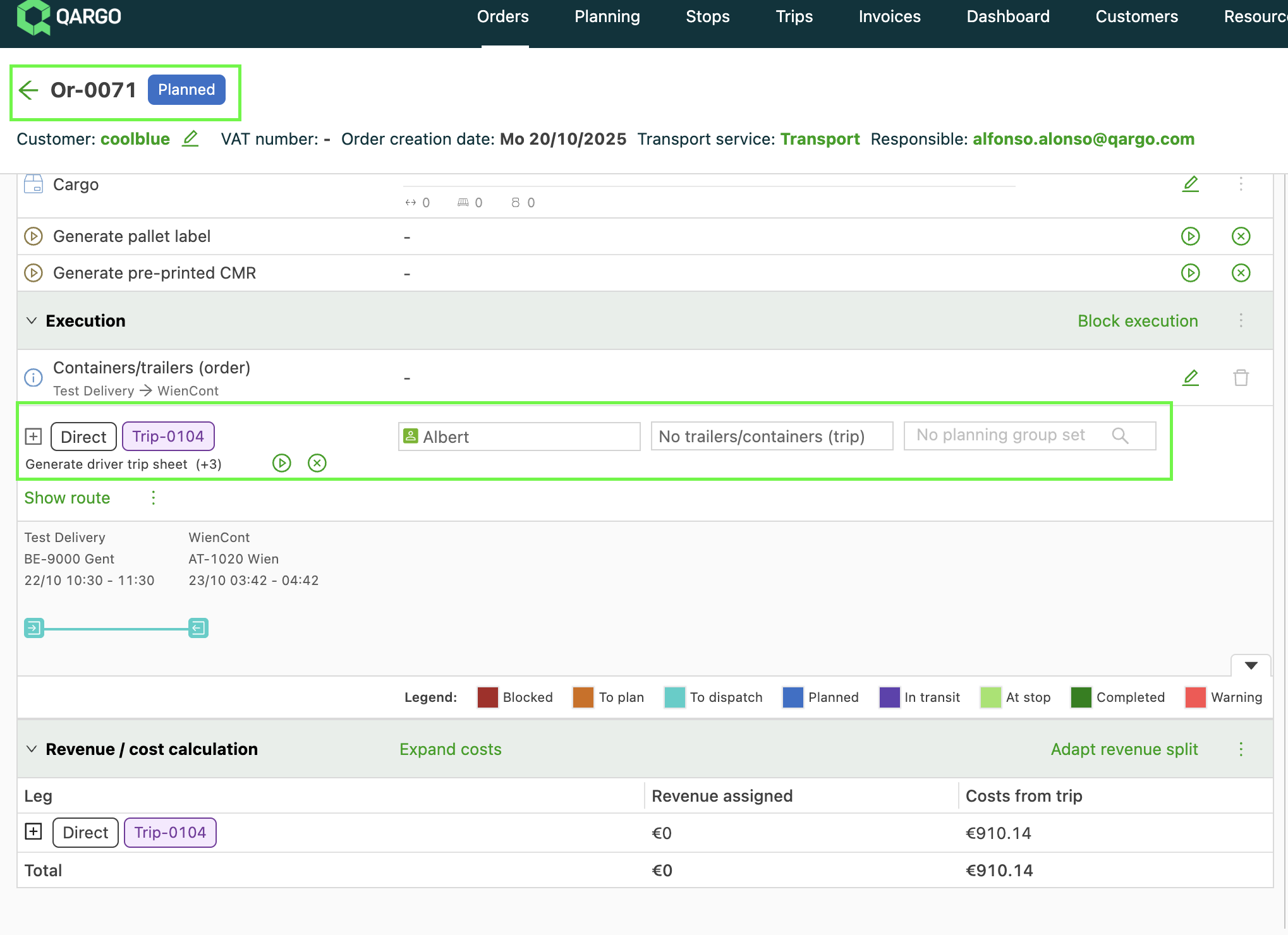
- Create an order using those conditions, and Qargo automatically plans the order onto the correct resource.
Practical use cases
-
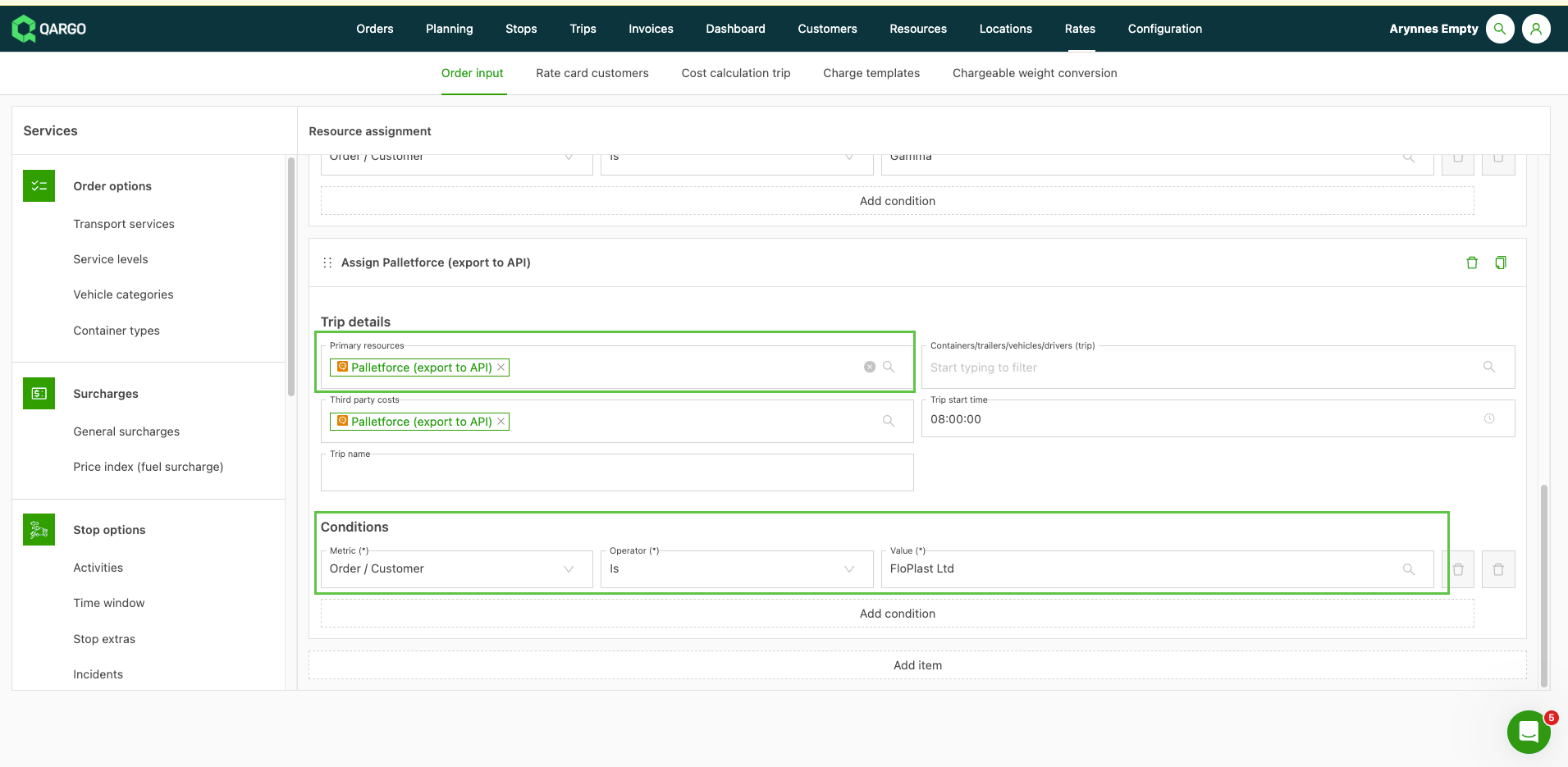
Customer-specific automation: for example, always routing a particular customer’s orders through a pallet network.
-
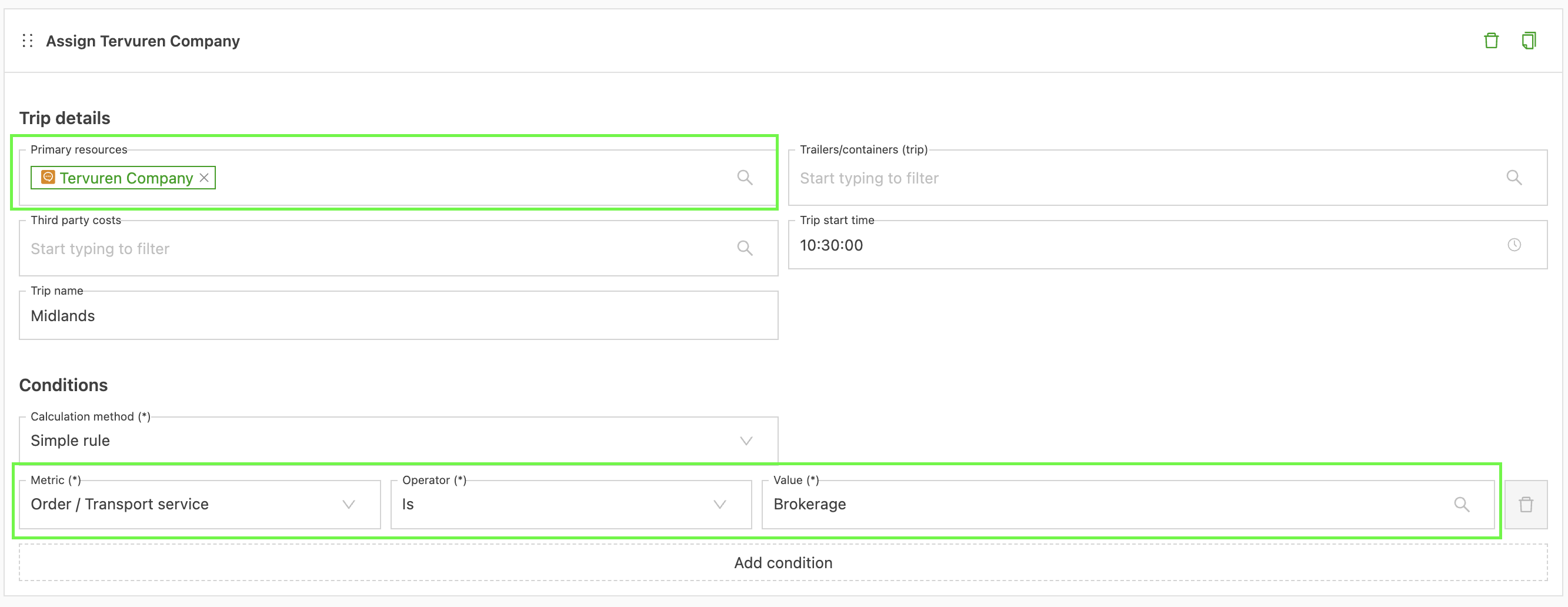
Business segmentation: automatically allocating brokered orders to contract carriers while assigning managed orders to in-house drivers or vehicles.
-
Route or customer-based allocation: assigning resources to specific delivery routes or dedicated customer accounts.
Good to know
-
Resources are only allocated after the initial order creation, not when new stages are added.
-
Resource combinations cannot be used in resource assignment, because these combinations can change.
- Assign the individual resources when setting up the rules.
-
Rule resources are applied only when a load is created. They are not applied when an order joins an existing load, and orders from an order template that has a resource keep their own.