
Planning – Using planning groups
Divide orders among transportation planners, with auto-assignment based on transportation services or custom rules. Filter the planning board by groups.
Table of contents
Planning groups can be used to divide orders between the different planners at a transportation company.
Create planning groups
-
Go to Configuration > Rules
-
Click ‘Manage and auto-assign’ in the left-hand column
-
Click ‘Planning group’, and ‘Add planning group’
-
Complete the General info for the planning group
-
Use ‘Add rule’ to automatically assign orders to specific groups when criteria are met.
Assign planning groups
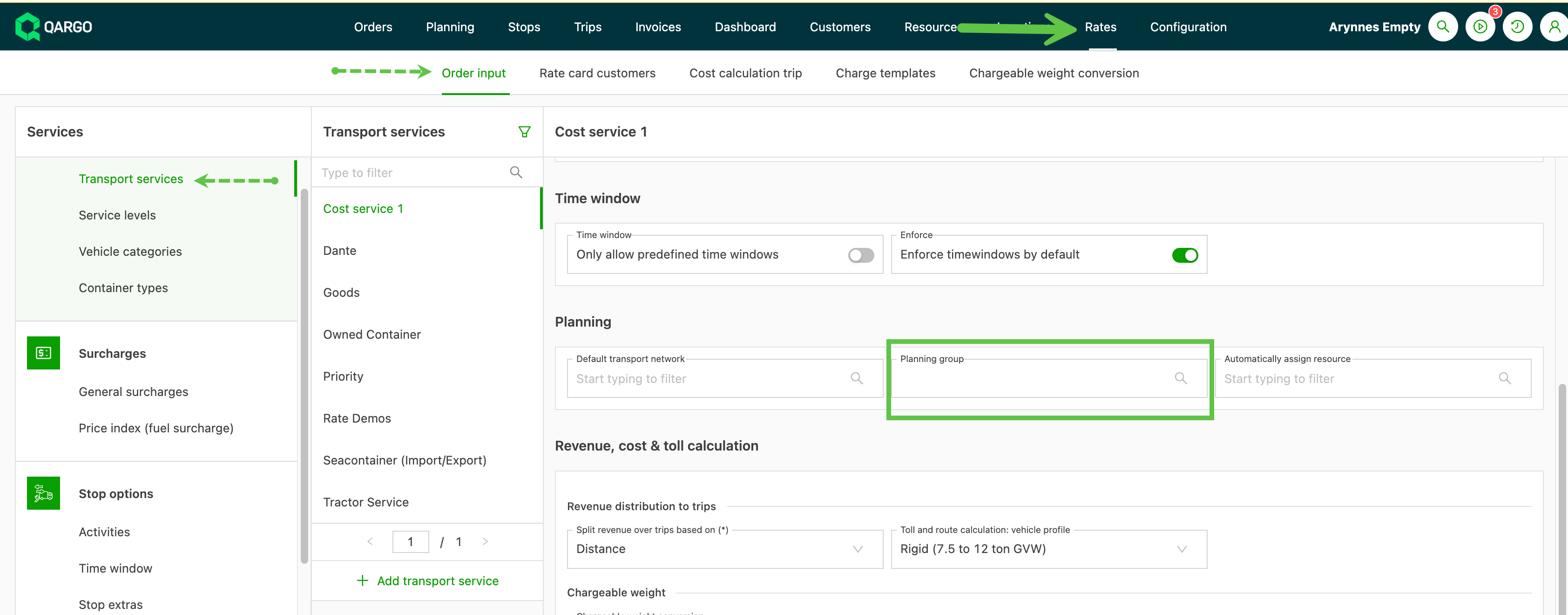
A planning group can be assigned automatically based on rules. These rules can be configured under Rates > Order input.
-
Transportation services. If specified here, when an order is built using a specific transportation service, it is automatically assigned to the planning group.
- The available options are based on what has been created under ‘Planning groups’
- Planning groups. Set rules with conditions to assign orders to groups
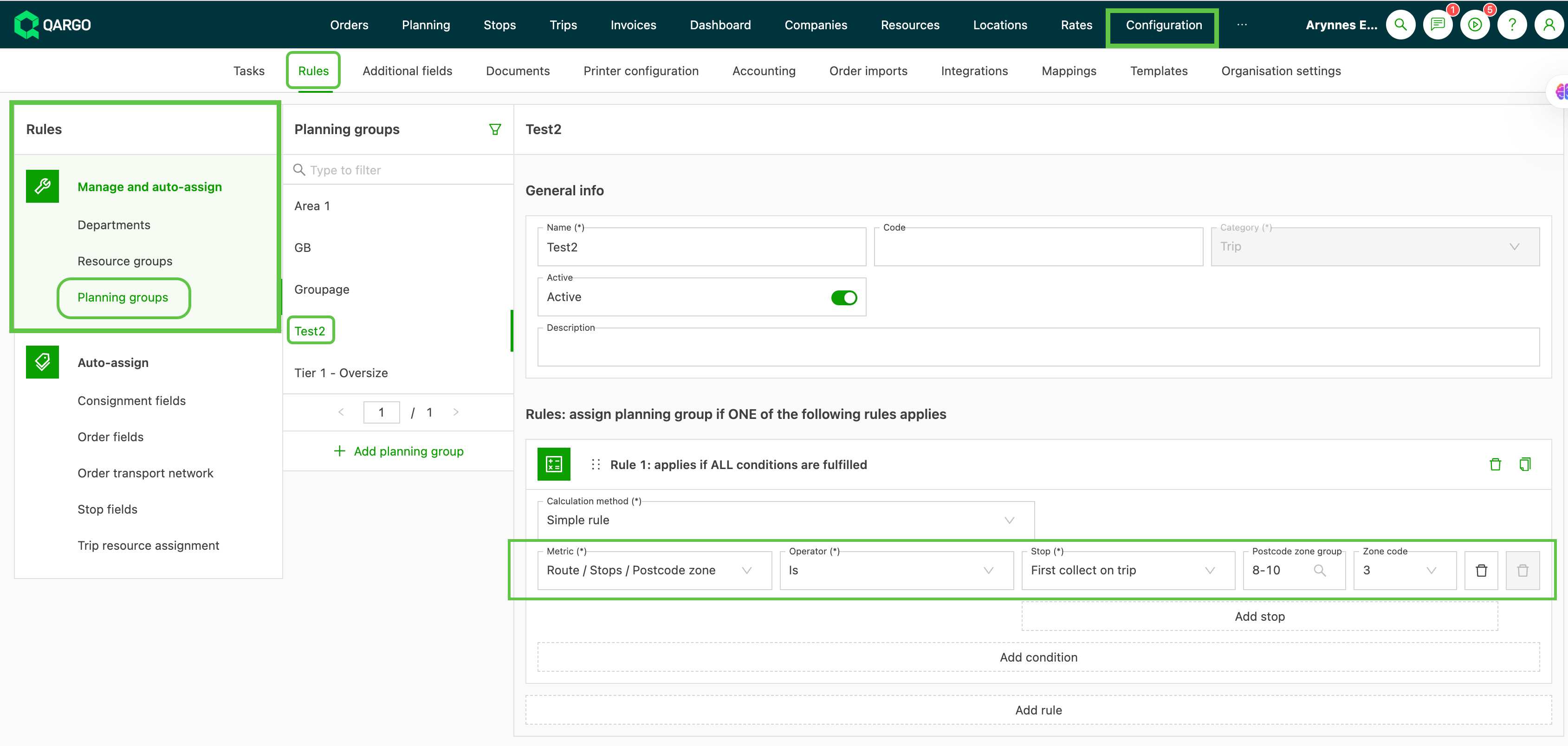
Create rules for assignments
Rules are based on a set of parameters and conditions that, when applied, automatically assign orders to a specific planning group. Rules consist of a set of elements:
Note: The load’s resource (e.g., Benelux network resource) cannot be used as a condition for planning group rules. This is because the resource is selected in the same step as the planning group, so it is not available for rule evaluation. Instead, use other available conditions such as customer, department, transportation service, vehicle category, stage type, or route/stops.
-
Calculation method: This is how the system determines group assignment
- Simple rule
- Excel table
-
Metric: Various options – outlined below
-
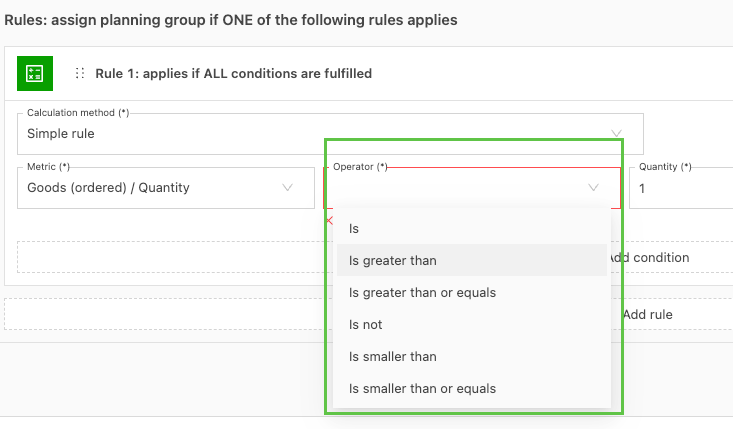
Operator: This includes or excludes elements depending on what is set.
- Is – A single element is included
- Is not – A single element is excluded
- Is greater than (or equals) – A value matches or is greater than specified
- Is smaller than (or equals) – A value doesn’t match or is less than specified
- In – Multiple elements are included
- Not in – Multiple elements are excluded
-
Value: This is predetermined based on the ‘Metric’ selected. It is either a manual entry or based on a dropdown of existing options
Calculation method:
Simple rule
-
Use this option where a single criterion can be used to create the assignment rule.
- For instance, using a department rule to assign orders to a specific group.
- Additional conditions and/or rules can be combined to create specific criteria to assign groups
Excel table
-
Use this option when there are multiple conditions that must be combined to create a single rule.
- For instance, segmenting by country, service level and packaging type. Using a table allows multiple options to be added for service levels and packaging types.
Metric options defined
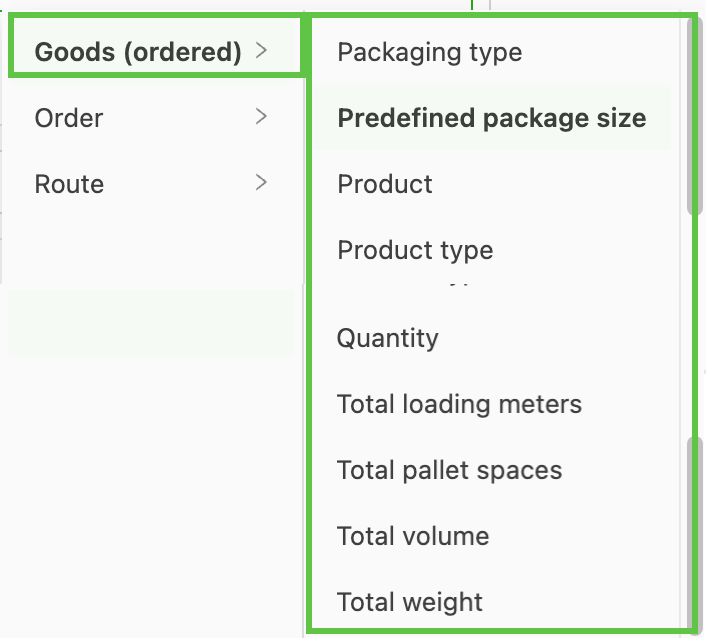
Goods (ordered)
- This looks at the freight section of the order to determine the planning group assignment.
-
Packaging type: When set, the Value shows the available options to select in a dropdown, based on what is configured under Freight options > Packaging types
-
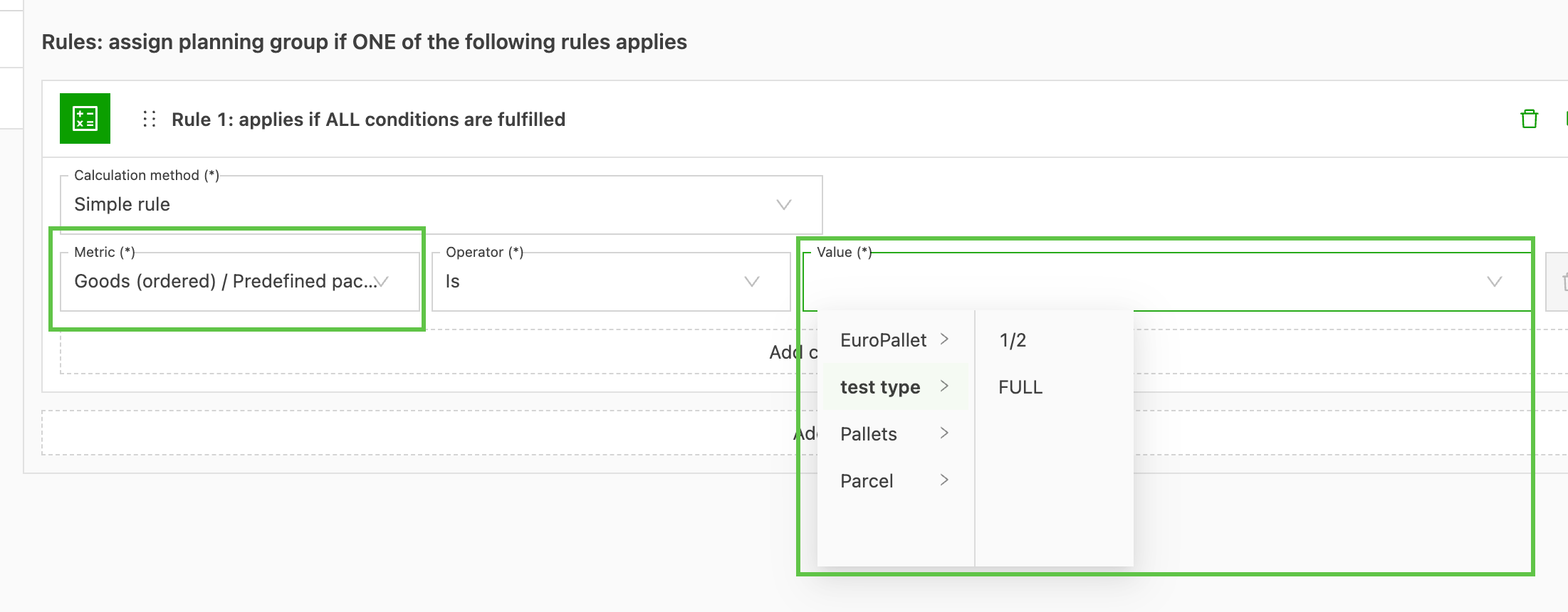
Predefined package size: When using this option, the Value displays the packaging type to select, then an option to select the defined size.
-
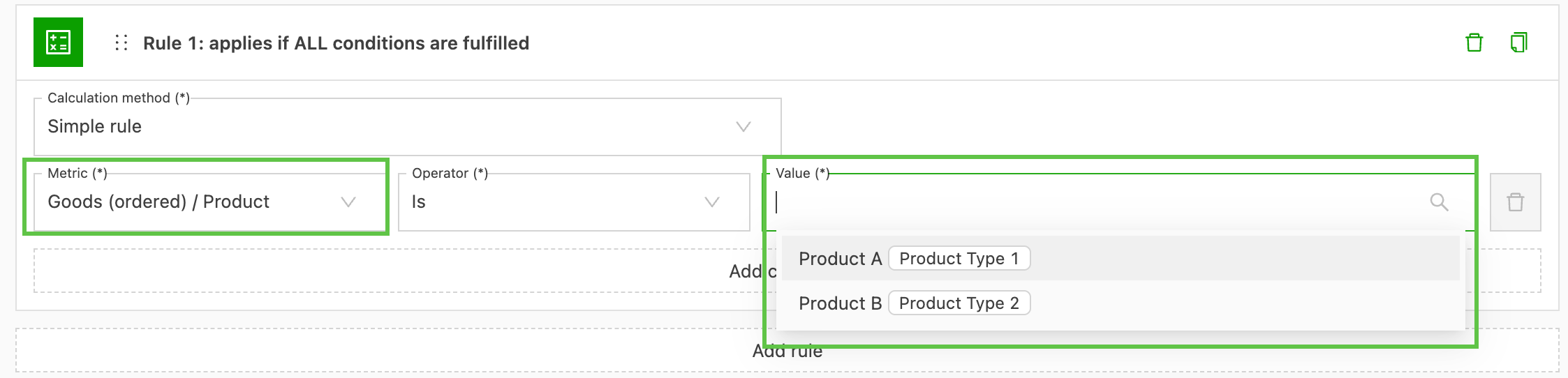
Product: When set, the Value displays the preset product options that are created under Product options > Products. This also shows the associated product types.
-
Product type: This option only considers the specific product types configured under Product options > Product types.
-
Quantity: Manually enter the value; this is compared to the total order value and uses a specified operator to determine the rule.
-
Total loading meters: Manually enter the value; this is compared to the total order value and uses a specified operator to determine the rule.
-
Total pallet spaces: Manually enter the value; this is compared to the total order value and uses a specified operator to determine the rule.
-
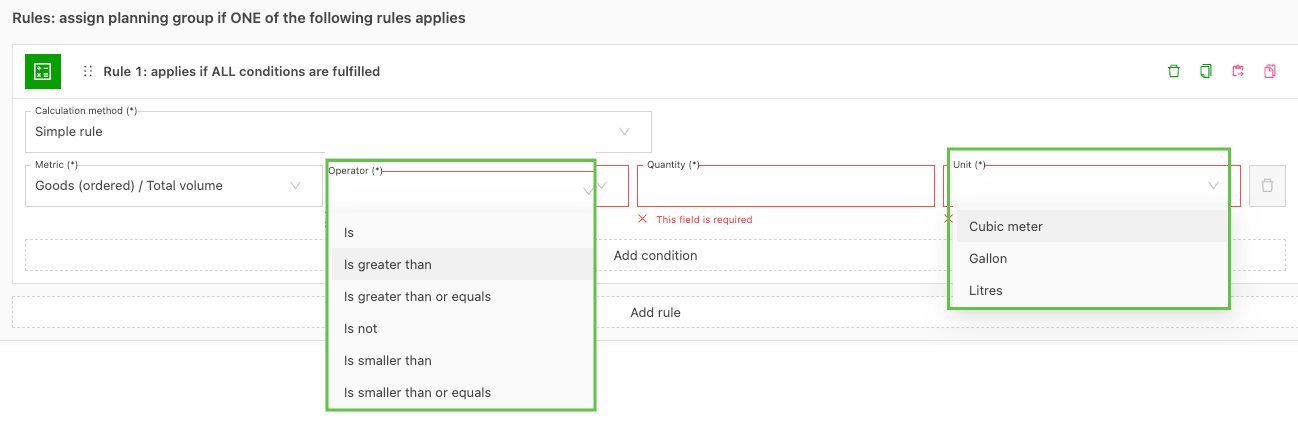
Total volume: Manually enter the value; this is compared to the total order value and uses a specified operator to determine the rule. In addition, set the Unit value to a specific measurement (Cubic meter / Gallon / Liters).
-
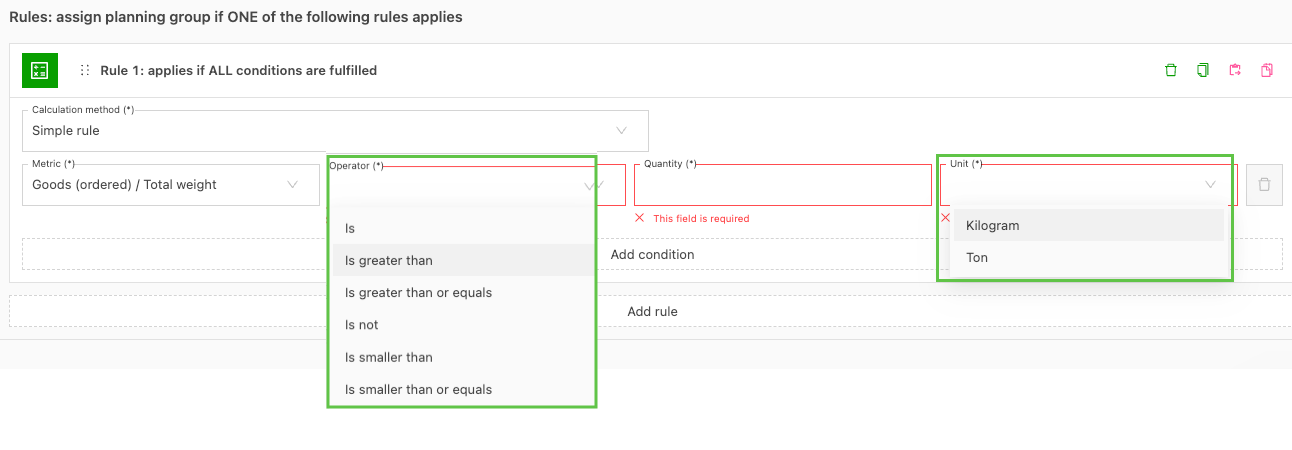
Total weight: Manually enter the value; this is compared to the total order value and uses a specified operator to determine the rule. In addition, set the Unit value to a specific measurement (Kilo / Ton).
Order
- This looks at specific order values to determine the planning group assignment.
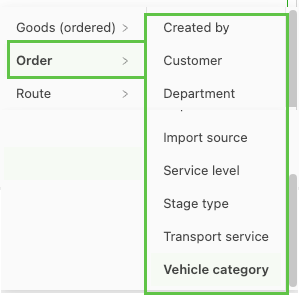
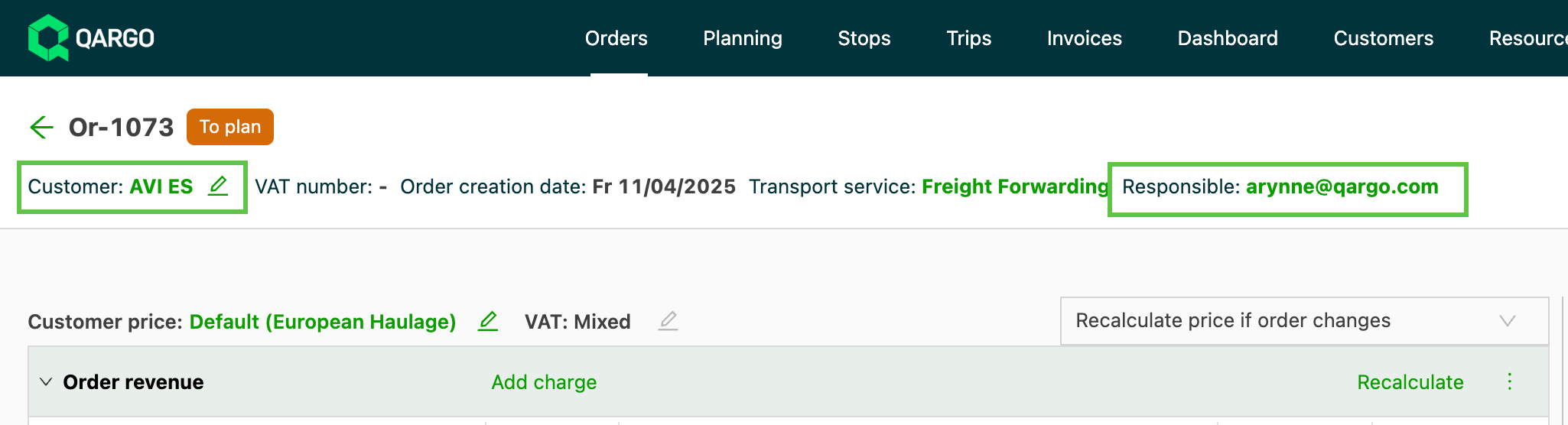
- Created by: This is the user who created the order; shown on the order details as “Responsible: name@email.com”
- Customer: This is the name of the customer that placed the order; shown on the order details as “Customer: Name”.
- Department: When a specific department is assigned to an order.
- Import source: Refers to the point of origin of the data brought into Qargo; distinguishes between manual imports and API/EDI via a partner network
- Service level: Service levels on the order can include Priority / Next day or Economy. Options depend on what is set up in Order options > Service level
- Stage type: Refers to the leg of the order, including Pickup, Delivery, Transfer – allows orders to be assigned based on a specific activity, i.e., moving between hubs
- Transportation service: Based on service types configured in Order options > Transportation services; allows orders to be directed to planners within a specific team
- Vehicle category: Uses the specific vehicle category on the order to assign the planning group; useful for teams handling a specific equipment type (i.e., refrigerated)
Route
- This looks at specific order values to determine the planning group assignment.
-
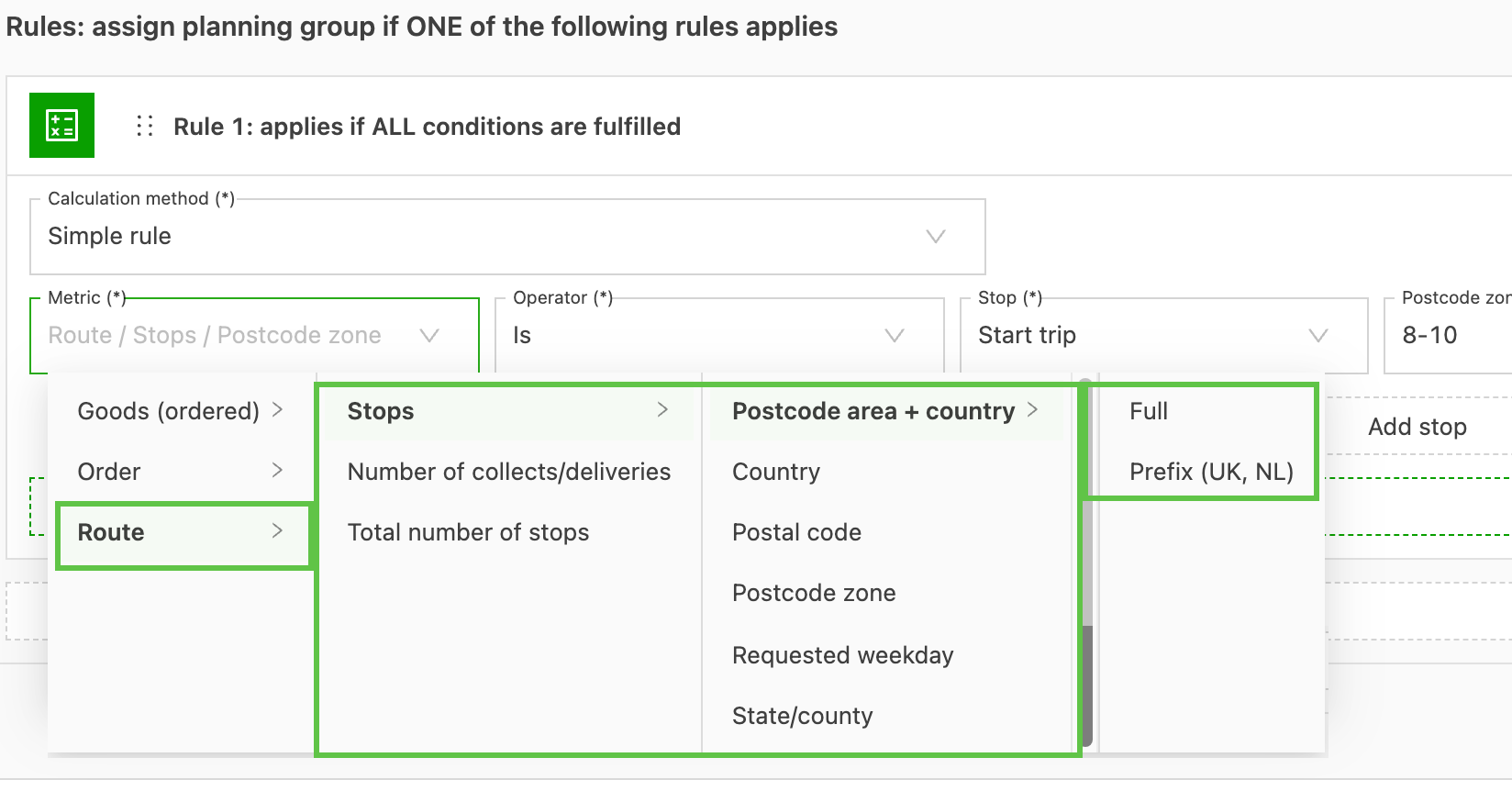
Stops – opens additional options and asks for further parameters to be set.
- ZIP code area + country > Full or prefix (UK / NL) ZIP codes: This looks at the country first, followed by the ZIP code. A stop is required.
- Country: Assigns based on the country on the order. A stop is required.
- ZIP code: Assigns based on the ZIP code. A stop is required.
- ZIP code zone: The ZIP code zone must be set up first for this option. A stop is required.
- Requested weekday: Select a day of the week. A stop is required.
- State/country: Free text field to enter a state. A stop is required.
-
Stop options:
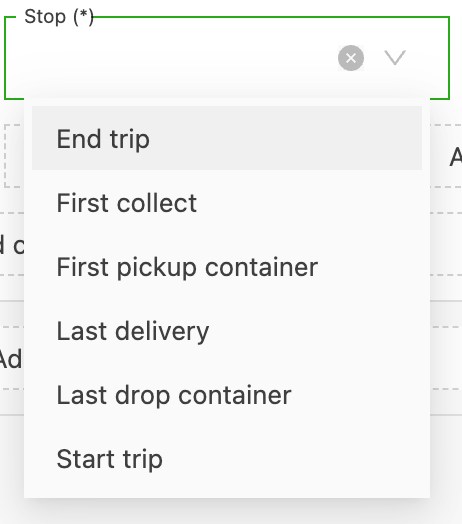
- Number of pickups / deliveries: Manually enter the number of stops for this rule to apply.
- Total number of stops: Manually enter the number of stops for this rule to apply.
Applying rules
Automating planning workflows with auto-assign rules
To automate planning workflows without relying on the planning group condition, follow these steps:
-
Identify relevant attributes: Determine the attribute(s) that define the orders to group. For example, attributes like “Transportation service” or “Customer” can be used.
-
Set up auto-assign rules:
- Navigate to the auto-assign settings.
- Create a rule with the relevant metric (e.g., Order > Transportation service).
- Specify the operator and value that match the grouping criteria.
- Set the action to “Plan load.”
-
Select primary resources: Under the Primary resources section, assign the appropriate resource (e.g., FCA Carrier resource) to make sure the orders are automatically planned upon creation.
This approach ensures that orders are grouped and planned automatically, even when the planning group is not available as a condition.
Rule evaluation order and priority
Planning group rules are assessed in a specific sequence. The system evaluates each rule in order and applies the first rule that matches the defined conditions. To ensure accuracy:
- Place the most specific rules higher in the order.
- Add additional conditions, including “is not” criteria, to prevent unintended matches.
Bulk updates for planning groups
The planning group for multiple orders can be changed simultaneously using the bulk-update feature in the planning screen. To do this:
- Navigate to the Planning screen.
- Select the orders to update.
Apply the desired planning group to selected orders to change them in bulk.
Change the planning group of a planned leg
A planned leg takes its planning group from the load. The planning group is changed on the load itself.
1. Open the load.
2. Change the Planning group in the load details.
Orders created with specific rules are automatically assigned to a planning group. Additionally, for merged loads in the “To plan” view, the system applies the planning group of the first order added to the load if multiple orders have different planning groups, ensuring consistency in assignments.
If an order is removed from a load (unplanned), Qargo automatically re-evaluates its planning group assignment based on the existing rules. For example, if the order temporarily adopted a different planning group during the load, unplanning triggers a check of the rules and reassigns the appropriate original planning group.
Manual assignments take precedence over automatic planning group rules.
If a user manually assigns a planning group before creating a load, this assignment overrides automatic rules, even if those rules suggest a different planning group.
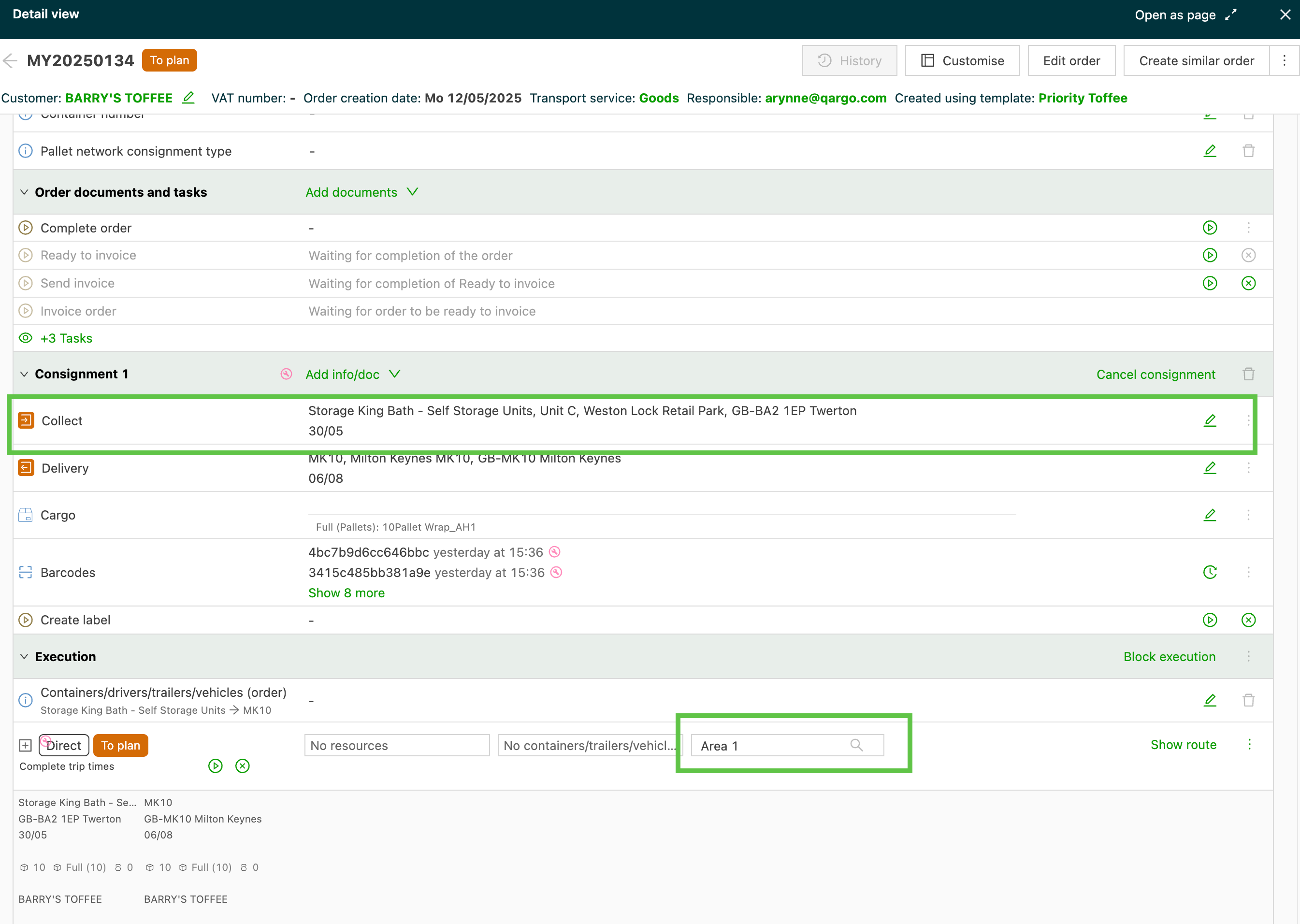
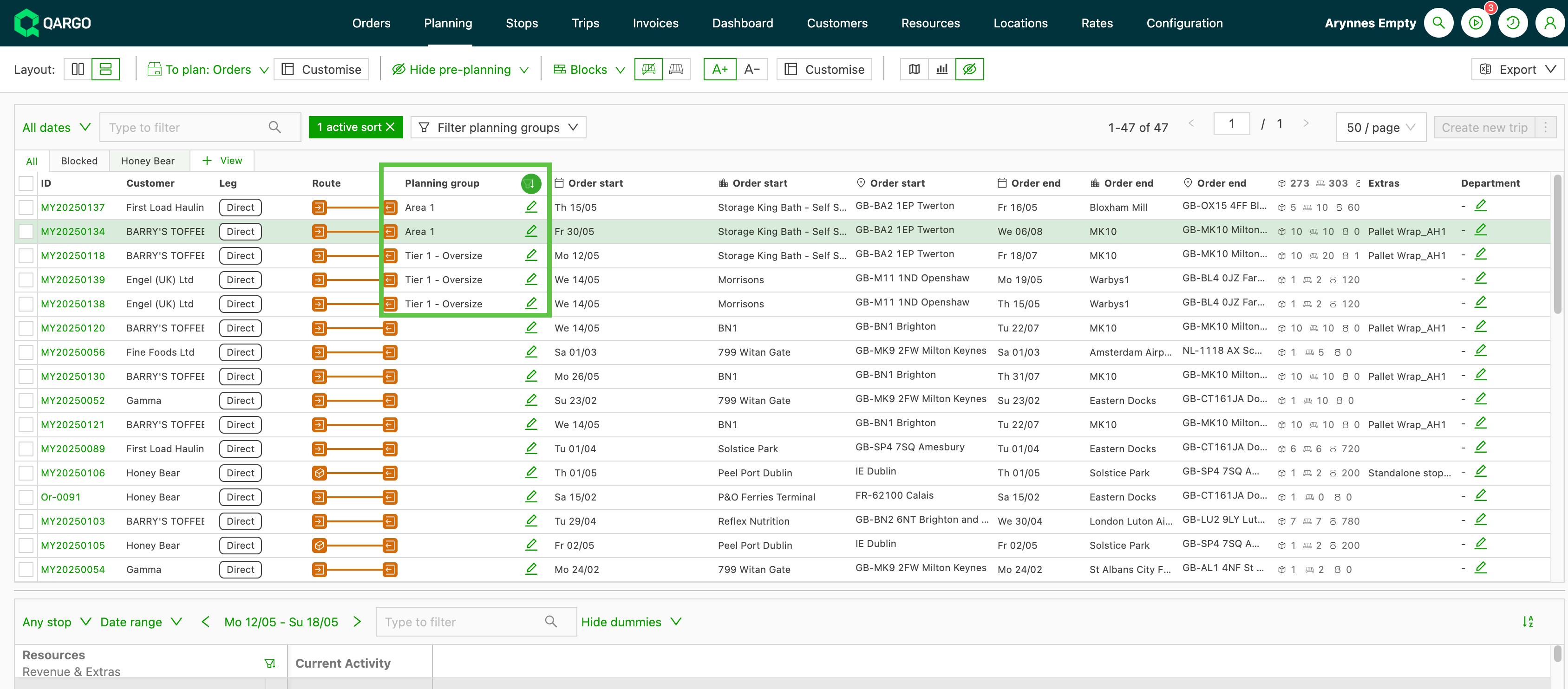
Once saved, the ‘Planning group’ column option can be enabled and these groups can be used as filters on the list views (Orders & Loads) and the planning board. Filters in the planning screen prioritize displaying the load’s planning group where applicable, and for split orders, segments might display different groups based on their assignment. This ensures clear visibility and control for planners.
Key takeaways
- Always prioritize and review the order of the planning group rules to avoid conflicts.
- When unplanning, the system ensures the correct reassignment of the planning group via rule re-evaluation.
- Manual assignments override automatic planning group rules and can be used to fine-tune classifications for specific use cases. By configuring planning group rules effectively, users can ensure accurate and consistent management of orders and loads.