
Configuration: calculated activity duration rules (what, why and how)
Configure rule-based stop activity durations that automatically scale with freight volume and operational context, replacing fixed durations for more accurate ETAs and route planning.
Table of contents
Summary
-
What?
- A rule-based feature that dynamically calculates stop activity durations based on freight characteristics and operational conditions
- Configured under Configuration > Rules, following the same pattern as other rule types in Qargo
-
Why?
- Fixed stop durations do not scale with freight volume or transportation context, which leads to inaccurate route ETAs
- Planners were updating duration values manually, a time-consuming and error-prone process
-
How?
- Create stop duration rules that define either a flat time (fixed) or a per-unit formula (e.g., 5 minutes per pallet)
- Scope rules with conditions such as transportation service, vehicle category, customer, or activity label
- Durations recalculate automatically on each route calculation trigger
Terminology
| Term | Definition |
|---|---|
| Stop activity | The action performed at a stop, such as pickup, delivery, or terminal unload |
| Stop activity group | All stop activities at the same location within a route. Duration is calculated based on the combined goods workload across the group |
| Stop duration | The time a vehicle spends at a stop, used by the planning engine for ETAs and route optimization |
| Fixed rule | A duration rule that applies a flat time value to a matched stop activity, regardless of freight volume |
| Formula rule | A duration rule that calculates stop time dynamically based on a goods metric (e.g., pallets, loading meters, weight) |
| Calculation collection | One or more calculations combined to produce a final stop duration (e.g., a fixed base time plus a per-pallet formula) |
| Goods metric | A measurable freight characteristic used in a formula rule, such as pallet count, loading meters, or weight |
| Condition | A filter applied to a rule that restricts when it applies, for example only for a specific transportation service, vehicle category, or customer |
Overview
Stop activity durations tell the planning engine how long a vehicle spends at each stop. Previously, they were configured as fixed values per activity type under Configuration > Order input.
- The calculated activity duration rules feature introduces a more powerful approach: rule-based duration calculation under Configuration > Rules. This allows durations to scale dynamically with freight volume and operational context.
Duration priority order
When a stop duration is determined, the system applies the following priority order:
- Location-specific duration: a duration configured directly on the location in Locations > Locations always takes precedence
- Calculated activity duration rule: if a matching rule is found under Configuration > Rules > Stop duration, it is applied
- Activity default: if no rule matches, the value configured per activity type under Configuration > Order input > Stop options > Activities is used as a fallback
Configuring stop duration rules
- Navigate to Configuration > Rules.
- Select Stop duration from the left-hand menu to open the rule list.
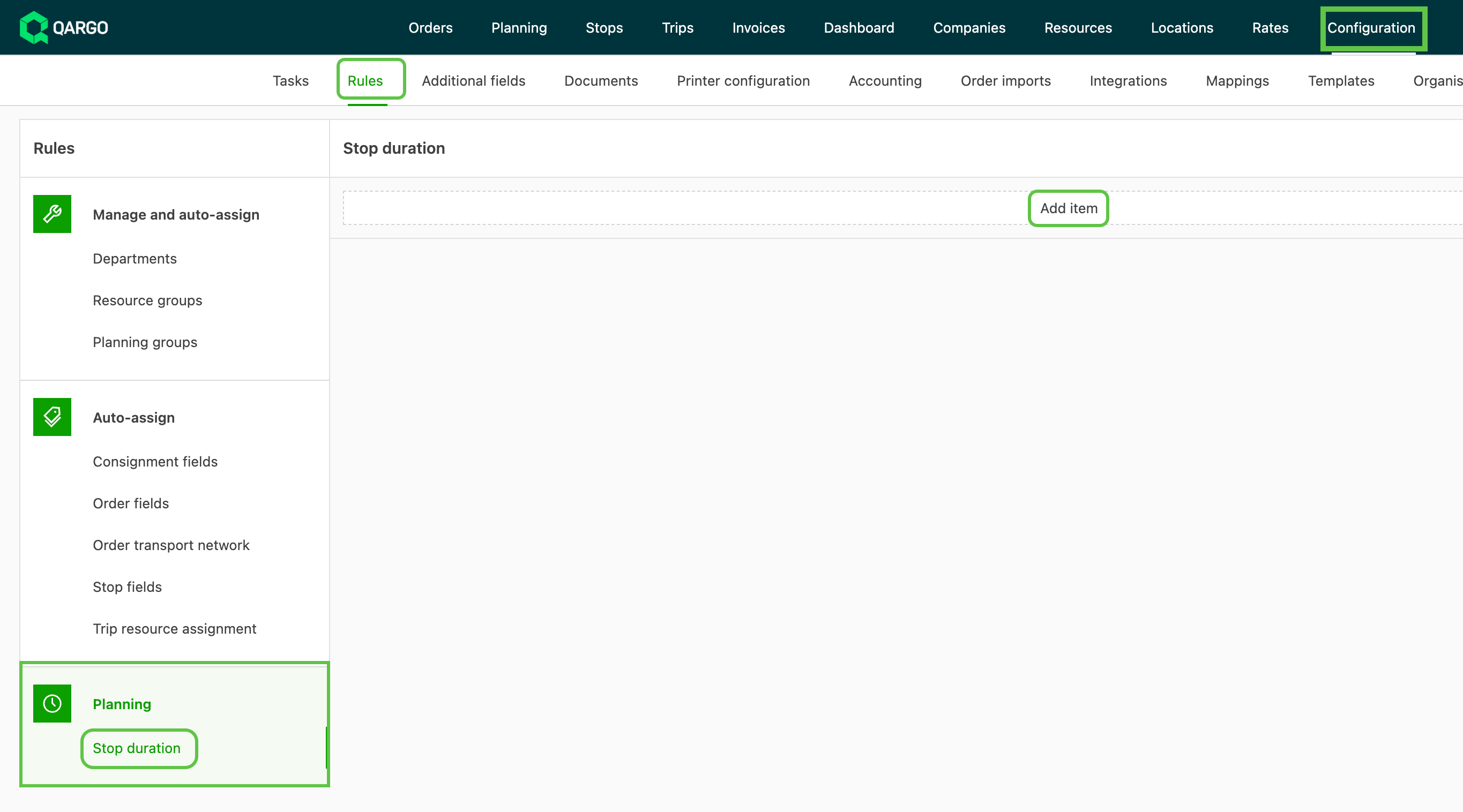
- Click Add item to create a new stop duration rule.
- Name the rule for easy identification, for example “Pallets – Groupage” or “Fixed – General freight”.
Select the rule type
Two rule types are available:
- Fixed: applies a flat time value to the matched stop activity. Suitable when stop time is consistent regardless of freight volume.
- Formula: calculates stop duration dynamically based on a goods metric. Suitable when stop time should scale with the amount of freight being loaded or unloaded.
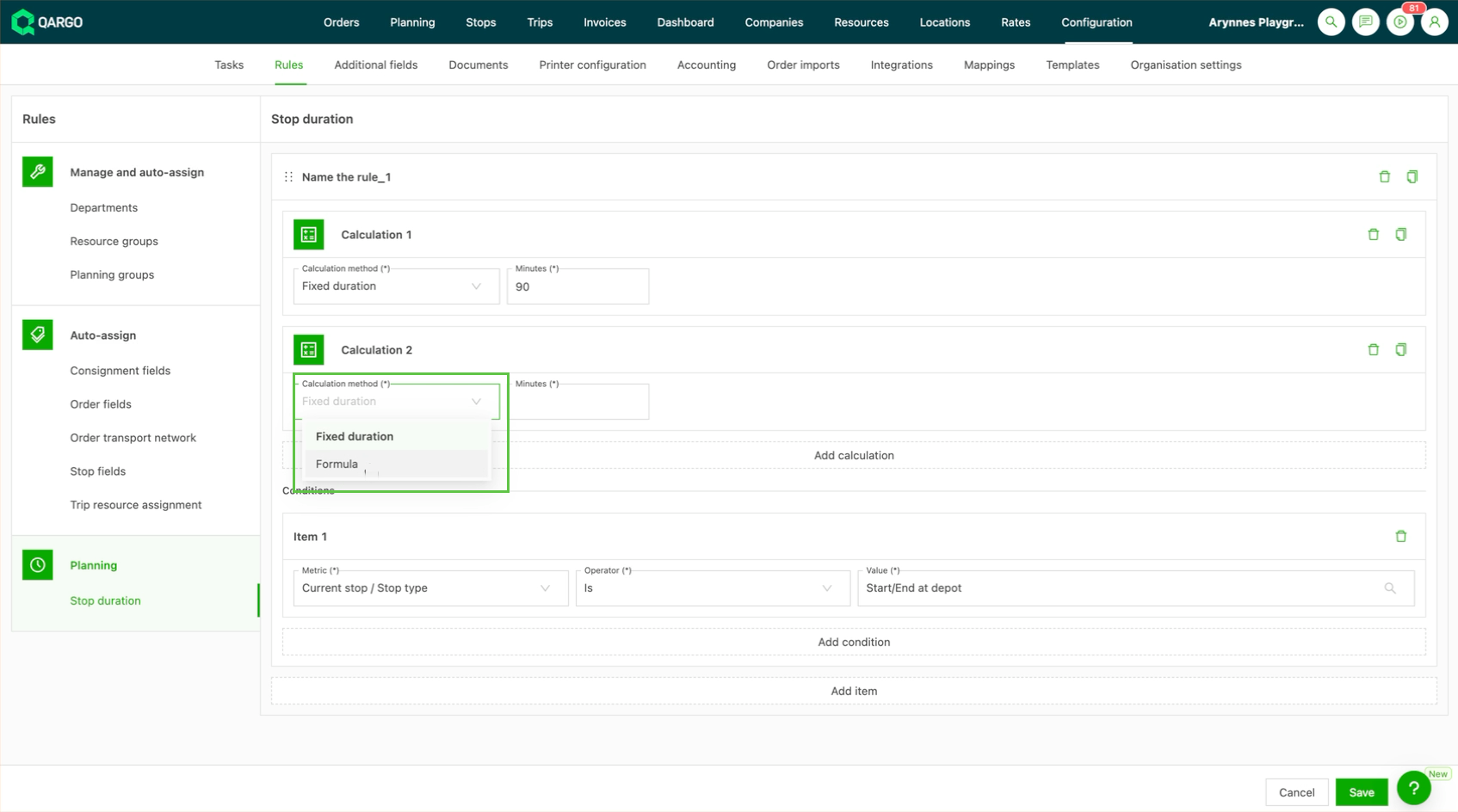
Configure a fixed rule
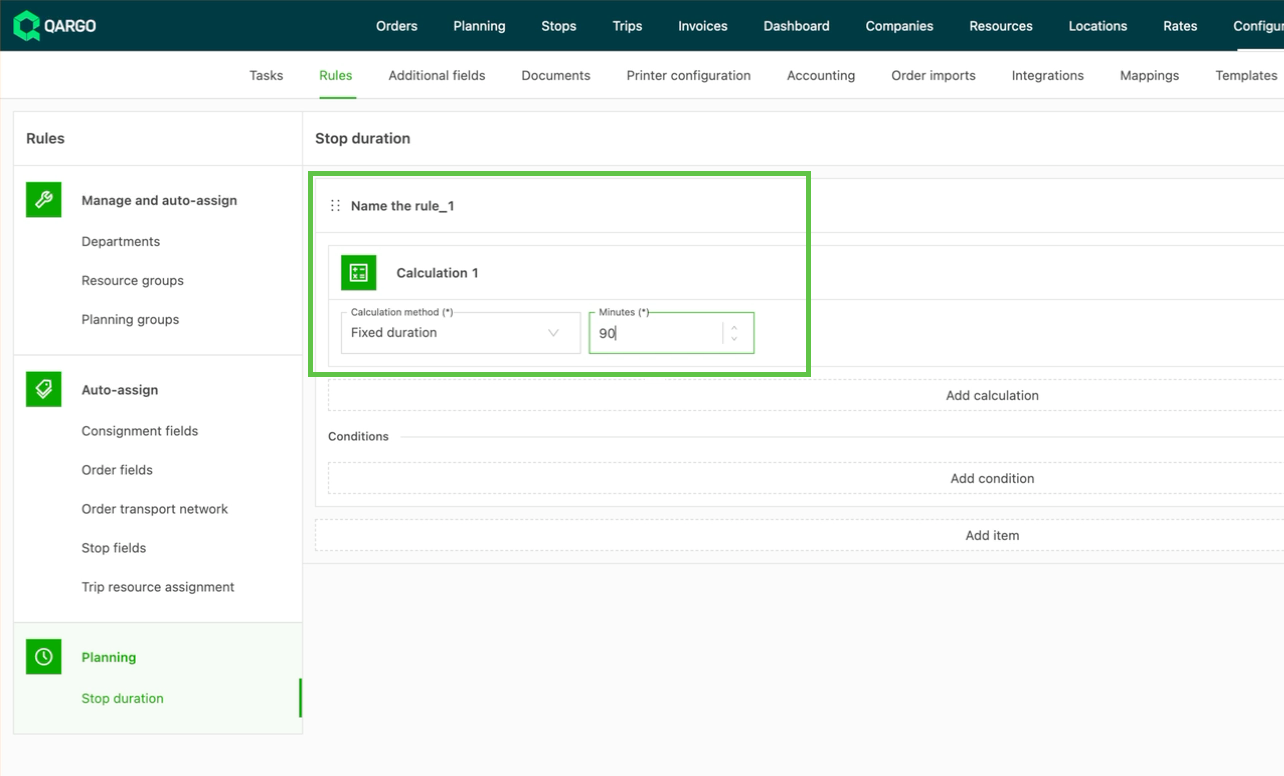
- Select Fixed as the rule type.
- Enter the duration value (hours and minutes) to apply to matching stops.
Configure a formula rule
- Select Formula as the rule type.
- Select the goods metric to calculate against. Available options include pallet count, loading meters, weight, and volume.
- Enter the time value per unit (for example, 5 minutes per pallet).
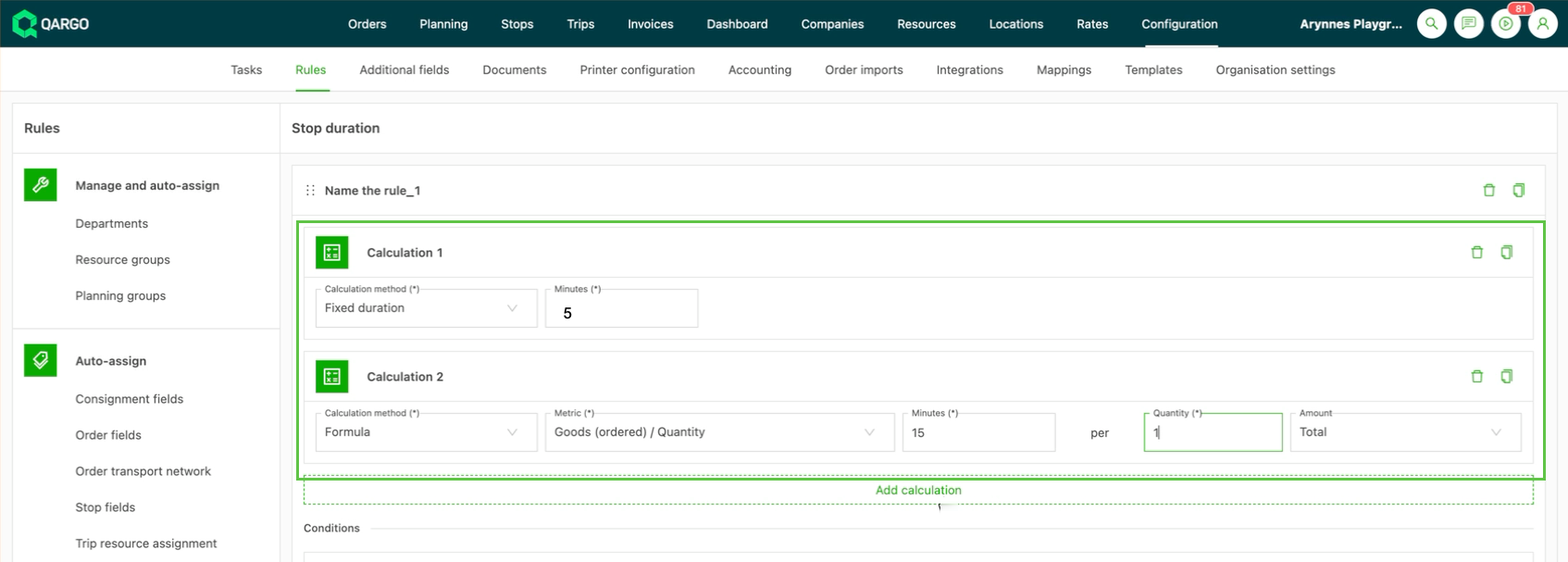
- Multiple calculations (optional) can be combined within a single rule to form a calculation collection. For example, a base loading time of 15 minutes plus 5 minutes per pallet.
- Click Add calculation to add further steps to the same rule.
Add conditions (optional)
Conditions restrict when a rule applies, allowing different durations for different operational contexts. The following condition types are available:
- Transportation service
- Vehicle category
- Customer
- Container type
- Service level
- Stop action
- Stop activity label
- Location
- Goods-related metrics (e.g., quantity, loading meters)
Click Add condition
Select the relevant metric, operator, and value
Calculation behavior
Stop durations are recalculated on each route calculation trigger. The following actions trigger a recalculation:
- Adding or removing a stop from a route
- Reordering stops on a route
- Updating shipment goods data (e.g., changing the pallet count)
Duration is calculated at the stop activity group level. This means the system sums goods data across all shipments that share the same stop location. For example, if three shipments are picked up at the same warehouse, the system combines their pallet counts to determine the total stop duration.
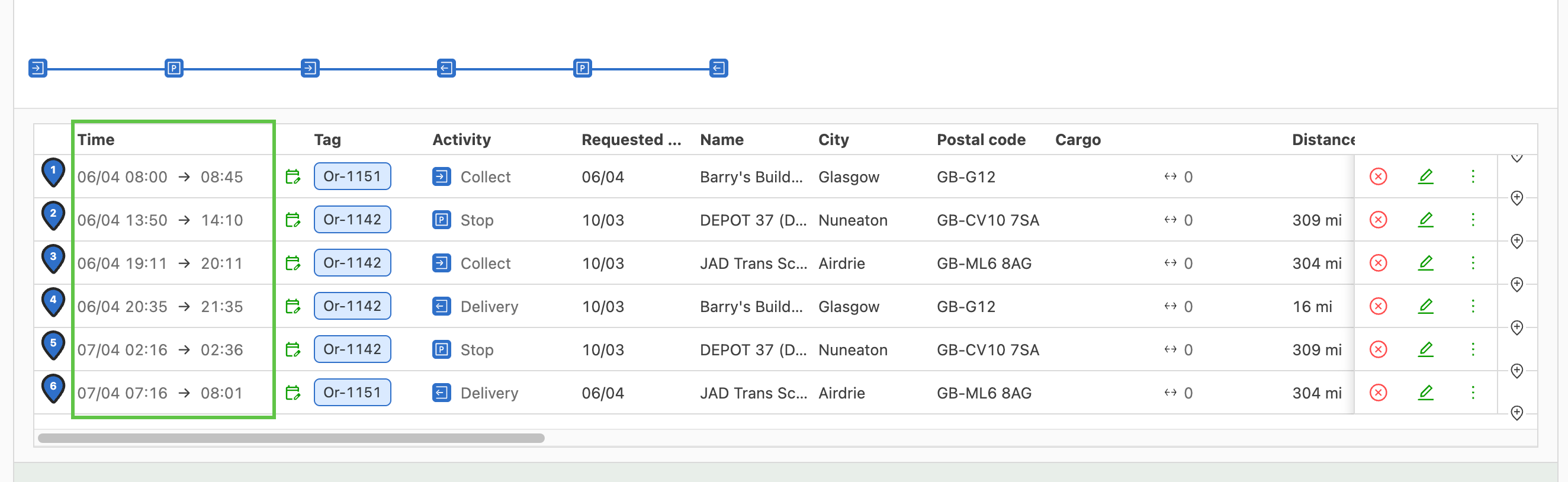
Additional use case examples
- Multi-service operations: A transportation company running both full truckload (FTL) and pallet-network services configures a fixed 45-minute rule for FTL deliveries and a formula rule of 8 minutes per pallet for pallet-network deliveries. Durations are applied automatically based on the transportation service on each order.
- Customer-specific loading times: A logistics provider creates a condition-based rule scoped to a specific customer whose terminal consistently requires longer handling time. This improves ETA accuracy for that customer’s orders.
- Vehicle category differentiation: A carrier sets distinct durations for vans (shorter) and tractor-trailers (longer) at the same stop type. This reflects real-world differences in handling time per vehicle category.
Troubleshooting
| Issue | Likely cause | Resolution |
|---|---|---|
| Duration not updating after changing goods data | Route recalculation may not have been triggered | Add or remove a stop to trigger a new route calculation |
| Wrong rule being applied | A higher-priority rule matches first | Review the rule order in Configuration > Rules > Stop duration and drag rules to reorder them |
| Rule not applying at all | The rule’s conditions do not match the order context | Verify that the rule’s conditions (transportation service, vehicle, activity type) match the order being planned |
| Stop unexpectedly showing a 00:00 duration | Internal stop defaults have changed | If 0 minutes is required, configure it explicitly on the stop action in Locations > Internal stop actions |
| Need to cover both activity type and internal stop type in one rule | This combination is not supported in a single rule | Create two separate rules: one scoped to the activity type and one to the internal stop type |
| Duration recalculation not reflecting a condition change | Order-level condition changes do not trigger recalculation | The updated duration is applied on the next route recalculation |