
Rates – Chargeable weight conversions – Add conditions
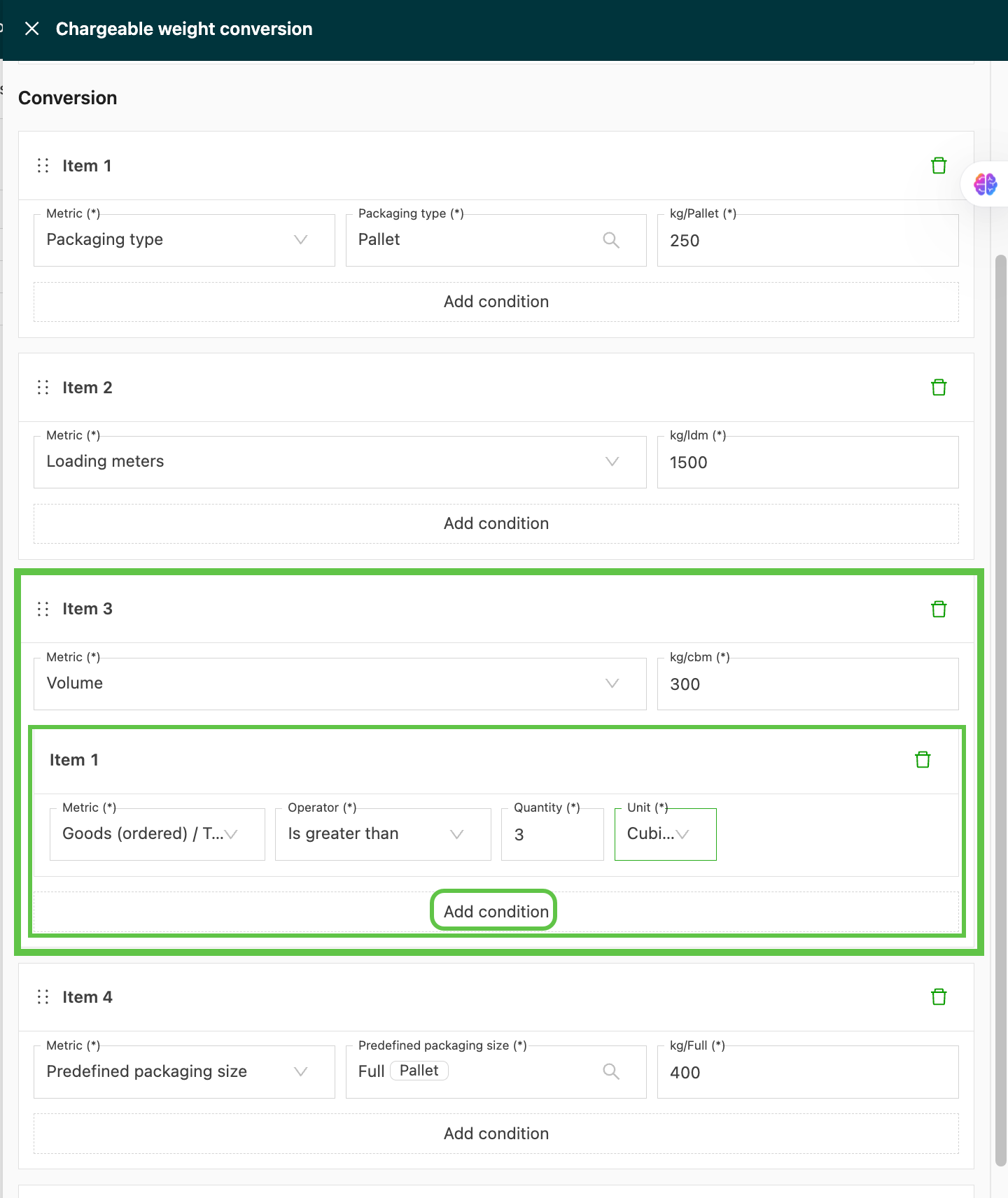
Chargeable weight conditions assign different conversion factors to each line in a weight conversion, based on goods-level metrics (height, weight, volume, loading meters, packaging, etc.). Lines are evaluated per item, and the first match wins.
Table of contents
Introduction
What is the chargeable weight conditions feature?
- This feature adds conditions to individual conversion factor lines within a chargeable weight conversion. Each line can use a different conversion factor based on goods-level properties such as height, weight, volume, loading meters, pallet spaces, packaging type, or commodity type.
Why use it?
- When transport rating depends on freight characteristics, different goods on the same shipment need different conversion factors. For example, pallets below a certain height use actual weight, while taller pallets use a loading meter conversion. Without conditions, only a single conversion factor could be applied per chargeable weight conversion. This made accurate mixed-freight rating impossible.
How does it work?
- Multiple conversion factor lines can be configured within a single chargeable weight conversion. Each line can have its own condition based on goods metrics. When the system calculates the chargeable weight, it evaluates each good individually against the conditions. It then applies the first matching conversion factor per input specification.
Terminology
| Term | Definition |
|---|---|
| Chargeable weight conversion | A configuration in Qargo that defines how goods metrics (e.g., weight, volume, loading meters) are converted into a single chargeable weight value used for rating. |
| Conversion factor | A multiplier applied to an input metric (e.g., loading meters × 875 = chargeable weight in kg). Multiple conversion factor lines can exist within one chargeable weight conversion. |
| Condition | A rule attached to a conversion factor line that determines when that factor should be applied, based on a goods-level metric (e.g., “apply this factor when ordered height > 1.6 m”). |
| Input specification | The metric used as the input for the conversion (e.g., loading meters, volume). Conversion factor lines are grouped by input specification, and the first matching condition within each group is used. |
How to configure chargeable weight conditions
Step 1: Navigate to the chargeable weight conversion settings
- Navigate to Rates > Chargeable weight conversions in the Qargo environment.
- Select the chargeable weight conversion to edit, or create a new one.

Step 2: Add multiple conversion factor lines
- Add a new conversion factor line by clicking Add item within the conversion.
- Select the input specification (e.g., loading meters, volume, weight) for the line.
- Enter the conversion factor value (e.g., 875 for loading meters to kg).
- Repeat to add more conversion factor lines as needed—for example, one line for standard pallets and another for oversized pallets.
Step 3: Add conditions to conversion factor lines
-
Click a conversion factor line to expand its settings.
-
Add a condition by selecting a goods-level metric from the available options.
-
Configure the condition operator and value. For example:
- Ordered unit height > 1.6 m
- Ordered total weight < 500 kg
- Packaging type = “Euro pallet”
-
Save the chargeable weight conversion.
The available condition metrics include:
- Dimensions: ordered/actual unit height, width, length, width or length (max)
- Weight & volume: ordered/actual total weight, total volume
- Loading metrics: ordered/actual total loading meters, total pallet spaces
- Quantity: ordered/actual quantity
- Types: packaging type, commodity type
Step 4: Verify the order of conversion factor lines
- Review the order of the conversion factor lines. For lines sharing the same input specification, the first line whose condition matches is used.
- Reorder lines if needed to ensure the correct priority. More specific conditions should typically appear before more general ones.
- A line without any condition acts as a fallback and matches any good that did not match a previous condition.
Example: Height-based chargeable weight for mixed freight
A transport company charges differently based on pallet height:
- Pallets under 1.6 m: use actual weight as the chargeable weight
- Pallets 1.6 m and above: use a loading meter conversion (e.g., 875 kg per loading meter)
Configuration:
-
Create a chargeable weight conversion with two conversion factor lines:
- Line 1 — Input: weight, Factor: 1, Condition: ordered unit height < 1.6 m
- Line 2 — Input: loading meters, Factor: 875, Condition: ordered unit height >= 1.6 m
-
When an order contains 3 pallets with different heights:
- Pallet A (1.0 m high, 450 kg): matches Line 1 → chargeable weight = 450 kg
- Pallet B (1.7 m high, 500 kg): matches Line 2 → chargeable weight = loading meters × 875
- Pallet C (2.5 m high, 700 kg): matches Line 2 → chargeable weight = loading meters × 875
-
The system adds up the individual chargeable weights to determine the total for rating.
Limitations
- Rate table visualization: Conversion factor lines that have conditions are not displayed in the rate table visualization to avoid confusion. A future update will introduce named conversions for better identification.
- Goods-level conditions only: Conditions are limited to goods-level metrics. Shipment-level or load-level conditions (e.g., route country) are not available on chargeable weight conversion factor lines.
- Evaluation scope: Conditions are evaluated per individual good, not across the shipment as a whole.
Troubleshooting
The chargeable weight is not calculated correctly for mixed freight.
- Verify that the conversion factor lines are in the correct order. The first matching condition per input specification is applied.
- Check that conditions use the correct metric (ordered vs. actual) to match how the goods data is entered.
Conditions are not reflected in the rate table.
- This is expected. Conversion factor lines with conditions are intentionally hidden from the rate table visualization to prevent confusion. The calculation still works correctly in the background.
Applying conditions based on route or country.
- Chargeable weight conditions currently support goods-level metrics only. For country-based rating differences, consider duplicating the price calculation and applying country-based conditions at the calculation level instead.