
Loads - Load templates
A load template stores a fixed sequence of stops for a recurring route. Auto-assign rules copy a template into a new load when no matching load exists yet.
What is a load template
A load template stores the stops of a recurring route, for example a daily trunk route between two terminals. An auto-assign rule can copy the template into a new load. This puts the route on the load before orders are added to it.
Terminology
| Term | Definition |
|---|---|
| Load template | A named, fixed sequence of at least two stops for a recurring route. |
| Placeholder stop | A stop copied from a load template onto a load. It shows the route on the load and is not dispatched to the driver. |
| Created using this template | A count on the template detail page of the loads that were created from the template. |
Create a load template
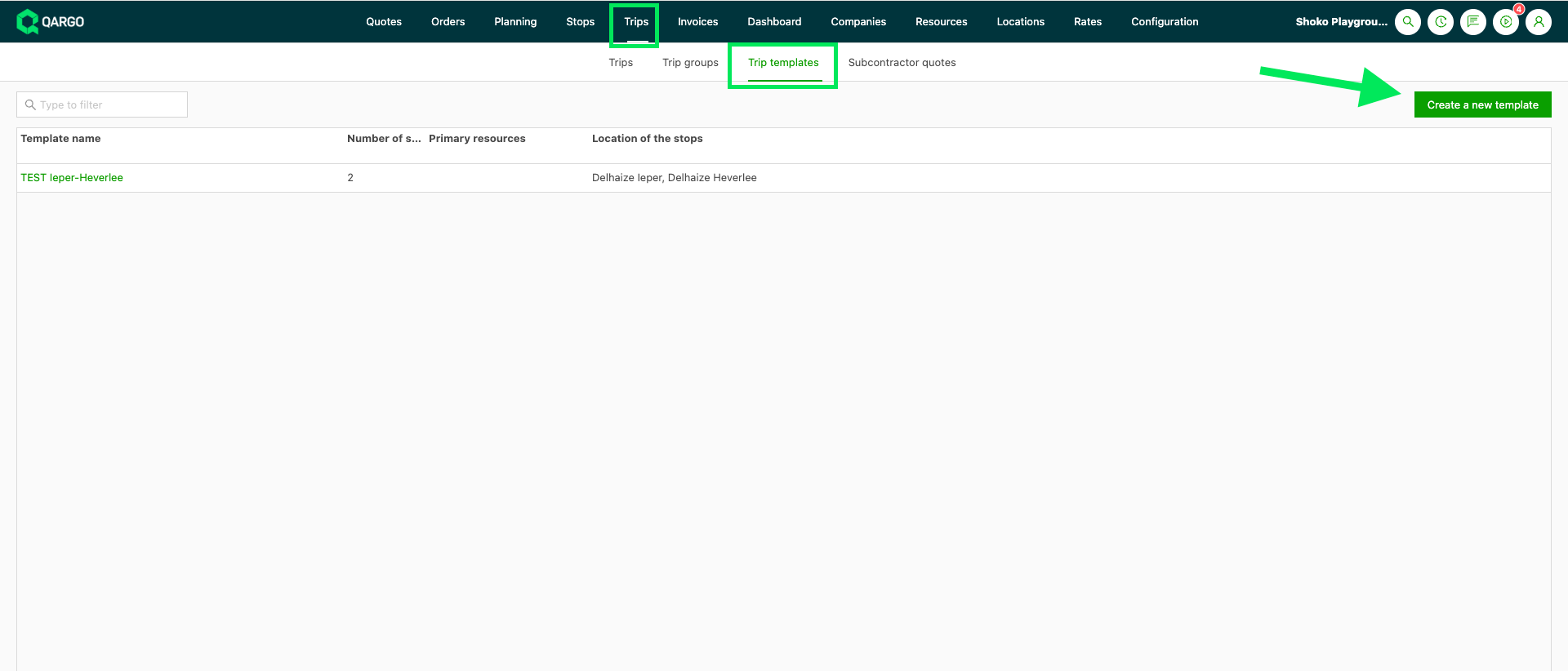
- Navigate to Loads > Load templates.
- Click Create a new template at the top right.
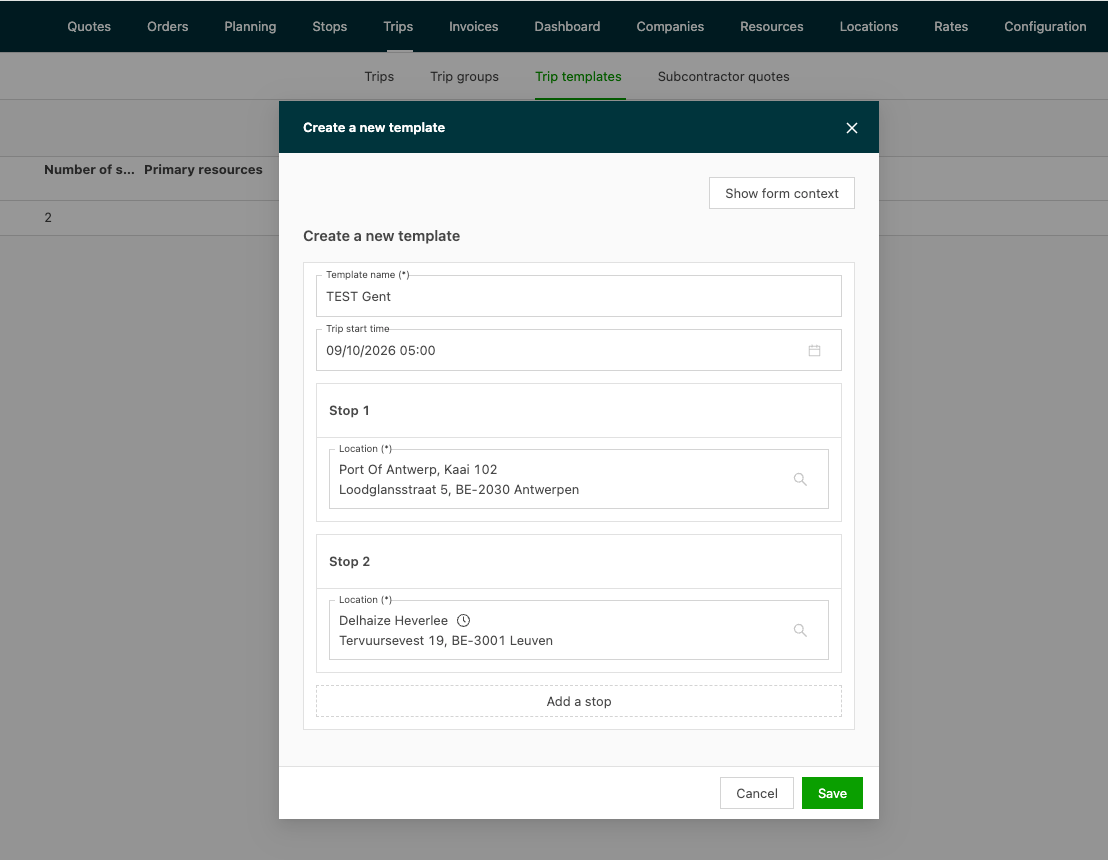
- Enter a Template name.
- Add at least two stops. Each stop requires a Location, with an optional Date and Time. Add a stop appends the next stop in the order the route calls at them.
- Save the template. The load template detail page opens.
The Load templates list
The Load templates list shows Template name, Number of stops, Primary resources and Location of the stops. All columns are filterable.
The load template detail page
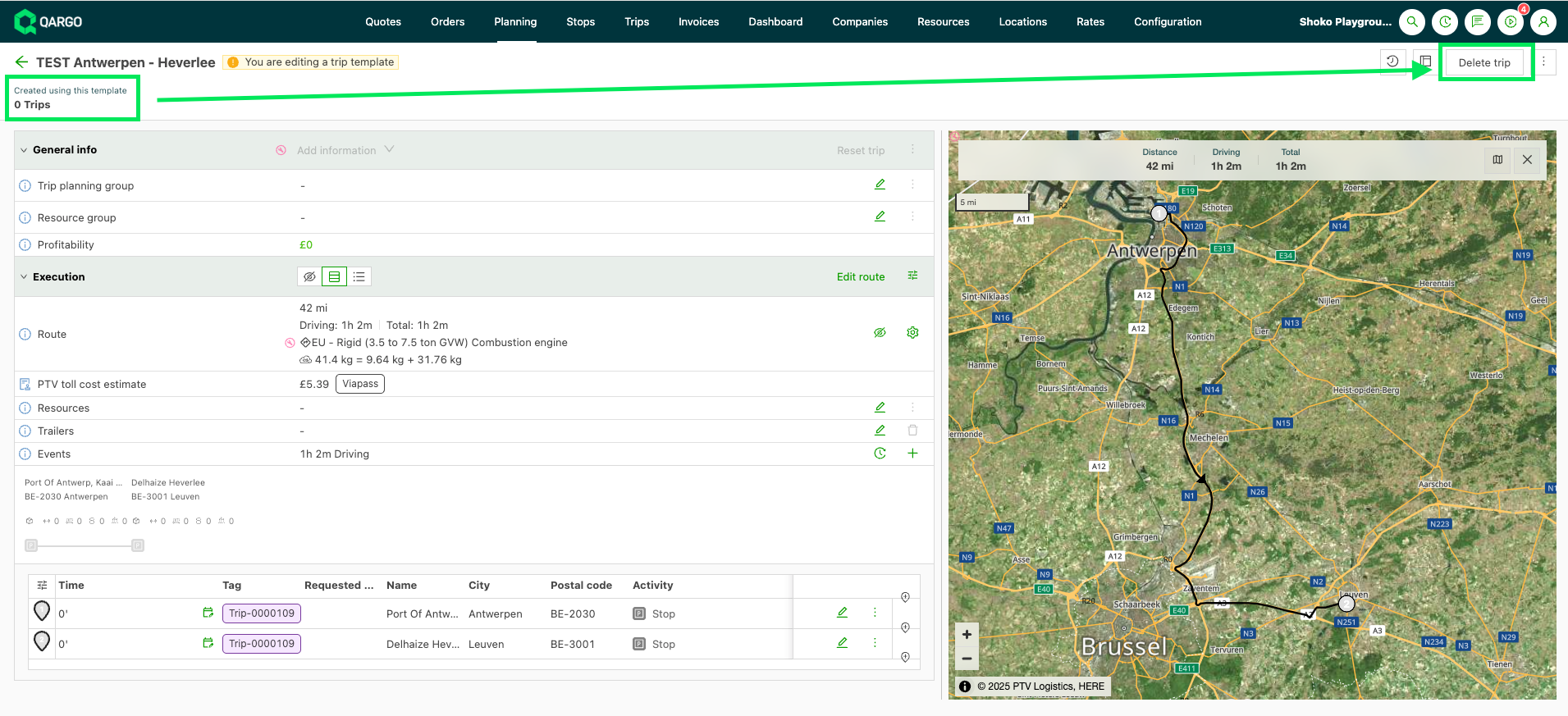
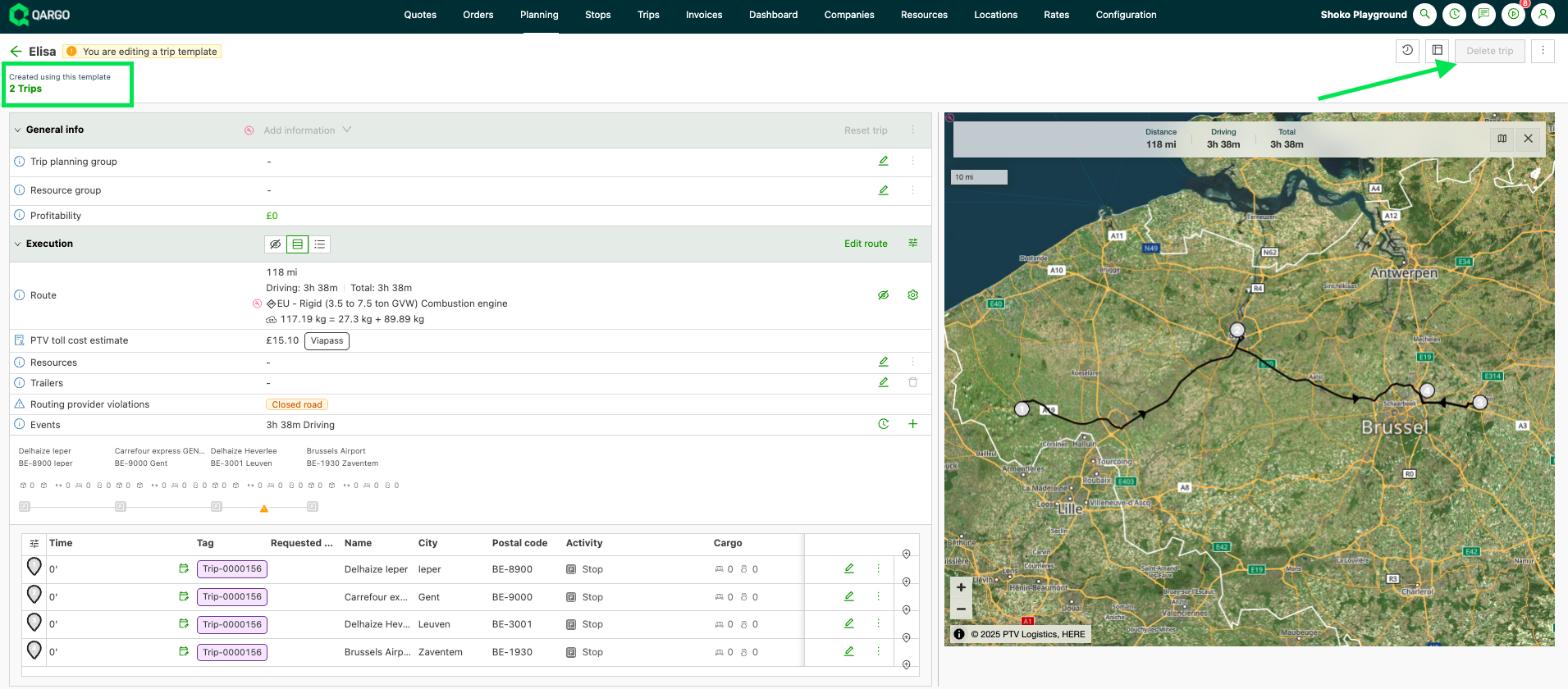
On the template detail page, Created using this template under the template title shows how many loads came from the template. Delete load is only enabled while this count is zero.
How a load is built from a template
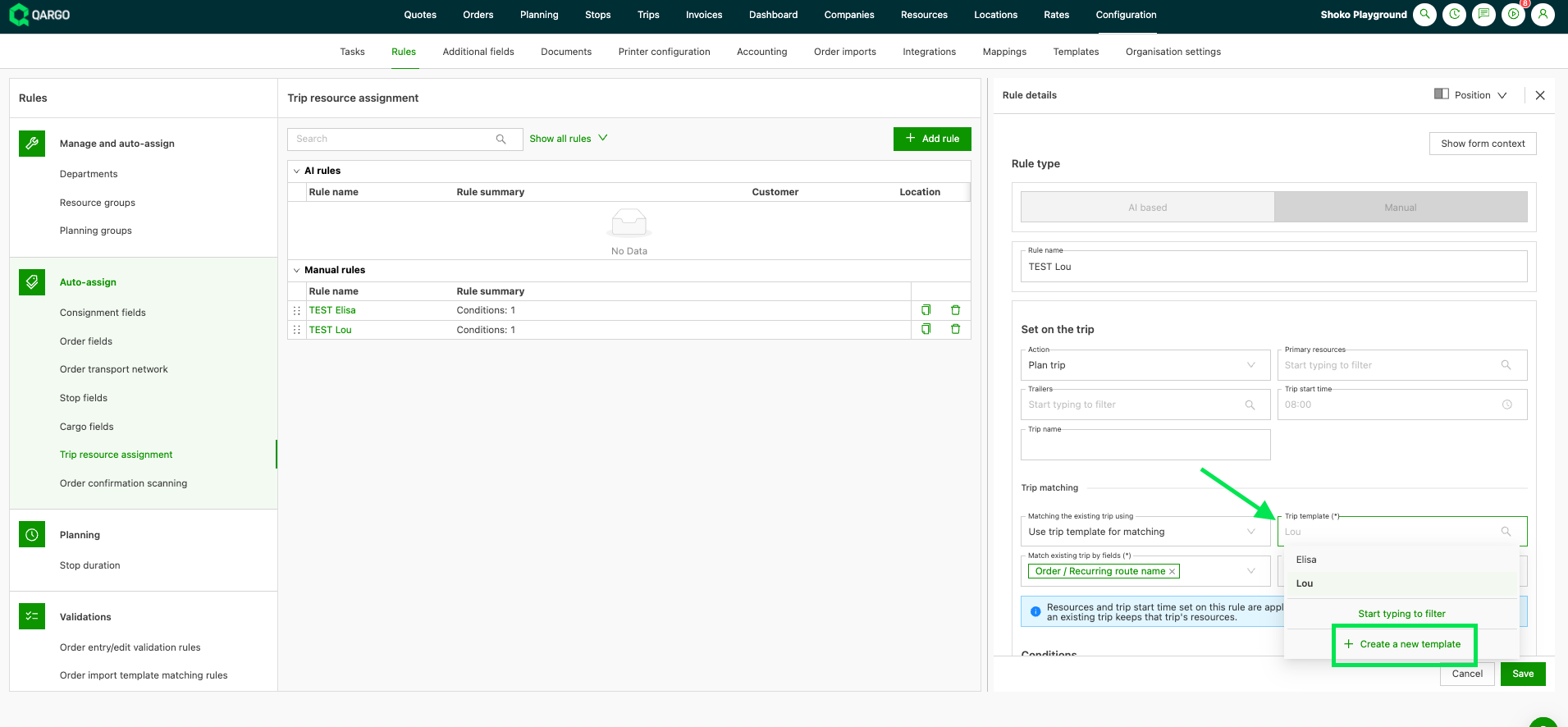
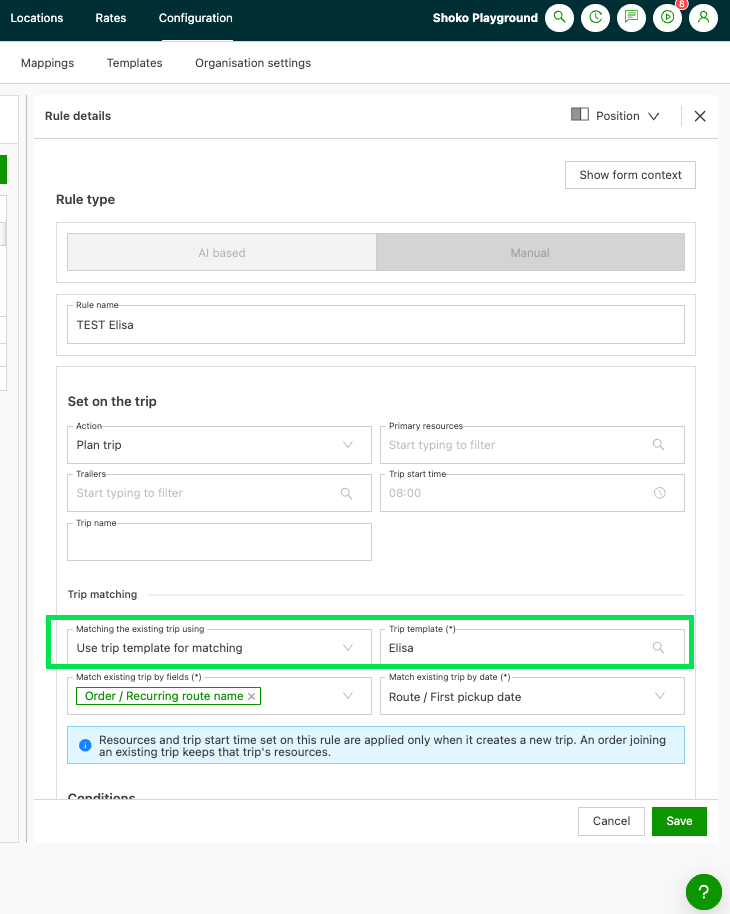
When a rule with Use load template for matching finds no matching load for the date, it creates a new load and copies the template onto it. The rule’s resources and load start time are set on that new load.
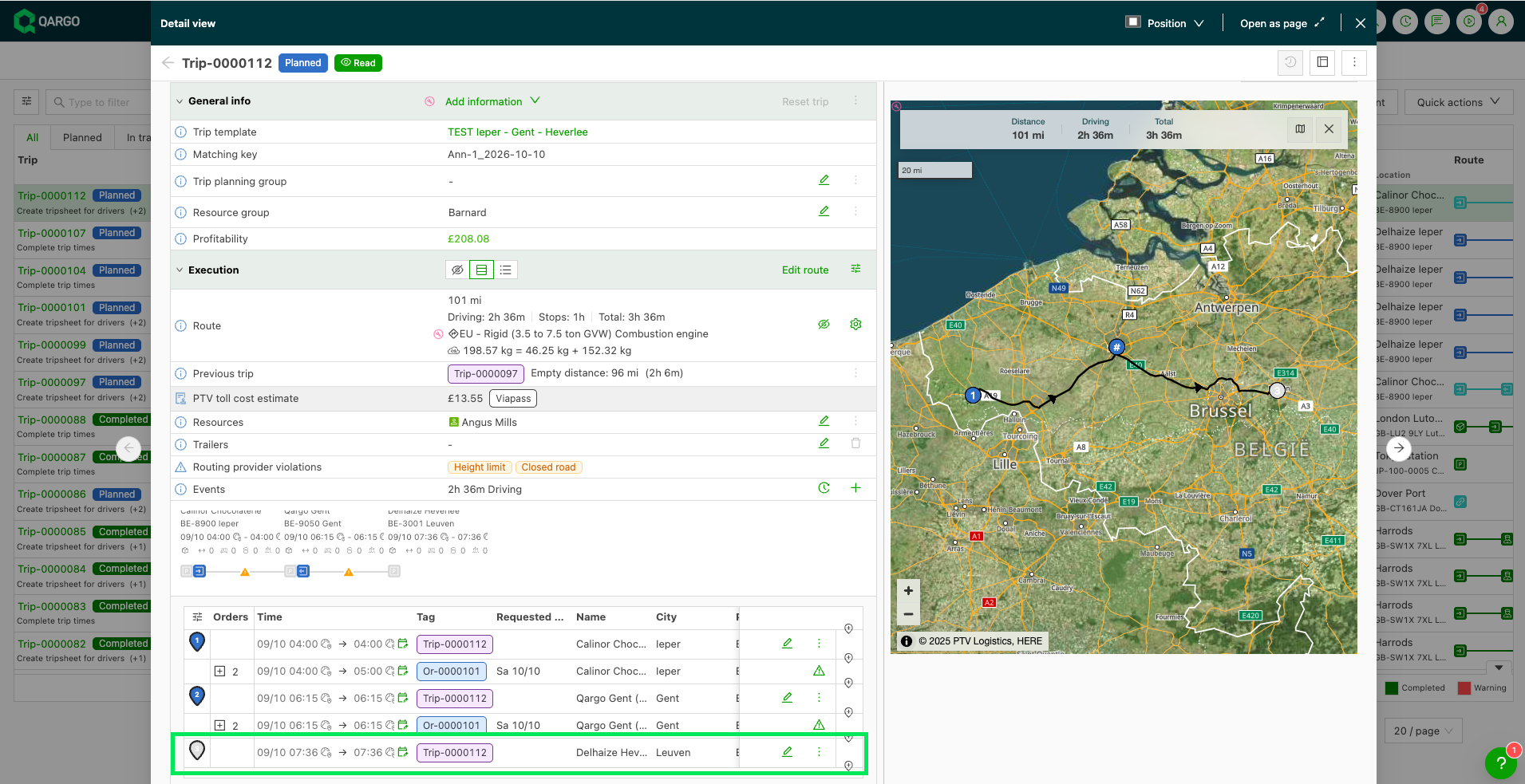
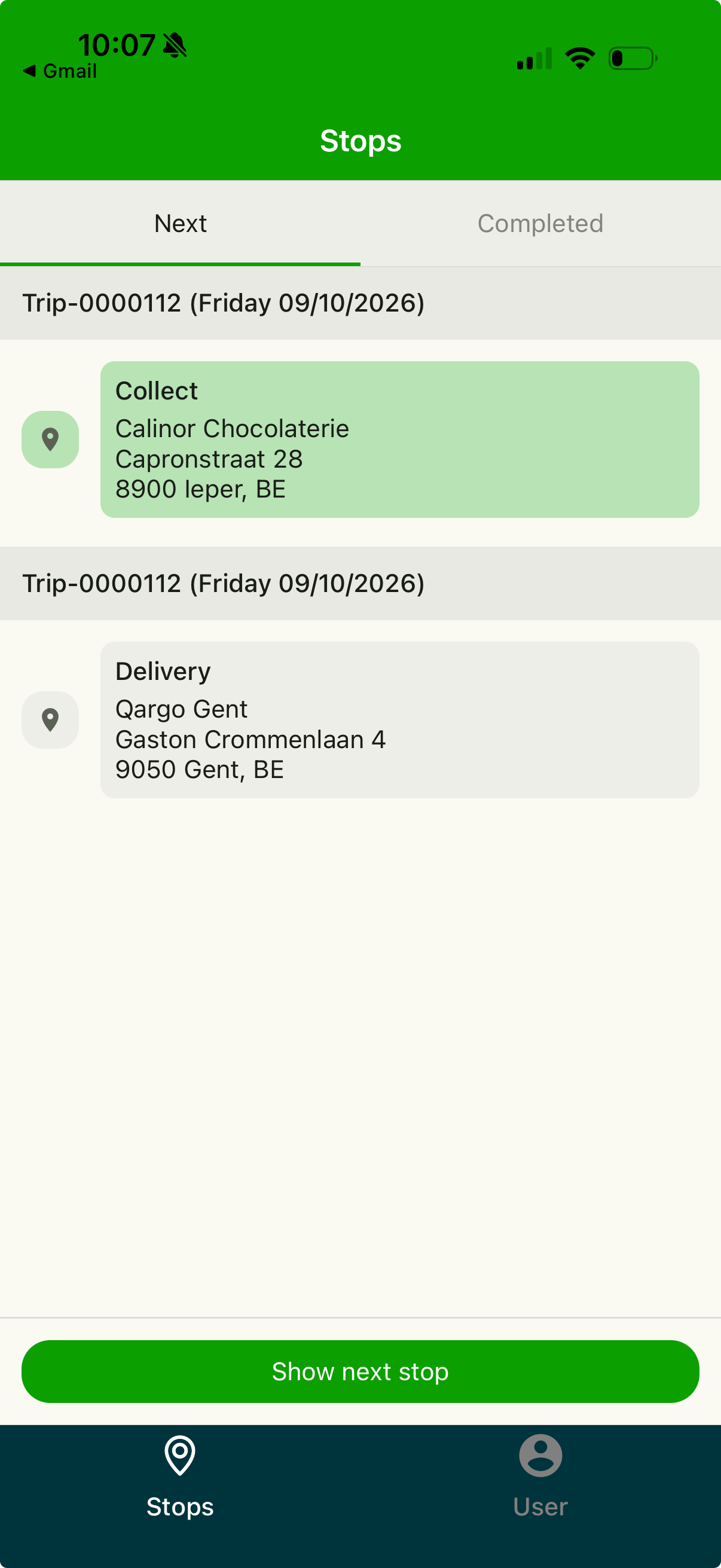
Every template stop is copied onto the load as a placeholder stop. Placeholder stops appear in the stop list with the activity Stop and the load number as a tag. They are not dispatched to the driver. The order’s stops are inserted next to them, so the template’s route stays visible.
A template stop that no order uses stays on the load as a placeholder stop. For example, a template with three stops keeps its third stop when orders only use two. The stop’s menu (three dots) offers Dispatch activity to send such a stop to the driver.
What planners see on a load
-
Load detail > General info shows a Load template row. Click the name to open the template.
-
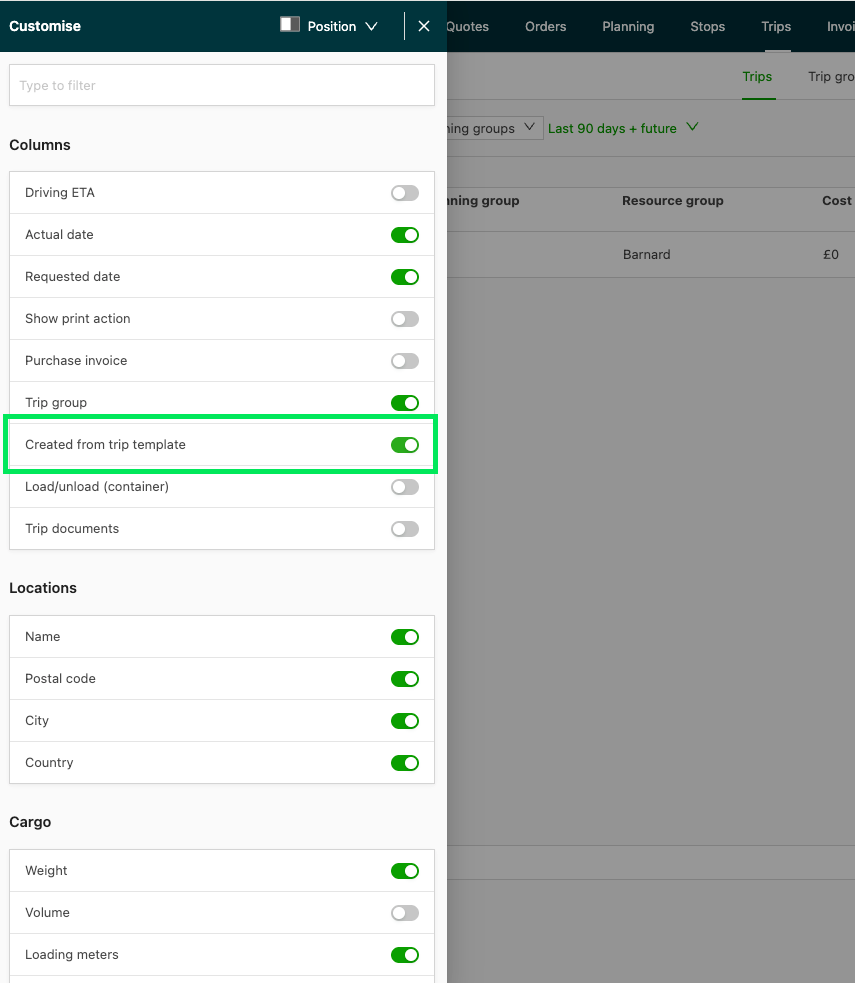
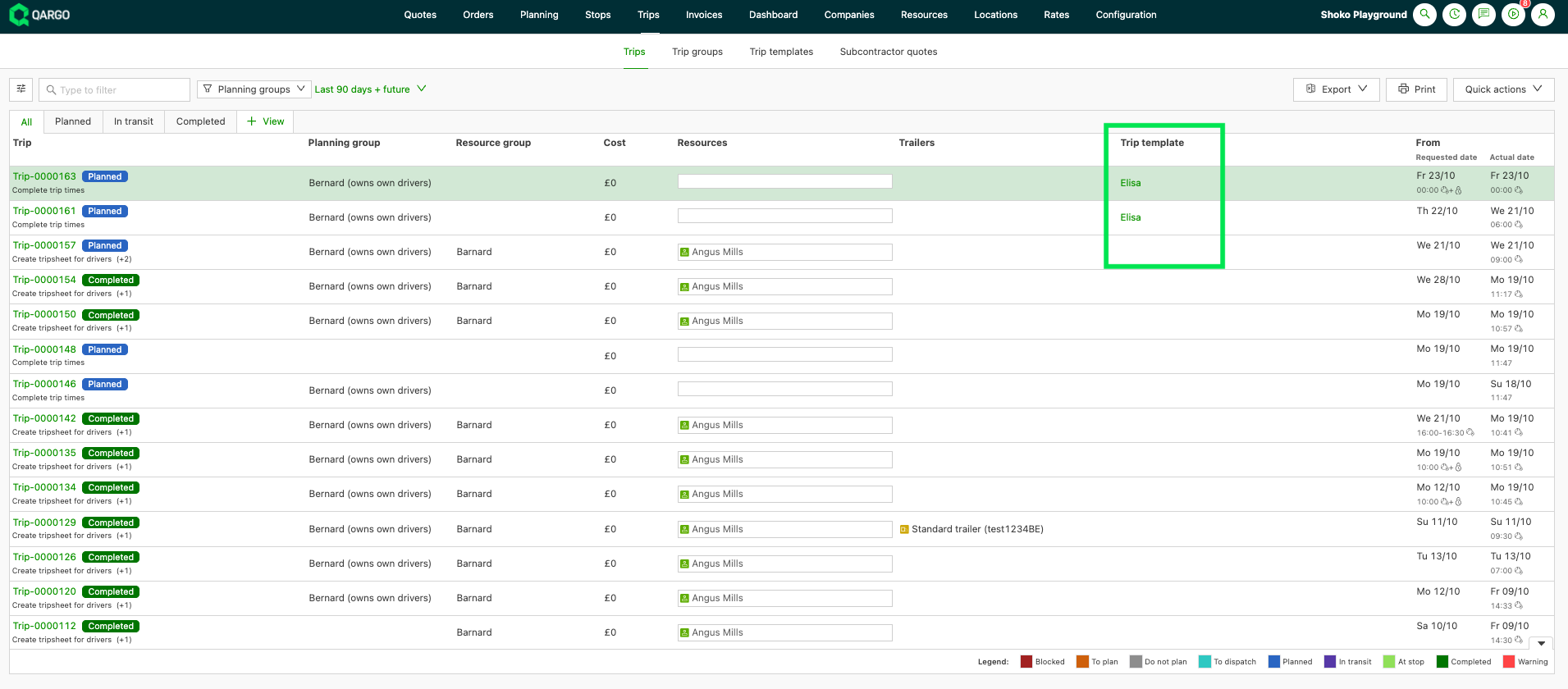
The Loads list has an optional Created from load template column. Switch it on under Customize > Columns.
-
Unplanning an order from a load created from a template works the same as on any other load.
Example
A transportation company runs a regular route between Ieper and Brussels via Gent and Heverlee. The load template “Elisa” holds 4 stops (Ieper, Gent, Heverlee, and Brussels).
-
A rule with Use load template for matching and this template receives the first order for October 22. No load exists for that date, so a load is created from the template. The Ieper, Gent, Heverlee, and Brussels stops are on the load as placeholder stops, and the order’s stops are inserted next to them.
Or-0000128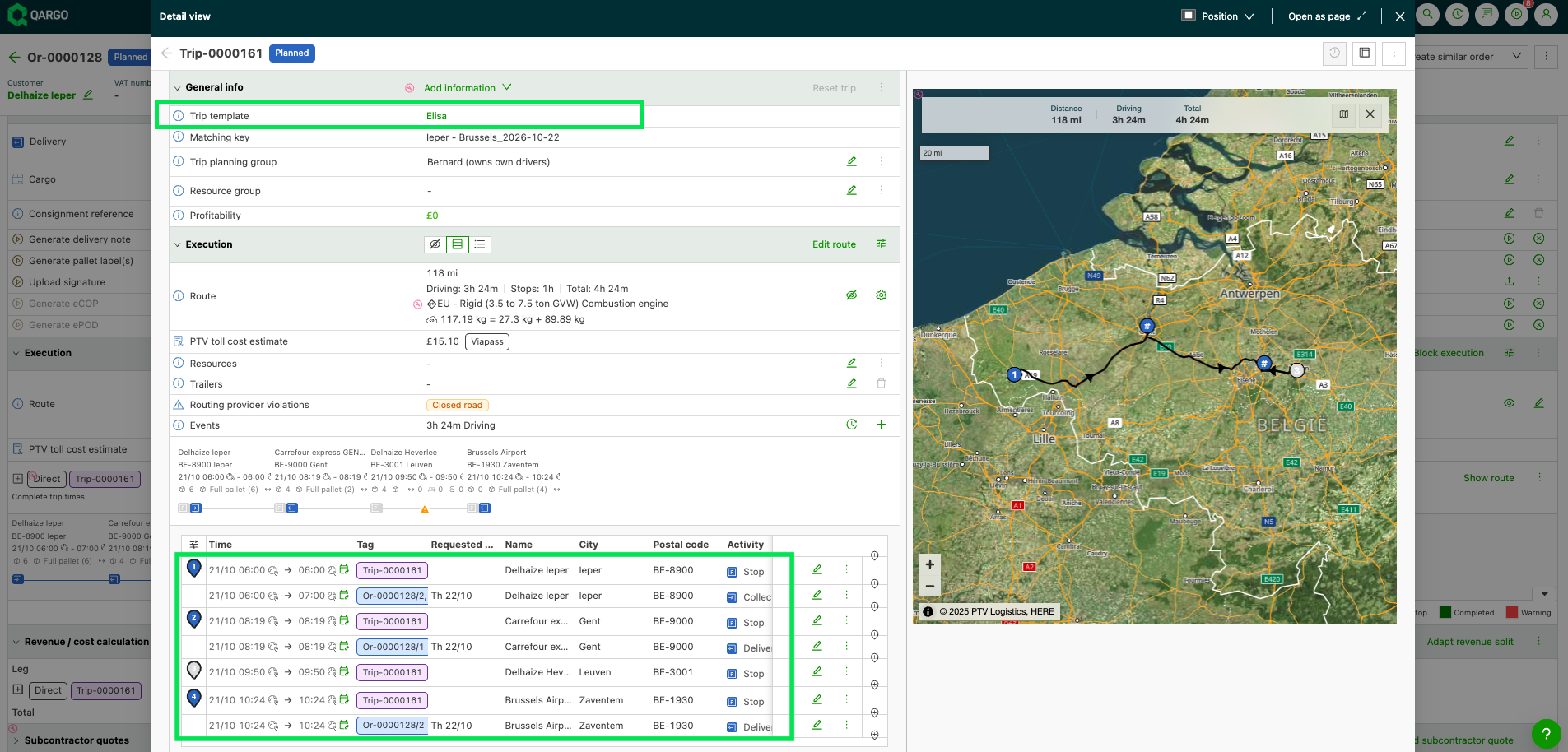
-
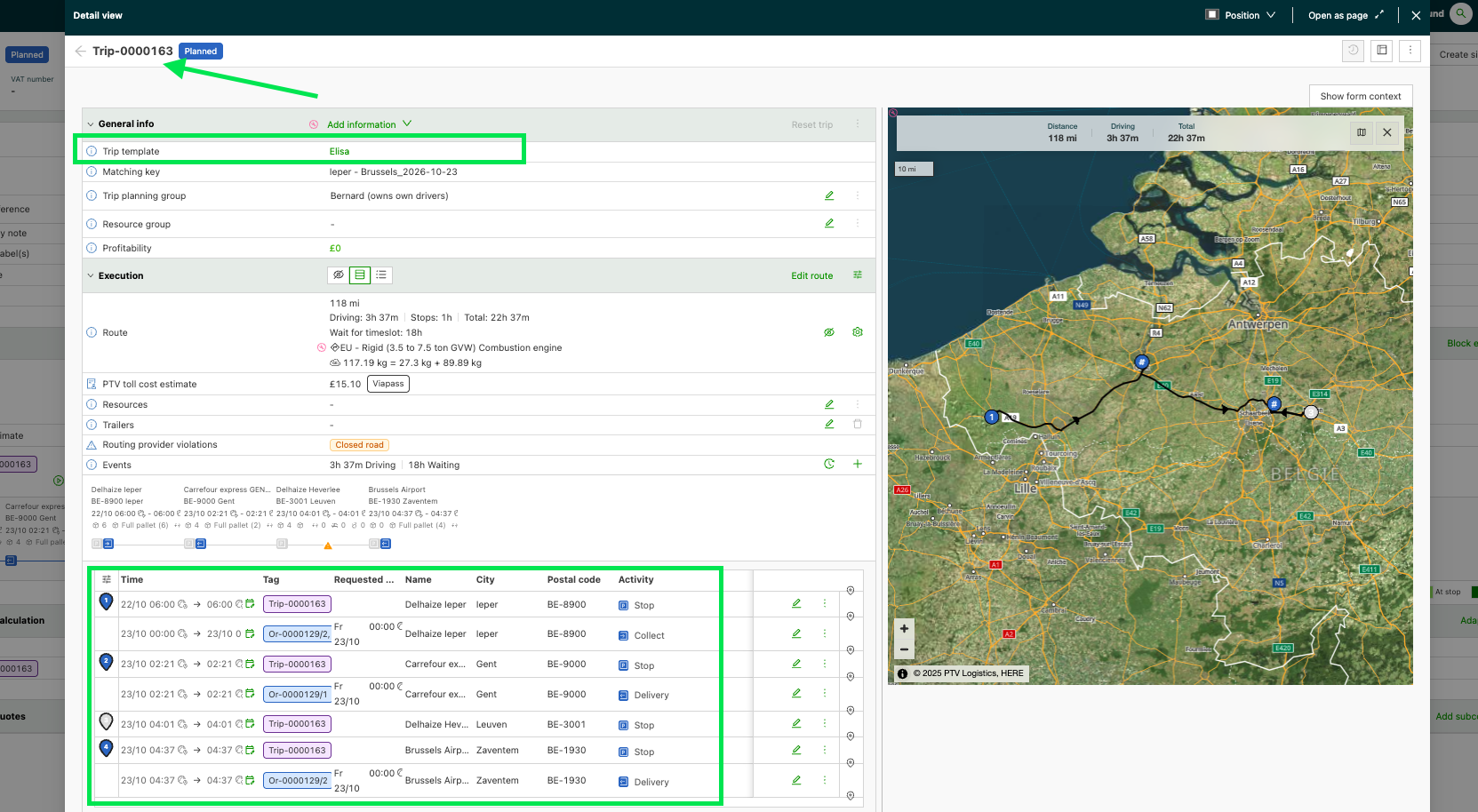
An order for October 23 creates a separate load from the template, because the date differs.
-
On the template, Created using this template now shows 2 loads, and Delete load is disabled.
Troubleshooting
| Issue | Fix |
|---|---|
| Delete load is disabled on a load template. | Loads were created from the template. Deleting is available once the count under Created using this template is zero. |