
Orders: complete quick actions in bulk
Update multiple orders at once with bulk options like updating dates, fields, and stop details, plus streamlined task workflows.
Table of contents
Introduction
Quick actions are available on several pages, including Orders and Invoices. This feature lets users apply the same update to multiple orders at once, which reduces the number of clicks required.
Quick actions are organized into distinct functional categories:
- Actions
- Tasks
Accessing quick actions
-
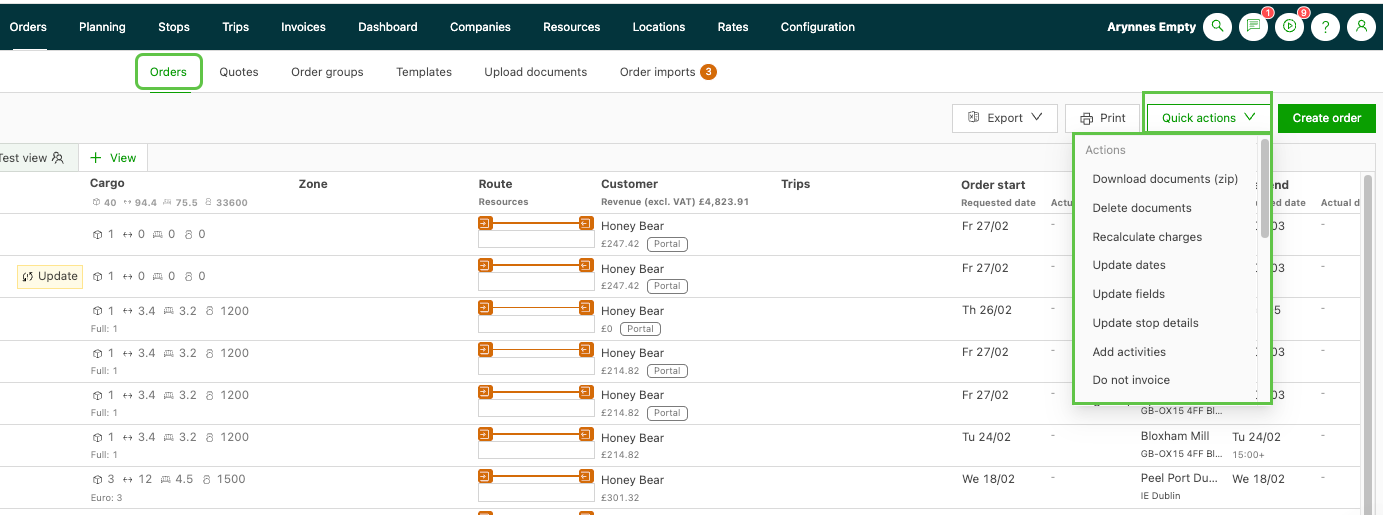
Orders and invoice list page: click the ‘Quick actions’ button
-
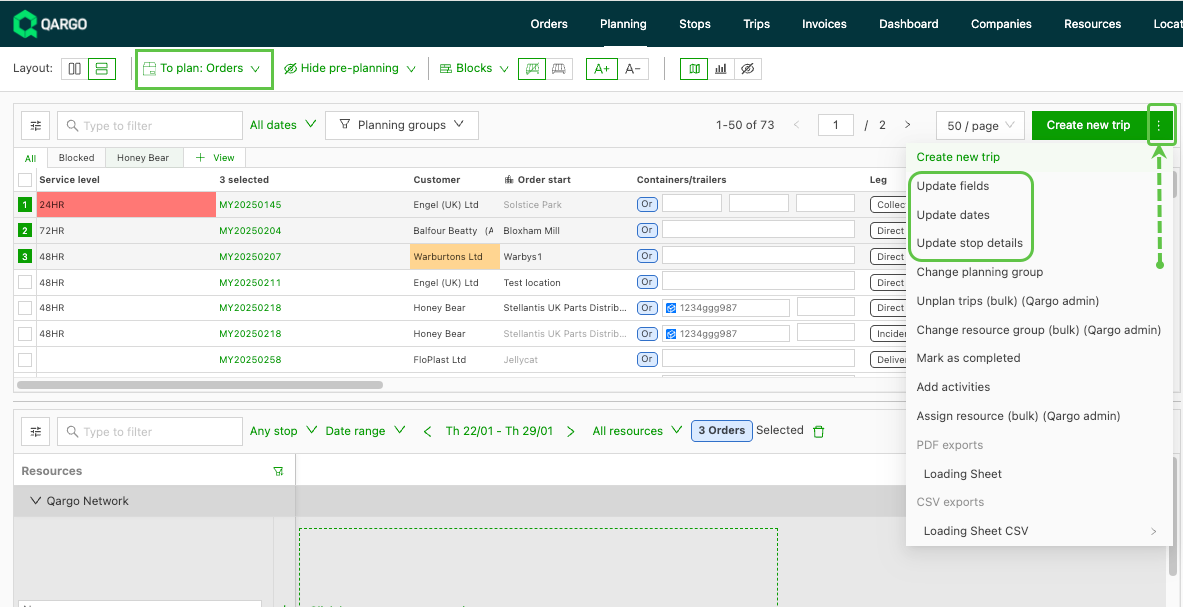
Planning > To plan: Orders
-
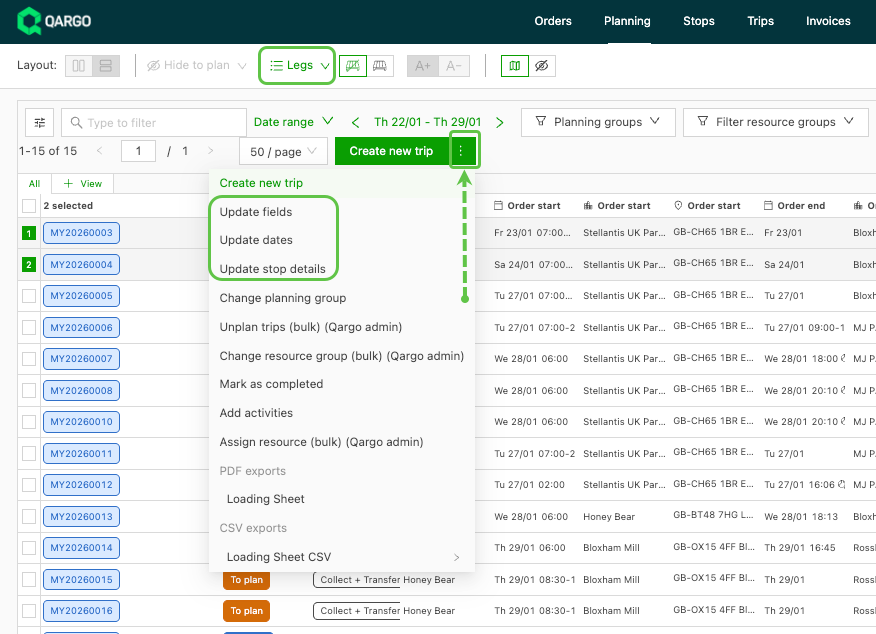
Planning > Legs view
-
Click the checkbox to select the orders to update
-
Click the menu (three dots) on the ‘Create new load’ button to open the quick actions menu
-
Updates can be actioned, including three updates:
- Update fields: update order, shipment, or goods fields across all selected items
- Update dates: shift planned dates for selected orders or legs in one action
- Update stop details: update stop-level fields for selected items
Benefits of bulk updates:
This makes it much easier to:
- Apply the same location or reference to multiple orders in just a few clicks
- Correct data inconsistencies at scale (particularly useful for large order batches)
- Update reference numbers for orders
- Apply charges or extras in bulk after portal uploads
- Make last-minute planning changes, often combining or splitting loads
Quick actions > Actions
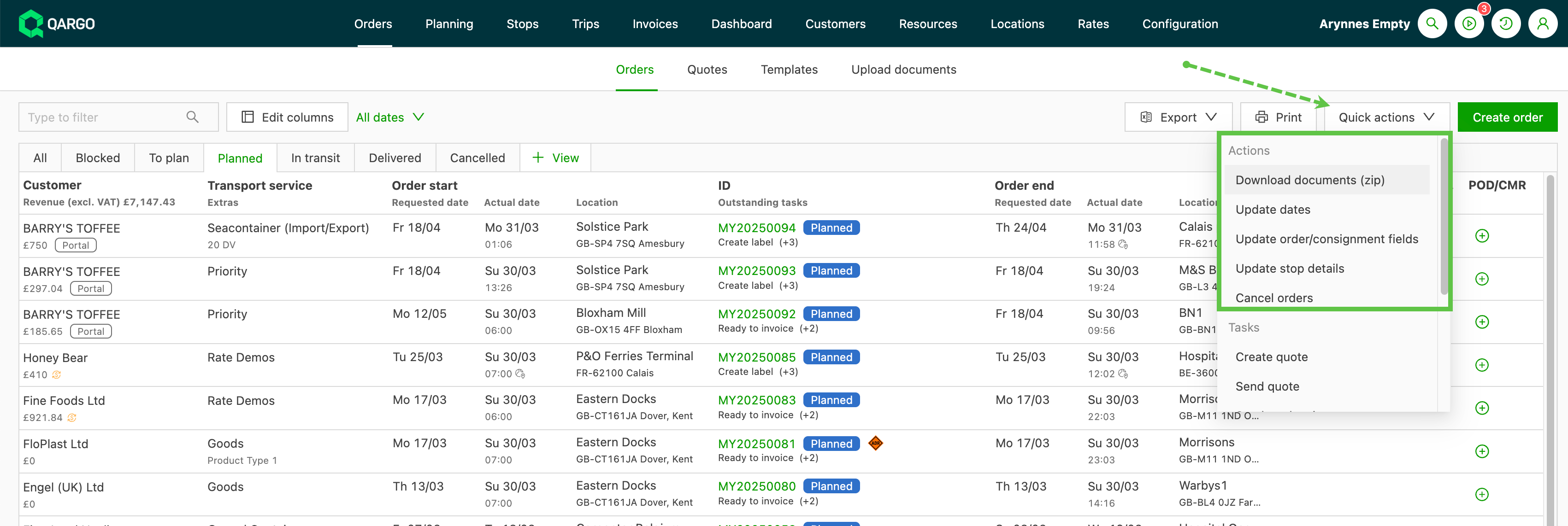
Available options include:
- Download documents
- Update dates
- Update fields
- Update stop details
- Add activities
- Cancel orders
- Create order group
Download documents
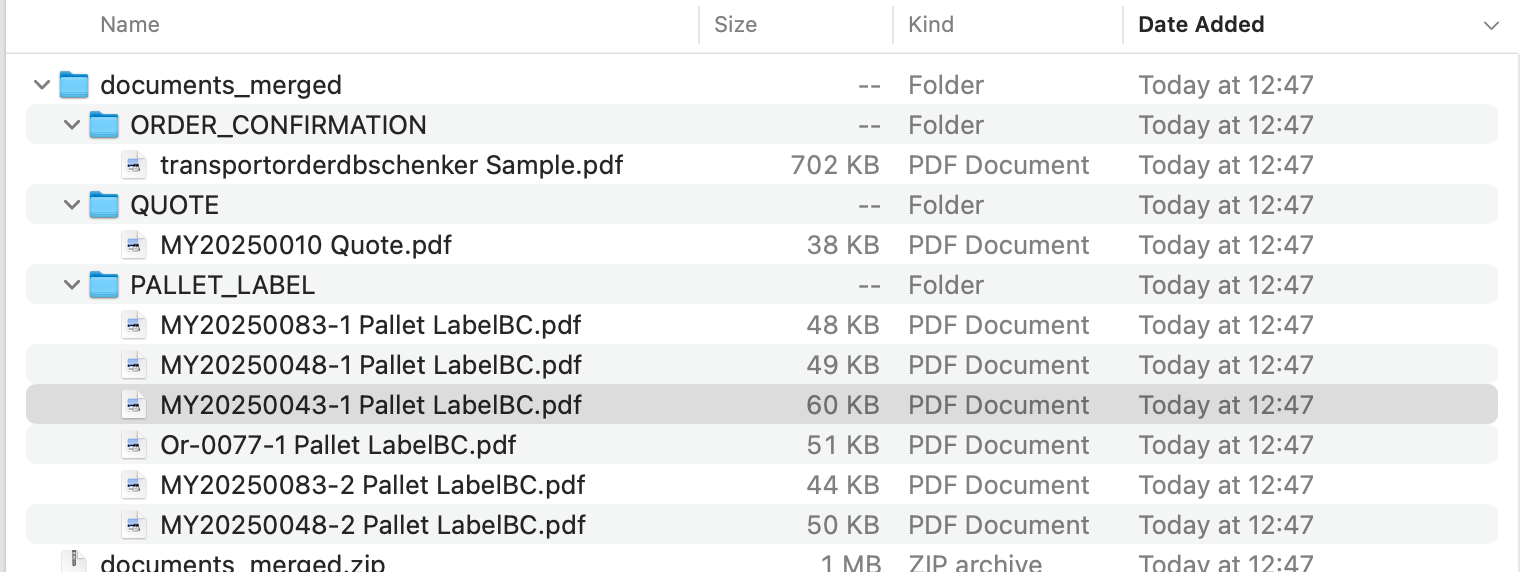
- Use this option to select and download the documents associated with the selected orders as a single zip folder.
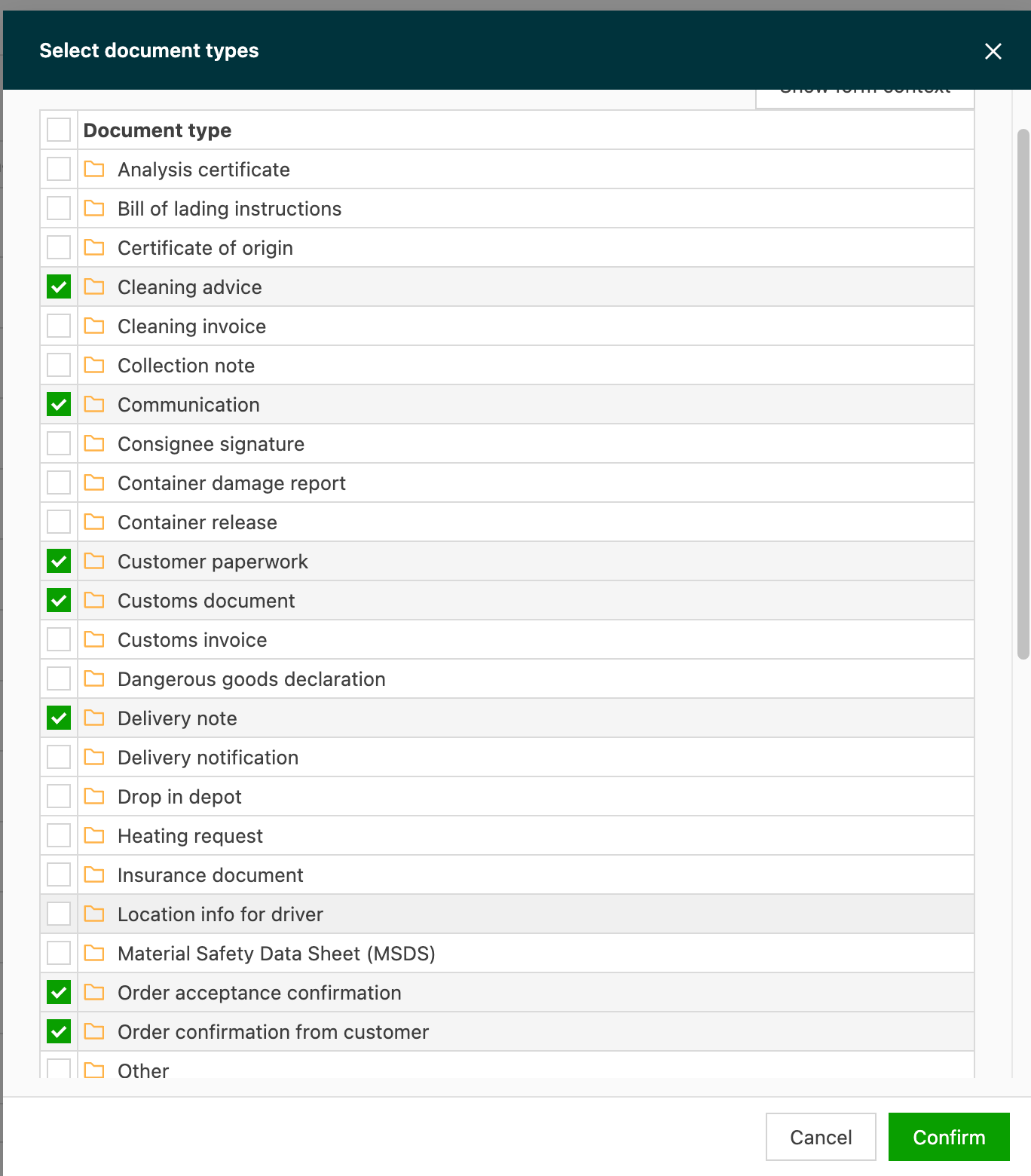
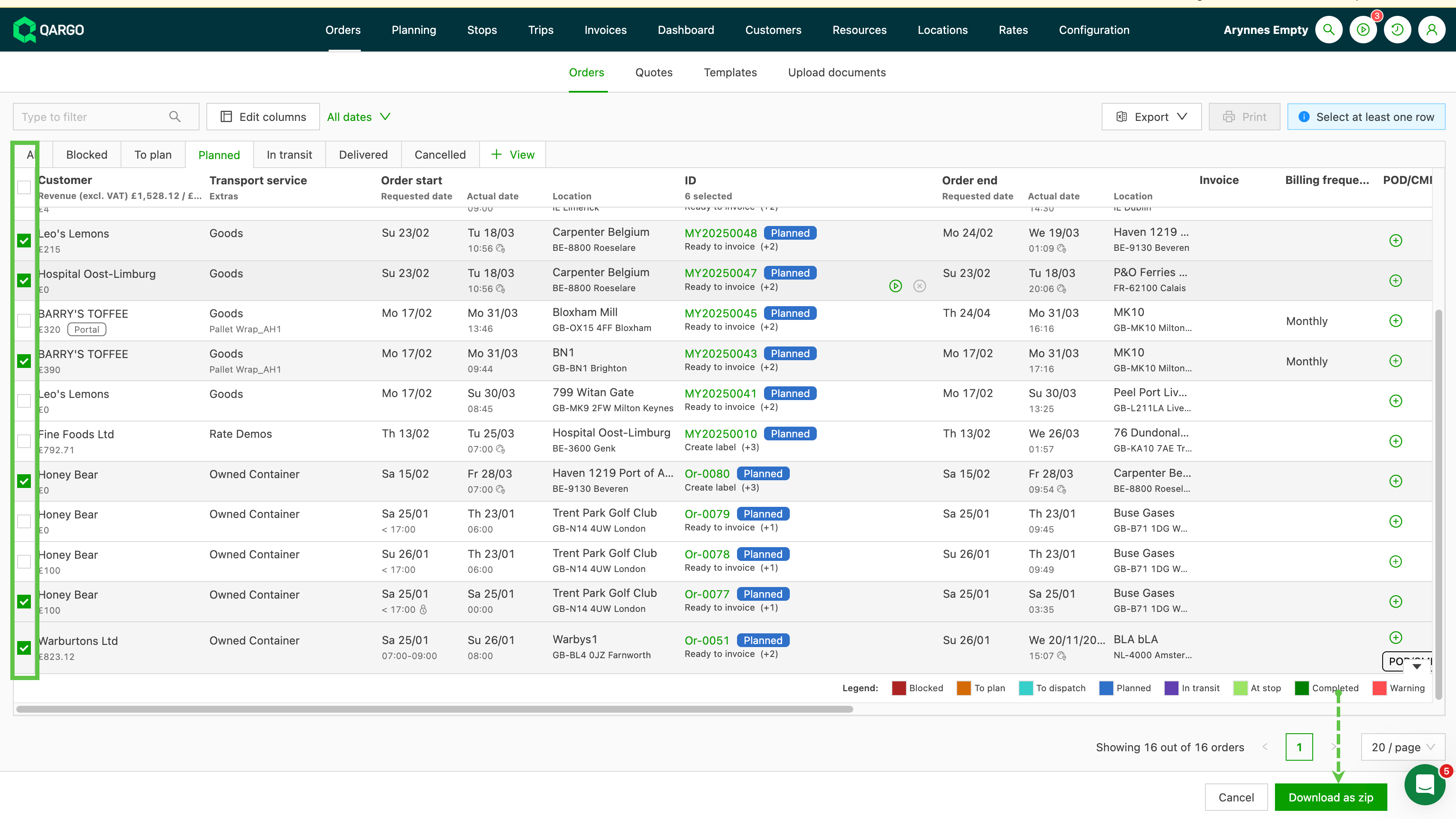
- The files are automatically grouped by document type for easy identification.
Update dates
-
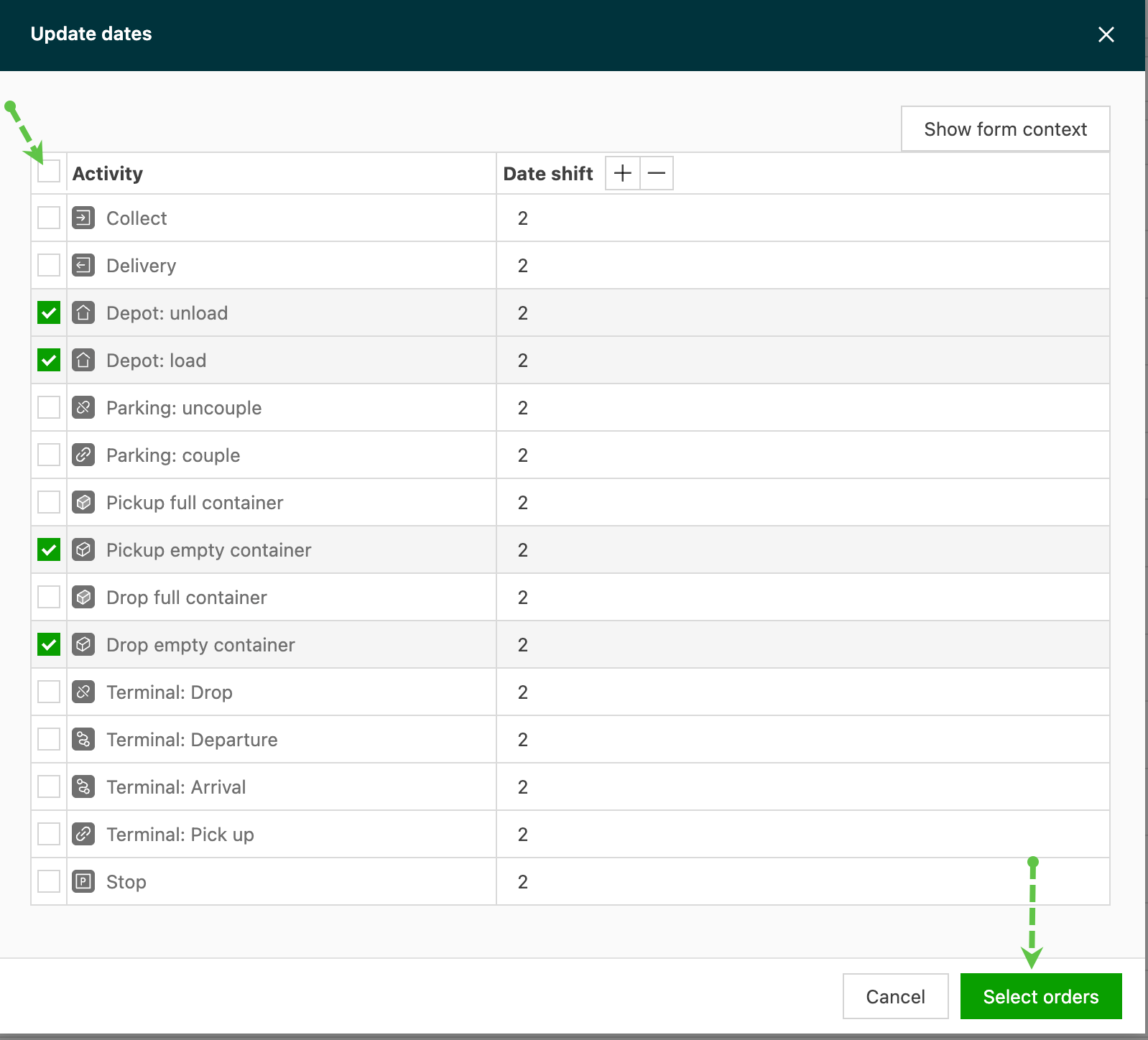
Use this option to update the dates on specific orders or stop types. Select the checkbox of the activity and adjust the number of days (+/-).
-
Click Select orders to apply the change to specific orders.
-
To update the Order start date, which is called the Pickup date in Qargo, go to the Orders section and select the orders to modify, using filters or manual selection.
-
Open the Quick actions menu and select Update dates. In the dialog box, choose Pickup date as the date type.
-
Enter the new date for the selected orders and confirm the change.
Update fields
Options are available for both order and shipment fields that are enabled on the tenant.
-
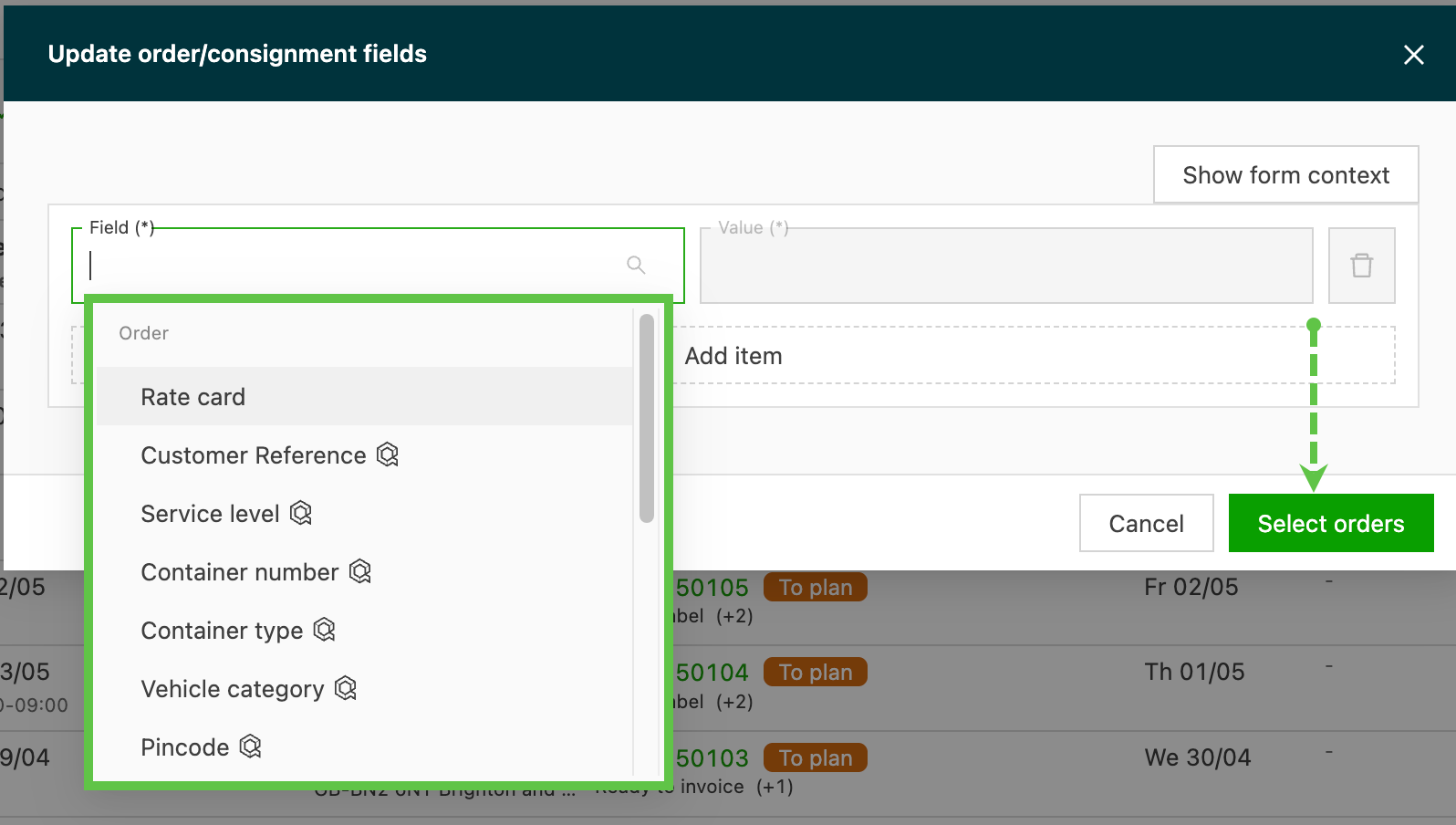
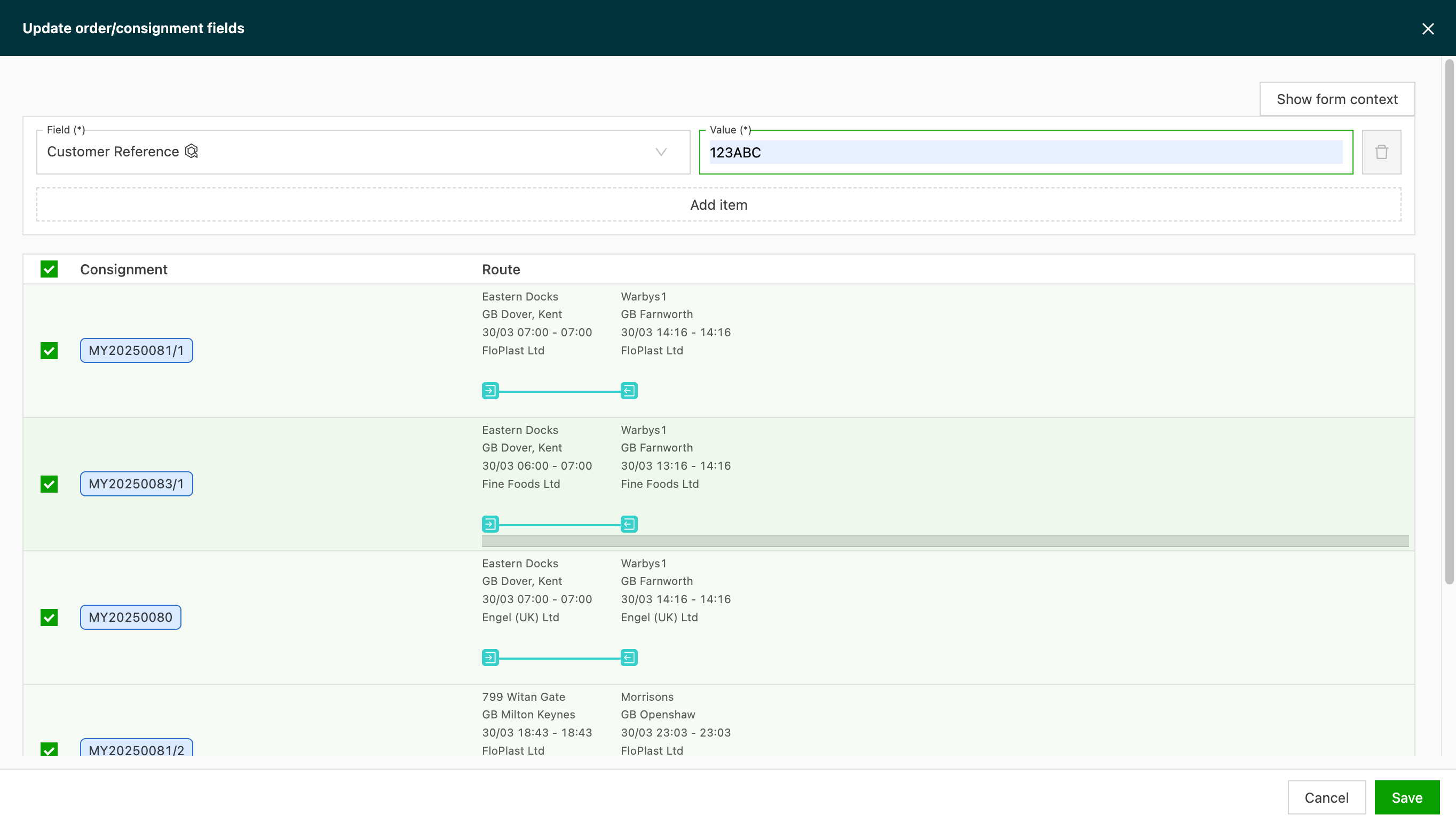
Select the ‘Field’ to update and enter the value to add.
-
Fields are broken down into the following categories:
- Order
- Shipment
- Goods
-
Fields that can be updated include both default and custom fields
-
Select the orders to update and click ‘Update fields’ to apply the changes.
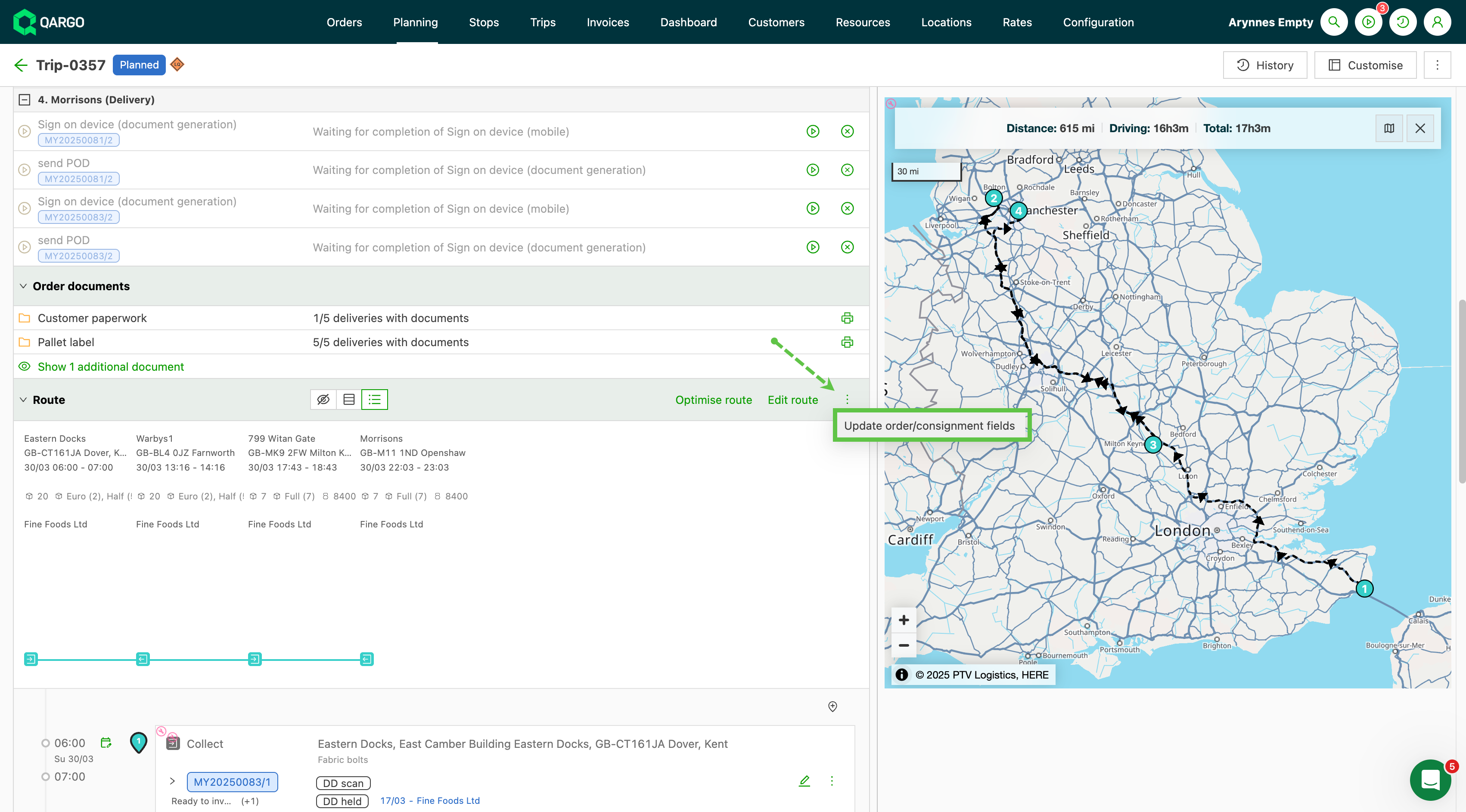
- Update from the Load details view:
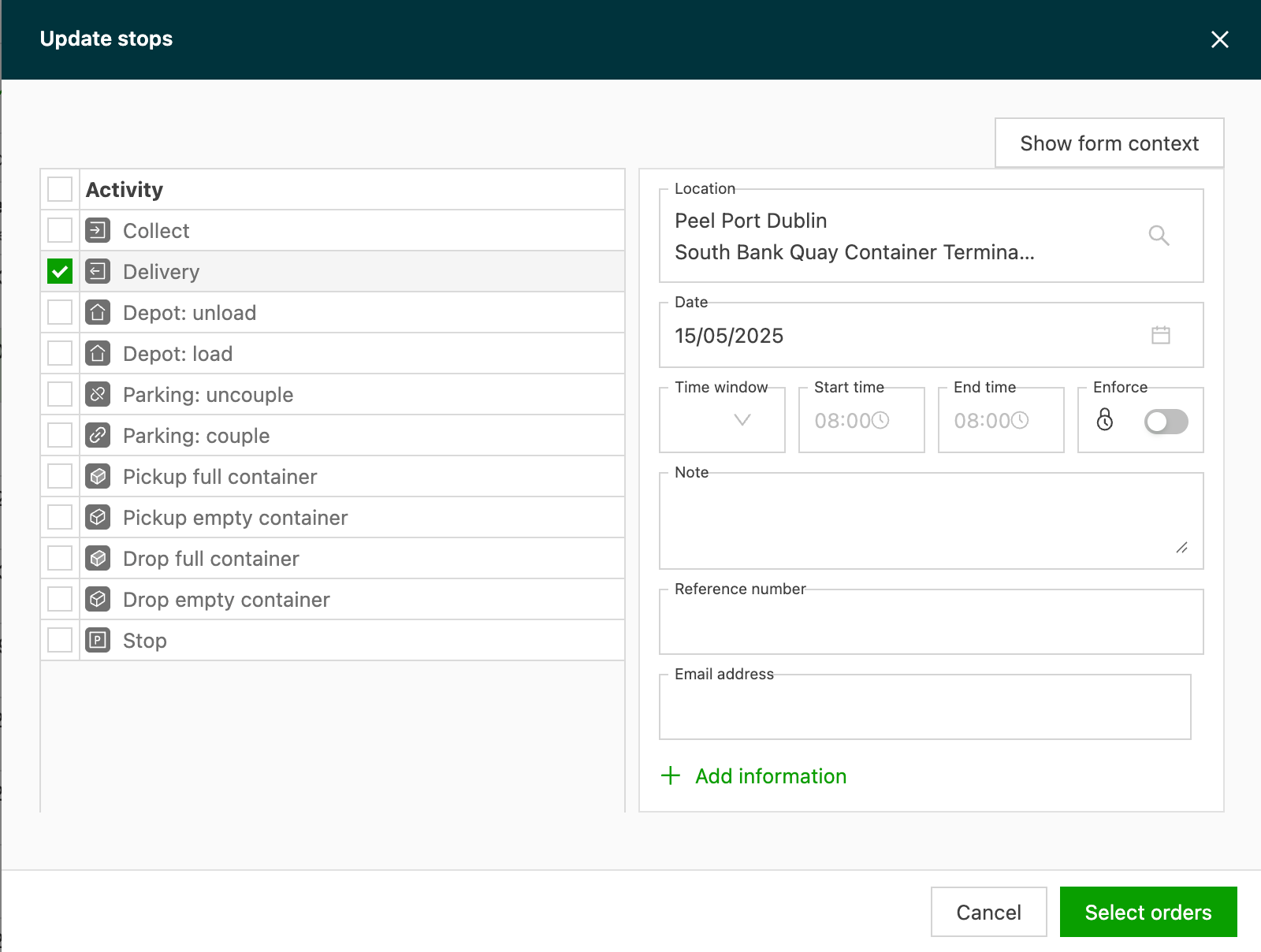
Update stop details
- Select the stop that requires the update.
- Complete the required updates and click ‘Select orders’.
- Select and update the orders.
Recalculate charges
Use this option to recalculate the charges of the selected orders, for example after a rate card or surcharge change.
-
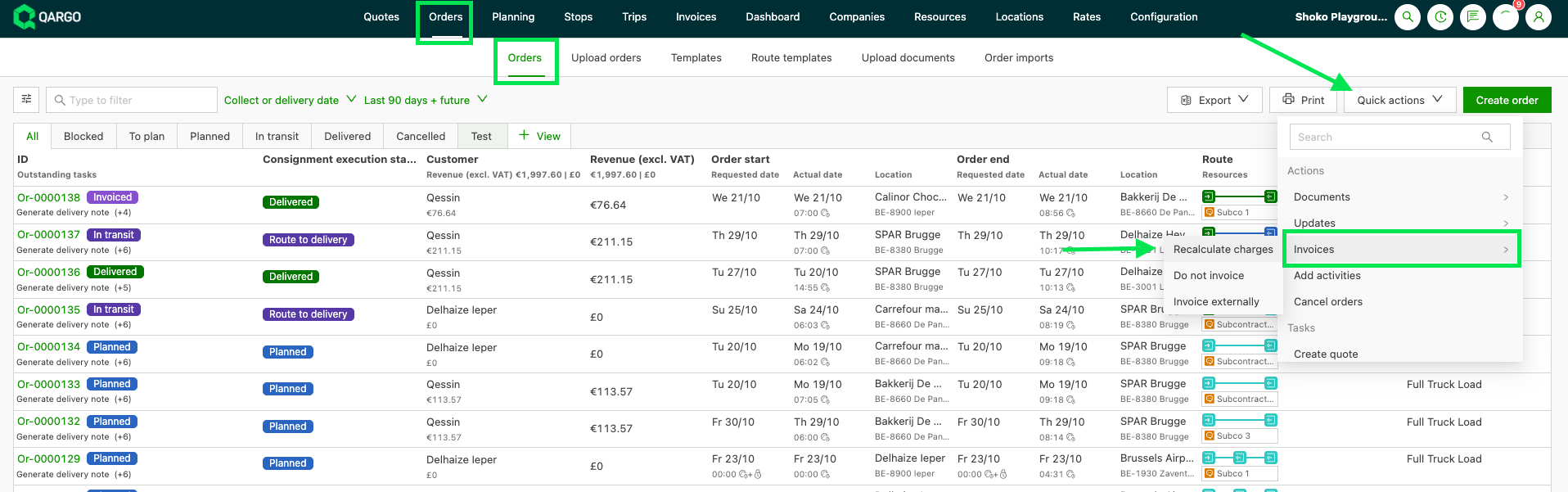
Open the Quick actions button on the Orders list.
-
Go to Invoices > Recalculate charges.
-
Select the orders to recalculate.
-
Confirm the action.
- Background processing: large recalculations run in the background queue. Results take some time to appear.
- Before billing: to confirm that charges are final before an order is added to an invoice, run Recalculate charges on the order first and check the result.
Recalculate a rate card for a date range
To recalculate only part of a rate card’s orders, select a date range instead of processing all data. This avoids system timeouts on large volumes.
-
Go to Rates > Rate card customers.
-
Open the rate card.
-
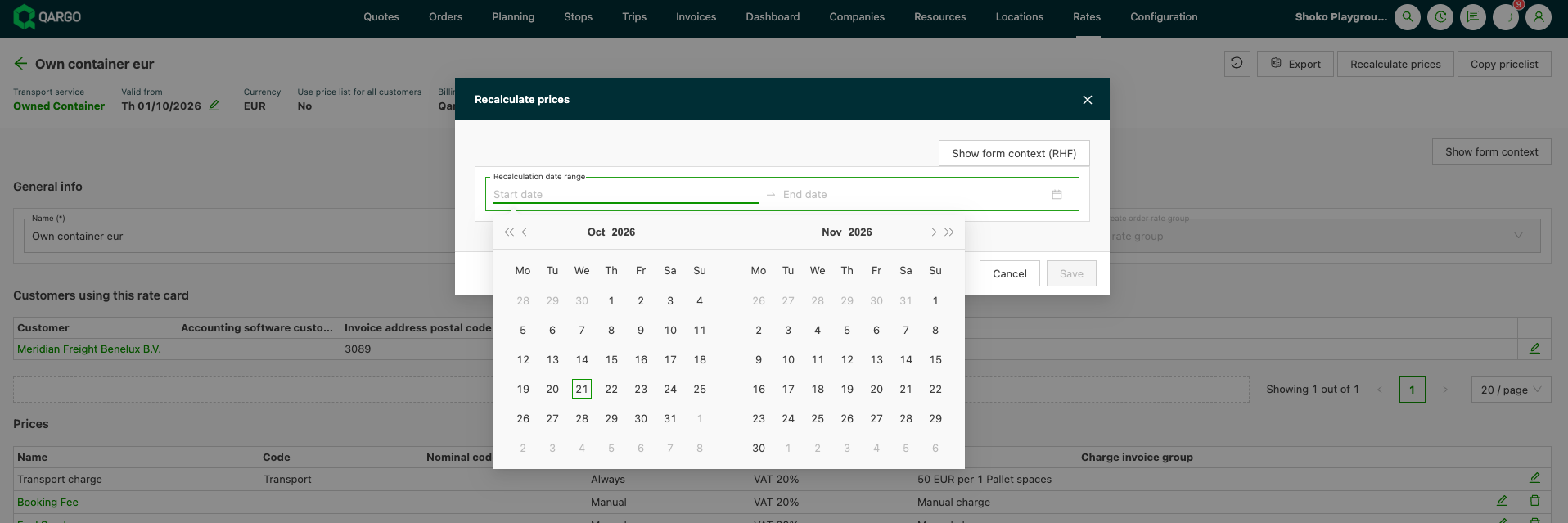
Click Recalculate prices (top right).
-
Enter the start date and end date in Recalculation date range.
-
Click Save.
Add activities
Users now have a new option under ‘Quick actions’ to add additional stops or split loads in bulk.
When an order has multiple shipments, the way the stop is added depends on the type of stop being added:
- Intermodal stops: The stop is added per order. When intermodal stops are added in bulk, the stop is added only once to the order, regardless of the number of loads on the order.
- Empty: Equipment/Driver: The stop is added per load. When this stop type is added in bulk, the stop is added to each load. If all shipments are merged on one load, the stop is only added once. If each shipment is on a separate load, the stop is added multiple times (once for each load).
- Split order and Other stops: The stop is added per shipment. When these stop types are added in bulk, the stop is always added to each shipment in the order.
Using the quick action
-
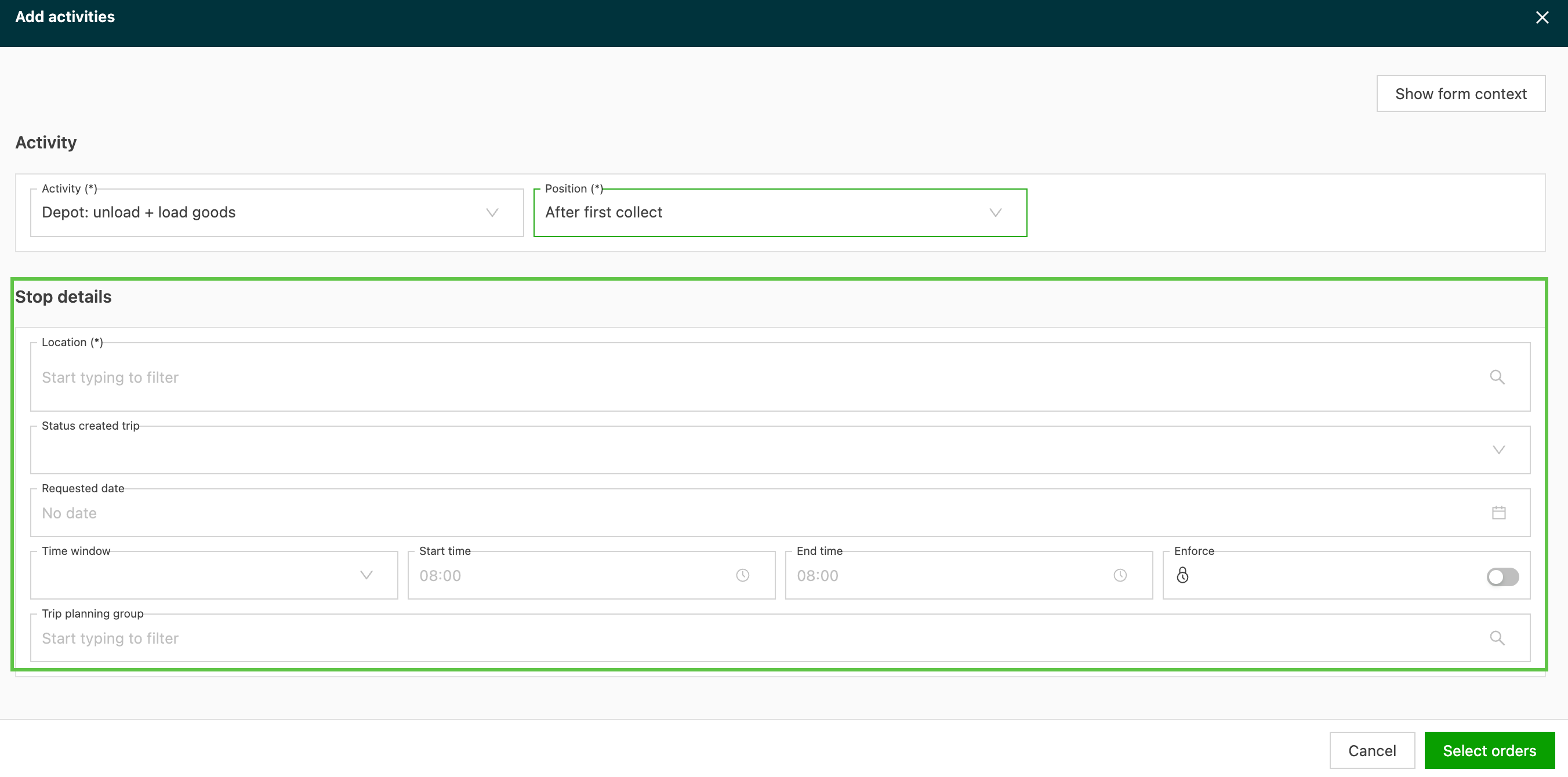
From the orders list page, click the quick actions function and select ‘Add activities’
-
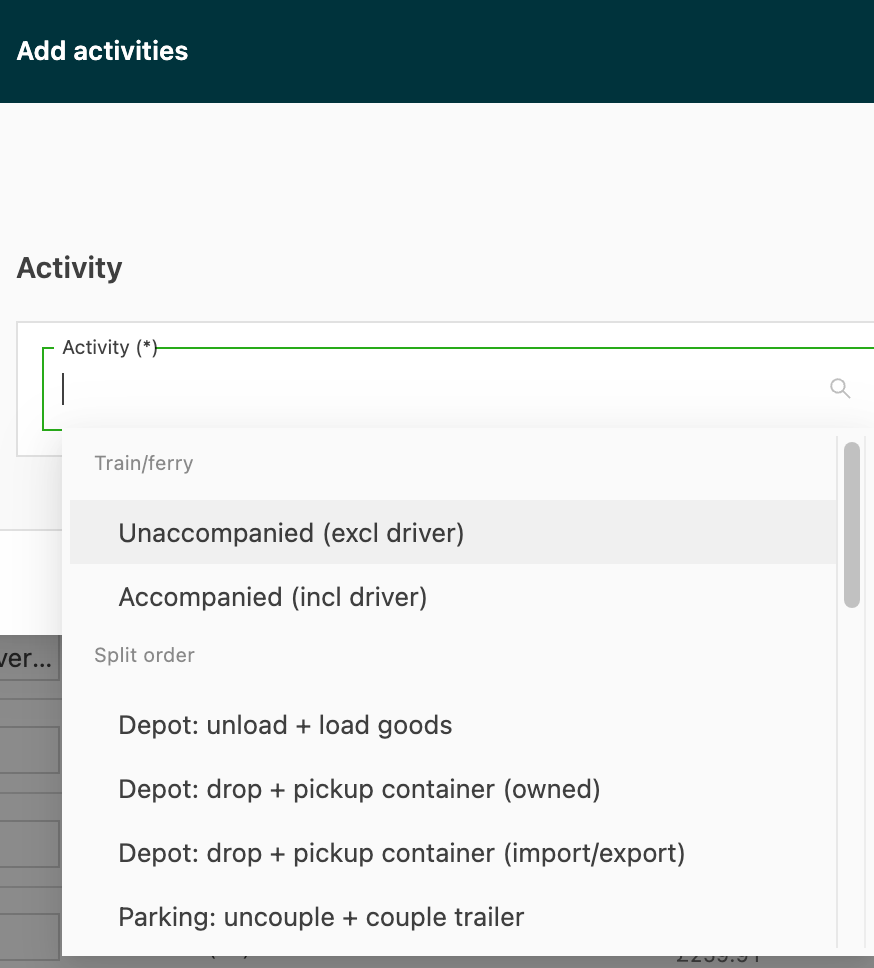
From the ‘Activity’ drop-down, select the option that applies
-
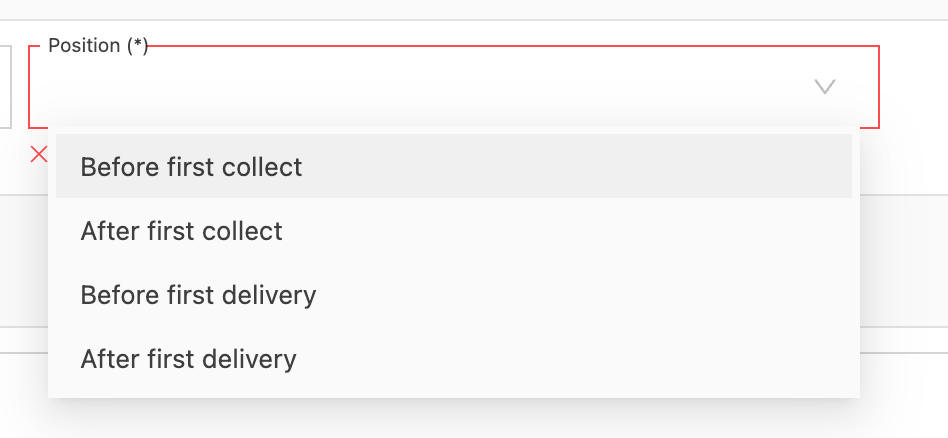
From ‘Position’, select where the new stop / split should be positioned
- Complete the stop details. The options in this section differ depending on the activity.
-
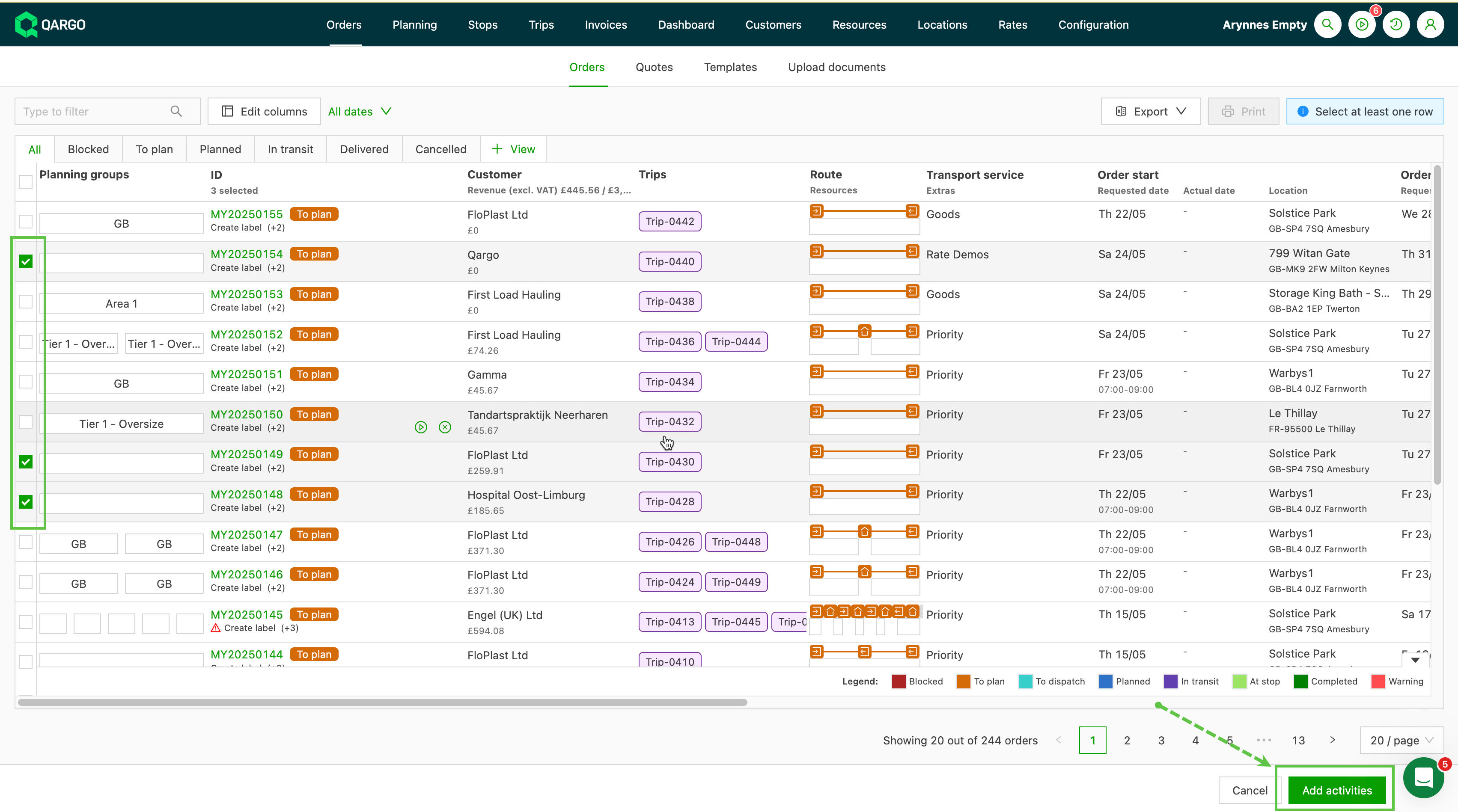
Click ‘Select orders’ to select the orders from the main list view that this activity applies to.
-
Click ‘Add activities’ to complete the action.
Cancel orders
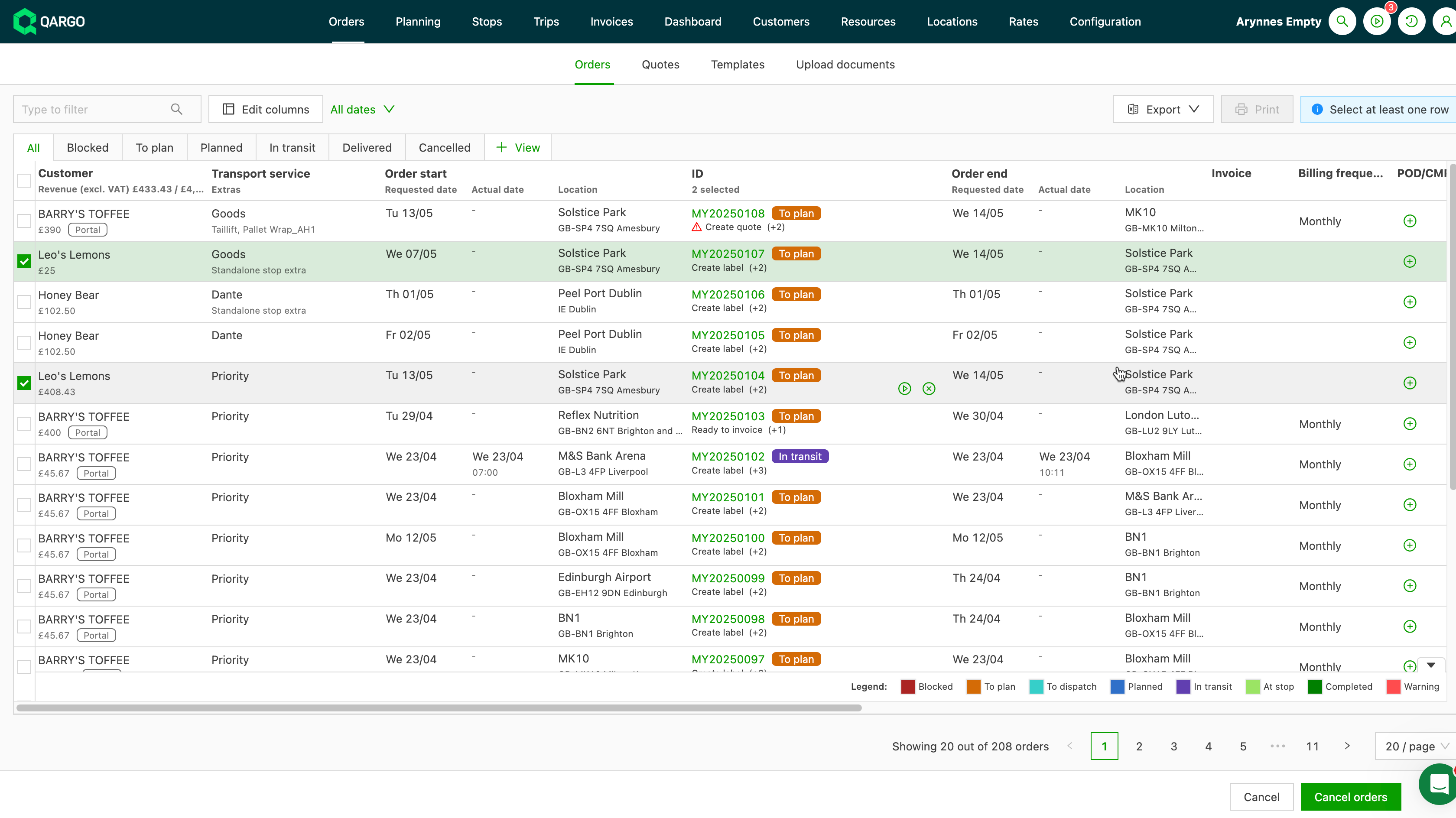
- Use this option to quickly cancel multiple orders with a single click.
- Select the orders to cancel and click ‘Cancel orders’.
Quick actions > Tasks
Updating tasks helps users complete various functions quickly and efficiently. The update process is the same for each task.
Available options include:
- Create quote
- Send quote
- Send to planning
- Create label
- Ready to invoice
- Send invoice
- Complete orders
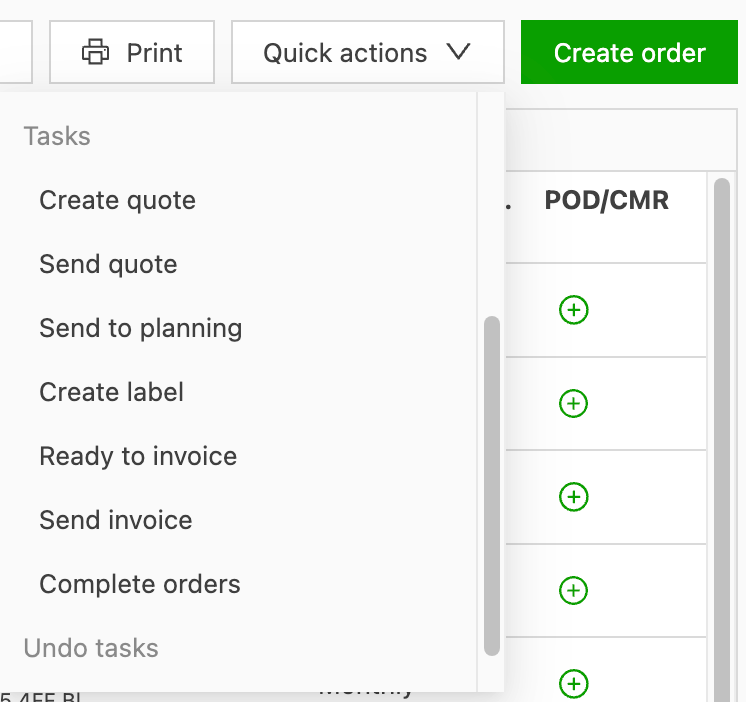
- Select the task to perform. Only orders that meet the task criteria are available.
- Select the orders to perform the updates on
- Complete the task.
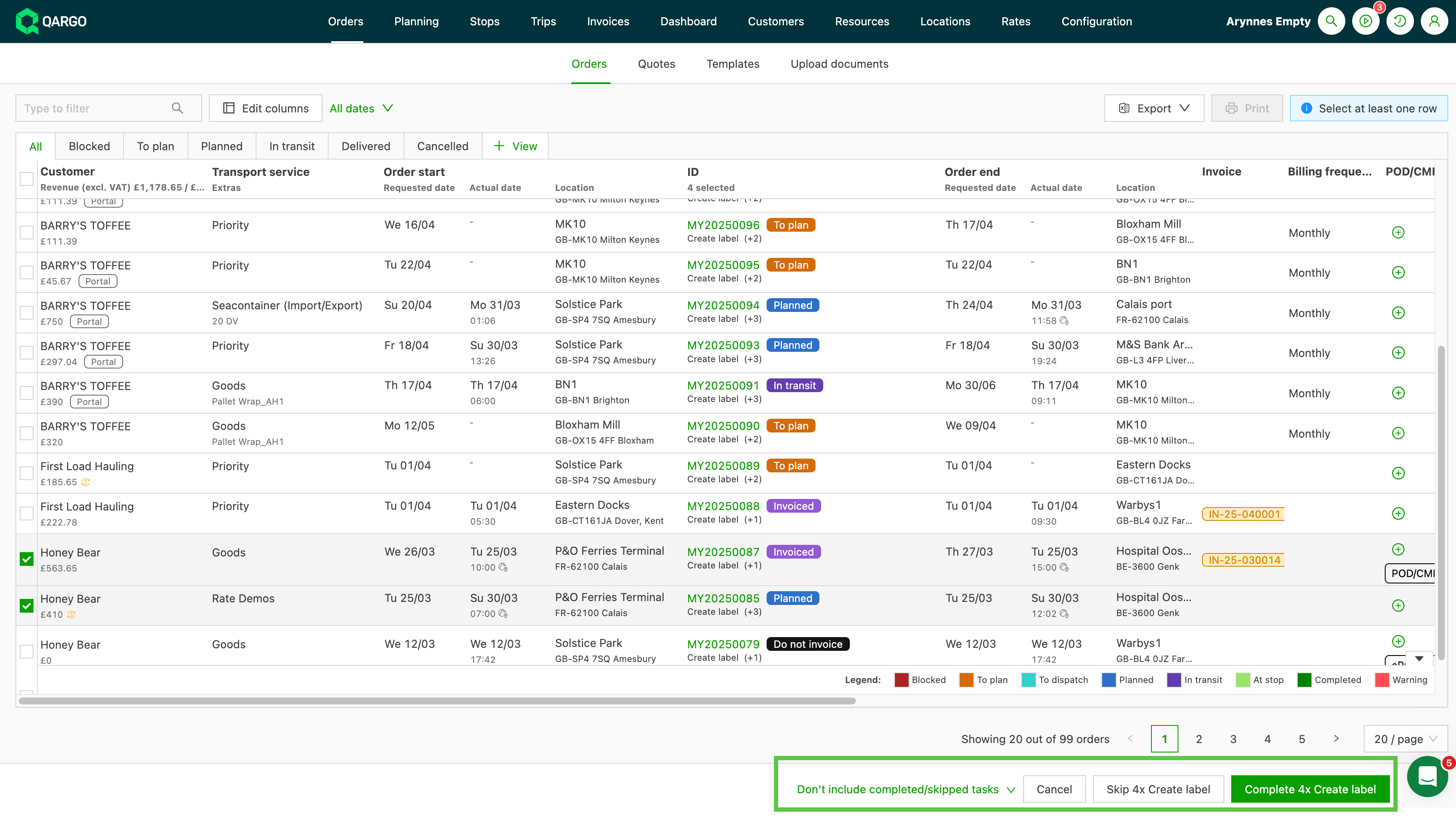
While the task is running, it displays In progress. If any issues occur during the task update, an error file is created with the details that need to be corrected.
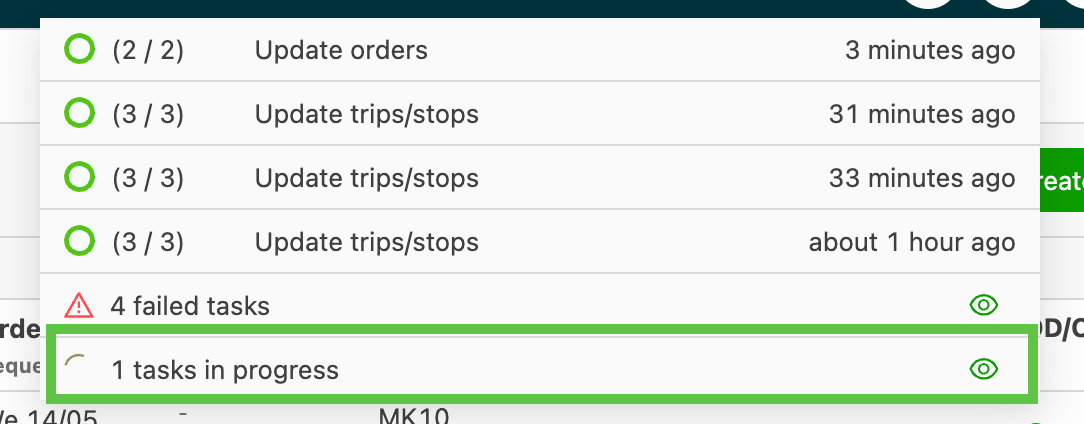
When executing tasks in bulk, select all records for processing.
- Not all tasks are processed at the same time.
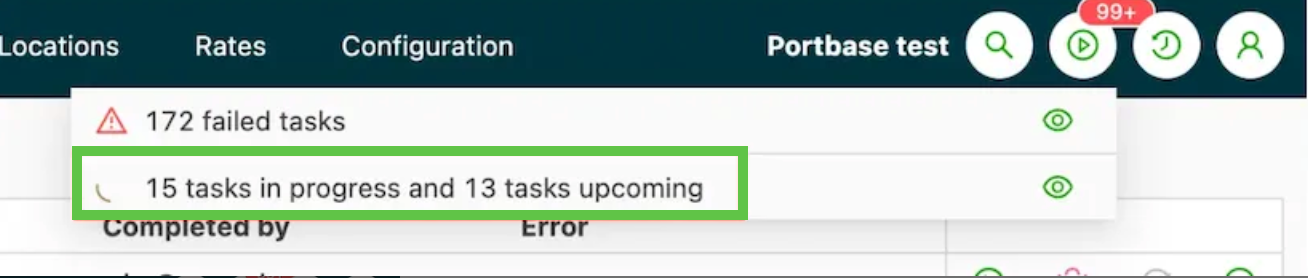
- To tell them apart, tasks show a status of ‘in progress’ or ‘upcoming’. Tasks marked ‘upcoming’ are waiting to be put in progress.
- This happens automatically. Once the records are selected, no further action is required.
The task indicator displays while the tasks are being updated:
-
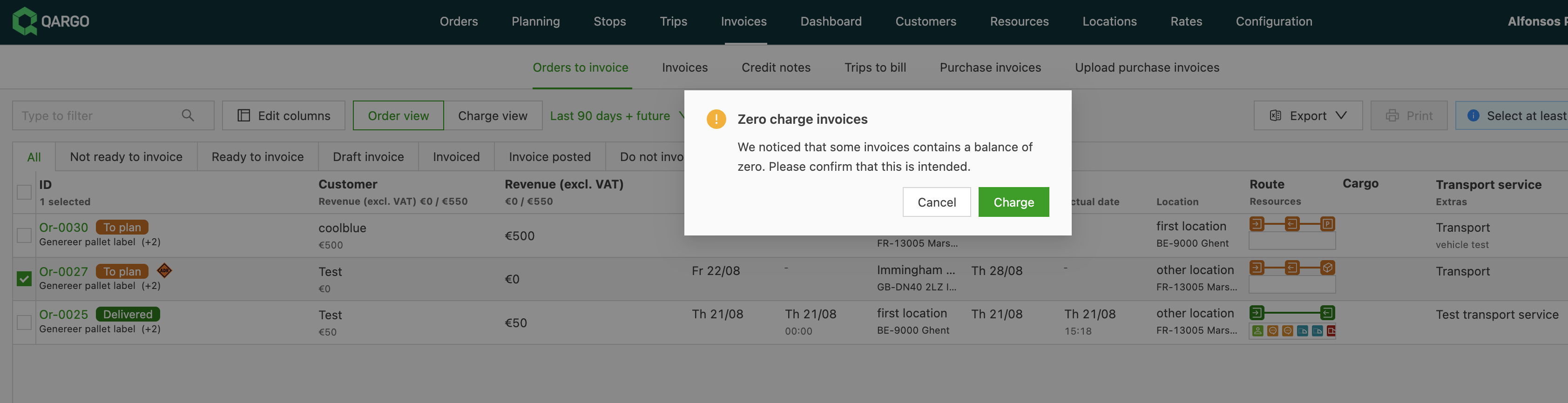
This helps prevent billing errors by flagging potentially missing charges before invoices are created.
- It is part of a broader system that prevents the creation of invoices with zero charges, whether orders are processed in bulk or individually.
- When an order is moved to the ‘Ready for billing’ stage, users automatically receive alerts for any orders missing transport charges, which improves accuracy across all billing processes.
Selecting multiple records is available on the following pages:
- Orders
- Loads
- Invoices
- Carrier invoices
- Credit memos
- Carrier credit memos
Click here to learn how to undo tasks for both orders and invoices.