
Prices in orders
Table of contents
Customer price
The top of each order shows which Customer price is used. This price is based on the rate cards added in Configuration.
The system determines which rate card applies based on the transportation service and the customer in the order. If no specific rate card exists, the default price list of the transportation service is used.
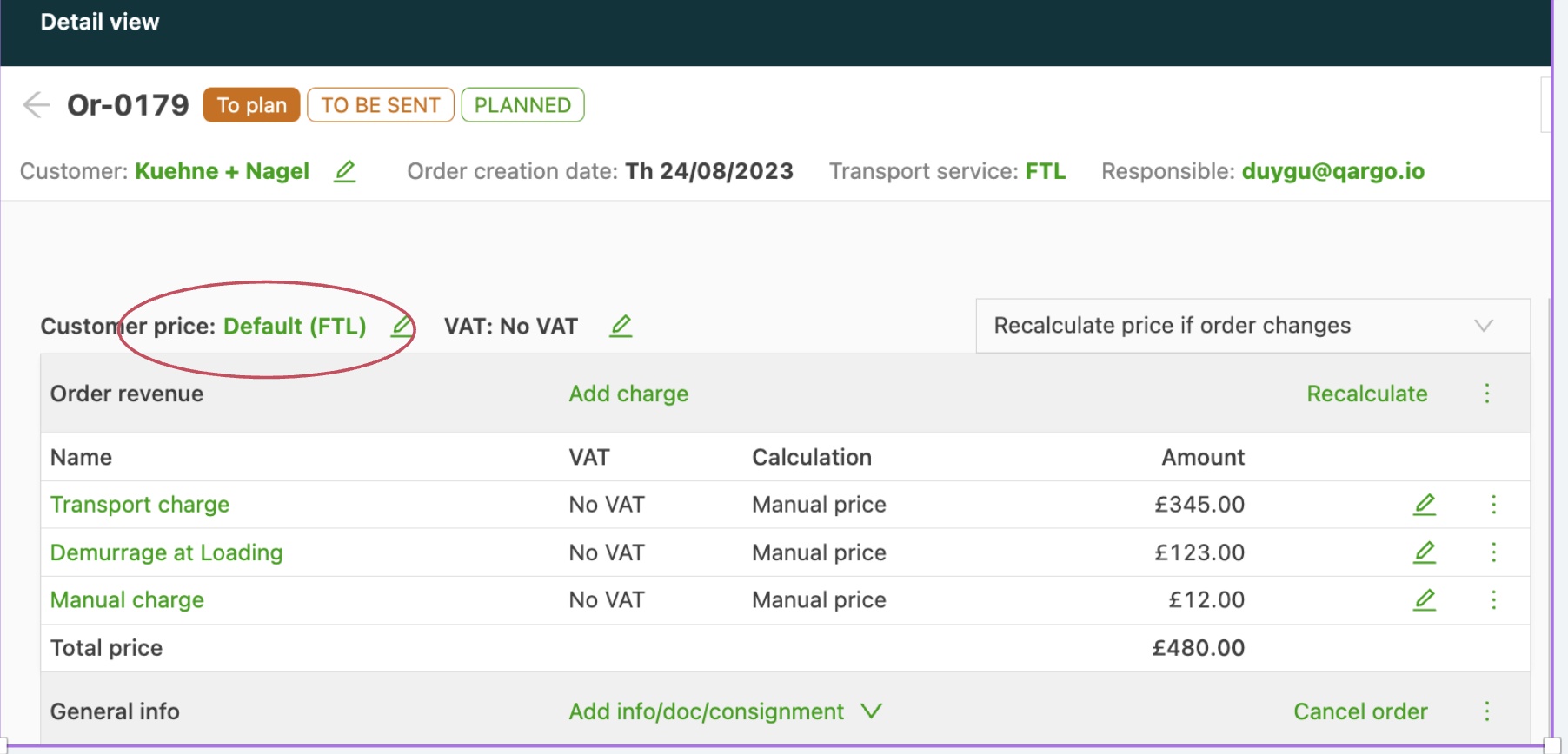
The line that shows the price also has an action to recalculate the price if the order changes.
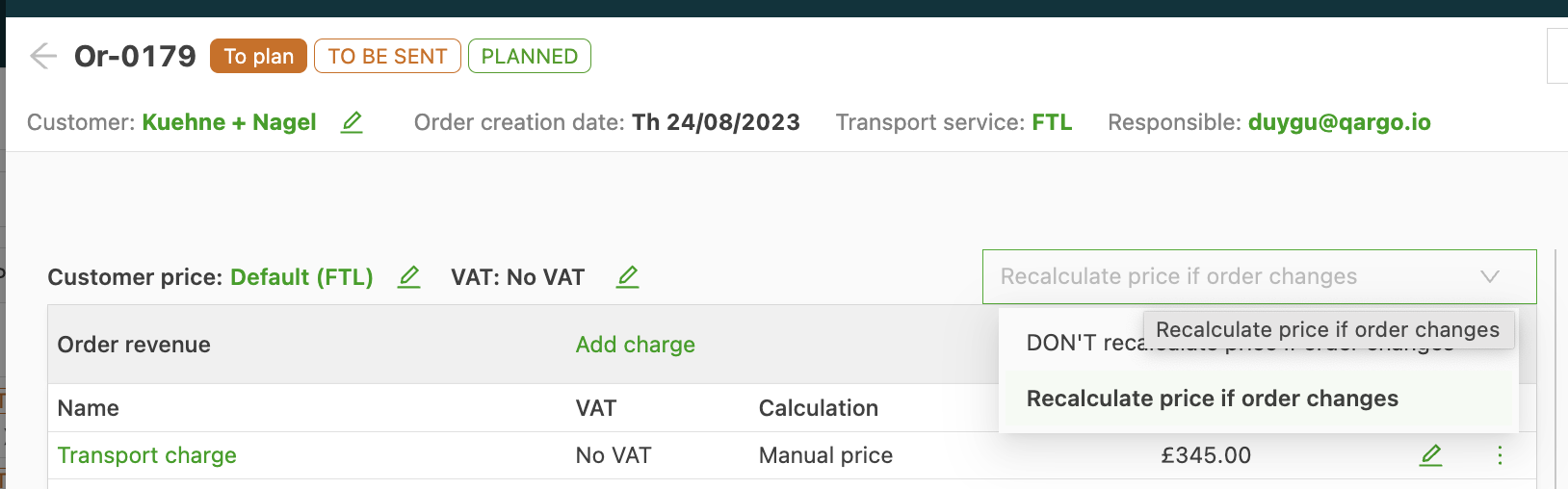
- Recalculate price if order changes The price is adjusted if the order changes.
- Don’t recalculate price if order changes The price is fixed at the current values. Changes to the order no longer adjust the price.
Example:
The price is €10 per pallet. The number of pallets in the order changes from 5 to 6 pallets.
- Recalculate price if order changes: the price is adjusted from €50 (€10x5 pallets) to €60 (€10x6 pallets)
- Don’t recalculate price if order changes: the price remains €50 because it is locked.
Recalculate charges on price list changes
When someone in the company updates a price list, order revenue and resource costs are now only recalculated automatically for the past month (orders created within the last month).
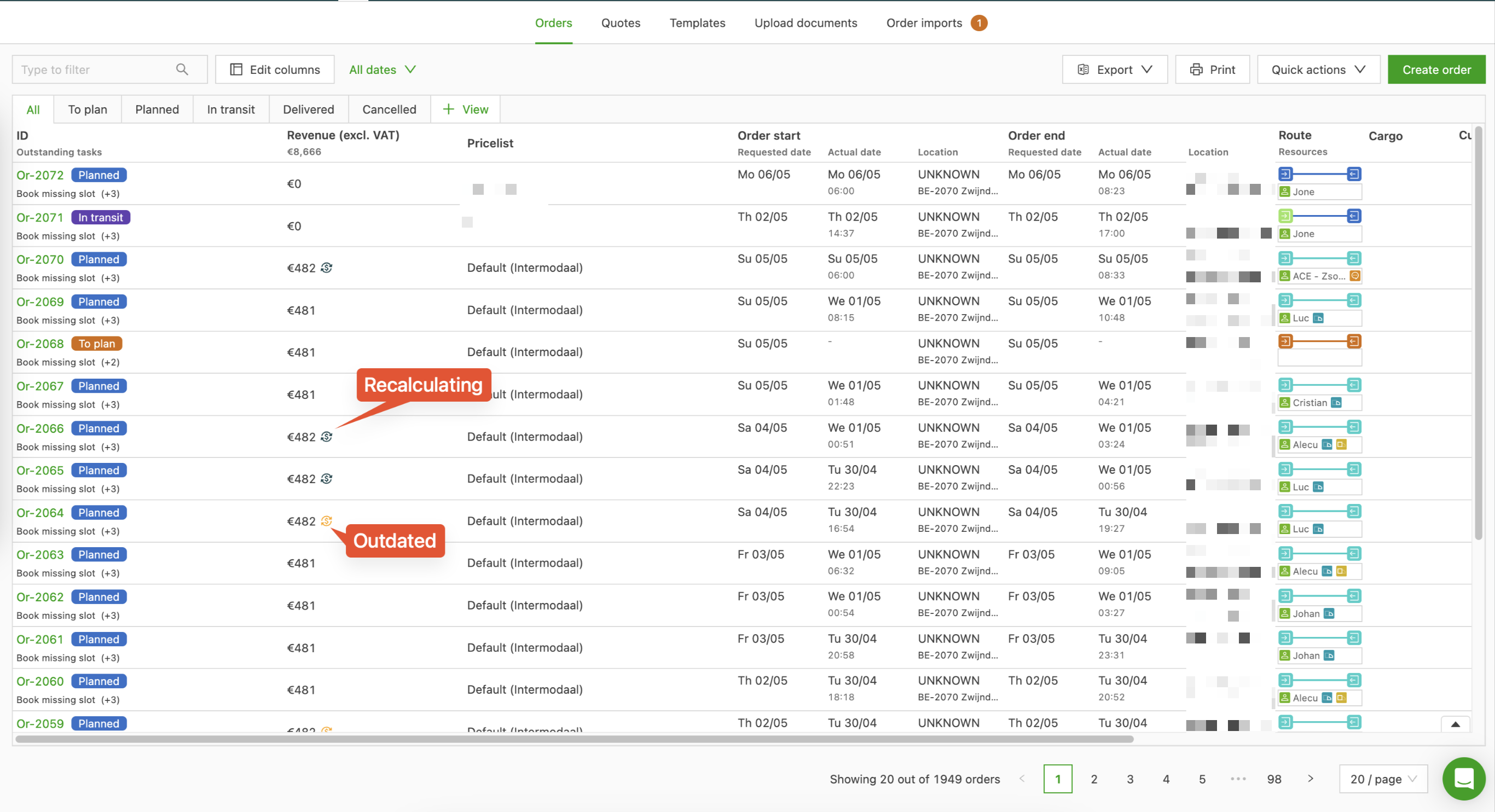
Orders older than a month are marked as outdated and can be recalculated manually. An icon next to those prices shows this. Hovering over these icons shows more information.
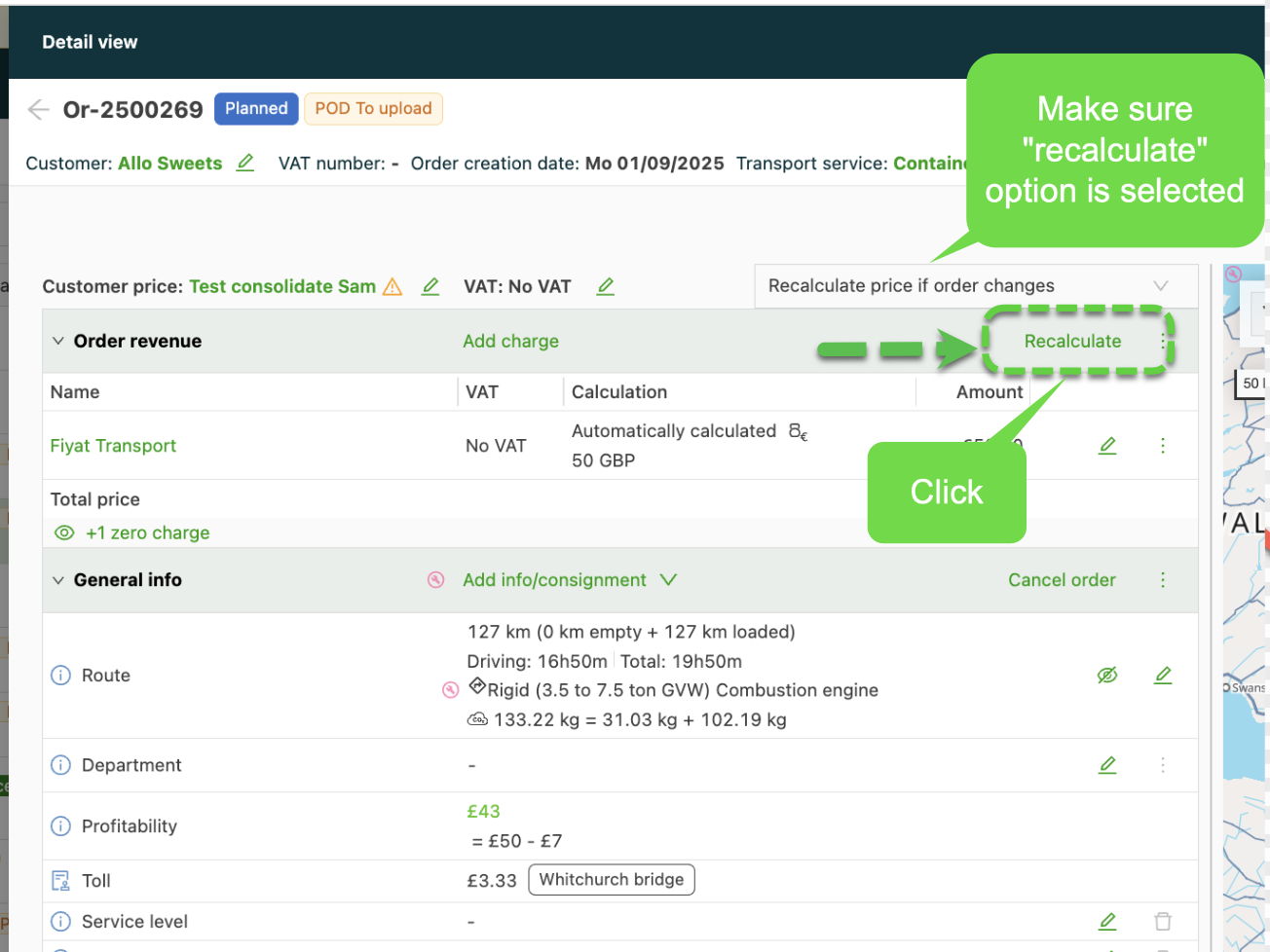
See below how to trigger a manual recalculation (make sure the Recalculate price if order changes option is selected and click the Recalculate button):
- If persistent charges, such as a fuel surcharge, remain on a template even after being removed from the price list, use the Recalculate button to refresh the template and make sure the charges are excluded.
Removing a fuel surcharge from a template
If a fuel surcharge has been deleted from the price list but still appears on the template:
- Open the template where the surcharge is still visible.
- Click Recalculate to refresh the template.
- The surcharge is removed after recalculation.
Total price
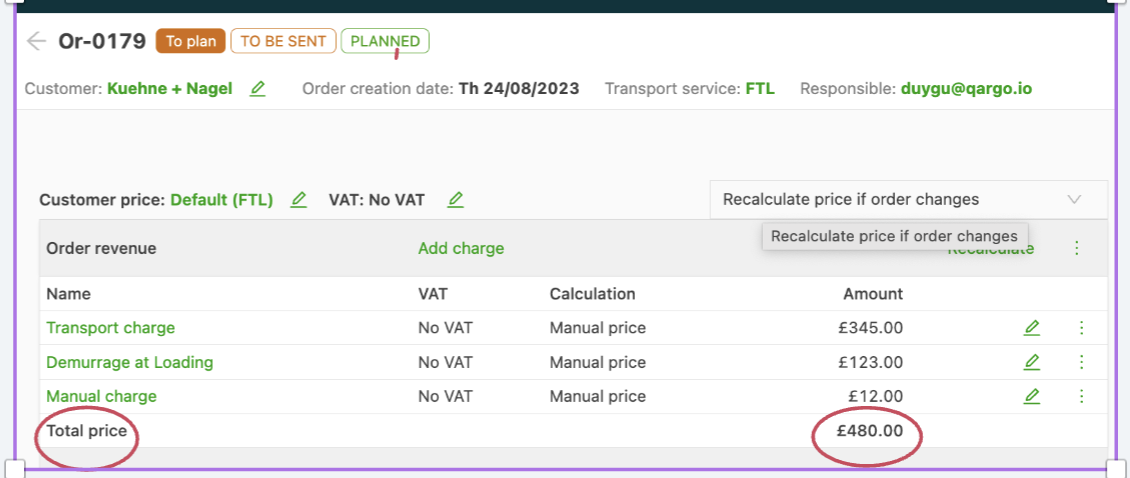
The Order revenue category shows a breakdown of the items and the corresponding Total price charged to the customer.
-
Name: The name of the item in the price list, shown on the order and the invoice. The name can be changed to give the customer additional information.
-
Linked invoice The invoice on which this item appears. If no invoice has been created yet, this column is empty.
-
Calculation
How the total price of this line was calculated.
-
Amount Calculated based on the calculation method configured in the price list.
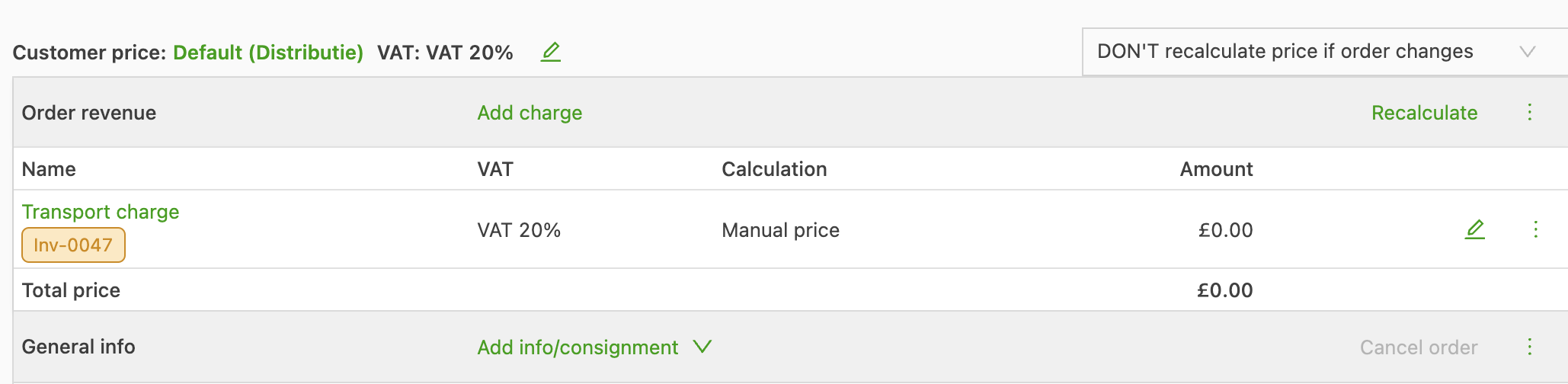
Once an order has been invoiced, the invoice number is also linked in the overview:
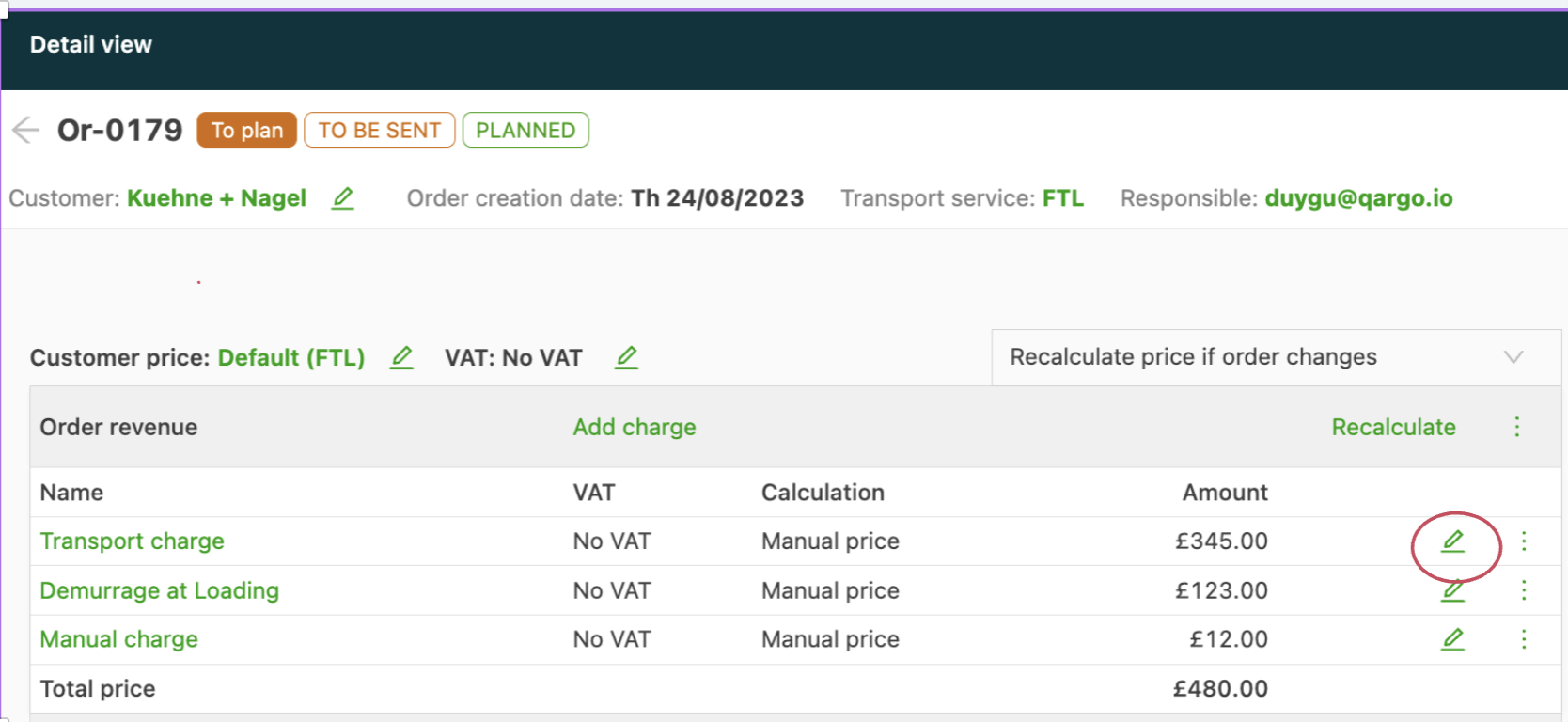
To edit an item, click the green pencil icon:
Bulk recalculation of order charges older than 1 month (only if they are not marked as Don’t recalculate price if order changes)
In Qargo, bulk recalculation is handled automatically for orders within a 1-month range, though this process may take some time.
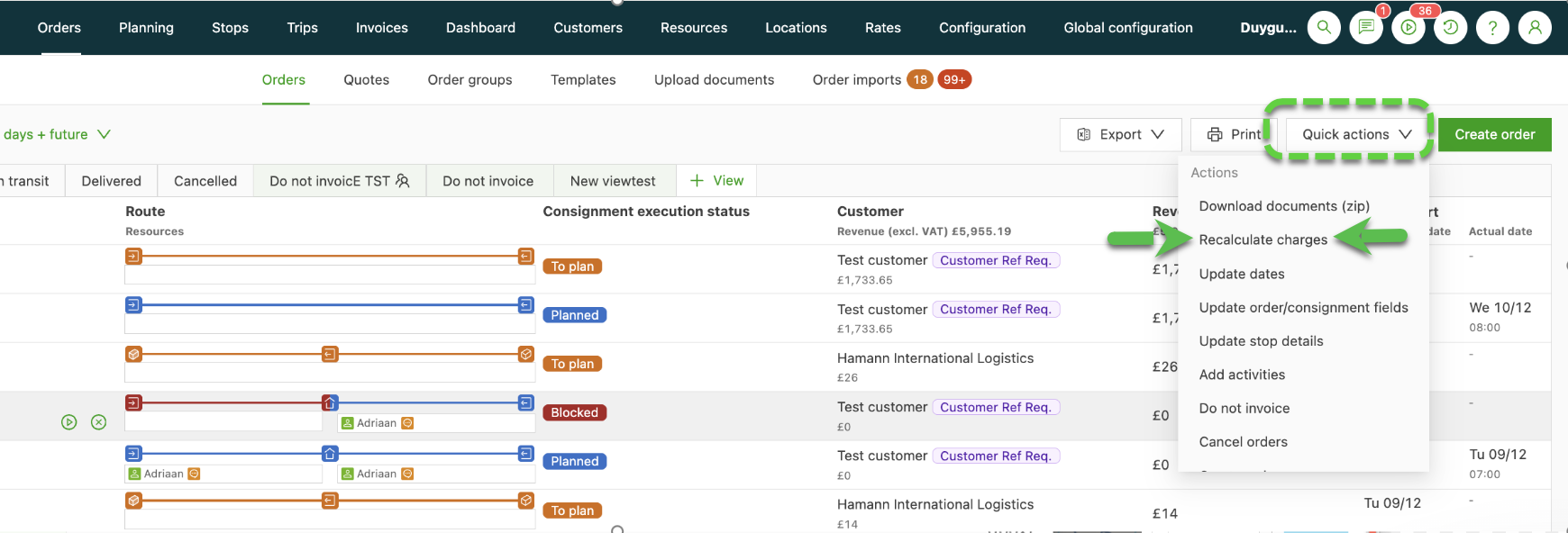
For orders older than one month, a bulk recalculation option is now available (in addition to the existing manual one-by-one option). It can be run in bulk manually from the Quick actions dropdown.
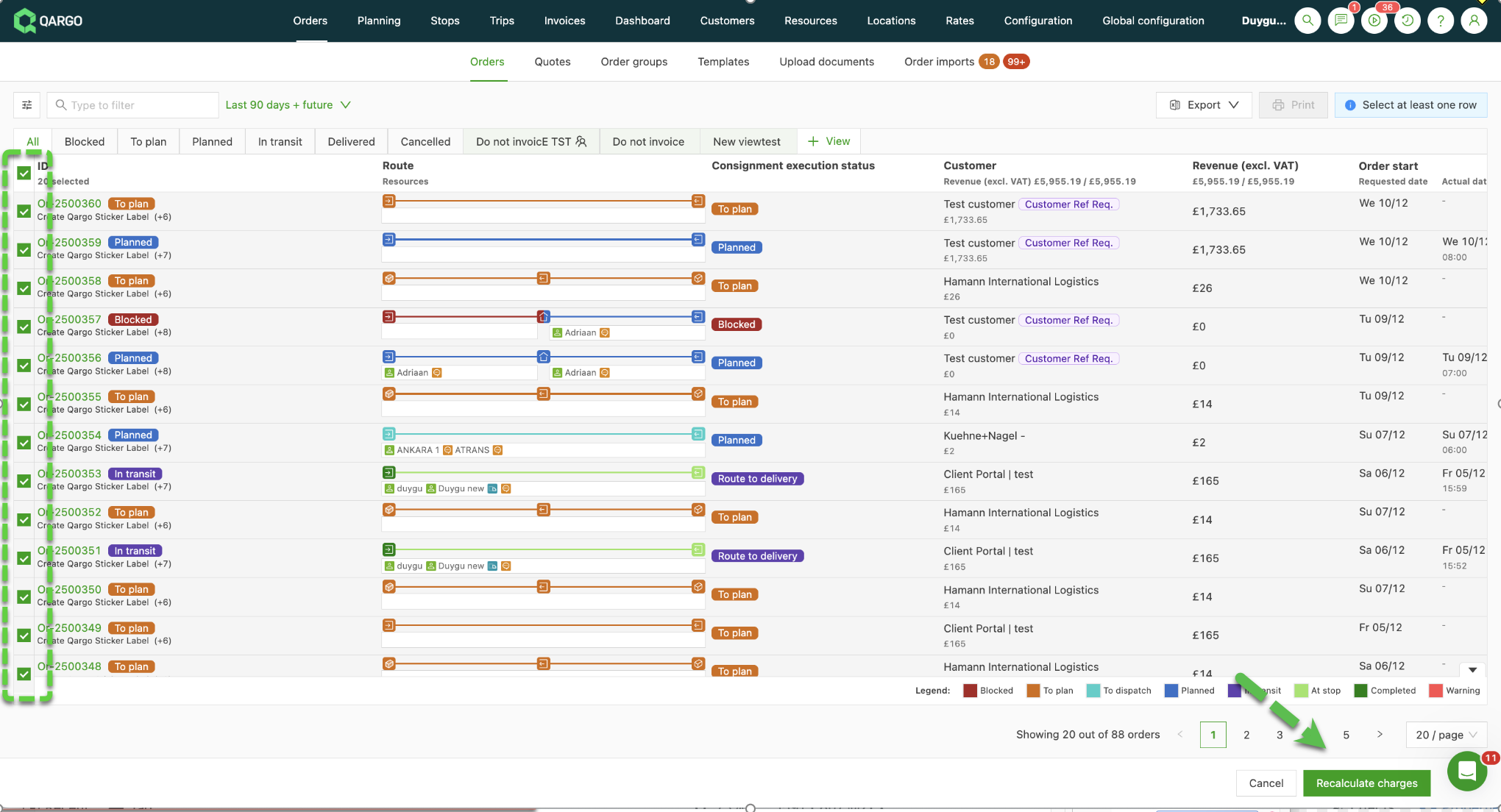
For orders older than 1 month that need recalculation, apply the necessary date filter first. Then select the Recalculate charges option from the Quick actions dropdown, select the orders to recalculate and click Recalculate at the bottom right.
➡ Go to the Orders tab
➡ Apply date filters to select orders older than 30 days
➡ Click the Quick actions dropdown (top right)
➡ Select Recalculate charges
➡ Choose the orders to recalculate
➡ Click Recalculate (bottom right)
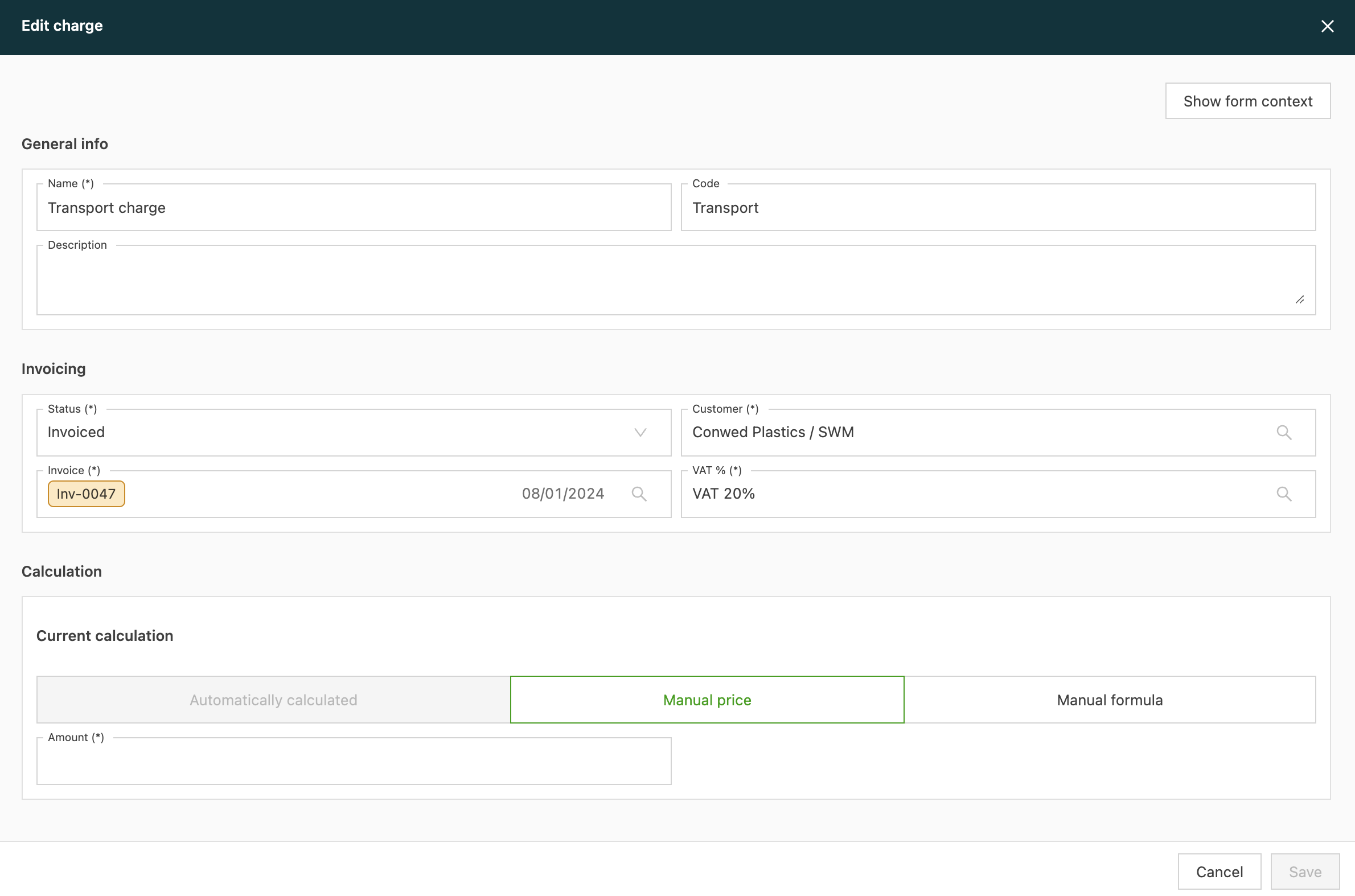
The following information can be edited:
- Name: the name can be edited here so that the customer clearly understands what this price is on the invoice
- Code
- Description
- Status: by default, this is To invoice. It can be changed to Do not invoice. This price then cannot appear on an invoice.
- Tax %: the tax percentage can be edited if it is not shown correctly. The available options are set in Configuration by Qargo.
- Customer: shows the customer of the order. In most cases, this is correct. However, if this price line belongs to a different customer, the customer can be edited here. This makes it possible to invoice several customers on 1 order.
- Calculation: by default, one of the options is shown in green. This means that this option is set. In the example below, Automatically calculated is set.
- Do not invoice: specific charges, such as a fuel surcharge, can be set to Do not invoice to exclude them from billing for a particular order while keeping them available in the default rating structure.
There are three calculation options:
- Automatically calculated: the price is calculated automatically based on the rating added in Configuration.
- Manual price: the price can be edited. Once edited, Manual price is set.
- Manual formula: a formula can be created to calculate the price.
Managing charges and surcharges in Qargo
- Adjusting charges: Charges added automatically by the system, such as transport charges, cannot be deleted. They can be marked as Do not invoice to exclude them from billing on a per-order basis. To include them again, change the status back to To invoice.
- Charge flexibility: Adjustments to individual orders or templates make sure that changes such as price list updates are reflected accurately without affecting default settings.