
Rate card FAQ: automatic charge recalculation on orders
This article explains how to troubleshoot and resolve common issues that prevent charges from recalculating automatically on orders.
Table of contents
Q. Why is a charge on an order not recalculating or updating automatically?
A. A charge usually fails to recalculate because of a specific workflow status or a missing prerequisite. Checking these points one by one resolves most automatic recalculation issues.
1. Check the order status and recalculation setting
First, confirm that the order is eligible for automatic charge recalculation:
- Make sure the ‘Recalculate price if order changes’ setting is active on the order detail page. If it is set to ‘Don’t recalculate price if order changes’, the price does not update, whatever changes are made.
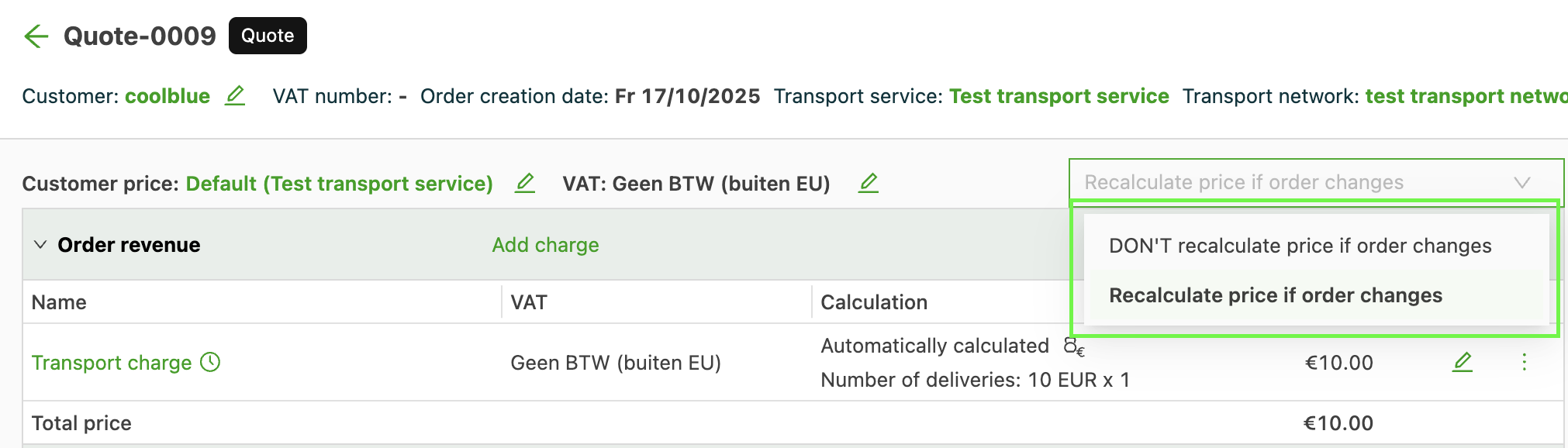
- Finalized statuses: Orders that are ‘Ready to invoice’, ‘Invoice posted’, or previously canceled are automatically set to ‘Don’t recalculate price if order changes’. To apply new rating, this status must be manually overridden on the order.
2. Verify rating and rate card conditions
If the status is correct, the issue most likely lies in the rate card configuration or the data flow:
- Manual charges: A charge configured as manual does not recalculate automatically. The user needs to change the price manually.
- Conditional charges: A charge configured as conditional only shows a price or recalculates when its condition is met. For example, a surcharge may require the order to have 5 stops. If the order currently has fewer stops than that minimum, the surcharge does not recalculate.
- Outdated orders: When rate card charges are updated, orders older than one month are not updated automatically. By default, only recent orders that have not been invoiced recalculate automatically. Older orders are marked as outdated unless a bulk or manual recalculation is run.
3. ZIP code zone changes not applied
If the price list is configured with ZIP code zones as metrics, changes made in the ZIP code zone configuration do not automatically trigger an update in the price list. As a result, the orders do not update either.
To push the changes from the updated ZIP code zones to the price lists, and then to the applicable orders, the following action is required:
- Trigger an update: Open the relevant price list and click Save. This manually triggers an update, which then flows to the orders where the charges apply.