
Rate card FAQ – FAQ rate cards
Quickly diagnose and resolve common issues with rate card application and calculation errors.
Q: Why is an order not rating, or calculating the price incorrectly?
A: If an order shows an incorrect price or fails to calculate altogether, check the link between the order and the associated rate card, and review the specific charge settings.
Follow these steps on the Order details page to diagnose the issue:
a) Check the assigned rate card: Verify that the order is linked to the correct rate card. If the wrong card is applied, check the initial rate card assignment settings (usually defined by the customer or transportation service).
b) Review the price calculation method: Click Edit next to the charge to see how the cost is being calculated. Make sure it is set to Automatically calculated and not stuck on Manual price or Manual formula.
c) Inspect the rate card settings (validity and conditions): Go directly to the Rate card associated with the order’s customer. Review the prices for each charge and check the following:
- Validity period: Confirm that the order creation date falls within the validity dates set on the rate card.
- “Always add” setting: Verify whether the charge is set to “Always be added to an order”.
- Charge conditions: If the charge has conditions attached (e.g., a specific distance or weight), make sure the order’s details meet all those conditions for the charge to apply.
- Price consolidation: If grouped or consolidated rating is used, check the price consolidation settings for that charge.
- Complete charges: Double-check that all necessary charges have been added to the rate card.
Q. How can a rate card be assigned to a specific customer?
A. Qargo uses a simple hierarchy to determine rating, typically starting with a transportation service default:
-
Default rate card: There is usually a default rate card that applies to all customers per transportation service unless a specific rate card is assigned to them. This default is used for any orders from customers not linked to a specific rate card.
-
Customer-specific assignment: To assign a rate card to a particular customer, the rate card needs to be created first.

After the specific rate card has been created, locate the “Link new customer” button on the rate card details page and use it to link the desired customer.
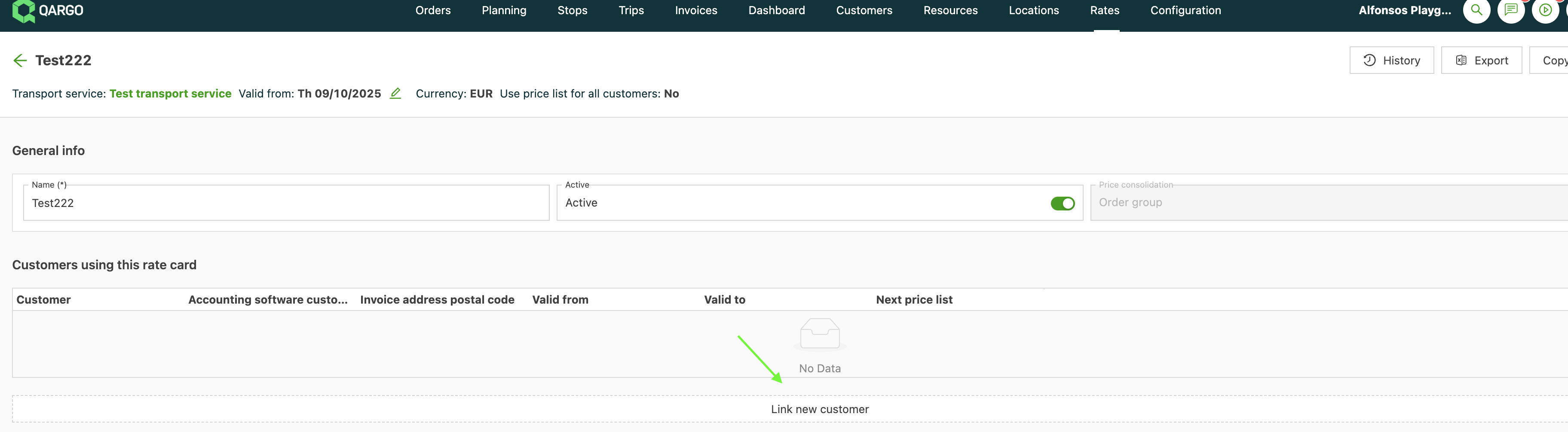
Orders for that customer will now use their specific rate card instead of the system default. Note that this new rate card will only be used for new orders from this customer. Existing orders will keep using the previous rate card that was in use.
Q. Why has an order been rated against the wrong rate card?
A. This usually happens when the order was created before the correct rate card was assigned to the customer.
Once an order is created, it locks to the rate card that was valid and linked to the customer at that specific moment in time. If the customer was previously linked to a different rate card, or used the system’s default rate card, the old rating remains on that existing order.
Changes to customer-rate card assignments are not applied retroactively. A manual rating update to the order is required, or a new order must be created to make sure the correct rates are applied.
- Qargo may flag a more suitable price list on an existing order.
- An existing order can be moved to the updated price list manually, only within the same transportation service.
Q: What happens to orders when a diesel surcharge or other price list setting changes?
A: Changes made to diesel surcharge configurations and other specifications tied to customer price lists apply to all future orders. Notably, the system also recalculates the previous month’s charges retroactively for that price list to ensure fairness and accuracy.
Q: How can a charge’s calculation setting be changed?
A: The calculation setting of a charge, for example “calculate charge per order”, can’t be edited. To change it:
- Create a new charge with the required setting.
- End the validity of the old charge just before the new one starts.
Orders then keep accurate rating across the switch.
Q. Is it possible to add a rate card to a customer based on pickup and delivery ZIP codes?
A. Yes, it is possible. Qargo provides the flexibility to create a rate card for specific customers and then set conditions that require specific pickup or delivery ZIP codes to be met.
Once the customers and locations are defined, various rating options can be configured within that rate card, depending on the exact use case and needs.
Q. Why can’t a specific customer be found in the dropdown list when trying to link them to a rate card?
A. There are typically a few possible reasons for a customer not appearing in the linking dropdown:
- Currency/transportation service mismatch: A rate card can only be linked to customers that share the exact same currency configured on the rate card itself on that specific transportation service. Either select a customer account in the same currency as the rate card, or duplicate the rate card in the customer’s currency. If a mismatch occurs, check the rate card linked to the customer and verify the currency. If the current rate card is in the wrong currency, create and assign a new rate card explicitly configured in the required currency. This ensures that billing aligns correctly with customer and operational requirements.
- “Use price list for all customers” toggle is on: When this toggle is active, the rate card functions as a transport type-wide default and does not permit specific customer links. The rate card must be assigned from the customer page instead, or the rate card must be duplicated with the “Use price list for all customers” toggle turned off.
- Overlapping validity dates: Qargo does not support linking a single customer to multiple rate cards where the validity dates overlap for the same service. Verify that the customer is not already linked to another rate card with conflicting dates.
Q. Is it better to adjust the rounding settings via order capture or via the rate card to apply changes to all linked price lists?
A. Rounding adjustments should be made on the rate card itself, not at the order capture level.
- Order capture changes: Changes made at the order capture level are order-specific and do not cascade. These changes can affect how a single order displays or calculates, but they do not update any existing or future rate cards linked to customers.
- Customer price list changes: To apply rounding consistently across many customers, the setting must be configured on the rate card itself, specifically at the calculation/charge level. Every order using that list then inherits the correct rounding.
- Using charge templates: If charge templates are in use, the rounding should be configured inside the template’s calculation. Template updates can then be pushed, so all linked price lists inherit the new rounding in one go.
Q. Is it possible to charge per week when the manual pricing formula only allows minutes, hours, or days?
A. Not directly. Manual formulas in Qargo only support time increments measured in minutes, hours, days, or months.
However, there are several effective workarounds to calculate weekly rating:
-
Convert to days: Set the calculation to a “per-day” rate where the daily price equals the weekly rate divided by seven. This method applies a true per-week price across any duration.
-
Charge by whole weeks (rate table): Build a rate table that uses “duration in days” ranges to step in seven-day blocks. For example:
- 1–7 days = 1 times weekly rate
- 8–14 days = 2 times weekly rate
- 15–21 days = 3 times weekly rate
- …and so on.
-
“Started week” logic (rate table): If the requirement is to bill any partial week as a full week, build a rate table that adds a minimum of 7 days and then steps in 7-day increments.
Q: Can a driver’s hourly rates be set from the Load costs section?
A. No. While it is possible to add a one-off driver hourly cost to a specific load in the Load costs section, this only records that cost on that particular load. This action does not create or change any default driver rates.
To set a driver’s default hourly rates, the cost must be assigned directly to the resource as an internal cost calculation. Qargo then automatically applies those established costs to all future loads the driver is assigned to.
📚 For more details on assigning costs to resources, consult the article FAQ: How can a cost be assigned to resources?📚 For more details on resolving currency mismatches in rate cards and loads, see the new guide on Resolving currency mismatches.
Q: How is a tail-lift charge added to an order?
A: For a tail-lift surcharge to appear on an order in Qargo, it must be configured during the order input process:
- When creating or editing an order, add the tail-lift charge as a delivery extra or stop extra in the system.
- If the tail-lift surcharge is not selected, it will not be applied, and this omission will affect totals and quotes on the job.
Q: How is a tail-lift charge removed from an order?
A: If a tail-lift charge was added incorrectly or is no longer relevant, it can be removed using the following steps:
- Edit the order in question.
- Locate the tail-lift charge in the delivery extras.
- Remove the tail-lift extra from the order, which automatically removes the corresponding charge.
- If the extra cannot be removed, update the charge to “Do not invoice” to exclude it from the billing process.
This process ensures the charge is either removed or excluded from final billing, depending on the requirements.