Rate card FAQ – Fixed price route (pickup and delivery)
Configure a rate card with fixed prices for a pickup and delivery route based on ZIP code ranges and specific pickup and delivery stops.
Table of contents
Introduction.
Setting up rate cards for the many different rating models can be quite a task. This article looks at a rating model with a fixed price based on delivery and pickup points. The price list is based on both ZIP code ranges and specific stop locations, for both pickup and delivery points. This is configured in a rate table, which generates the transport charge.
Parameters:
- Based on stop locations, determined by ZIP codes, set as a range
- Fixed price based on the route (pickup – delivery)
- Option: based on stop locations, determined by specific stop location ZIP codes
Configuring the rate card
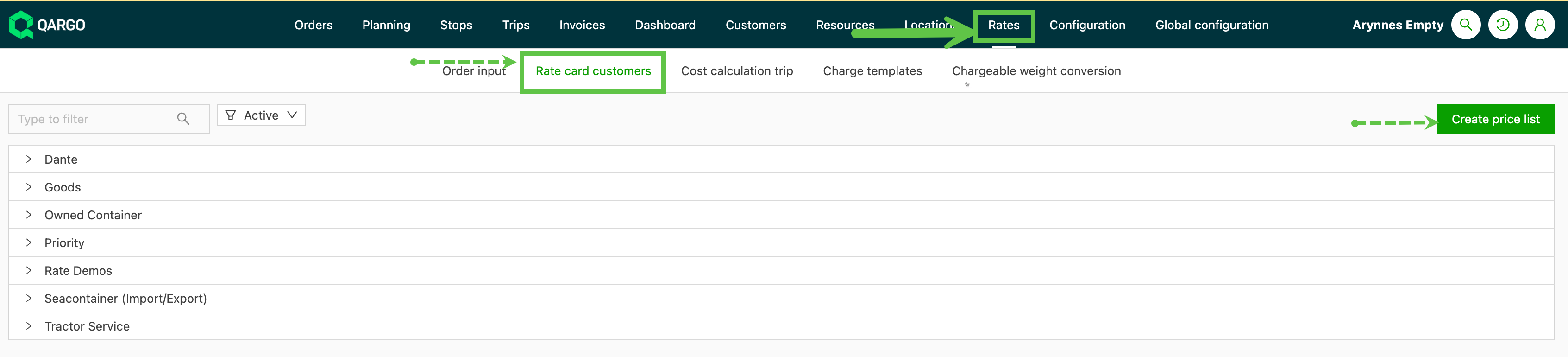
Go to Rate & rate card customers.
Click ‘Create price list’ to open a new screen.
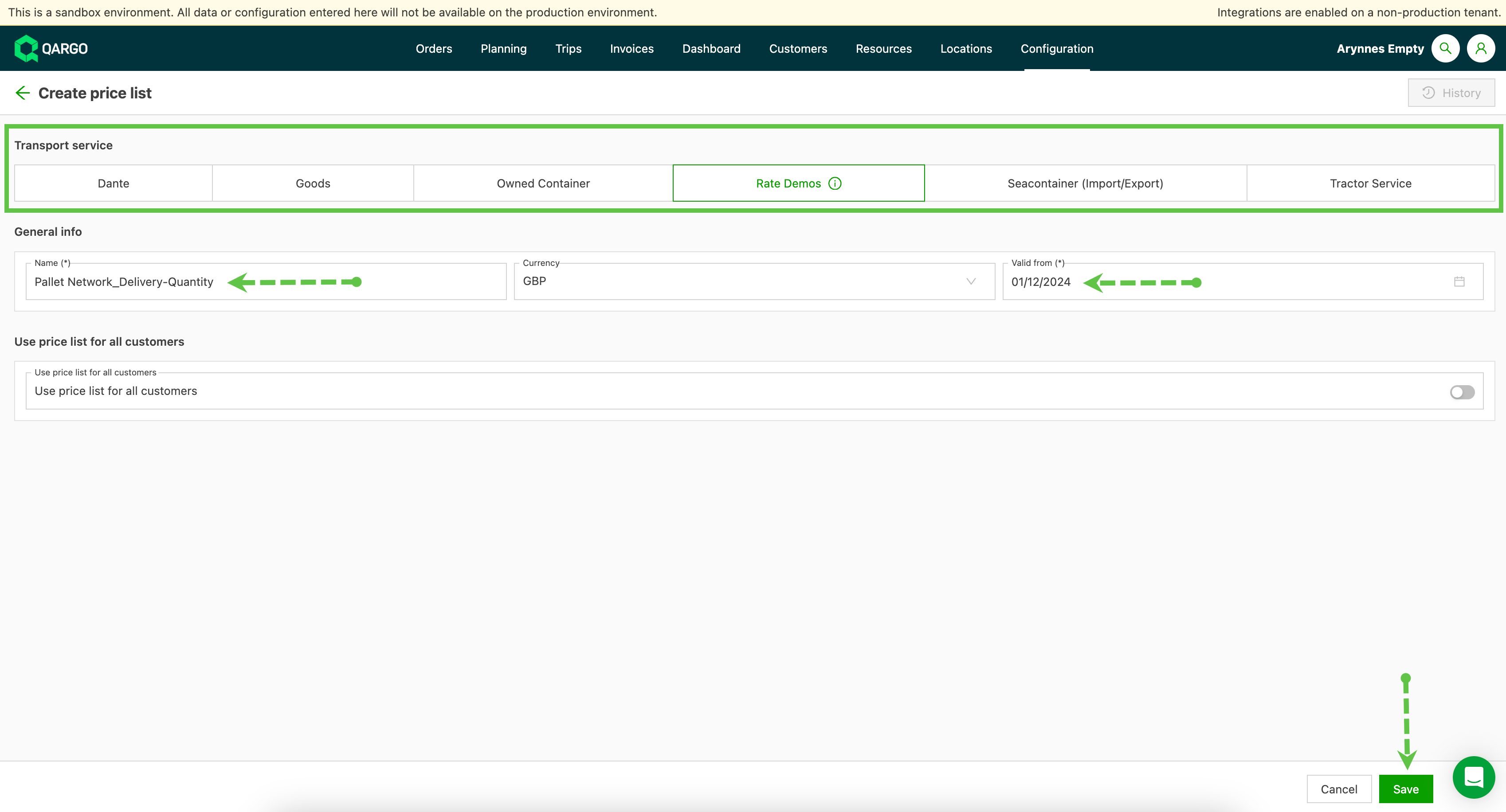
Select the transportation service the new price list is associated with. Give the price list a name that makes it easy to identify. Set a Valid from date. If no date is set, the default is the date the list was created.
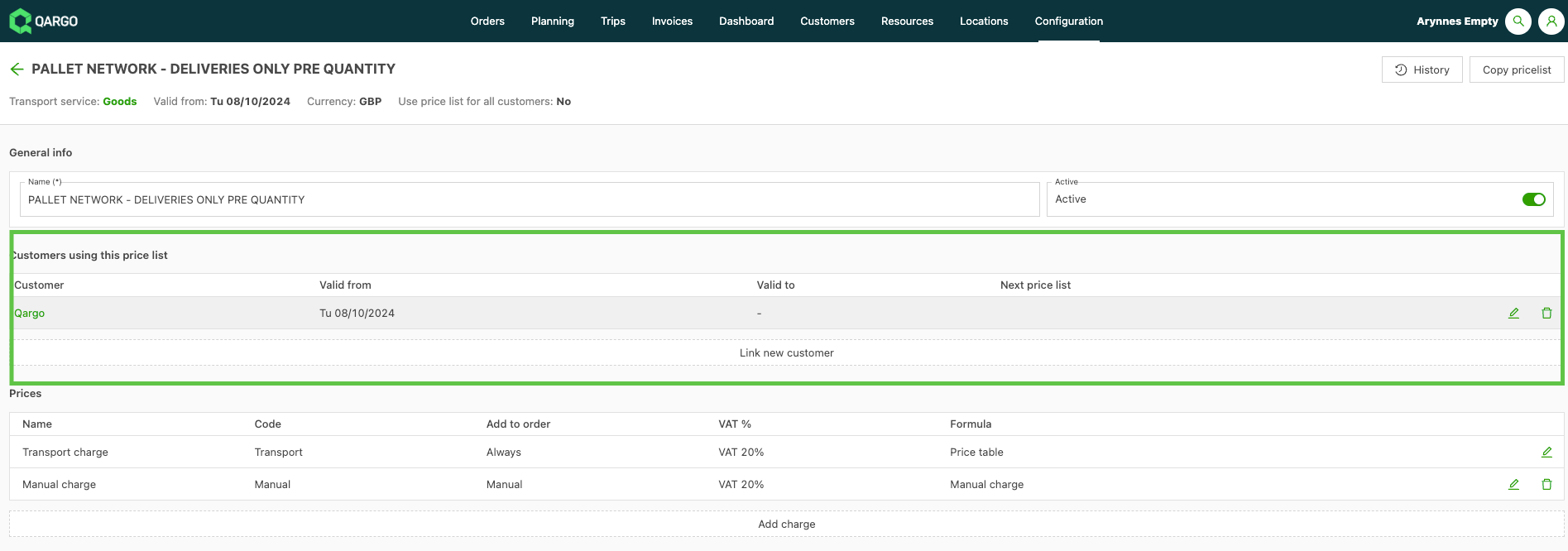
The price list can be set as the default for all customers if required. Otherwise, link the price list to specific customers.
To add the specific charges, click the edit icon (pencil) on the transport charge line. This opens the ‘Edit price’ screen.
Under Calculation 1, select the Rate table option, with Fixed amount as the result.
Click Edit rate table to configure the rate card metrics.
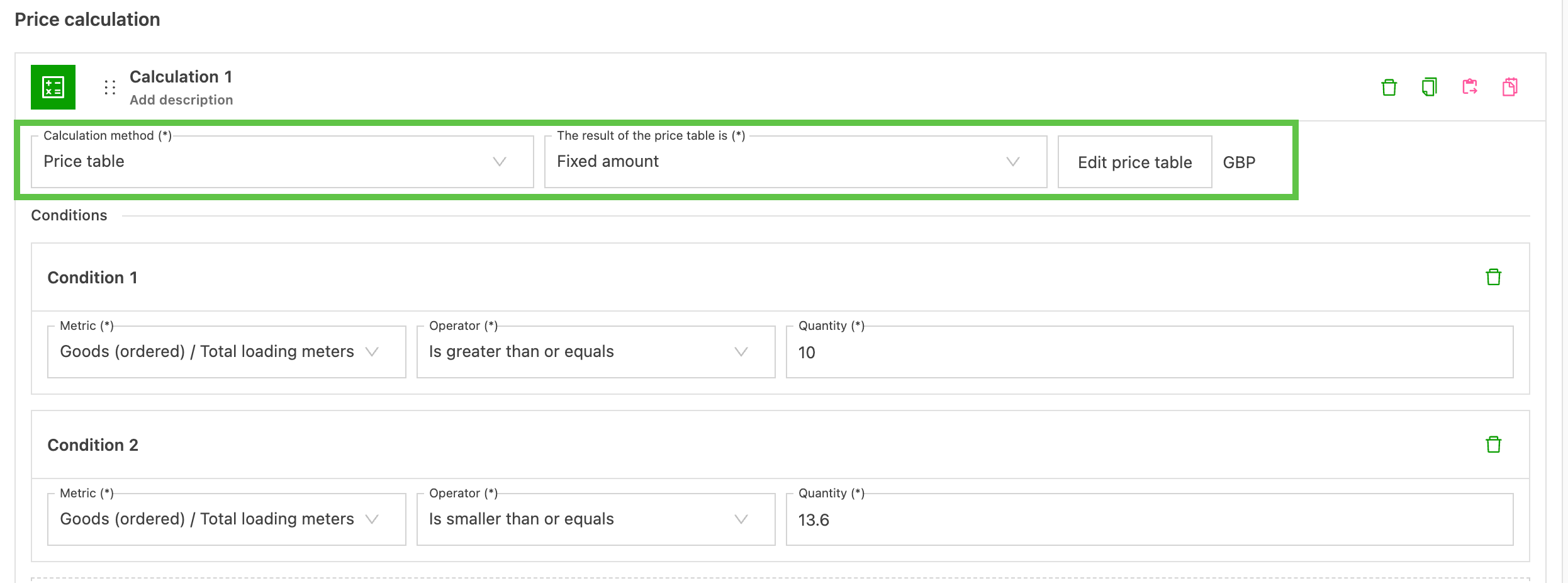
Price based on route (pickup and delivery)
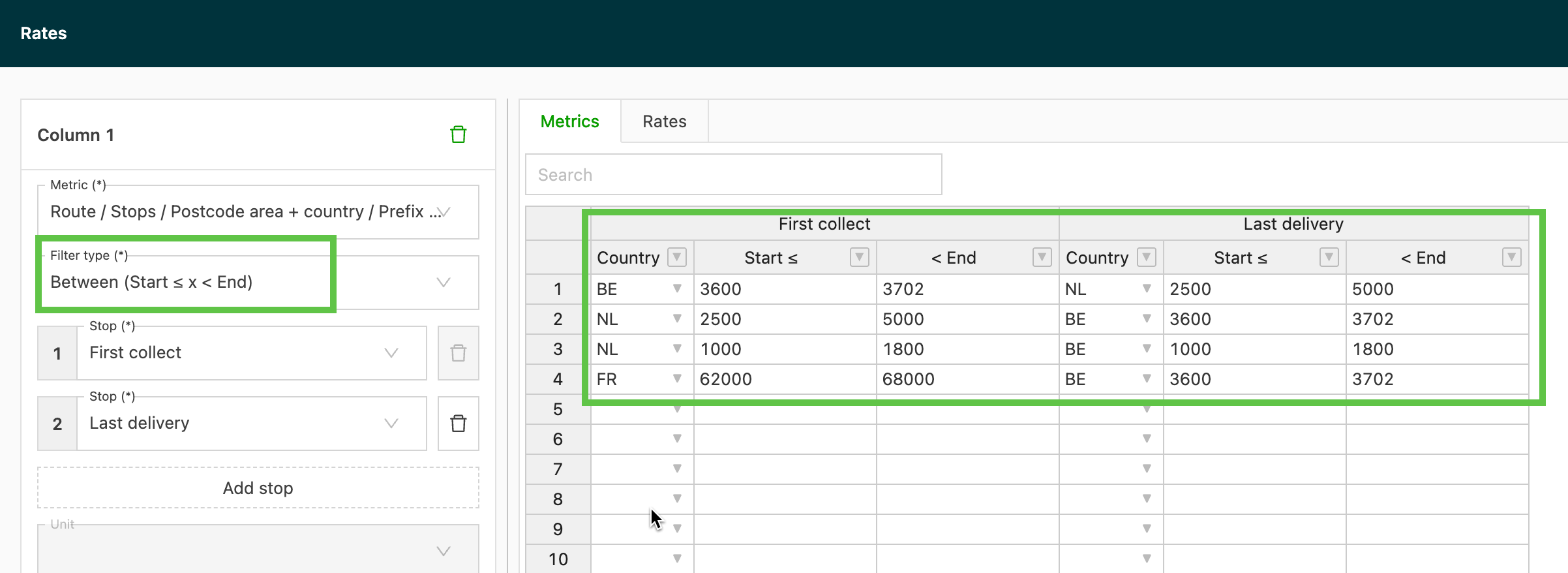
- Select the metrics to include ZIP code area and country.
- ZIP code: full or prefix, based on the country’s ZIP code format. Prefix offers the widest scope for a range.
- Configure the table with the filter type Between for a ZIP code range or Equals for specific stop locations.
- Select the stops ‘First pickup’ and ‘Last delivery’ to get the start and end locations of the route.
For pickup and delivery based on a range of ZIP codes:
For specific pickup and delivery stop locations:
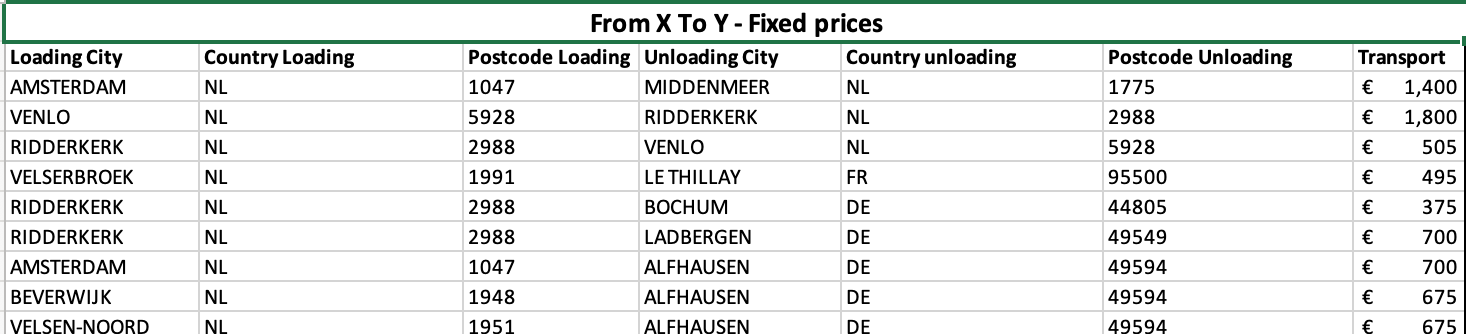
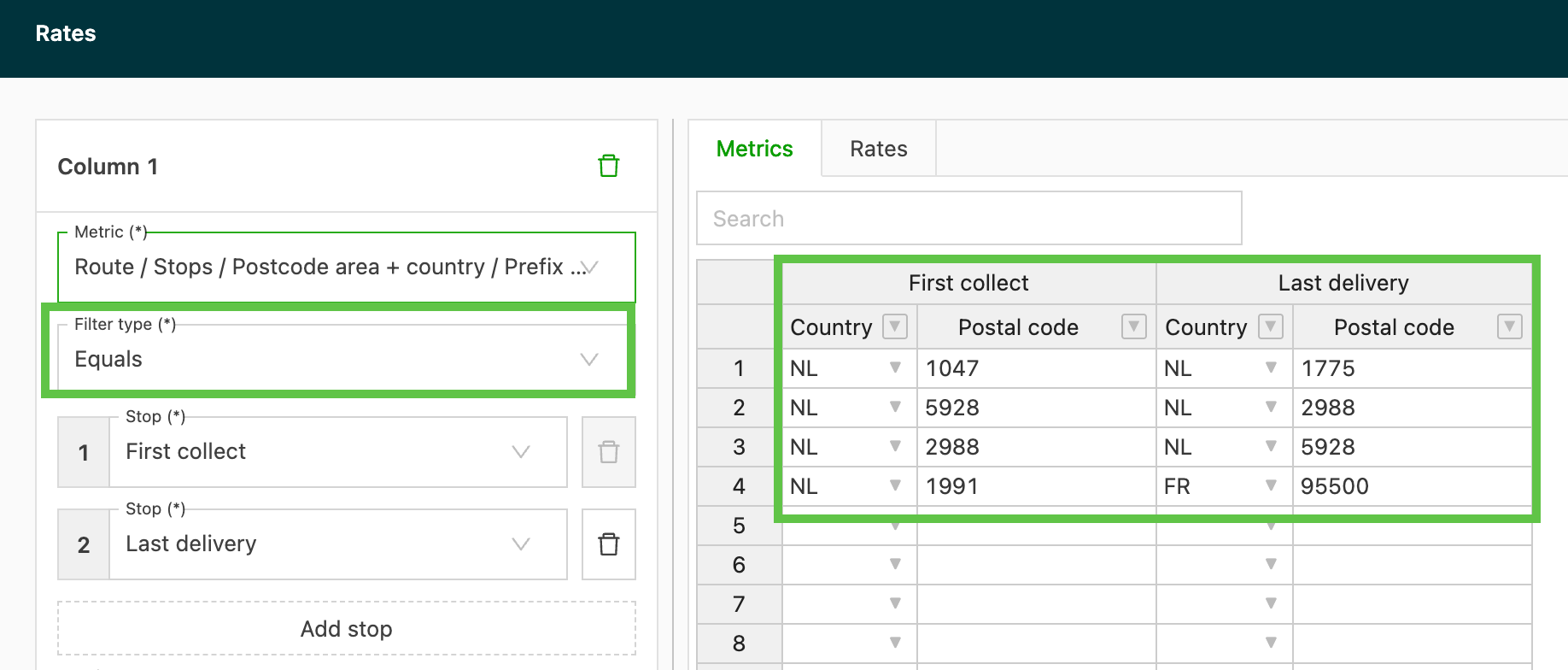
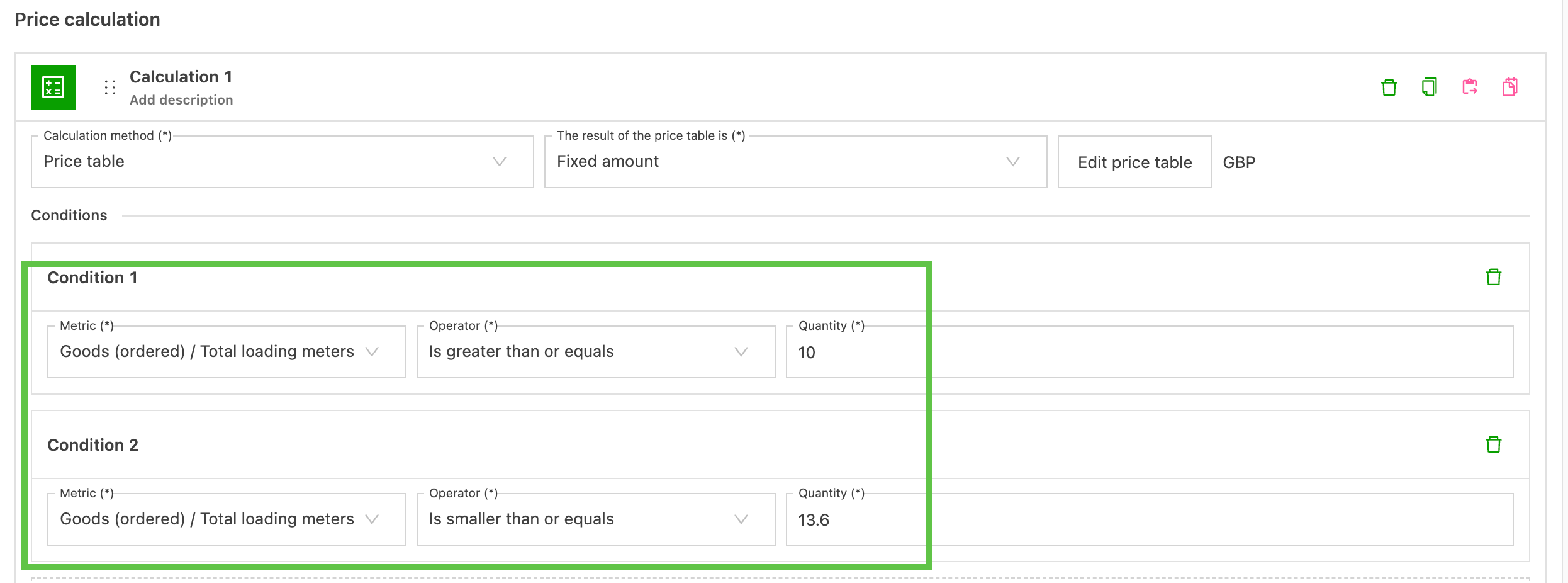
Conditions:
Conditions can be added to calculations to create specific rating scenarios. Adding multiple conditions to individual calculations creates a specific rating behavior. For example, if the rate should only apply to specific load sizes, a condition for loading meters can be added. Conditions can also be used to differentiate between multiple calculations and to specify when specific calculations are used.