Rate card FAQ: extra charge for stops
Stop extras are now available on all stops through a new configuration in the Rates > Order input menu. This gives flexibility to price other stops.
Table of contents
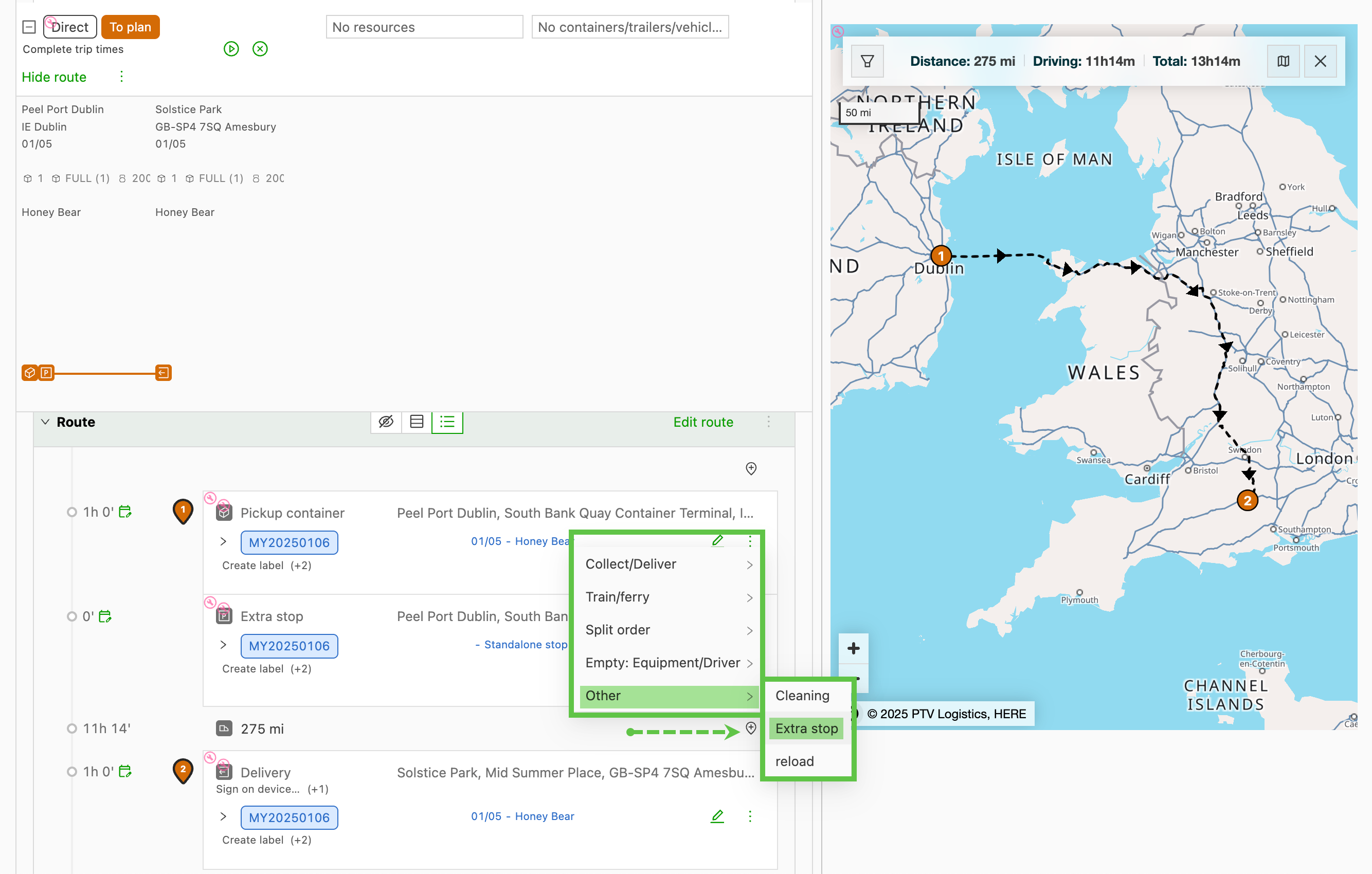
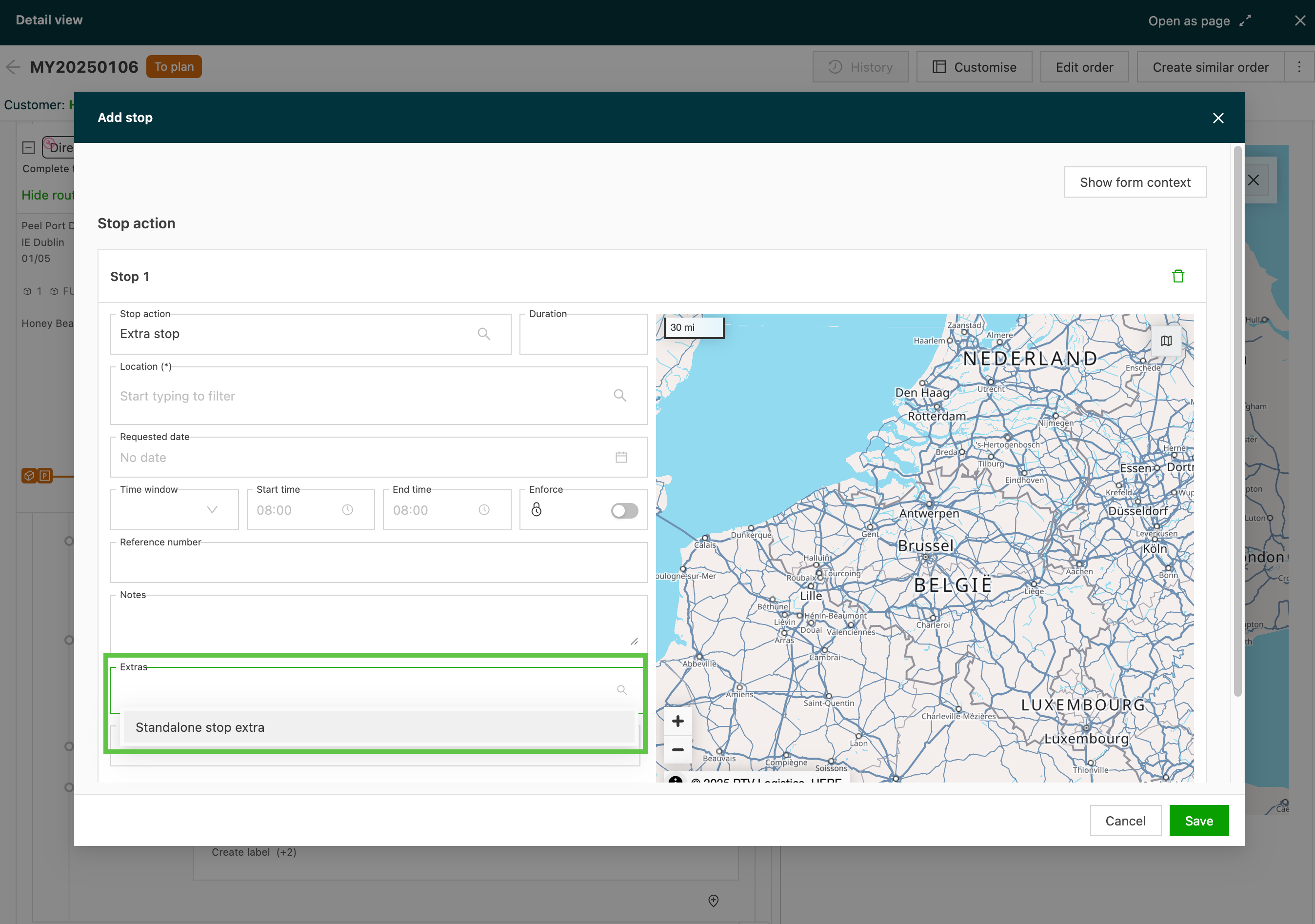
With internal stops, extras can now add surcharges on all stops.
Step 1: Set up stop extras
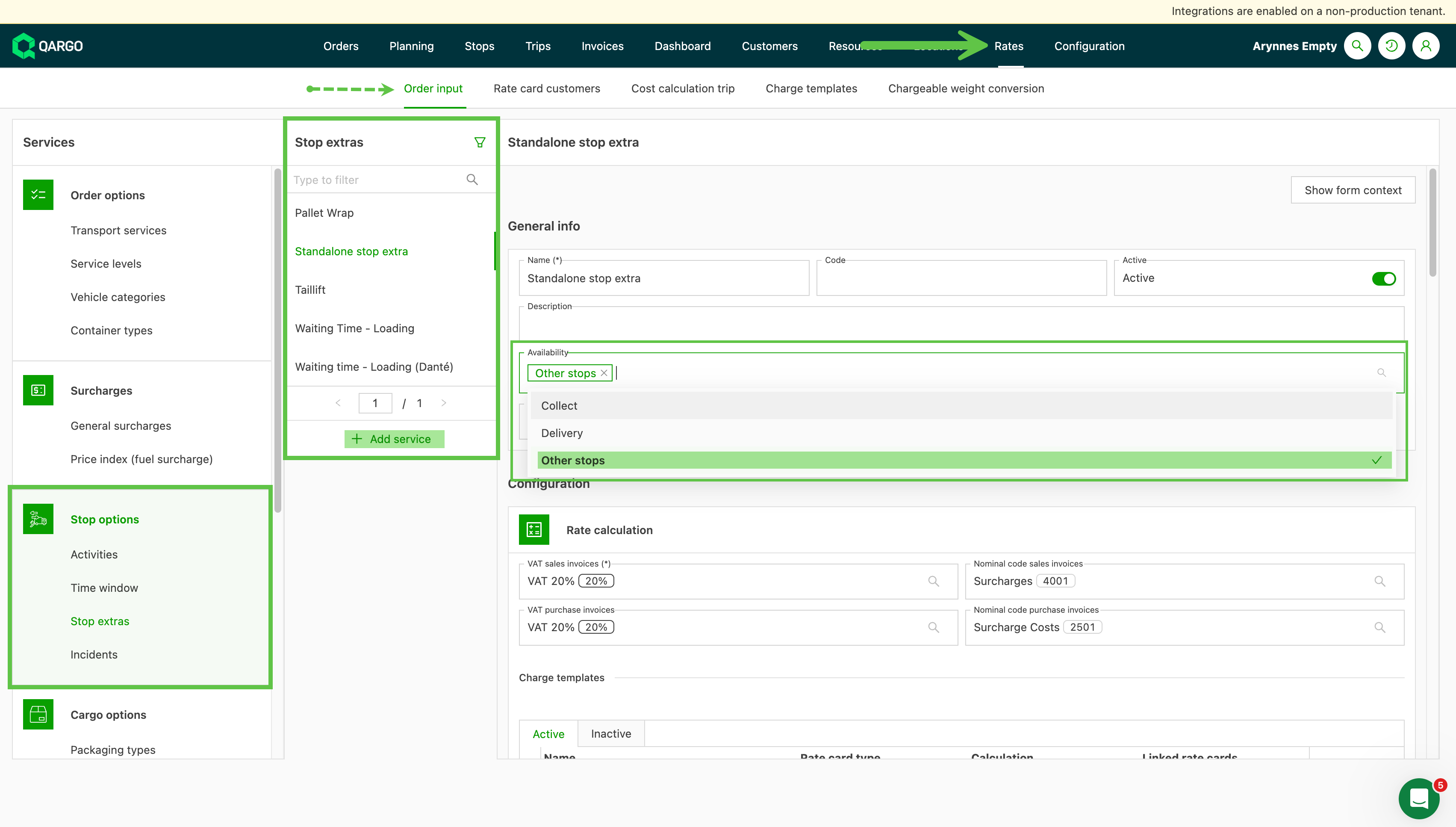
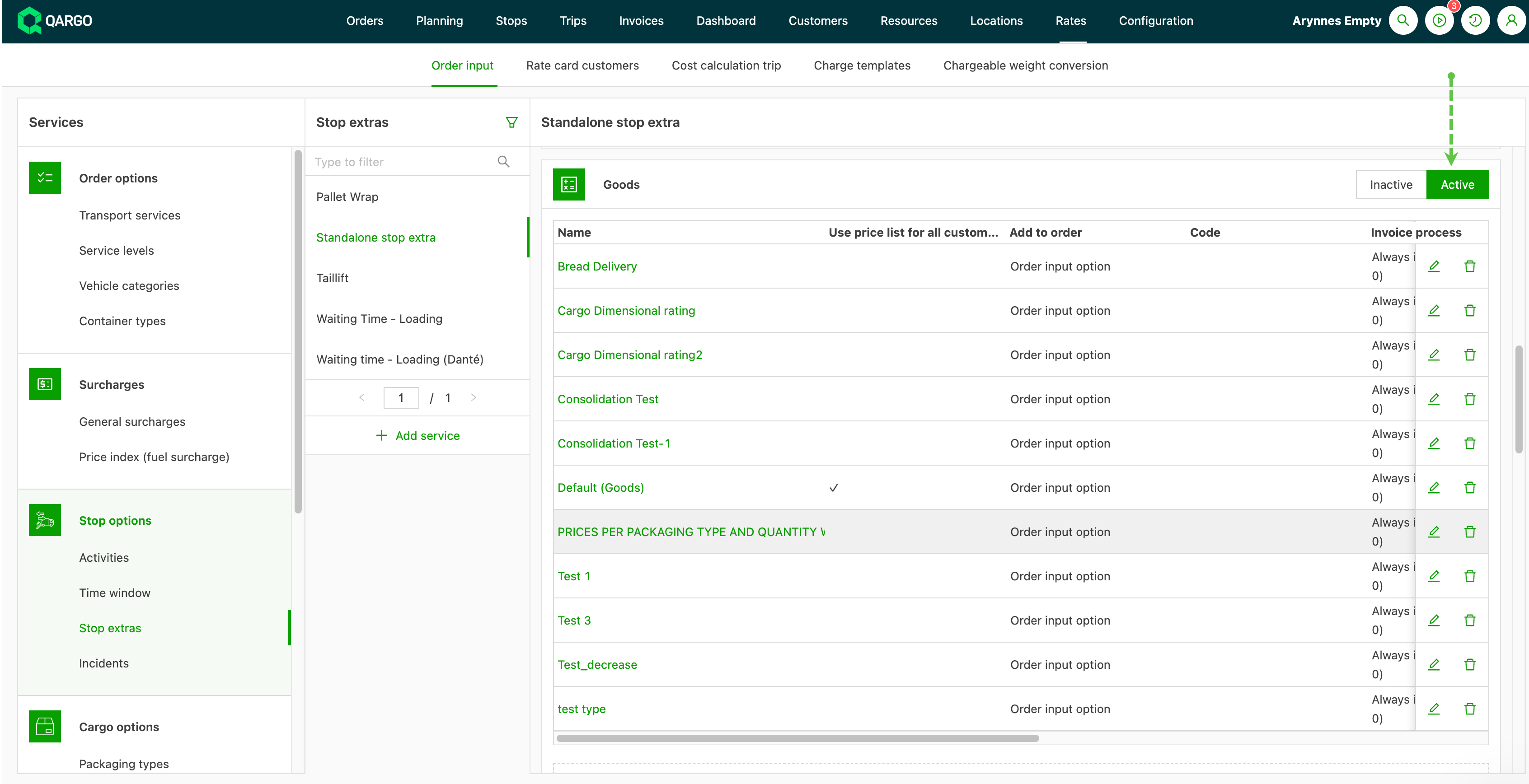
To configure stop extras, go to Rates > Order input.
-
In the left-hand menu, select the ‘Stop option’ panel. Select ‘Stop extras’.
- Stop extras was previously called ‘Pickup and delivery extras’.
-
Click ‘Add service’ to add a new extra.
- Click an existing service to update its availability.
-
Enter the general information for the new service.
-
Select the availability:
- Pickup: the extra can be added on pickup stops
- Delivery: the extra can be added on delivery stops
- Other stops: the extra can be added on all stops other than pickup and delivery
Step 2: Configure rate cards
- Select the transportation service that the stop extra will be available on and set it to active.
- Use ‘Link rate card’ to add the extra to existing rate cards.
-
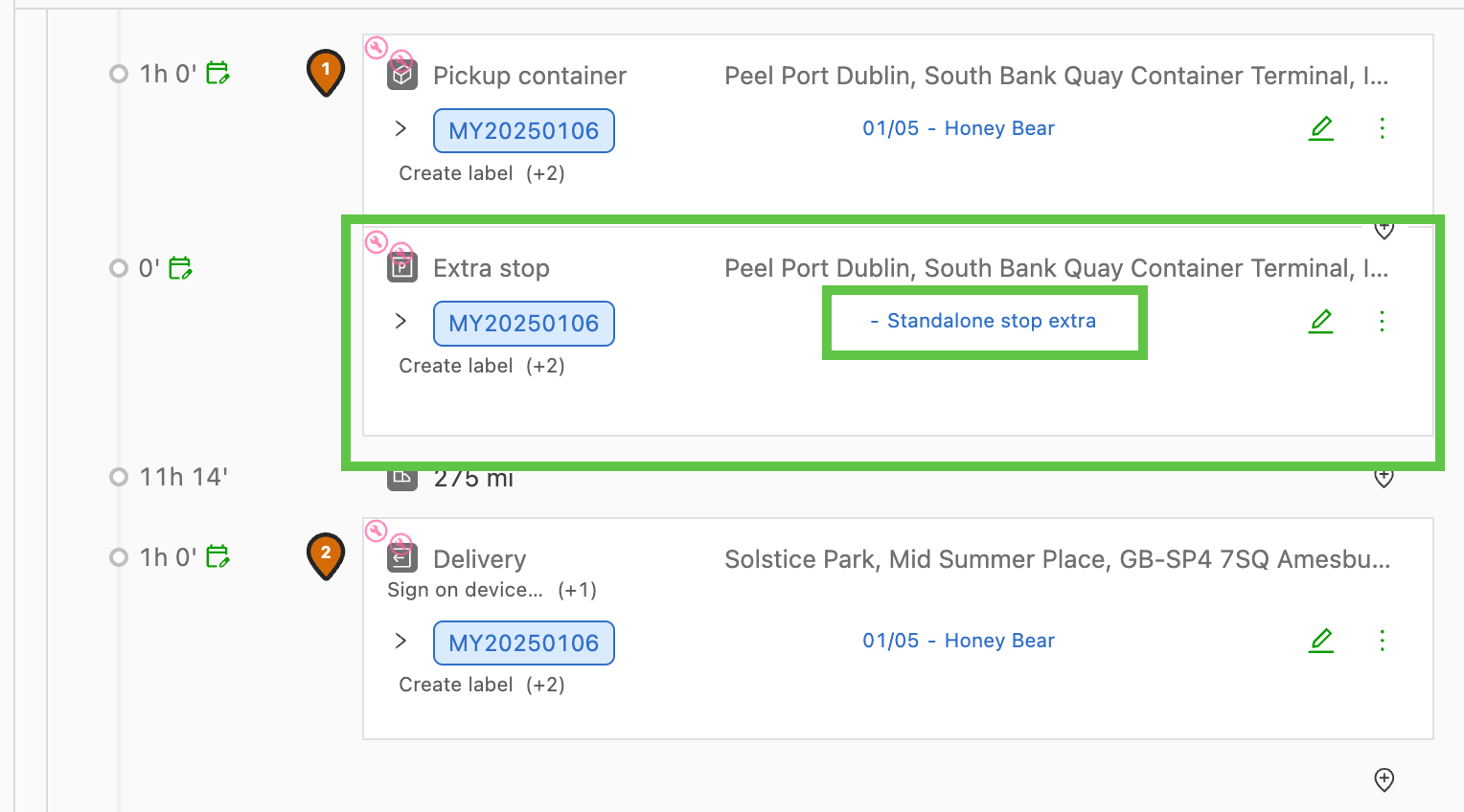
The charge becomes visible in the order when the additional stop is selected as part of the order.