
Update stop dates in bulk
📆 U_pdate stop dates in bulk:_
This feature complements the existing option (see here) to update all stops for a single order. It provides even more flexibility and efficiency.
The feature is available through the Quick actions on the Orders page:
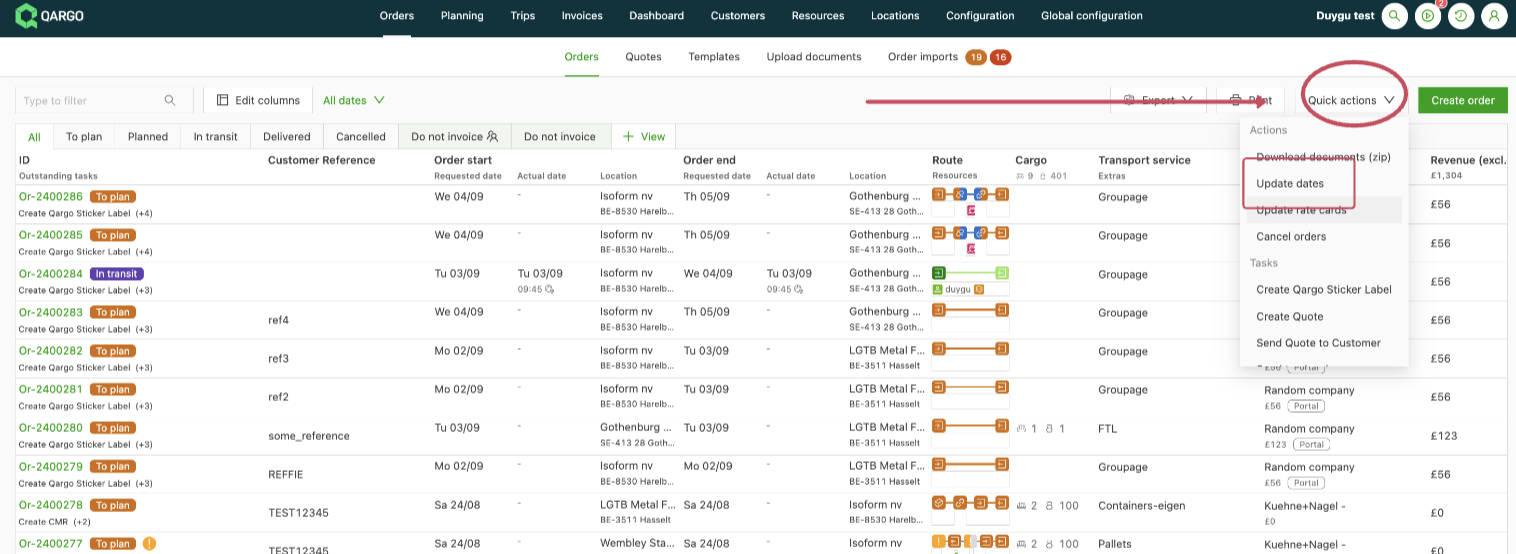
The Update dates quick action opens a modal similar to the print document flow.
In the modal, specify which activities need to be updated (for example, Pickup stops or Terminal: unload stops).
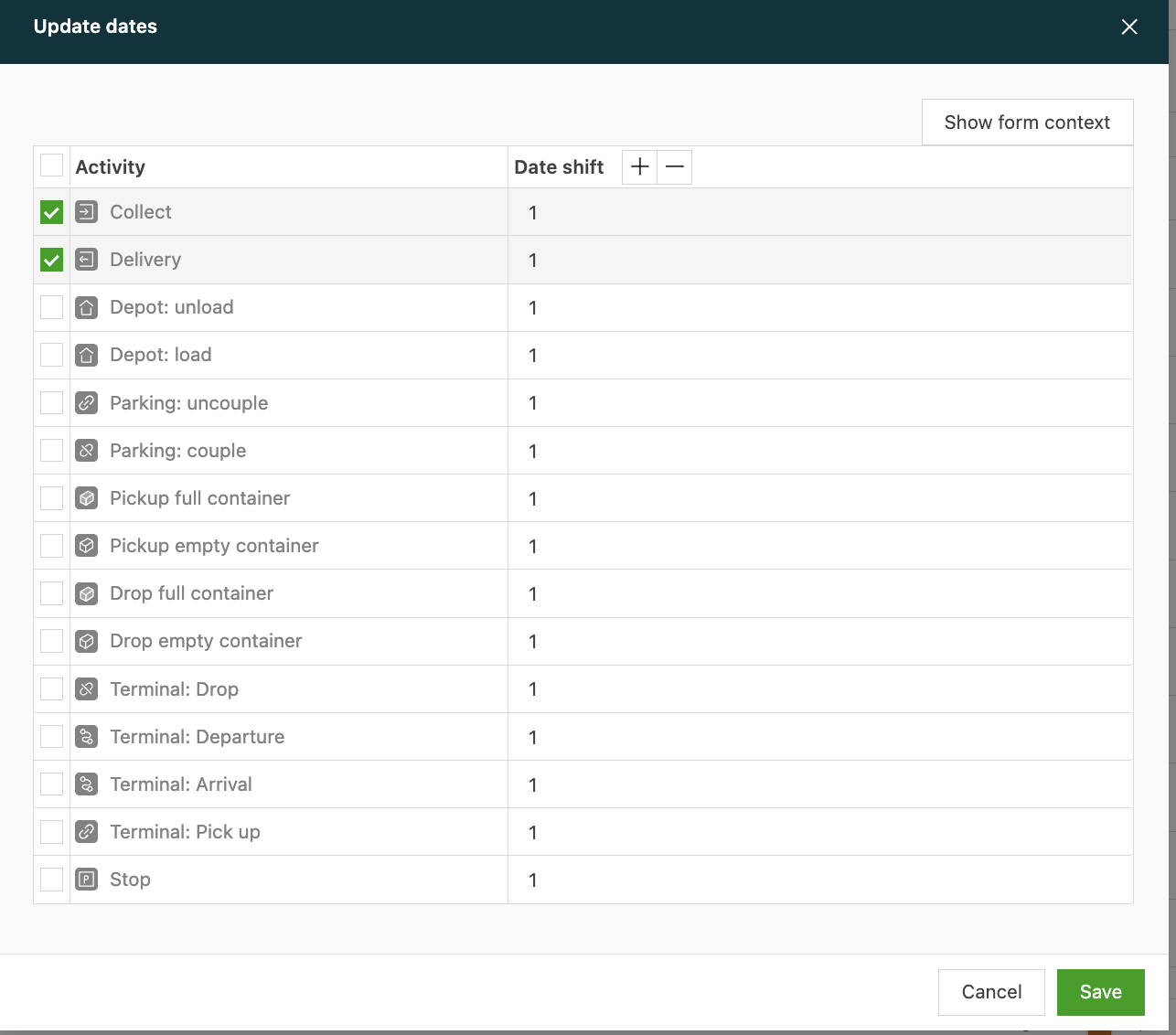
In this view, define how much each activity should be shifted.
For example, all Pickup stops can be shifted 2 days forward and all Terminal: unload stops 4 days backward.
After configuring the shifts, click the Save button in the bottom right to start selecting the orders to change.
Select the orders that need to be updated and click the Update dates button in the bottom right to start the process:
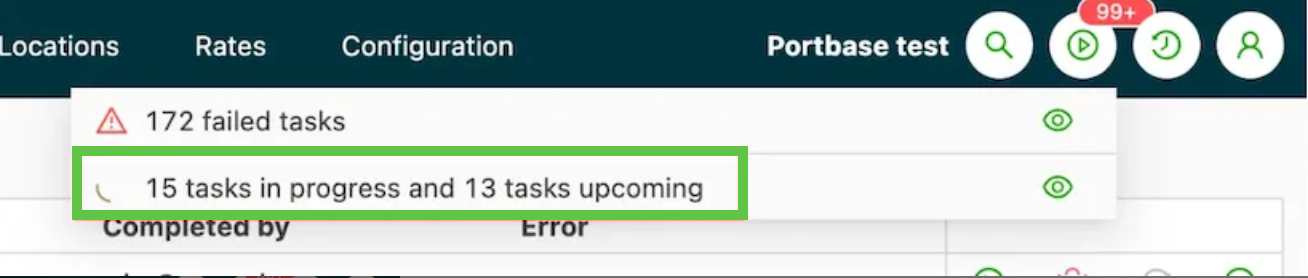
The updates are processed asynchronously. Progress is shown in the top right corner of the page.

Once all stops have been updated successfully, the order list refreshes automatically to show the changes.
When running tasks in bulk, select all records for processing.
- Not all tasks are processed at the same time.
- To tell them apart, tasks show the status In progress or Upcoming. Tasks marked Upcoming are waiting to be started.
- This happens automatically once the records have been selected. No further action is required.
The task indicator is displayed while the tasks are being updated:
Multiple records can be selected on the following pages:
- Orders
- Loads
- Invoices
- Carrier invoices
- Credit memos
- Carrier credit memos