Print documents in bulk
Documents can be printed in bulk.
- Navigate to Orders.
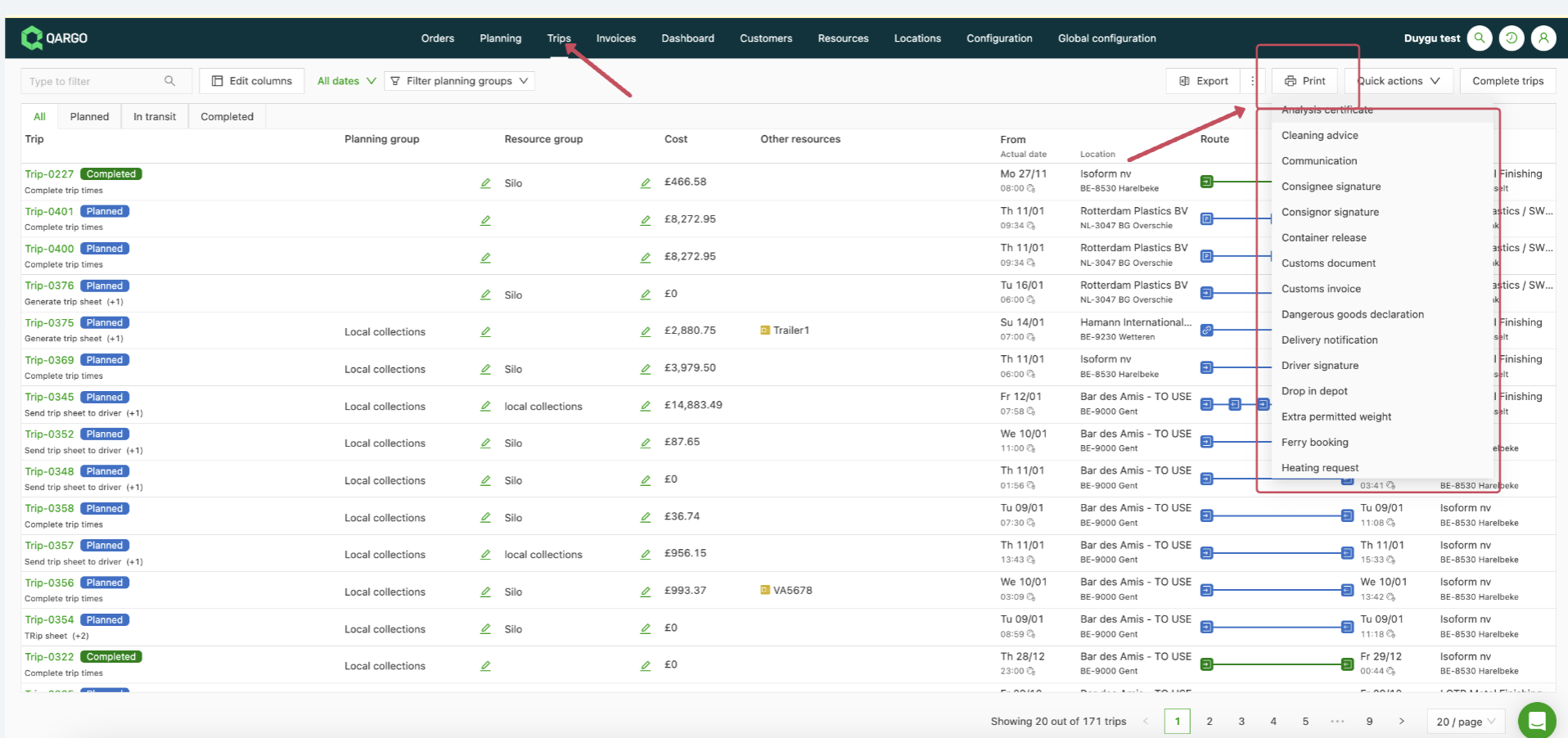
- Click Print.
- Select the order lines whose attached documents need to be printed.
- In the modal that pops up, select the document type to download.
- Save the file on the computer.
Once the documents to print have been selected, a PDF file is downloaded.
- The document print modal can also be accessed directly from the planning board:
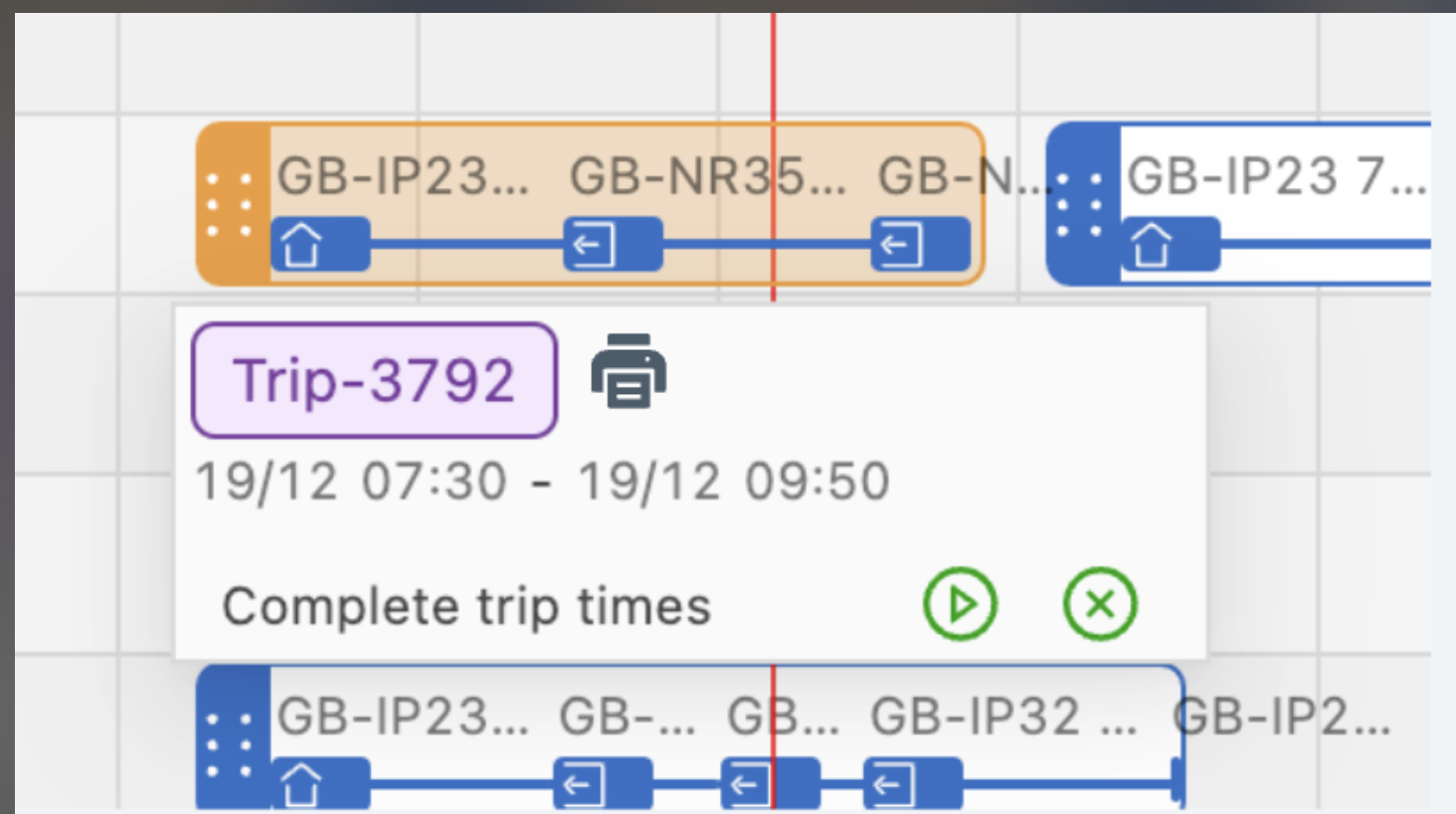
- The bulk download functionality makes it possible to specify a document type immediately and applies a filter to the table to show only relevant objects
- Documents can also be downloaded in bulk from the Loads tab
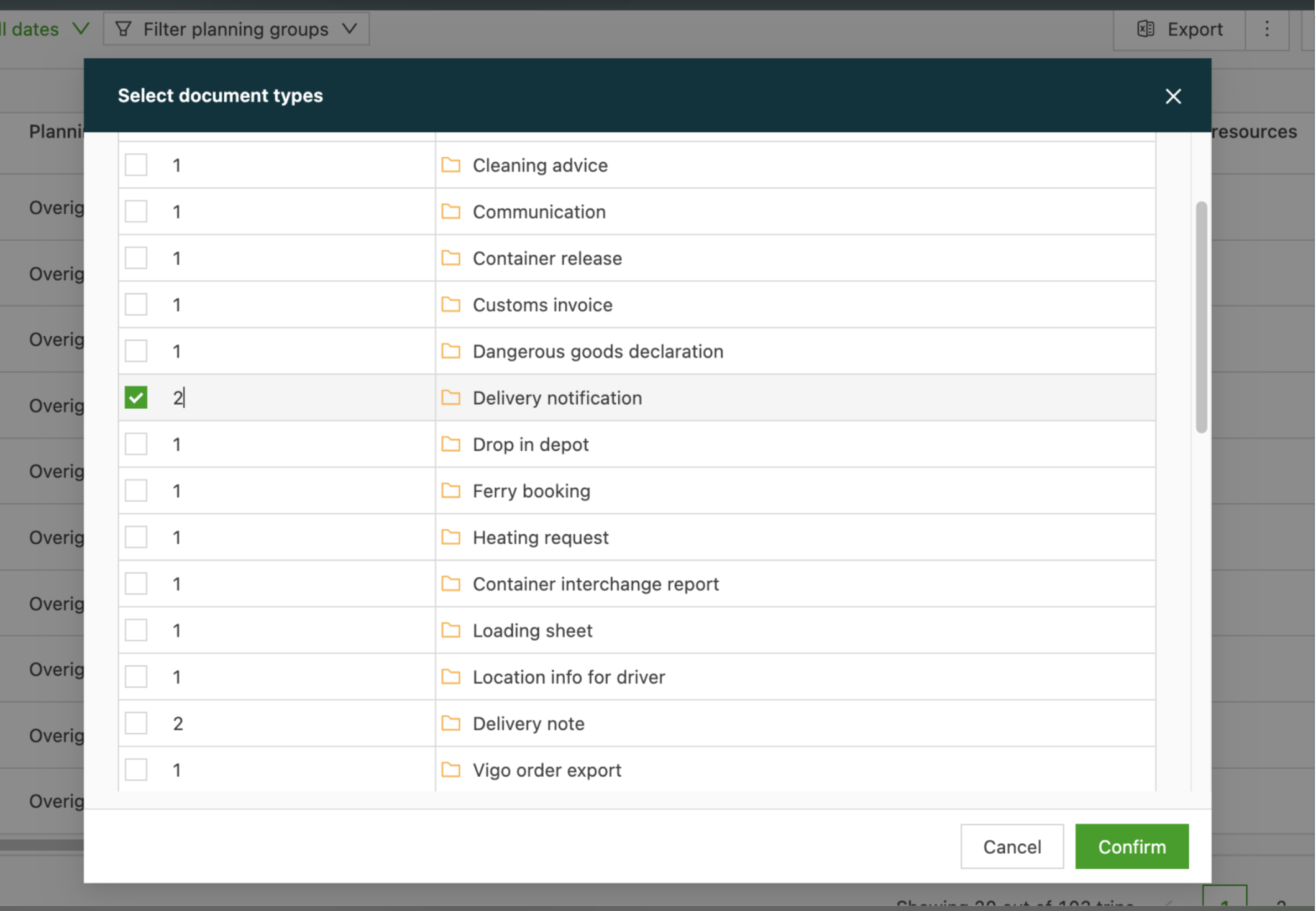
Another option is also available under the print button on the Loads table that makes it possible to print multiple document types.
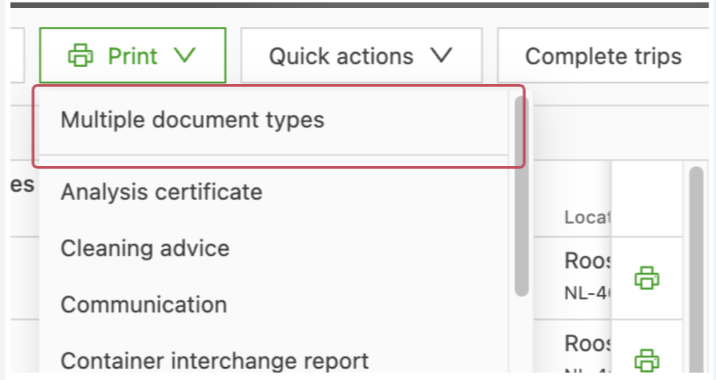
-
It makes it possible to select the document types and the number of copies.
-
After selecting the number of copies, select the desired loads; all documents are merged into one PDF.
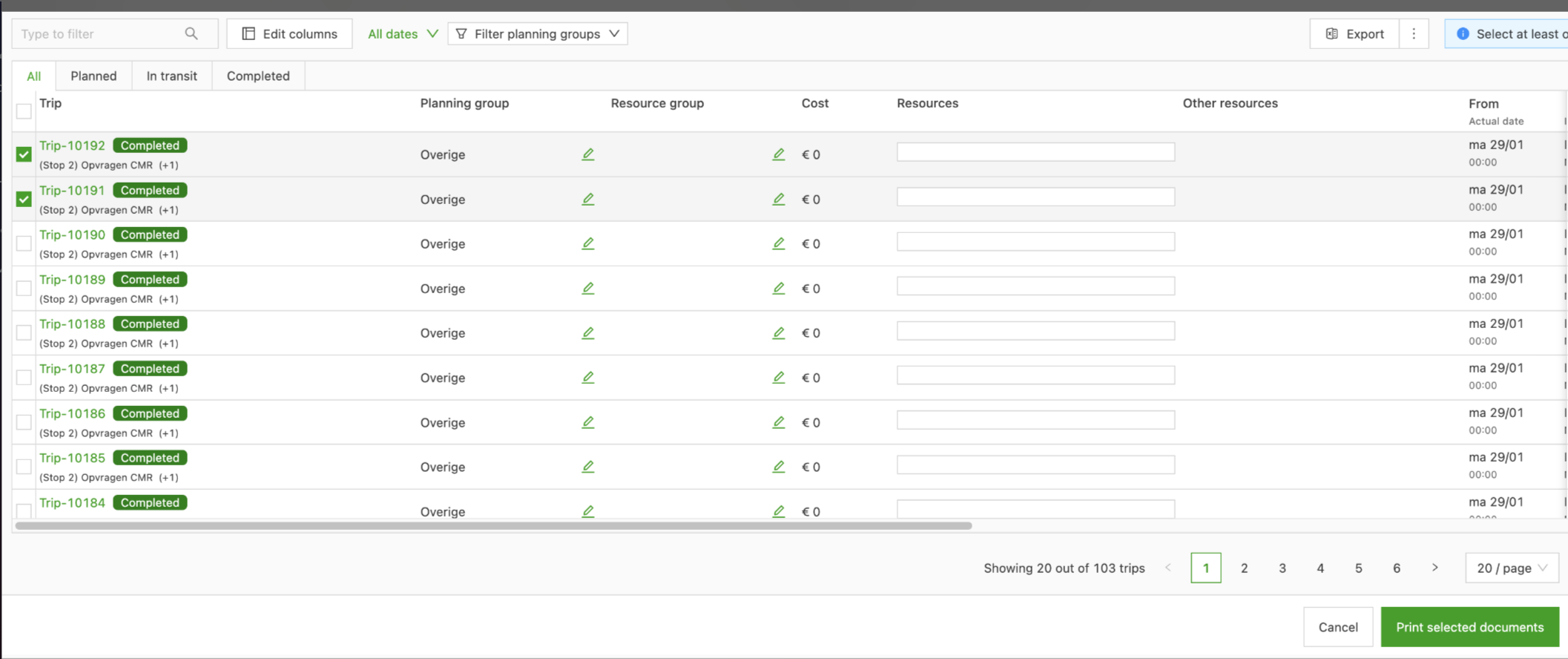
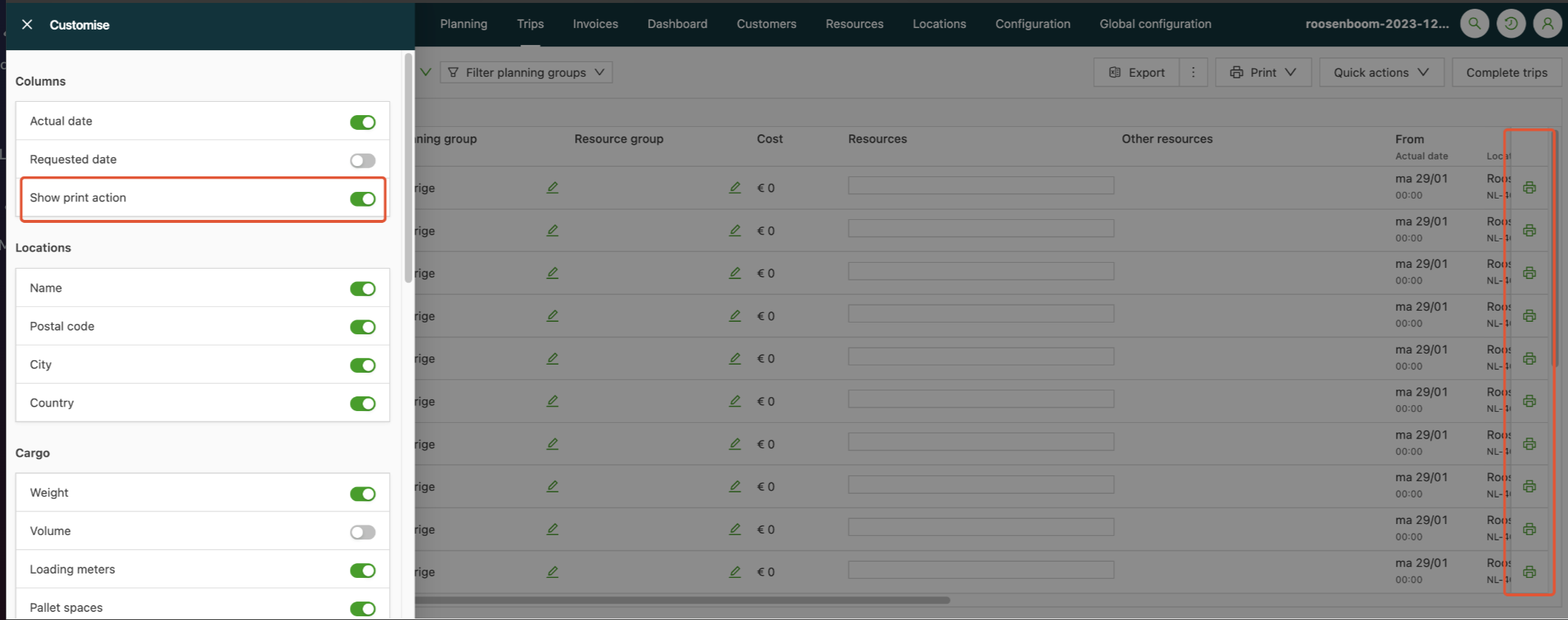
- Additionally, there is a print column on the loads table. It behaves the same way as the print action on the planning table.
Simply click the Edit columns option and turn on the toggle to show the print action.